I leave the host name and IP address out of my Windows Server 2025 image. For a VM Service deployment, I configure Cloudbase-Init inside Windows to read VMware GuestInfo through VMware Tools. My VCF Automation 9.1 All Apps blueprint supplies the values when someone requests a VM.
Configure Cloudbase-Init inside Windows
On the existing Windows image, install VMware Tools with rpctool.exe. I used Tools 13.1.0 and the Cloudbase-Init x64 MSI. These installer settings select the Administrator account, disable metadata password injection and run the service as LocalSystem:
msiexec.exe /i .\CloudbaseInitSetup_1_1_8_x64.msi /qn /norestart `
  USERNAME=Administrator USERGROUPS=Administrators INJECTMETADATAPASSWORD=FALSE RUN_SERVICE_AS_LOCAL_SYSTEM=1
Set the cloudbase-init service to Automatic. Both configuration files below are in C:\Program Files\Cloudbase Solutions\Cloudbase-Init\conf\.
cloudbase-init.conf (Windows service). Set the metadata service to VMware GuestInfo. For this request I need the plugins that set the host name, configure the NIC and process cloud-config user data:
[DEFAULT]
username=Administrator
groups=Administrators
inject_user_password=false
first_logon_behaviour=no
metadata_services=cloudbaseinit.metadata.services.vmwareguestinfoservice.VMwareGuestInfoService
plugins=cloudbaseinit.plugins.common.sethostname.SetHostNamePlugin,cloudbaseinit.plugins.common.networkconfig.NetworkConfigPlugin,cloudbaseinit.plugins.common.userdata.UserDataPlugin
allow_reboot=true
stop_service_on_exit=false

[vmwareguestinfo]
vmware_rpctool_path=%ProgramFiles%\VMware\VMware Tools\rpctool.exe
cloudbase-init-unattend.conf (Windows specialize pass). Use the same GuestInfo source and Tools path, but run only the host name plugin. The Windows service handles networking on first boot.
[DEFAULT]
metadata_services=cloudbaseinit.metadata.services.vmwareguestinfoservice.VMwareGuestInfoService
plugins=cloudbaseinit.plugins.common.sethostname.SetHostNamePlugin
allow_reboot=false

[vmwareguestinfo]
vmware_rpctool_path=%ProgramFiles%\VMware\VMware Tools\rpctool.exe
Unattend.xml. In the Sysprep answer file used by your image, check the Microsoft-Windows-Deployment component of the specialize pass. Its RunSynchronous list needs this command once. If you already have other commands, use the next free order number.
<RunSynchronousCommand xmlns:wcm="http://schemas.microsoft.com/WMIConfig/2002/State" wcm:action="add">
<Order>1</Order>
<Path>cmd.exe /c ""C:\Program Files\Cloudbase Solutions\Cloudbase-Init\Python\Scripts\cloudbase-init.exe" --config-file "C:\Program Files\Cloudbase Solutions\Cloudbase-Init\conf\cloudbase-init-unattend.conf" && exit 1 || exit 2"</Path>
<WillReboot>OnRequest</WillReboot>
</RunSynchronousCommand>
Pass the requested address through GuestInfo
In the blueprint’s CCI.Supervisor.Resource for the VM, these fields live under properties.manifest.spec. I set imageName to my generalized Windows image and used network to map the catalog inputs below. VM Operator writes the host name and NIC settings to guestinfo.metadata, where Cloudbase-Init matches the NIC by MAC address.
network:
  hostName: ${input.vmName}
  interfaces:
    - name: eth0
      network:
        apiVersion: crd.nsx.vmware.com/v1alpha1
        kind: Subnet
        name: ${input.subnetName}
      macAddr: ${input.macAddress}
      addresses:
        - ${input.ipAddress}/${input.prefixLength}
      gateway4: ${input.gateway}
      nameservers: ${input.dnsServers}
To send cloud-config to Windows, I selected cloudInit under spec.bootstrap. This excerpt tells VM Operator where to read the Administrator password: the encrypted catalog input supplies the password key of a per-VM Secret. The resulting cloud-config travels in guestinfo.userdata, which UserDataPlugin processes separately from the network metadata.
bootstrap:
  cloudInit:
    cloudConfig:
      users:
        - name: Administrator
          passwd:
            name: ${input.vmName}-admin
            key: password
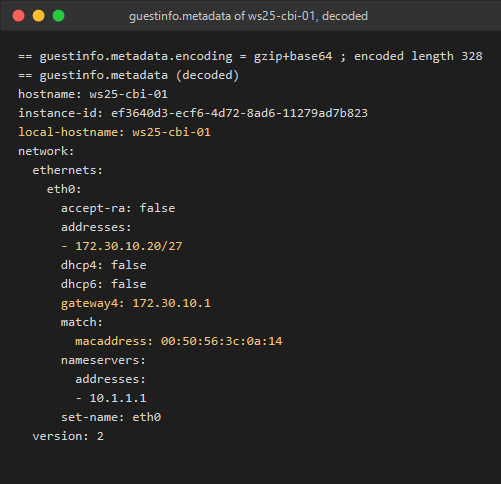
For ws25-cbi-01 I requested 172.30.10.20/27 with MAC 00:50:56:3c:0a:14. Here is the decoded network metadata for that request:
I set wait.fields on the VCF Automation resource to wait for status.network.primaryIP4 to match the requested IP. VMware Tools also reported 172.30.10.20/27 on the Windows NIC with DHCP off. I verified the network settings; I did not test an Administrator login.