In this guide i will go over the steps of getting an existing 8.x vRSLCM appliance to support the latest product releases available. Here is a great blog that goes in to the details about what the Product Support Pack is https://blogs.vmware.com/management/2019/01/vrslcm-pspak.html. Typically the newer Product Support Pack is included part of the upgrade for LCM, however sometimes there are product releases in between releases where product support packs come in handy.
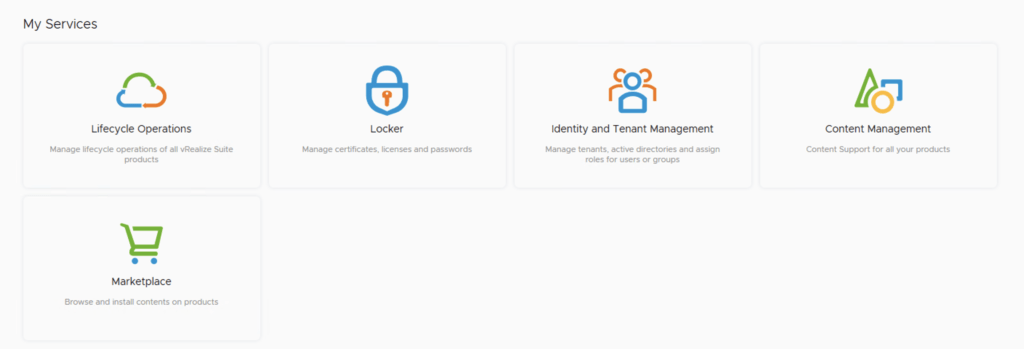
The first step is to log in to vRealize Suite Lifecycle Manager under the Lifecycle Operations section

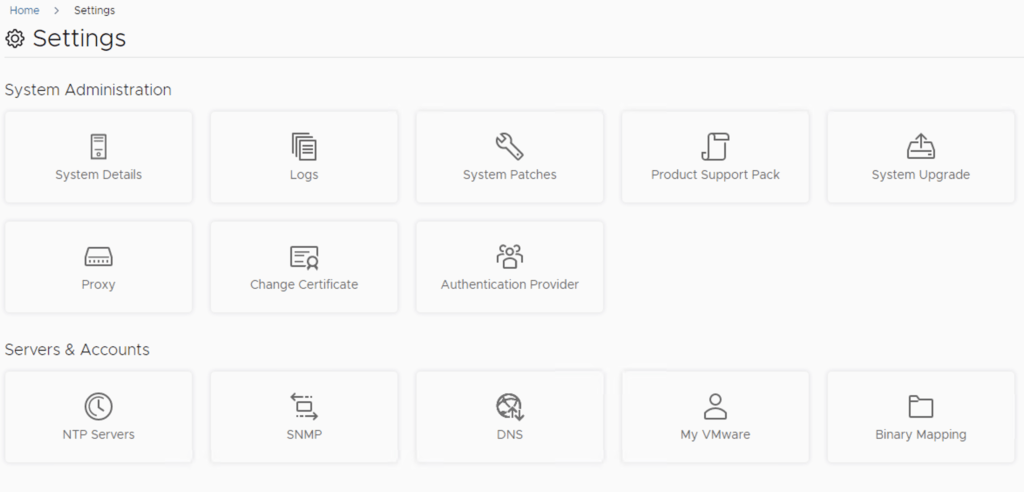
Go to settings -> Product Support Pack
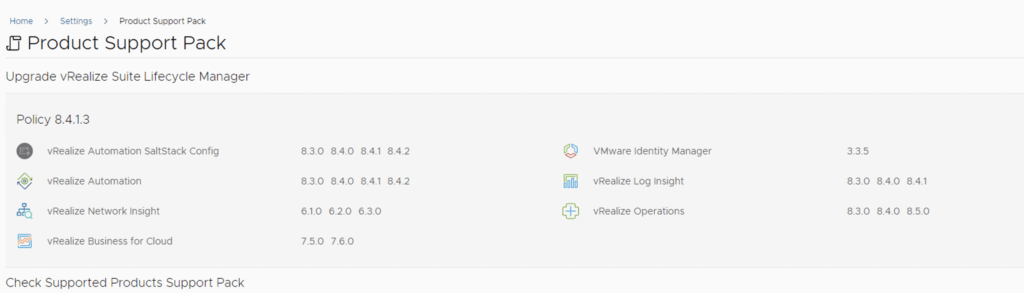
We can see that i recently upgraded to 8.4.1.2 however a new update is available 8.4.1.3. Based on what we can see in the details the new support pack adds support for network insight 6.3.0.
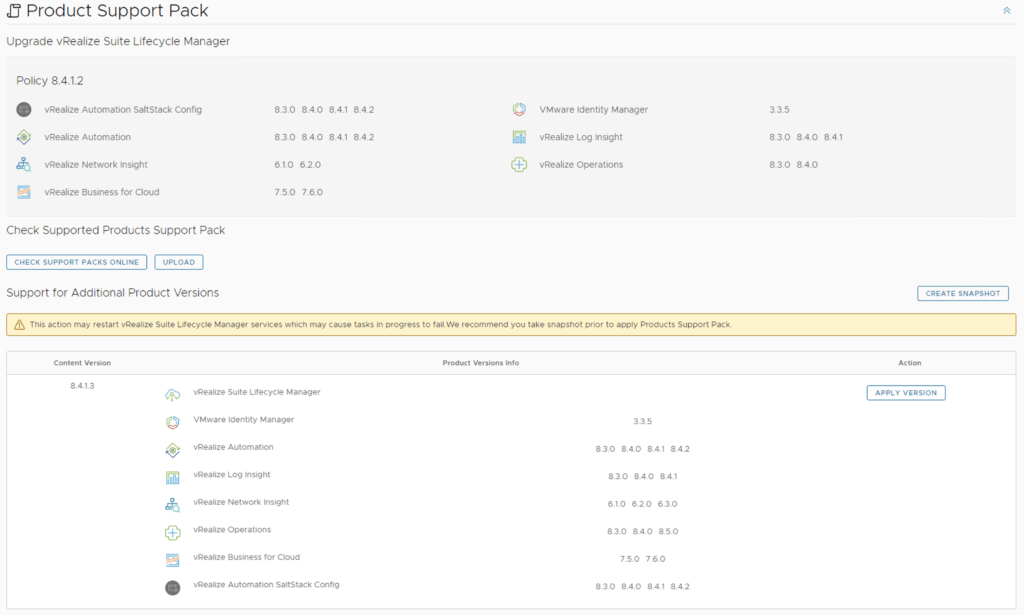
Click on Apply Version

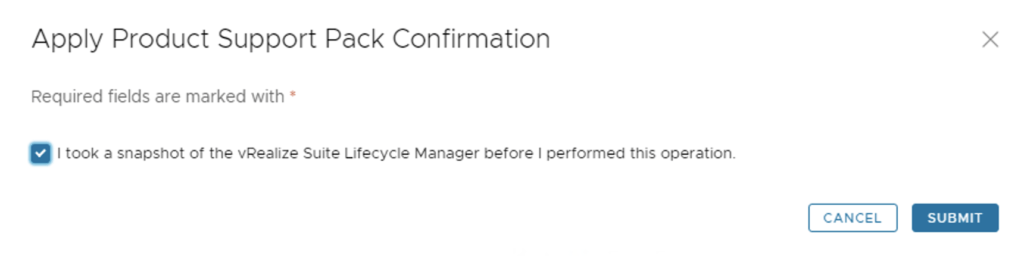
Verify that a snapshot or a backup exists and click Submit
We can view the progress by clicking on the Click Here link after submitting the request

Once the process is complete the system will most likely reboot. To check the status we can go back to settings -> Product Support Pack. As we can see we are now at the updated patch level
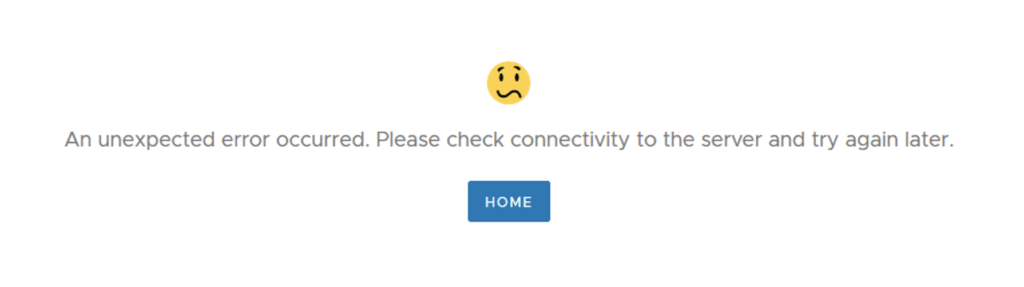
If you get the below error clear the browser cache and try again