During VMworld 2021 we announced vRealize Operations 8.6 which provides a lot of new features and capabilities. You can see an Whats New overview here as well as a feature walk through here.
With the new UI release some of the content might not be where were used to find it in the previous versions. In this post we will navigate through some of the changes and point to “Where is it now”. I also covered the UI overview on my blog here
Top Menu Consolidation
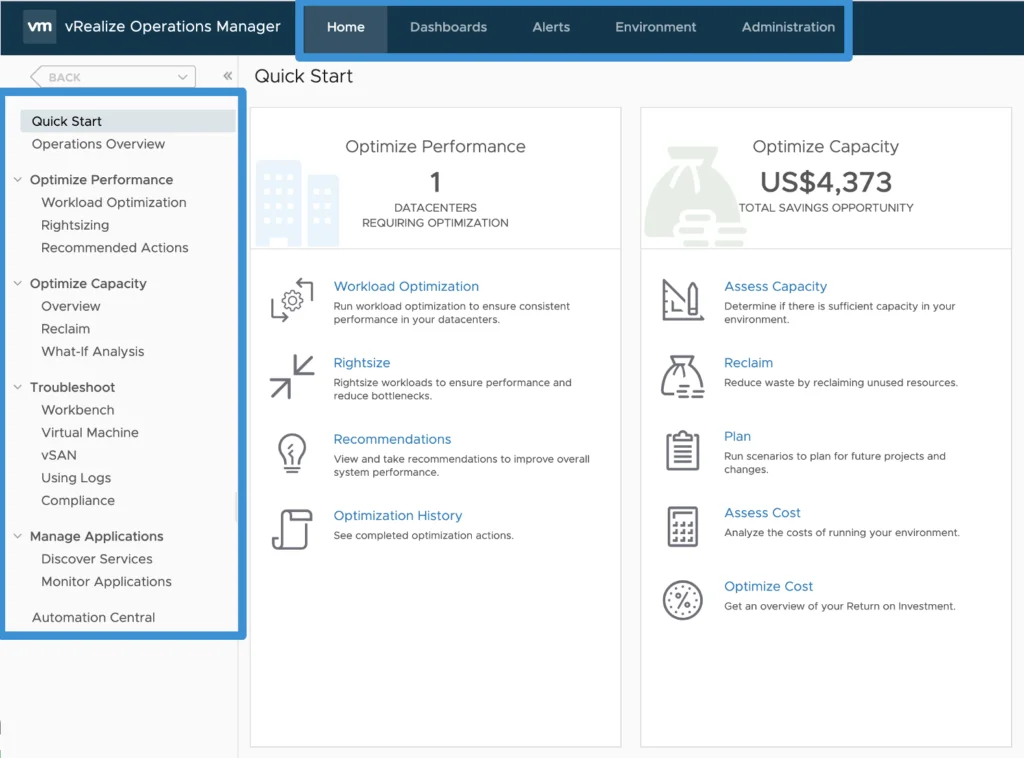
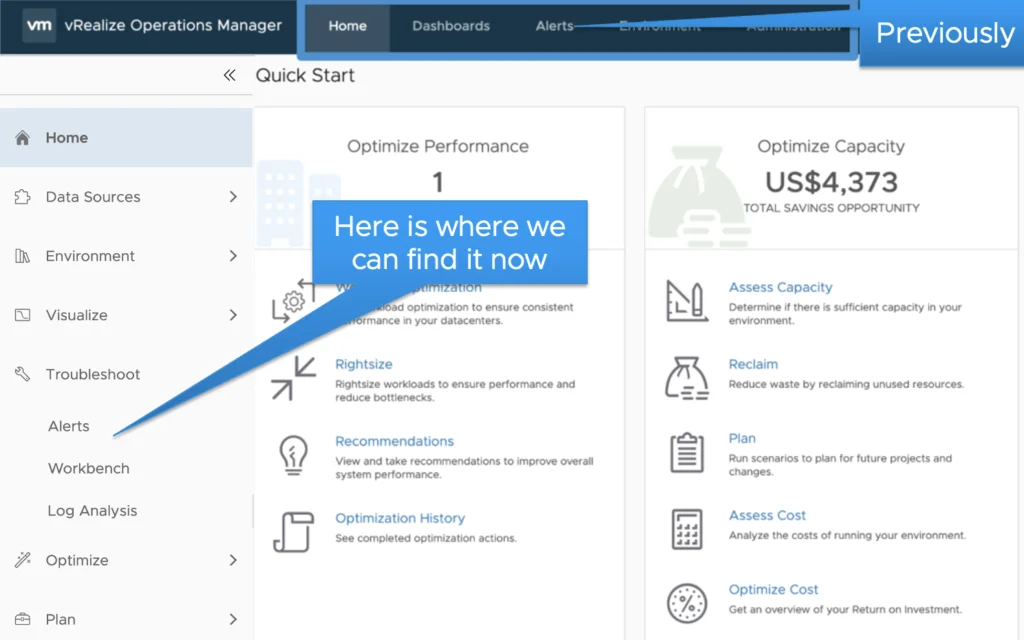
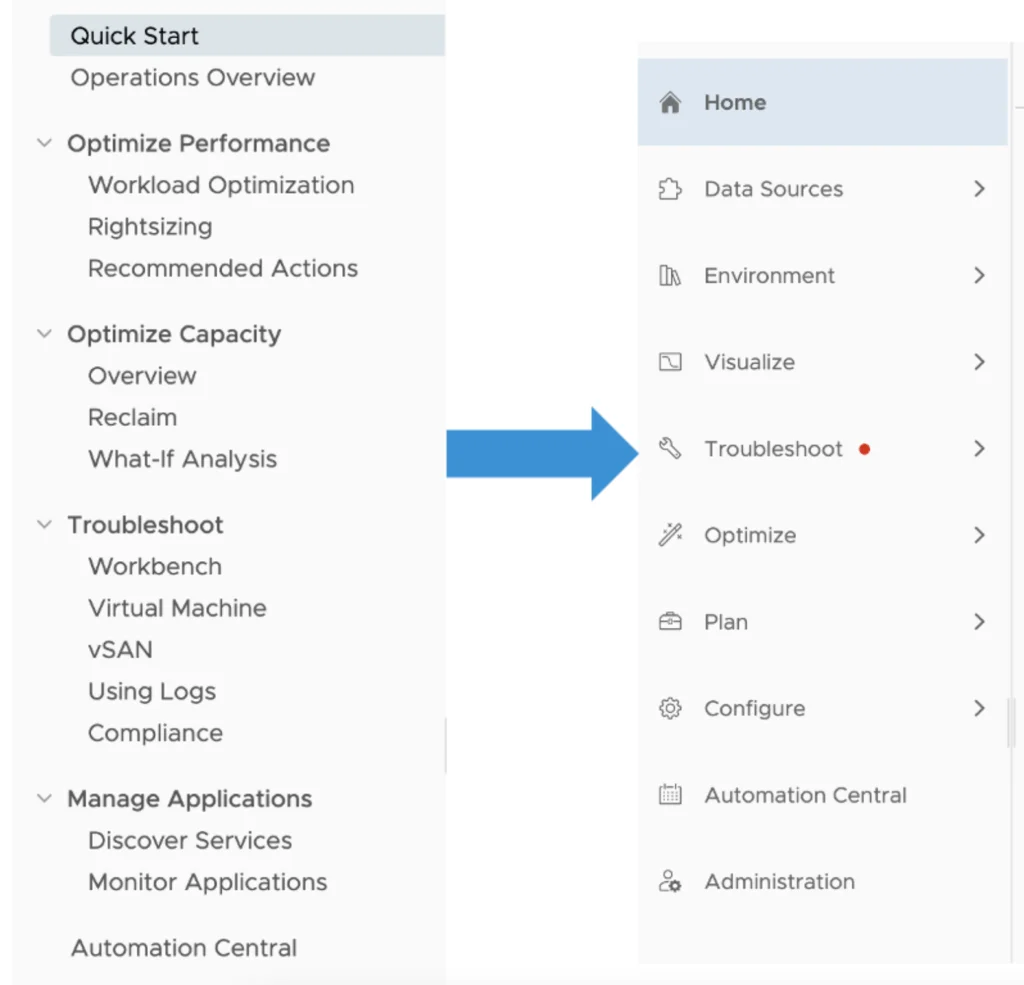
Lets jump in to it. As shown in the screenshot below in the old UI we used to have navigation items up top as well as on the side. Many of the menu options across the top were duplicated in the left-hand navigation menu and were consolidated in this release.

As we can see in the new UI we still have the 4 pillars that were used too however the top menu bar was removed in order to be more consistent with the rest of the products in our SaaS platform. The sidebar is also collapsible allowing us to use the space for other purposes.
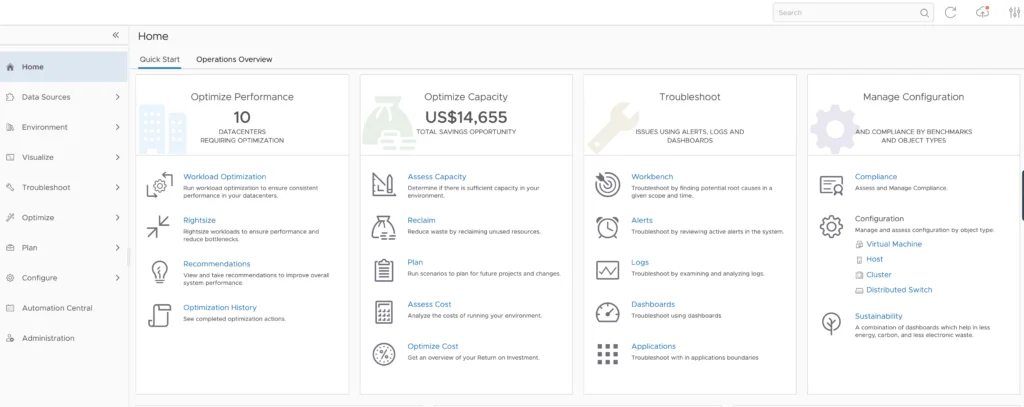
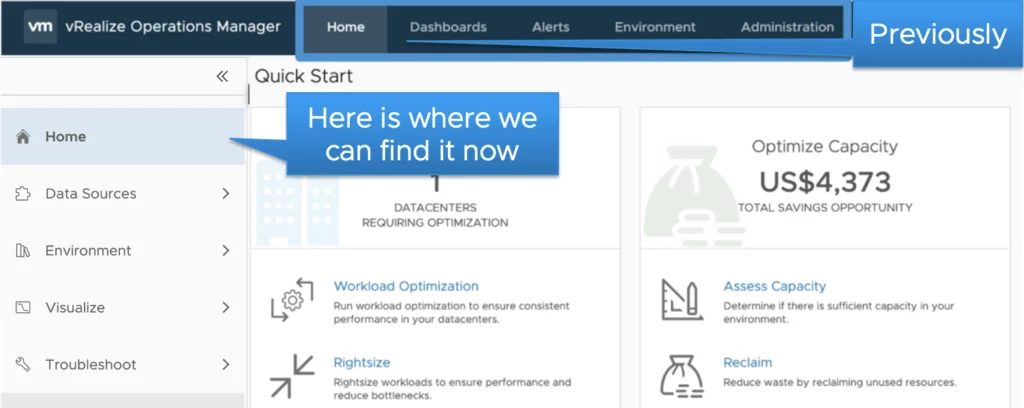
The Home button can be easily be found as the first item in the menu
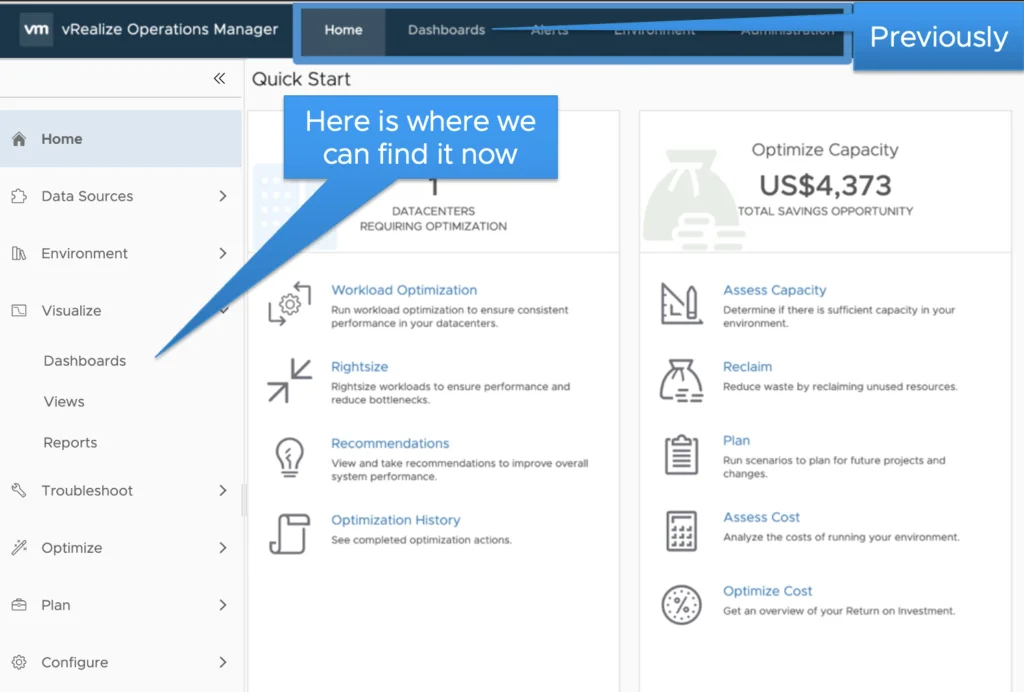
Dashboards, Alerts, and Environment
The Dashboards are now conveniently located under the Visualize menu. This allows us now to go directly to dashboards, views as well as reports.
The Alerts tab has been relocated under Troubleshooting. We can now easily navigate between different troubleshooting options like Alerts, the troubleshooting Workbench and log analysis all under the same menu.
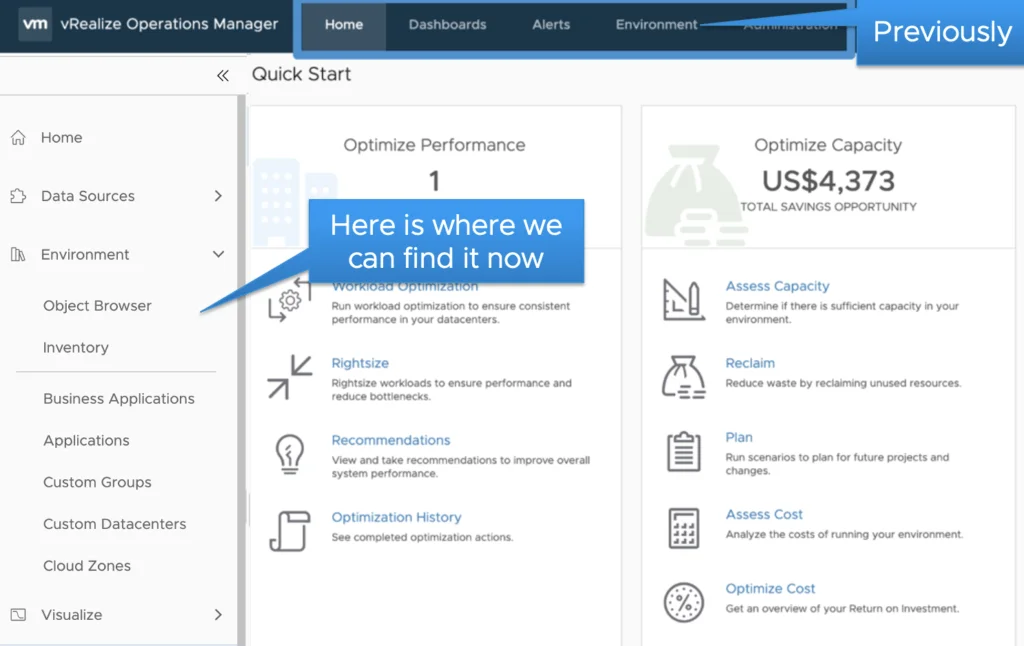
The environment tab can be easily be spotted on the side menu. Once we click on it we will notice a number of additional items like the new Object Browser which allows us to navigate through the environment more easily as well as the older Inventory browser. Some of the other options that are included are the new Business Applications, the previously Applications, Custom Groups, Custom Datacenters as well as Cloud Zones
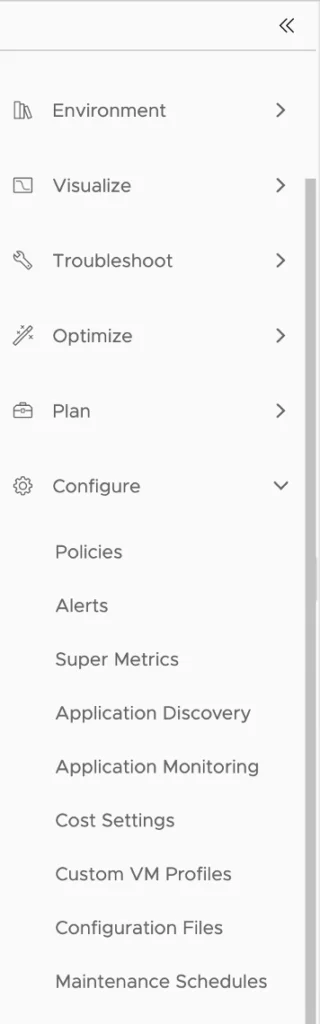
The Two Administration Menus
Lastly the Administration menu. The administration menu has been broken into 2 different menus. The first one is under Configure where we can make configuration changes for our monitoring options things like defining Policies, Alerts configuration, Super Metrics, Application Discovery, Application Monitoring, Cost Settings, Custom VM Profiles, Configuration Files as well as Maintenance Schedules
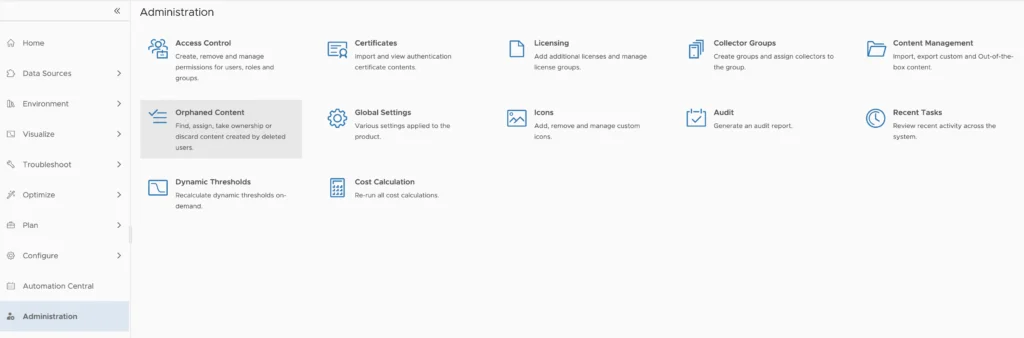
The second administration menu goes specifically in to overall product administration like Access Control, Certificates, Licensing, Collector Groups, Content Management, Orphaned Content, Global Settings, Icons, Audit, Recent Tasks, Dynamic Thresholds and Cost Calculation
Side Menu Items in the New UI
Now that we have the top menu out of the way lets take a look at where the side Menu items are in the new UI.
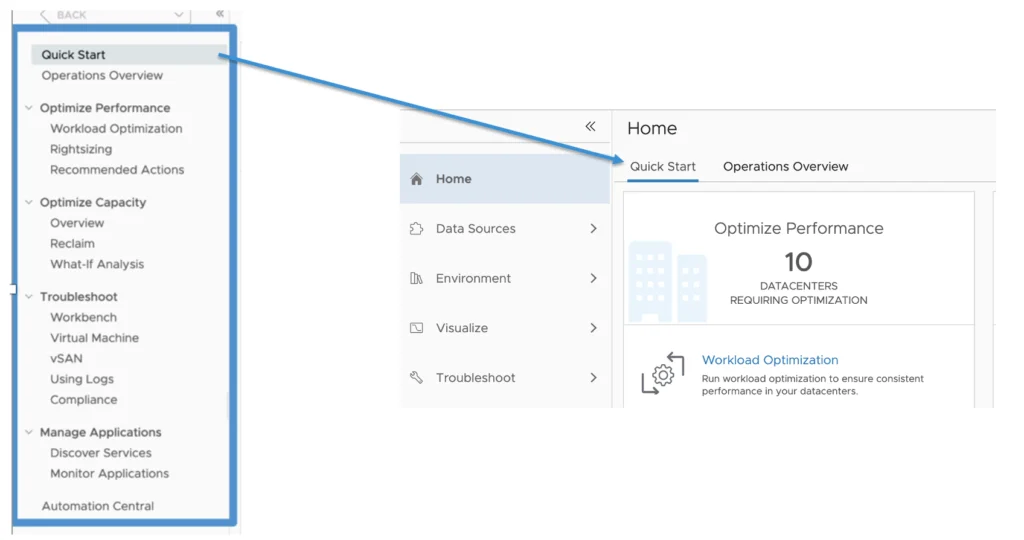
The quick Start menu item is now our default Home page
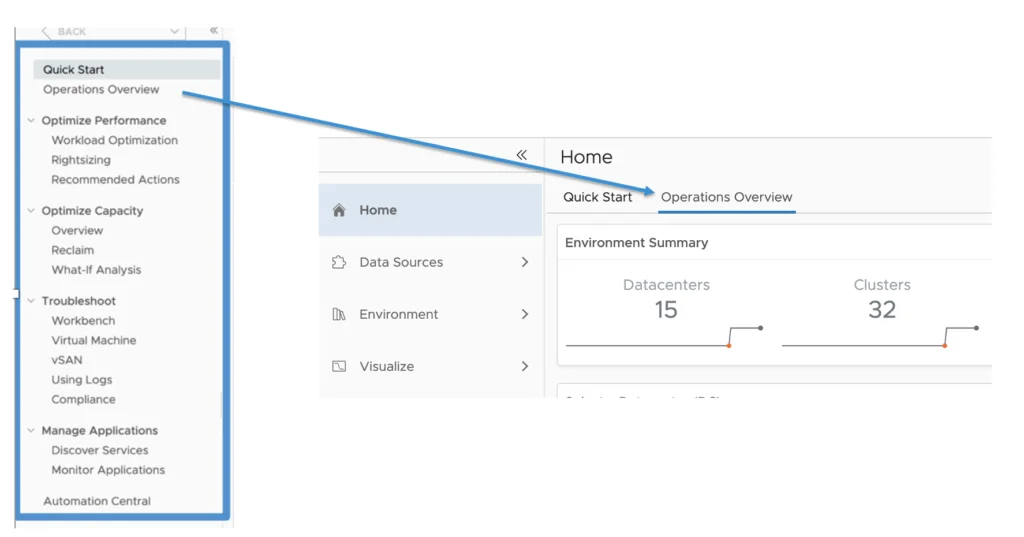
The operations overview is now conveniently placed as another tab on the home screen
Optimize and Plan Menu Items
Workload optimization is now conveniently placed with other optimization items under the optimize menu and it has been renamed to Workload Placement
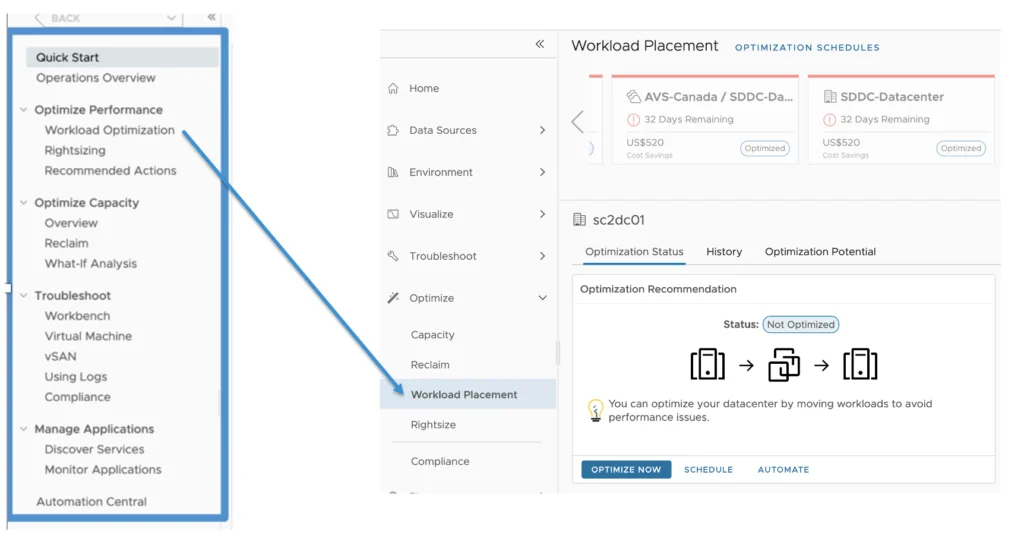
From a rightsizing perspective we can see that rightsizing is right under Workload Placement in the Optimize sub menu and it has been renamed to Rightsize
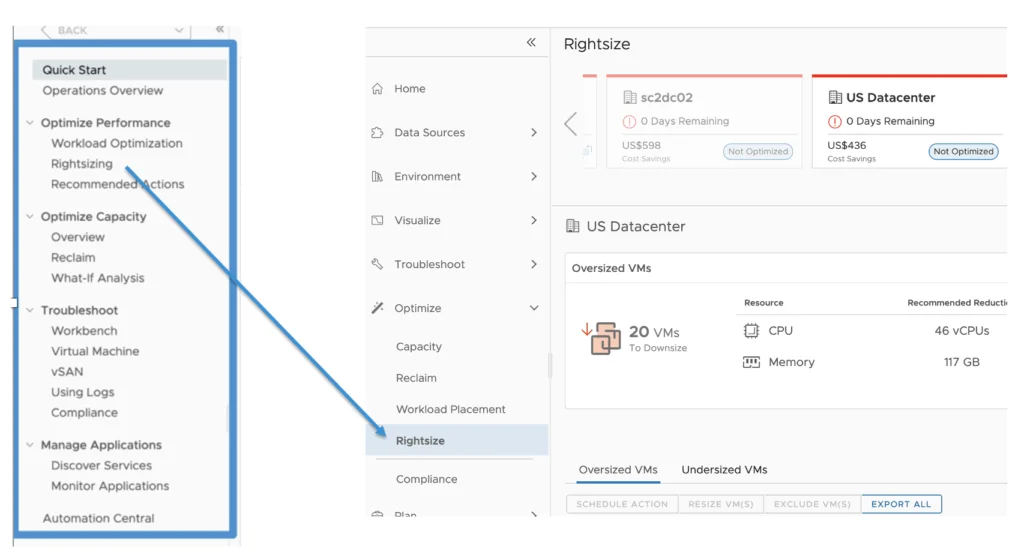
The Recommended Actions menu item has been deprecated however I did create the menu item as a dashboard and it can be downloaded from the Sample Exchange on code.vmware.com or by clicking here
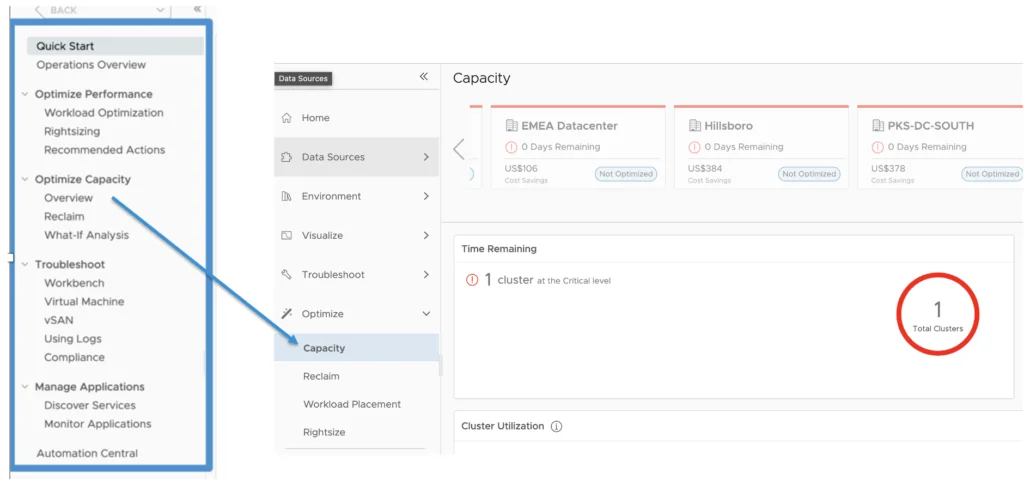
The Optimize Capacity Overview page can be found under Capacity in the Optimize Menu
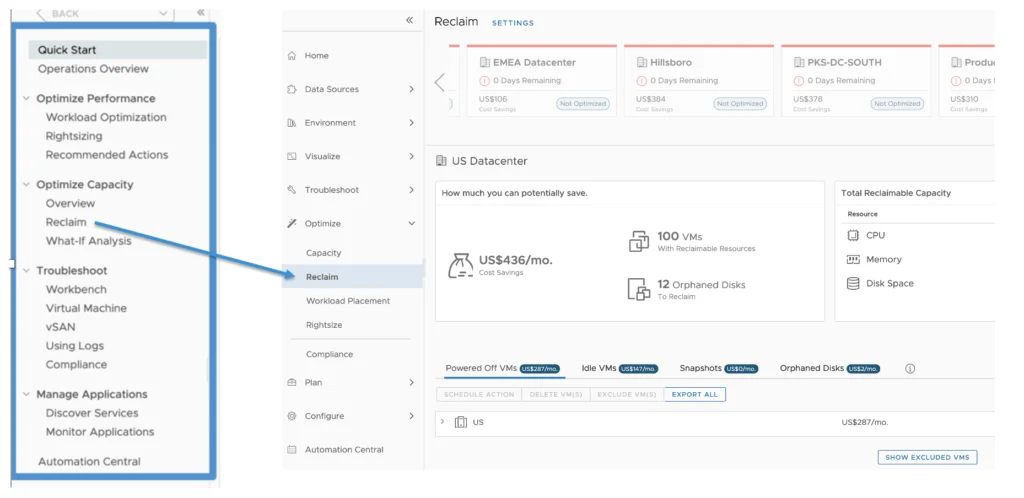
The Reclaim menu can be found under the Optimize Menu
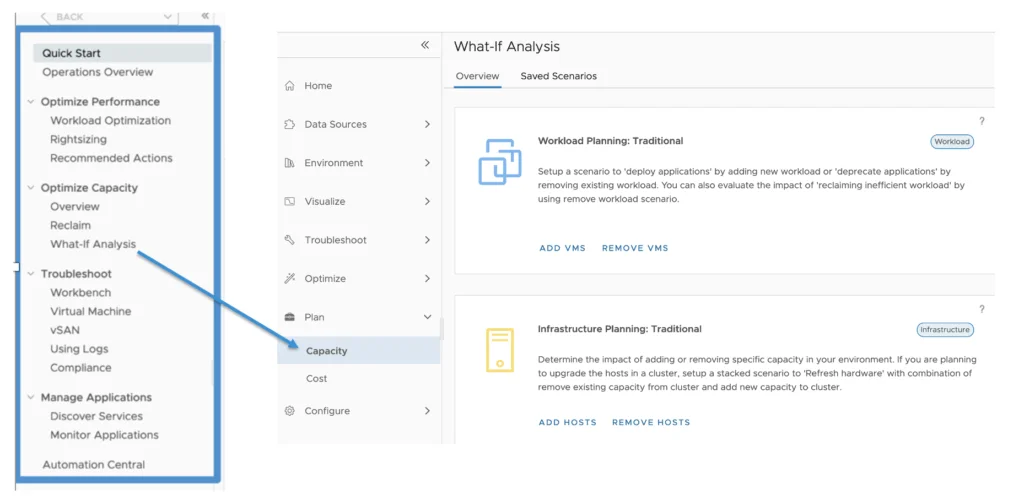
What-If Analysis has been renamed as Capacity and it can be found under the Plan Menu
Troubleshooting Tools and Contention Dashboards
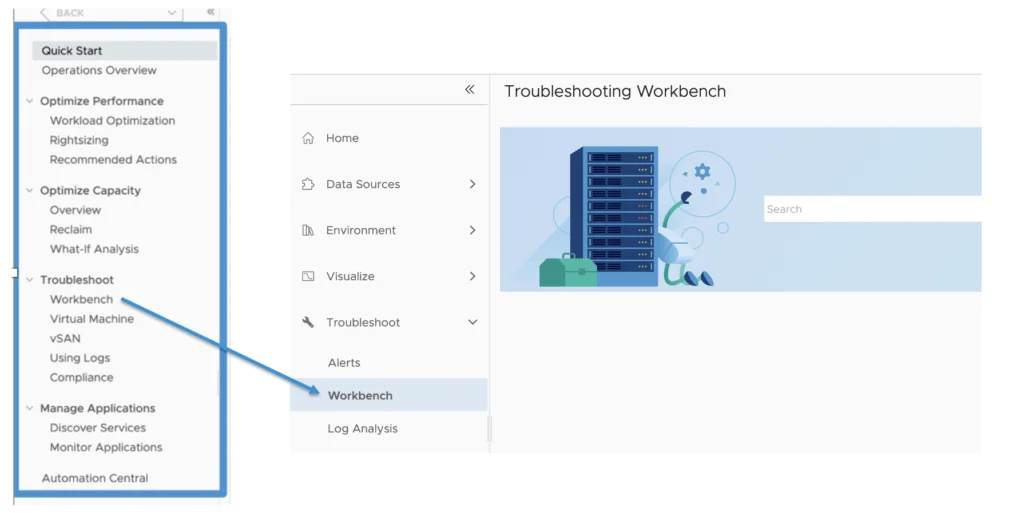
We can find the Troubleshooting Workbench under the Troubleshoot menu
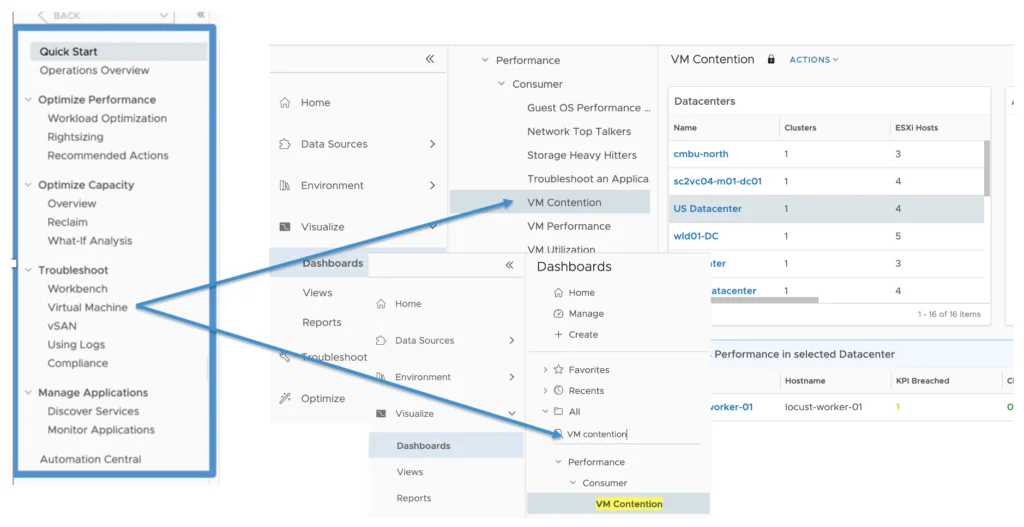
The Virtual Machine menu was pointing to the VM Contention Dashboard which can now be found under Visualize -> All -> Performance -> Consumer -> VM Contention. The Dashboard can also be found by performing a search in the dashboard menu
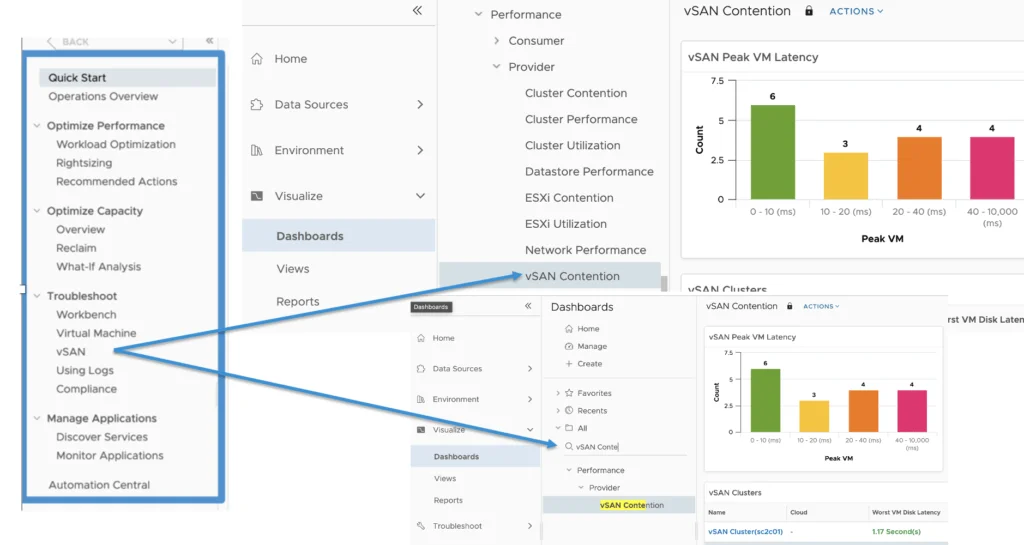
The vSAN menu was pointing to the vSAN Contention Dashboard which can now be found under Visualize -> All -> Performance -> Provider -> vSAN Contention. The Dashboard can also be found by performing a search in the dashboard menu
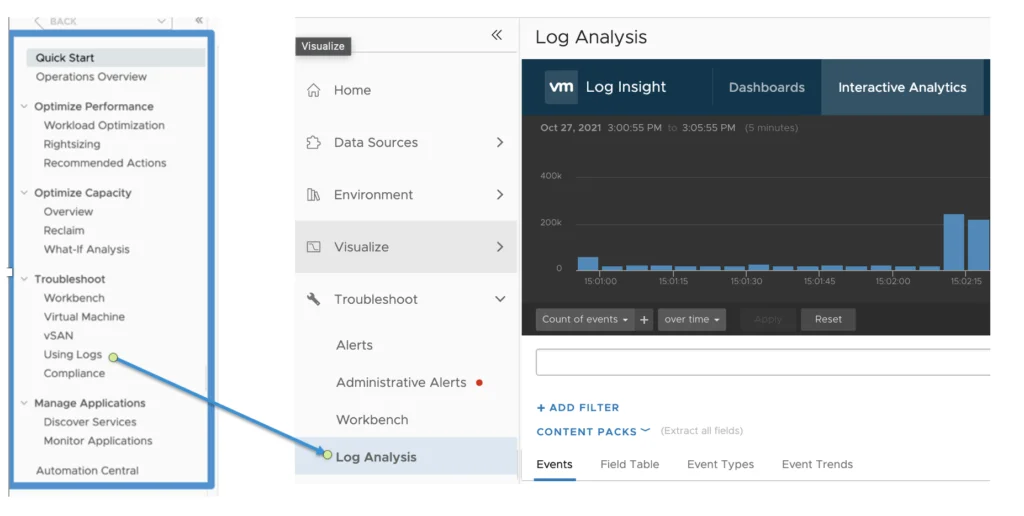
Using Logs can now be found under Troubleshoot -> Log Analysis
Compliance, Applications, and Automation Central
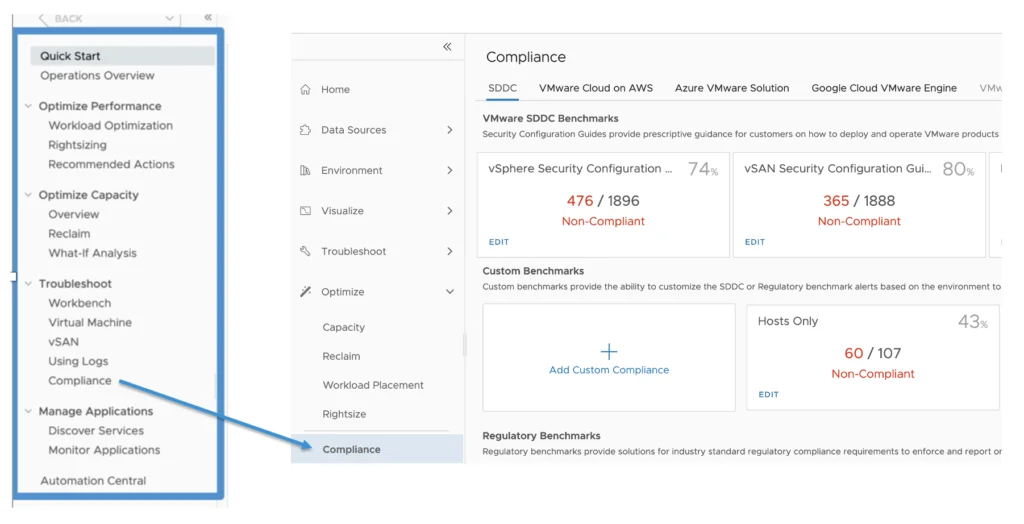
The compliance menu has been moved under Optimize -> Compliance
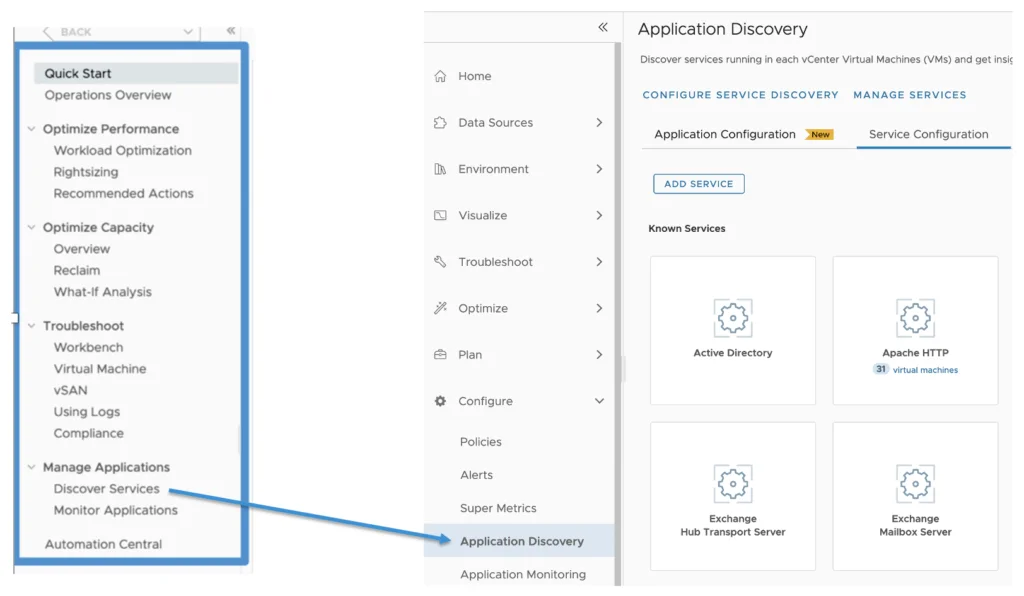
Discover Services has been renamed to Application Discovery and it can be found under Configure -> Application Discovery
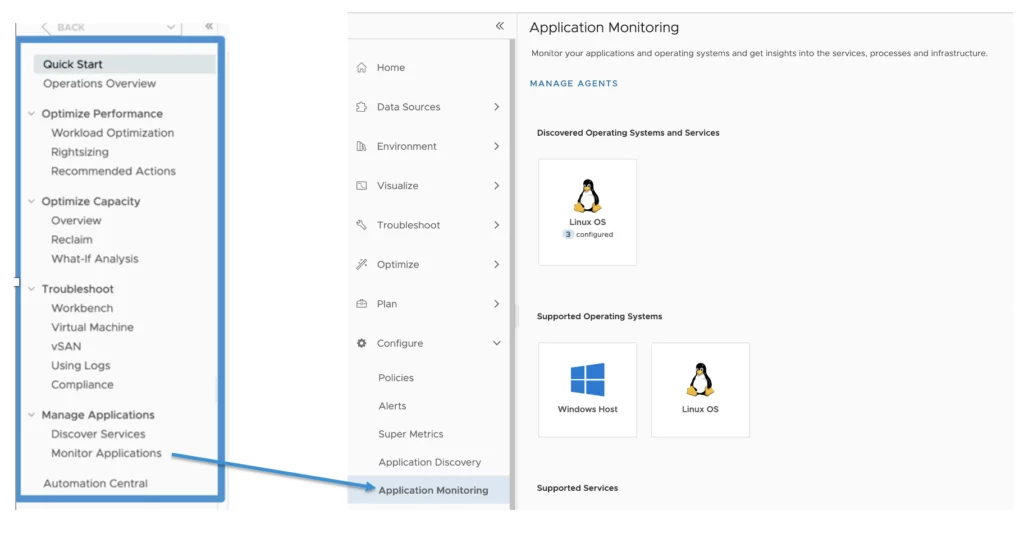
Monitor Applications was renamed to Application Monitoring and it can be found under the Configure menu
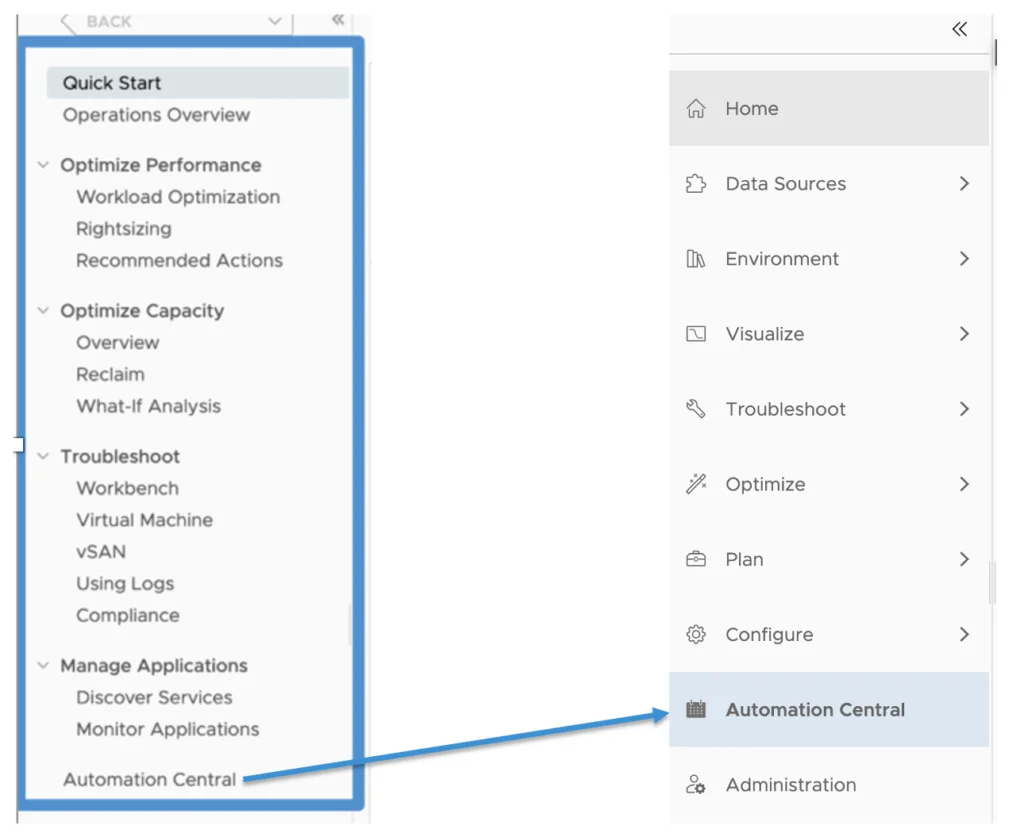
Automation Central can still be found as a separate item on the side menu
For more information visit us at https://www.vmware.com/products/vrealize-operations.html