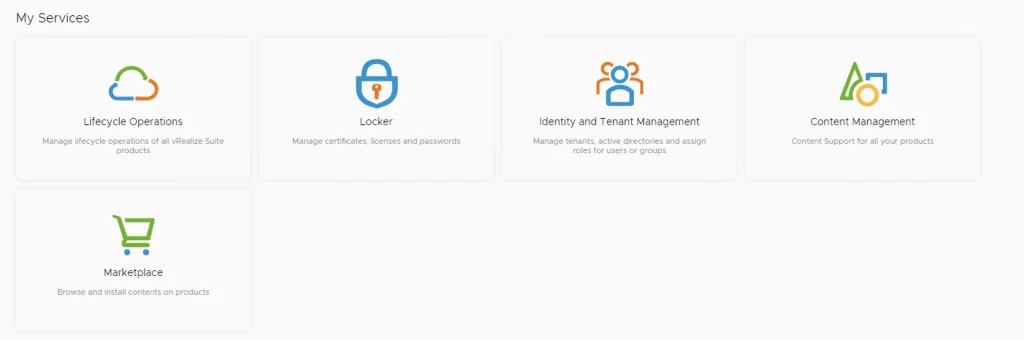
In order to enable product downloads in lifecycle manager we need to go to Lifecycle Operations

Adding a My VMware Account
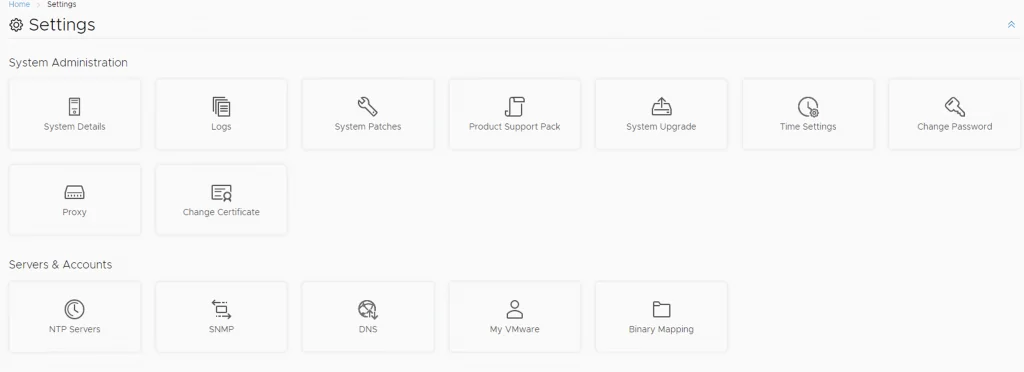
Settings -> My vmware
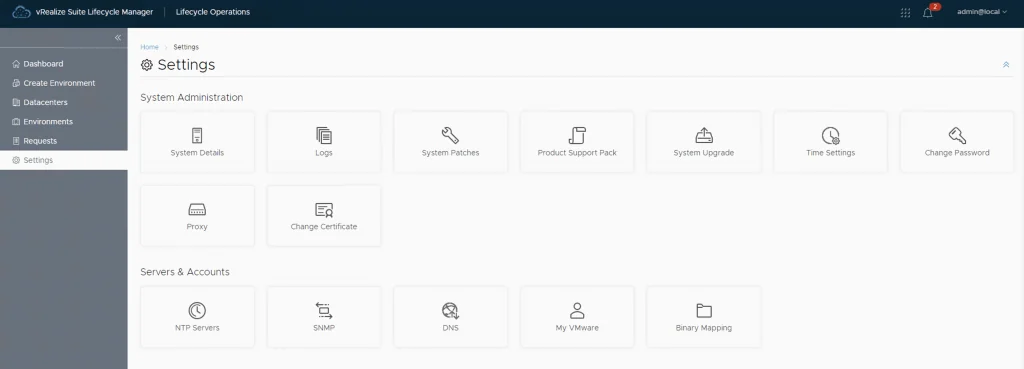
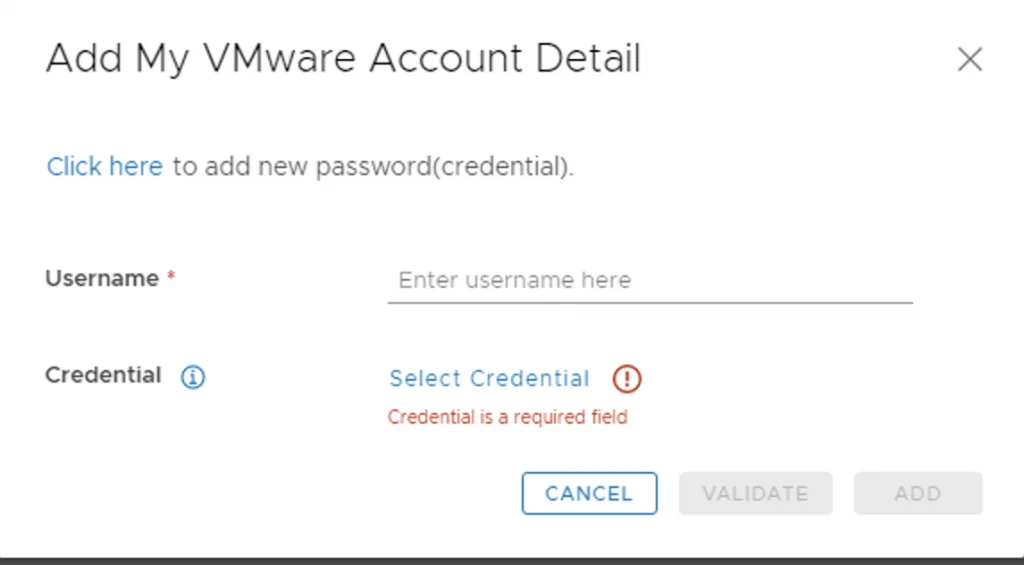
Add my vmware account. Make sure the account added has a proper entitlement to perform downloads and patches.
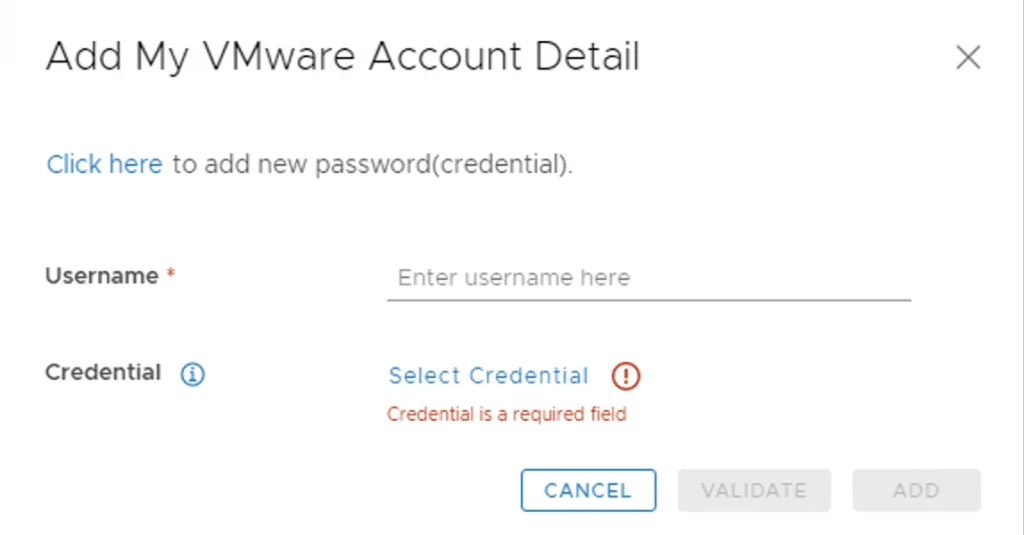
With the releases of 8.x and above we now have a password vault that we need to add the passwords to. When presented with the add my VMware Account Detail screen press on Click here to add a new password
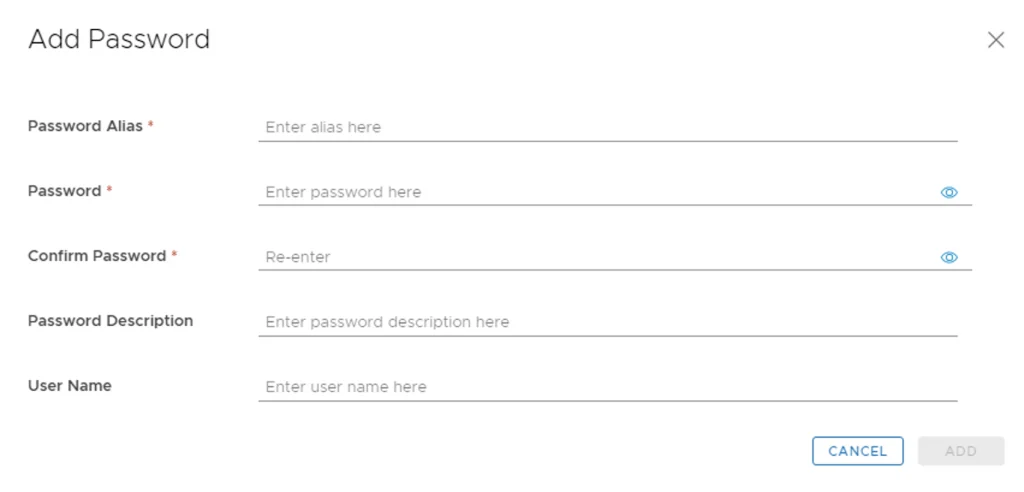
Type in the details for your password and press add
Click on Select Credential and add the new password you created, add the username, click validate and then add
Opening Binary Mapping
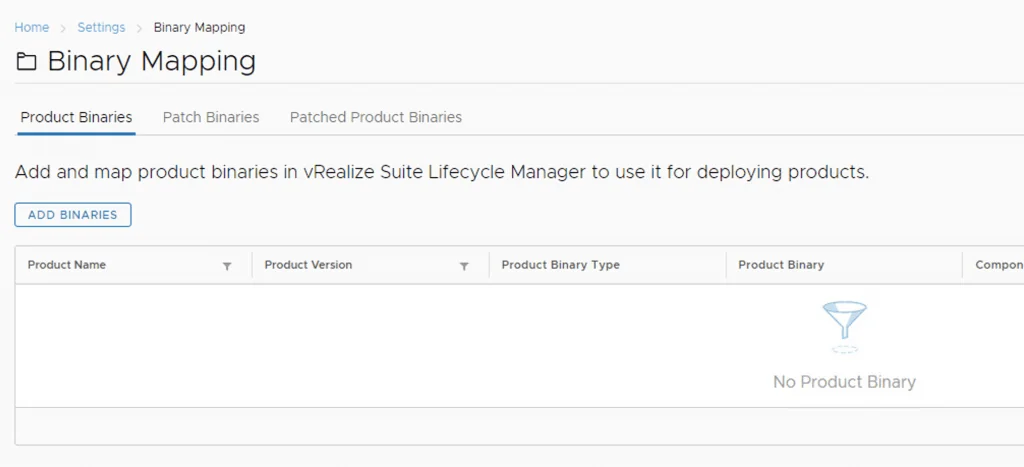
After the process is complete we can go back to settings and click on Binary Mapping
This will take us to the Product Binary page where we can click on Add Binaries
Selecting Binaries to Download
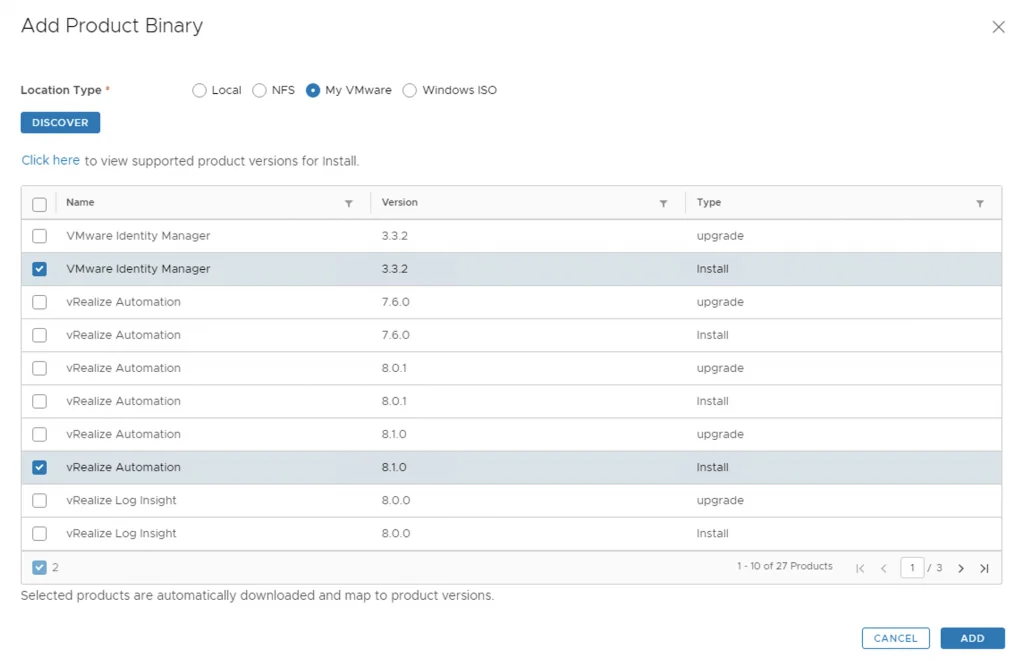
We can add binaries from a local source, NFS, My VMware or Windows ISO. In this scenario we can download the binaries directly from My VMware. Click on my VMware and click discover
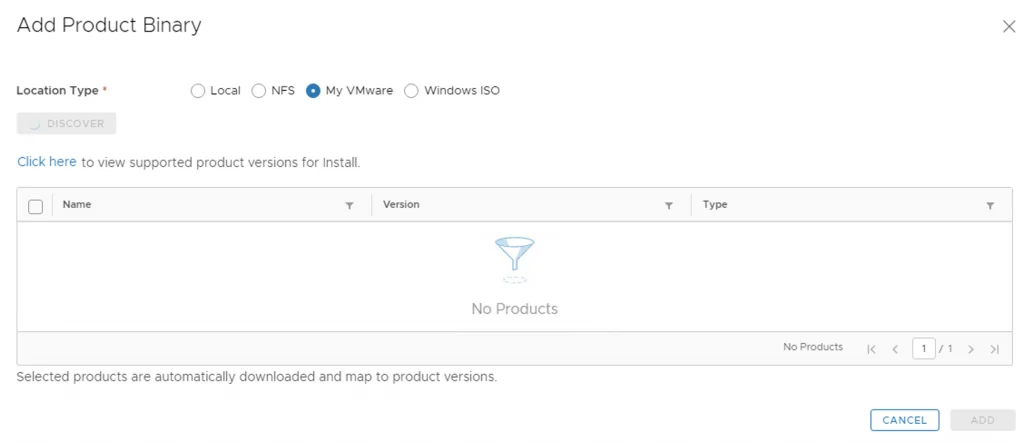
In my case I want to download vRealize Automation and VMware Identity Manager. So I selected th downloads as install type and clicked on add
Tracking the Download Requests
We are now presented with a link where we can track the status of the download. Click on Click here to check the status request
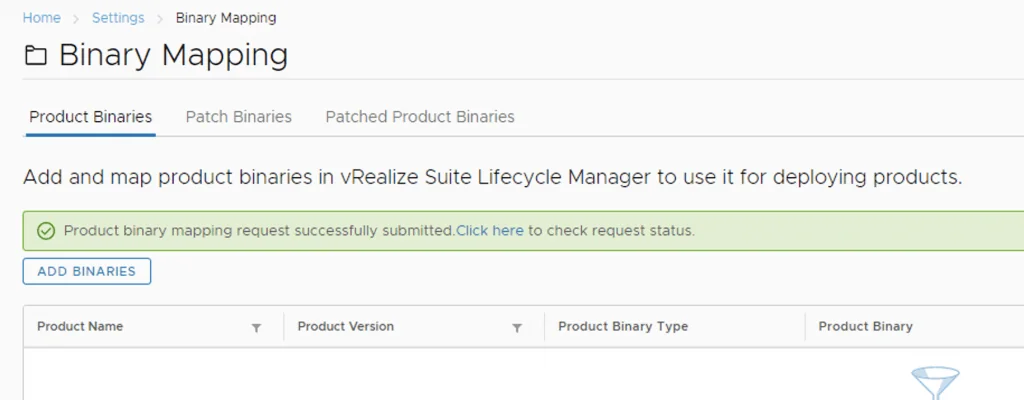
In my case I was taken to Requests page and I can now see that there are 2 tasks In Progress for binary download

I can get more details by clicking on the In Progress link
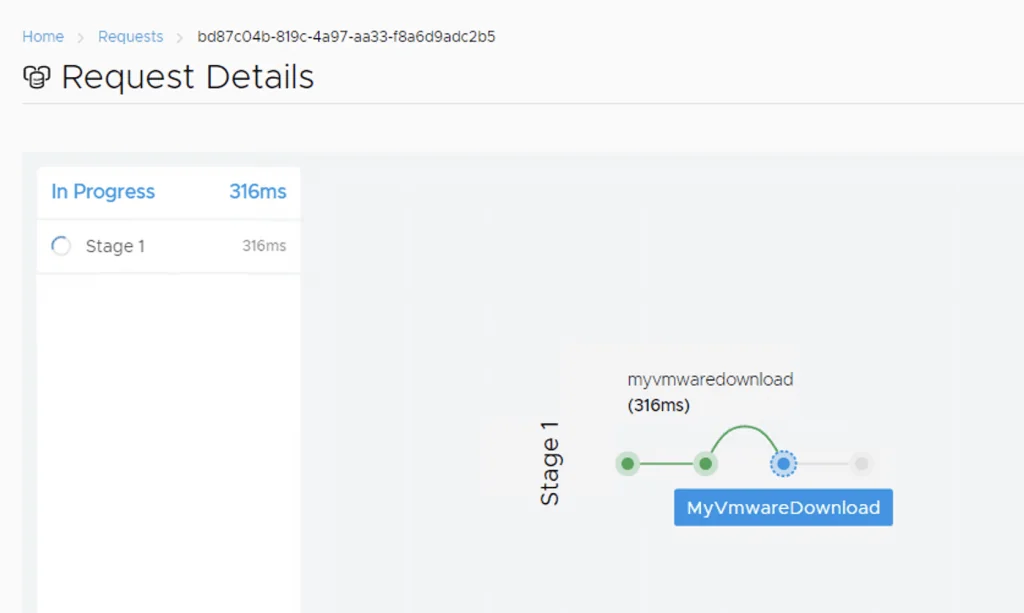
After a little while my downloads were complete