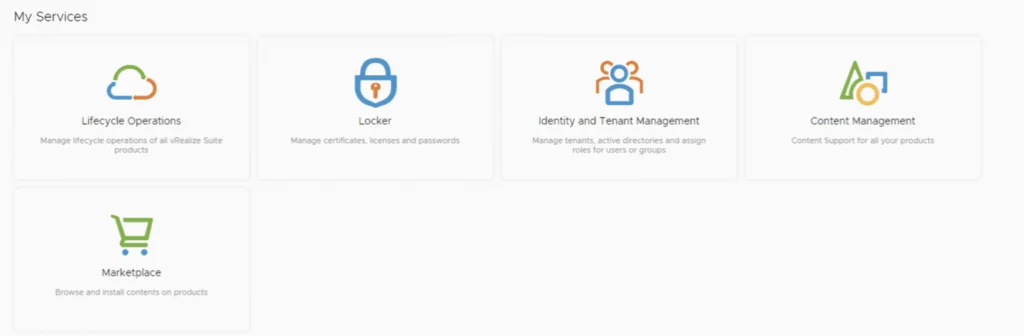
In order to enable product and licensing downloads in lifecycle manager we need to go to Lifecycle Operations

Settings -> My vmware
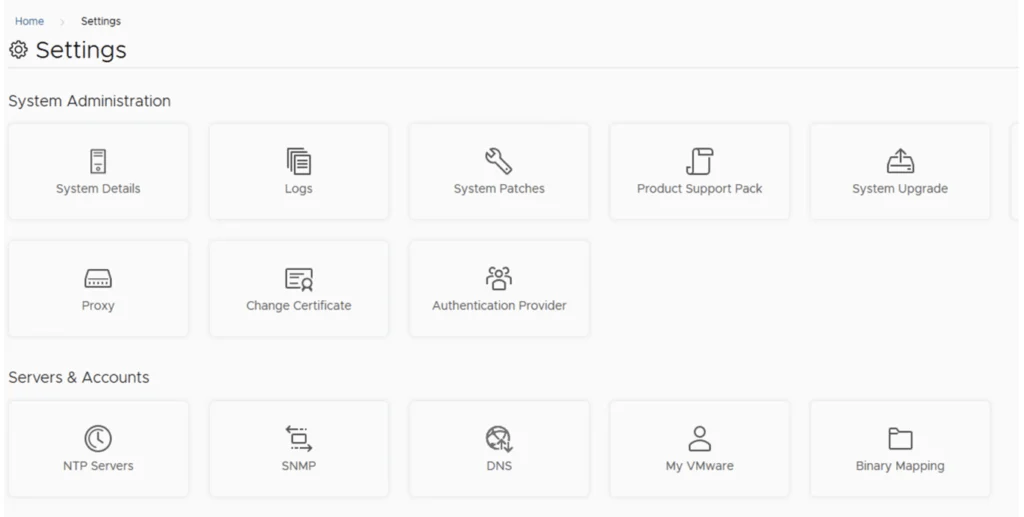
Add my vmware account. Make sure the account added has a proper entitlement to perform downloads and patches.
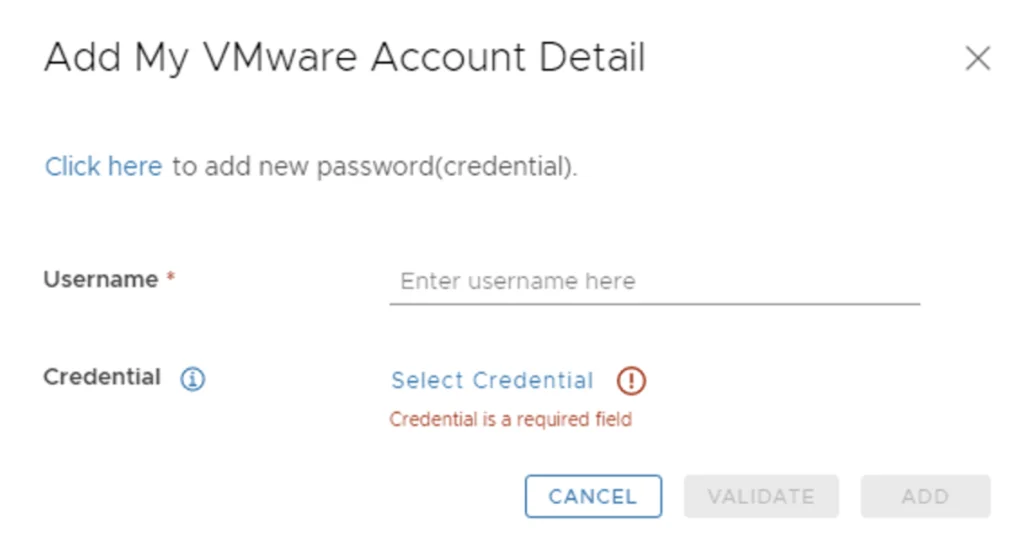
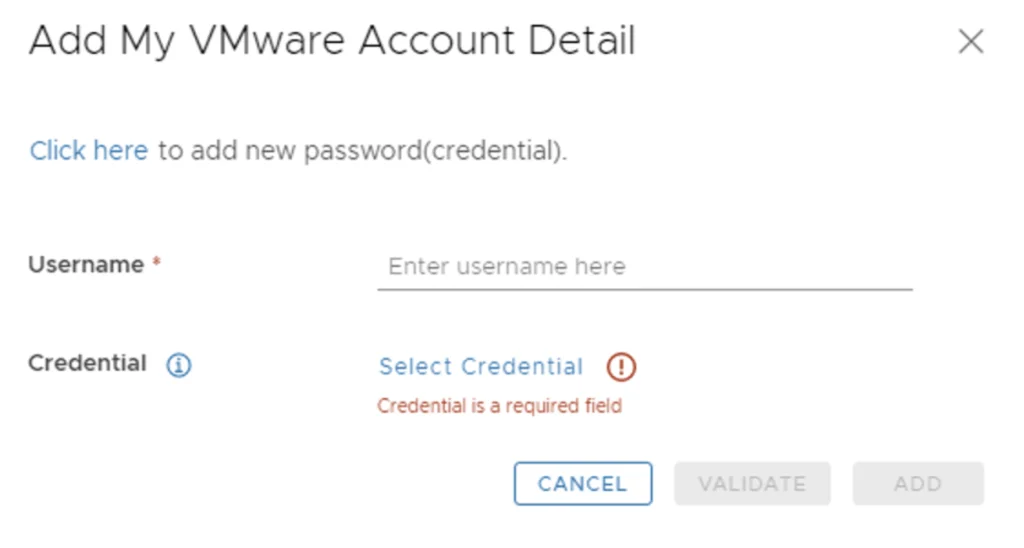
With the releases of 8.x and above we now have a password vault that we need to add the passwords to. When presented with the add my VMware Account Detail screen press on Click here to add a new password
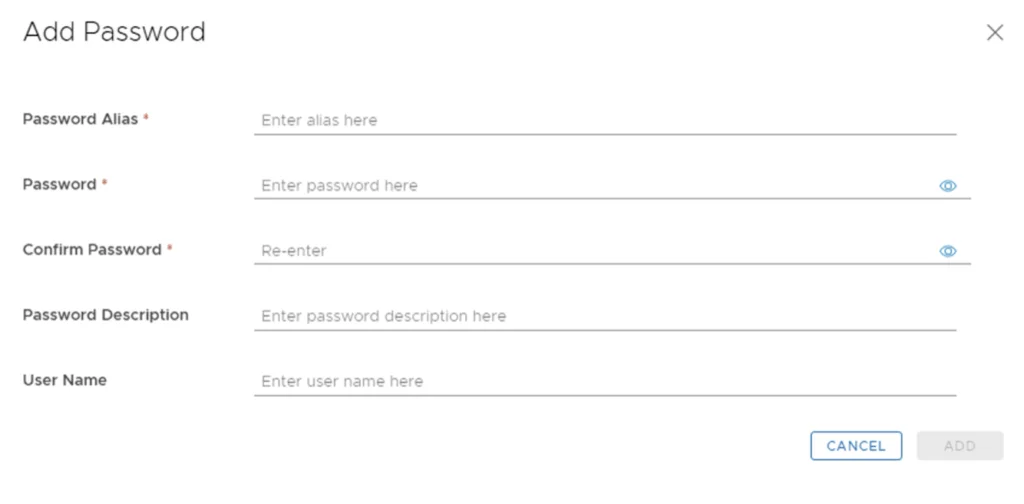
Type in the details for your password and press add
Click on Select Credential and add the new password you created, add the username, click validate and then add
After the process is complete the product will automatically start downloading the licensing information from the my vmware portal and it will also allow us to download binaries from the add binaries page