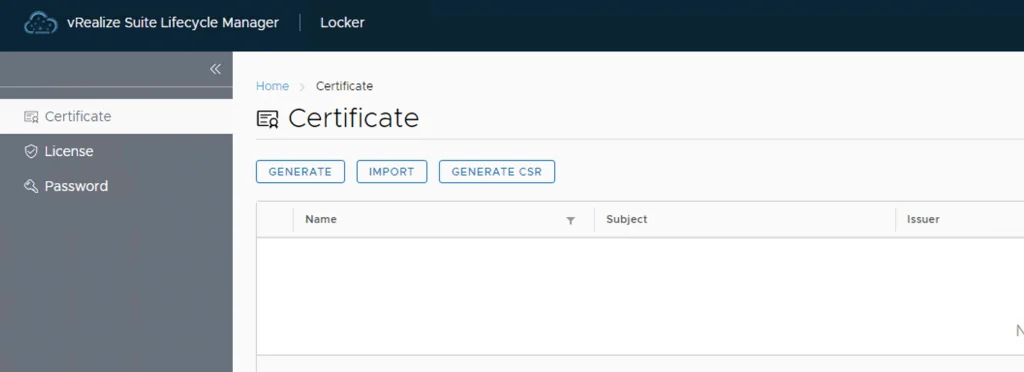
vRealize Lifecycle Manager (vRSLCM) includes a Certificate Management feature. Access it from Home -> Locker -> Certificate.

We can generate Self Signed certificates for products managed by Lifecycle Manager as well as certificate requests to be signed by a certification authority
Generate a new CSR
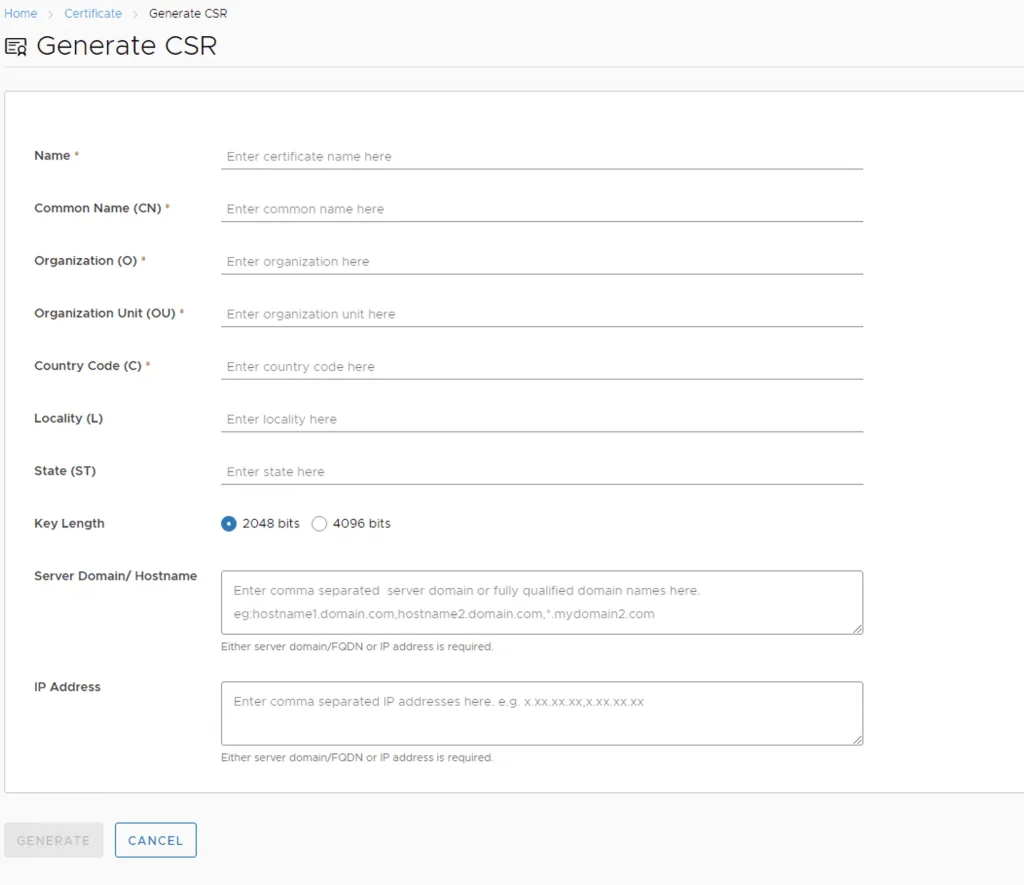
Download the CSR and take it to the certified authority, in my case im using a Microsoft server /certsrv/certrqxt.asp
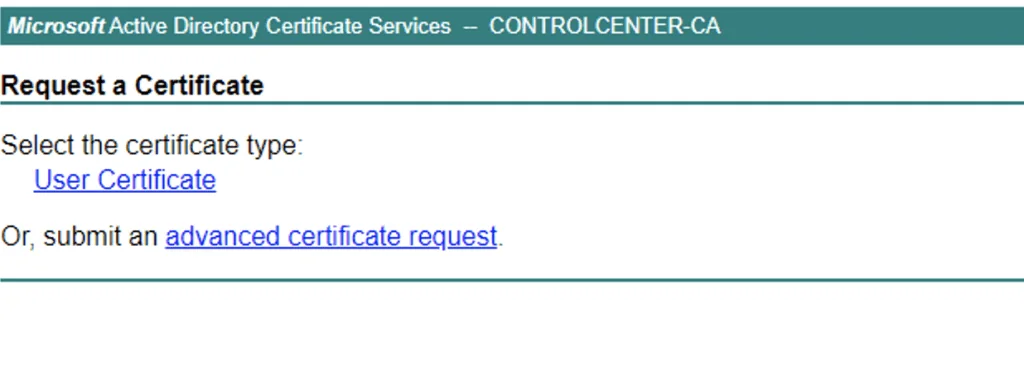
Click on advanced certificate requests and complete the request details
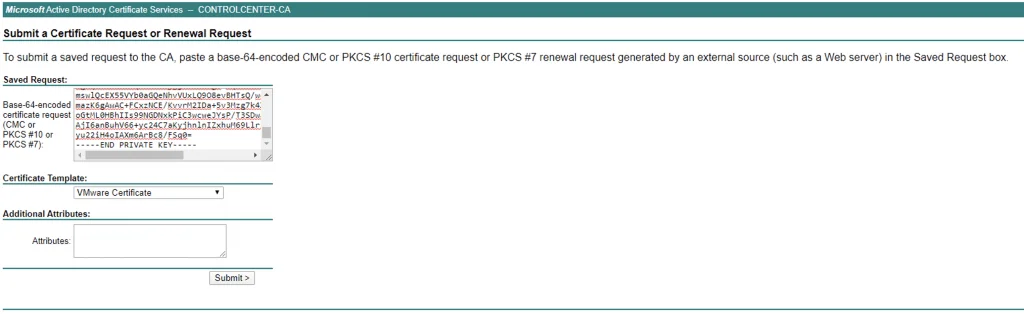
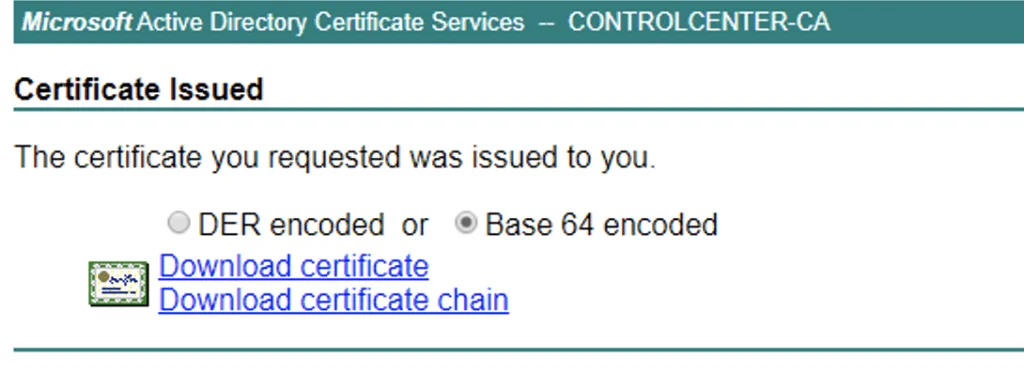
Download the certificate in the Base 64 encoded format
Next we can import it in to the certificate vault
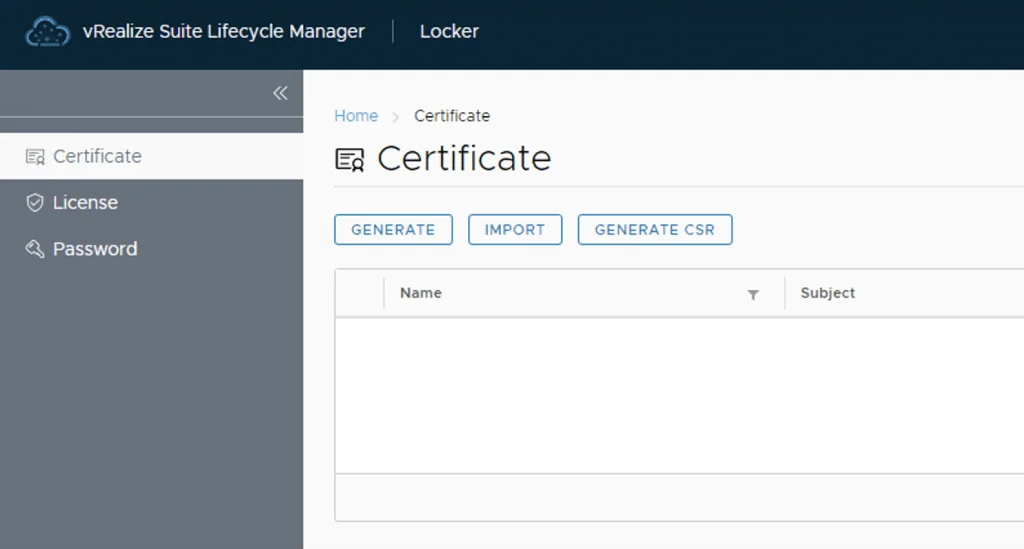
Click on import and complete the details. The private key can be found in the certificate request file
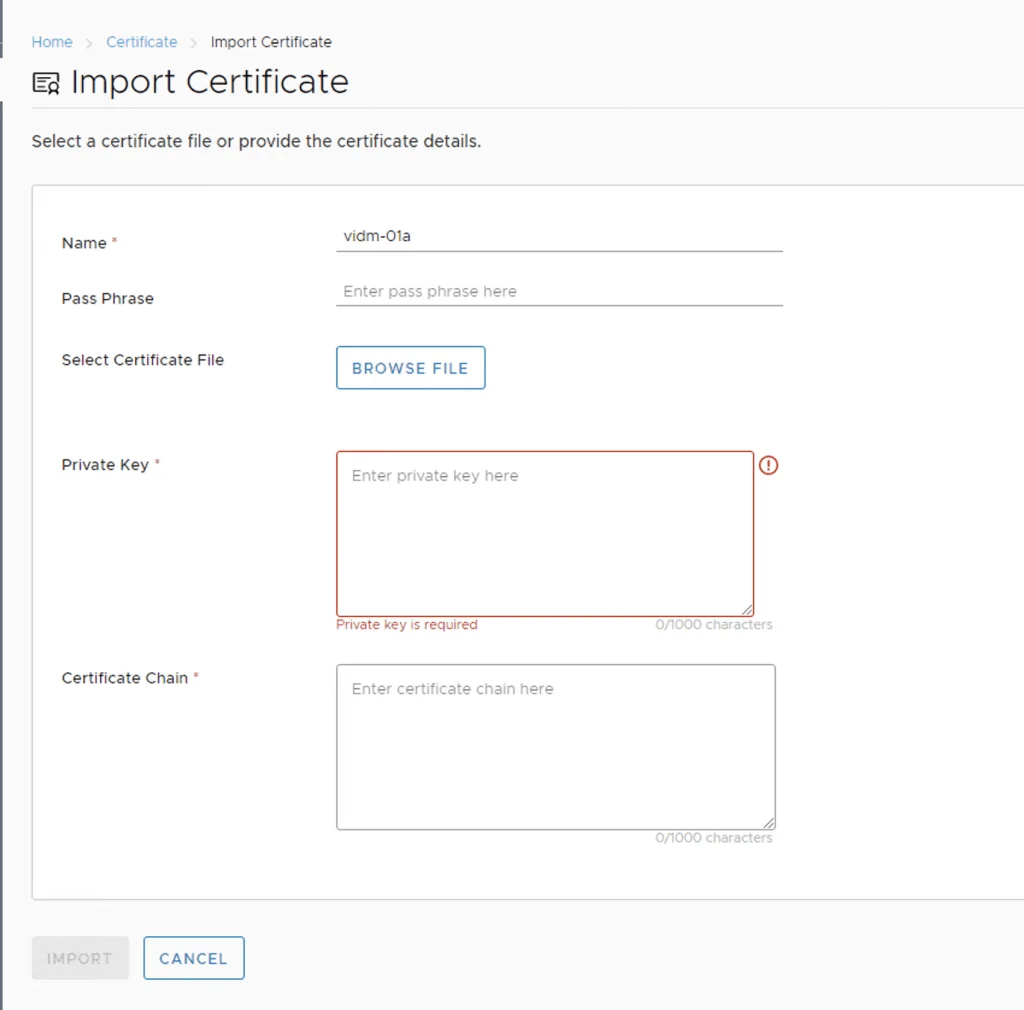
Make sure you create a file that includes the signed certificate + the private key + the intermediate and root certificates.

The certificate can now be used. I show a concrete example of applying one in replacing the vIDM certificate using Aria Suite Lifecycle.