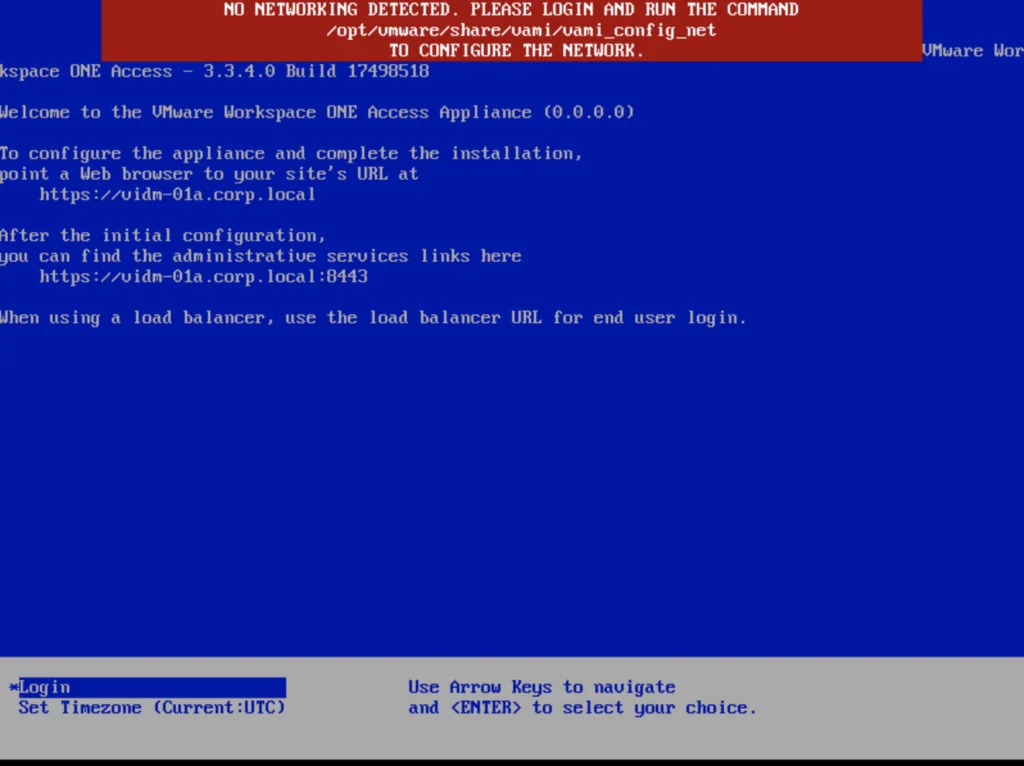
If you are like me and you tried to perform an upgrade of vIDM 3.3.x to 3.3.4 you were most likely greeted by no network connectivity after upgrade with the following screen:

If you made a backup of the network configuration this is where we would restore it.
If not we can perform it manually by running
/opt/vmware/share/vami/vami_config_net
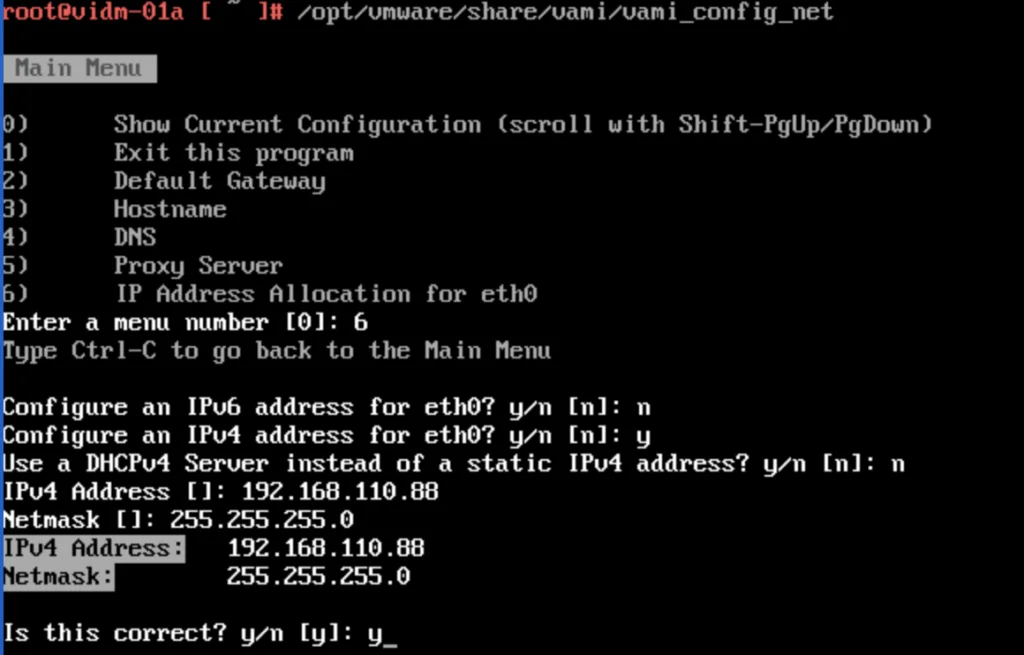
Press 6 and go through the screens to configure the ip
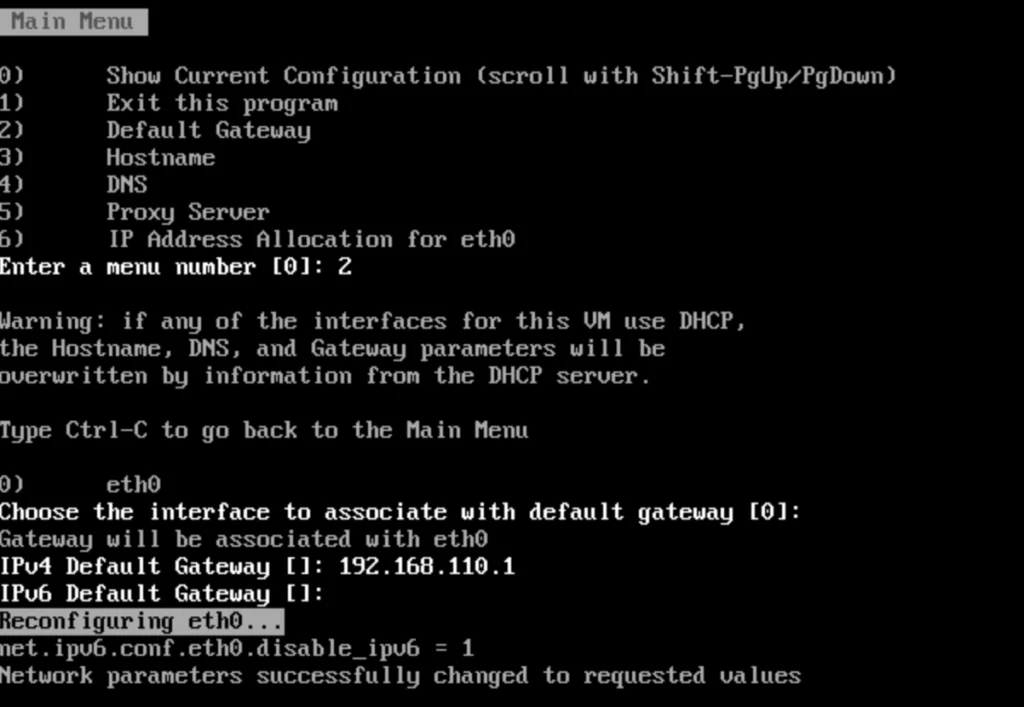
Press 2 for default gateway
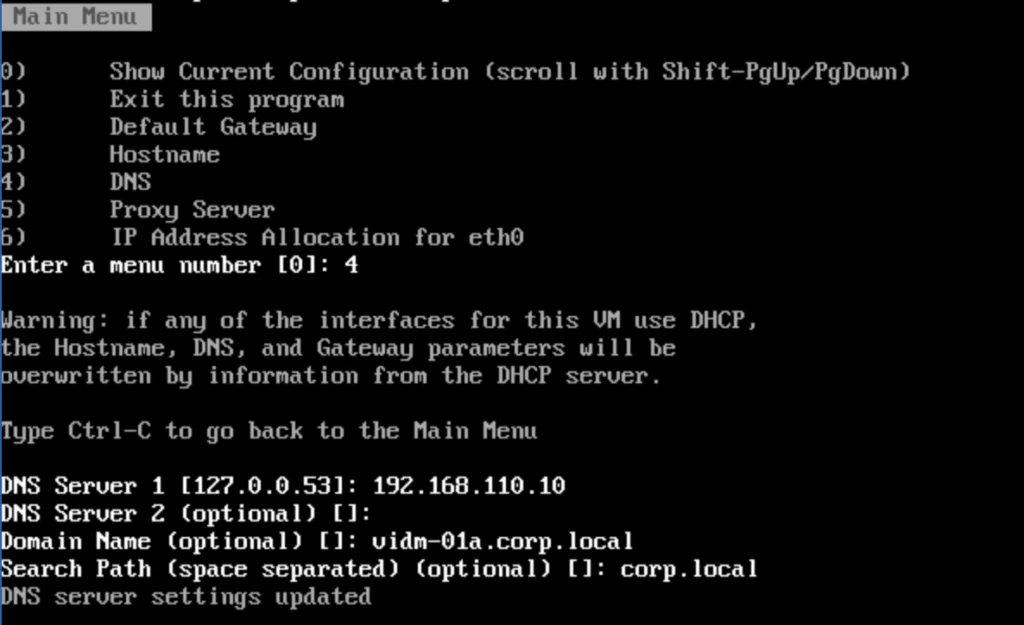
Press 4 for the DNS
Press 0 to show the current configuration
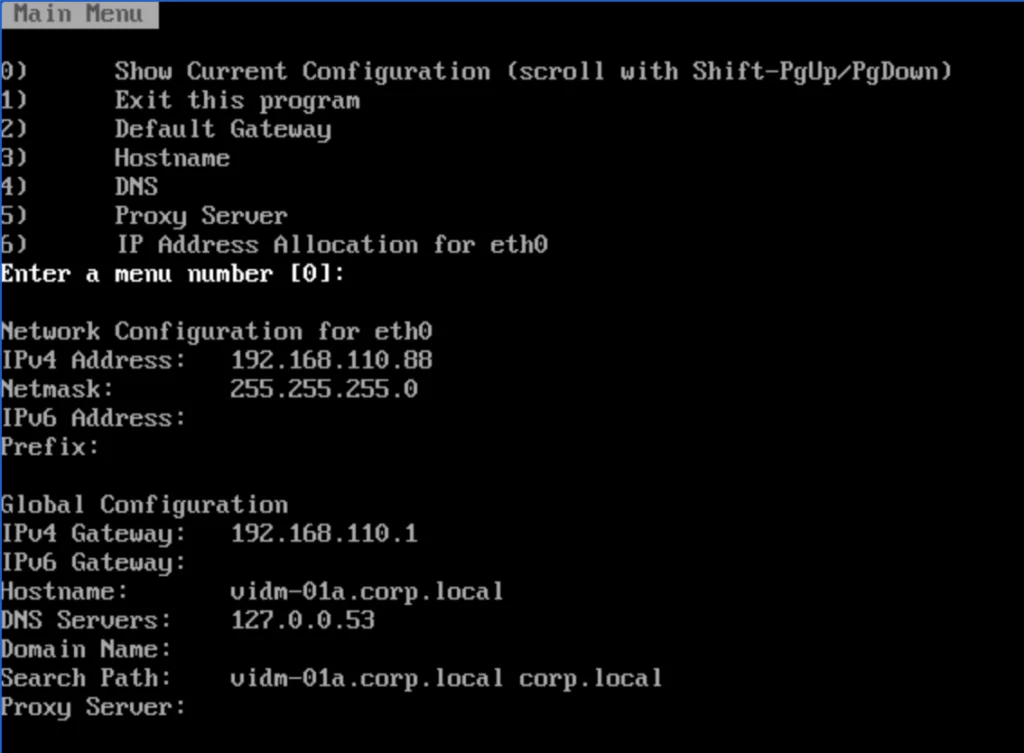
If you notice in my configuration the dns server didn’t take. In order to fix it I recreated the /etc/resolv.conf.
Remove the resolv.conf running
rm -f /etc/resolv.conf
Create a symlink for resolv.conf
ln -s /run/systemd/resolve/resolv.conf /etc/resolv.conf
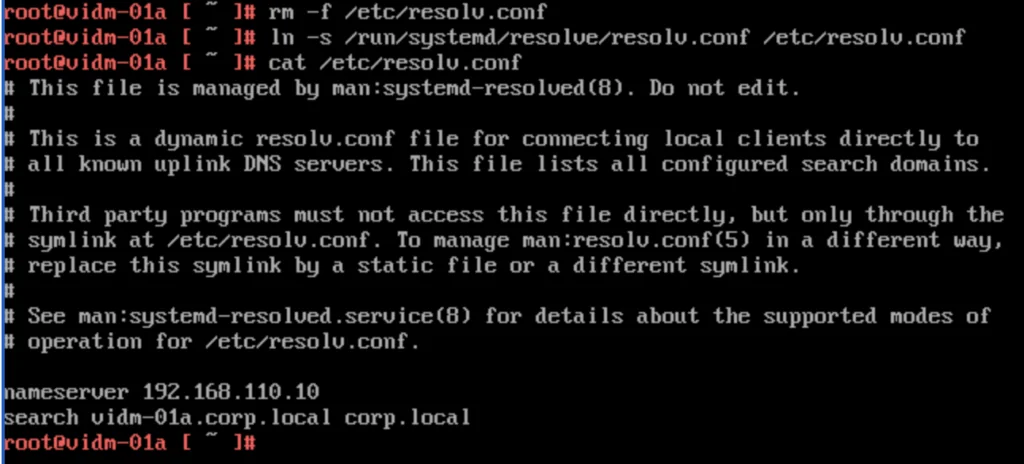
In my case vIDM was still not responding so I had to reboot the server. After the reboot everything started working properly