In this guide we will go over the vIDM 3.3.5 HA configuration. The official documentation can be found here
Im going to assume that the load balancer configuration is already completed, the vIDM appliance has a the required certificate in the LCM inventory. Please read the official documentation for the full requirements.
Starting the Scale Out in Lifecycle Manager
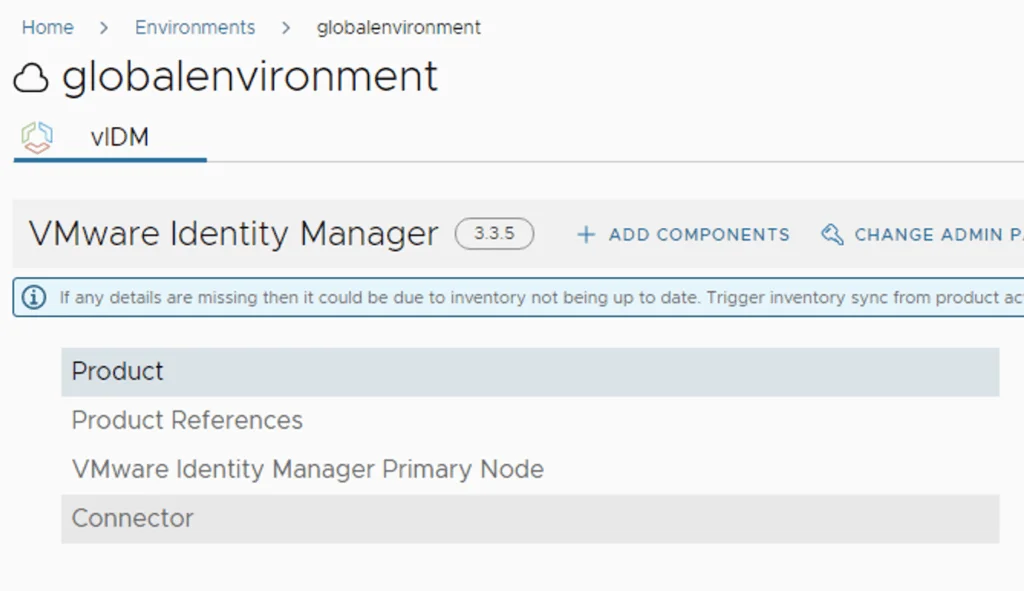
We will be using the scale out feature in Lifecycle Manager. To do so we can navigate to Lifecycle Operations -> Environments -> globalenvironment -> View Details -> Click on Add Components

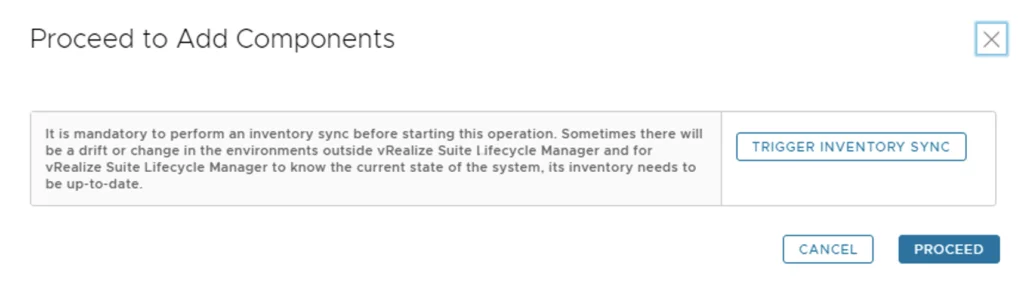
It is recommended that an inventory sync is performed prior to starting the process. It can be triggered by pressing on Trigger Inventory sync button. In my case I don`t need one as I did it earlier so ill just click Proceed
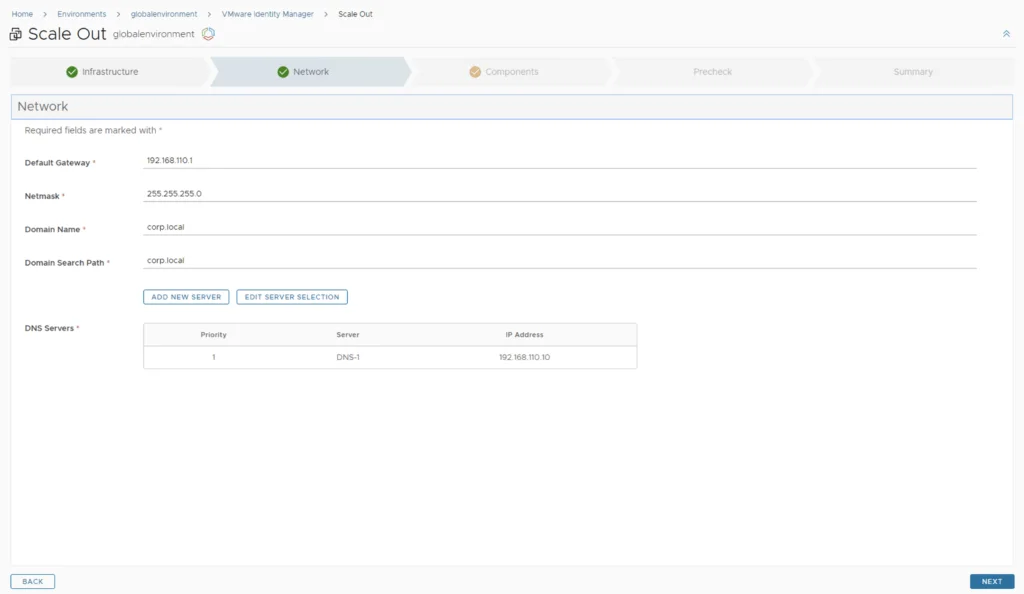
Configuring the Network and Secondary Nodes
Network configuration should be populated. Verify the config and click next
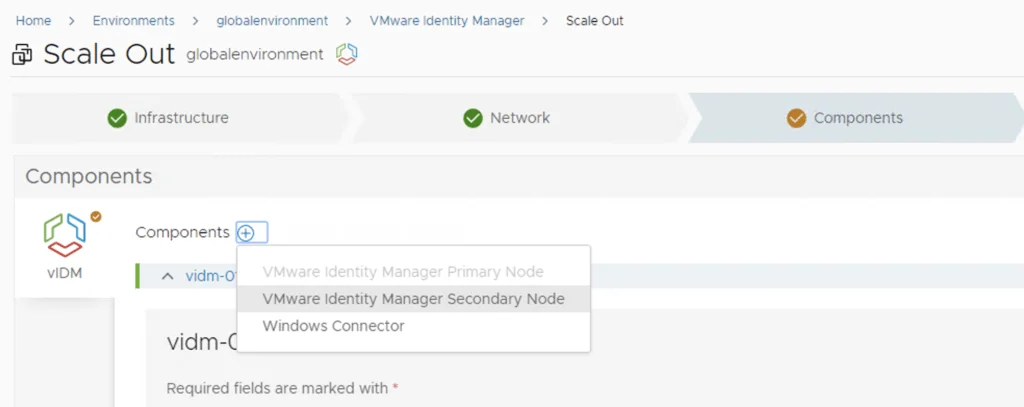
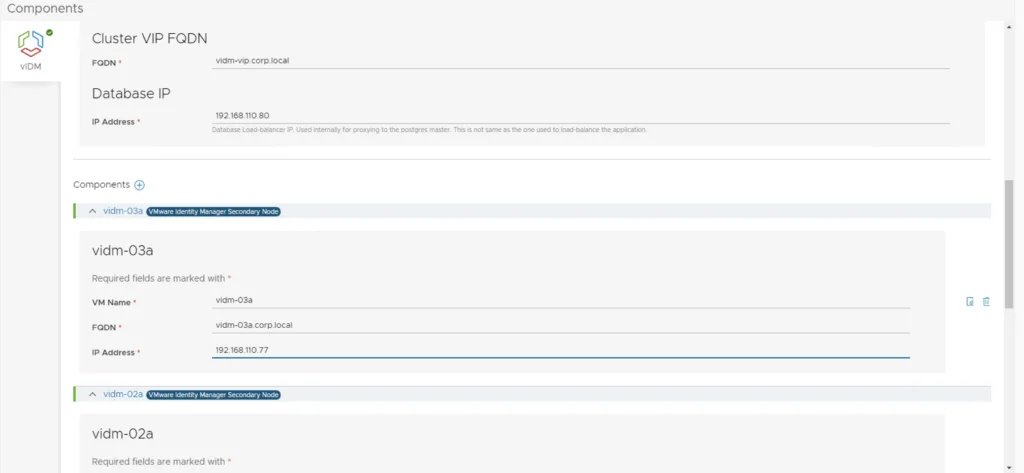
Towards the bottom of the Components page there will be a components section. Click on the Plus sign next to it and select VMware Identity Manager Secondary Node. Perform this task task 2 times so we can have 3 vidm nodes.
Complete the required fields Like network configuration and Cluster Virtual IP
Running the Precheck and Submitting
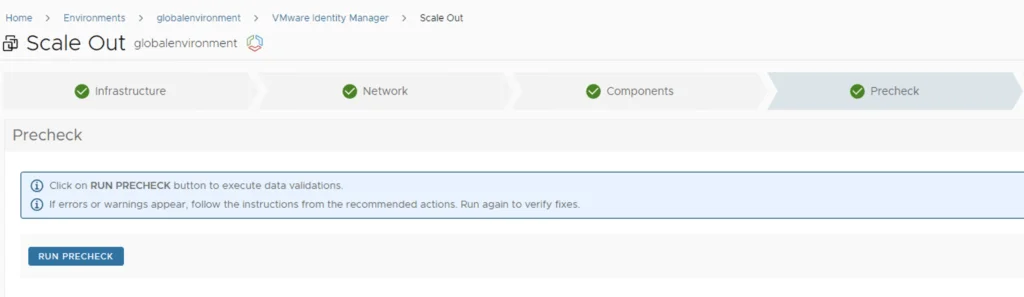
On the next page run the precheck in order to execute the data validation
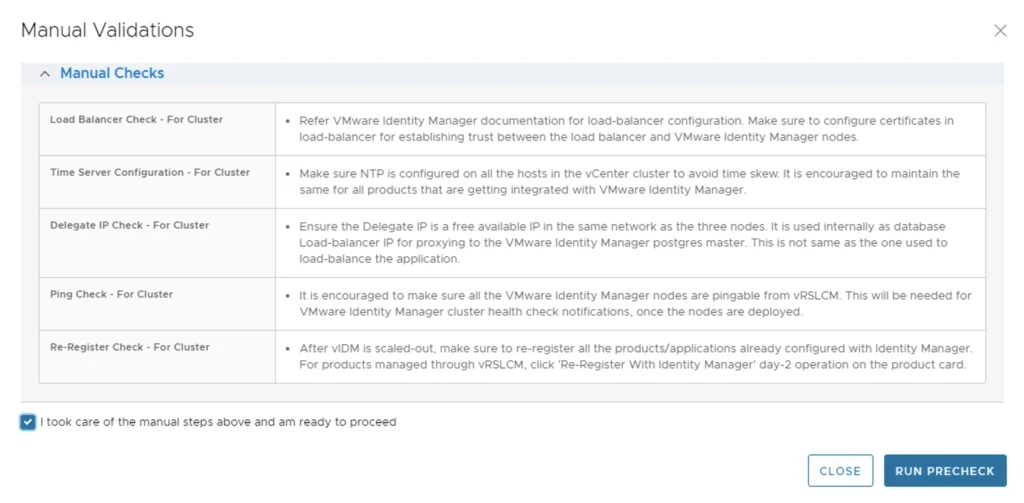
Verify the Manual Validation as described in the Pop Up Window and click on Run Precheck
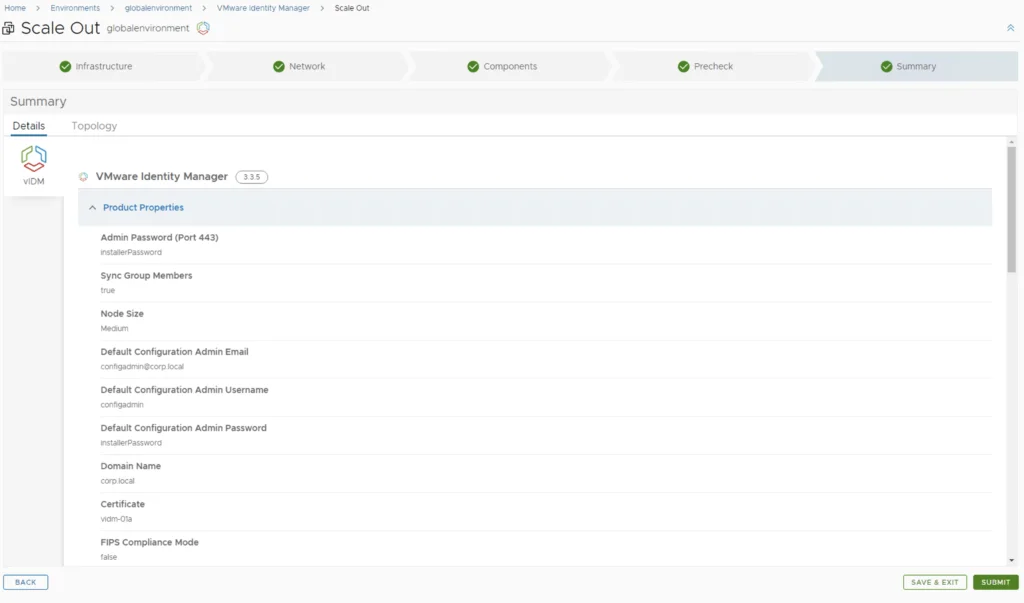
Once all the check are complete click on next, Verify the Summary and click on Submit
Monitoring the Scale Out Request
This will take us to the Request Details Page where we can follow the steps taken
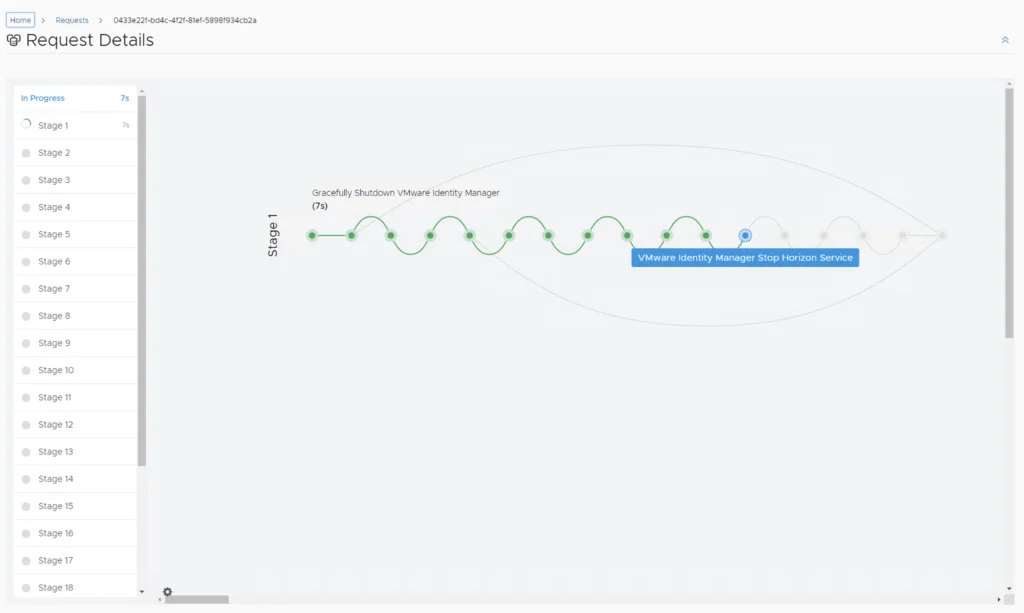
Once the additional nodes are installed validate that everything is working as expected.