I wanted to go through the upgrade of vIDM 3.3.4 outside of lifecycle manager. I wanted to do it using the online upgrade via the console. Official documentation can be found here. First step is to log on to the console via the root credentials and upgrade the upgrade manager to 3.3.4
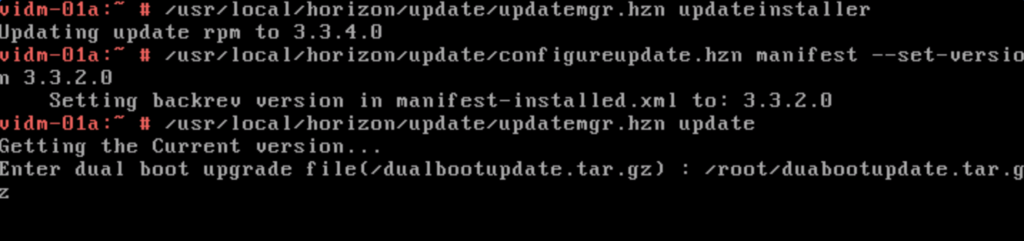
/usr/local/horizon/update/updatemgr.hzn updateinstaller

Set the upgrade version that you are upgrading from in my case was 3.3.2 so i ran
/usr/local/horizon/update/configureupdate.hzn manifest --set-version 3.3.2.0

Because we are switching operating systems to Photon OS 3 we need to download the dual boot update package from here. Look for VMware Identity Manager Service Virtual Appliance Dual Boot Update and transfer it to the vIDM server
And finally run the update
/usr/local/horizon/update/updatemgr.hzn update
Specify the path to the dualboot file. It would look something like this:
If everything went through properly you would be greeted with something like this
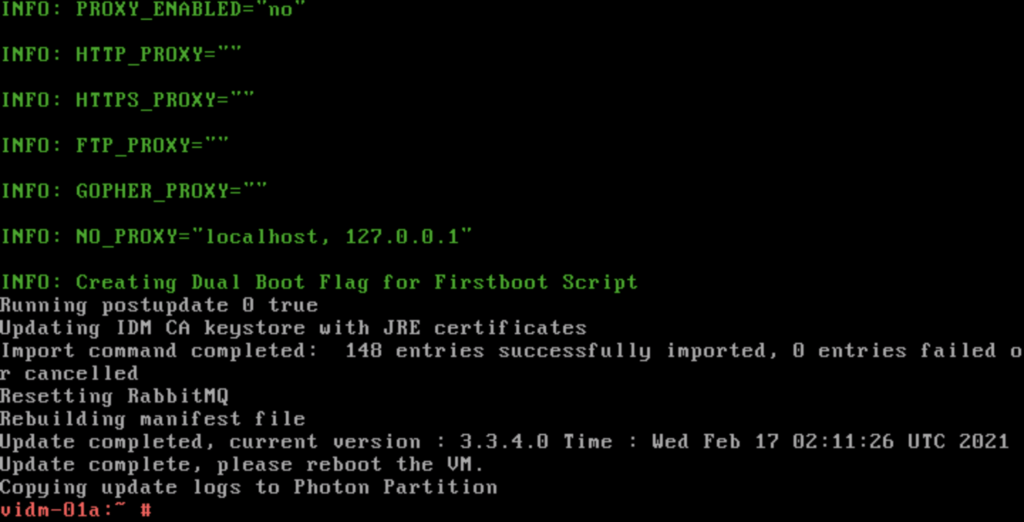
All we need to do now is to reboot.
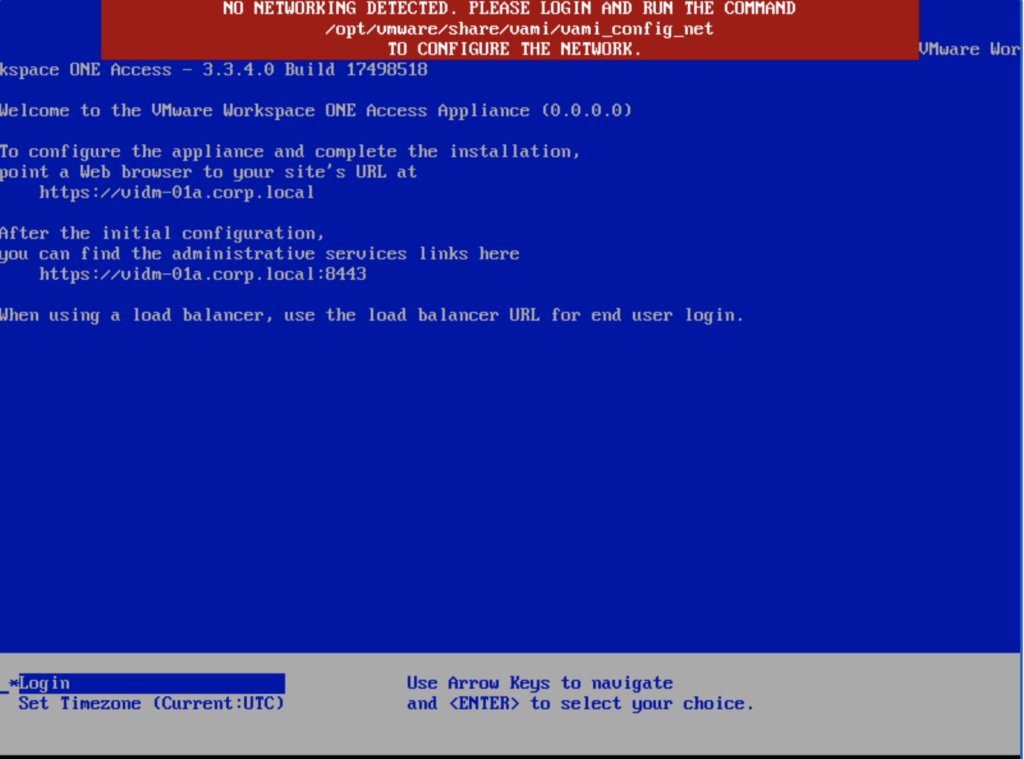
If you are greeted by the following screen follow my other post here