In this guide I will go over the steps of getting an existing 8.x vRSLCM appliance upgraded to the latest 8.6 release. The release notes can be found here
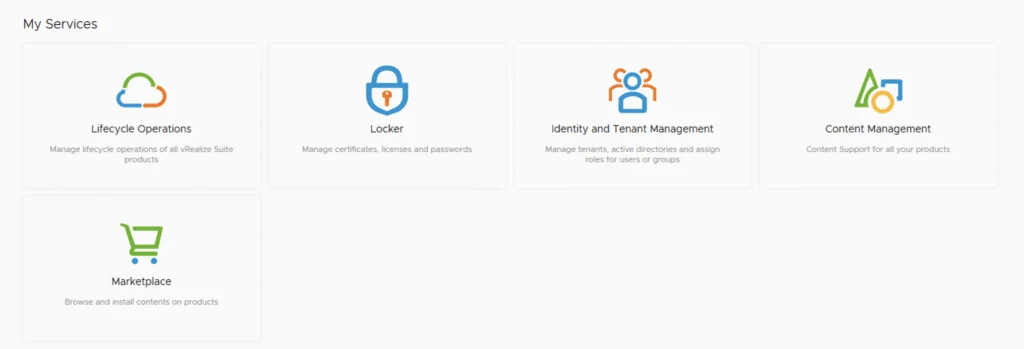
The first step is to lo in to vRealize Suite Lifecycle Manager under the Lifecycle Operations section

Go to settings -> System Upgrade

Click on Check for Upgrade

We can see that the check found a new version available for 8.6.0.20
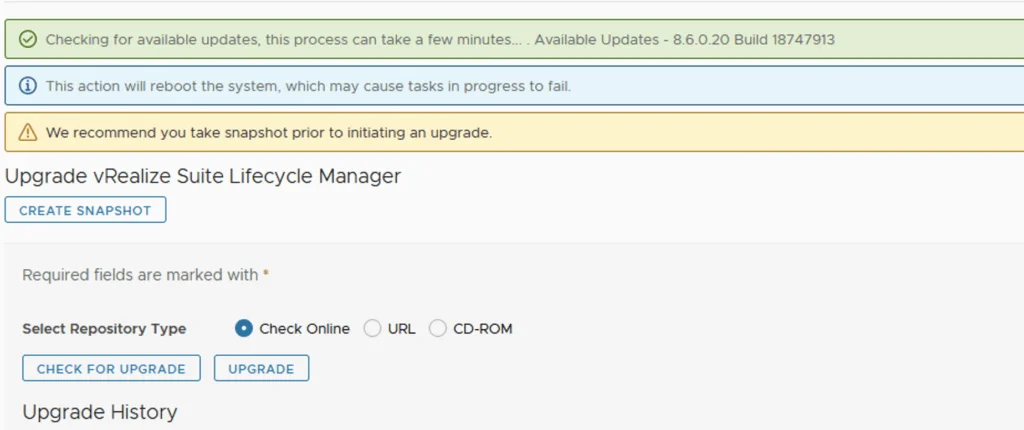
Click on Upgrade

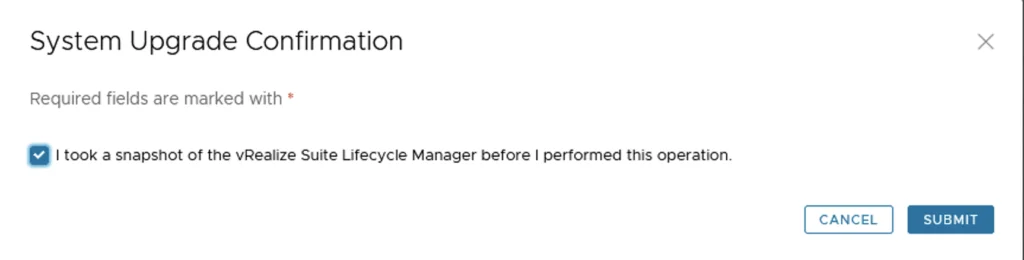
Verify that a snapshot or backup exists in case the process fails. Check the check mark for I took a snapshot of the vRealize Suite Lifecycle Manager before I performed this operation. Click Submit
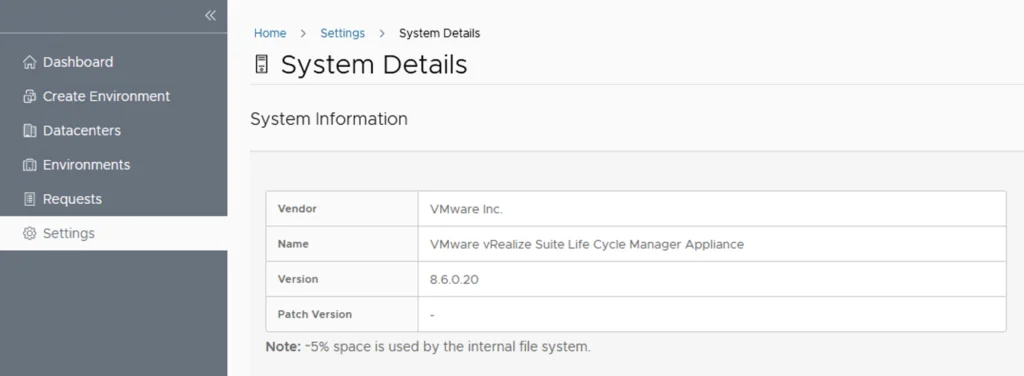
This will fire up the upgrade process and start upgrading packages. The system will automatically reboot on 8.6.0.20 once completed. We can check the version by going to Settings -> System Details
Once vRSLCM is on 8.6, you can continue with upgrading vRA to 8.6, vROPS to 8.6, or vRLI to 8.6.
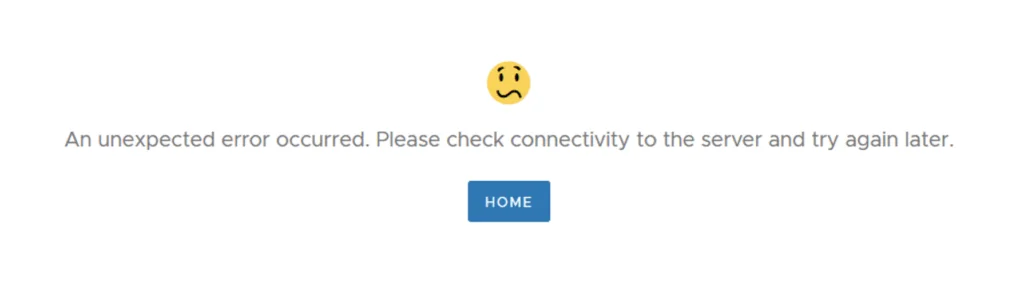
If you get the below error clear the browser cache and try again