In this guide we will go over upgrading vROPS (vRealize Operations Manager) to the latest 8.6 releases using the .pak file. If you you vRSLCM (vRealize Suite Lifecycle Manager) I would strongly recommend upgrading using the vRSLCM method found here as it does additional checks of the environment like compatibility with the rest of the vRealize Products we might have installed. The release notes for vROPS 8.6 can be found here
Downloading the .pak Files
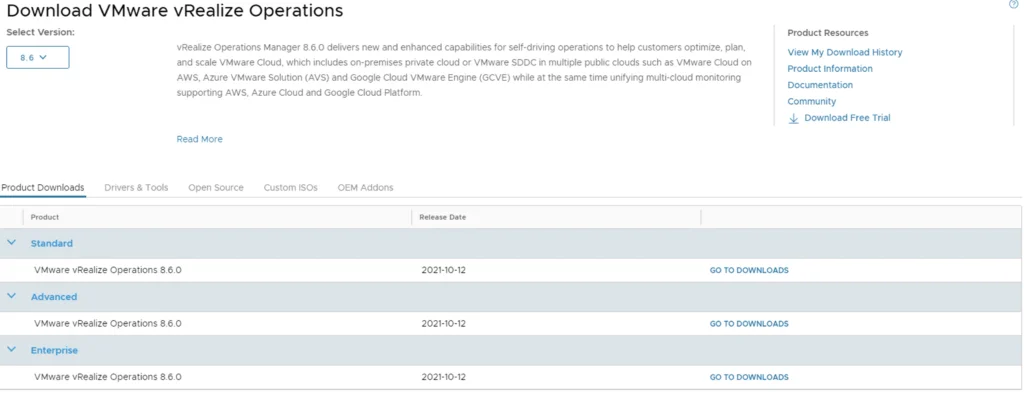
To get started we need to download the .pak file from the new customerconnect portal (previously known as my vmware). The direct link to the product download page can be found here. Make sure we have 8.6 selected under the Select Version and click on any of the Go To Downloads links

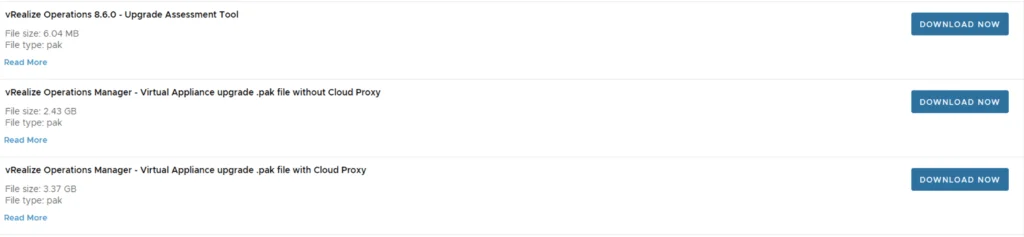
Once were at the Product Download Page we can download the .pak file under vRealize Operations Manager - Virtual Appliance upgrade .pak file with Cloud Proxy. I also strongly recommend to download the vRealize Operations 8.6.0 - Upgrade Assessment Tool in order to make sure that everything is in order to get a successful upgrade. The Upgrade assessment tool checks for a number of items like dashboards, views, reports etc which can be impacted by metric changes (if any), however it is optional.
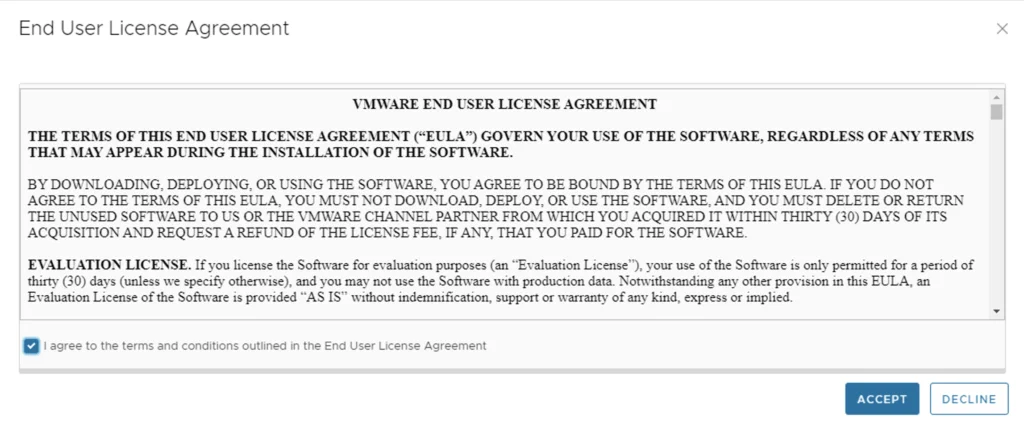
Once we click on the download link if were not logged on we will get asked for the login information. This login information is the same as the login to open tickets. Accept the EULA and the download should start
Logging Into the Admin UI
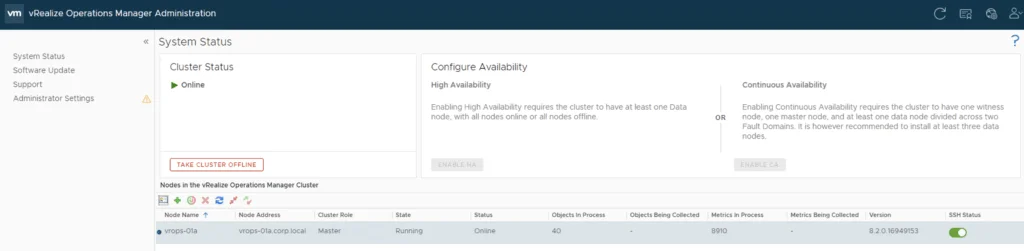
Once we have the downloads completed we can go to https://vrops_url/admin and log in with the admin username\password. Make sure the System Status shows Online and everything is running.
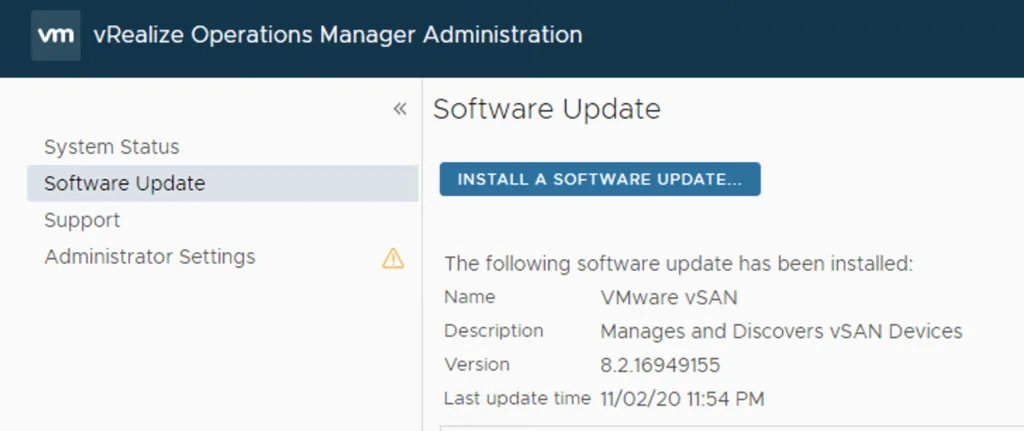
On the left side menu click on Software Update -> Install a software update button
Running the Upgrade Assessment Tool
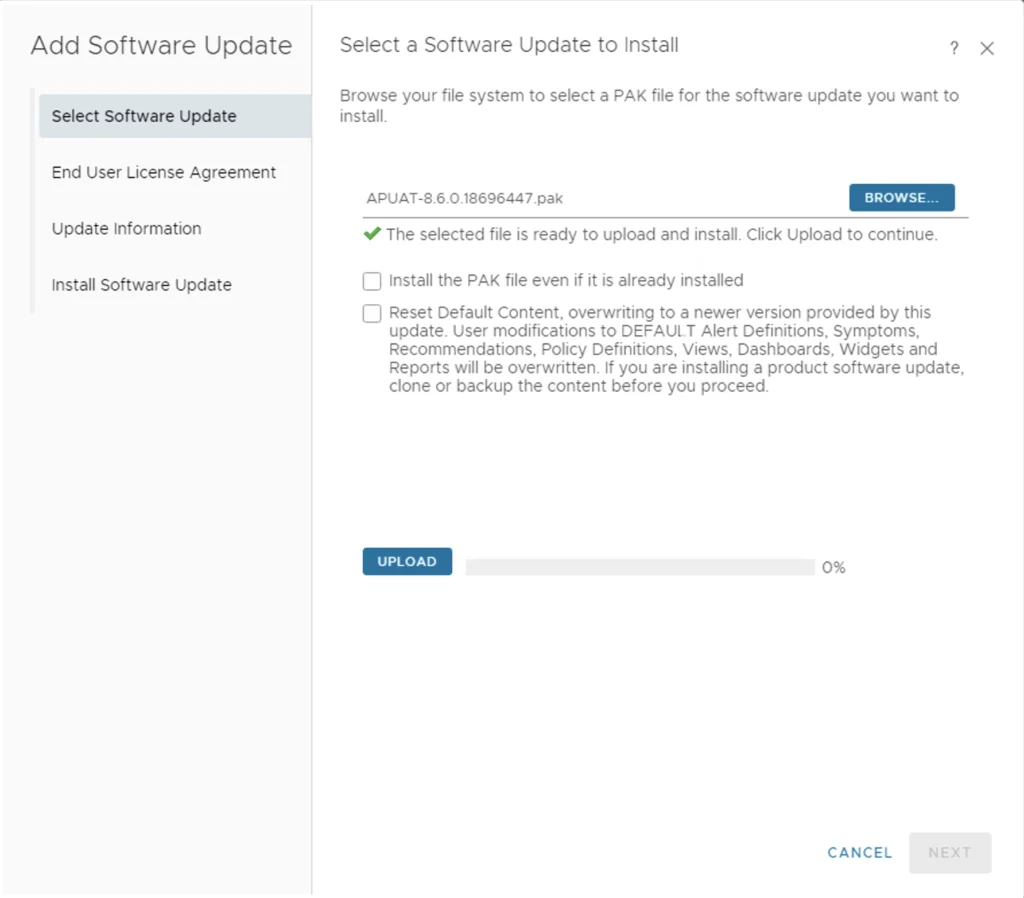
Next we can upload the Upgrade assessment tool in order to run the upgrade assessment (optional) by clicking browse -> select the downloaded .pak file in my case APUAT-8.6.0.18696447.pak and click on Upload
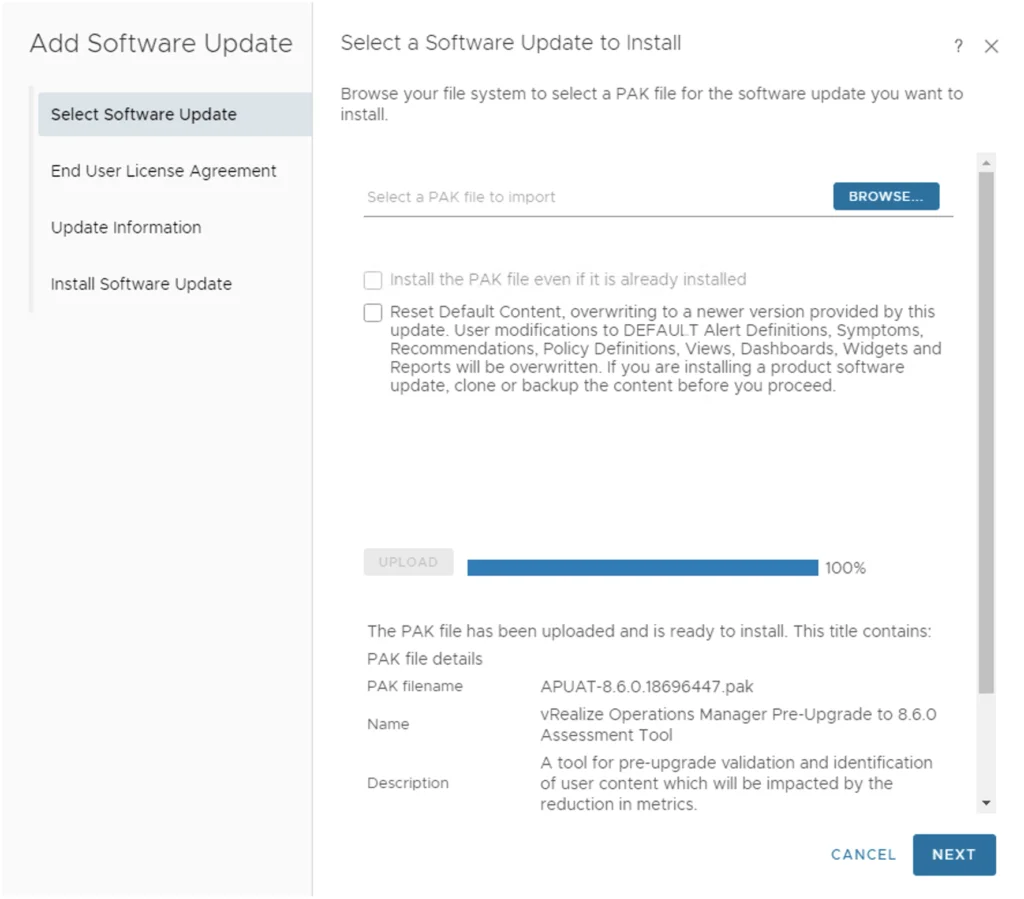
The upload button will stage the package on the vROPS server. We can review the details and click on Next
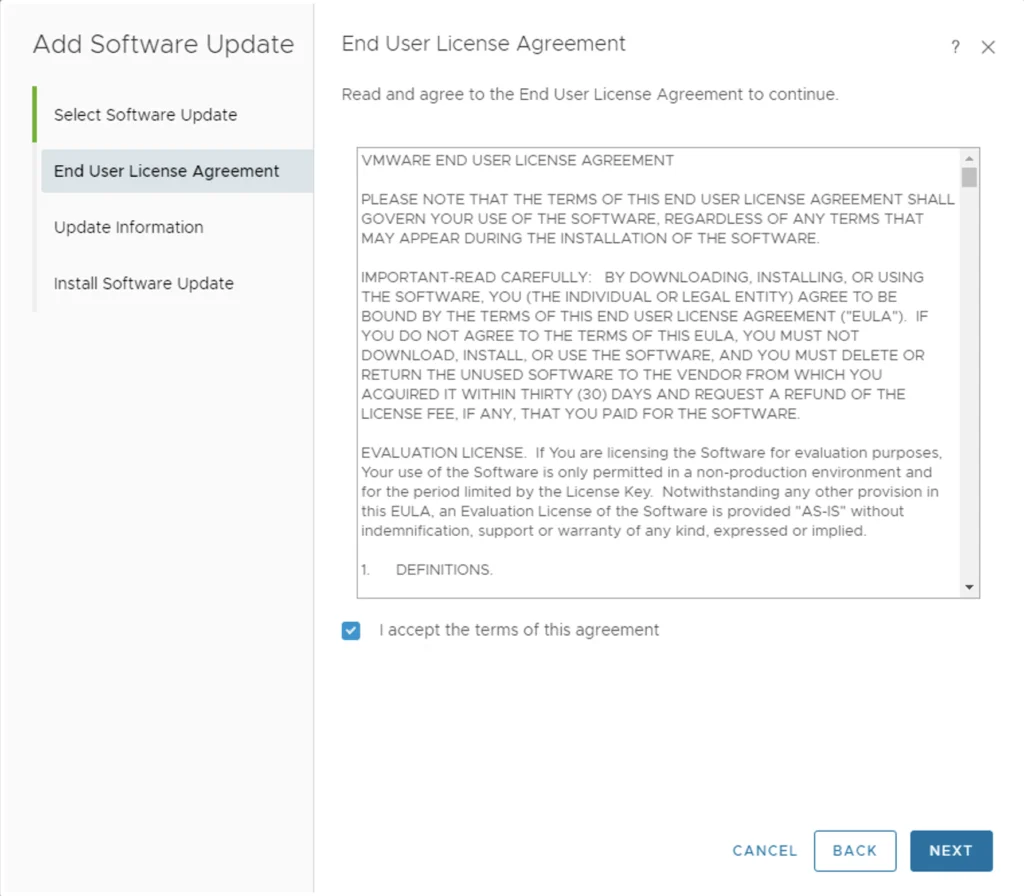
Accept the terms of agreement and click Next
Review the important notes and click Next
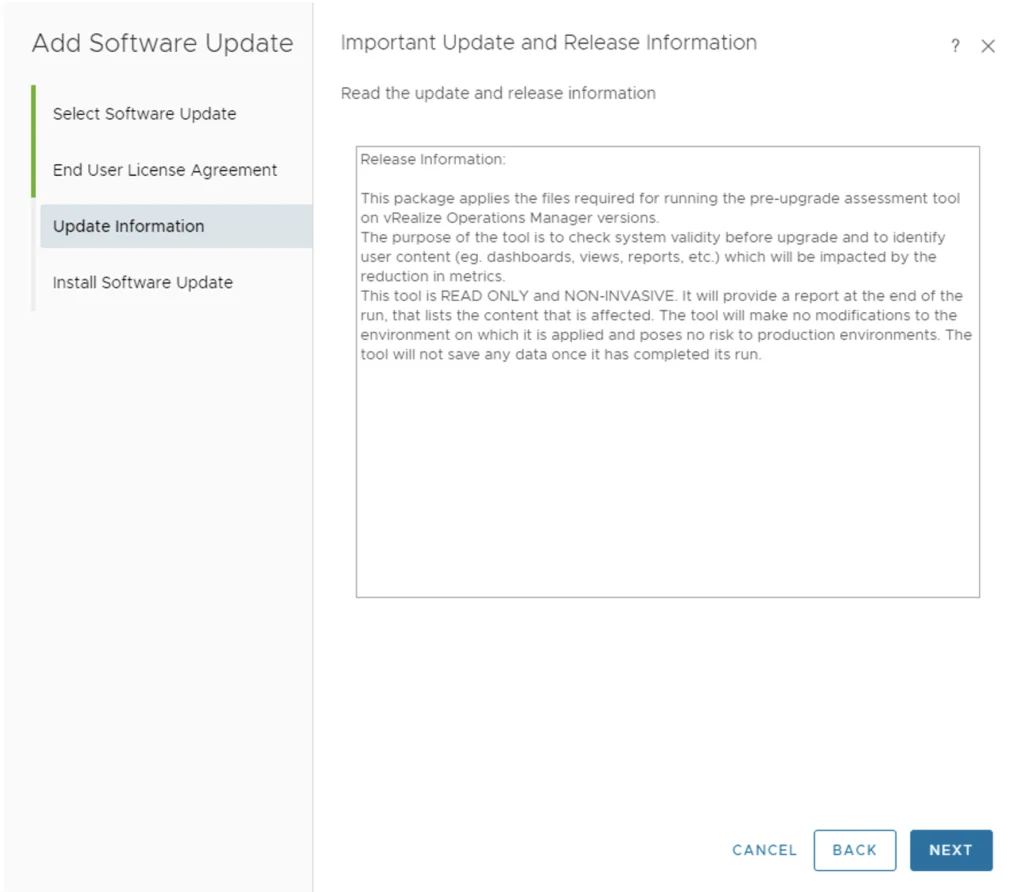
Click Install
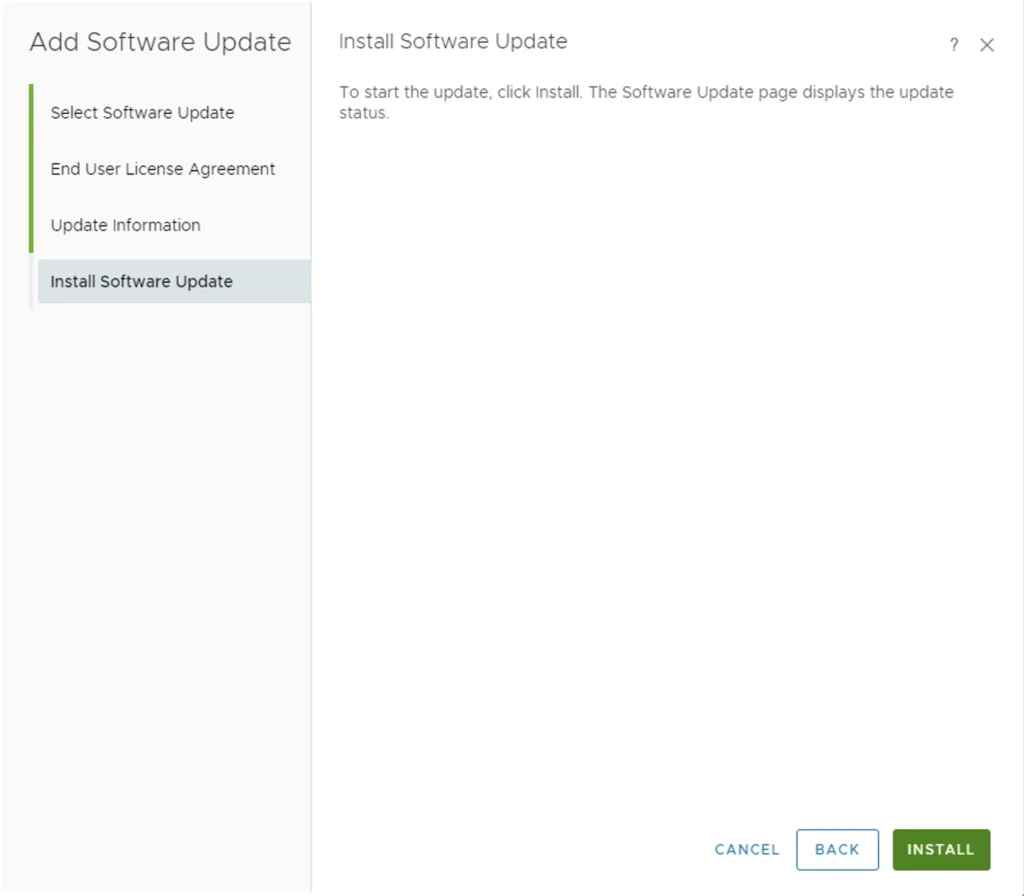
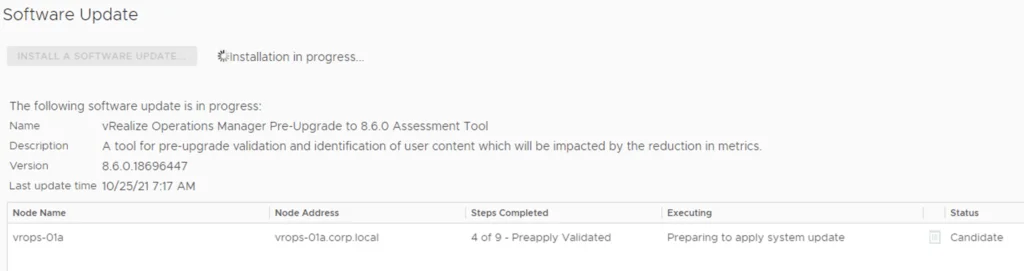
We can now follow the installation progress
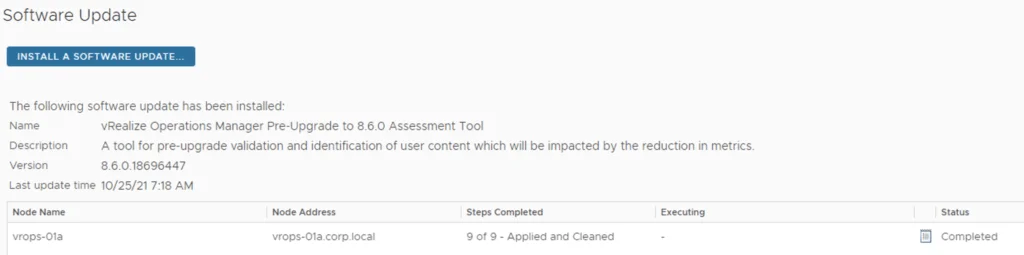
Once the install is complete we will see the status as completed.
Reviewing the Assessment Report
Next lets go and review the tool’s output by going to Support -> Support bundles -> Select the bundle that was just generated and click on the download button

Extract the content of the zip file and go to the apuat-data
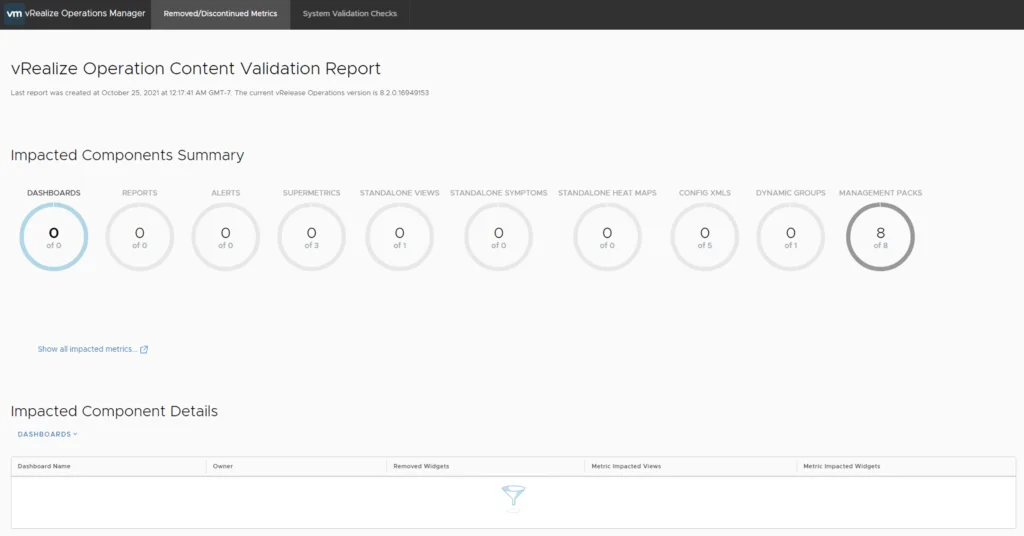
eport folder and open the index.html. Here we can review Removed\Discontinued Metrics, Dashboards that might be effected as well as a number of system validation checks.
Installing the 8.6 Upgrade
If everything looks good we can return to the admin UI and upload the product upgrade package under Software Update -> Install a software update -> Brose to the downloaded .pak file -> Click on Upload to stage the package -> Click on Next. Follow the rest of the screens till we click submit.
Once the the system is finished the server will get rebooted on the new 8.6 version