In this post I will go over upgrading my 8.x vRA appliance to 8.16.2. As a pre requirement we do need to have VMware Aria Suite Lifecycle upgraded to 8.16. Instructions can be found here. The upgrade does not include the latest PSPACK that contains the 8.16.2 VMware Aria Automation release. Instructions to get the PSPACK can be found on my other blog post here.
Downloading the Upgrade Binary via Binary Mapping
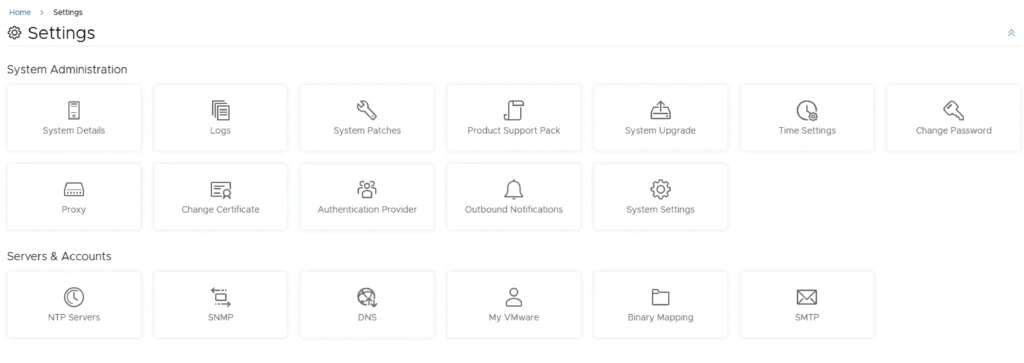
To get started we can go to VMware Aria Suite Lifecycle -> Lifecycle Operations -> Settings -> Binary Mapping. (If you haven’t added your My VMware credentials you will need to do that first by going to VMware Aria Suite Lifecycle -> Lifecycle Operations -> Settings -> My VMware)

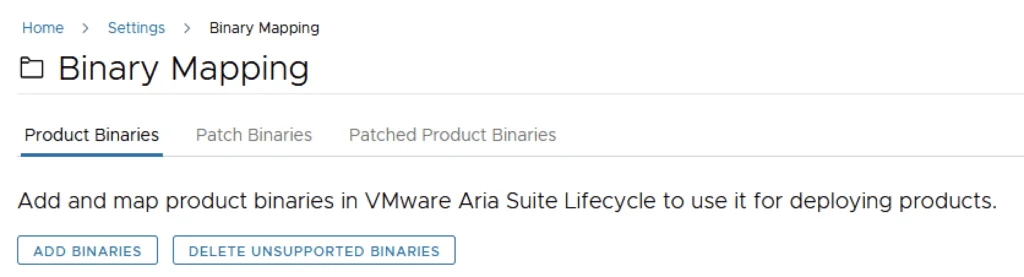
Click on Add Binaries under Product Binaries
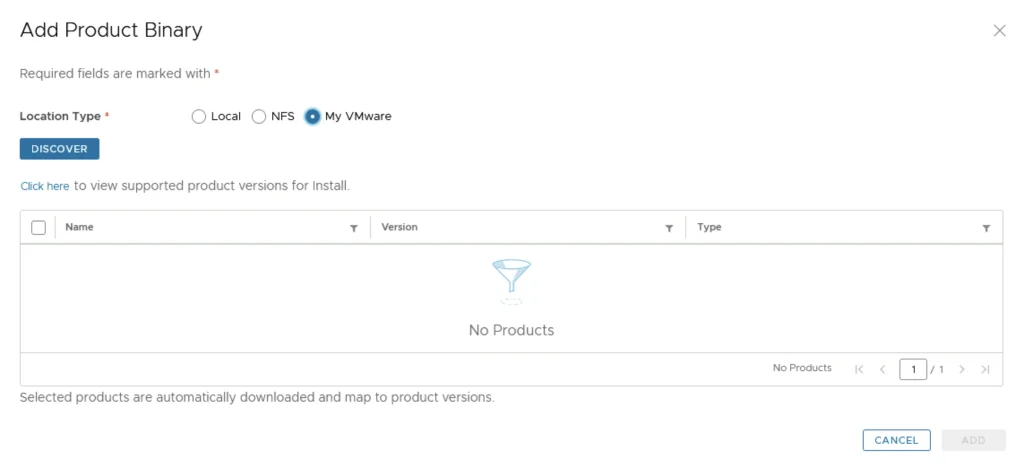
Select My VMware and click on Discover
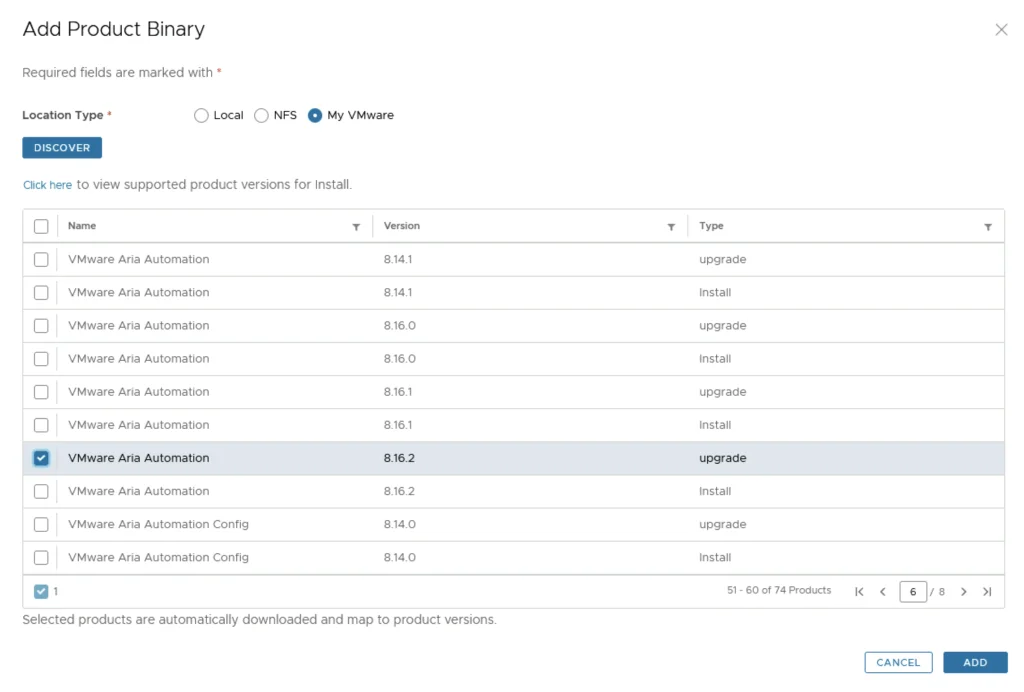
We can see a list of binaries that have been discovered. We can select what we need and click on Add
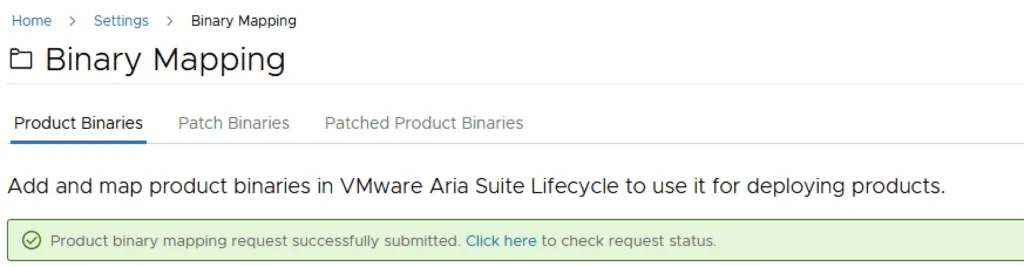
This will create a request and start downloading the package. To view the progress we can click on the Click Here hyperlink
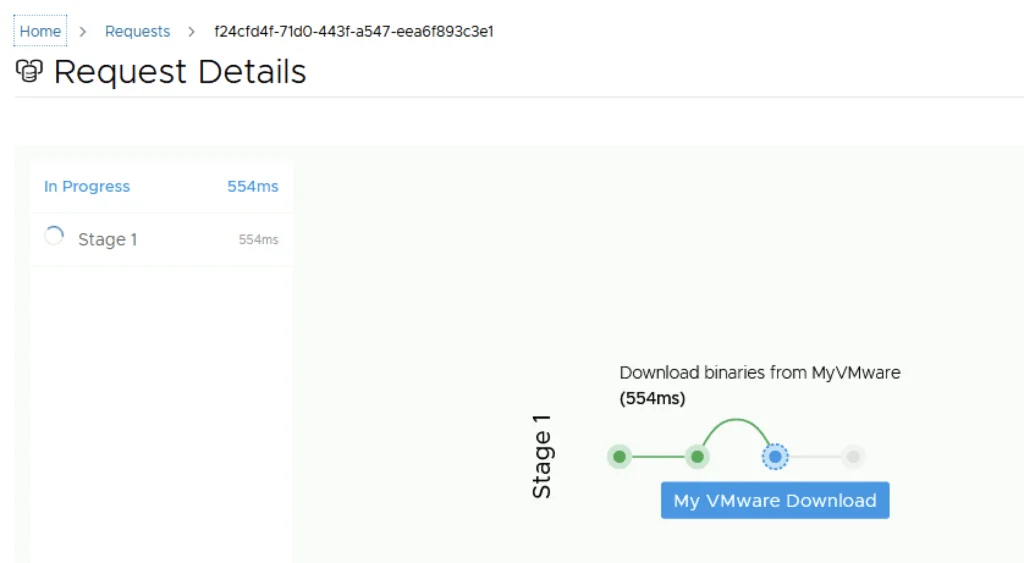
Click on the in Progress button to view the details ex:

We now have to wait for the download to complete
Starting the Upgrade from the Environment
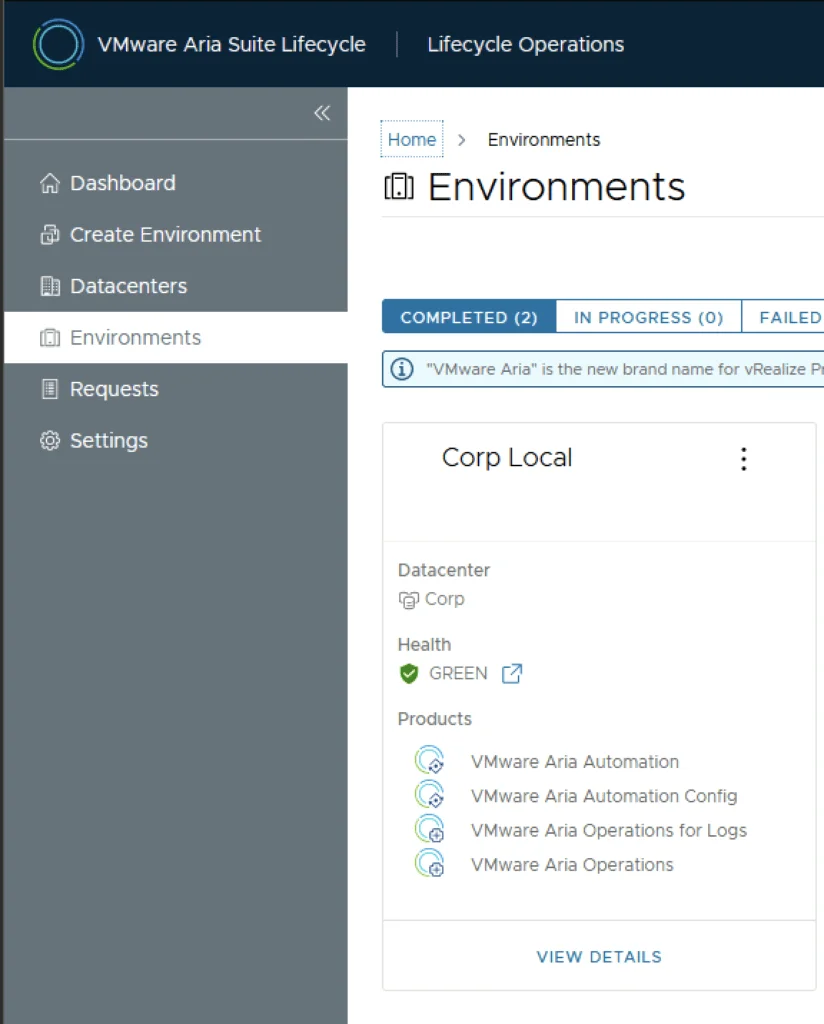
After the download is complete we can go to Environments -> View Details on the environment that includes vRA
Click on Upgrade
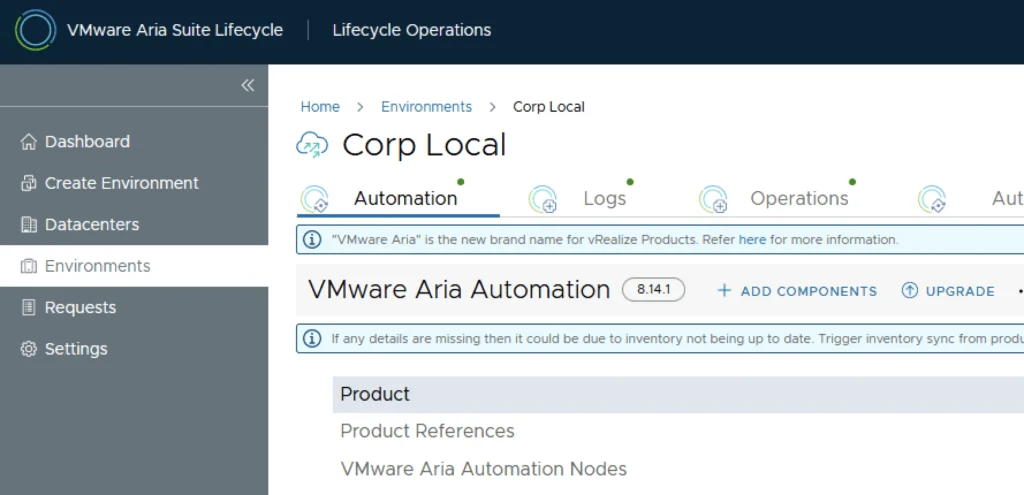
An Inventory sync is recommended if the environment has changed since LCM performed the last sync. We trigger the sync from the UI or click on Proceed to continue
Selecting Version 8.16.2 and Snapshot Options
Select product Version 8.16.2 and click Next. We can also review the compatibility matrix to make sure the environment is compatible.
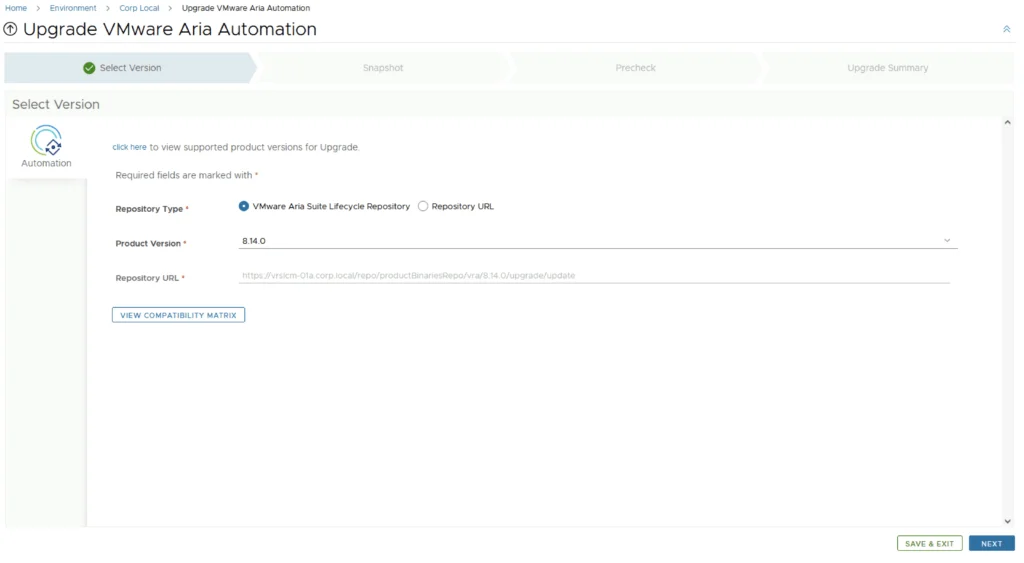
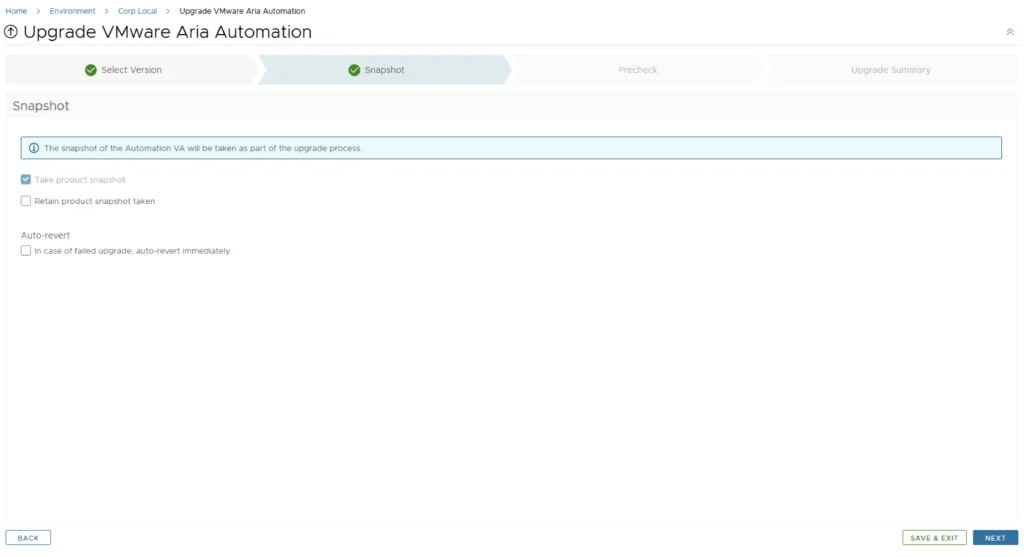
A new feature that was added was the capability to automatically create a snapshot prior to the upgrade and remove it after the upgrade. On this screen we also have the ability to chose if we want to keep the snapshots post upgrade for validation testing for example. Click next
Running the Precheck
Run the Precheck to make sure there are no errors
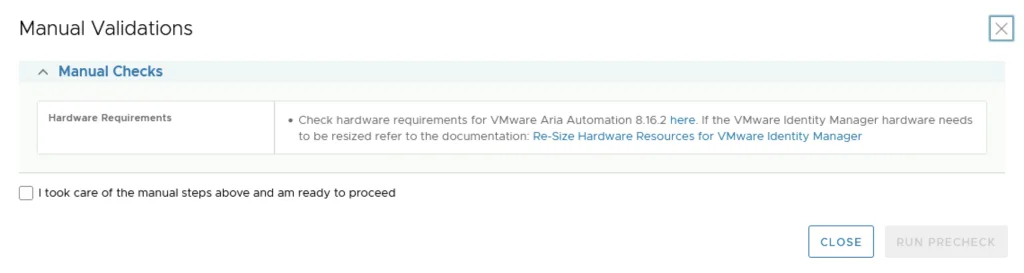
The next screen remind us of hardware requirements for vRA which can be checked here and vIDM which can be checked here. As far as I can tell they haven’t changed since the 8.3 release. Check the I took care of the manual steps above and am ready to proceed check mark and click on Run Precheck
Once the check is complete we can review the checks that were performed and we can continue by clicking Next.
Submitting and Completing the Upgrade
Review the upgrade details and click on Submit. We are taken to the progress screen where we can follow the progress.
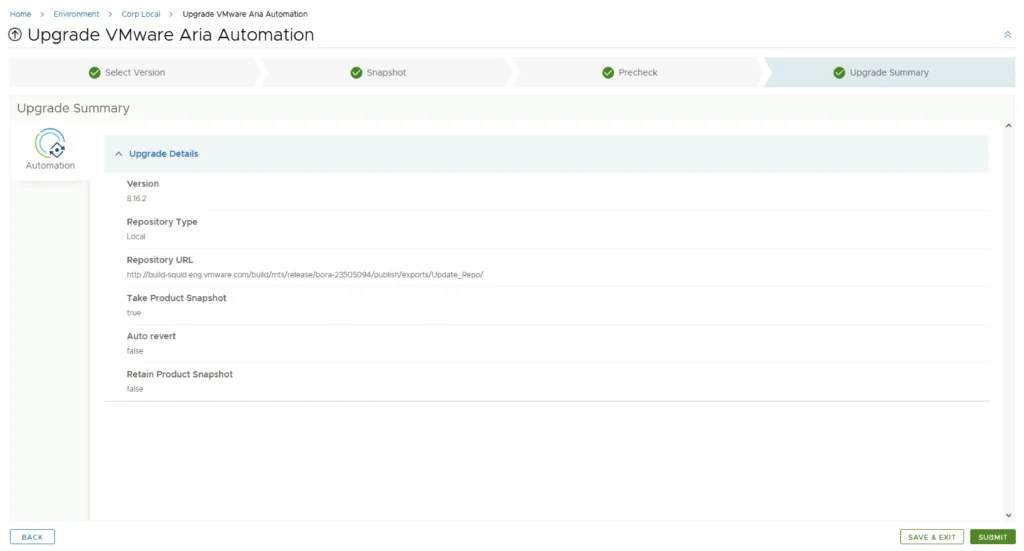
The system will get rebooted and once its back up we will be on 8.16.2
Since we are doing a major upgrade I strongly recommend to clean the cache before using the new vRA version.