With Fleet Lifecycle upgraded to 9.1.1, the next component I wanted to upgrade in my lab was VCF Services Runtime. In this post I will go over upgrading it from 9.1.0.0200 to 9.1.1.0 through VCF Operations.
VCF 9.1.1 was released on September 3, 2026. The release notes can be found here. The runtime fixes listed in the VCF Operations release notes include improvements for mixed-case FQDNs, services recovering after a cluster power-on, and log buffers filling the logging disk.
Before You Begin
For an existing 9.1.0.x environment, upgrade Fleet Lifecycle to 9.1.1 first, before any other VCF component. Broadcom also requires the hosting runtime to be upgraded before the dependent Identity Broker and Salt RaaS upgrades to 9.1.1. The release-specific order is documented here.
Before starting:
- Verify that a supported backup target is configured and reachable under Build -> Lifecycle -> VCF Management -> Backup & Restore. Use the target required by the component backup method. This is a prerequisite for patching VCF management services. Check the configuration status and keep the encryption passphrase available for a restore. The configuration steps are here.
- Take an on-demand backup before the upgrade. Go to Backup & Restore -> Backup -> Backup Now, select the VCF instance and component, and verify that the backup completes. Include the runtime and the hosted services that support backup in your recovery plan. Broadcom lists the runtime’s file-based backup as covering service accounts only; it does not replace the individual service backups. Review the supported backup methods.
- Check the runtime and hosted-service health before starting, including node CPU, memory, and disk utilization. Plan a maintenance window: hosted services can restart during maintenance. Broadcom describes these checks in the VCF Management Services health documentation.
- Make sure the required binaries are available through the assigned software depot. For offline or disconnected environments, prepare them with the VCF Download Tool using the binary management documentation.
For this walkthrough we will upgrade one runtime instance and let it finish before starting another management-service operation. If VCF Operations itself is being patched, wait for that patch to complete first, as the banner in the screenshot below instructs. Also wait for any Software Depot patch to finish so the upgrade binaries are available.
Here are the versions from my lab:
| Component | Before | After |
|---|---|---|
| VCF Services Runtime | 9.1.0.0200.25555874 | 9.1.1.0.25714471 |
Fleet Lifecycle was already on 9.1.1.0.25713934. Both 9.1.1 build numbers match the VCF 9.1.1 Bill of Materials.
Selecting the Target Version
To get started, log in to VCF Operations with an Administrator account and go to Build -> Lifecycle -> VCF Management -> Upgrade.
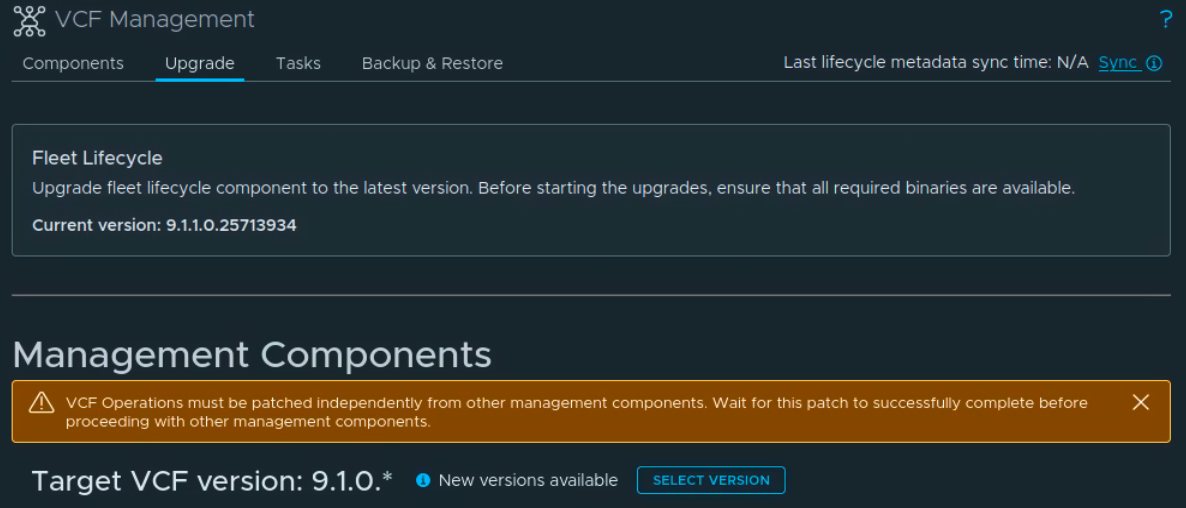
We can see that Fleet Lifecycle is already upgraded, but the management components still have 9.1.0.* selected as the target. If the new release is not available, use Sync to refresh the lifecycle metadata and wait for the task to complete.
Under Management Components, click on Select Version.
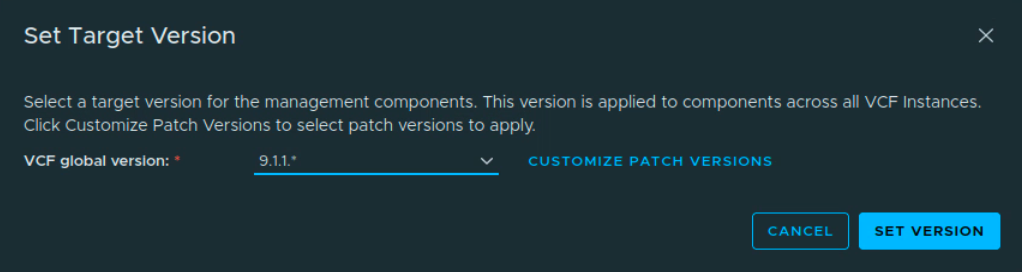
In the Set Target Version dialog, select 9.1.1.* from the VCF global version drop-down and click on Set Version.
Please note that this target applies to management components across all VCF instances. Setting the target does not start the upgrades; we still need to select the component to upgrade.
Running the Runtime Prechecks
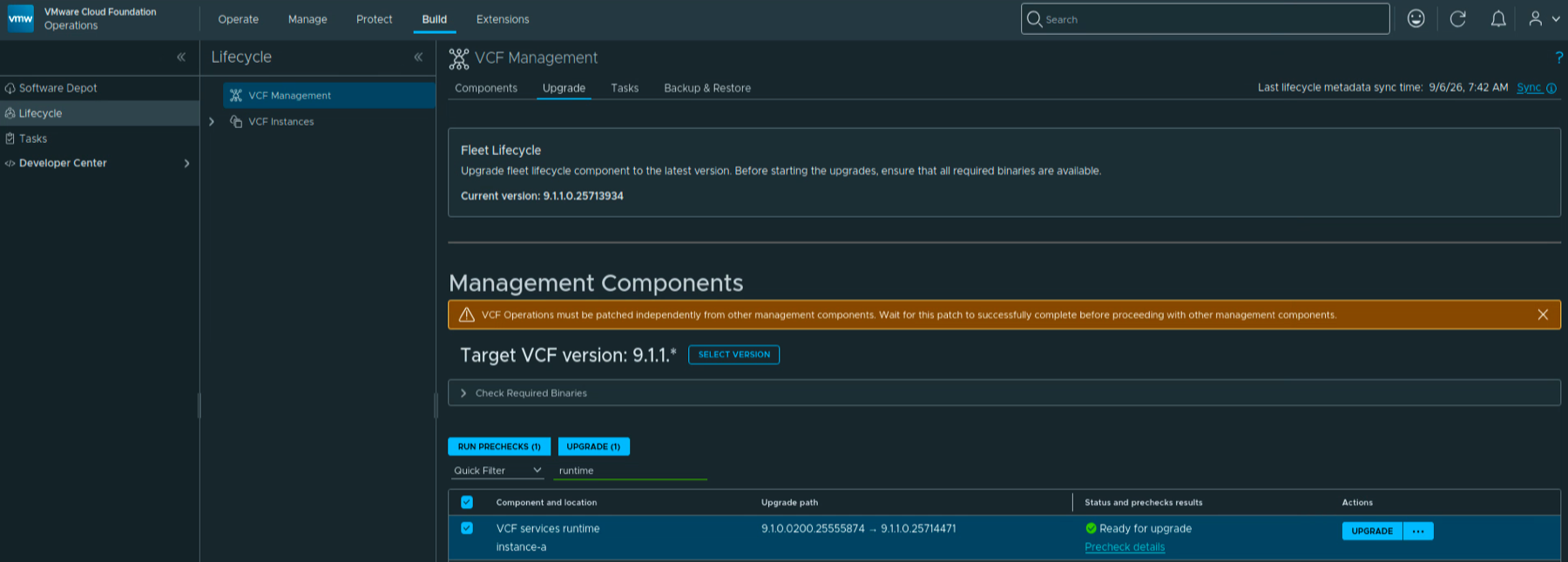
Clear any existing component selections, then filter the list for runtime and select the VCF services runtime row for the instance you want to upgrade. In my lab this is instance-a.
Make sure only the intended runtime is selected. The buttons should show Run Prechecks (1) and Upgrade (1). Check that the upgrade path is 9.1.0.0200.25555874 -> 9.1.1.0.25714471.
Expand Check Required Binaries and confirm that the required binaries are available. Resolve any missing binaries before proceeding.
Click on Run Prechecks (1). Once the task completes, review Precheck details and resolve any errors before starting the upgrade, following the individual component upgrade procedure.
Here we can see the runtime row showing Ready for upgrade, with the Precheck details link available.

Starting the Upgrade
Once the prechecks have completed successfully, click on Upgrade on the runtime row.
The status changes to Upgrade in progress. We can follow the progress by clicking on Upgrade details.

The workflow starts by setting the runtime upgrade context and staging the runtime plugin. In this capture we can see Staging binaries followed by Running Component Stage Prechecks.
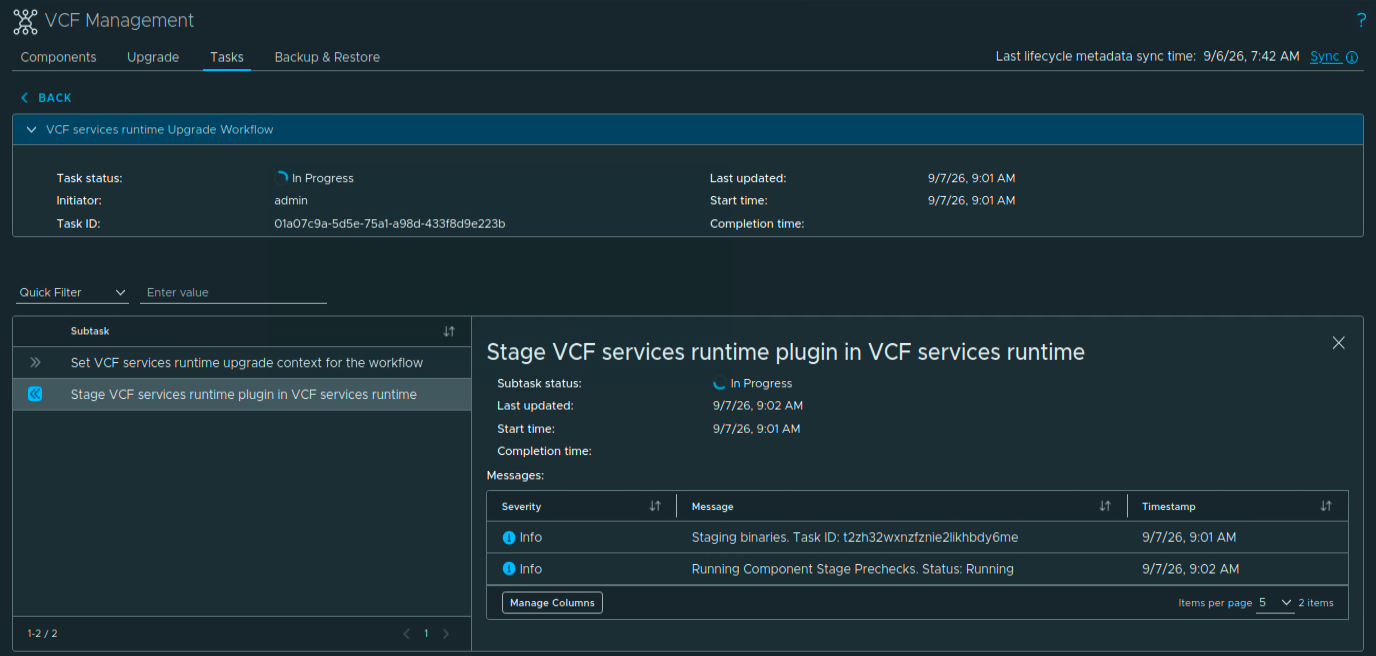
We now have to wait for the workflow to finish. It continues through runtime prechecks, package staging, upgrade preparation, the upgrade itself, and the final inventory sync.
If a task fails, open its details and resolve the reported issue before retrying. The 9.1.1 known issues also explain that a completed workflow can retain failed subtask attempts after successful retries. Review the final task status and component health when checking the result.
Verifying the Upgrade
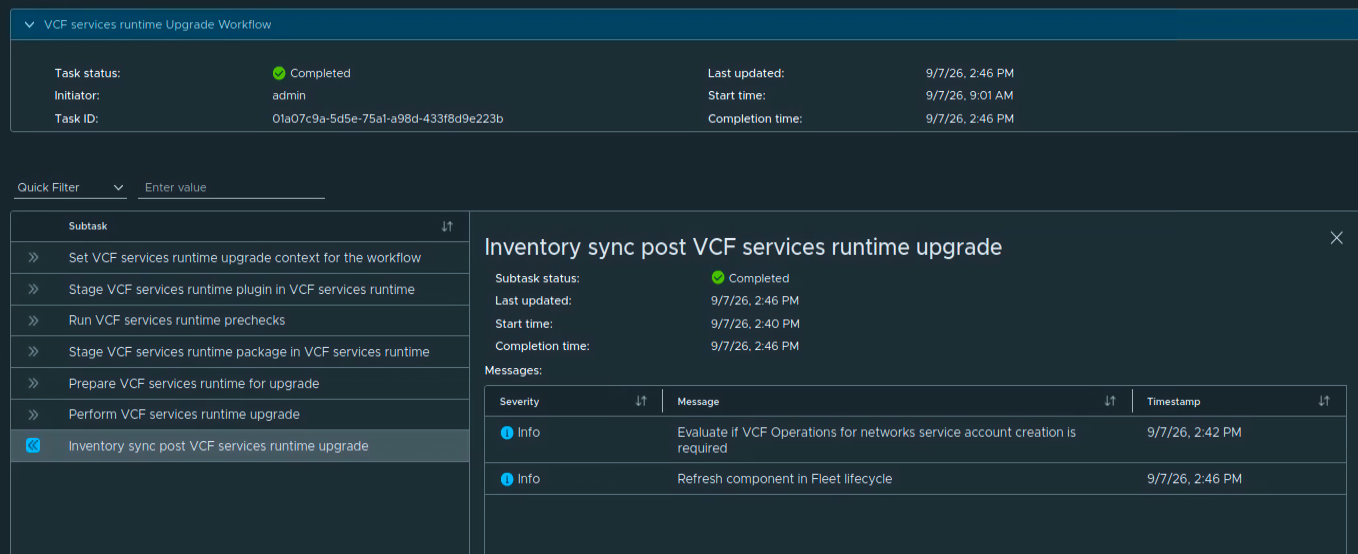
Once the upgrade is complete, the workflow shows Completed. The final Inventory sync post VCF services runtime upgrade subtask also shows Completed.
In my lab the workflow started at 9:01 AM and completed at 2:46 PM on September 7, about 5 hours and 45 minutes. This is the total workflow time shown in my task, not a measurement of service downtime. Allow for your environment to take a different amount of time.
We can verify the installed version by going to Build -> Lifecycle -> VCF Management -> Components and opening VCF Services Runtime for the instance.
Under Summary, check that the status is Running and the version is 9.1.1.0.25714471.
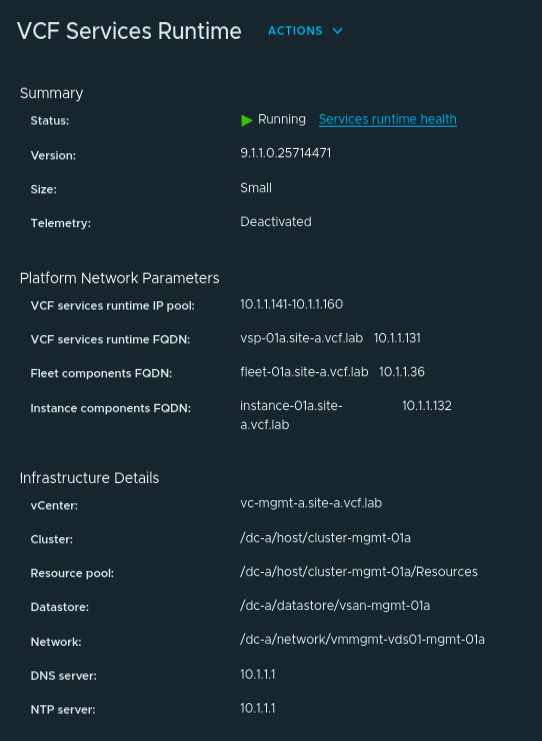
Before moving on, open Services runtime health and check the nodes and hosted services for outstanding health issues. Verify the services you use, such as sign-in, log collection, and lifecycle operations, and confirm that backups are still working.
The runtime in my lab is now on 9.1.1. We can continue with the remaining management components, following the release-specific dependencies above. Upgrading the runtime does not by itself confirm that every hosted component is on 9.1.1; check each component’s version separately.