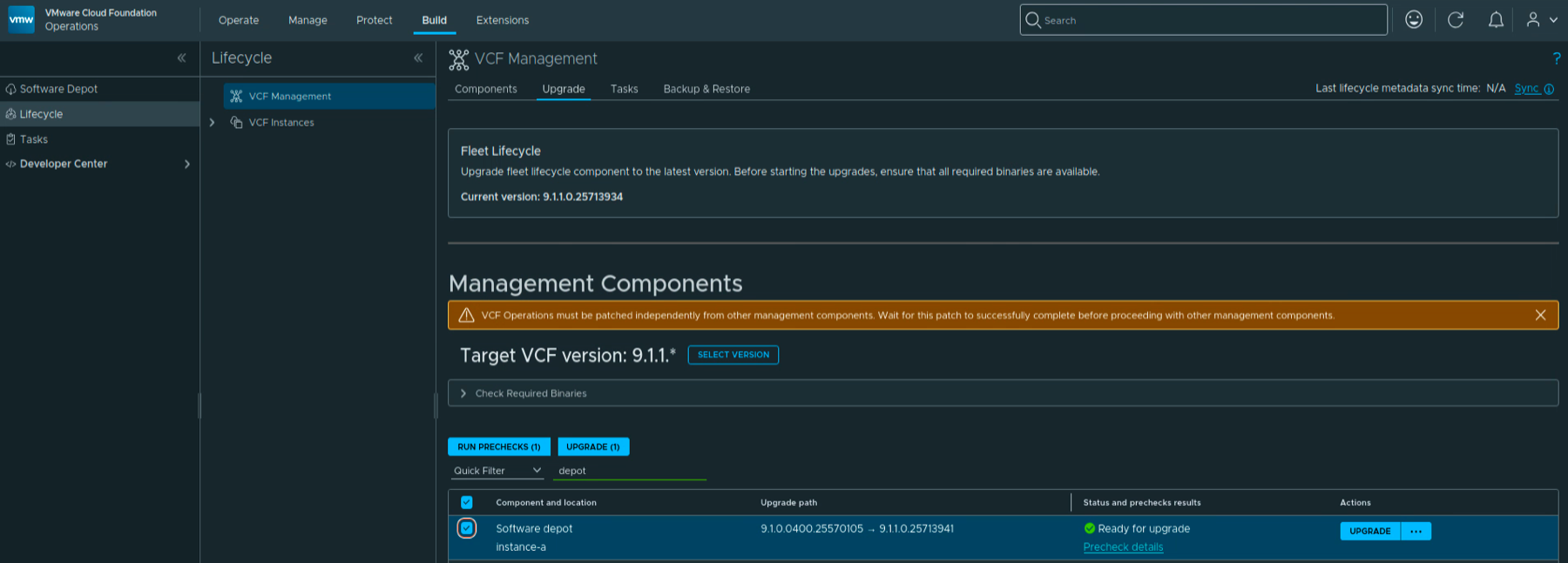
With VCF Services Runtime upgraded to 9.1.1, the next component I wanted to upgrade in my lab was SDDC Lifecycle. In this post I will go over upgrading it from 9.1.0.0400 to 9.1.1.0 through VCF Operations.
VCF 9.1.1 was released on September 3, 2026. This is a maintenance release focused mostly on supportability improvements. The release notes can be found here.
Before You Begin
For an existing 9.1.0.x environment, upgrade Fleet Lifecycle to 9.1.1 first, before any other VCF component. In my lab it is already on 9.1.1.0.25713934. Continue to follow the release-specific dependencies in the 9.1.1 release notes when planning the remaining components.
Before starting:
- Verify that a supported backup target is configured and reachable under Build -> Lifecycle -> VCF Management -> Backup & Restore. Use the target required by the component backup method. Keep the encryption passphrase available for a restore. The configuration steps are here.
- Take an on-demand backup. Go to Backup & Restore -> Backup -> Backup Now, select the VCF instance and SDDC Lifecycle, and verify that the backup completes successfully. Review the supported backup methods.
- Make sure the required upgrade binaries are available through the assigned depot. For offline or disconnected environments, prepare them with the VCF Download Tool using the binary management documentation.
I ran this as a single component operation and waited for it to complete before starting another management-service operation. That keeps the workflow easy to follow and avoids competing lifecycle tasks during the maintenance window.
Here are the versions from my lab:
| Component | Before | After |
|---|---|---|
| SDDC Lifecycle | 9.1.0.0400.25570103 | 9.1.1.0.25713940 |
The target version and build match the VCF 9.1.1 Bill of Materials.
Selecting SDDC Lifecycle
To get started, log in to VCF Operations with an Administrator account and go to Build -> Lifecycle -> VCF Management -> Upgrade.
The Target VCF version in my lab is already set to 9.1.1.* from the previous upgrade. If yours is still on 9.1.0.*, click on Select Version and set the target to 9.1.1.*, as covered in the runtime walkthrough.
Clear any existing component selections, filter the list for sddc, and select SDDC lifecycle for the instance you want to upgrade. In my lab this is instance-a. Make sure only the intended component is selected; the buttons should show Run Prechecks (1) and Upgrade (1).
Expand Check Required Binaries and resolve any missing binaries before proceeding. Check that the upgrade path is 9.1.0.0400.25570103 -> 9.1.1.0.25713940.

Running the Prechecks
Click on Run Prechecks (1). The row changes to Prechecks in progress.

Click on Precheck details to follow the workflow. The detail view shows the precheck context being set and the SDDC Lifecycle precheck binaries being staged.
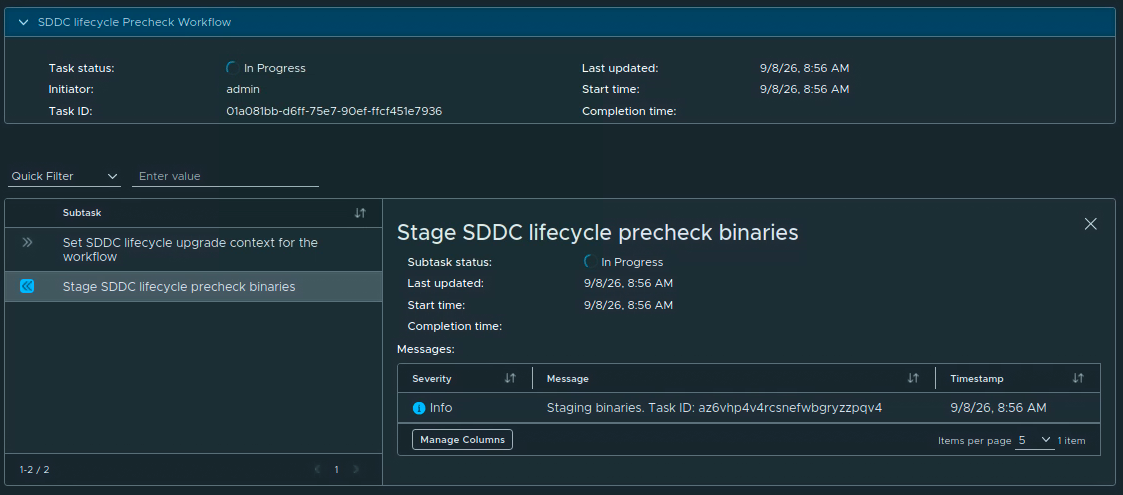
In my lab the precheck started at 8:56 AM and completed at 9:11 AM on September 8. The final result was Passed, including the component package, vCenter, database upgrade, and single-component backup checks.
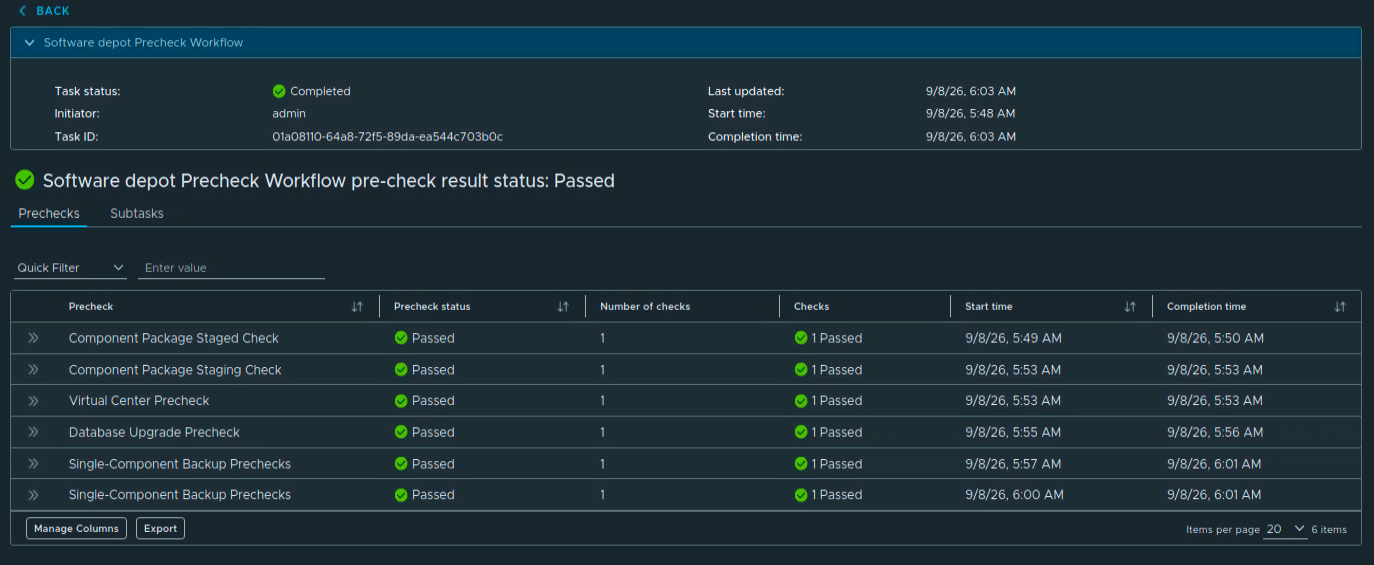
Once the prechecks pass, return to the upgrade list. The row should show Ready for upgrade.

Resolve any failed check before continuing, following Broadcom’s individual component upgrade procedure.
Starting the Upgrade
Click on Upgrade on the SDDC Lifecycle row.
The status changes to Upgrade in progress. Click on Upgrade details to follow the workflow.

The workflow sets the upgrade context, stages the SDDC Lifecycle plugin in VCF Services Runtime, runs the component prechecks, stages the package, prepares and performs the upgrade, and finishes with an inventory sync.
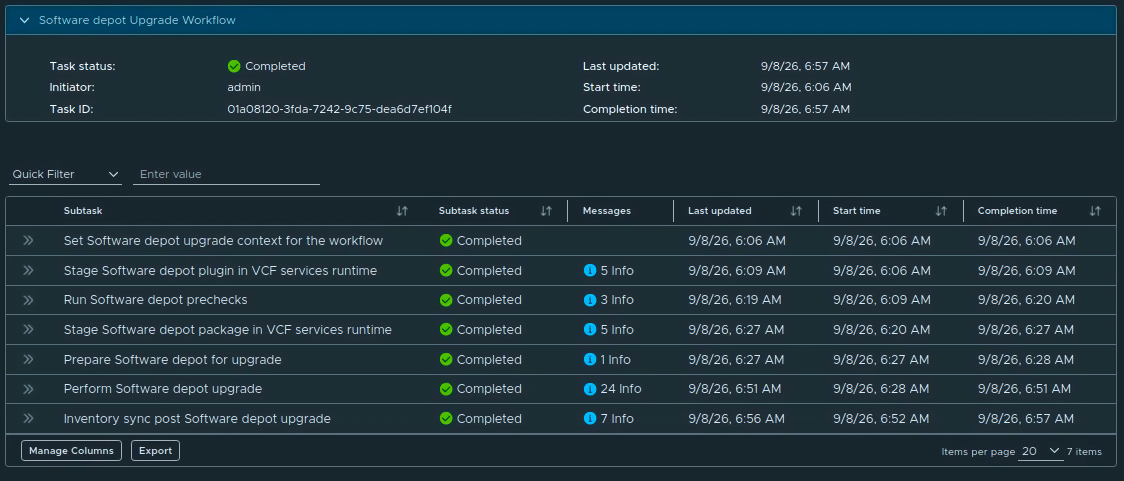
Wait for the workflow to finish. If a task fails, open its details, resolve the reported issue, and retry it before moving on.
Verifying the Upgrade
Once the upgrade is complete, the workflow shows Completed. In my lab all seven subtasks completed, including Inventory sync post SDDC lifecycle upgrade. The upgrade started at 9:15 AM and finished at 10:04 AM on September 8, about 49 minutes for the full workflow.
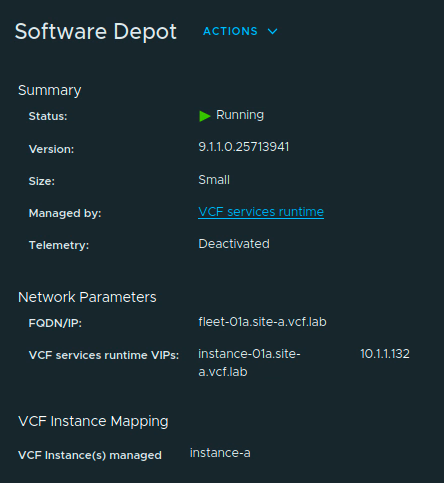
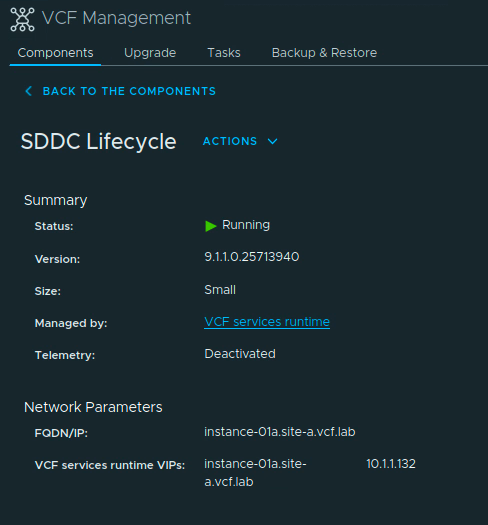
We can verify the installed version by going to Build -> Lifecycle -> VCF Management -> Components and opening SDDC Lifecycle for the instance.
Under Summary, check that the status is Running and the version is 9.1.1.0.25713940. Also confirm that it is managed by the expected VCF Services Runtime instance.
One known issue to keep in mind: if you plan to scale VCF Services Runtime from Small to Small (High Availability), upgrade SDDC Lifecycle to 9.1.1 before doing that. The VCF Operations 9.1.1 release notes document a failure when Fleet Lifecycle is on 9.1.1 while SDDC Lifecycle is still on 9.1.0.
SDDC Lifecycle in my lab is now on 9.1.1. We can continue with the remaining management components, following the release-specific dependencies above.