With the release of VMware Cloud Foundation 9.1.1 on September 3, 2026, I wanted to get my VCF Operations lab upgraded. This is a maintenance release focused mostly on supportability improvements. The VCF 9.1.1 release notes can be found here, and the VCF Operations release notes are here.
In this post I will go over upgrading VCF Operations from 9.1.0.0400 to 9.1.1 using the upgrade PAK file. If you are still on an older release, I also covered upgrading VCF Operations to 9.0.1 using a PAK file. That is a separate walkthrough, not a required intermediate upgrade.
Important: Broadcom does not recommend using the PAK method for maintenance upgrades in a fleet-managed VCF 9.1.0.x environment. In that case, upgrade Fleet Lifecycle to 9.1.1 first and use Build -> Lifecycle -> VCF Management -> Upgrade. I used the manual PAK workflow in my lab, and this post only covers the VCF Operations appliance. The screenshots document that lab result; they are not a replacement for the official component order or evidence that Fleet Lifecycle can be skipped. The PAK method remains the documented path when upgrading from Aria Operations 8.x or VCF Operations 9.0.x to 9.1.
What Is New in VCF Operations 9.1.1
A few changes in this release stood out to me:
- SDDC Manager log collection can now be managed from VCF Operations.
- A network proxy can be configured when deploying a new cloud proxy from the OVA.
- The VMware Salt for VCF Components API is now available for managing configuration across VCF components.
- Active Directory lookup, password management, and certificate management now cover more users, accounts, and VCF components.
The release also fixes problems with mixed-case FQDNs during upgrade operations, the UI not loading when NTP is out of sync, services not recovering after a cluster power-on, and log buffers filling the logging disk. Broadcom also published a separate VCF Operations 9.1.1 fixed-CVE workbook.
Versions Used in This Upgrade
The PAK file and the VCF Operations node use different build numbers. This is expected.
| Item | Before | After |
|---|---|---|
| Installed update package | 9.1.0.0400.25541550 | 9.1.1.0.25679887 |
| VCF Operations node | 9.1.0.0400.25541561 | 9.1.1.0.25679751 |
In my case the PAK file was Operations-Upgrade-9.1.1.0.25679887.pak, and the download was 7.03 GB.
Before You Begin
Before starting the upgrade:
- Review the release notes and verify the supported upgrade path.
- Confirm that every VCF Operations node is online and healthy and that DNS and NTP are working correctly.
- Run the pre-upgrade assessment and review the results.
- Back up any customized content that you need to preserve.
- Take the VCF Operations cluster offline and snapshot every cluster node without virtual machine memory and without quiescing the guest file system. Broadcom documents the full process here. Bring the cluster online again before starting the upgrade.
- Plan for downtime. The VCF Operations cluster restarts and remains unavailable during the update.
There is a known 9.1.1 issue where the Management Pack compatibility precheck can show raw resource keys and JSON. If that happens, download the APUAT support-bundle HTML report from the same precheck run to see the readable results.
Downloading the Upgrade PAK
To get started, log in to the Broadcom Support Portal and go to My Downloads -> VMware Cloud Foundation -> VMware Cloud Foundation 9 -> 9.1.1.0. Under VCF Operations, click View Group.

Read both agreements and accept the terms to enable the downloads.

Download Operations-Upgrade-9.1.1.0.25679887.pak. The portal also provides the checksums that we can use to validate the file after the download.

Checking the Cluster Before the Upgrade
Open the VCF Operations administration interface at https://<primary-node-fqdn>/admin and log in with the local admin account.
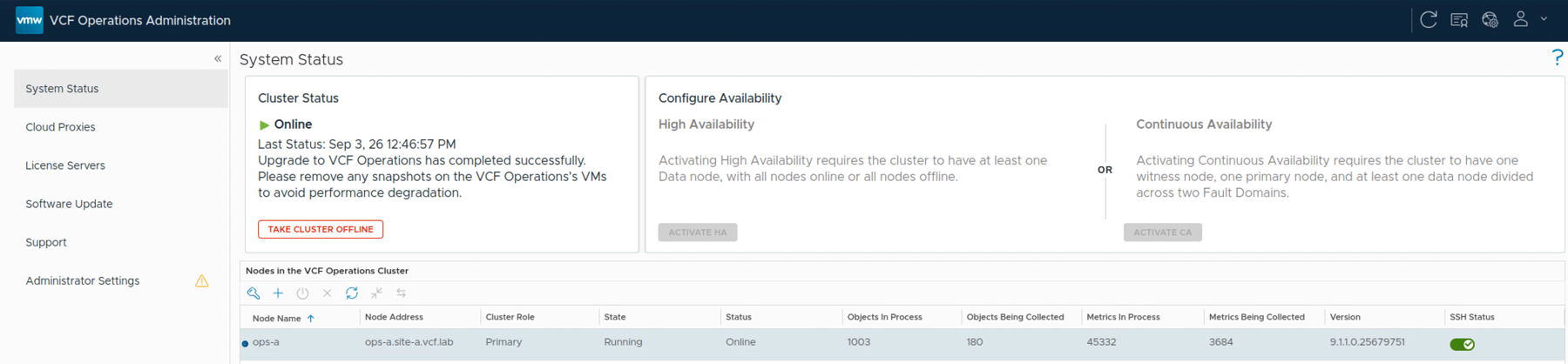
Go to System Status and make sure the cluster is Online and every node is Running. In my lab the starting node version was 9.1.0.0400.25541561.

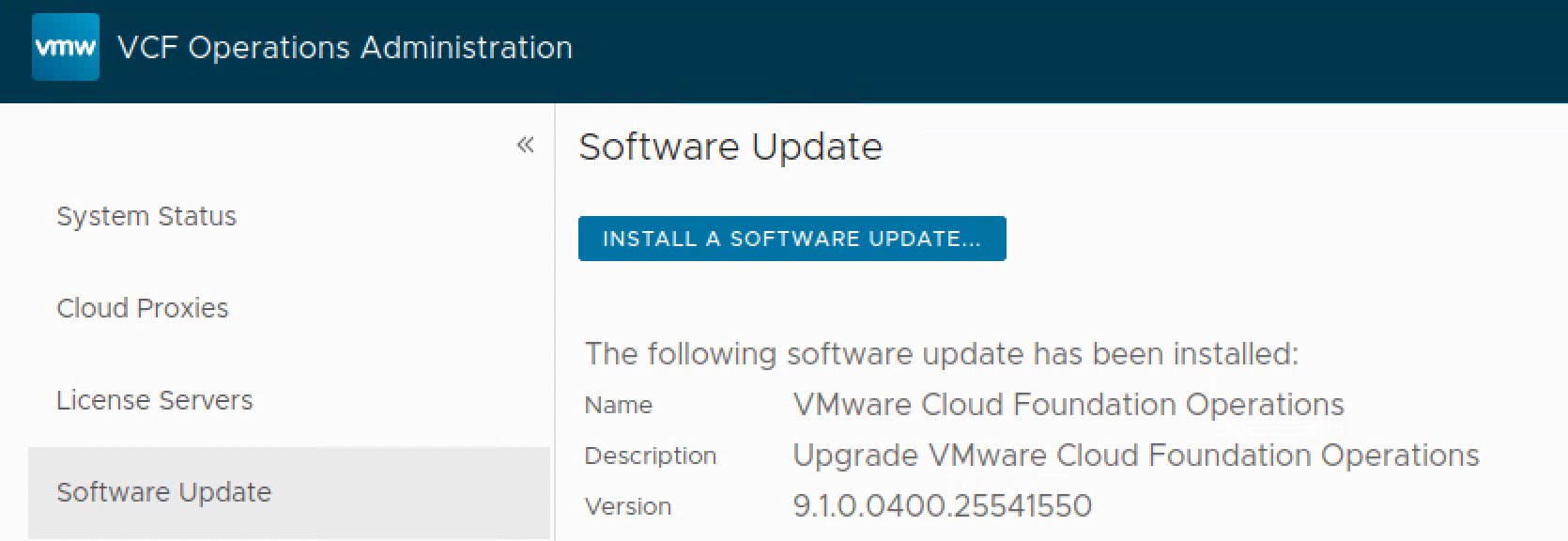
Go to Software Update. The previously installed update in my lab was 9.1.0.0400.25541550. Click Install a Software Update.
Uploading the PAK File
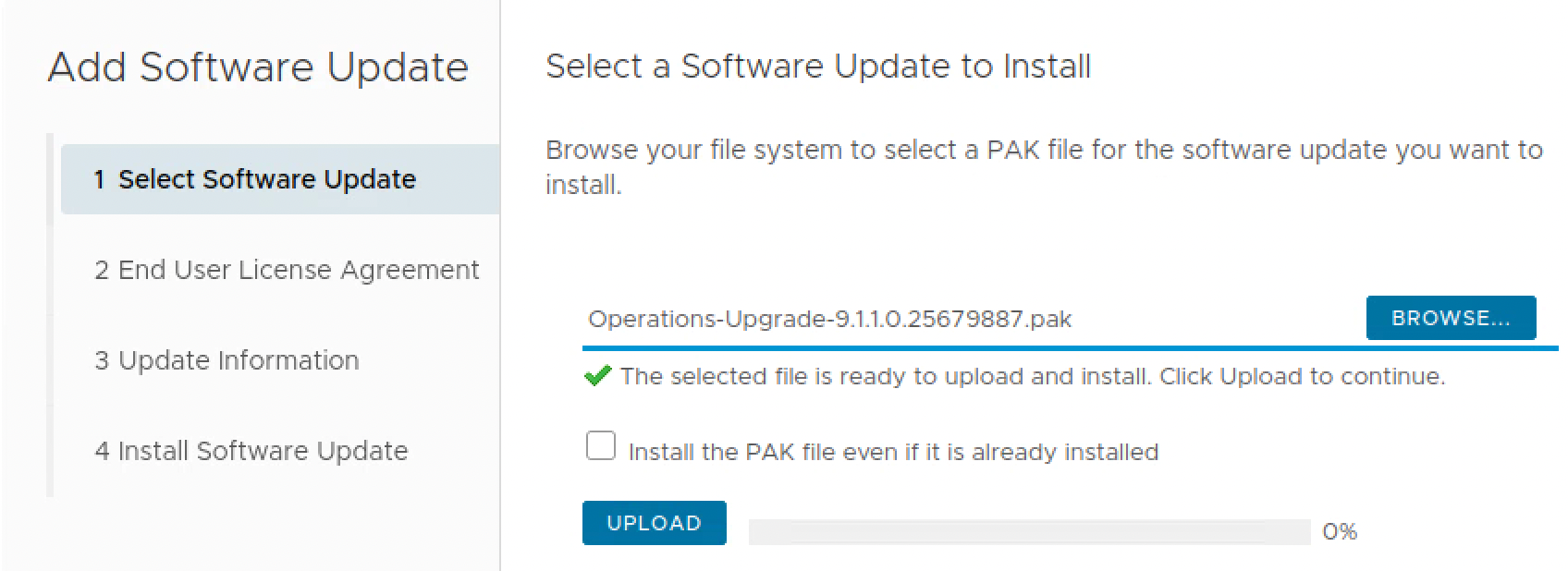
Click Browse, select Operations-Upgrade-9.1.1.0.25679887.pak, and click Upload. Leave Install the PAK file even if it is already installed unchecked.
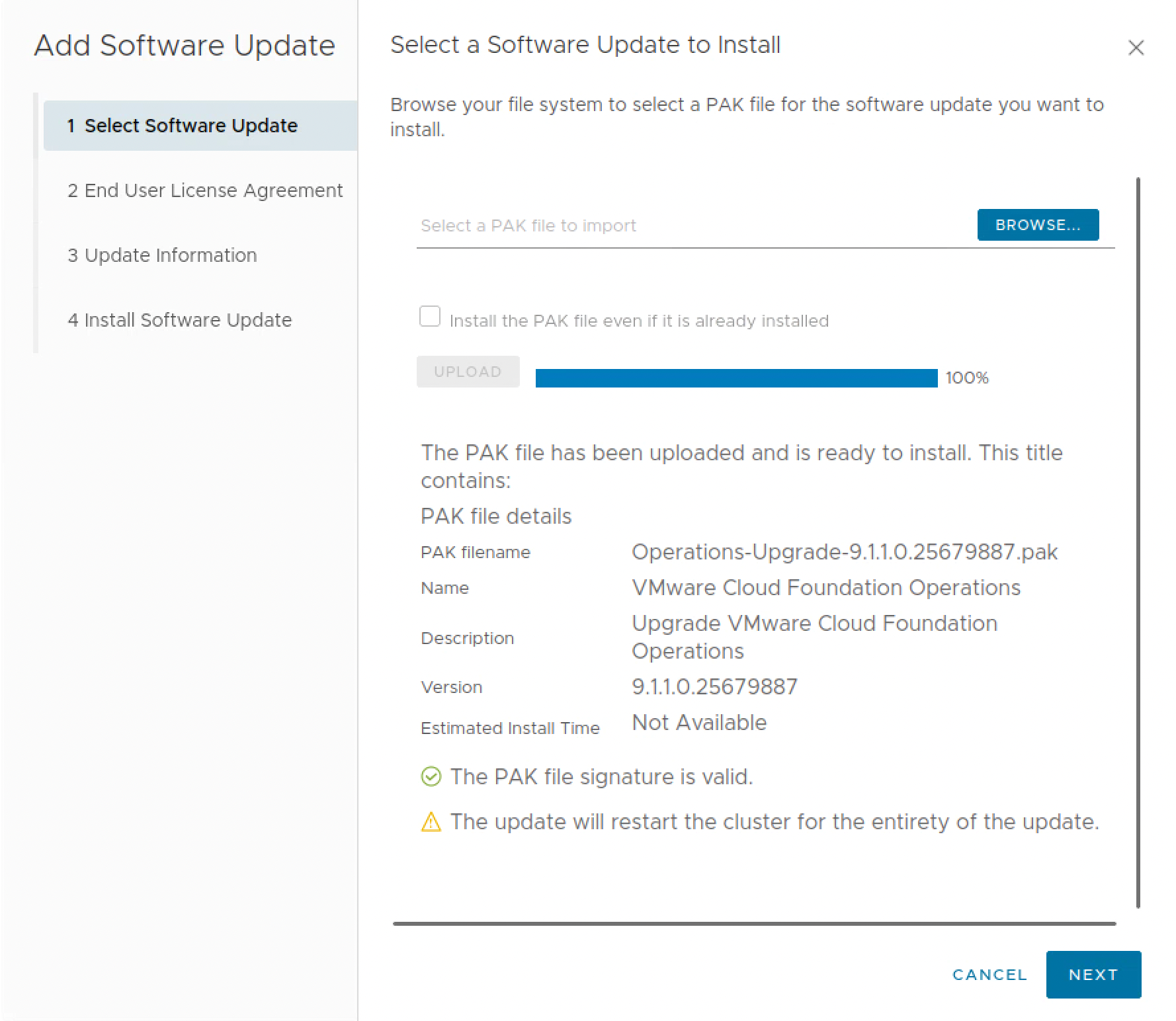
The upload can take some time because the PAK is just over 7 GB. Once it finishes, confirm that the signature is valid and that the version is 9.1.1.0.25679887, then click Next.
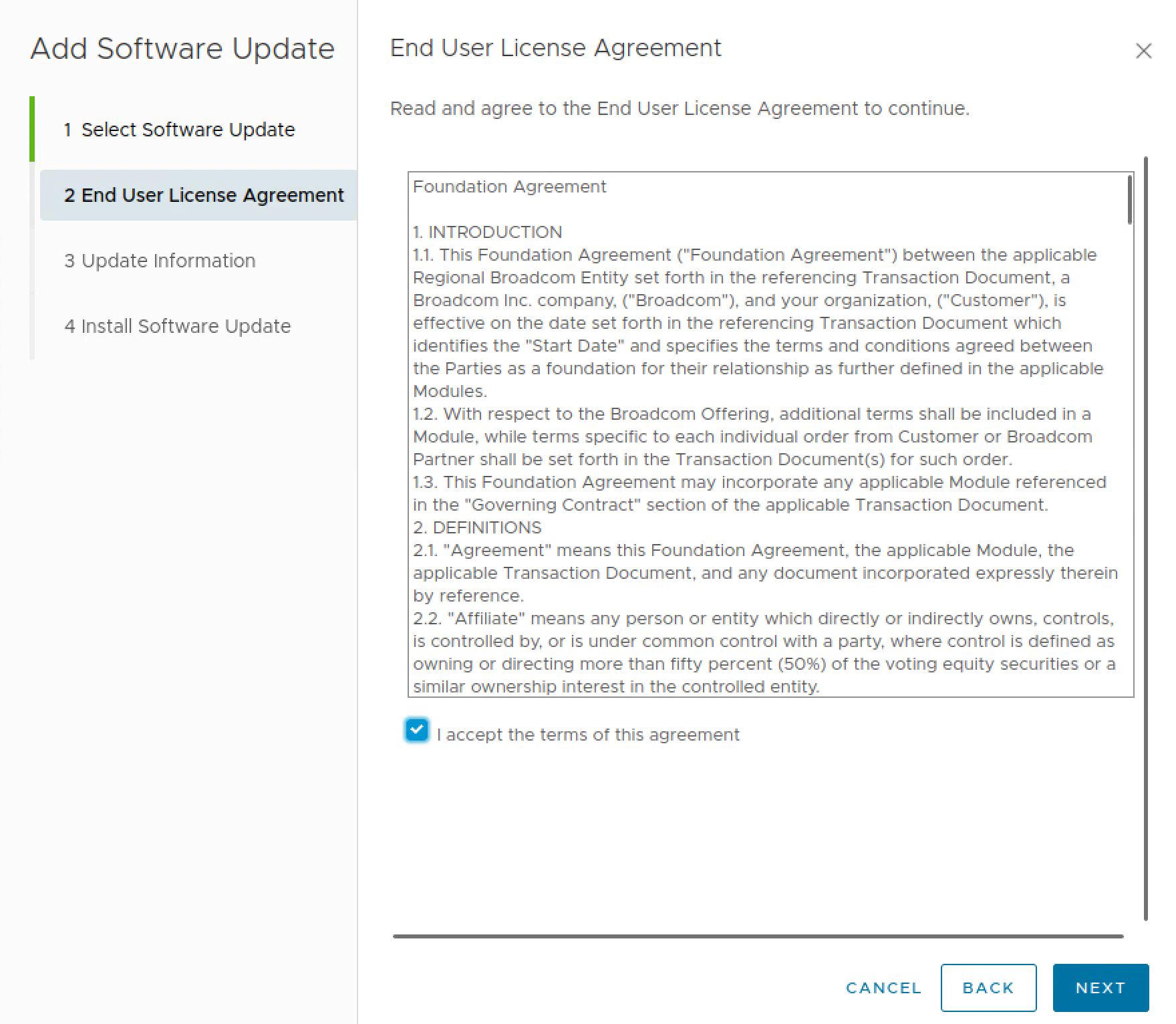
Review the End User License Agreement, select I accept the terms of this agreement, and click Next.
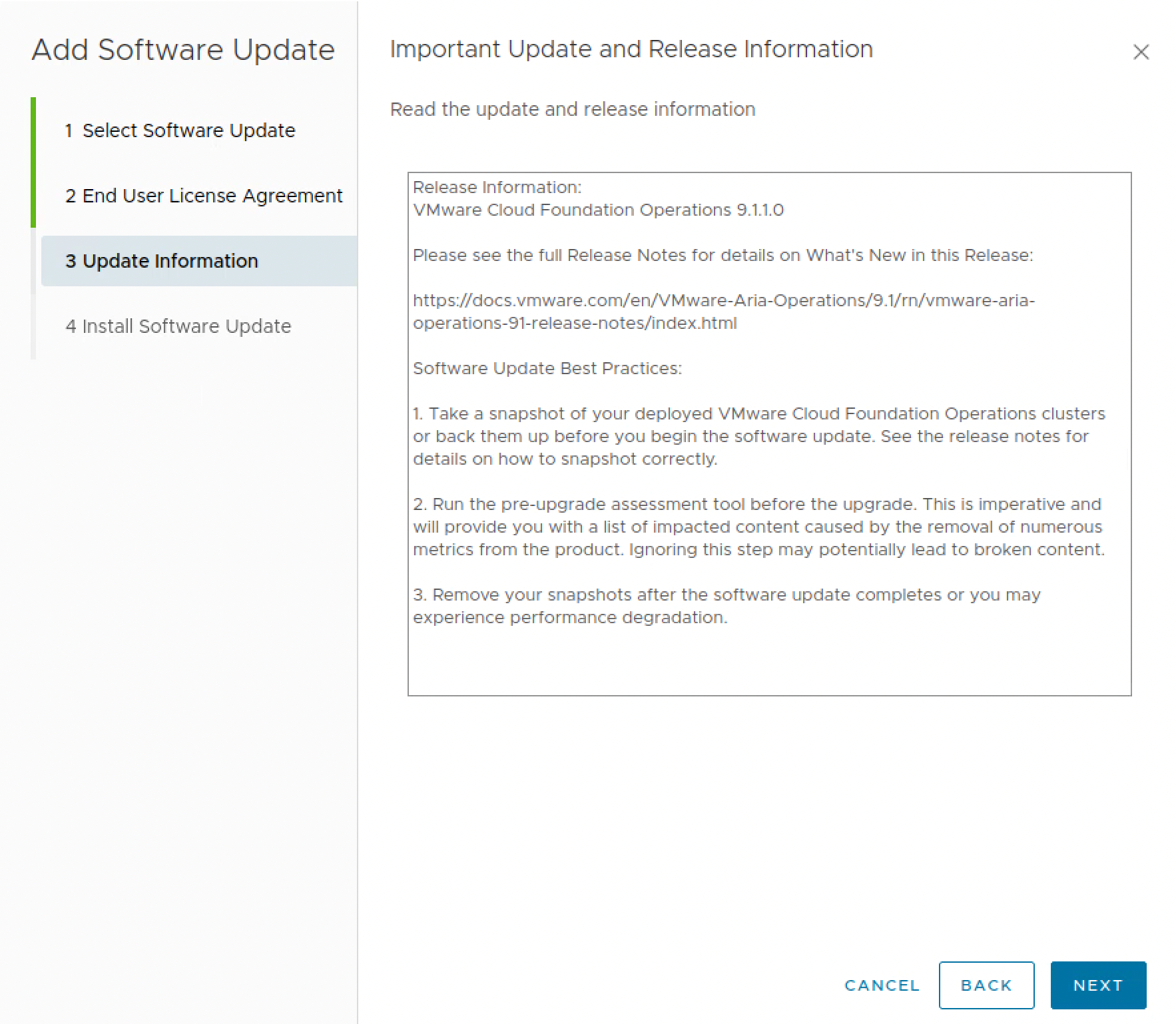
Review the update information and the software update best practices. This screen reminds us to have a backup or snapshots, run the pre-upgrade assessment, and remove the snapshots after the upgrade. Click Next.
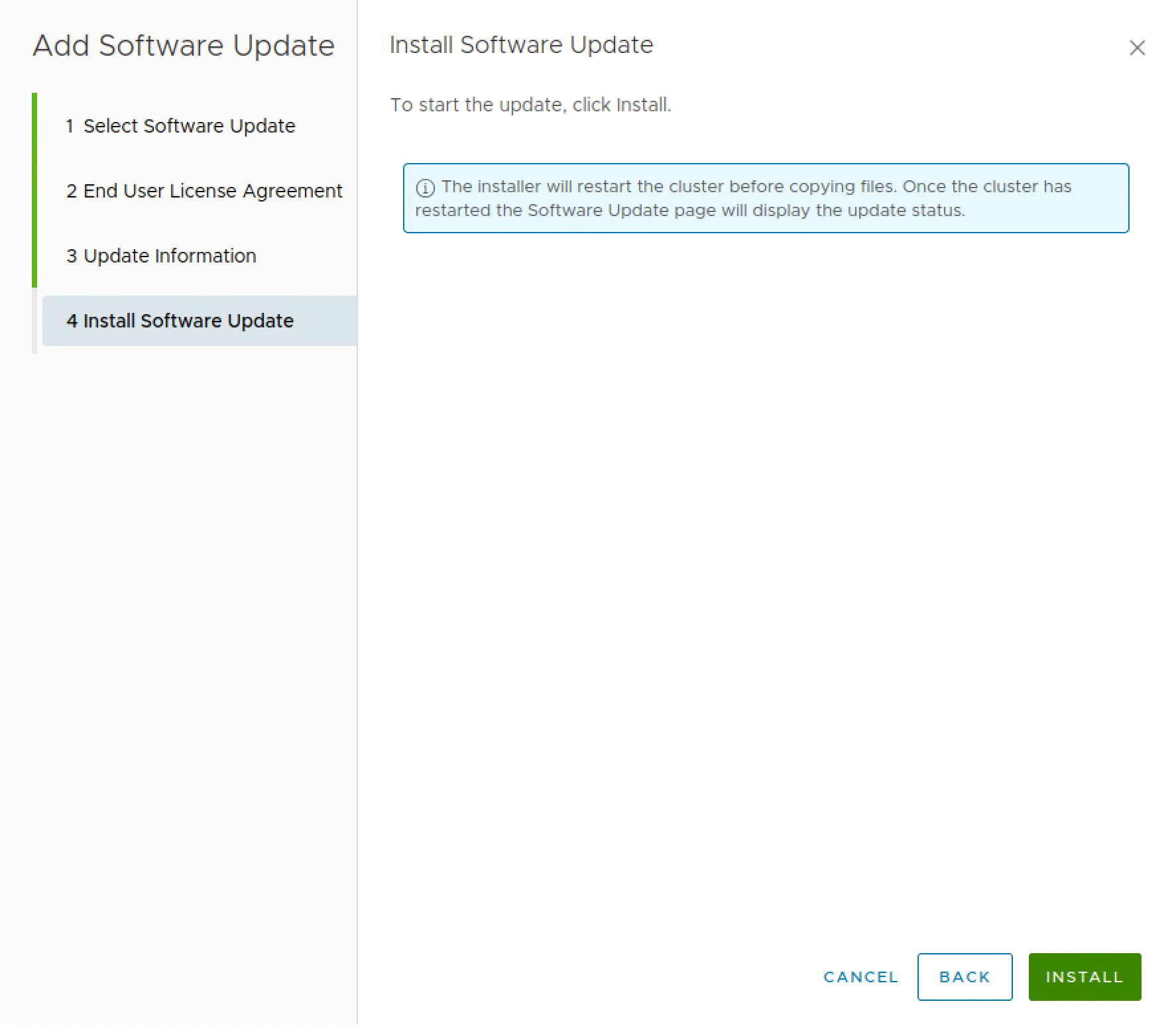
On the last page, click Install. The installer restarts the cluster before copying the files, and the administration interface will become unavailable for a while.
Monitoring the Upgrade
After the administration interface comes back, log in again and go to Software Update to follow the progress. The workflow moves through 14 steps. In the capture below it is at 7 of 14 - Preapply Validated and is preparing for certificate renewal.
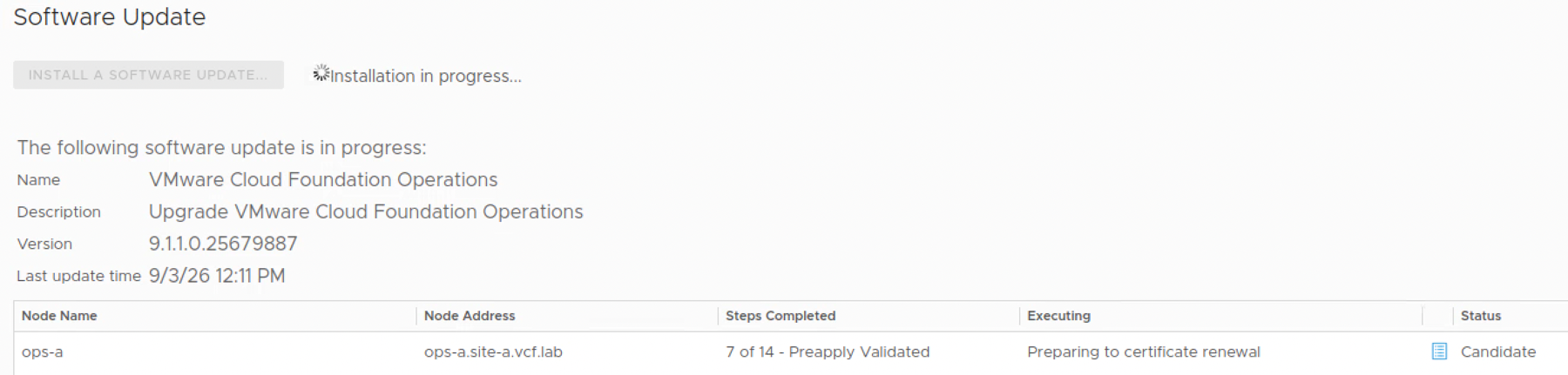
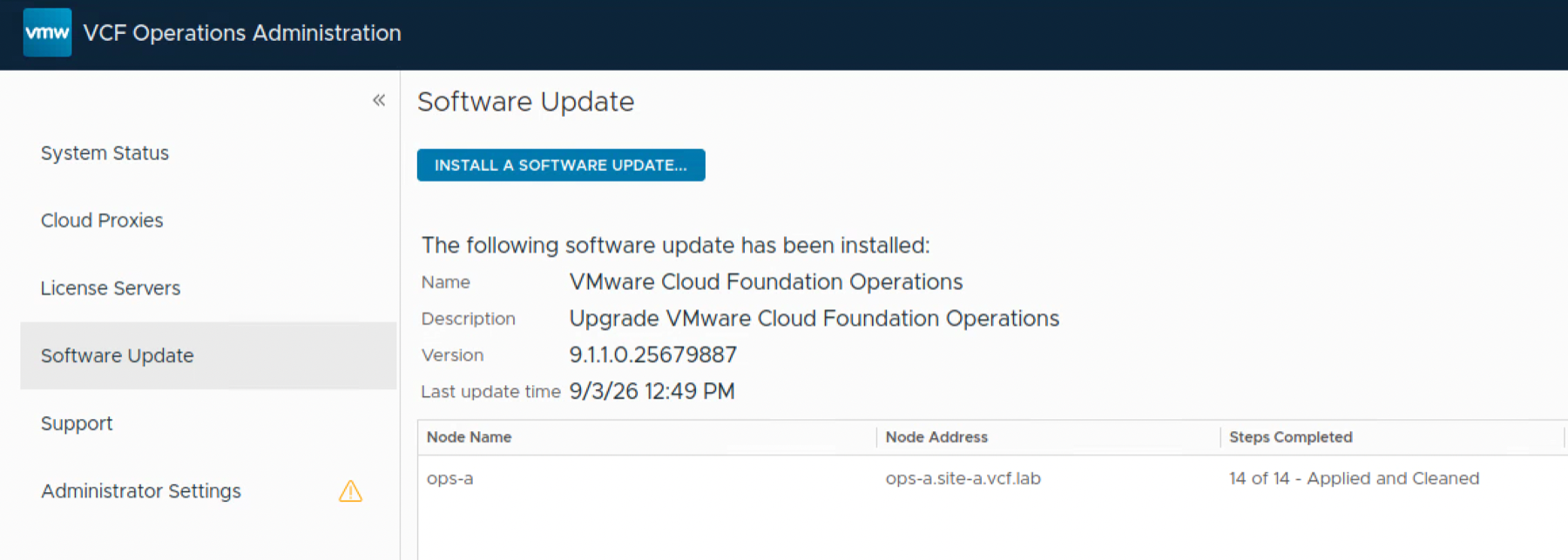
Once all 14 steps complete, the status changes to Applied and Cleaned. In my single-node lab the install took about 40 minutes after the PAK finished uploading.
Verifying the Upgrade
Go back to System Status and verify that the cluster is Online and every node is Running. The final node version in my lab is 9.1.1.0.25679751.

In the standard lifecycle workflow, cloud proxy and license server lifecycle is bundled with VCF Operations. Because this lab used the maintenance PAK route, verify both explicitly instead of assuming they were updated. The 9.1.1 release notes list cloud proxy build 25679891 and license server build 25679819. I also recommend checking that collections have resumed, integrations are healthy, dashboards load, and fresh metrics are coming in.
Don’t forget to remove the snapshots once everything has been validated. Since we are doing an upgrade, I also strongly recommend clearing the browser cache before using the new VCF Operations version.
And with that we are finished upgrading the VCF Operations cluster to 9.1.1. If this is part of a full VCF 9.1.1 upgrade, don’t forget to continue with the remaining components in the order listed in the release notes.