With VCF 9.1.1 released on September 3, 2026, I continued patching the management services in my lab. In this post I will go over upgrading VCF Operations for Networks from 9.1.0.0200 to 9.1.1.0 through VCF Operations.
The VCF 9.1.1 release notes are the source for the release scope, upgrade sequence, dependencies, and known issues. In my lab, the target VCF Operations for Networks build was 9.1.1.0.25682214.
VCF Operations for Networks was formerly known as Aria Operations for Networks and vRealize Network Insight. In VCF 9.1 it is a separate appliance managed from the VCF Operations Fleet Lifecycle workflow. This walkthrough covers one 9.1.0.x maintenance upgrade. If you are still on Aria Operations for Networks 6.x, I covered upgrading to 6.14 via an upgrade bundle and upgrading to 6.14 via Aria Suite Lifecycle. Moving from 6.14 into VCF 9.x is a separate migration path, so follow the applicable VCF upgrade procedure first.
Versions in This Upgrade
These are the versions reported by the VCF Operations UI in my lab:
| Component | Before | After |
|---|---|---|
| VCF Operations for Networks | 9.1.0.0200.25517220 | 9.1.1.0.25682214 |
Before You Begin
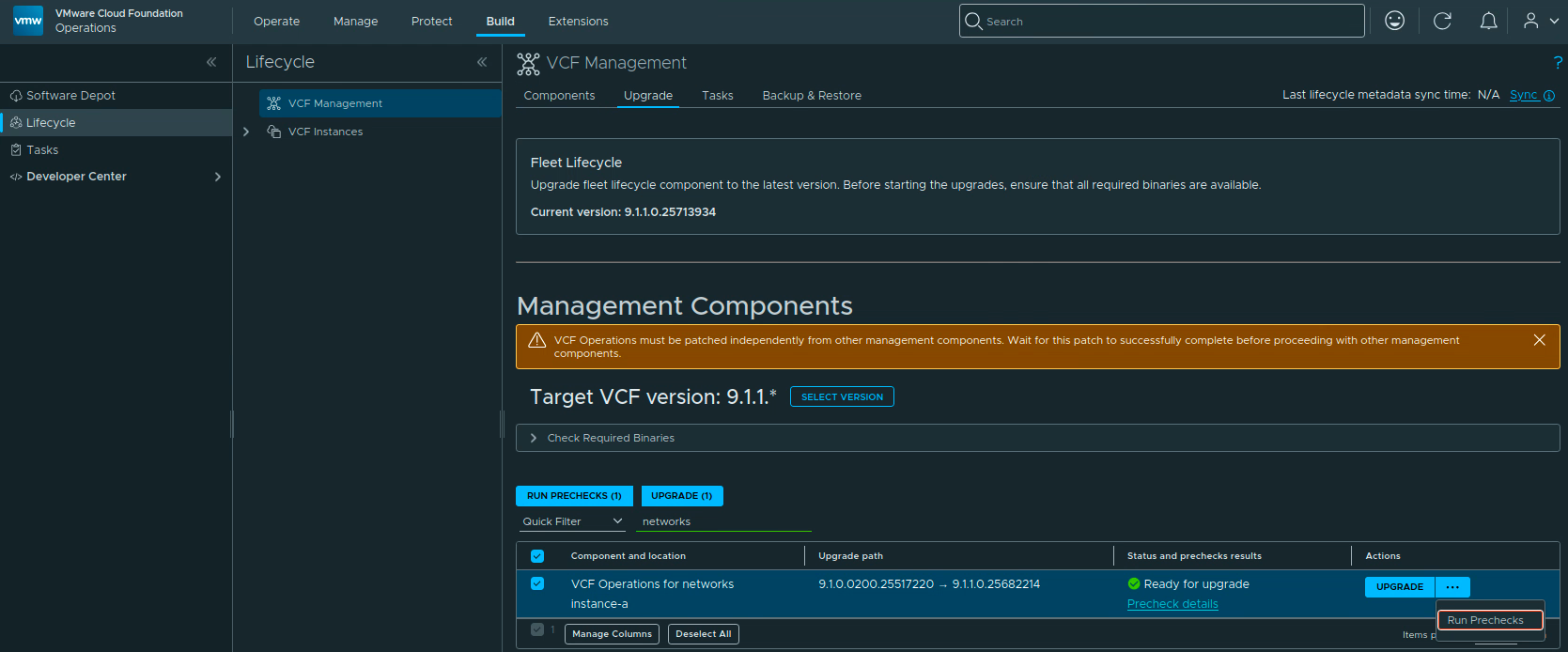
For an existing 9.1.0.x environment, upgrade Fleet Lifecycle to 9.1.1.0 before any other VCF component. The screenshot in this post shows Fleet Lifecycle already on 9.1.1.0.25713934. After that prerequisite is complete, patch the remaining components according to the dependencies in the VCF 9.1.1 release notes.
The page can also show a warning that VCF Operations must be patched independently from the other management components. If that warning is present, finish the VCF Operations patch and wait for it to complete before starting this upgrade.
Before starting:
- Verify that a supported backup target is configured and reachable under Build -> Lifecycle -> VCF Management -> Backup & Restore. Use the target required by the component backup method. Keep the backup encryption passphrase available for a restore. The VCF backup and restore documentation describes the supported configuration.
- Take or verify the supported image-based backup of the VCF Operations for Networks appliance before patching. Do not treat a backup that is still running as a completed recovery point.
- Confirm that lifecycle metadata is current and that the 9.1.1 binaries are available in the configured software depot. For a disconnected environment, prepare the binaries with the VCF Download Tool.
- Make sure no other management-component upgrade or patch operation is running. I run one component at a time so that a failure is easier to isolate.
- Record the network data sources, integrations, dashboards, and alerts you need to test afterward, and plan a maintenance window.
The appliance in my lab is XL. Before running the precheck, confirm that the appliance has enough disk capacity for its brick size. If an XL deployment fails the system precheck with system.health.status.check, Broadcom’s KB 454602 documents adding a 1 TB disk to the platform VM, waiting for the appliance to detect it, and then running the precheck again.
One more 9.1.1 sequencing detail is easy to miss: do not install Log Management and VCF Operations for Networks in parallel. The release notes document a condition where the platform can be disrupted and the Networks task can remain stuck for more than three hours. Run those component operations sequentially.
Selecting VCF Operations for Networks
Log in to VCF Operations with an Administrator account and go to Build -> Lifecycle -> VCF Management -> Upgrade.
Set the target VCF version to 9.1.1.* if it is not already selected. If the release is not listed, use Sync to refresh the lifecycle metadata and wait for that task to finish before checking again.
Expand Check Required Binaries, resolve any missing binary, and filter the component list for networks. Select the VCF Operations for networks row for the instance you want to patch. In my lab the instance is instance-a.
The upgrade path should read 9.1.0.0200.25517220 -> 9.1.1.0.25682214. The screenshot below shows Fleet Lifecycle on 9.1.1, the 9.1.1 target, the selected Networks instance, and the Ready for upgrade state.

Running the Prechecks
With only VCF Operations for Networks selected, click Run Prechecks (1). Open Precheck details and wait for the workflow to finish.
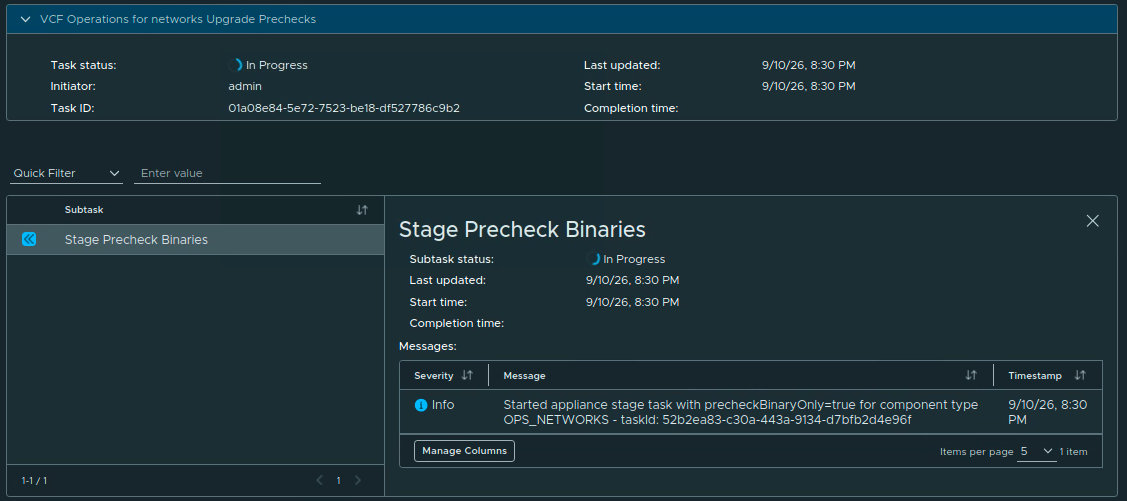
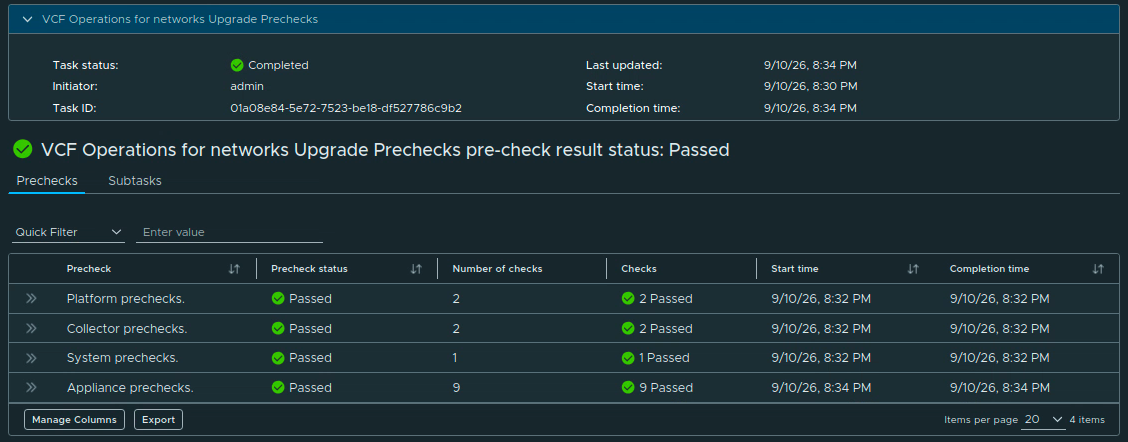
The precheck in my lab started at 8:30 PM and completed at 8:34 PM. The result was Passed. Platform, collector, system, and appliance prechecks all passed; the appliance checks contained nine individual checks.
Return to the component list and confirm that the Networks row is Ready for upgrade. Do not start the upgrade while the precheck is still running. If a check fails, open its details, fix the reported issue, and run the precheck again.

Starting the Upgrade
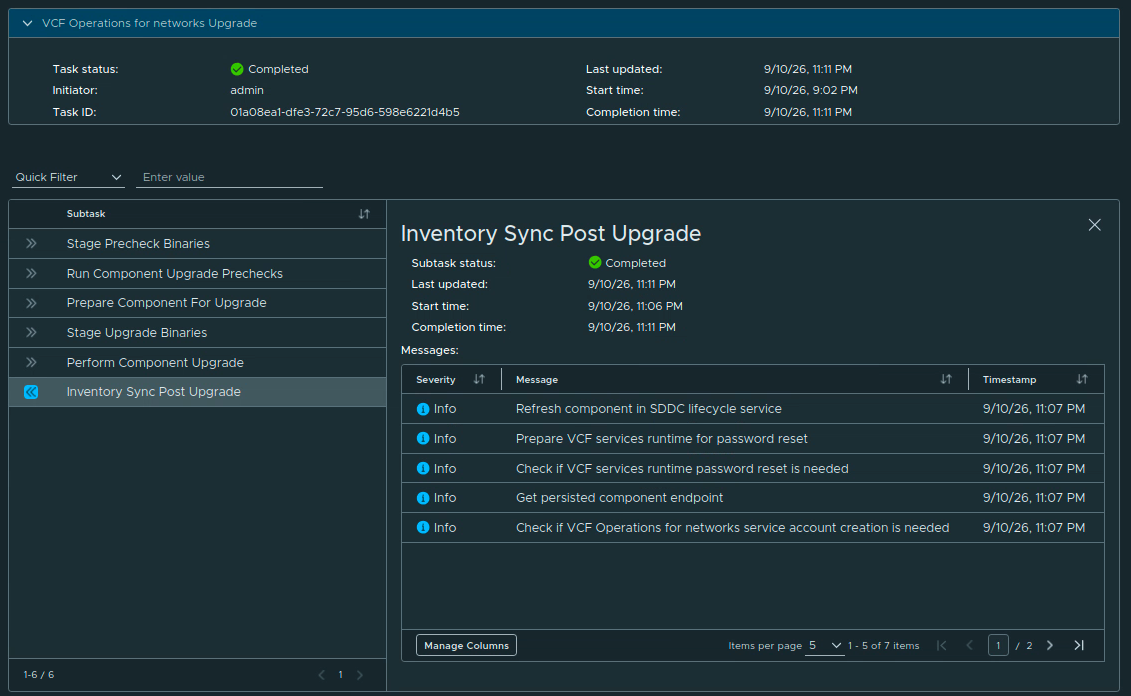
Click Upgrade on the Networks row. The status changes to Upgrade in progress. Open Upgrade details to follow the workflow.

The workflow runs through these subtasks:
- Run Component Upgrade Prechecks.
- Prepare Component for Upgrade.
- Stage Upgrade Binaries.
- Perform Component Upgrade.
- Run the Inventory Sync Post Upgrade.
The Perform Component Upgrade task is the part that takes the longest. The workflow in my lab started at 9:02 PM and completed at 11:11 PM, for a total task time of about 2 hours and 9 minutes. That is the duration shown by my task, not a promise about service downtime in another environment.
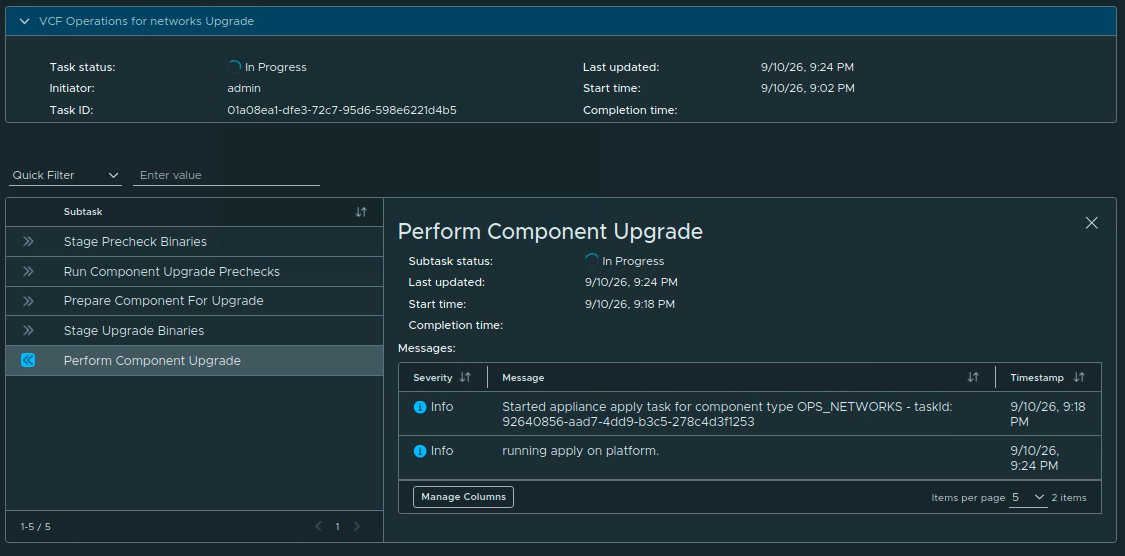
Wait for the final inventory sync and confirm that the overall task is Completed. The completed workflow also refreshes the component endpoint and checks whether the VCF Operations for Networks service account needs to be created.
Verifying the New Version
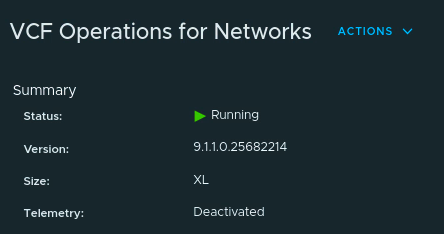
Go to Build -> Lifecycle -> VCF Management -> Components and open VCF Operations for Networks for the instance you upgraded.
Under Summary, verify that the status is Running and the version is 9.1.1.0.25682214. In my lab the deployment size is XL and the summary shows Telemetry: Deactivated. That value is a configuration state displayed by the component; review it against your organization’s telemetry policy rather than assuming the upgrade changed it.
After the component reports Running, validate the parts of the service that matter in your environment:
- Confirm that representative vSphere, NSX, and physical-network data sources are connected and collecting.
- Run a known search query and open a recent flow or path result.
- Check dashboards, alerts, notification targets, and any custom integrations.
- Verify that the collectors are healthy and that new flow data continues to arrive.
- Review VCF Management -> Tasks for failed or partially completed tasks.
With an integrated Networks instance on 9.1.1 or later, VCF Operations uses the VIM Adapter path for certificate collection. This removes the older same-node placement dependency described in KB 454096. Check the certificate status after the upgrade so that you know the new collection path is working.
If Fleet Lifecycle still shows the upgrade as in progress after the appliance is already reporting the new version, do not immediately repeat the upgrade. KB 432678 describes the case where the appliance does not report back to Fleet Manager; after confirming the new version, the documented recovery is to reboot the VCF Fleet Manager appliance and allow the next inventory sync to clear the stale task state.
Keep or expire the backup artifacts according to your retention policy. VCF Operations for Networks in my lab is now on 9.1.1.0.25682214. If this is part of a larger VCF 9.1.1 maintenance run, continue with the remaining components in the order and dependency boundaries documented in the VCF 9.1.1 release notes.