
With the release of VCF 9.1.1 on September 3, 2026, I wanted to get Fleet Lifecycle in my lab upgraded. This is a maintenance release focused mostly on supportability improvements. The release notes can be found here.
In this post I will go over upgrading Fleet Lifecycle through VCF Operations, from 9.1.0.0400 to 9.1.1.0.
Before You Begin
For an existing 9.1.0.x environment, Broadcom requires us to upgrade Fleet Lifecycle to 9.1.1.0 before any other VCF component. Make sure to follow the 9.1.1 release-specific dependencies when planning the rest of the upgrade.
Before starting:
- Verify that a supported backup target is configured and reachable. An external SFTP server is recommended for the file-based management-service backups. Configure it under Build -> Lifecycle -> VCF Management -> Backup & Restore, following the SFTP backup location documentation. Keep the backup encryption passphrase available for a restore.
- Take an on-demand backup of Fleet Lifecycle from Backup & Restore -> Backup -> Backup Now. Select the VCF instance and component, start the backup, and verify that it completed successfully.
- Confirm that the configured depot can supply the upgrade binaries. If you use an offline or disconnected depot, prepare the required binaries with the VCF Download Tool using the binary management documentation.
Here are the versions from my lab:
| Component | Before | After |
|---|---|---|
| Fleet Lifecycle | 9.1.0.0400.25570104 | 9.1.1.0.25713934 |
The target build also matches the VCF 9.1.1 Bill of Materials.
Checking for the Upgrade
To get started, log in to VCF Operations and go to Build -> Lifecycle -> VCF Management -> Upgrade.
The lifecycle metadata is normally synced automatically. If it has been a while since the last sync, we can trigger one manually. I usually perform a manual sync before starting an upgrade to make sure I have the latest metadata.
To do this, click on Sync in the top right corner and wait for the task to complete before selecting the new version.

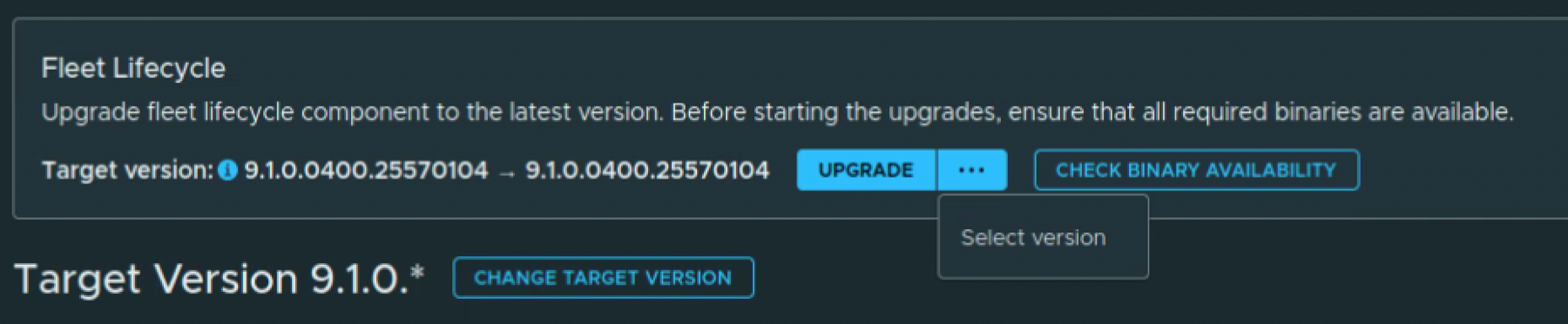
In the capture above, both sides of the version arrow still show 9.1.0.0400.25570104. We need to change the Fleet Lifecycle target before clicking on Upgrade.
Selecting the Target Version
On the Fleet Lifecycle card, click on the … menu and select Select version. Use the menu on this card; the Change Target Version button below it controls the other VCF Management component targets.
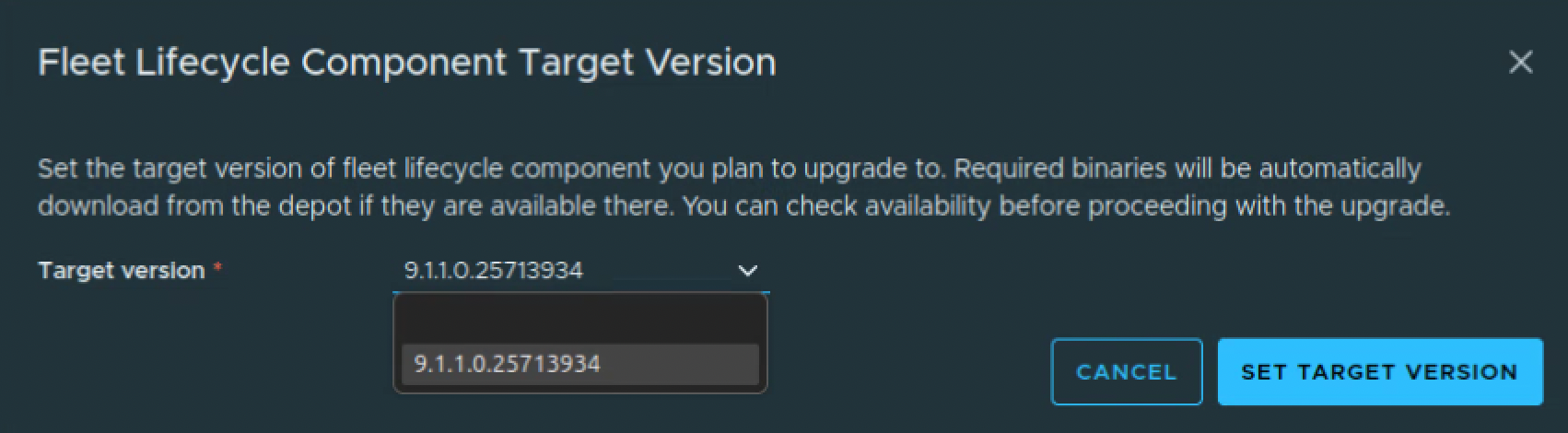
The Fleet Lifecycle Component Target Version dialog opens. Select 9.1.1.0.25713934 and click on Set Target Version.
We can now see the upgrade path from 9.1.0.0400.25570104 to 9.1.1.0.25713934.
Click on Check Binary Availability and confirm that the required binary is available before proceeding. If it is missing, resolve the depot or download issue and run the check again.

Running the Upgrade
Once binary availability is confirmed, click on Upgrade. The card changes to Upgrade in progress. Click on Upgrade details to follow the task.

Here we can see the workflow setting the Fleet Lifecycle upgrade context and staging the Fleet Lifecycle plugin in VCF Services Runtime. In this capture, the first subtask has completed and staging is still in progress.
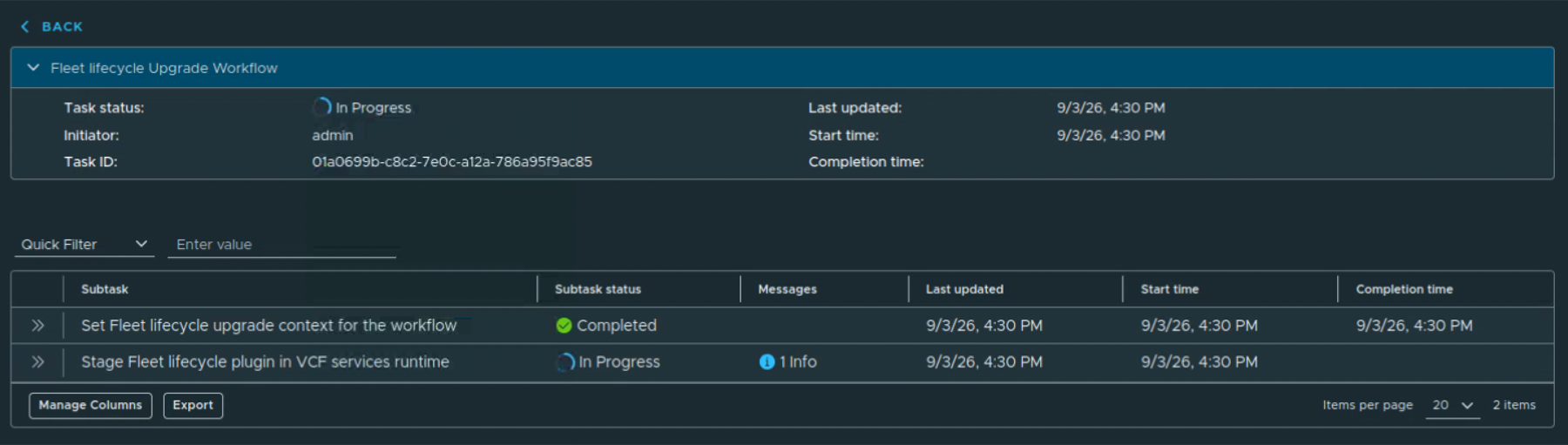
Wait for the workflow to finish. Review any failed task or precheck and resolve the reported issue before retrying the upgrade.
Verifying the New Version
Once the upgrade is complete, return to Build -> Lifecycle -> VCF Management -> Upgrade. Verify that the Fleet Lifecycle card shows Current version: 9.1.1.0.25713934.

We can also check the Tasks tab to verify that the upgrade workflow finished successfully. My final capture shows the last lifecycle metadata sync time as N/A. If an automatic sync has not run recently, we can use Sync before continuing with the other component upgrades.
One known issue to keep in mind: if you plan to scale VCF Services Runtime from Small to Small (High Availability), upgrade SDDC Lifecycle to 9.1.1 as well before doing that. The VCF Operations 9.1.1 release notes document a failure when Fleet Lifecycle is on 9.1.1 while SDDC Lifecycle is still on 9.1.0.
And with that we are finished upgrading Fleet Lifecycle to 9.1.1. We can now continue with the remaining VCF components following the dependencies in the 9.1.1 release notes.