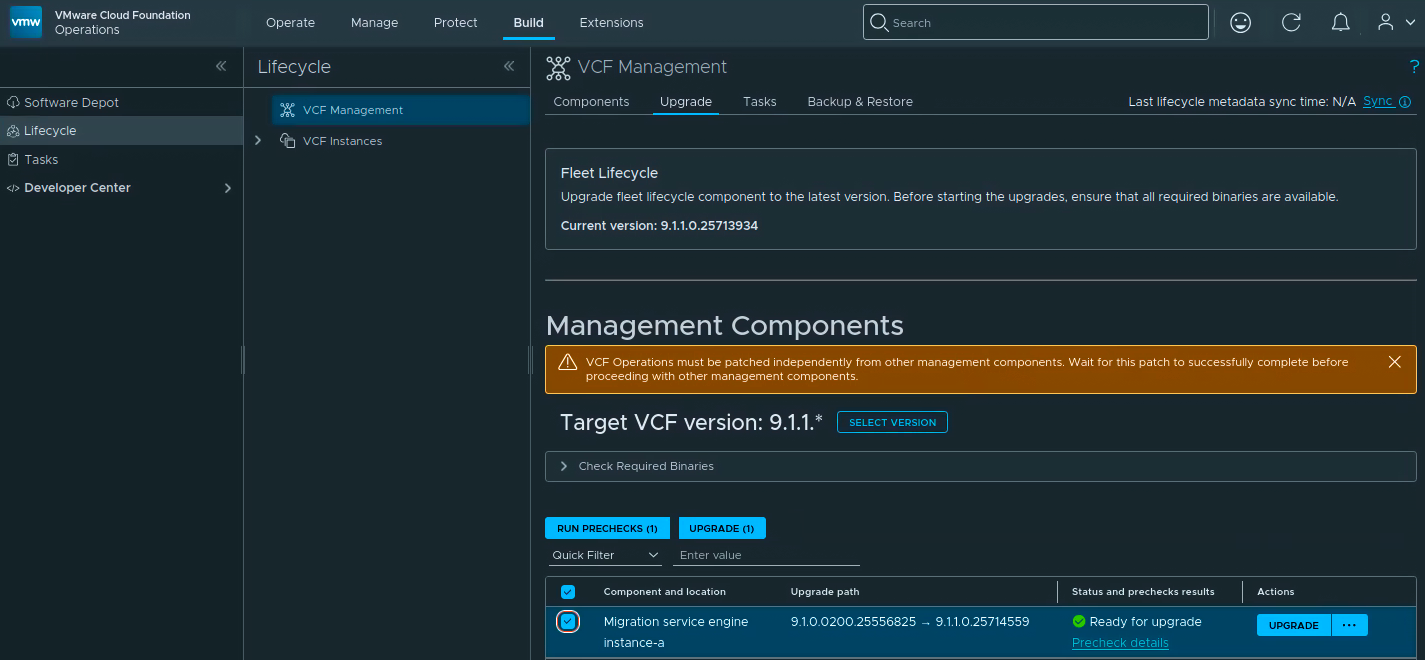
With VCF 9.1.1 released on September 3, 2026, I continued upgrading the management components in my lab. In this post I will go over upgrading the Migration Service Engine from 9.1.0.0200 to 9.1.1.0 through VCF Operations. The task is labeled VCD_MIGRATOR in the workflow, so I use both names below.
This is the component upgrade that prepares the VCD migration service. It does not migrate workloads by itself. If you are preparing a VCD workload migration, also check the supported VCD baseline and the Environment Assessment Tool requirements in Broadcom KB 455238. Broadcom currently documents VCD 10.6.2 as the supported source for the VCF 9.1 migration path.
This is a follow-up to my VCF 9.1 management-services walkthrough, where the Migration Service Engine was still on the 9.1.0.0200 build.
The VCF 9.1.1 release notes are the authority for the release scope, dependencies, and known issues. The related VCF Automation build is listed in the VCF 9.1.1 Bill of Materials; the Migration Service Engine target below is the supported path offered by my VCF Operations UI.
Versions in This Upgrade
These are the versions shown in the VCF Operations UI during this run:
| Component | Before | After |
|---|---|---|
| Migration Service Engine (VCD_MIGRATOR) | 9.1.0.0200.25556825 | 9.1.1.0.25714559 |
The version numbers are the complete build strings from the upgrade path. Use the target offered by your own VCF Operations instance if it differs from the lab capture; do not force a target that is not presented as a supported path.
Before You Begin
For an existing 9.1.0.x environment, upgrade Fleet Lifecycle to 9.1.1 first. VCF Automation must also be on the required 9.1.1 level before you upgrade the Migration Service Engine. The VCF Automation 9.1.1 walkthrough covers that component.
Before starting the VCD Migrator operation:
- Verify that the supported backup target is configured and reachable under Build -> Lifecycle -> VCF Management -> Backup & Restore. Follow the VCF backup and restore documentation for the backup method used by VCF Automation and keep the encryption passphrase available.
- Take and verify a fresh VCF Automation backup when the Backup & Restore page offers that component. The Migration Service Engine is managed with VCF Automation; do not assume that a separate standalone backup option exists.
- Confirm that the 9.1.1 binaries are present in the configured software depot. For an offline environment, prepare them with the VCF Download Tool and binary-management procedure. The VCF Download Tool identifies the migration backend as
VCF_SERVICE_VCD_MIGRATION_BACKEND; KB 442857 covers that identifier. - Check VCF Automation and the VCF services runtime for healthy nodes, DNS, certificates, credentials, CPU, memory, and disk space. Resolve alerts before staging the package.
- Make sure no other lifecycle operation is running. Run one management-component operation at a time and wait for it to finish before starting the next one.
- If VCF Automation or the VCD Migrator was previously uninstalled and reinstalled, review KB 453702 before upgrading. Duplicate service-account Secrets can leave the 9.1.1 Migration Service unhealthy; take a backup and follow the supported remediation if the KB condition applies.
- Plan a maintenance window and record the migration checks you will run afterward. This workflow can restart services, and the supplied captures show the upgrade entering progress rather than a completed task.
Selecting the Migration Service Engine
Log in to VCF Operations with an Administrator account and go to Build -> Lifecycle -> VCF Management -> Upgrade.
The target in my lab was already set to 9.1.1.*, and Fleet Lifecycle was already running 9.1.1.0.25713934. If your target still shows 9.1.0.*, click Select Version (shown as Change target version in some builds), choose 9.1.1.*, and set the new target. If 9.1.1 is missing, use Sync and wait for the lifecycle metadata task to finish.
Under Management Components, filter for migration and select the Migration service engine row for the VCF instance you want to upgrade. In my lab that instance was instance-a. Expand Check Required Binaries and resolve any missing binary before continuing.
The upgrade path should read 9.1.0.0200.25556825 -> 9.1.1.0.25714559.

Select the row. The action bar shows RUN PRECHECKS (1) and UPGRADE (1), and the row reports Ready for upgrade after the precheck has passed.

Run the Prechecks
Click RUN PRECHECKS (1) and open Precheck details. Review every result before starting the upgrade. The VCD Migrator precheck covers the staged component package, the virtual center connection, and the database upgrade checks.
The precheck workflow in my run completed with an overall Passed result. The four checks shown in the task were Component Package Staged Check, Component Package Staging Check, Virtual Center Precheck, and Database Upgrade Precheck.
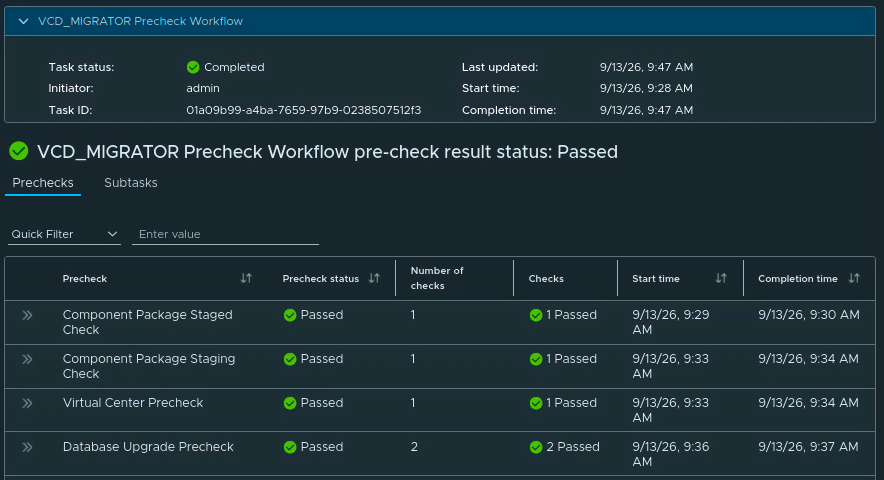
Return to the upgrade list and confirm that the row still reports Ready for upgrade. If a check fails, correct the underlying issue and run the precheck again. Start the upgrade only after the row is ready.
Start the Upgrade
Click UPGRADE on the selected row. The status changes to Upgrade in progress and an Upgrade details link appears.

Open Upgrade details and follow the task from the Tasks tab. The workflow is named VCF_MIGRATOR Upgrade Workflow. In the supplied capture, the active subtask is Stage VCD_MIGRATOR plugin in VCF services runtime. Its messages show the binaries staging first and then Running Component Stage Prechecks.
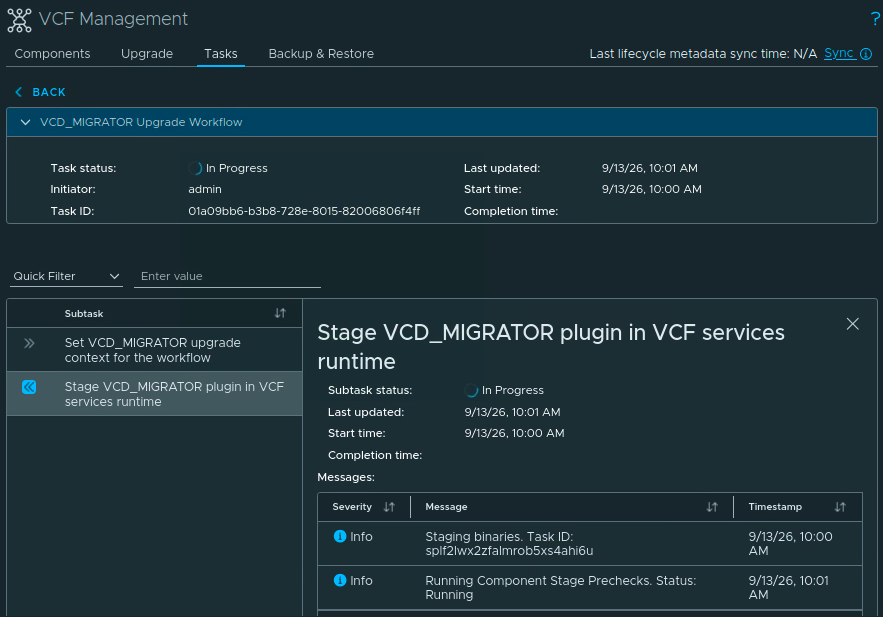
The exact number and names of subtasks can vary with the installed VCF Automation build. Wait for the overall task to report Completed, including its final inventory synchronization where shown. Do not start another management-component operation while this task is running. If a subtask fails, open its details, fix the reported issue, and retry it before proceeding.
If Stage VCD_MIGRATOR precheck binaries eventually times out instead of progressing, review KB 452122. Broadcom identifies pod starvation and Fluentd readiness failures as causes of this specific precheck timeout; resolve the underlying health issue before retrying.
Verify the New Version
The supplied captures end while the upgrade is In Progress, so the final version still needs to be verified after the task completes.
Go to Build -> Lifecycle -> VCF Management -> Components, open the Migration Service Engine component, and verify that it reports Status: Running and version 9.1.1.0.25714559. Also review VCF Management -> Tasks for failed, partial, or stale tasks.
For a workload-migration environment, test the VCF Automation provider and tenant portals, confirm the migration service health, validate the VCD and vCenter connections, and run the supported migration prechecks before moving any workload. The vCenter migration service account must be a member of the SSO group SupervisorProviderAdministrators; if you add it after the connection was created, refresh the VCF Automation vCenter connection as described in KB 444854.
The supplied run is still in progress. Once the task reports Completed and the component is Running at the target build, the next management-component upgrade can proceed within the dependency order in the VCF 9.1.1 release notes.