With VCF 9.1.1 released on September 3, 2026, I wanted to continue patching the management services in my lab. This post is a follow-up to my VCF 9.1 management services upgrade walkthrough and focuses on Log Management through VCF Operations.
VCF 9.1.1 is a maintenance release focused mostly on supportability improvements. The main VCF 9.1.1 release notes and the VCF Operations 9.1.1 release notes are the references I used for this upgrade.
In VCF 9.1, Log Management is a VCF management service hosted on the VCF services runtime. The supported lifecycle workflow is therefore in VCF Operations under Build -> Lifecycle -> VCF Management -> Upgrade. This walkthrough covers a 9.1.0.x maintenance upgrade; an environment coming from an older VCF or Aria release should follow the matching Log Management upgrade procedure first.
Versions in This Upgrade
These are the versions reported by the VCF Operations UI in my lab:
| Component | Current Version | Target Version |
|---|---|---|
| Log Management | 9.1.0.0400.25544947 | 9.1.1.0.25679624 |
The target build is also listed in the VCF Operations 9.1.1 release notes.
Before You Begin
For an existing 9.1.0.x environment, patch Fleet Lifecycle to 9.1.1.0 before any other VCF component. After Fleet Lifecycle is updated, the release notes allow the remaining components to be patched according to the documented dependencies. I ran this Log Management operation by itself so that the task and validation were easy to follow.
Before starting:
- Verify that a supported backup target is configured and reachable under Build -> Lifecycle -> VCF Management -> Backup & Restore. Use the target required by the component backup method. Keep the backup encryption passphrase available for a restore.
- Take an on-demand component backup and verify that it completed successfully before patching Log Management. Log data is not included in that backup, so archive it separately according to your retention policy.
- Confirm that the lifecycle metadata is current and that the required 9.1.1 binaries are available in the configured software depot. If the depot is offline, prepare the binaries with the VCF Download Tool.
- Make sure no other upgrade or patch operation is running. The individual-component procedure says another component cannot be upgraded or patched while an operation is in progress.
- Plan a maintenance window and record the Log Management integrations and log sources you need to test afterward.
There is also a 9.1.1 known issue when Log Management and VCF Operations for networks are installed in parallel: the platform can be disrupted, causing Real-time Metrics to fail and the Operations for networks task to remain stuck for more than three hours. Install those components sequentially instead.
Selecting Log Management
Log in to VCF Operations with an Administrator account and go to Build -> Lifecycle -> VCF Management -> Upgrade.
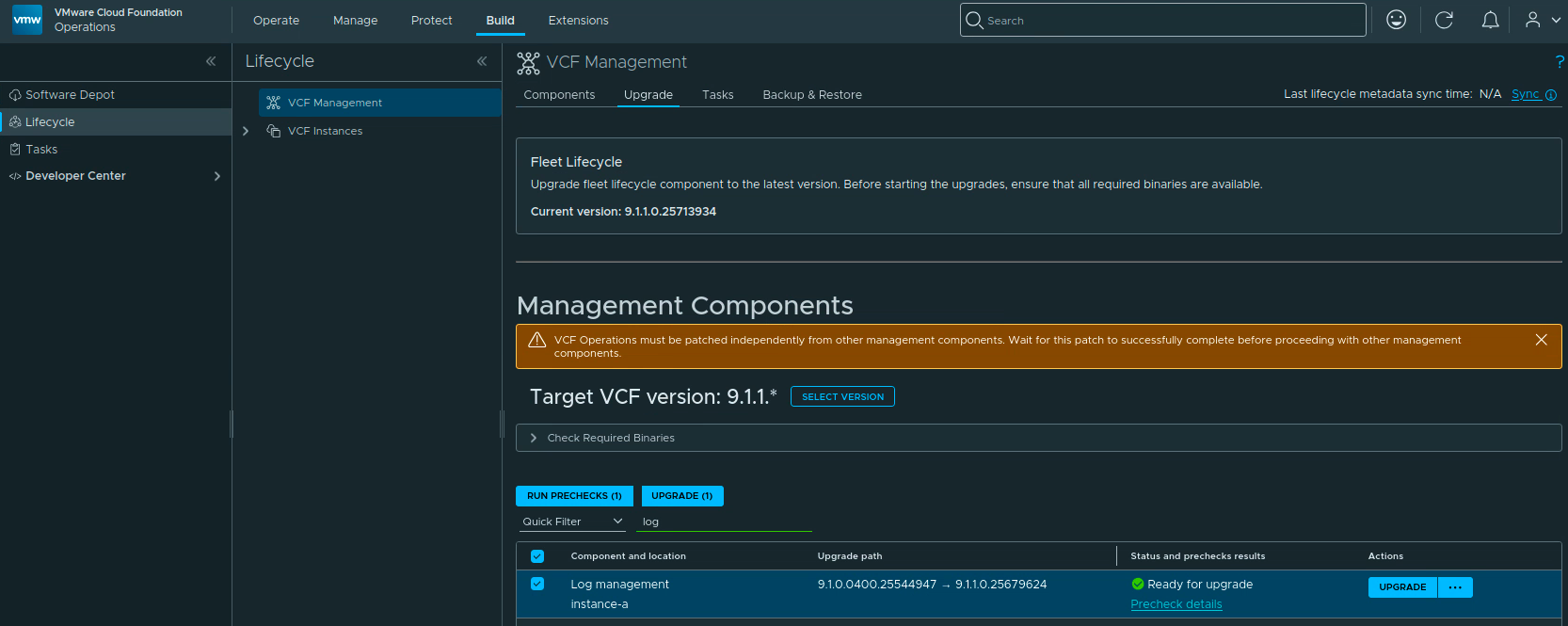
The target in my lab is already 9.1.1.*. If the target is still on an older release, click Select Version, choose 9.1.1.*, and apply the target before selecting the component. If the page shows a warning that VCF Operations must be patched independently, finish that patch and wait for it to succeed before continuing with the other management components.
Filter the component list for log, select Log management, and make sure the intended instance is selected. In my lab the instance is instance-a. Expand Check Required Binaries and resolve any missing binary before continuing.
The upgrade path should read 9.1.0.0400.25544947 -> 9.1.1.0.25679624. The screenshot below shows the target version, the selected Log Management instance, and the Ready for upgrade state.

Running the Prechecks
With only Log Management selected, click Run Prechecks (1). Follow the task by opening Precheck details.
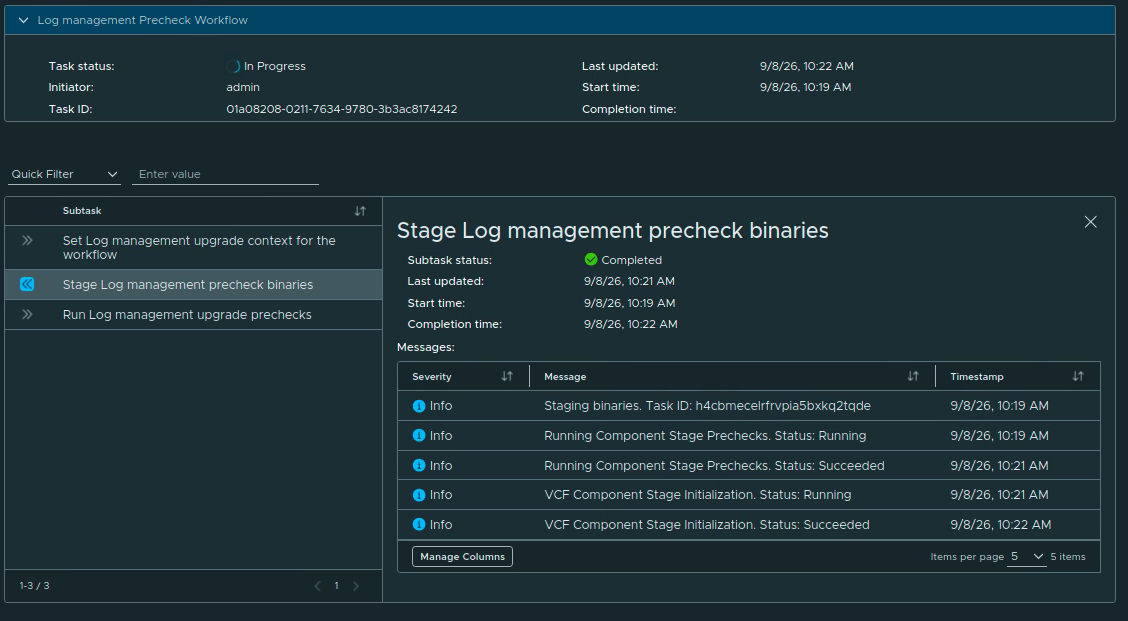
The precheck workflow in my lab completed successfully in about 14 minutes. It passed the package staging, vCenter, database upgrade, and single-component backup checks.
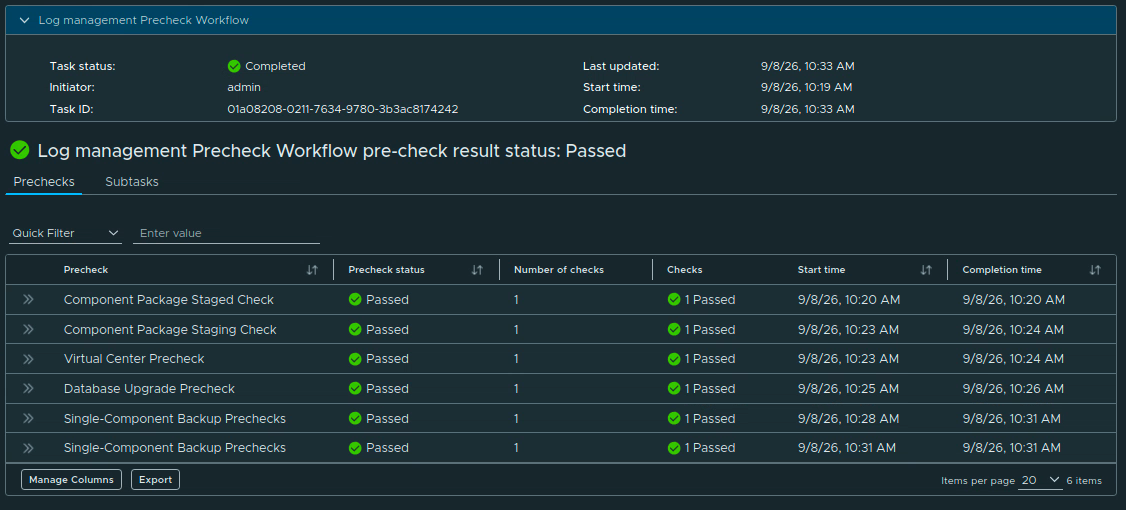
Do not start the upgrade until the precheck status is Passed. If a check fails, open its details, remediate the reported issue, and run the precheck again.
Starting the Upgrade
Return to the component list and click Upgrade on the Log Management row. The row changes to Upgrade in progress. Click Upgrade details to follow the workflow.
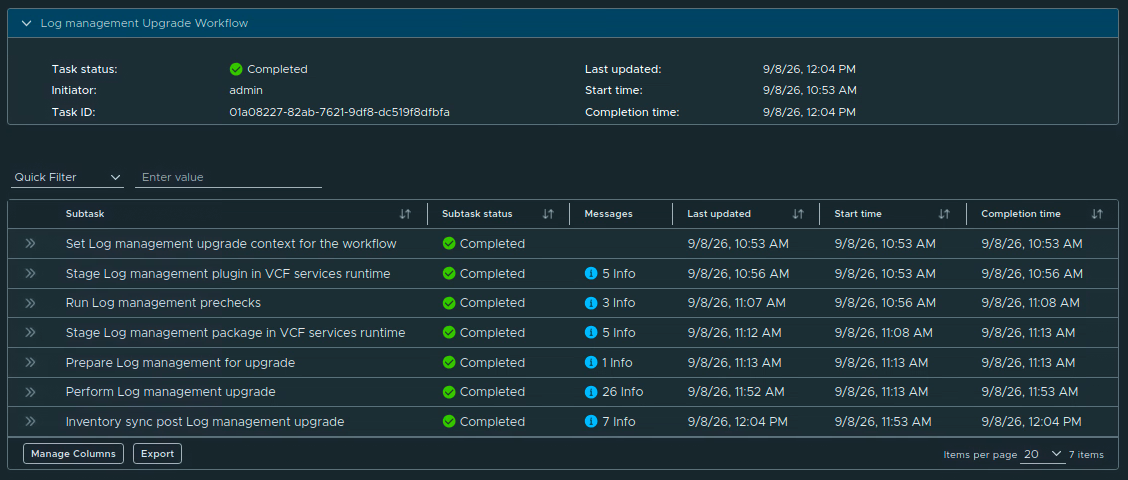
The workflow runs through these subtasks:
- Set Log Management upgrade context for the workflow.
- Stage the Log Management plugin in VCF services runtime.
- Run the Log Management prechecks.
- Stage the Log Management package in VCF services runtime.
- Prepare Log Management for upgrade.
- Perform the Log Management upgrade.
- Run the post-upgrade inventory sync.
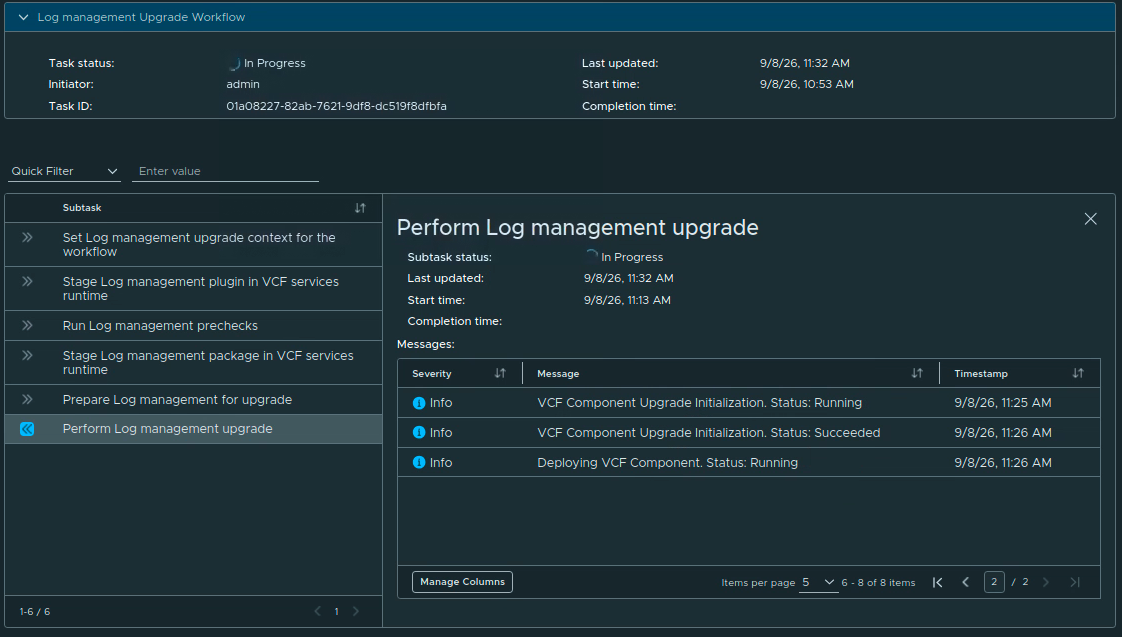
The workflow started at 10:53 AM in my lab. The task took about 1 hour and 11 minutes, completing at 12:04 PM. That is the total workflow time shown in my task, not a promise about service downtime in another environment. Wait for the final inventory sync and confirm that the overall task is Completed.
Verifying the New Version
Go to Build -> Lifecycle -> VCF Management -> Components and open the Log Management component for the instance you upgraded.
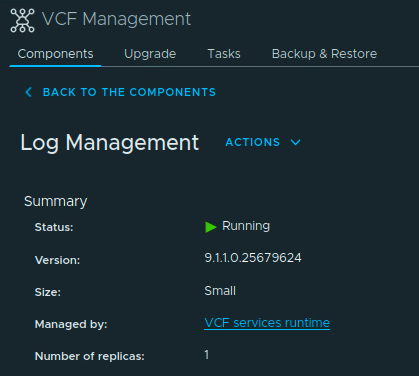
Under Summary, verify that the status is Running, the version is 9.1.1.0.25679624, and the component is managed by the expected VCF services runtime. In my lab the deployment size is Small with one replica.
After the component reports Running, validate the parts of the service that matter in your environment:
- Open Operate -> Logs and run a known query.
- Confirm that new events are arriving from representative vSphere, ESXi, and application sources.
- Check dashboards, alerts, notification targets, and any custom integrations.
- Verify that any custom log forwarding configuration still points to the correct Log Management instance.
9.1.1 Changes to Keep in Mind
The release notes call out a few Log Management changes that are easy to miss during validation:
- The Additional Storage Required metric and its related symptoms, alerts, and dashboards were removed because the old value could report a misleading storage shortfall when no retention period was defined.
- The Server Side Encryption field was removed from the Add New Storage screen. AWS S3 uses its default AES-256 behavior; for non-AWS S3-compatible storage, configure bucket-level encryption on the storage server itself.
- If a Log Management Disaster Recovery restore leaves the Log Analysis page showing Unable to access logs due to user permissions, the documented workaround is to restart the Log Management service through Fleet Lifecycle using the component Stop / Start action.
Once the component and log sources have been validated, keep or expire the backup artifacts according to your retention policy. I also recommend clearing the browser cache before using the updated VCF Operations interface.
Log Management in my lab is now on 9.1.1. If this is part of a larger VCF 9.1.1 maintenance run, continue with the remaining components in the order and dependency boundaries documented in the VCF 9.1.1 release notes.