With VCF 9.1.1 released on September 3, 2026, I continued upgrading the management components in my lab. In this post I will go over upgrading VCF Automation from 9.1.0.0200 to 9.1.1.0 through VCF Operations.
VCF 9.1.1 is a maintenance release focused mostly on supportability improvements. The VCF 9.1.1 release notes are the source for the release scope, patch order, and known issues. The component release notes for VCF Automation 9.1.1 list build 25714559.
A Few Things to Know About 9.1.1
VCF Automation 9.1.1 adds support for VLAN-backed VPCs consumed through VCF Automation. It also changes the default behavior for native public-cloud management: support for AWS, Azure, and GCP resources is deprecated and disabled by default in VM Apps organizations. If you use those capabilities, review Broadcom KB 448993 before upgrading so you understand the effect on existing deployments and how to restore the functionality.
The release also fixes several problems that are relevant to an upgrade window, including long waits with a generic timeout during the backup stage, mixed-case FQDN failures, services not recovering after a cluster power-on, and log buffers filling the logging disk. BYO Velero package installation is deprecated as well; the release notes recommend using the package deployed by VKS.
Versions in This Upgrade
These are the versions shown in the VCF Operations UI in my lab:
| Component | Before | After |
|---|---|---|
| VCF Automation | 9.1.0.0200.25556825 | 9.1.1.0.25714559 |
The target build matches the VCF Automation entry in the VCF 9.1.1 Bill of Materials.
Before You Begin
For an existing 9.1.0.x environment, upgrade Fleet Lifecycle to 9.1.1 first, before patching any other VCF component. After that, continue to follow the component dependencies in the 9.1.1 release notes. In my lab, Fleet Lifecycle was already on 9.1.1.
Before starting:
- Verify that a supported backup target is configured and reachable under Build -> Lifecycle -> VCF Management -> Backup & Restore. Use the target required by the component backup method. Keep the backup encryption passphrase available for a restore. The VCF backup and restore documentation describes the supported methods.
- Take an on-demand backup of the VCF Automation component. Go to Backup & Restore -> Backup -> Backup Now, select the VCF instance and VCF Automation, start the backup, and verify that it completes successfully.
- Confirm that the 9.1.1 binaries are available in the configured software depot. For an offline or disconnected environment, prepare the binaries with the VCF Download Tool.
- Check the VCF services runtime and VCF Automation health before starting. Make sure DNS resolution is stable and that no other lifecycle operation is running. The individual-component procedure allows only one upgrade or patch operation at a time.
- Remove or remediate custom profiles before starting. Broadcom documents that custom profiles from VCF Automation 9.0.1, 9.0.2.x, or 9.1.0.x can cause the upgrade to fail; follow KB 451147 for the cleanup procedure.
- Plan a maintenance window. VCF Automation services can restart during the workflow, so test the provider and tenant portals, integrations, and representative deployments afterward.
Selecting VCF Automation
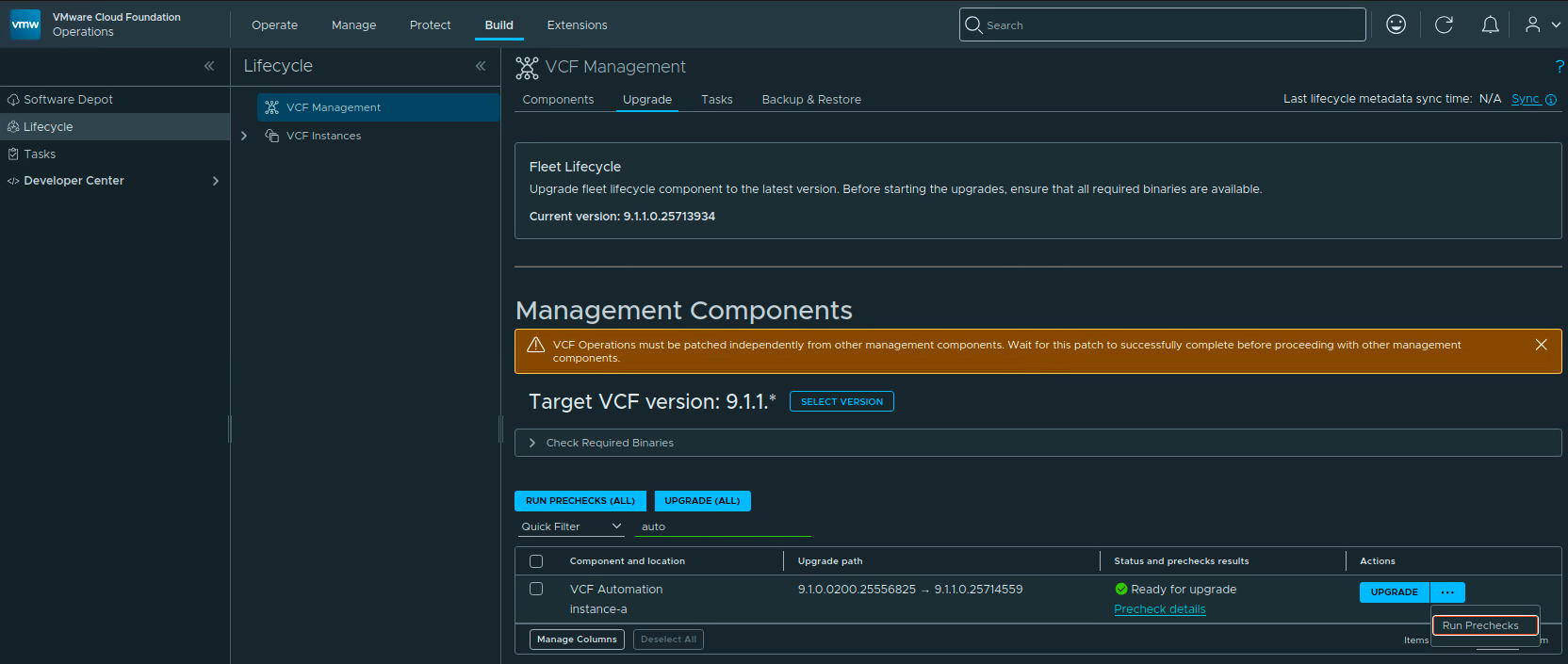
Log in to VCF Operations with an Administrator account and go to Build -> Lifecycle -> VCF Management -> Upgrade.
The target version in my lab was already set to 9.1.1.*. If the target still shows 9.1.0.*, click Select Version, choose 9.1.1.*, and set the new target. If 9.1.1 is not listed, use Sync and wait for the lifecycle metadata task to finish.
Under Management Components, filter the list for automation and select the VCF Automation row for the VCF instance you want to upgrade. In my lab this was instance-a. Expand Check Required Binaries and resolve any missing binary before continuing.
The upgrade path should read 9.1.0.0200.25556825 -> 9.1.1.0.25714559. The screenshot below shows the target version and the VCF Automation row ready for the precheck workflow.

Running the Prechecks
Make sure only the intended VCF Automation component is selected. The buttons should show Run Prechecks (1) and Upgrade (1). Click Run Prechecks (1) and open Precheck details to follow the task.
The precheck workflow validates the package, the vCenter connection, the VCF services platform, and the component backup requirements. Review every result and remediate any failure before starting the upgrade.
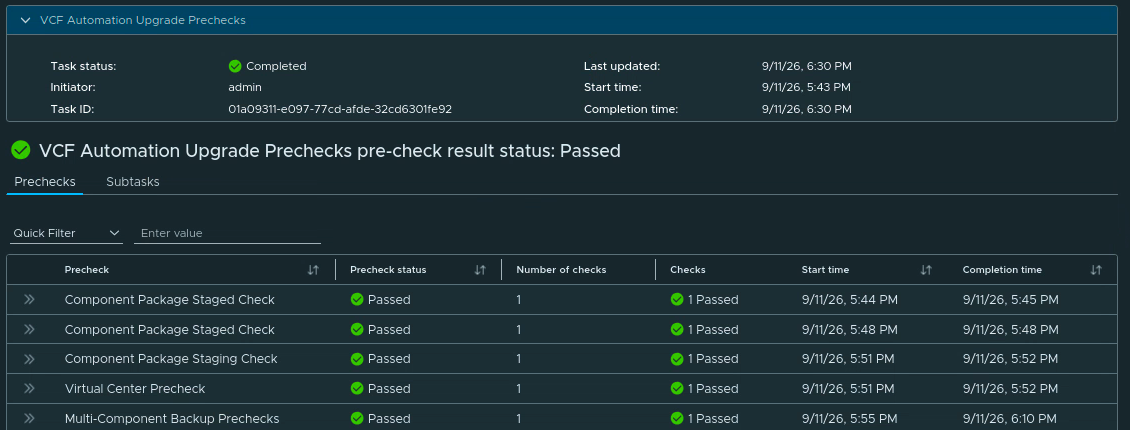
When the precheck is complete, return to the upgrade list. The row should show Ready for upgrade. In my lab the selected row showed the expected source and target builds and the precheck link remained available for review.

Starting the Upgrade
Click Upgrade on the VCF Automation row. The status changes to Upgrade in progress. Click Upgrade details to follow the workflow.

The workflow stages the VCF Automation binaries in the VCF services runtime, runs the component-stage prechecks, and continues through the package staging and upgrade tasks. The details view in my run showed Stage VCF Automation precheck binaries in progress, followed by the component checks.
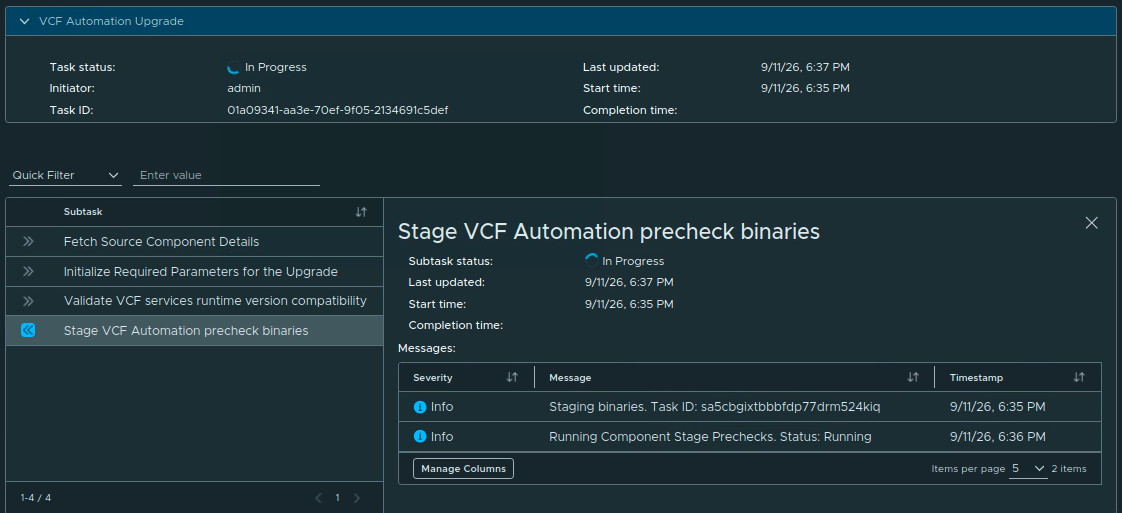
Wait for the task to finish. If a subtask fails, open its details, resolve the reported issue, and retry it before moving on. Do not start another management-component operation while this workflow is running.
Verifying the Upgrade
Once the task reports Completed, go to Build -> Lifecycle -> VCF Management -> Components and open VCF Automation for the upgraded instance.
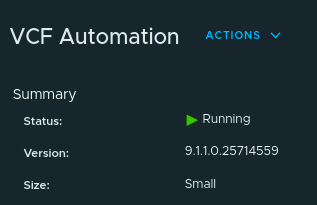
In the component Summary, verify that the status is Running and that the version is 9.1.1.0.25714559. The final capture from my lab shows the upgraded VCF Automation instance running at the expected version.

After the component reports Running, test the provider and tenant portals, logins, cloud accounts, catalog requests, representative deployments, and any integrations that are important in your environment. Also check the VCF services runtime health and confirm that fresh lifecycle tasks and backups work as expected.
Once validation is complete, remove any temporary snapshots you created or expire backup artifacts according to your retention policy. I also recommend clearing the browser cache before using the updated VCF Automation and VCF Operations interfaces.
VCF Automation in my lab is now on 9.1.1.0.25714559. If this is part of a complete VCF 9.1.1 maintenance run, continue with the remaining components while following the dependency boundaries in the release notes.