The 9.1.0.0300 patch train for VMware Cloud Foundation 9.1 is applied through a few different lifecycle views. In my lab, the update covered the Fleet Lifecycle component, VCF Operations, SDDC Lifecycle, and SDDC Manager.
Before starting, review the official Broadcom release notes:
Broadcom describes these patch releases as time-sensitive fixes that can be applied between major, minor, and maintenance releases. That also means every component may not move at the same time, so check what is actually offered in your environment instead of assuming the whole VCF bill of materials changes together.
Versions in This Upgrade
Here is what was upgraded in this run.
| Component | From | To |
|---|---|---|
| Fleet Lifecycle | 9.1.0.0.25371109 | 9.1.0.0300.25536195 |
| VCF Operations | 9.1.0.0200.25500350 | 9.1.0.0300.25531073 |
| SDDC Lifecycle | 9.1.0.0200.25495903 | 9.1.0.0300.25536194 |
| SDDC Manager | 9.1.0.0200 build 25496021 | 9.1.0.0300 build 25536191 |
As always, take backups or snapshots that match your normal rollback procedure, confirm that the Broadcom depot is reachable, and make sure no other lifecycle operations are running before you start.
Start in VCF Management
Log in to VCF Operations and go to Build -> Lifecycle -> VCF Management -> Upgrade. If the lifecycle metadata has not synced recently, use Sync before checking for available target versions.
The Fleet Lifecycle card is the first item I updated.

Click the target version selector and choose the 9.1.0.0300 target.
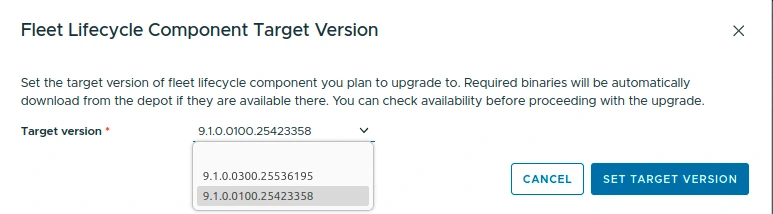
After selecting the target, the Fleet Lifecycle card should show the upgrade path to 9.1.0.0300.25536195. Click Upgrade.

Upgrade Fleet Lifecycle
Once the task starts, the Fleet Lifecycle card changes to Upgrade in progress.

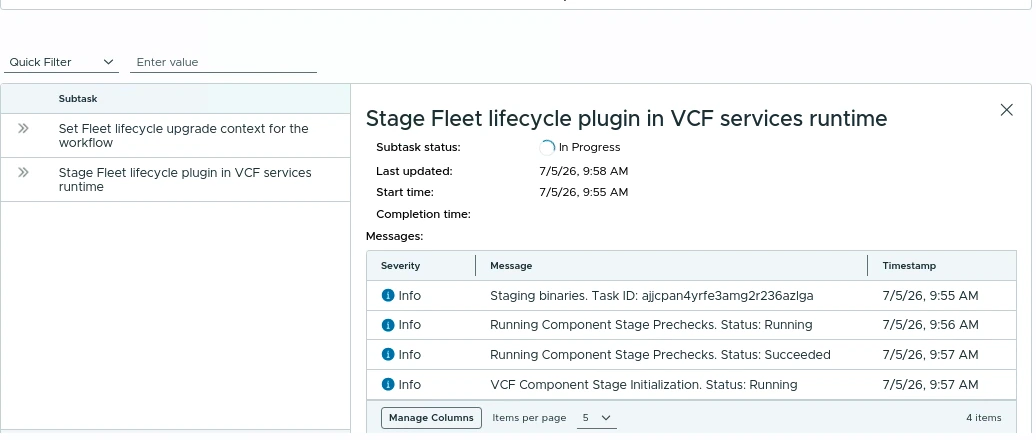
Open Upgrade details to monitor the subtask list. In my run, the task staged binaries, ran component stage prechecks, and initialized the VCF component stage.
When this finishes, the Fleet Lifecycle card should show the new current version.
Set the VCF Management Target Version
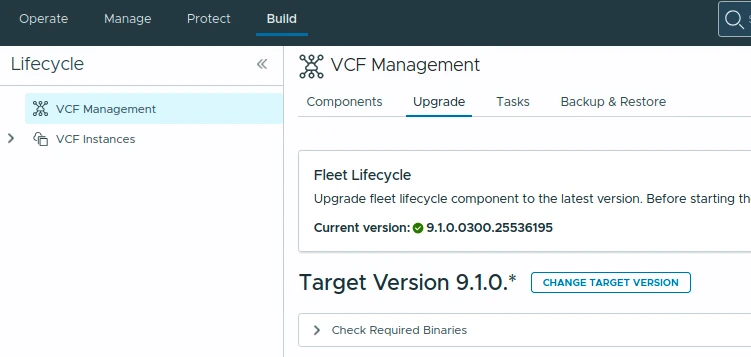
Next, set the management component target version. In the Target Version 9.1.0.* section, click Change Target Version.
In my lab I used the wildcard 9.1.0.* global version. Select the patch release for VCF Operations and any other management components that might need to be upgraded.
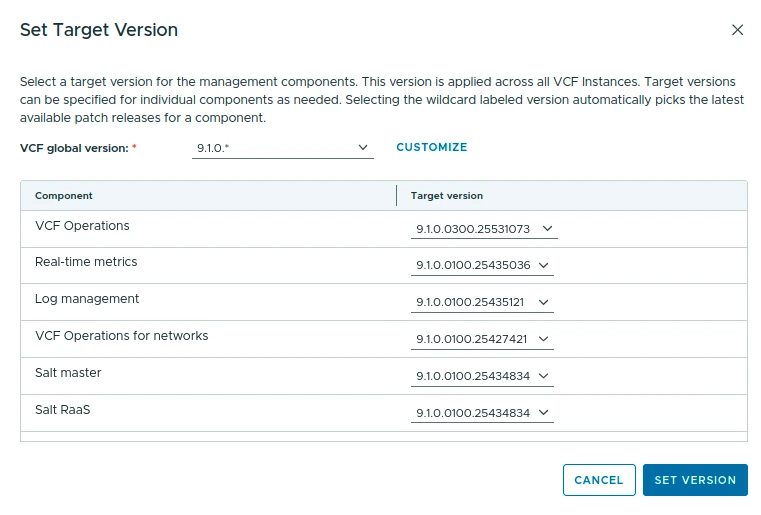
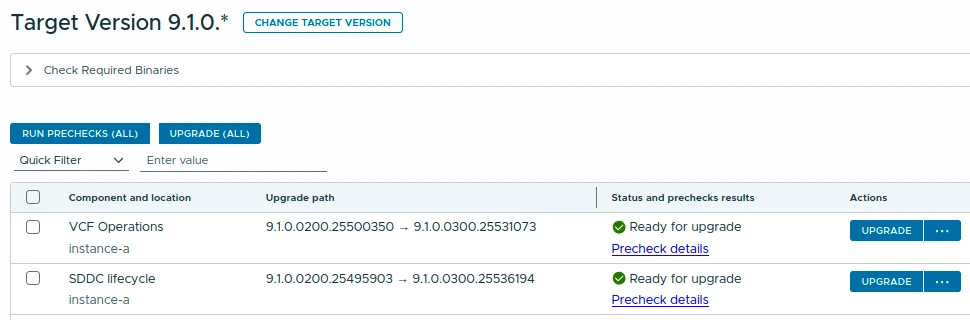
Click Set Version and then run the prechecks. The page should show the components that are ready for upgrade.
Upgrade VCF Operations
Start with VCF Operations. The row in my environment moved from 9.1.0.0200.25500350 to 9.1.0.0300.25531073.
Click Upgrade for the VCF Operations row.

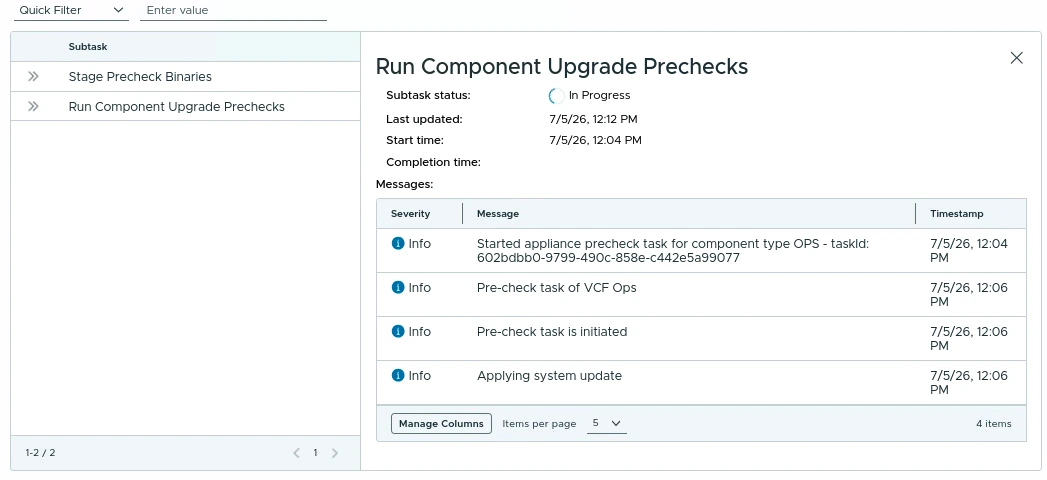
Use Upgrade details to monitor the precheck and update process. In this run, the task started an appliance precheck, initiated the VCF Ops precheck, and then began applying the system update.
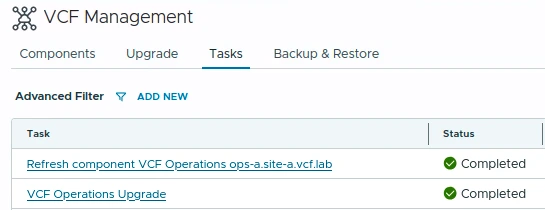
When the VCF Operations update completes, the Tasks tab should show the refresh and upgrade tasks as completed.
Upgrade SDDC Lifecycle
After VCF Operations is done, return to the upgrade list. SDDC Lifecycle should still show as ready if you did not upgrade everything at once.
In my environment, SDDC Lifecycle moved from 9.1.0.0200.25495903 to 9.1.0.0300.25536194.

Click Upgrade for SDDC Lifecycle and monitor the upgrade details.

The details panel should show the SDDC Lifecycle plugin being staged in the VCF services runtime.
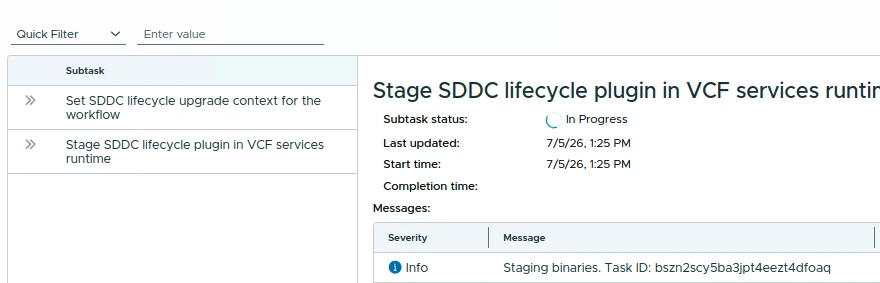
Wait for the task to complete before moving on to the SDDC Manager upgrade plan.
Download the SDDC Manager Patch Binary
Now go to Build -> Lifecycle -> VCF Instances -> instance-a -> Binary Management.
Set VCF Version to 9.1, select Patch Binaries, and confirm the SDDC Manager 9.1.0.0300 binary is downloaded. In this run the binary was released on Jun 29, 2026 and was 2.41 GB.
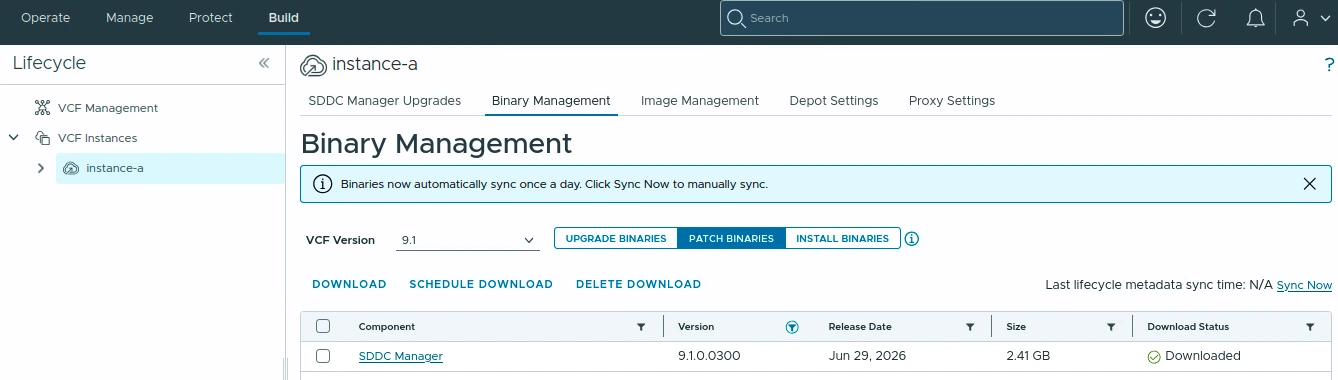
If it is not downloaded yet, select the binary and click Download.
Edit the Workload Domain Upgrade Plan
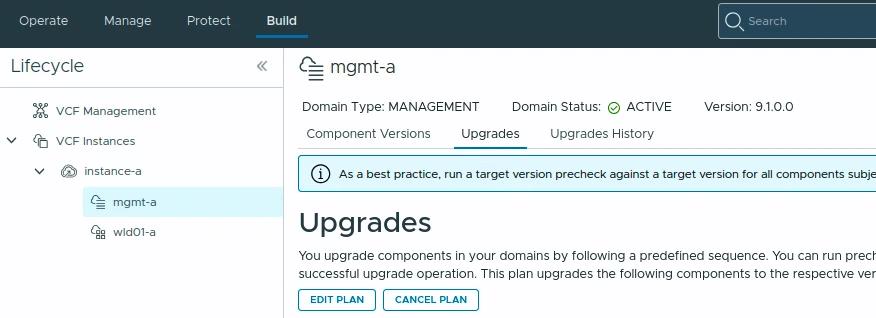
Go to the management domain under the VCF instance, then open the Upgrades tab. In this example the management domain is mgmt-a.
Click Edit Plan.
In Plan Component Upgrade, select SDDC Manager and choose target version 9.1.0.0300. In my run, ESX, NSX, and vCenter were already on 9.1.0.0100 and were not selected for this 0300 SDDC Manager patch plan.
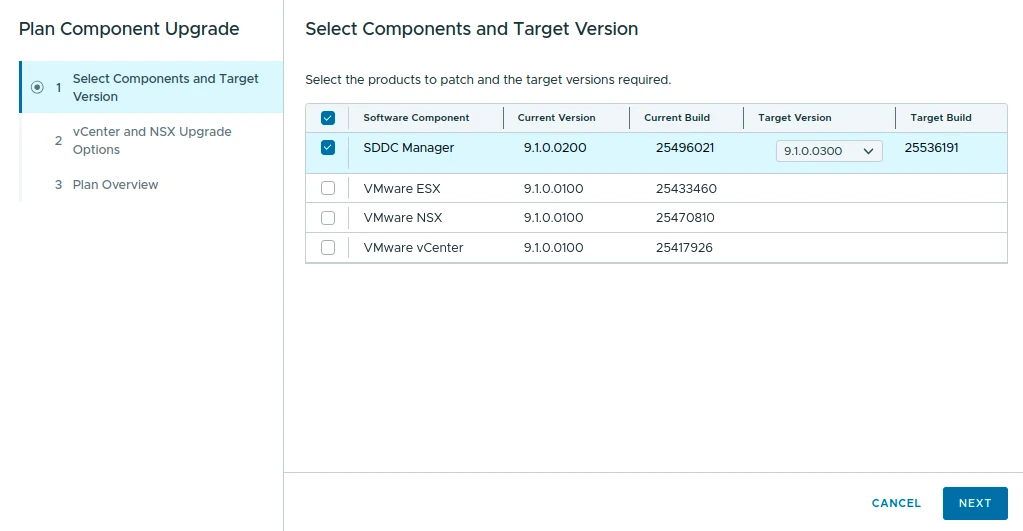
Click Next and review the plan. The wizard notes that SDDC Manager is upgraded first so it can continue orchestrating the remaining component lifecycle work.
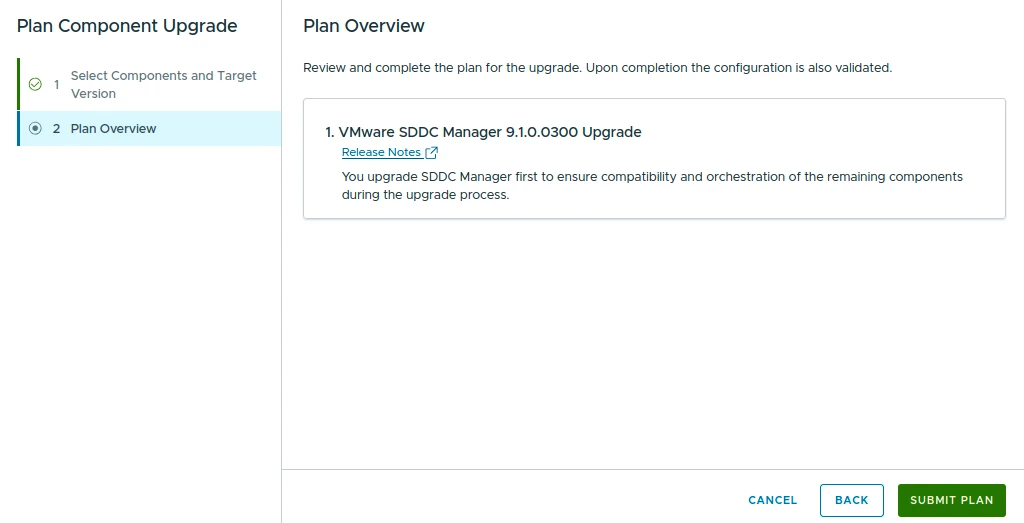
Click Submit Plan.
Start or Schedule the SDDC Manager Upgrade
The upgrade sequence should now show the SDDC Manager 9.1.0.0300 upgrade as the available step. You can run it immediately with Upgrade Now or schedule it for a maintenance window.
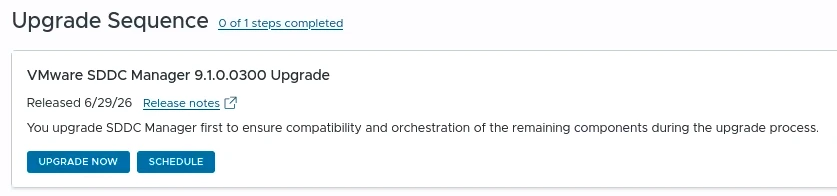
After starting the upgrade, monitor the VMware Cloud Foundation Upgrade Status page. You can also click View Upgrade Activity for deeper task progress.
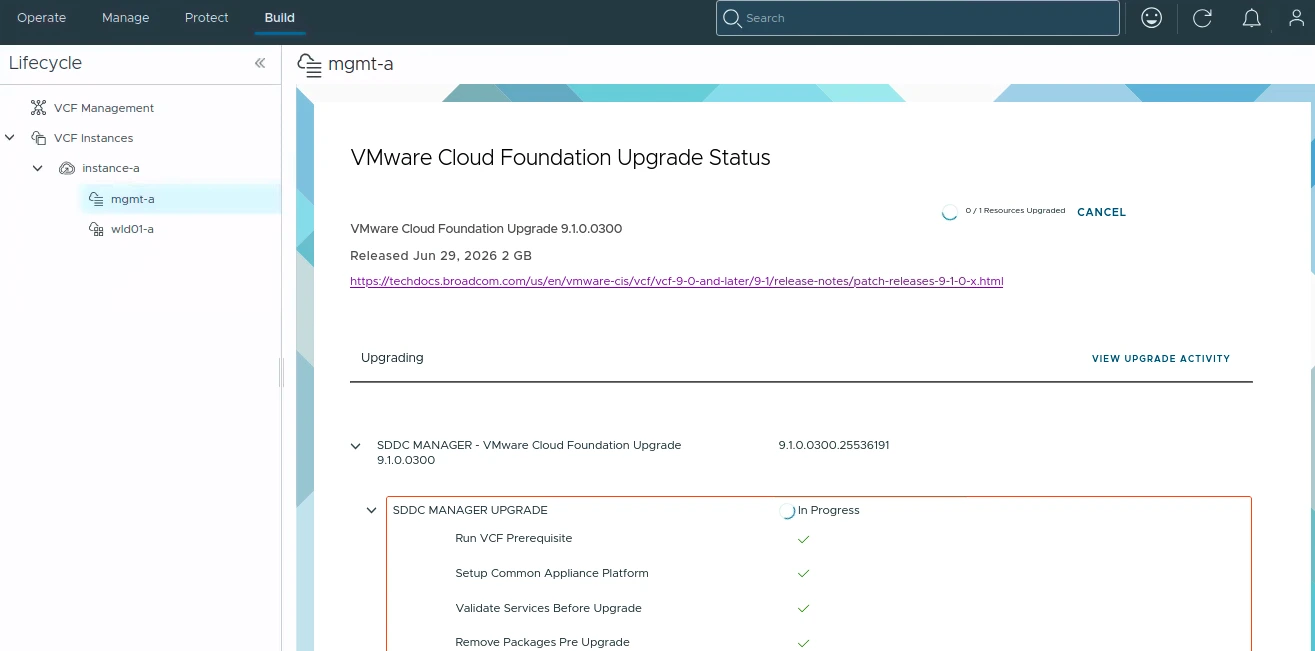
In my run, the visible steps included:
- Run VCF Prerequisite
- Setup Common Appliance Platform
- Validate Services Before Upgrade
- Remove Packages Pre Upgrade
Do not refresh services or reboot appliances manually while the upgrade is running. Let the lifecycle workflow complete.
Validate the Upgrade
After the workflow completes, return to the management domain and open Component Versions.
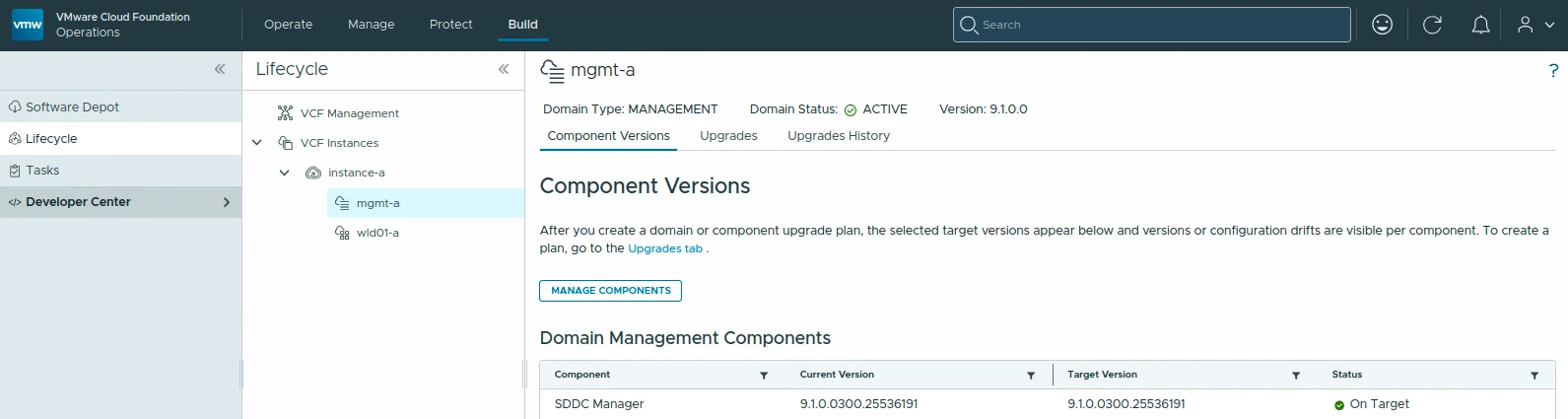
The SDDC Manager row should show the same current and target version, with status On Target.

I also recommend checking:
- VCF Management -> Tasks for failed or partially completed tasks
- VCF Operations health and adapters
- SDDC Manager service health
- Fleet password management for accounts showing EXPIRED. I covered the remediation in Fixing Expired Password Sync in VCF 9.1 Fleet Management
- Workload domain upgrade status
- Depot/binary cleanup after you are comfortable with the rollback window
If you keep older bundles around for too long, they can consume a lot of space. I covered bundle cleanup separately in Cleaning up VCF Bundles.