With the release of VCF 9 I wanted to get my lab upgraded. The release blog can be found here and the release notes are here
Please note that some of the components within the VCF will still need additional upgrading. Please read the release notes for additional details.
Planning the Upgrade
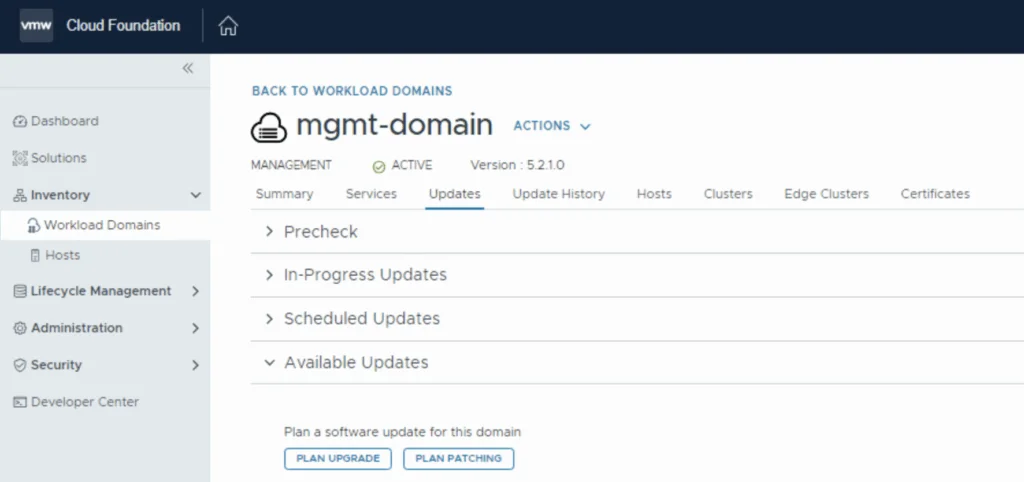
We can start by going to Inventory -> Workload Domains -> Select the domain -> Updates -> Plan Upgrade.

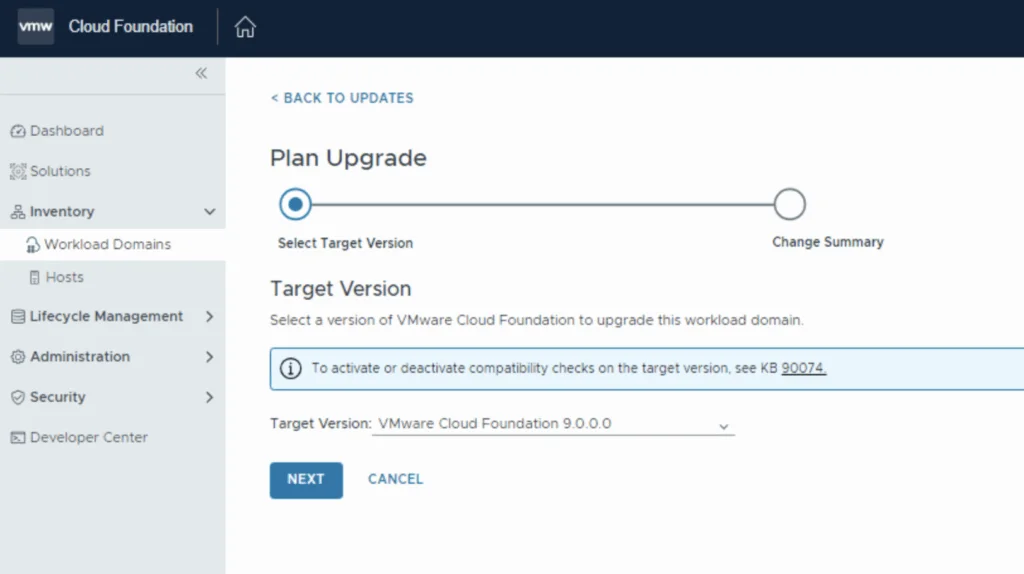
Select Target Version VMware Cloud Foundation 9.0.0.0 and click Next
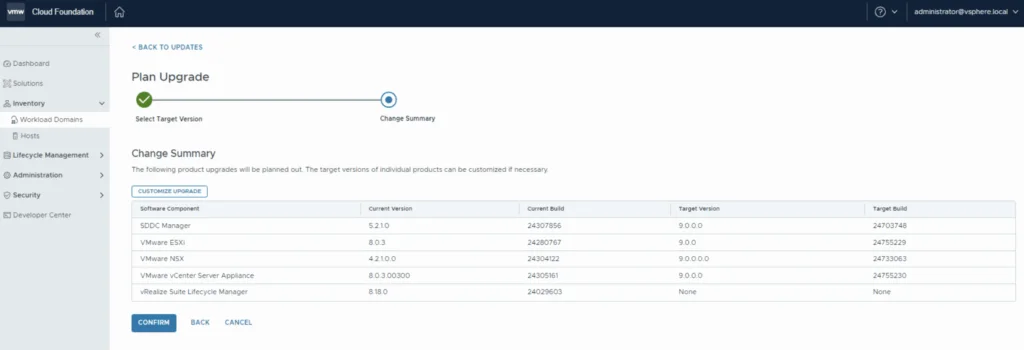
Review the changes and\or customize the upgrade and click Confirm
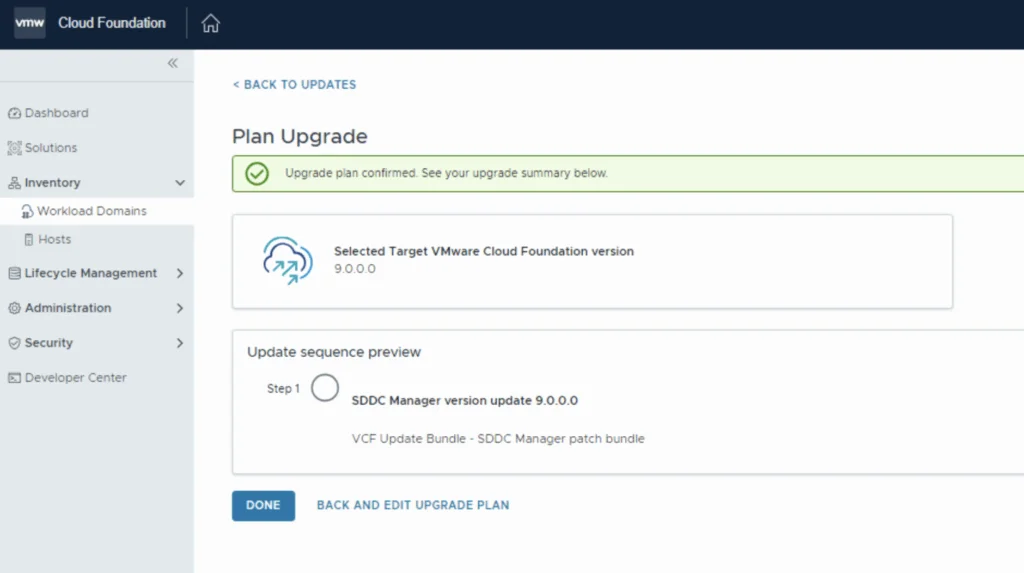
We get presented with the next step. We can click Done to continue.
Downloading the Update Bundle
After we wait a couple of minutes we can click on Download Now to download the new update bundle.
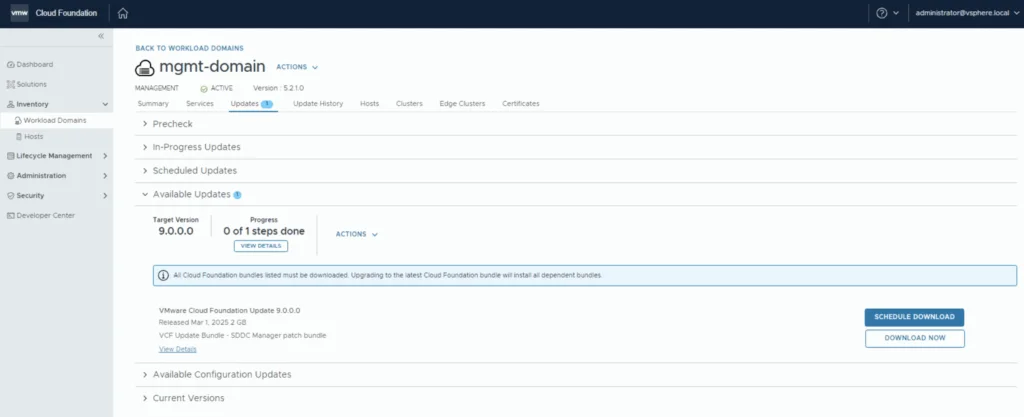
If you do not see the newest releases go to Administration -> Online Depot and add a VMware Customer Connect account that has access to perform downloads. Keep in mind that a token is needed for downloads. More details can be found here
Upgrading SDDC Manager
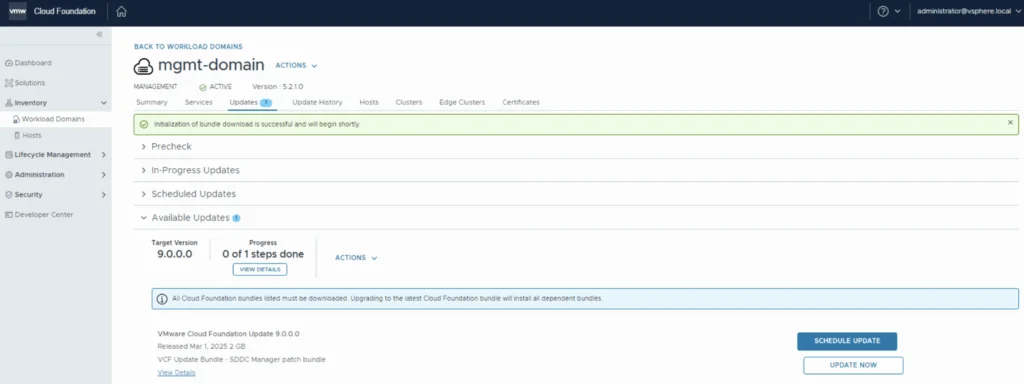
The next step is to upgrade VCF by going to Inventory -> Workload Domains -> Select the workload domain -> Updates -> Update Now
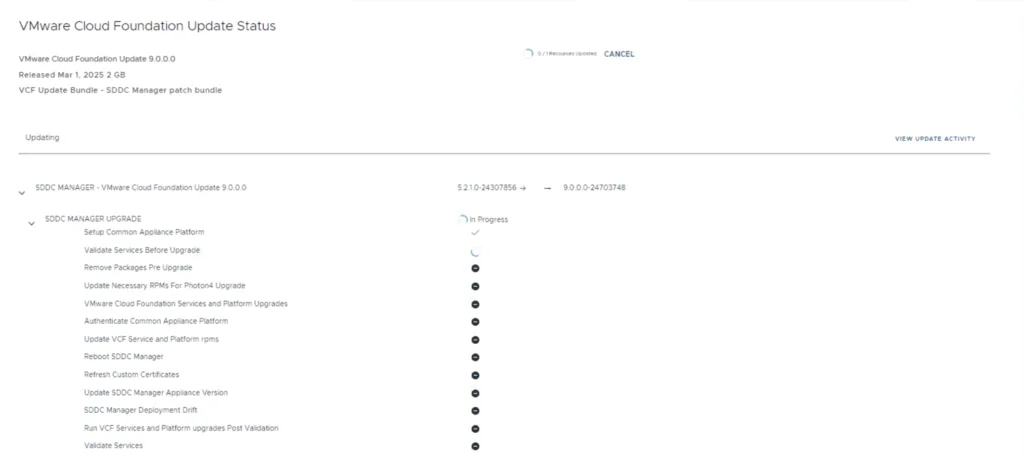
Next we are taken to the Upgrade page where we can follow the upgrade for each one of the components\steps
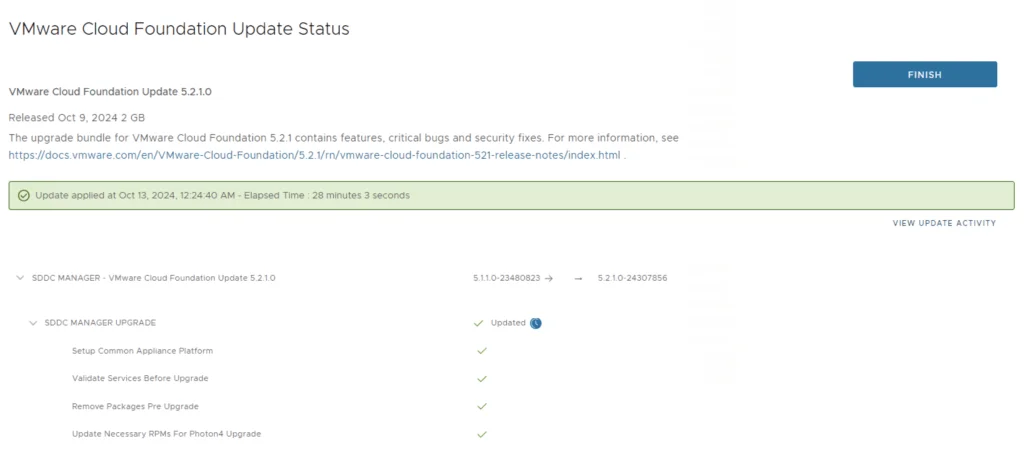
Once the upgrade is complete we can click Finish to be returned back to the main screen
Because we are changing the SDDC-Manager versions I would strongly recommend to clear cache and log back in before going forward.
Upgrading NSX to NSX 9
Next step is to upgrade NSX-T installation to NSX 9. The release notes can be found here.
We can also download it directly from the workload domain by going to Inventory -> Workload Domains -> Select the domain -> Updates -> Download now
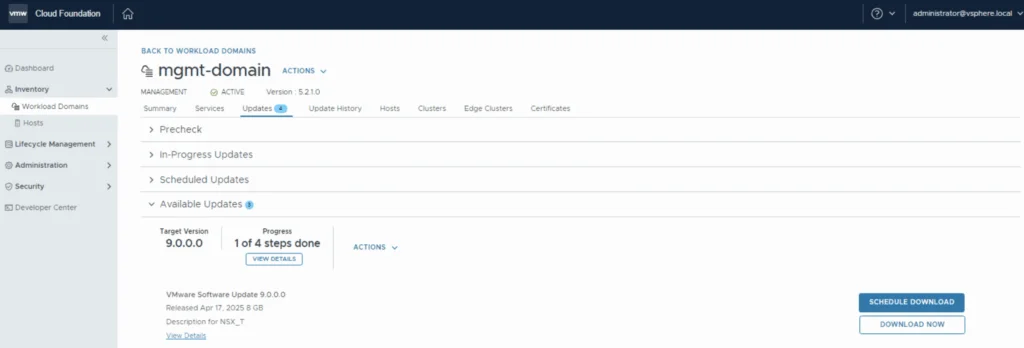
Once the download is complete we can proceed with updating the NSX components by clicking on the Configure Update button.
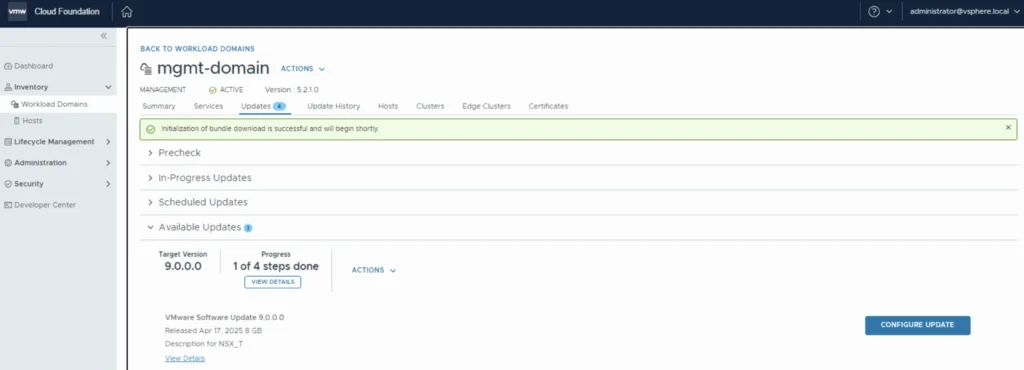
Click next
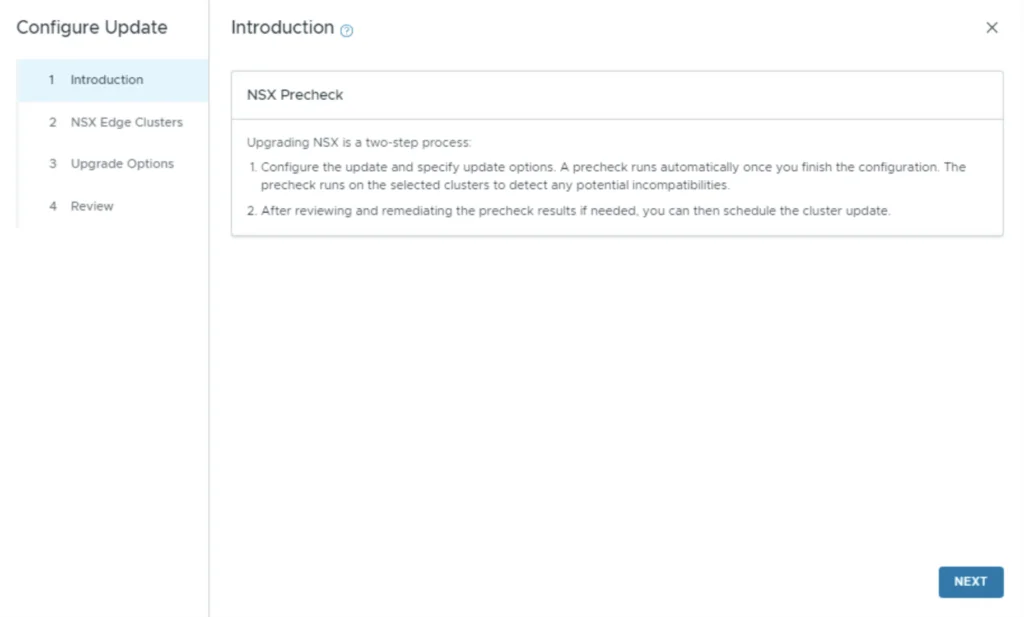
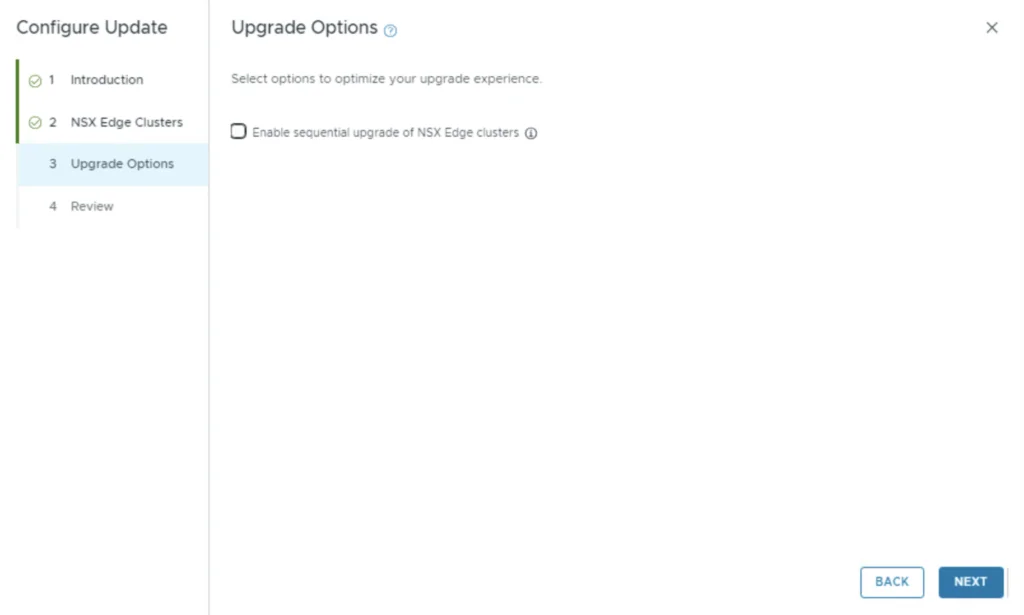
Make the proper selection and click next
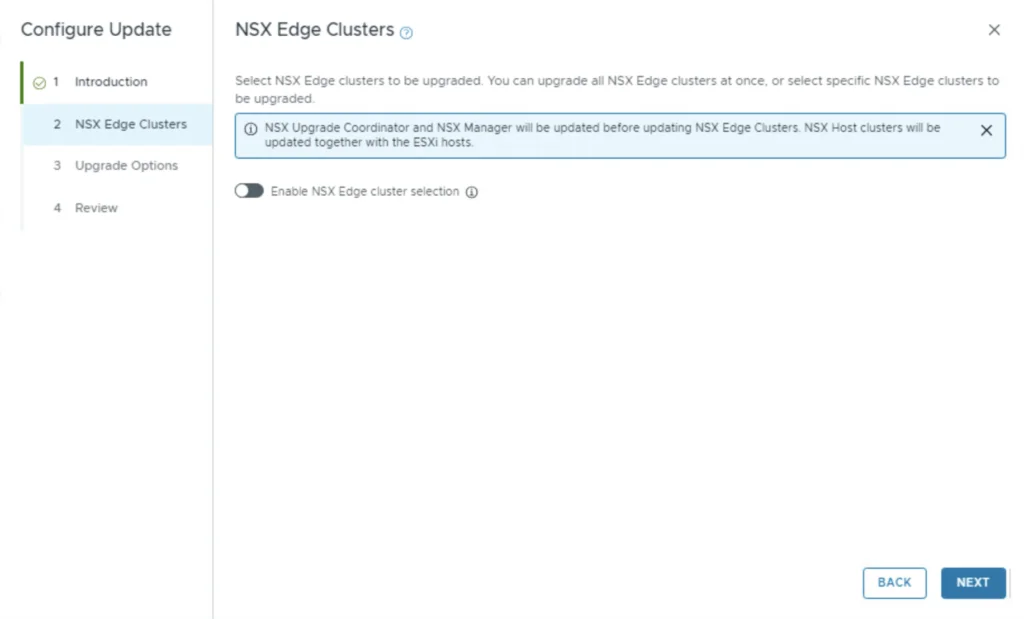
Make the proper selection and click next
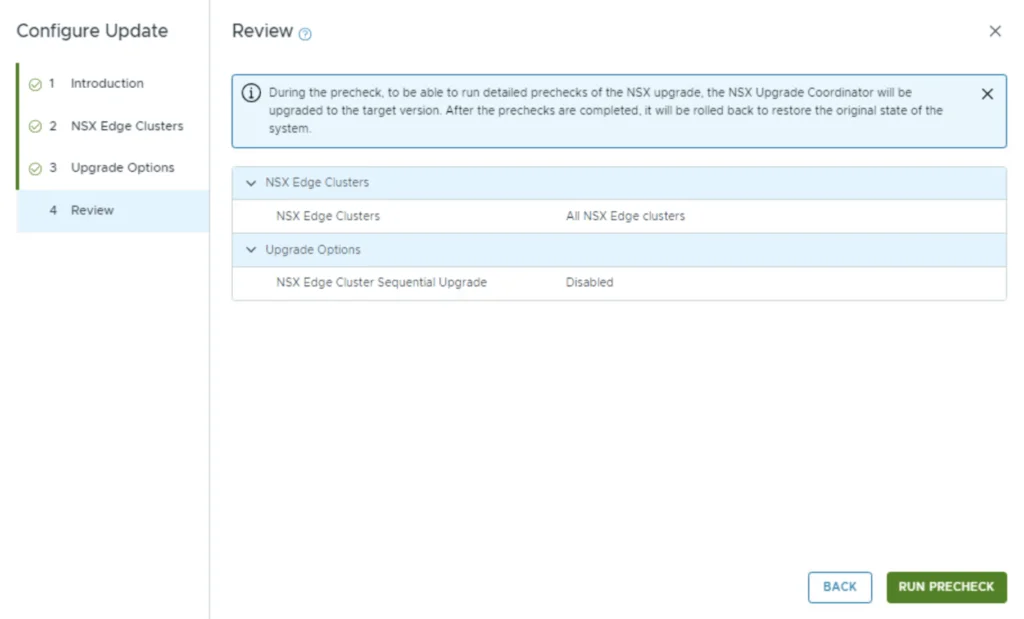
Review the options and click on Run Precheck
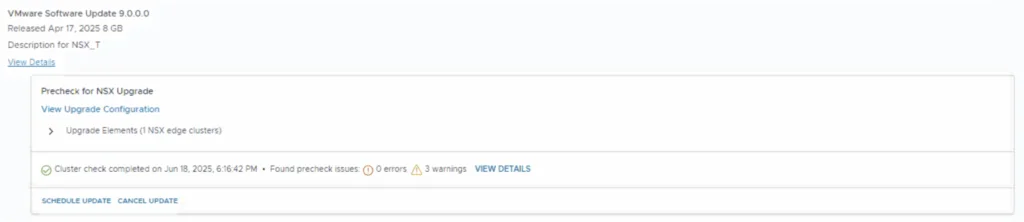
Once the Precheck is completed, we can click on Schedule update.
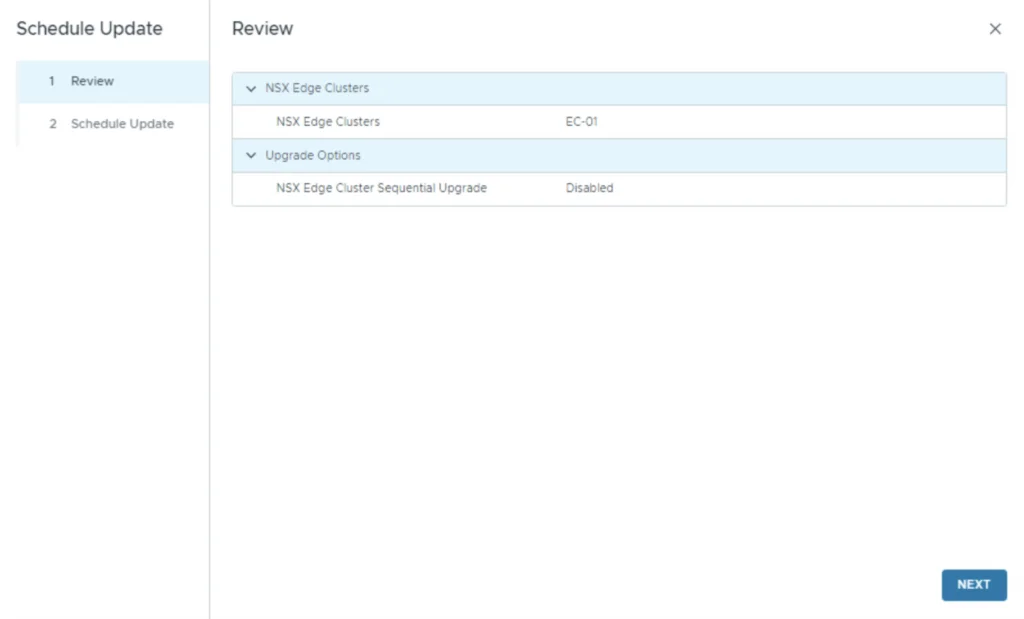
Click Next
Schedule the upgrade and click Finish
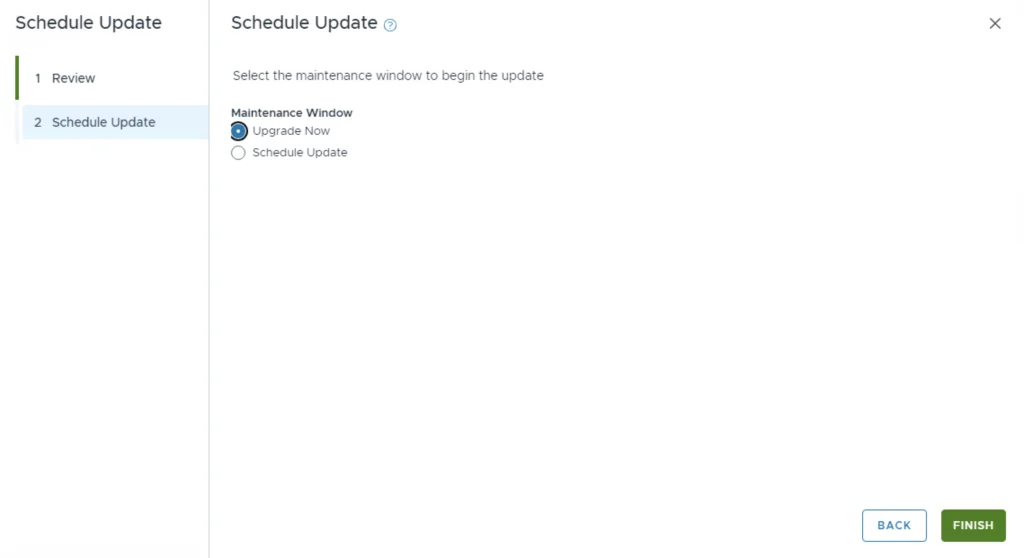
Once the upgrade has started, a few minutes later we can click on view status in order to see the upgrade steps
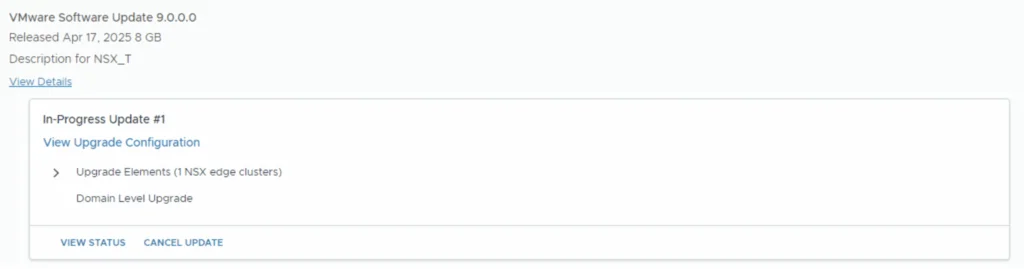
We can view the details of the upgrade
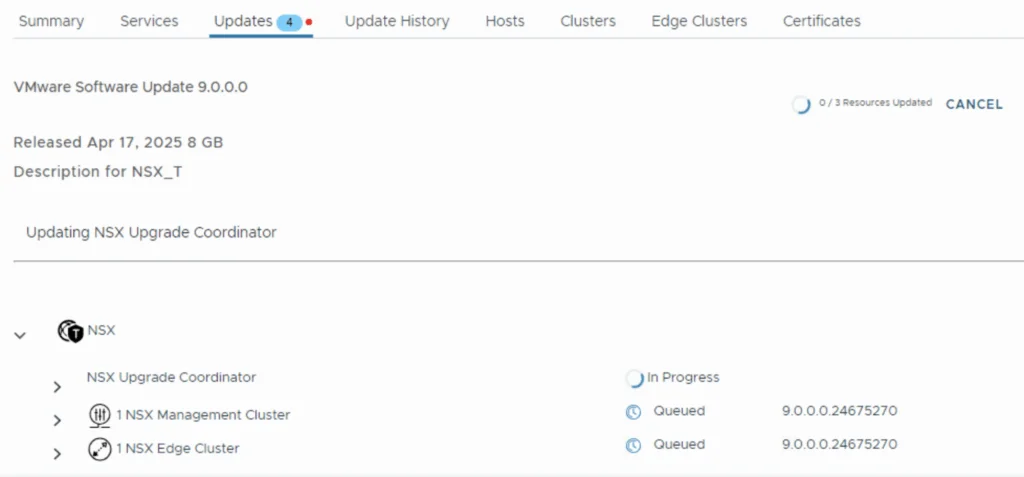
Upgrading vCenter Server to 9.0
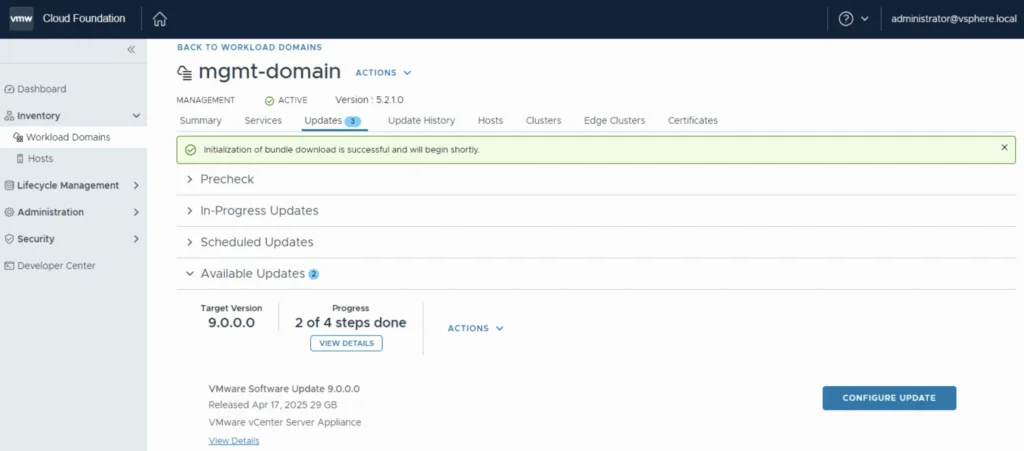
Once the upgrade is complete we can proceed with the vCenter Upgrade. VCF 9 comes with vCenter Server 9. The release notes can be found here. We can go to Inventory -> Workload Domains -> Select the workload domain -> Updates -> Under Available updates click on Download now.
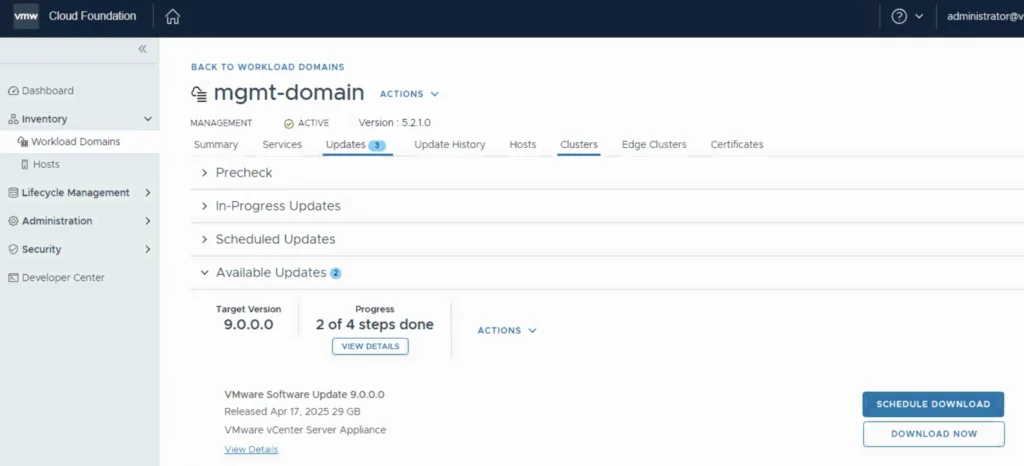
Once the download is complete we can click on Configure Update
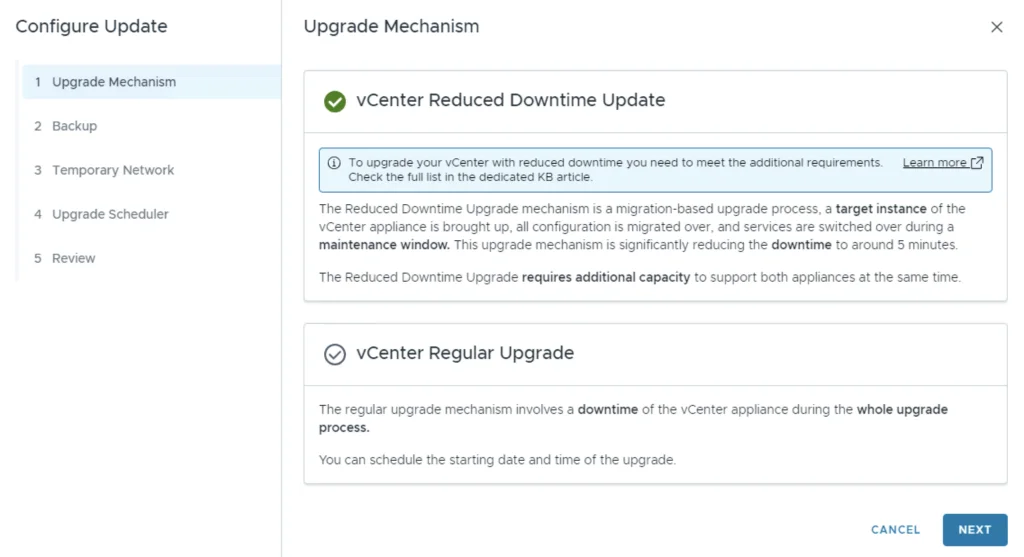
As we can see we now have 2 options. Reduced downtime which will install a target center and the migrate the data to it or an in place upgrade. Review the upgrade information and click Next.
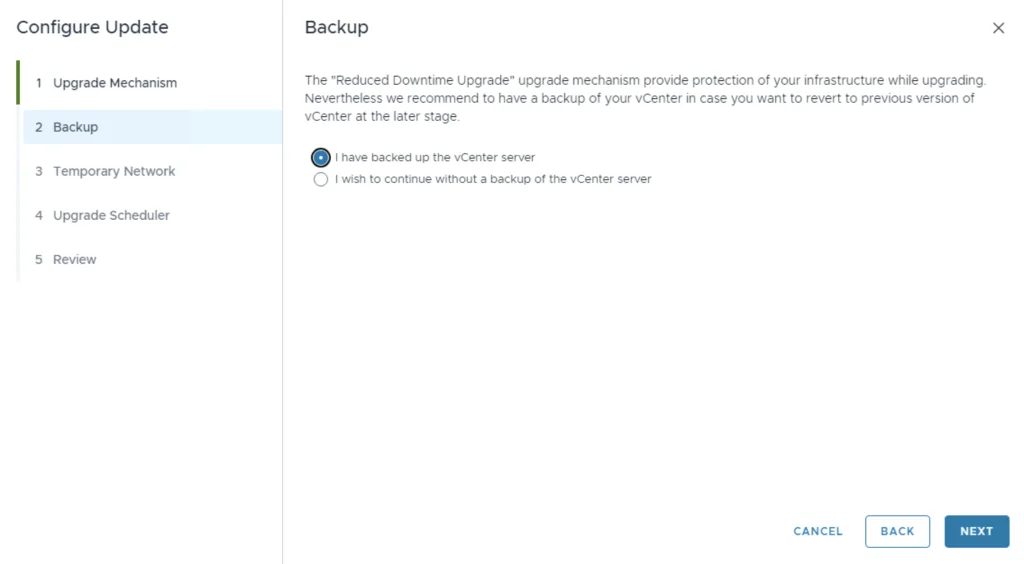
Confirm that we have a backup
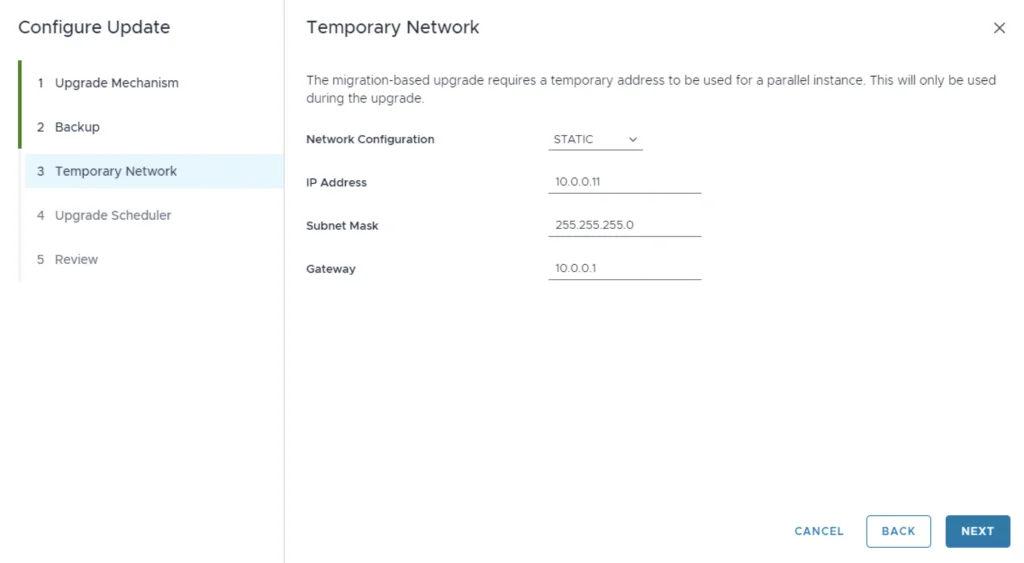
Provide a temporary network and click Next
Schedule the upgrade options and click Next
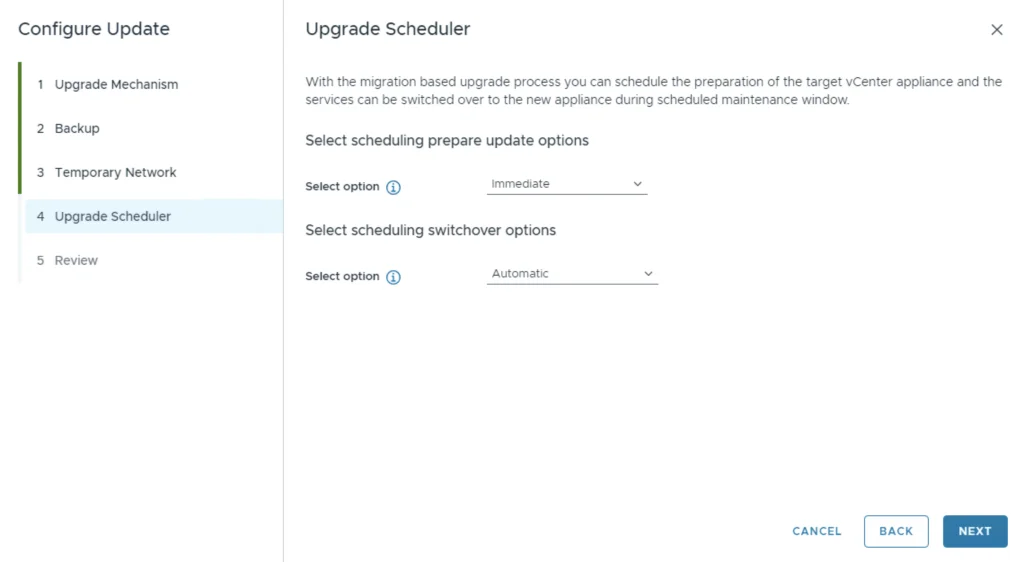
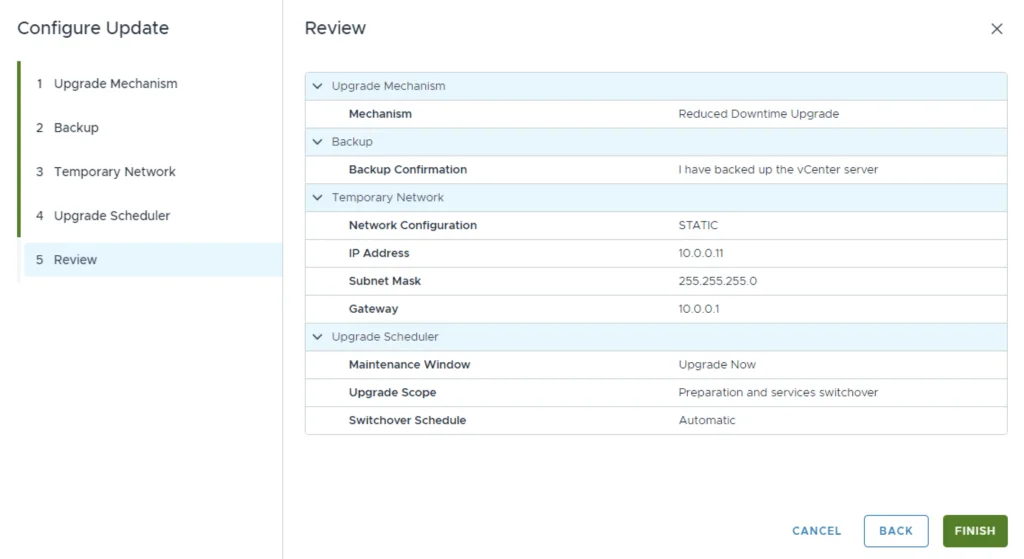
Review the upgrade selections and click Finish
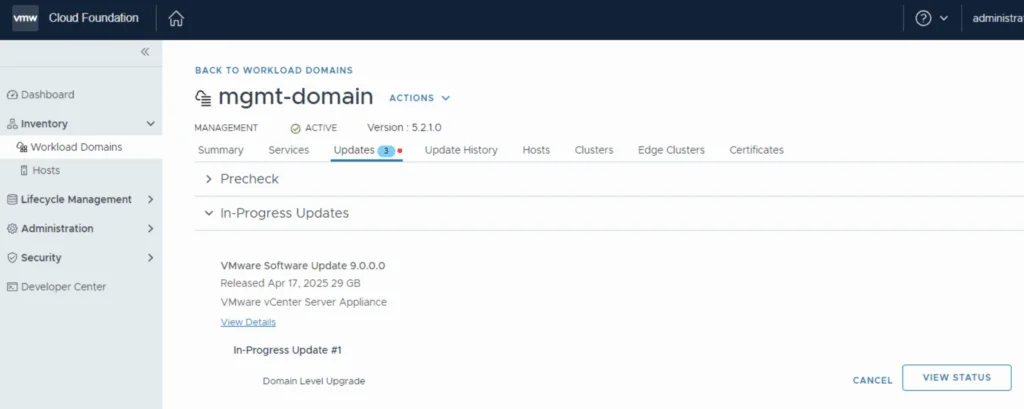
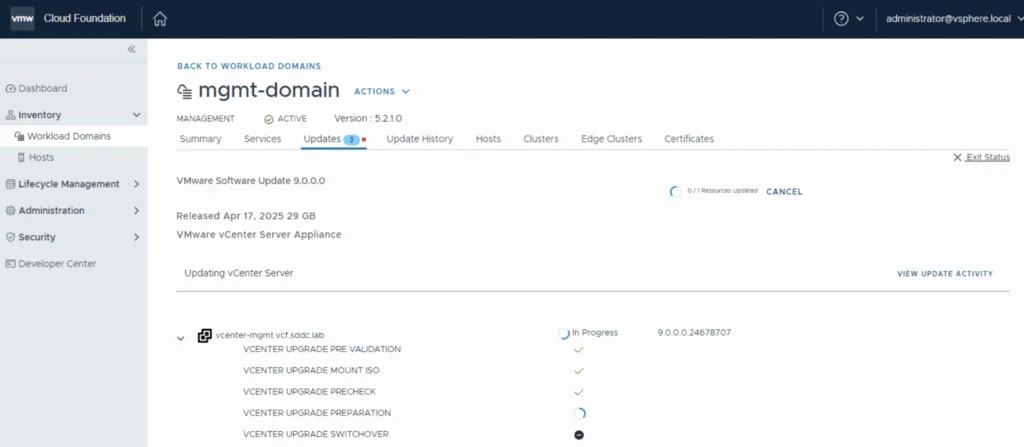
We can follow the status of the upgrade by clicking on the view status tab
Here we can see the different components that are getting upgraded
Upgrading the ESXi Hosts
Once the upgrade is complete we are taken back to the previous page where we can see that the ESXi servers are next. The release notes for ESXi 9 can be found here. Click on Download Now.
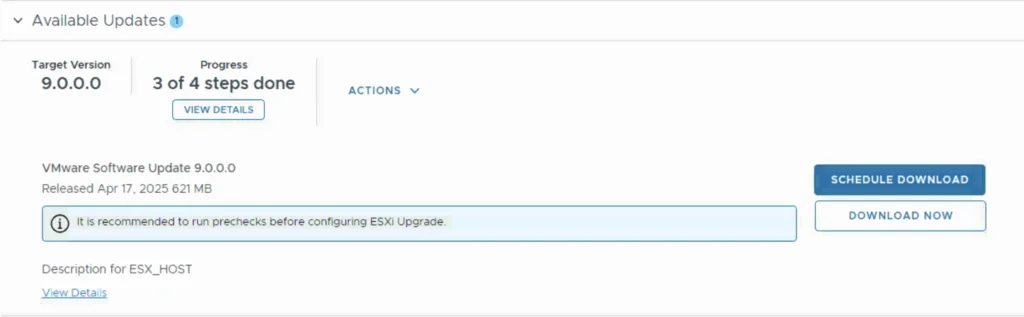
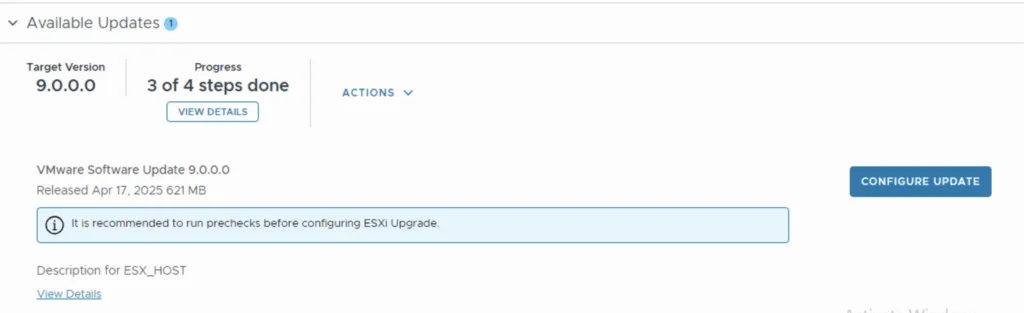
Once the download is complete we can configure the upgrade options by clicking configure upgrade
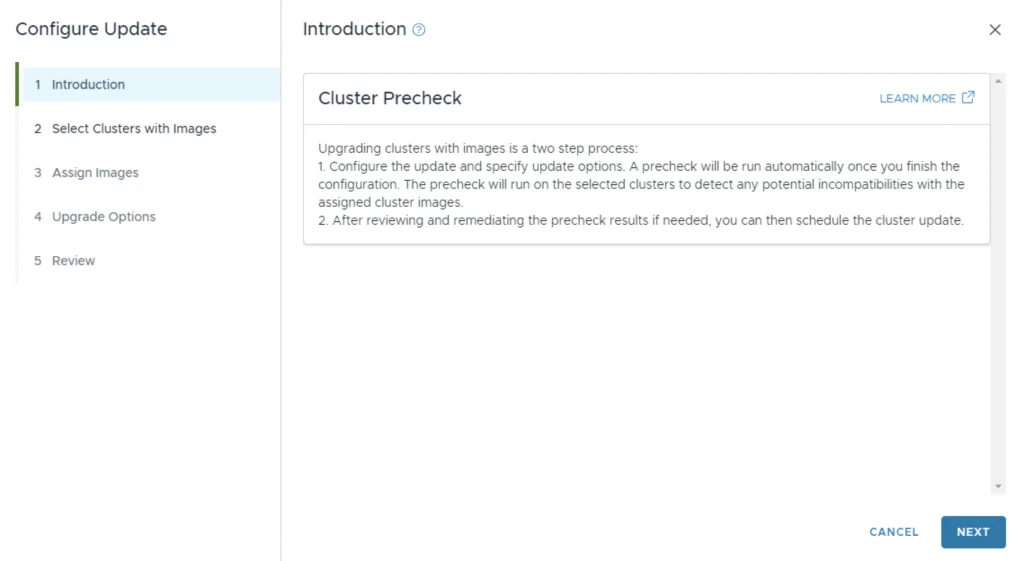
We get presented with the upgrade instructions. Click Next
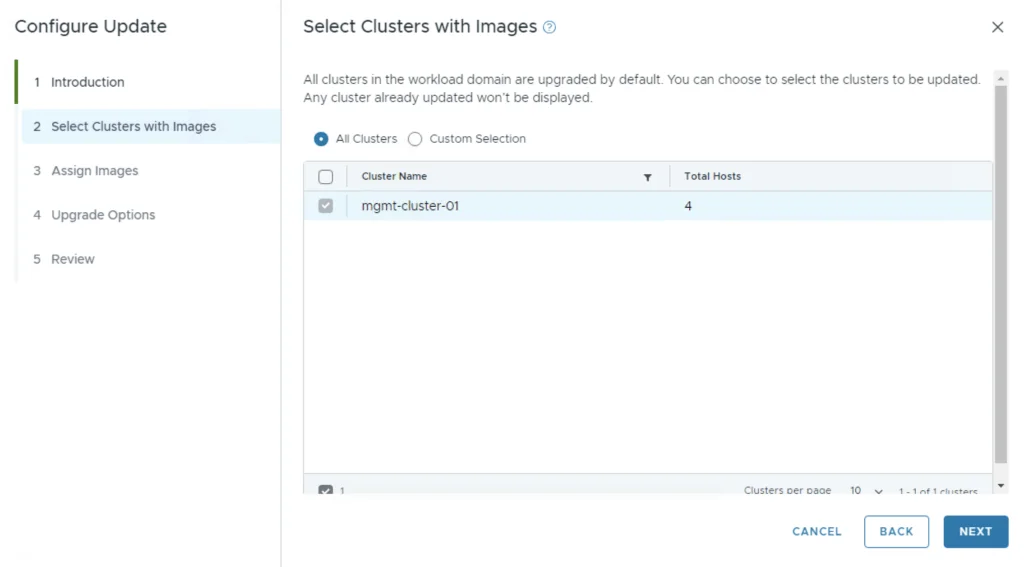
Select a cluster with images and click Next
Assign an image and click next
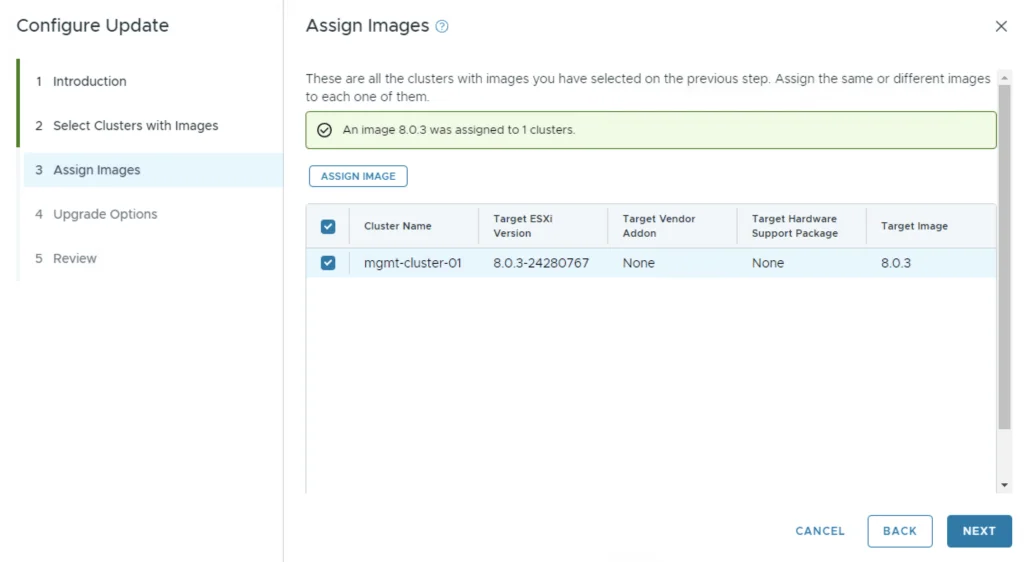
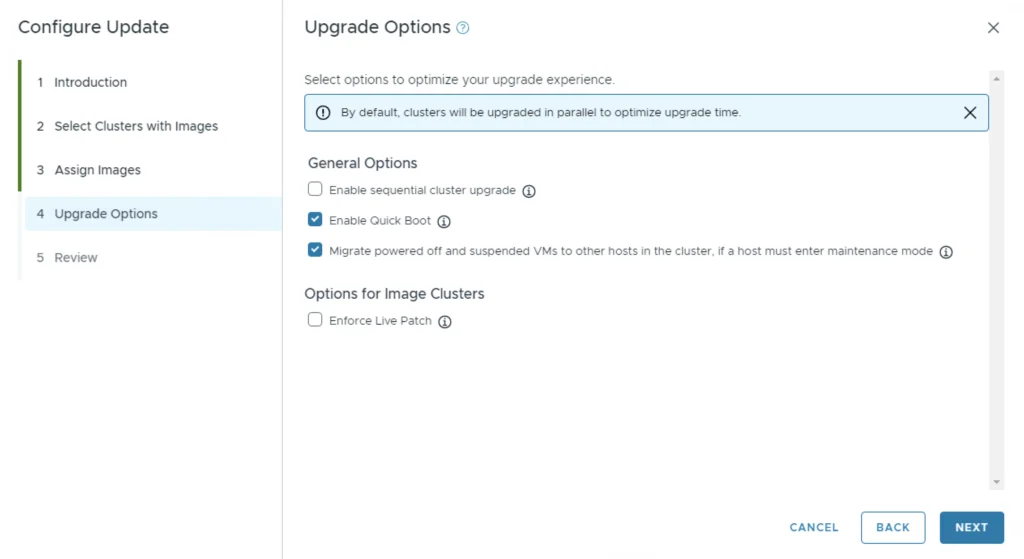
We can also enable sequential cluster upgrade, quick boot and the ability to evacuate offline VMs part of the maintenance. Click Next
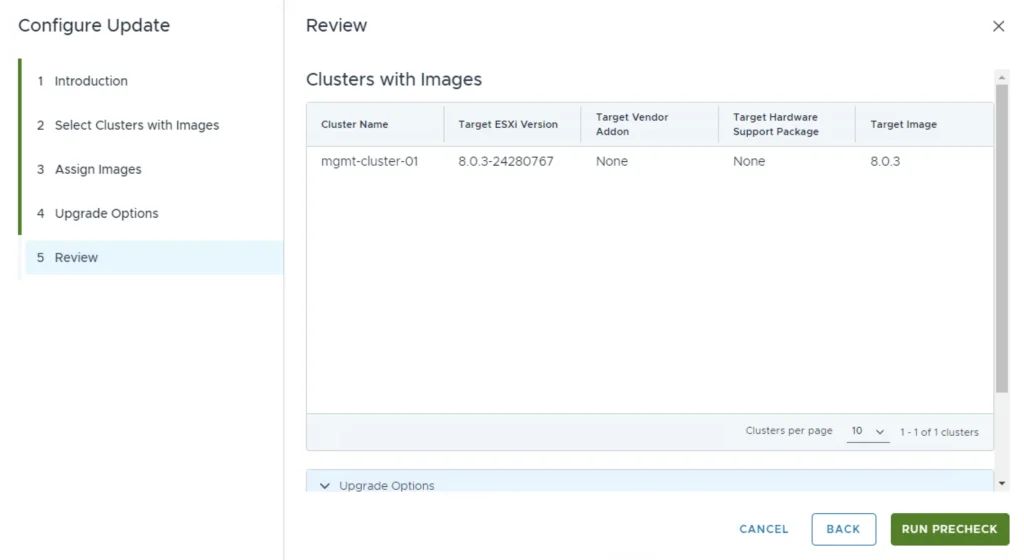
Review the updates and click Run precheck
Once the precheck is completed we can click on schedule update. The first screen gives us a review. We ca continue by clicking Next.
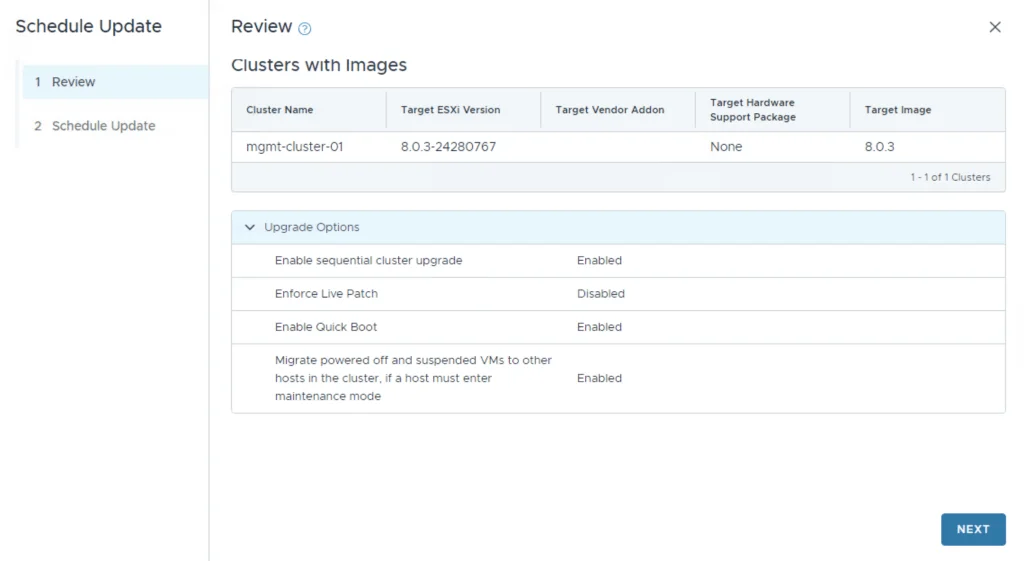
Make the proper selection and click Next
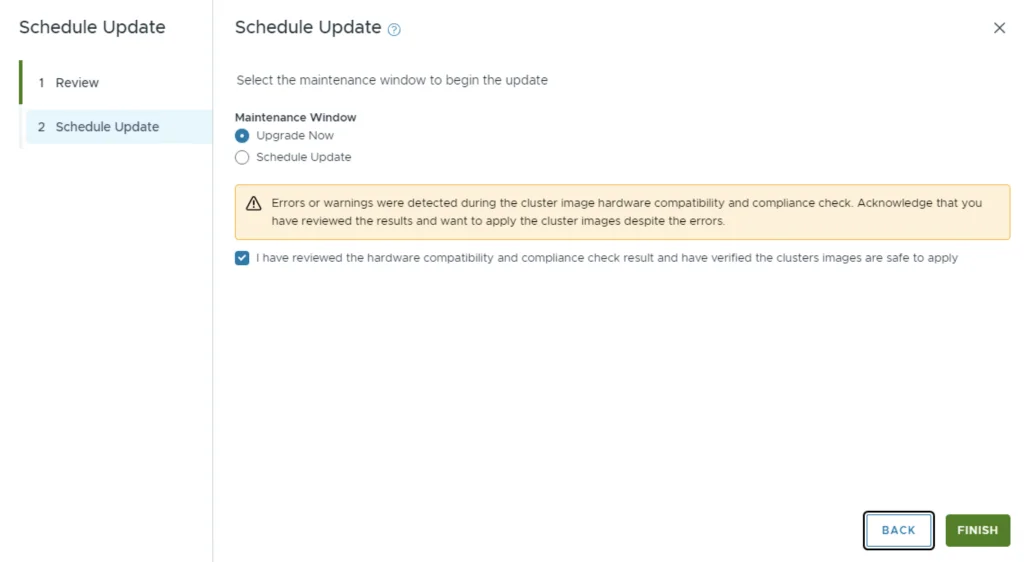
And with that we are finished with the workload domain. We can follow the same steps for the other domains
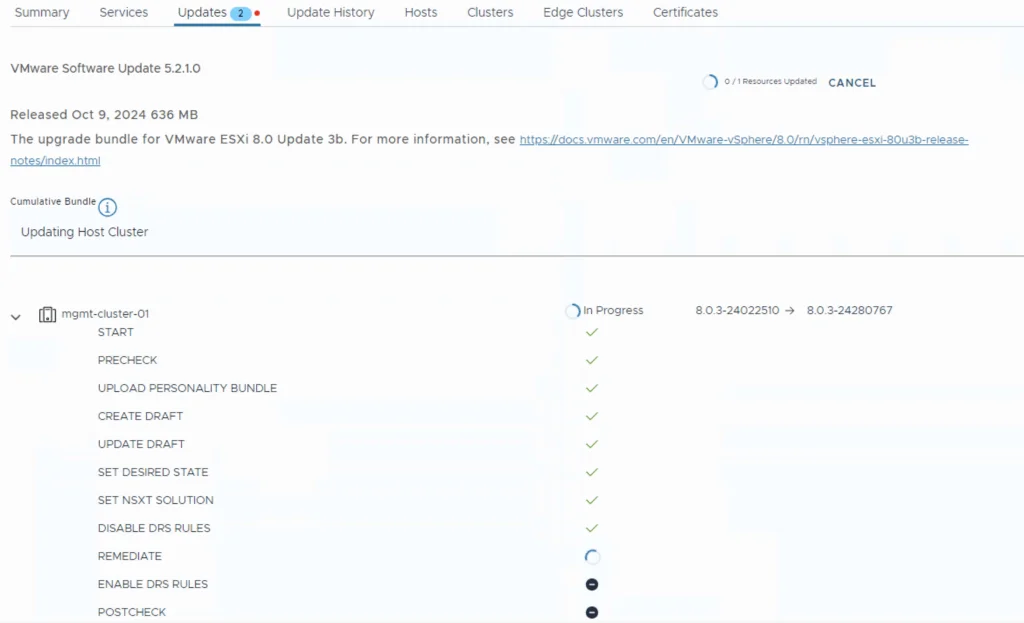
Final Configuration Updates and Cleanup
If applicable apply any configuration updates
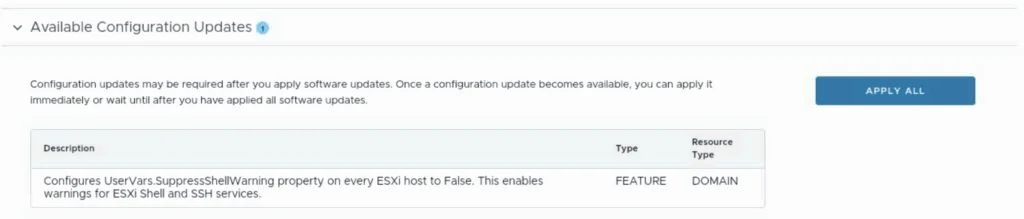
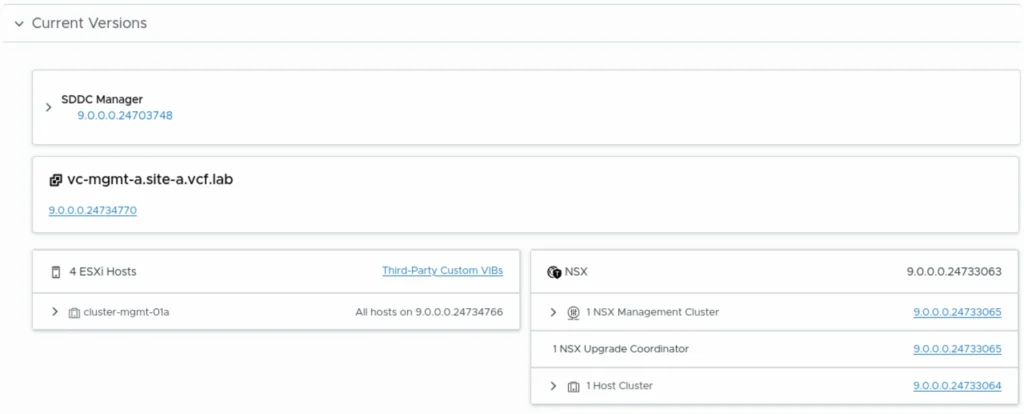
We can review the environment to make sure all of the components have been upgraded
Don’t forget to clean up the download bundles by following the steps from my other blog here