
With the release of of VCF 4.2 I wanted to get my lab upgraded. The release blog can be found here and the release notes are here
Upgrading to VCF 4.1.0.1 First
In order to get to 4.2.0.0 we have to upgrade to 4.1.0.1. We can do so by going to Repository -> Bundle management -> Download now

The next step is to upgrade VCF by going to Inventory -> Workload Domains -> Select the workload domain -> Update/Patches -> Update Now for the VMware Cloud Foundation Update 4.1.0.1. The release notes can be found here

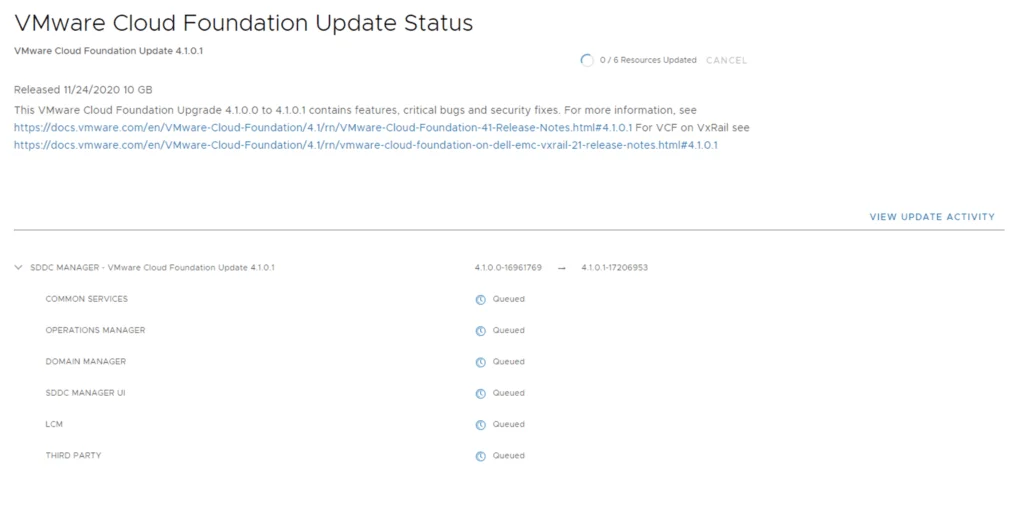
Next we are taken to the Upgrade page where we can follow the upgrade for each one of the components
Once the upgrade is complete we can click Finish to be returned back to the main screen
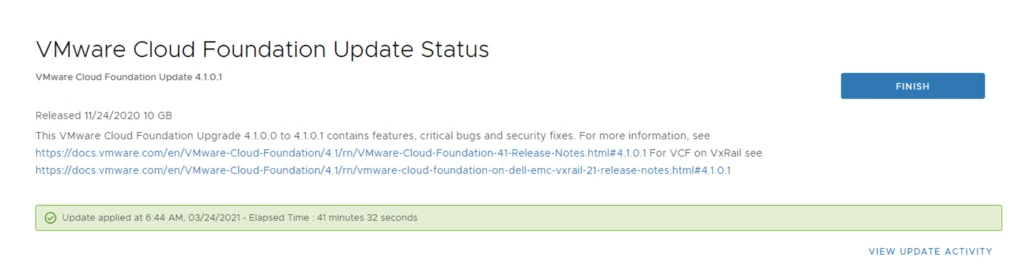
Because we are changing the SDDC-Manager versions I would strongly recommend to clear cache and log back in before going forward.
Applying the VCF 4.2.0.0 Update
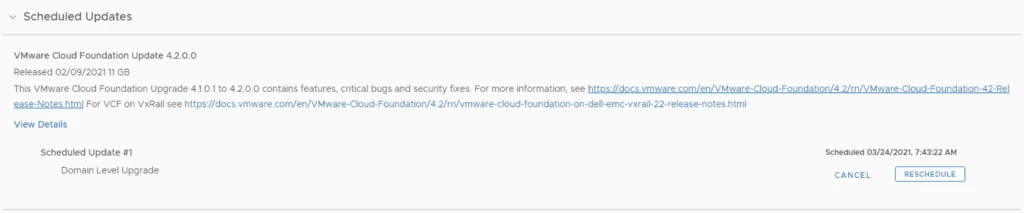
Next is the 4.2.0.0 update. Repository -> Bundle management -> Download now. In my case I already had it downloaded so the next step is to apply the upgrade by going to Inventory -> Workload Domains -> Select the workload domain -> Update/Patches -> Update Now for the VMware Cloud Foundation Update 4.2.0.0. The release notes can be found here
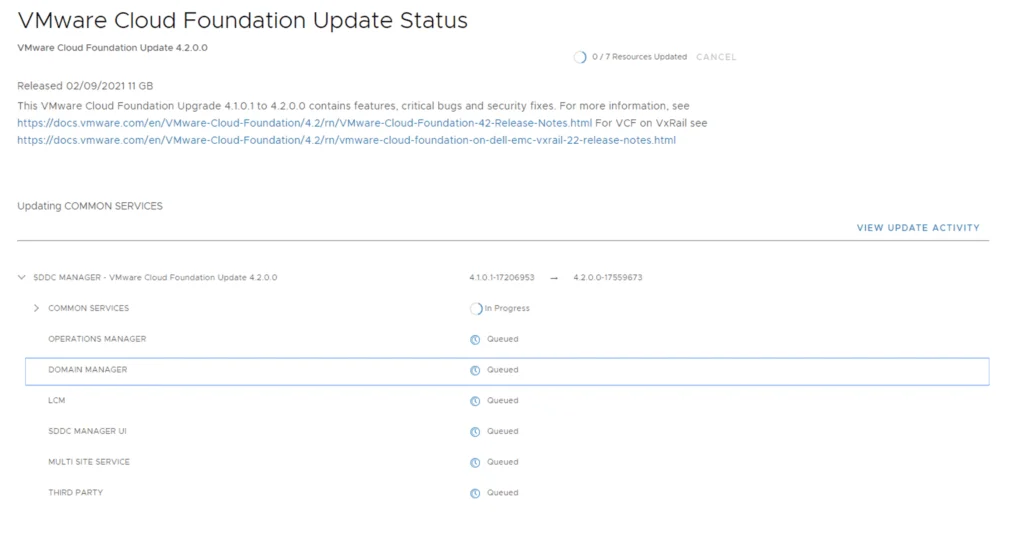
Once the upgrade starts we can follow its progress
Once the upgrade is completed we can click finish and go to the next step
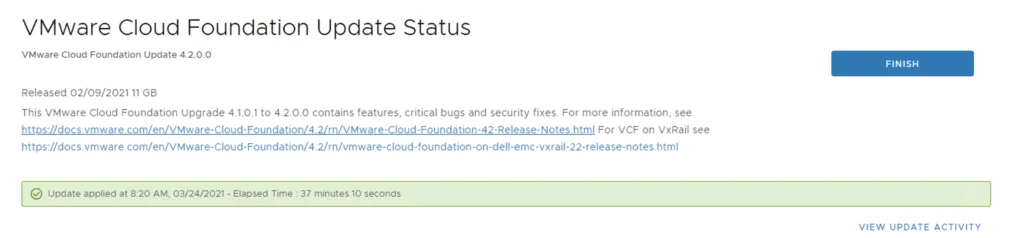
Again I would recommend clearing the cache since we changed sddc-manager versions.
Upgrading the ESXi Hosts
Once the upgrade is complete we are taken back to the previous page where we can see that the ESXi servers are next. The release notes can be found here. Click on Download Now

Once the download is complete we can click on Update now

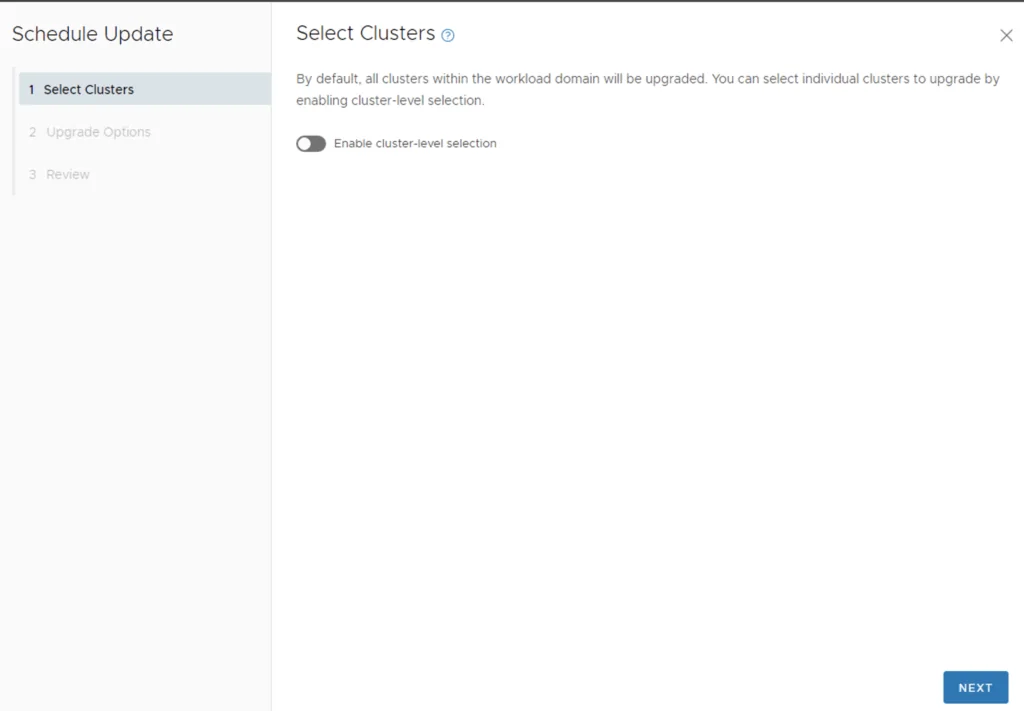
If we have multiple clusters we can enable Cluster-level selection and select the specific cluster(s) we want to upgrade.
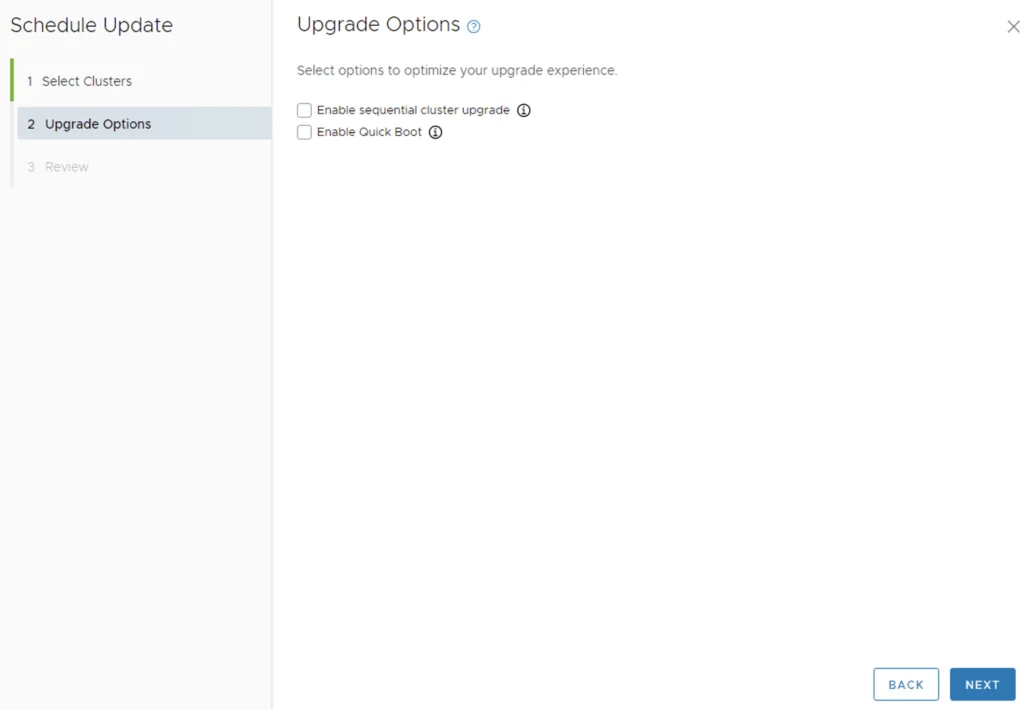
We can also enable sequential cluster upgrade as well as quick boot
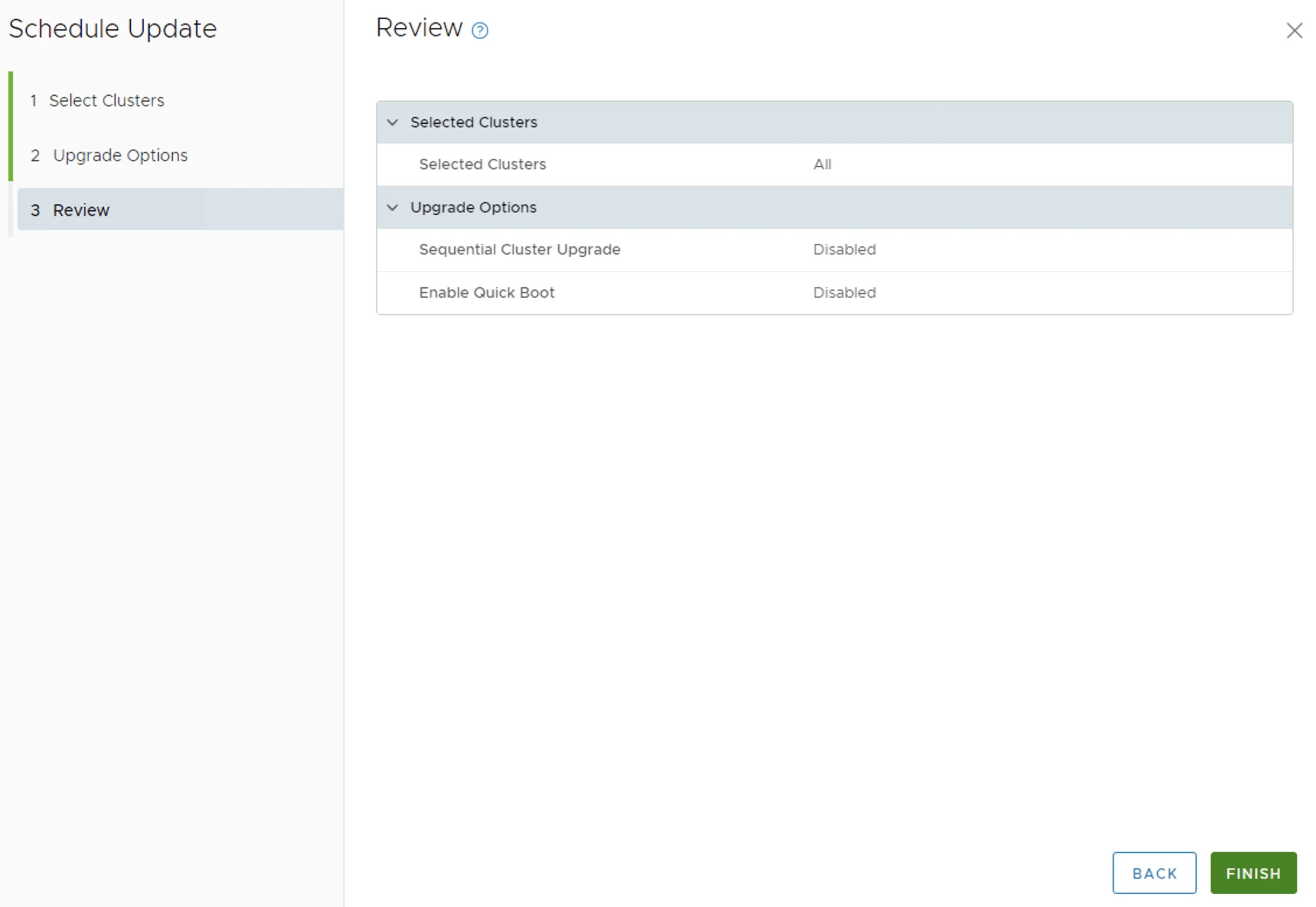
We get to review the options once again before we click finish to to submit the task
Once submitted we can view the status by clicking on View Status

And with that we are finished with the workload domain. We can get back to the Update/Patches page
Applying the Configuration Drift Bundle
The next update is the configuration drift bundle. We can go to inventory -> Workload Domains -> Select the workload domain -> Update/Patches -> Download now. You will notice a new drop down that allows us to pick the Cloud Foundation version.
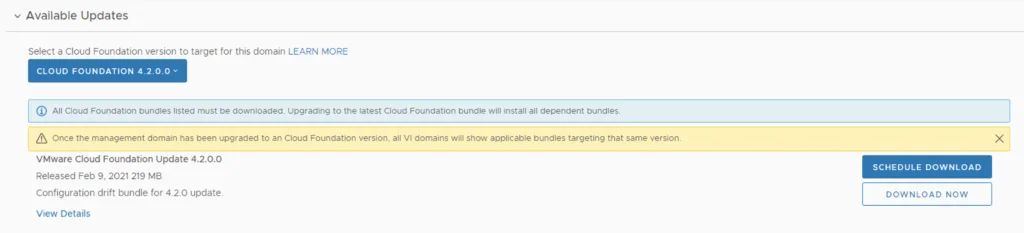
Once the download is complete click on update now

Once the upgrade started I got redirected to the Update status page.
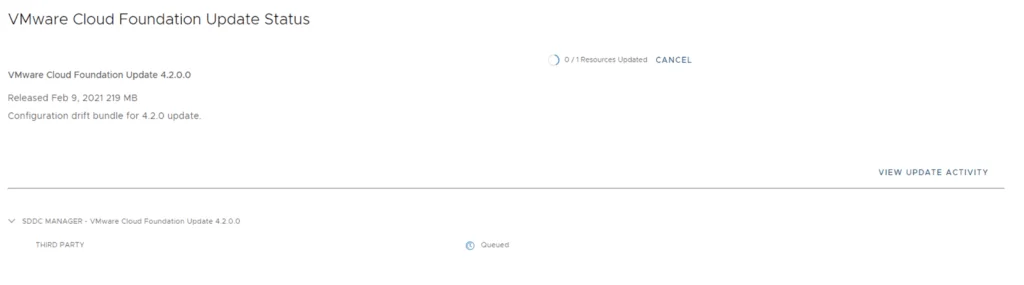
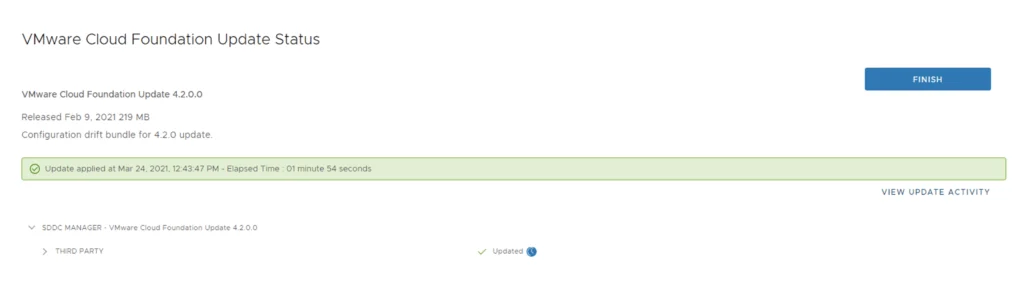
Considering the update is only 219 MB the upgrade went through pretty quickly. Once its completed we can click finish to get back to the main sddc manager page
Upgrading NSX-T to 3.1.0
Next step is to upgrade NSX-T installation to NSX-T 3.1.0. The release notes can be found here. We can go to inventory -> Workload Domains -> Select the workload domain -> Update/Patches -> Download now.
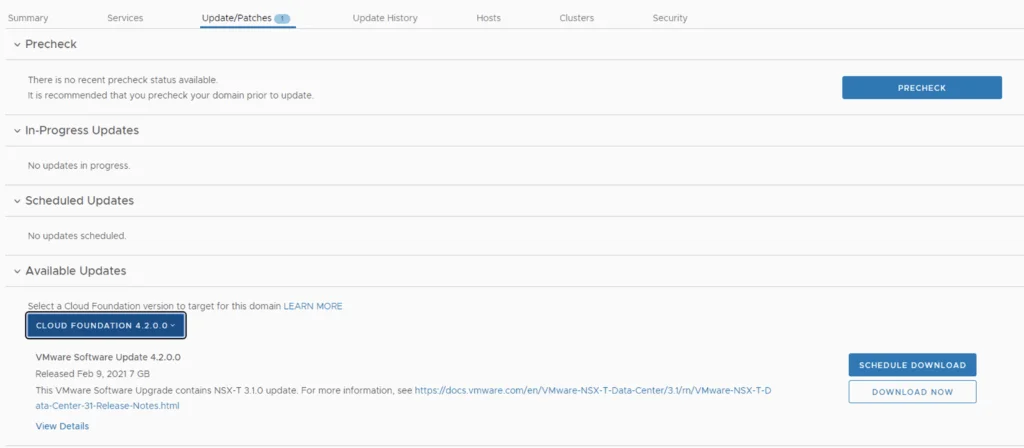
Once the download is complete click on Update Now

We can view the status and the steps by clicking on View Status.

Upgrading vCenter Server
Once the upgrade is complete we are redirected back to the available updates page showing that the vCenter server is next

Click on Download now and wait for the download to complete. Once the download is complete click on update now

We can view the task by clicking on View Status

Remaining Domains and Cleanup
Next are the the additional domains that we might have where we can follow the same instructions as above. The process will be a lot quicker because the upgrades are already downloaded
If no additional upgrades are needed we can clean up the downloads by following the instructions on my other post here