
In this post I will go over upgrading Aria Operations 8.18.x appliance to 9.0 using Aria Suite Lifecycle. As a pre requirement we do need to have Aria Suite Lifecycle upgraded to 8.18 Patch 2. Instructions can be found here.
Uploading the 9.0 Upgrade Binaries
To get started we can go to Aria Suite Lifecycle -> Lifecycle Operations -> Settings -> Binary Mapping.

Click on Add Binaries under Product Binaries

Due to changes after the 8.16 Aria Suite Lifecycle release (Release notes available here), My VMware based operations functionality has been deprecated. In my case, In this case, I choose to use Local and uploaded my .pak file to the /data/tmp directory on the Aria Suite Lifecycle appliance. The upgrade package can be downloaded from here. Don’t forget to also download the Lifecycle Manager Appliance.
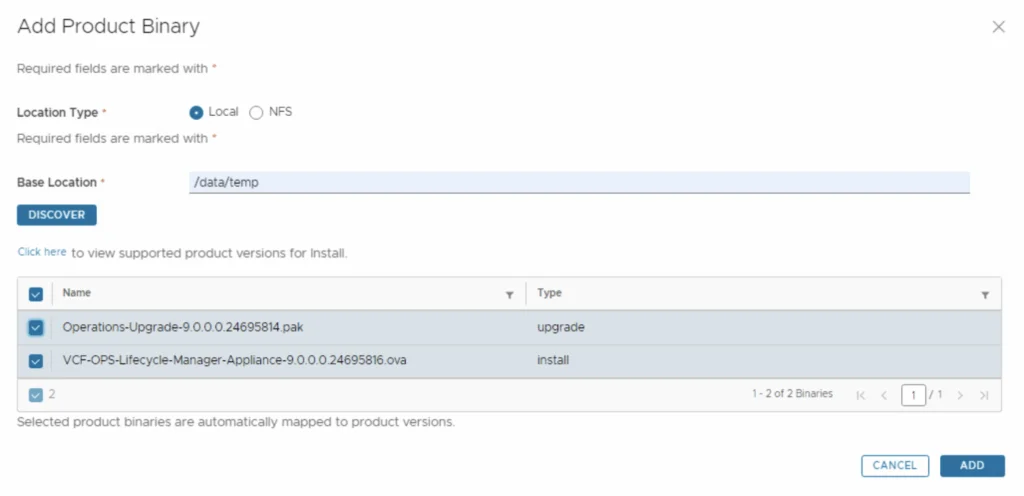
We can see a list of binaries that have been discovered. We can select what we need and click on Add
This will create a request and start downloading the package. To view the progress we can click on the Click Here hyperlink

Click on the in Progress button to view the details

We now have to wait for the mapping to complete

Starting the Upgrade from the Environment
After the mapping is complete we can go to Environments -> View Details on the environment that includes Aria Operations

Click on Upgrade

An Inventory sync is recommended if the environment has changed since Lifecycle performed the last sync. We trigger the sync from the UI or click on Proceed to continue

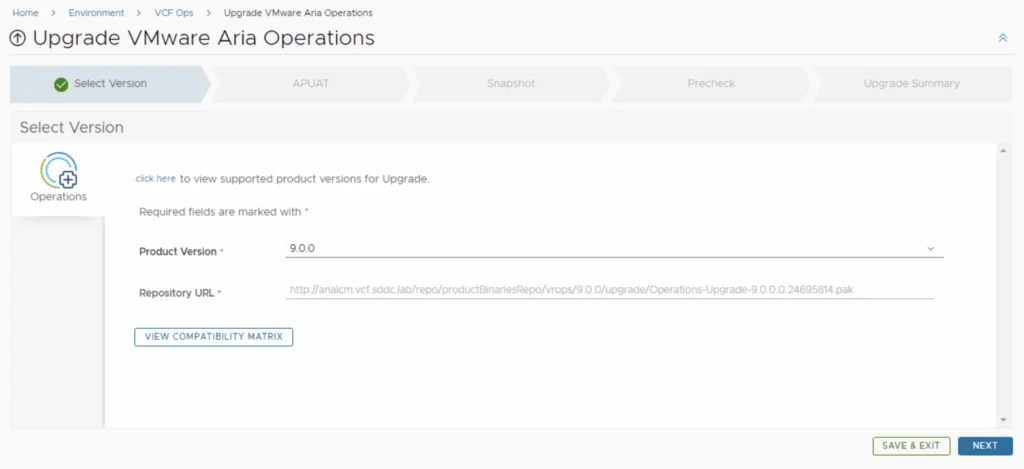
Selecting Version 9.0.0 and the License Type
Select product Version 9.0.0 and click Next. We can also review the compatibility matrix to make sure the environment is compatible.
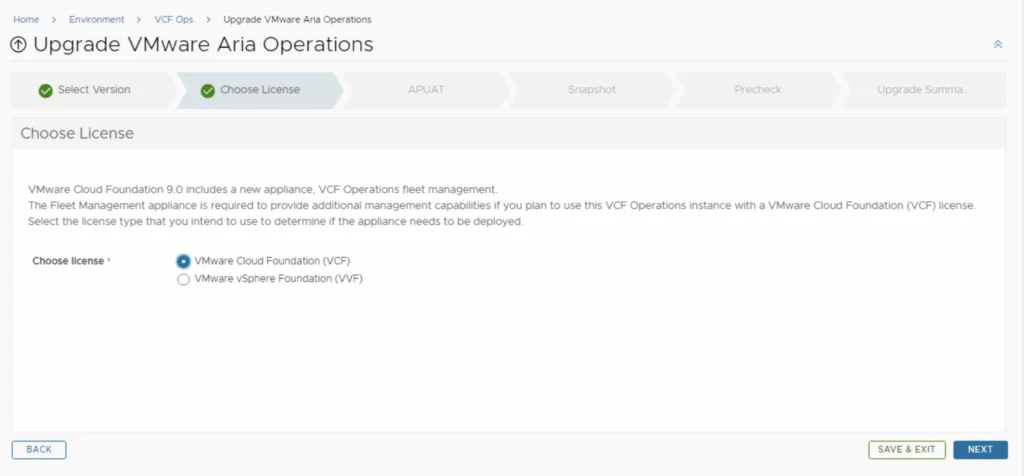
Choose the license type
Assessment Report and Snapshot Options
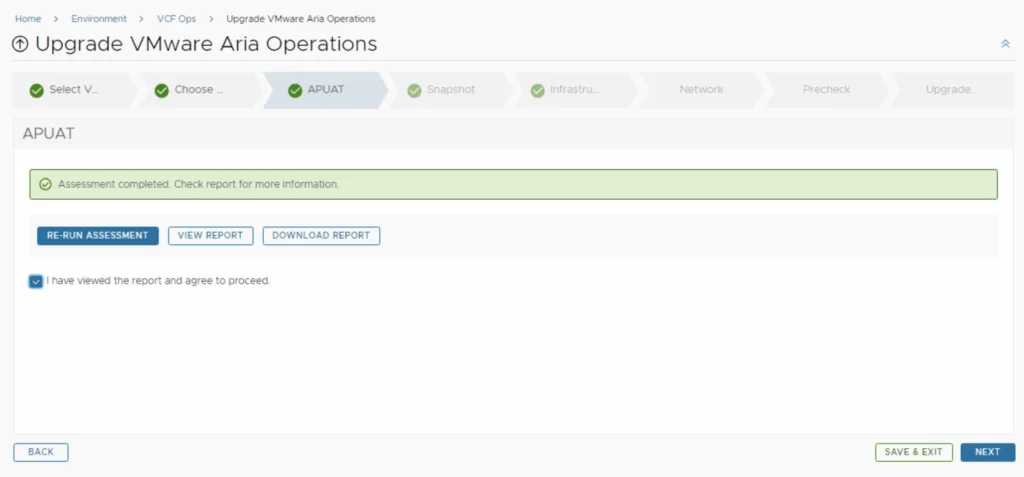
Run the Assessment tool to make sure the currently used dashboards, reports, metrics etc are still compatible with the new version
Once the report has finished running we can either Download or view the report. Once everything has been reviewed, we can click on the I have viewed the report and agree to proceed box and click next to proceed to the next step.
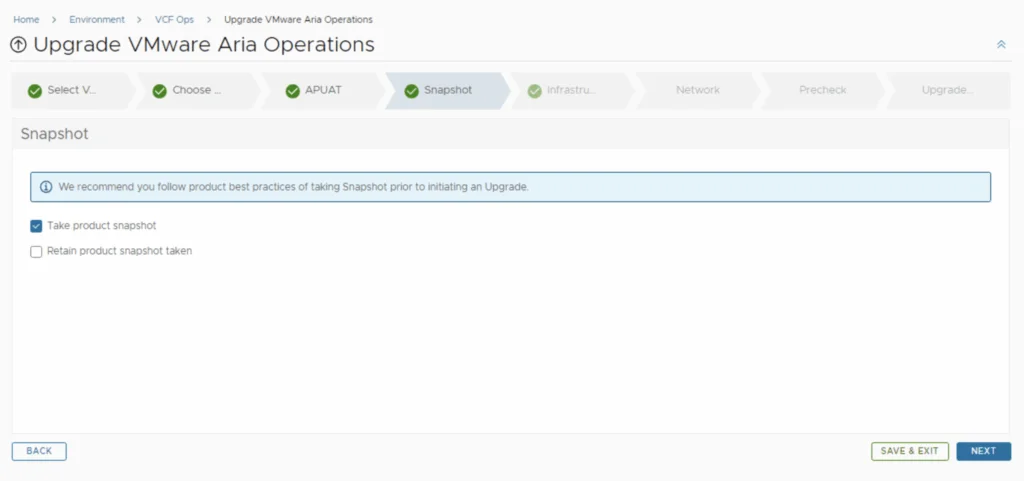
A new feature that was added was the capability to automatically create a snapshot prior to the upgrade and remove it after the upgrade. On this screen we also have the ability to choose if we want to keep the snapshots post upgrade for validation testing for example. Click Next
Deploying the Fleet Management Node
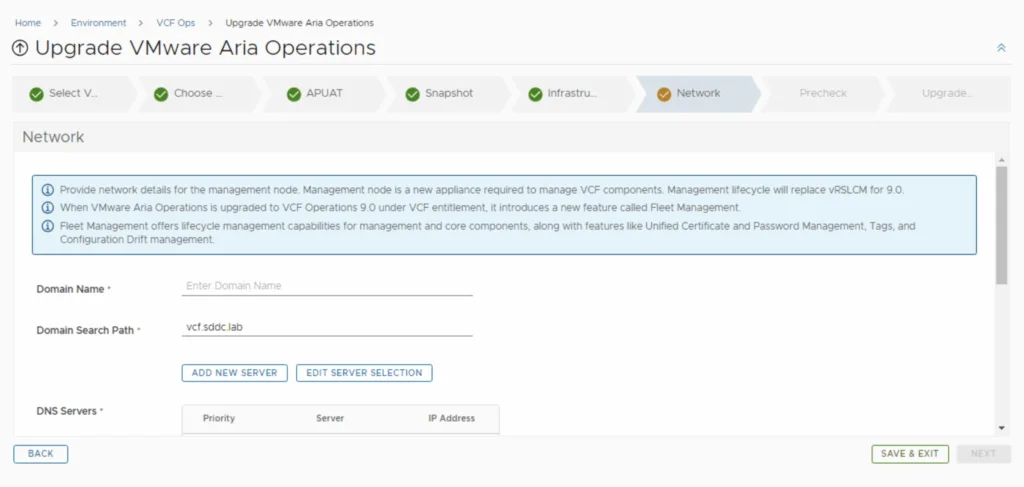
In the next step we will be deploying Management lifecycle. This will be replacing vRSLCM for 9.0. Fleet management will be replacing the vRSLCM functionality while also adding new features like Unified Certificate and Password Management, Tags, and Config drift management.
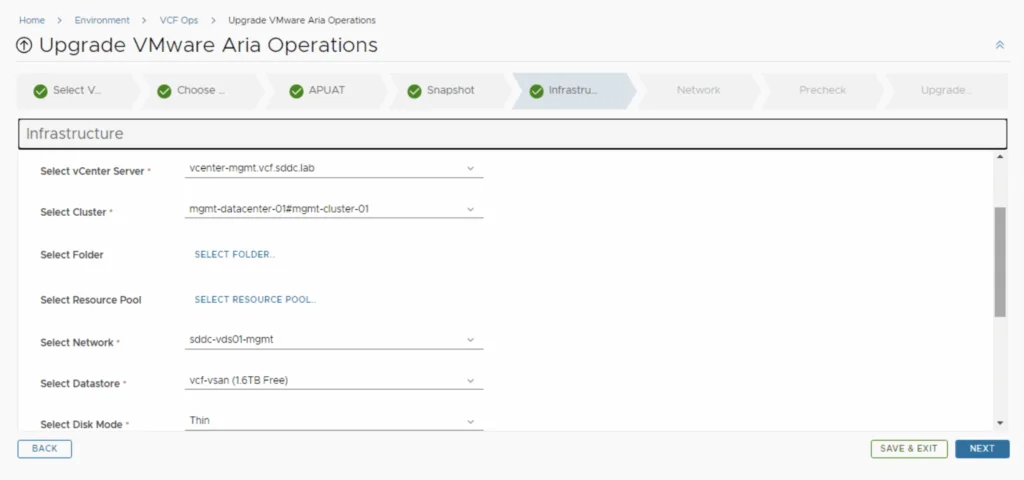
Provide the additional network details
Running the Precheck
Run the Precheck to make sure there are no errors or issues.
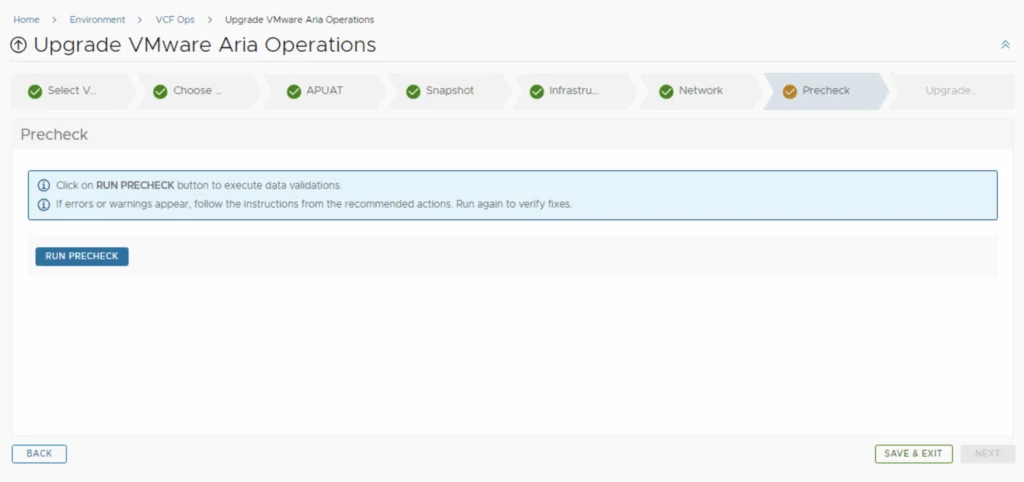
Once the check is complete we can review the checks that were performed and we can continue by clicking Next.

Submitting and Tracking the Upgrade
Review the upgrade details and click on Next and the Submit. We are taken to the progress screen where we can follow the progress.
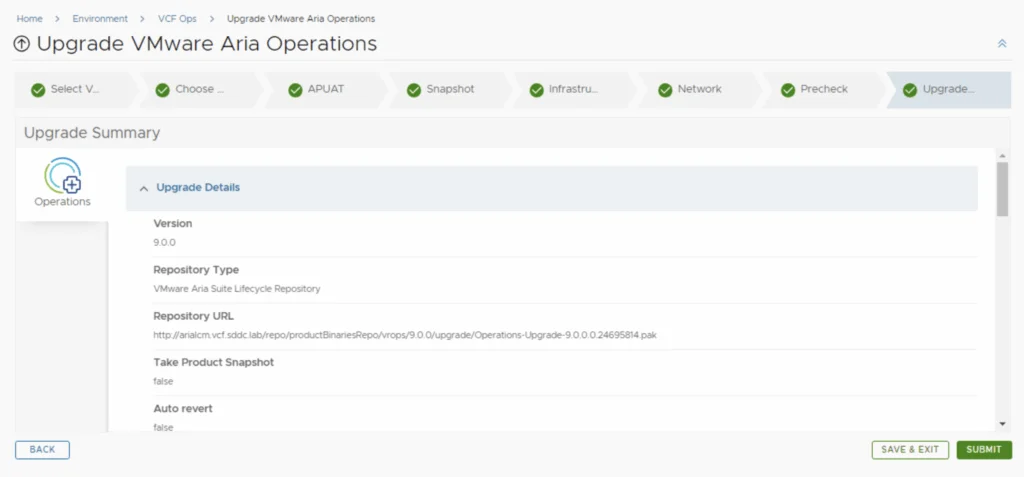
We will be taken to the Request Details where we can track the progress of the upgrade
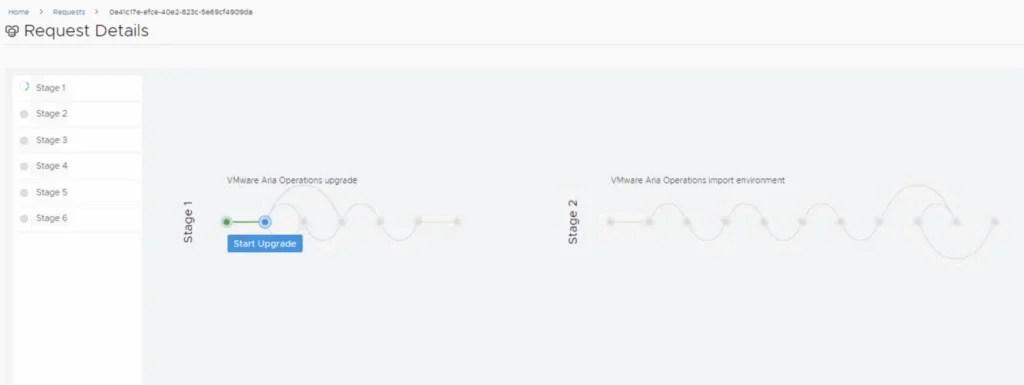
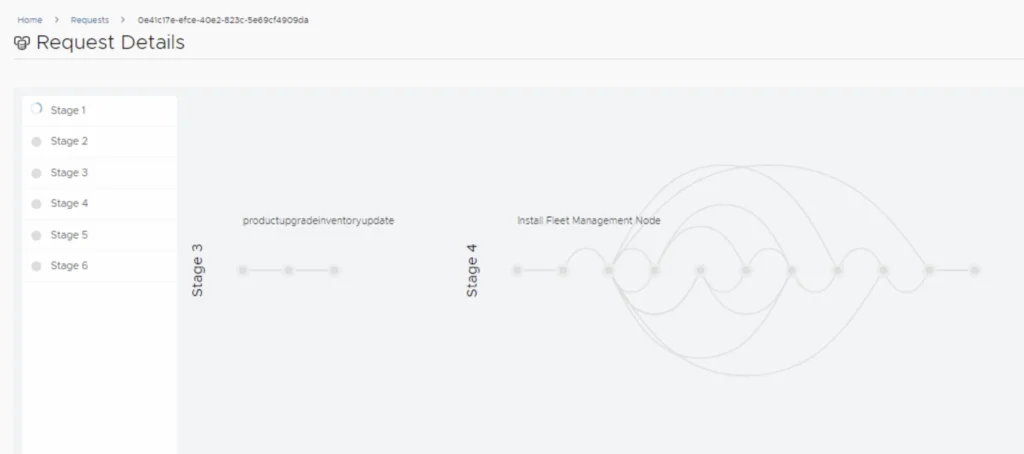
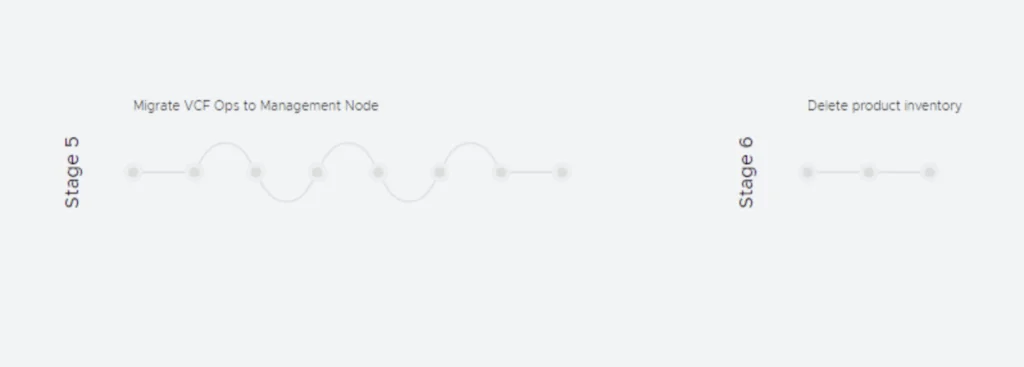
The system will get rebooted and once its back up, we will be on 9.0
Since we are doing a major upgrade I strongly recommend to clean the cache before using the new Aria Operations version.