Upgrading Aria Automation to 8.18 via CLI: A Step-by-Step Guide

Upgrading Aria Automation (formerly known as vRealize Automation, vRA) is crucial for maintaining the efficiency, security, and compatibility of your automation tasks. For environments without VMware Aria Suite Lifecycle, you can still perform the upgrade using the vracli command-line utility. This blog post will guide you through the process of upgrading Aria Automation using two different methods: from a mounted ISO (CD-ROM) and from an online update repository URL. Prerequisites SSH access to your Aria Automation appliance. Sufficient backup of your Aria Automation environment. Downloaded ISO for the Aria Automation upgrade, if using the CD-ROM method. Link to the download Access to the Aria Automation appliance with root privileges. Check the health of the pods by running kubectl get pods -n prelude The upgrade will fail if any pods are in a non Running state. Method 1: Upgrading from a Mounted ISO (CD-ROM) Prepare the ISO Image: Before starting, ensure that the ISO image for the Aria Automation upgrade is downloaded and available. Mount the ISO to the Appliance: Mount the ISO image to your Aria Automation appliance. This step might require physical access to the server or through the management interface provided by your hypervisor (e.g., ESXi). To mount the CD-ROM we can use: mount /dev/sr0 /mnt/cdrom SSH into the Aria Automation Appliance: Access your appliance via SSH as the root user. Execute the Upgrade Command: Run the following command to start the upgrade process: vracli upgrade exec -y --profile lcm --repo cdrom:// This command will automatically start the upgrade process using the ISO mounted on the CD-ROM drive. The -y flag automates the acceptance of the upgrade process, and --profile lcm specifies the use of the lifecycle manager upgrade profile, even though the Lifecycle Manager itself is not being used. Monitor the Upgrade Process: The upgrade process will provide output to the console. Monitor this output for any errors or prompts that require manual intervention. Use 'vracli upgrade status --follow' to monitor the progress. Finalize the Upgrade: Once the upgrade completes, follow any on-screen instructions to finalize the upgrade. This may include rebooting the Aria Automation appliance. Post-Upgrade Steps Verify the Upgrade: Log in to the Aria Automation user interface to verify that the upgrade was successful and all services are running correctly. Review Logs: Check the upgrade logs for any warnings or errors that might need attention. Test Deployments: Execute a few test deployments to ensure that all functionalities are working as expected. Conclusion Upgrading Aria Automation without the Lifecycle Manager is straightforward with the vracli utility. Whether you’re upgrading from a mounted ISO or an online repository, the process is designed to be seamless. Always ensure that you have backups and a rollback plan in case of any issues. ...

July 28, 2024 · Cosmin Trif

Upgrading Aria Automation via CLI: A Step-by-Step Guide

Upgrading Aria Automation (formerly known as vRealize Automation, vRA) is crucial for maintaining the efficiency, security, and compatibility of your automation tasks. For environments without VMware Aria Suite Lifecycle, you can still perform the upgrade using the vracli command-line utility. This blog post will guide you through the process of upgrading Aria Automation using two different methods: from a mounted ISO (CD-ROM) and from an online update repository URL. Prerequisites SSH access to your Aria Automation appliance. Sufficient backup of your Aria Automation environment. Downloaded ISO for the Aria Automation upgrade, if using the CD-ROM method. Access to the Aria Automation appliance with root privileges. Method 1: Upgrading from a Mounted ISO (CD-ROM) Prepare the ISO Image: Before starting, ensure that the ISO image for the Aria Automation upgrade is downloaded and available. Mount the ISO to the Appliance: Mount the ISO image to your Aria Automation appliance. This step might require physical access to the server or through the management interface provided by your hypervisor (e.g., ESXi). To mount the CD-ROM we can use: mount /dev/sr0 /mnt/cdrom SSH into the Aria Automation Appliance: Access your appliance via SSH as the root user. Execute the Upgrade Command: Run the following command to start the upgrade process: vracli upgrade exec -y --profile lcm --repo cdrom:// This command will automatically start the upgrade process using the ISO mounted on the CD-ROM drive. The -y flag automates the acceptance of the upgrade process, and --profile lcm specifies the use of the lifecycle manager upgrade profile, even though the Lifecycle Manager itself is not being used. Monitor the Upgrade Process: The upgrade process will provide output to the console. Monitor this output for any errors or prompts that require manual intervention. Use 'vracli upgrade status --follow' to monitor the progress. Finalize the Upgrade: Once the upgrade completes, follow any on-screen instructions to finalize the upgrade. This may include rebooting the Aria Automation appliance. Method 2: Upgrading from an Online Update Repository URL SSH into the Aria Automation Appliance: Ensure you have SSH access to the appliance as the root user. Determine the Repository URL: Identify the URL of the update repository you intend to use for the upgrade. This URL should point to the VMware online repository or an internally hosted repository mirror. Execute the Upgrade Command: Use the following command to initiate the upgrade from the online repository: vracli upgrade exec --profile lcm -r <url> Replace <url> with the actual URL of your update repository. Similar to the CD-ROM method, --profile lcm indicates the lifecycle manager upgrade profile. Monitor the Upgrade Process: As with the ISO method, keep an eye on the console output for any actions required on your part. Use 'vracli upgrade status --follow' to monitor the progress. Complete the Upgrade: After the upgrade process finishes, perform any additional steps prompted by the system, which may include system reboots. Post-Upgrade Steps Verify the Upgrade: Log in to the Aria Automation user interface to verify that the upgrade was successful and all services are running correctly. Review Logs: Check the upgrade logs for any warnings or errors that might need attention. Test Deployments: Execute a few test deployments to ensure that all functionalities are working as expected. Conclusion Upgrading Aria Automation without the Lifecycle Manager is straightforward with the vracli utility. Whether you’re upgrading from a mounted ISO or an online repository, the process is designed to be seamless. Always ensure that you have backups and a rollback plan in case of any issues. ...

July 28, 2024 · Cosmin Trif

Creating a Custom Role in vCenter for Aria Automation: A Step-by-Step Guide

Introduction Automation in VMware environments enhances efficiency, reduces human error, and improves the consistency of operations. Aria Automation (formerly vRealize Automation) is a powerful tool designed to automate processes in your VMware infrastructure. However, to fully leverage its capabilities, Aria Automation requires specific permissions in vCenter. This blog post will guide you through creating a custom role in vCenter with all necessary permissions for the Aria Automation service account. Prerequisites ...

May 13, 2024 · Cosmin Trif
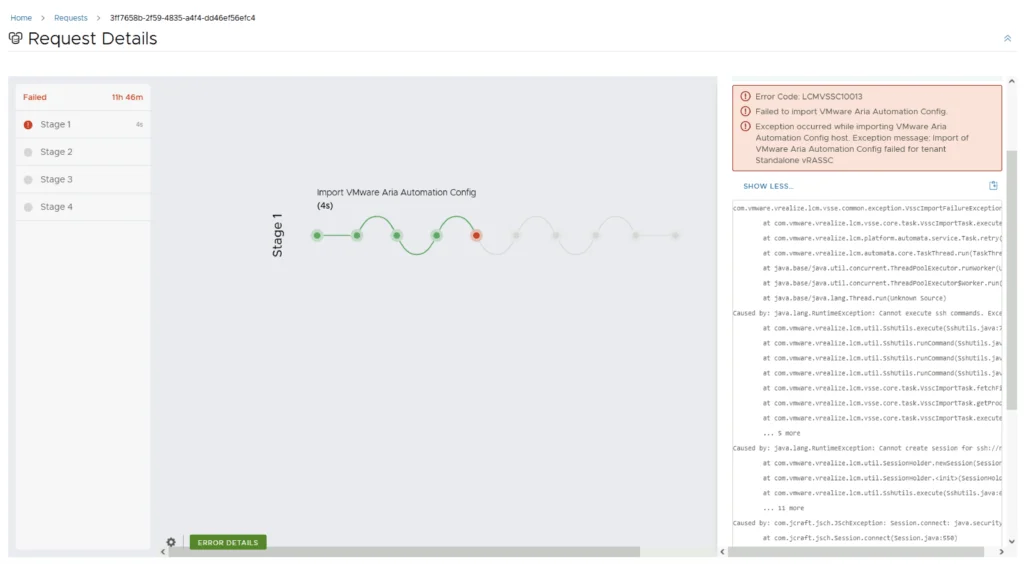
Error Code: LCMVSSC10013 shown in a VMware Aria Automation Config import request details, highlighting failed Stage 1 with error message.

Error Code: LCMVSSC10013

While trying to upgrade my SaltStack Config environment to 8.16.2 I encountered Error Code: LCMVSSC10013 in VMware Aria Suite Lifecycle. The error details: Error Code: LCMVSSC10013 Failed to import VMware Aria Automation Config. Exception occurred while importing VMware Aria Automation Config host. Exception message: Import of VMware Aria Automation Config failed for tenant Standalone vRASSC com.vmware.vrealize.lcm.vsse.common.exception.VsscImportFailureException: Import of VMware Aria Automation Config failed for tenant Standalone vRASSC at com.vmware.vrealize.lcm.vsse.core.task.VsscImportTask.execute(VsscImportTask.java:185) at com.vmware.vrealize.lcm.platform.automata.service.Task.retry(Task.java:158) at com.vmware.vrealize.lcm.automata.core.TaskThread.run(TaskThread.java:60) at java.base/java.util.concurrent.ThreadPoolExecutor.runWorker(Unknown Source) at java.base/java.util.concurrent.ThreadPoolExecutor$Worker.run(Unknown Source) at java.base/java.lang.Thread.run(Unknown Source) Caused by: java.lang.RuntimeException: Cannot execute ssh commands. Exception encountered : Session.connect: java.security.spec.InvalidKeySpecException: key spec not recognized at com.vmware.vrealize.lcm.util.SshUtils.execute(SshUtils.java:721) at com.vmware.vrealize.lcm.util.SshUtils.runCommand(SshUtils.java:532) at com.vmware.vrealize.lcm.util.SshUtils.runCommand(SshUtils.java:516) at com.vmware.vrealize.lcm.util.SshUtils.runCommand(SshUtils.java:628) at com.vmware.vrealize.lcm.vsse.core.task.VsscImportTask.fetchFipsStatus(VsscImportTask.java:342) at com.vmware.vrealize.lcm.vsse.core.task.VsscImportTask.getProductDetails(VsscImportTask.java:260) at com.vmware.vrealize.lcm.vsse.core.task.VsscImportTask.execute(VsscImportTask.java:158) ... 5 more Caused by: java.lang.RuntimeException: Cannot create session for ssh://root@ssc-01a.corp.local at com.vmware.vrealize.lcm.util.SessionHolder.newSession(SessionHolder.java:57) at com.vmware.vrealize.lcm.util.SessionHolder.<init>(SessionHolder.java:37) at com.vmware.vrealize.lcm.util.SshUtils.execute(SshUtils.java:663) ... 11 more Caused by: com.jcraft.jsch.JSchException: Session.connect: java.security.spec.InvalidKeySpecException: key spec not recognized at com.jcraft.jsch.Session.connect(Session.java:550) at com.vmware.vrealize.lcm.util.SessionHolder.newSession(SessionHolder.java:53) ... 13 more Caused by: java.security.spec.InvalidKeySpecException: key spec not recognized at org.bouncycastle.jcajce.provider.asymmetric.util.BaseKeyFactorySpi.engineGeneratePublic(Unknown Source) at org.bouncycastle.jcajce.provider.asymmetric.edec.KeyFactorySpi.engineGeneratePublic(KeyFactorySpi.java:212) at java.base/java.security.KeyFactory.generatePublic(Unknown Source) at com.jcraft.jsch.jce.XDH.getSecret(XDH.java:71) at com.jcraft.jsch.DHXEC.next(DHXEC.java:134) at com.jcraft.jsch.Session.connect(Session.java:328) ... 14 more To get around it I had to enable FIPS mode in Aria Suite Lifecycle under Lifecycle Operations -> Settings -> Tips Mode Compliance -> check the enabled box -> Click Update ...

March 25, 2024 · Cosmin Trif
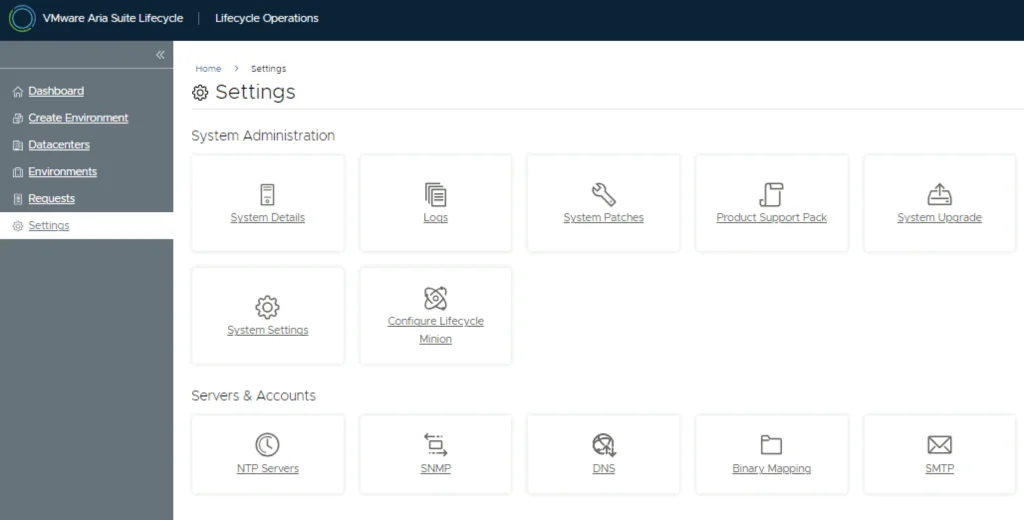
Settings page with options for system administration and server accounts, including upgrade, patches, and accounts management.

Upgrading VMware Aria Automation Config to 8.16.2

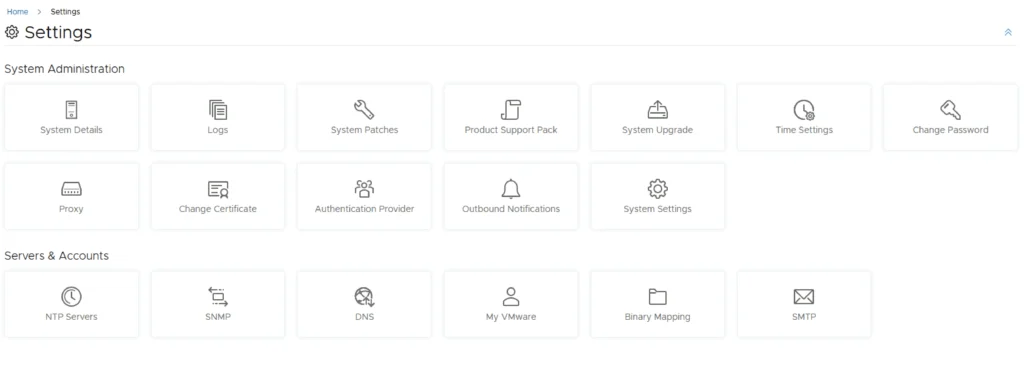
In this post i will go over upgrading my 8.x SSC appliance to 8.16.2. As a pre requirement we do need to have VMware Aria Suite Lifecycle upgraded to 8.16. Instructions can be found here. The upgrade does not include the latest PSPACK that contains the 8.16.2 Aria Automation Config release. Instructions to get the PSPACK can be found on my other blog post here. To get started we can go to VMware Aria Suite Lifecycle -> Lifecycle Operations -> Settings -> Binary Mapping. (If you haven’t added your My VMware credentials you will need to do that first by going to VMware Aria Suite Lifecycle -> Lifecycle Operations -> Settings -> My VMware) ...

March 25, 2024 · Cosmin Trif
Settings page with options for system administration and servers/accounts.

Upgrading VMware Aria Automation to 8.16.2

In this post i will go over upgrading my 8.x vRA appliance to 8.16.2. As a pre requirement we do need to have VMware Aria Suite Lifecycle upgraded to 8.16. Instructions can be found here. The upgrade does not include the latest PSPACK that contains the 8.16.2 VMware Aria Automation release. Instructions to get the PSPACK can be found on my other blog post here. To get started we can go to VMware Aria Suite Lifecycle -> Lifecycle Operations -> Settings -> Binary Mapping. (If you haven’t added your My VMware credentials you will need to do that first by going to VMware Aria Suite Lifecycle -> Lifecycle Operations -> Settings -> My VMware) ...

March 22, 2024 · Cosmin Trif

Streamlining vCenter Server Firewall Management with SaltStack Config

In the realm of VMware vSphere management, securing your vCenter Server is critical to maintaining a robust and secure infrastructure. SaltStack Config, integrated into VMware’s vRealize Automation suite, offers a powerful way to automate and manage configurations across your VMware environment, including firewall settings. This blog explores how to leverage SaltStack Config to automate firewall adjustments on your vCenter servers, ensuring consistent security policies and simplifying the process across multiple instances. ...

March 21, 2024 · Cosmin Trif

Upgrading Aria Automation without Lifecycle Manager: A Step-by-Step Guide

Upgrading Aria Automation (formerly known as vRealize Automation, vRA) is crucial for maintaining the efficiency, security, and compatibility of your automation tasks. For environments without VMware Aria Suite Lifecycle, you can still perform the upgrade using the vracli command-line utility. This blog post will guide you through the process of upgrading Aria Automation using two different methods: from a mounted ISO (CD-ROM) and from an online update repository URL. Prerequisites SSH access to your Aria Automation appliance. Sufficient backup of your Aria Automation environment. Downloaded ISO for the Aria Automation upgrade, if using the CD-ROM method. Access to the Aria Automation appliance with root privileges. Method 1: Upgrading from a Mounted ISO (CD-ROM) Prepare the ISO Image: Before starting, ensure that the ISO image for the Aria Automation upgrade is downloaded and available. Mount the ISO to the Appliance: Mount the ISO image to your Aria Automation appliance. This step might require physical access to the server or through the management interface provided by your hypervisor (e.g., ESXi). To mount the CD-ROM we can use: mount /dev/sr0 /mnt/cdrom SSH into the Aria Automation Appliance: Access your appliance via SSH as the root user. Execute the Upgrade Command: Run the following command to start the upgrade process: vracli upgrade exec -y --profile lcm --repo cdrom:// This command will automatically start the upgrade process using the ISO mounted on the CD-ROM drive. The -y flag automates the acceptance of the upgrade process, and --profile lcm specifies the use of the lifecycle manager upgrade profile, even though the Lifecycle Manager itself is not being used. Monitor the Upgrade Process: The upgrade process will provide output to the console. Monitor this output for any errors or prompts that require manual intervention. Use 'vracli upgrade status --follow' to monitor the progress. Finalize the Upgrade: Once the upgrade completes, follow any on-screen instructions to finalize the upgrade. This may include rebooting the Aria Automation appliance. Method 2: Upgrading from an Online Update Repository URL SSH into the Aria Automation Appliance: Ensure you have SSH access to the appliance as the root user. Determine the Repository URL: Identify the URL of the update repository you intend to use for the upgrade. This URL should point to the VMware online repository or an internally hosted repository mirror. Execute the Upgrade Command: Use the following command to initiate the upgrade from the online repository: vracli upgrade exec --profile lcm -r <url> Replace <url> with the actual URL of your update repository. Similar to the CD-ROM method, --profile lcm indicates the lifecycle manager upgrade profile. Monitor the Upgrade Process: As with the ISO method, keep an eye on the console output for any actions required on your part. Use 'vracli upgrade status --follow' to monitor the progress. Complete the Upgrade: After the upgrade process finishes, perform any additional steps prompted by the system, which may include system reboots. Post-Upgrade Steps Verify the Upgrade: Log in to the Aria Automation user interface to verify that the upgrade was successful and all services are running correctly. Review Logs: Check the upgrade logs for any warnings or errors that might need attention. Test Deployments: Execute a few test deployments to ensure that all functionalities are working as expected. Conclusion Upgrading Aria Automation without the Lifecycle Manager is straightforward with the vracli utility. Whether you’re upgrading from a mounted ISO or an online repository, the process is designed to be seamless. Always ensure that you have backups and a rollback plan in case of any issues. ...

February 14, 2024 · Cosmin Trif
Binary Mapping page in vRealize Suite Lifecycle Manager showing successful product binary mapping request.

Upgrading VMware Aria Automation to 8.14.1

In this post i will go over upgrading my 8.x vRA appliance to 8.14.1. As a pre requirement we do need to have VMware Aria Suite Lifecycle upgraded to 8.14. Instructions can be found here. The upgrade does not include the latest PSPACK that contains the 8.14.1 VMware Aria Automation release. Instructions to get the PSPACK can be found on my other blog post here. To get started we can go to VMware Aria Suite Lifecycle -> Lifecycle Operations -> Settings -> Binary Mapping. (If you haven’t added your My VMware credentials you will need to do that first by going to VMware Aria Suite Lifecycle -> Lifecycle Operations -> Settings -> My VMware) ...

December 5, 2023 · Cosmin Trif
Upgrade wizard step for taking a snapshot during Aria Operations for Logs 8.14.1 upgrade.

Upgrading Aria Operations for Logs to 8.14.1 via VMware Aria Suite Lifecycle

In this post i will go over upgrading my 8.x vRLI appliance to Aria Operations for Logs 8.14.1 using VMware Aria Suite Lifecycle. As a pre requirement we do need to have VMware Aria Suite Lifecycle upgraded to 8.14. Instructions can be found here. The upgrade does not include the latest PSPACK that contains the 8.14.1 Aria Automation Config release. Instructions to get the PSPACK can be found on my other blog post here. ...

December 5, 2023 · Cosmin Trif