Article cover image

Applying VMware Aria Suite Lifecycle Manager 8.18 Patch 2

Patch 2 prepares Aria Suite Lifecycle Manager (ASLCM) for VMware Cloud Foundation 9.0 migrations. It does not deliver new features or hot-fixes, so only install it if VCF 9.0 (or the new VCF Operations appliance) is on your near-term roadmap. Why Patch 2 Matters Patch 2 updates the appliance-level services that let ASLCM recognize and orchestrate VCF 9.0 components (for example, Aria Operations 9.0). Without it, the 8.18 lifecycle UI cannot import or upgrade those binaries. If you are staying on VCF 5.x/8.x for a while, you can safely defer this patch. ...

June 20, 2025 · 3 min · Cosmin
Article cover image

Replacing the VMware Identity Manager (vIDM) Certificate using VMware Aria Suite Lifecycle 8.18

Overview: Why and When to Replace the vIDM Certificate VMware Identity Manager (vIDM), also known as Workspace ONE Access, uses an SSL certificate to secure its web interface and establish trust with integrated VMware products (like vRealize/Aria Automation and Operations). Replacing this certificate is important in scenarios such as: Certificate Expiry: SSL certificates have expiration dates. You should replace the vIDM certificate before it expires to avoid service disruptions. An expired certificate can cause login failures and management tasks (like powering on vIDM or updating it) to fail. Self-Signed to CA-Signed: Out-of-the-box or lab deployments often use self-signed certificates, which trigger browser warnings and may not be trusted by other systems. Replacing a self-signed certificate with one signed by a trusted Certificate Authority (CA) eliminates these trust warnings and meets security compliance requirements. Security or Policy Requirements: Your organization might require using specific corporate CA certificates or updating certificates periodically for security. If the current certificate was compromised or if the domain name of the vIDM appliance changes, a replacement is needed. Integration Trust Issues: vIDM acts as the authentication provider for other VMware products. If those products do not trust vIDM’s certificate (e.g., after an update or if using a new CA), you should replace or re-trust the certificate to ensure seamless integration. In summary, proactively replace the vIDM certificate before it expires or whenever you need to switch to a certificate signed by a trusted CA. This ensures uninterrupted user access and integration with other services. Always schedule certificate updates during a maintenance window, as the process will restart services on vIDM and could temporarily disrupt logins. ...

May 8, 2025 · 22 min · Cosmin

Error LCMVRNICONFIG90115 in VMware Aria Suite Lifecycle Manager

If you’re a system administrator or IT professional working with VMware Aria Suite Lifecycle Manager, you might have hit a roadblock when trying to import a VMware Aria Operations for Networks instance. The error in question? LCMVRNICONFIG90115. Here’s what it looks like: Error Code: LCMVRNICONFIG90115 Invalid credentials provided for Console user. Please retry with correct console password. Invalid credentials provided for Console user. Please retry with correct console password. On the surface, this error screams “wrong password!” But even if you’re certain the credentials are spot-on, the issue might persist. Spoiler alert: the fix lies in enabling FIPS mode on the Aria Suite Lifecycle appliance. In this blog post, I’ll break down why this error happens, how FIPS mode resolves it, and provide a step-by-step guide to get you back on track. ...

February 27, 2025 · 4 min · Cosmin
Article cover image

Deploying SaltStack Config 8.17 via Lifecycle Manager in an Aria Automation Environment

Are you looking to streamline configuration management in your VMware by Broadcom Aria Automation environment? SaltStack Config 8.17, integrated into Aria Automation 8.18, offers powerful tools for automating and securing your infrastructure. In this guide, I’ll walk you through deploying SaltStack Config 8.17 using VMware Aria Suite Lifecycle Manager in an existing Aria Automation 8.18 setup. Whether you’re a solutions architect or IT administrator, this step-by-step tutorial will help you get started efficiently. ...

February 27, 2025 · 4 min · Cosmin
Article cover image

How to Deploy SaltStack Config 8.17 Standalone Using VMware Aria Suite Lifecycle Manager

Want to harness the power of SaltStack Config for configuration management without tying it to an existing VMware Aria Automation setup? Deploying SaltStack Config 8.17 as a standalone product via VMware Aria Suite Lifecycle Manager (by VMware by Broadcom) is an excellent solution. This step-by-step guide will walk you through the process, ensuring you can set up a standalone SaltStack environment efficiently. Perfect for IT administrators or DevOps teams, this tutorial makes deployment simple and scalable. ...

February 27, 2025 · 4 min · Cosmin
Article cover image

Upgrading Aria Automation to 8.18.1 Patch 1

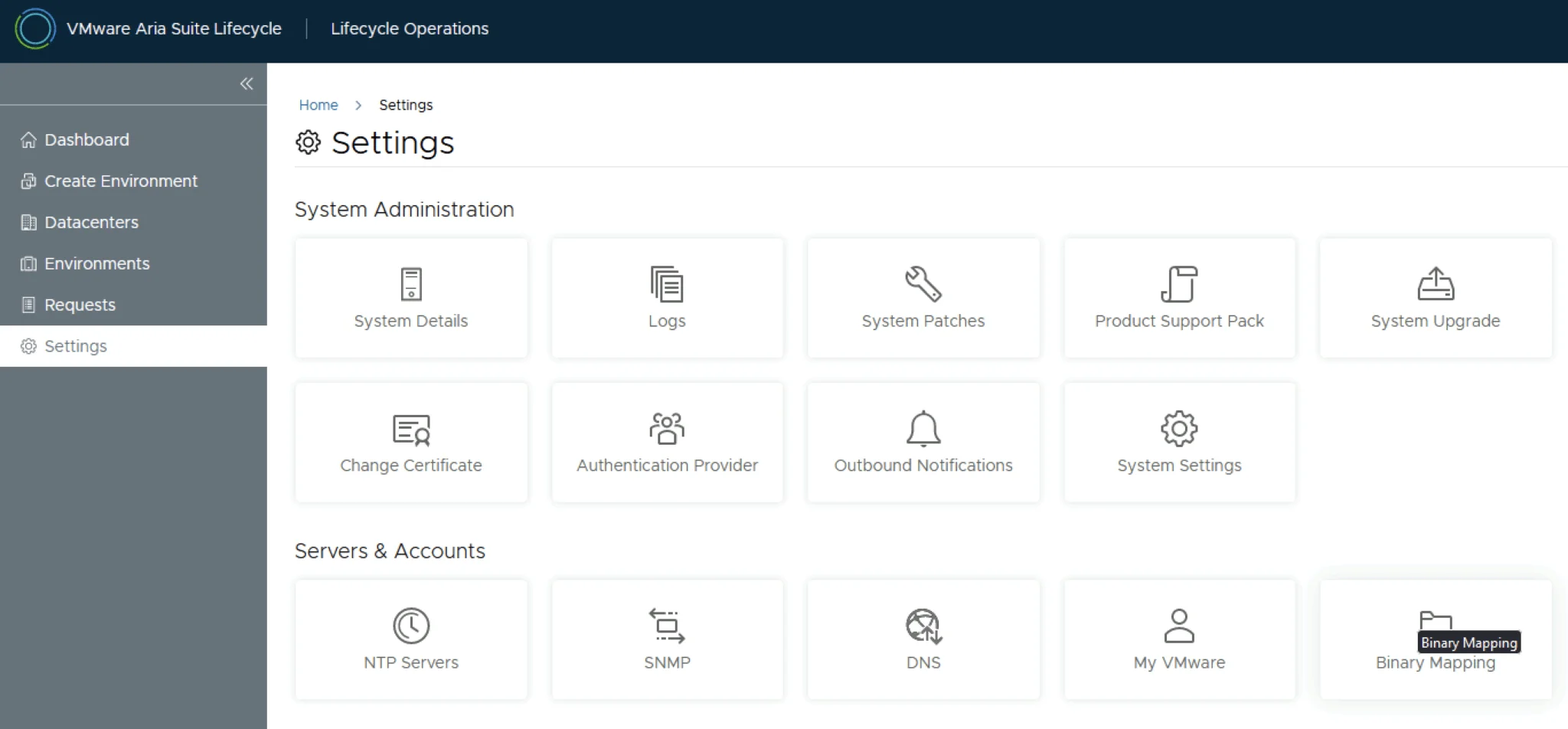
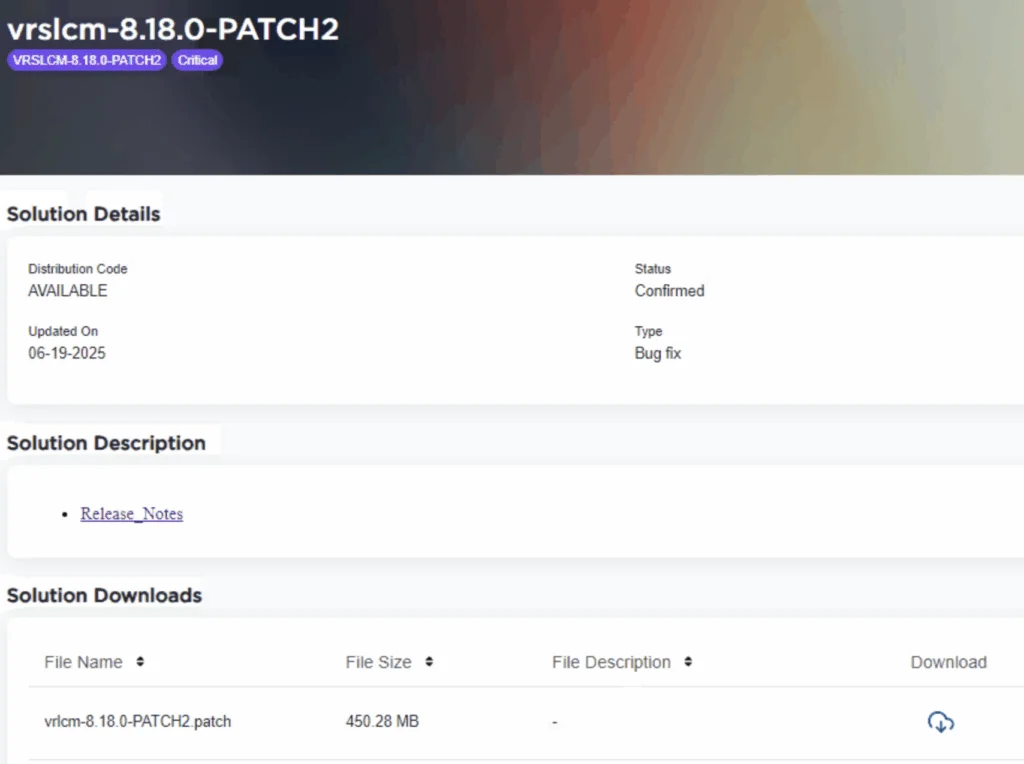
In this post, I will cover upgrading my 8.x Aria Automation appliance to version 8.18.1 Patch 1. As a prerequisite, we need to have Aria Suite Lifecycle upgraded to 8.18. Instructions can be found here. Note that the upgrade does not include the latest PSPACK containing the 8.18.1 Patch 1 Aria Automation release. Instructions for obtaining the PSPACK are available in here. Note: Following the VMware by Broadcom Day 2 transition on May 6, 2024, Customer Connect has been migrated to the Broadcom Support. This migration impacts the VMware Aria Suite Lifecycle as follows: All Product Support Packs, along with product and patch binaries, will now need to be downloaded from the Broadcom Support Portal Users must then manually map these into the VMware Aria Suite Lifecycle VMware Aria Suite Lifecycle can be upgraded using “Check Online” method. Product Support Packs are cumulative, incorporating all updates from previous product support packs as well as patches into the latest version. The Aria Automation Patch 1 binaries can be downloaded from here. In my case, it was VMware Aria Automation 8.18.1 .patch file (vrlcm-vra-8.18.1-8.18.1.36859.patch). Once downloaded, LCM supports local mappings. In my case, I uploaded the patch in /data/temp ...
January 16, 2025 · 2 min · Cosmin
Article cover image

Upgrading Aria Operations for Logs to 8.18.1 via VMware Aria Suite Lifecycle

In this post, I will guide you through upgrading your 8.x vRLI appliance to Aria Operations for Logs 8.18.1 using VMware Aria Suite Lifecycle. Before proceeding, ensure that your VMware Aria Suite Lifecycle is upgraded to version 8.18. You can find the upgrade instructions here. Note that the upgrade does not include the latest PSPACK containing the 8.18.1 Aria Operations for Logs release. Instructions for obtaining the PSPACK are available in here. ...

January 16, 2025 · 2 min · Cosmin
Article cover image

Aria Suite Lifecycle 8.18 Product Support Pack (PSPACK4) upgrade - manual version

In this guide i will go over the manual steps of getting an existing 8.x Aria Suite Lifecycle appliance to support the latest product releases available. Here is a great blog that goes in to the details about what the Product Support Pack is https://blogs.vmware.com/management/2019/01/vrslcm-pspak.html. Typically the newer Product Support Pack is included part of the upgrade for Aria Suite Lifecycle, however sometimes there are product releases in between releases where product support packs come in handy. As of 8.16.0 Product Support Pack 4 we can no longer automatically download the Product Support Pack files. The release notes can be found here. ...

January 16, 2025 · 2 min · Cosmin
Article cover image

Deploying VMware Aria Operations for Logs in a VCF 5.2.1 Environment: Step-by-Step Guide

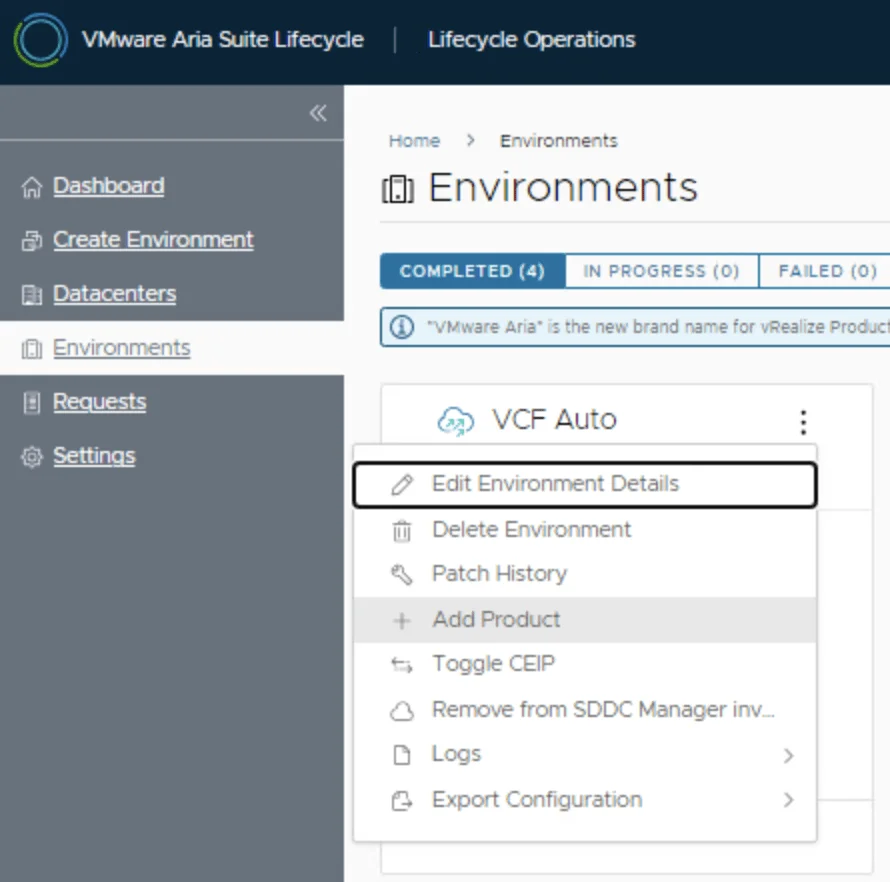
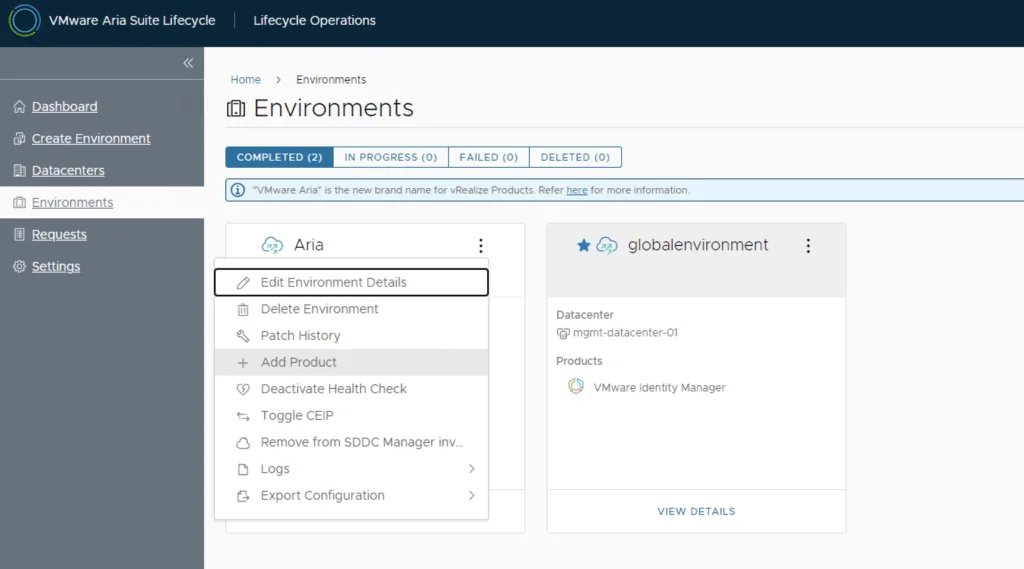
In a VMware Cloud Foundation (VCF) environment, managing logs effectively is crucial for monitoring, troubleshooting, and ensuring compliance. VMware Aria Operations for Logs (formerly vRealize Log Insight) provides centralized log collection, real-time analytics, and intelligent log correlation, making it an essential tool for proactive infrastructure management. This guide walks you through the step-by-step process of deploying VMware Aria Operations for Logs in a VCF 5.2.1 environment. Prerequisites VMware Cloud Foundation (VCF) 5.2.1: Confirm that your VCF environment is operational. Aria Lifecycle Manager (ALCM): Aria Lifecycle Manager 8.18 or compatible version installed and accessible. Network and DNS Configurations: Proper DNS and network settings to allow seamless communication among VMware components. VMware Identity Manager (vIDM): Configured and deployed for unified authentication across VMware products. If needed a guide can be found here. Step 1: Access Aria Lifecycle Manager Log in to the Aria Lifecycle Manager (ALCM) console with admin credentials. Ensure compatibility between ALCM and VCF 5.2.1 for a smooth deployment. Step 2: Add product in existing environment. Navigate to Lifecycle Operations. Under the existing environment click on the ellipsis. Click Add Product. ...

October 18, 2024 · 4 min · Cosmin
Article cover image

Deploying VMware Aria Automation in a VCF 5.2.1 Environment: Step-by-Step Guide

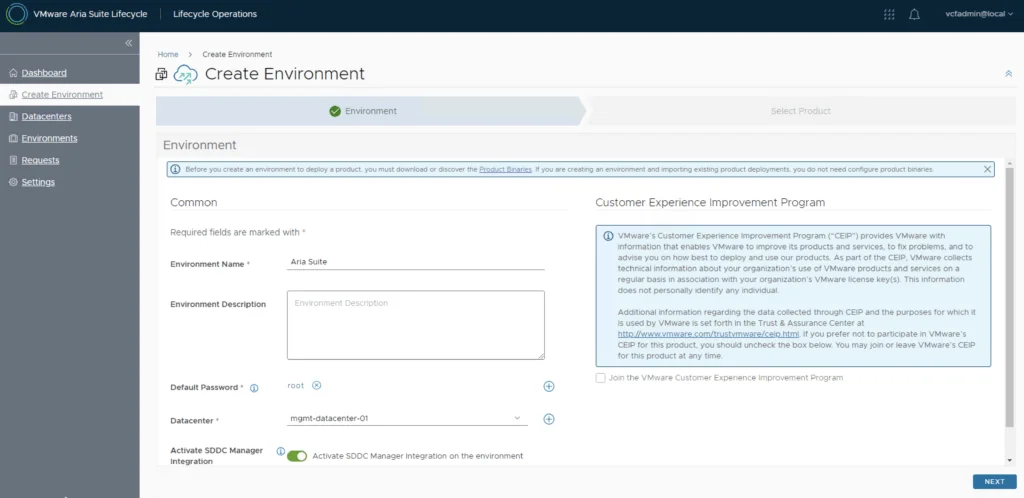
Following the deployment of vIDM which can be found here, deploying VMware Aria Automation (formerly known as vRealize Automation) enhances your VCF environment with powerful self-service provisioning, automated operations, and streamlined infrastructure management. This step-by-step guide will walk you through deploying Aria Automation using VMware Aria Lifecycle Manager in a VCF 5.2.1 environment, integrating it seamlessly with vIDM for Single Sign-On (SSO) and access management. Prerequisites VMware Cloud Foundation (VCF) 5.2.1 Environment: Ensure VCF 5.2.1 is fully set up and operational. Aria Lifecycle Manager (ALCM) Appliance: Make sure Aria Lifecycle Manager is installed and accessible. Identity Management (vIDM): Deployed and configured to allow SSO across VMware products. DNS and Network Configurations: Validated for reachability and FQDN resolution. Step 1: Access Aria Lifecycle Manager Log in to the Aria Lifecycle Manager (ALCM) console with admin credentials. Ensure your ALCM version aligns with VCF 5.2.1, ensuring compatibility. Step 2: Add an Environment in ALCM In ALCM, navigate to Environments and Add New Environment. Input environment details, such as name and description, to organize deployments within the ALCM. Select a Datacenter for the deployment. Click Next. ...

October 18, 2024 · 3 min · Cosmin