Upgrading Aria Operations for Logs (formerly VMware vRealize Log Insight) is a crucial task to ensure you’re using the latest features, security patches, and performance improvements. In this guide, we’ll walk through the step-by-step process of upgrading Aria Operations for Logs using a .pak file.
Preparing for the Upgrade
Prerequisites
Before starting the upgrade, ensure the following prerequisites are met:
Backup the Existing Deployment:
Take a snapshot of all nodes in the Aria Operations for Logs cluster (Master, Worker, and any nodes).
Confirm backups.
Download the .PAK File:
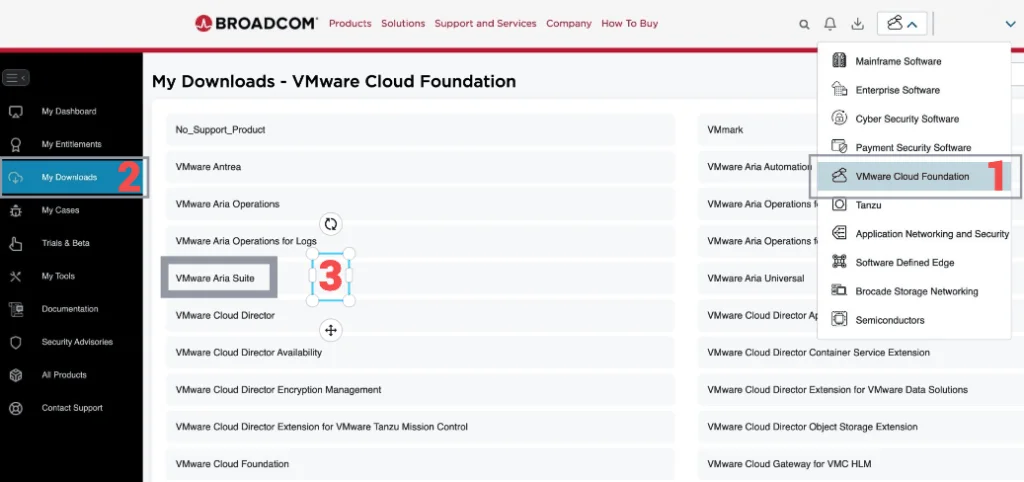
Log in to the Broadcom Support Portal.
Navigate to the My Downloads section.
Search for Aria Operations for Logs under VMware Aria Suite and download the appropriate .pak file for your version. Direct link here

Verify Compatibility:
- Confirm that the .pak file is compatible with your current version by reviewing the compatibility matrix.
Administrative Access:
- Ensure you have access to the Aria Operations for Logs admin interface with appropriate permissions.
Logging In and Starting the Cluster Upgrade
Step 1: Log in to the Aria Operations for Logs UI
Open a browser and navigate to the Aria Operations for Logs interface.
- Example:
https://<your-log-insight-host>.
- Example:
Log in with an account that has administrative privileges.
Step 2: Initiate the Upgrade
Navigate to the Cluster Settings:
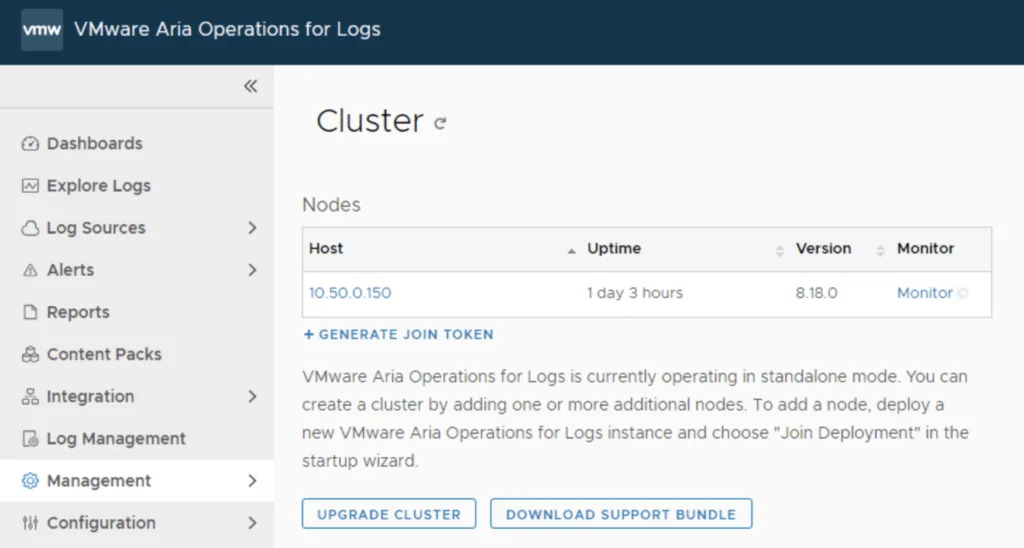
Once logged in, go to Management > Cluster.
Review the current status of all nodes. Ensure they are healthy and online.
Select the Upgrade Option:
- In the Cluster Management section, click the Upgrade Cluster button.
Uploading the .PAK File and Accepting the EULA
Step 3: Upload the .PAK File
Choose the .PAK File:
- Click Browse and locate the downloaded .pak file on your local system.
Upgrade using the File:
- Select the .pak file and click Upgrade.
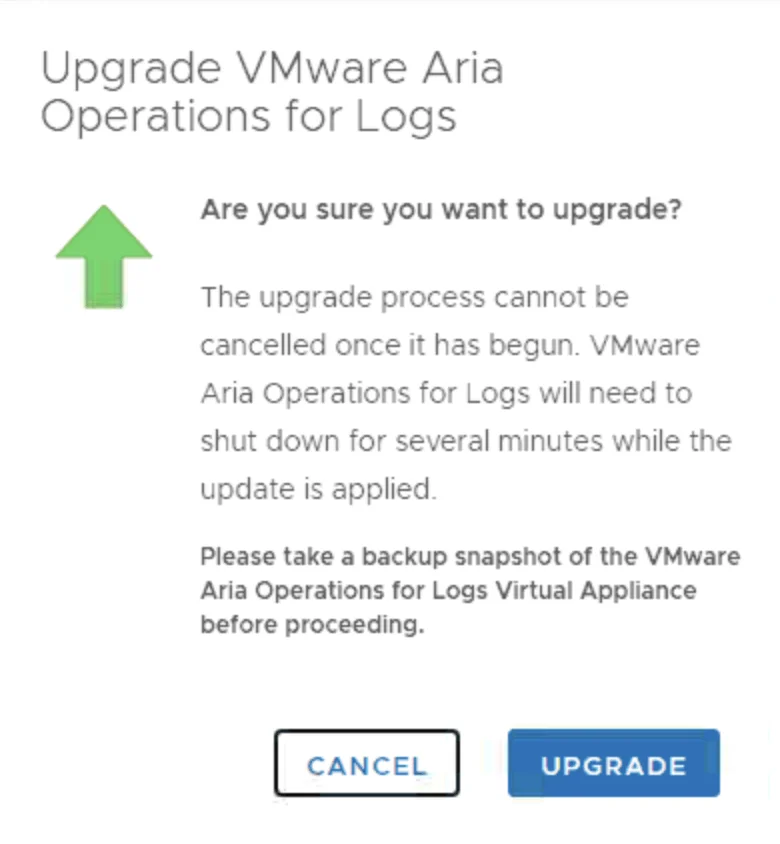
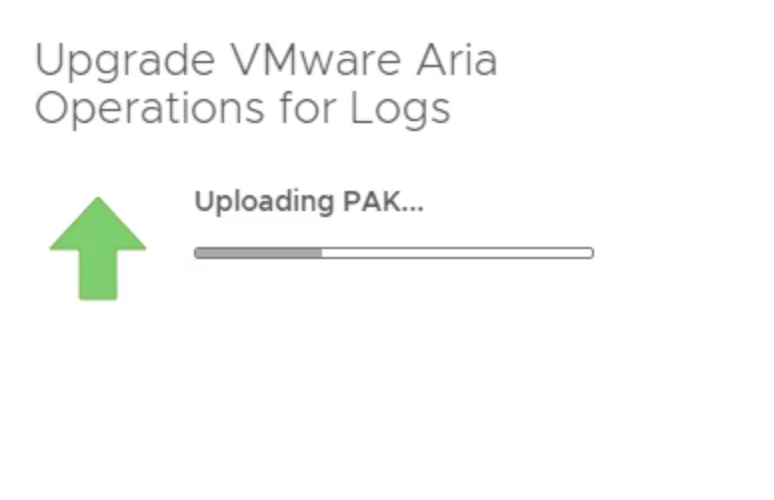
- The system will upload and validate the .pak file for compatibility.
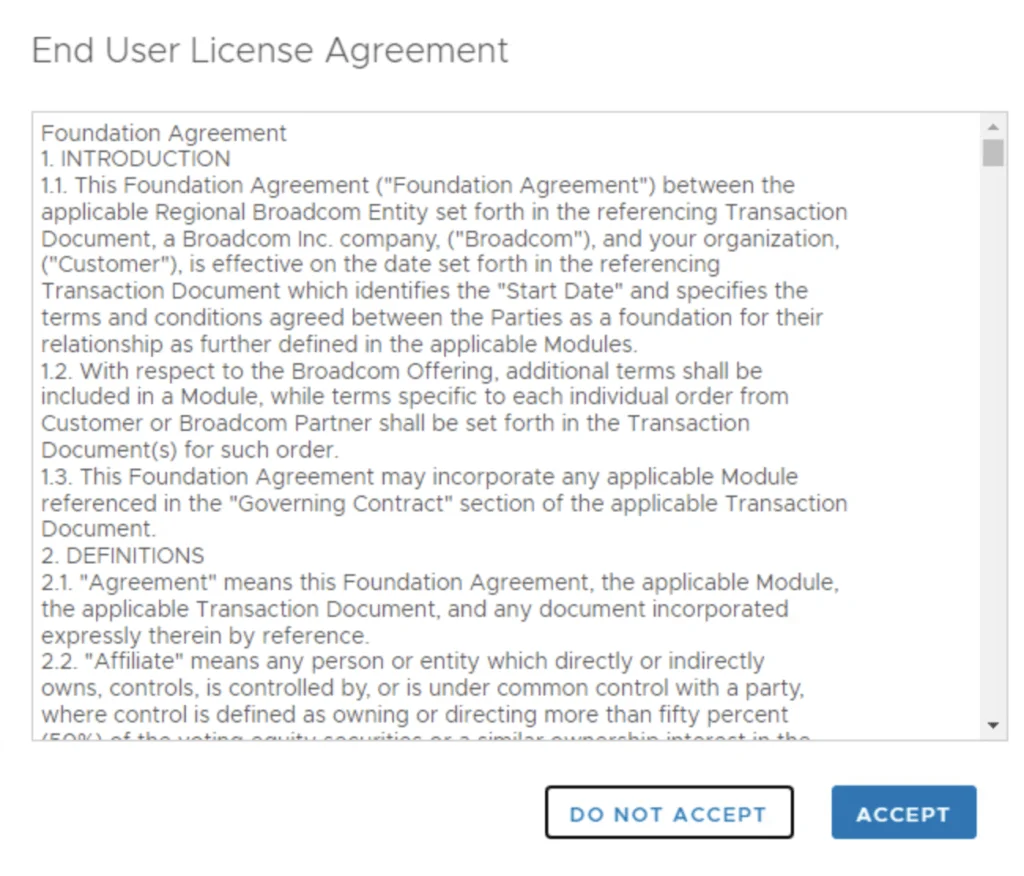
Accept the EULA:
- Once upload and validation completes, review and accept the End User License Agreement (EULA).
Monitoring the Upgrade
Step 4: Monitor the Upgrade Process
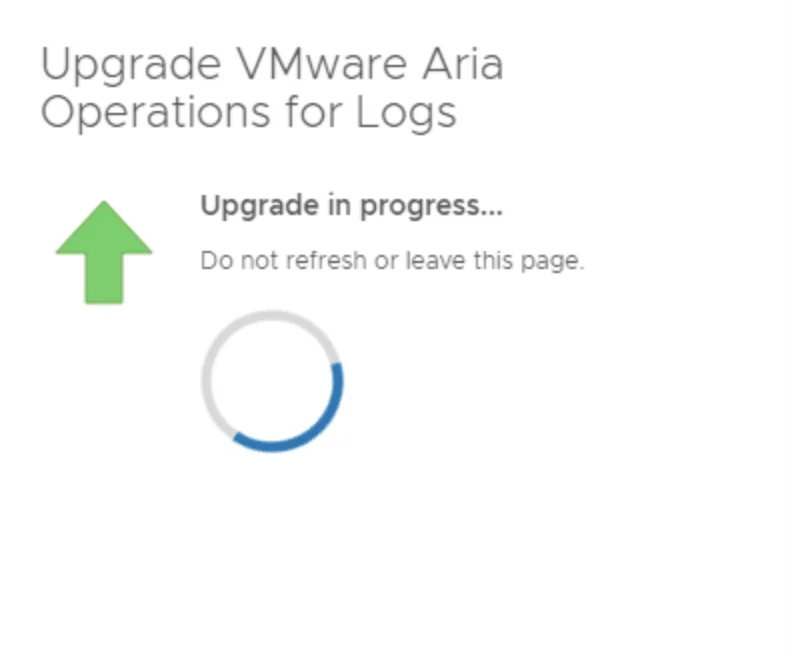
Upgrade Progress:
The system will upgrade the Master node first, followed by Worker nodes.
Monitor the progress in the Upgrade Status window.
Cluster Restart:
- After all nodes are upgraded, the system will automatically restart the cluster.
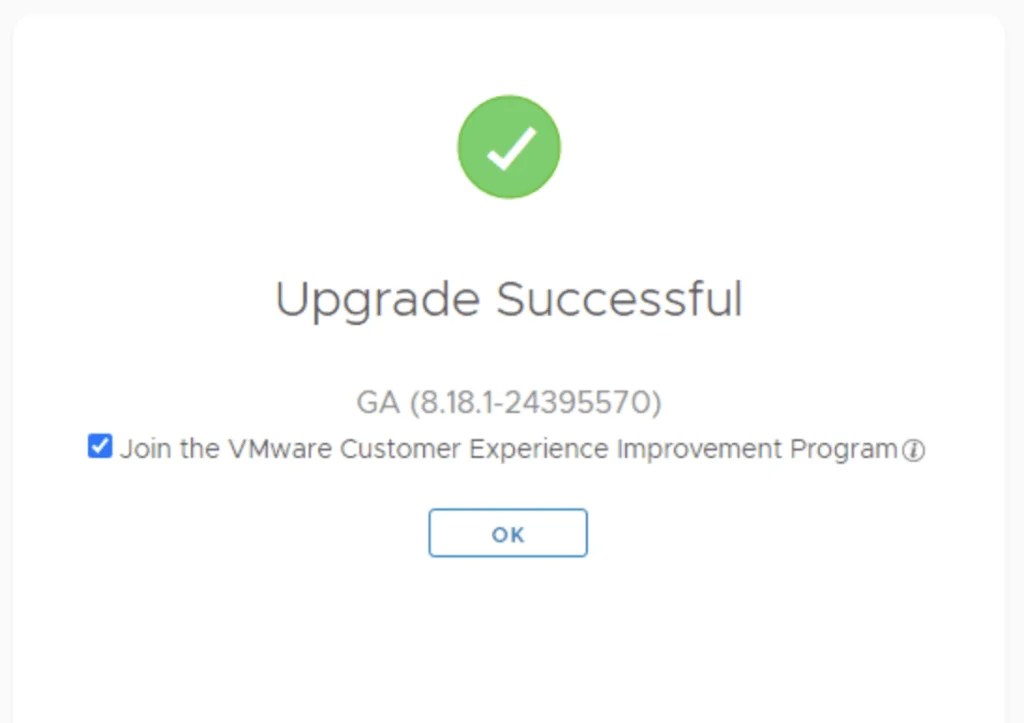
Verifying the 8.18.1 Upgrade
Step 5: Verify the Upgrade
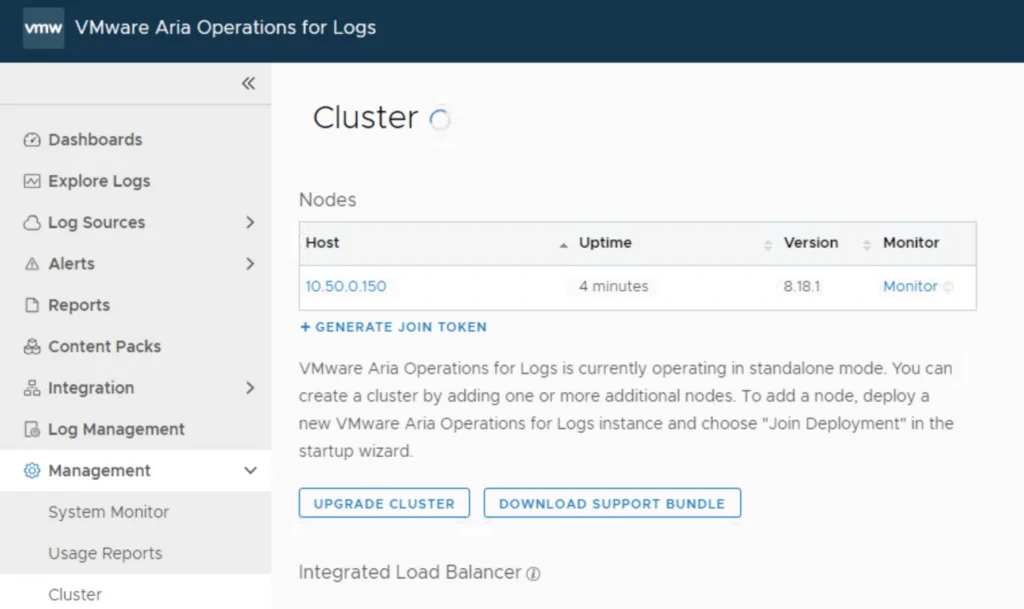
Check Cluster Health:
- Navigate to Management > Cluster to ensure all nodes are online and healthy.
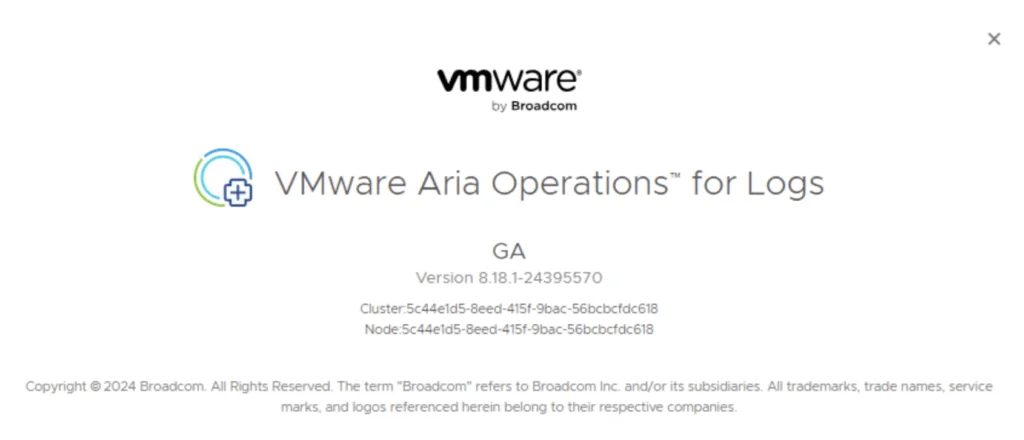
Verify Version:
- Go to About in the admin interface to confirm the version reflects the upgraded .pak file.
Test Logs and Dashboards:
- Validate that logs are being ingested and dashboards function as expected.
Post-Upgrade Cleanup
Step 6: Post-Upgrade Tasks
Reapply Customizations:
- If you had custom configurations or integrations, verify and reapply them as necessary.
Remove Snapshots:
- After confirming the upgrade is successful and stable, remove the snapshots.
Review Release Notes:
- Check the release notes for the upgraded version to explore new features or deprecations.
Troubleshooting Common Issues
Common Issues and Troubleshooting
Upgrade Fails During Validation:
- Ensure the .pak file matches your current version and meets prerequisites.
Cluster Nodes Do Not Restart Automatically:
- Manually reboot nodes from the vSphere client or CLI.
Log Ingestion Issues Post-Upgrade:
- Verify ingestion settings and recheck agent configurations.
Final Thoughts
Conclusion
Upgrading Aria Operations for Logs using a .pak file is a straightforward process if you follow these steps carefully. By keeping your environment up to date, you can ensure optimal performance, access to new features, and maintain security compliance. If you prefer to run this upgrade through Aria Suite Lifecycle instead, I covered that in this guide.
If you encounter issues, consult Broadcom’s official documentation or reach out to Broadcom support for assistance.