With the release of of VCF 4.4.1 I wanted to get my lab upgraded. The release blog can be found here and the release notes are here
Downloading the VCF 4.4.1 Bundle
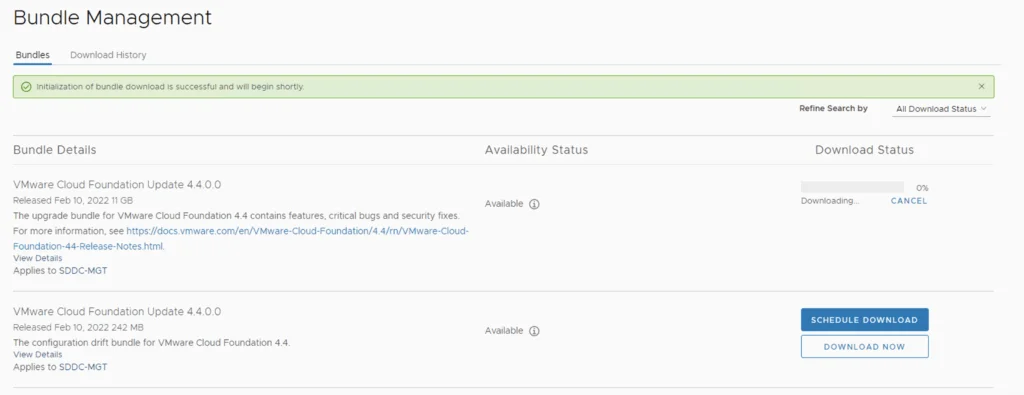
In order to get to 4.4.1.0 in the past we had to upgrade to each version incrementally. As per the documentation found here we can now upgrade from any release past 4.1.0.1 directly to 4.4.1 skipping the releases in between. We can do so by going to Repository -> Bundle management -> Download now.

Alternatively if we are on 4.4.1.0 it can be found under Lifecycle Management -> Bundle Management -> Download now
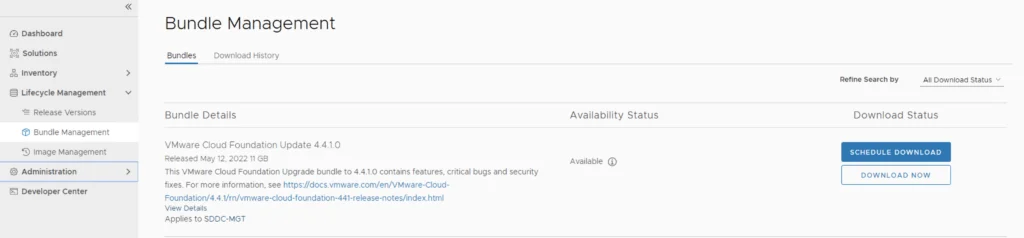
You can also download the configuration drift bundle from Inventory -> Workload Domains -> select the domain -> Update/Patches -> select the VCF version -> Download Now.
Applying the VCF 4.4.1.0 Update
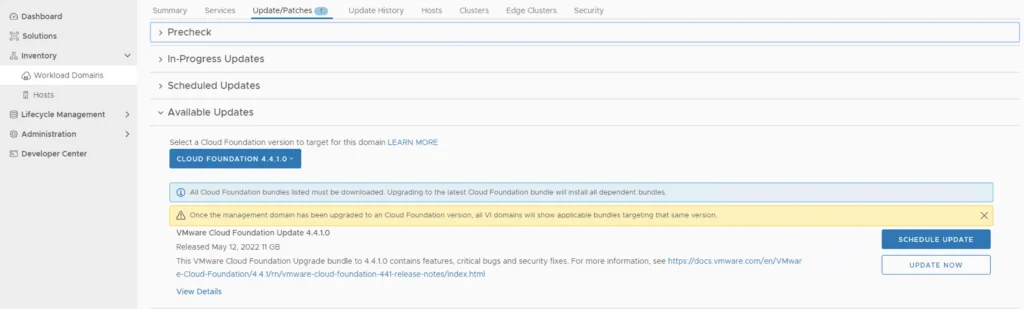
The next step is to upgrade VCF by going to Inventory -> Workload Domains -> Select the workload domain -> Update/Patches -> Select the cloud foundation version were upgrading to and click on Update Now for the VMware Cloud Foundation Update 4.4.1.0
Next we are taken to the Upgrade page where we can follow the upgrade for each one of the components
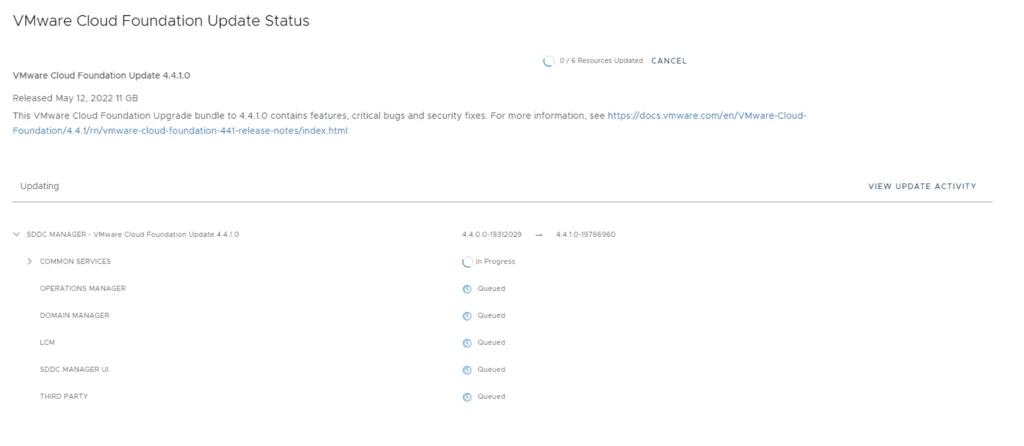
Once the upgrade is complete we can click Finish to be returned back to the main screen
Because we are changing the SDDC-Manager versions I would strongly recommend to clear cache and log back in before going forward.
Installing the Configuration Drift Bundle
Next step is to download and install the configuration drift package. We can find it under Lifecycle management -> Bundle management -> Download now

We can also download it directly from the domain by going to Inventory -> Workload Domains -> Select the domain -> Update/Patches -> Select the VCF version -> Download now
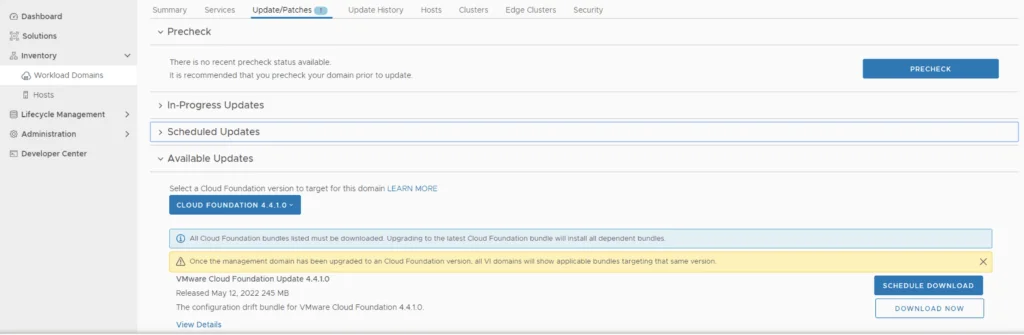
Once the download is complete go to Inventory -> Workload Domains -> Select the domain -> Update/Patches -> Select the VCF version and click on update now

We can view the upgrade process by clicking on view status

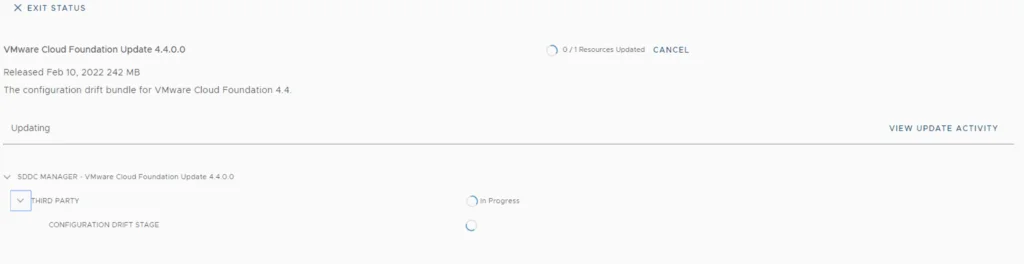
Upgrading NSX-T Edge Clusters
Next step is to upgrade NSX-T installation to NSX-T 3.1.3.7.4. The release notes can be found here. We can go to inventory -> Workload Domains -> Select the workload domain -> Update/Patches -> Under Available updates click on the drop down and select Cloud Foundation 4.4.1.0 -> Download now.

Once the download is complete we can proceed with updating the NSX components by clicking on the update now

Make the proper selection and click next
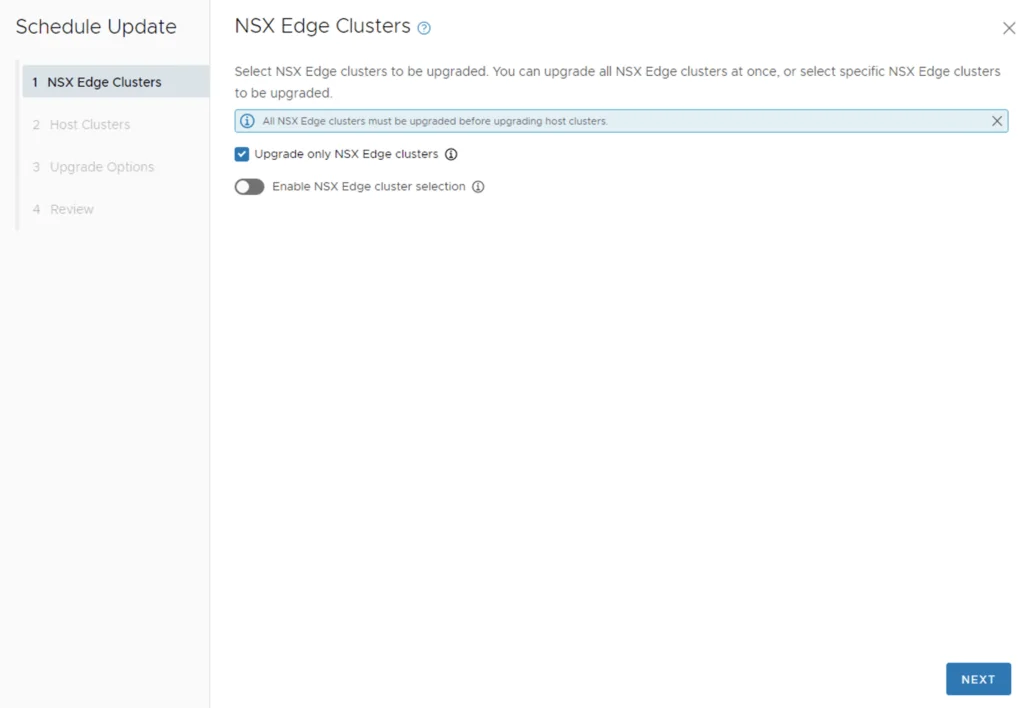
Make the proper selection and click next
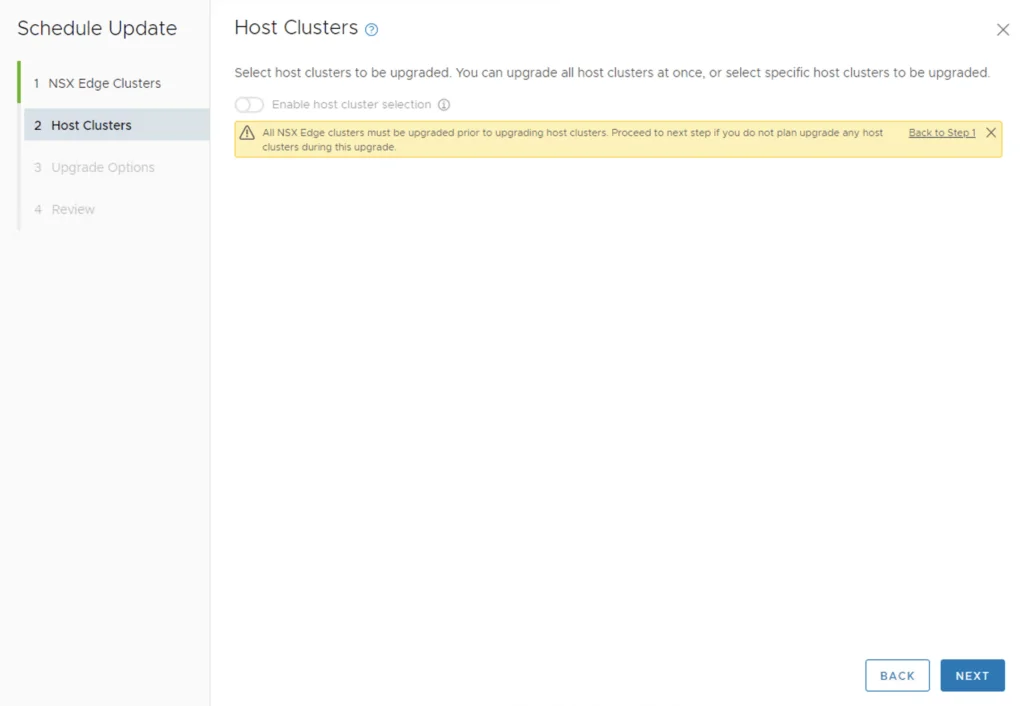
Make the proper selection and click next
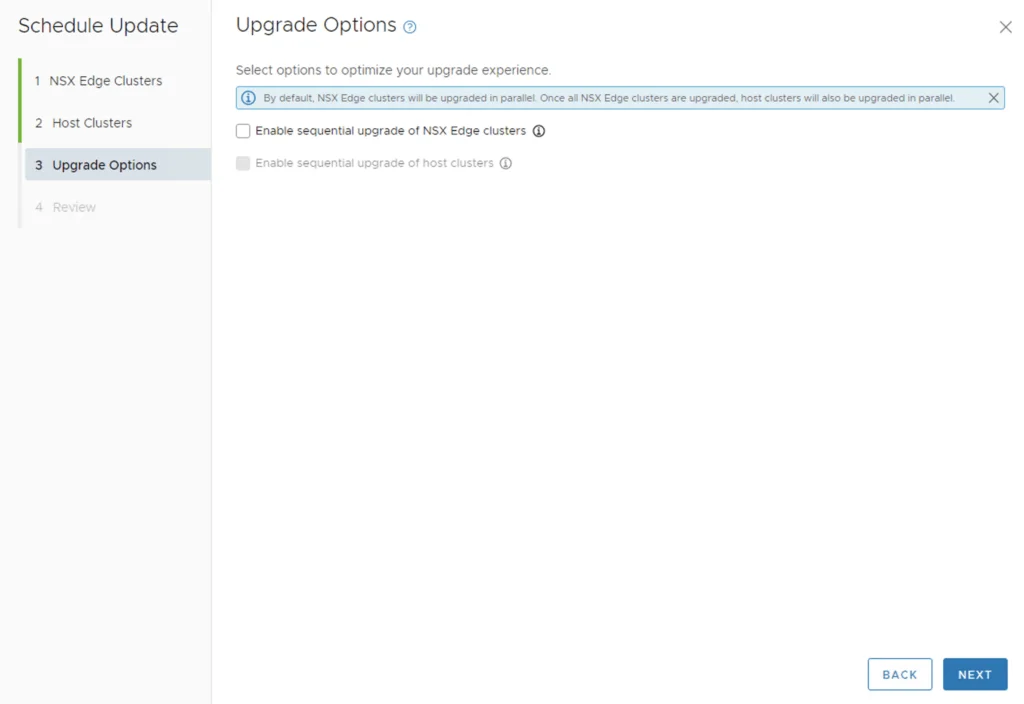
Review the options and click on Finish
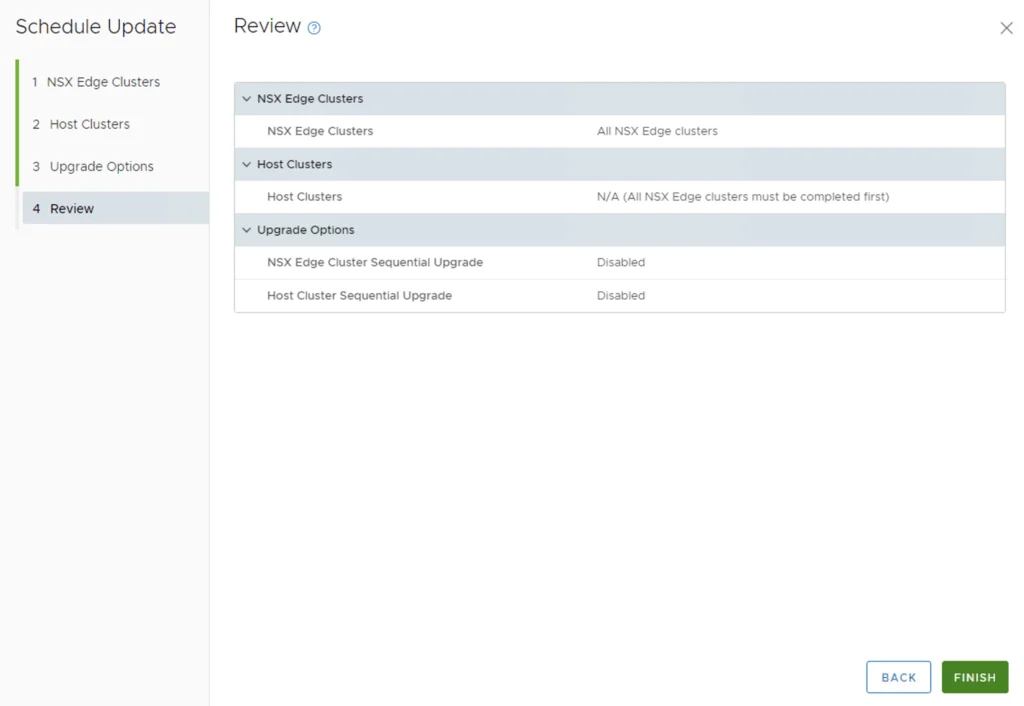
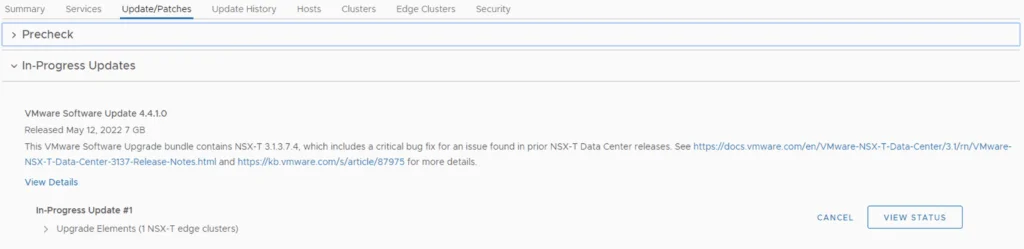
The upgrade will go through upgrading the NSX edges. We can view the upgrade status by clicking on view status
Upgrading NSX-T Host Clusters
Once the edges are upgraded we an go back to Inventory -> Workload Domains -> Select the workload domain -> Update/Patches -> Under Available updates click on Update Now

Review the selection and click next
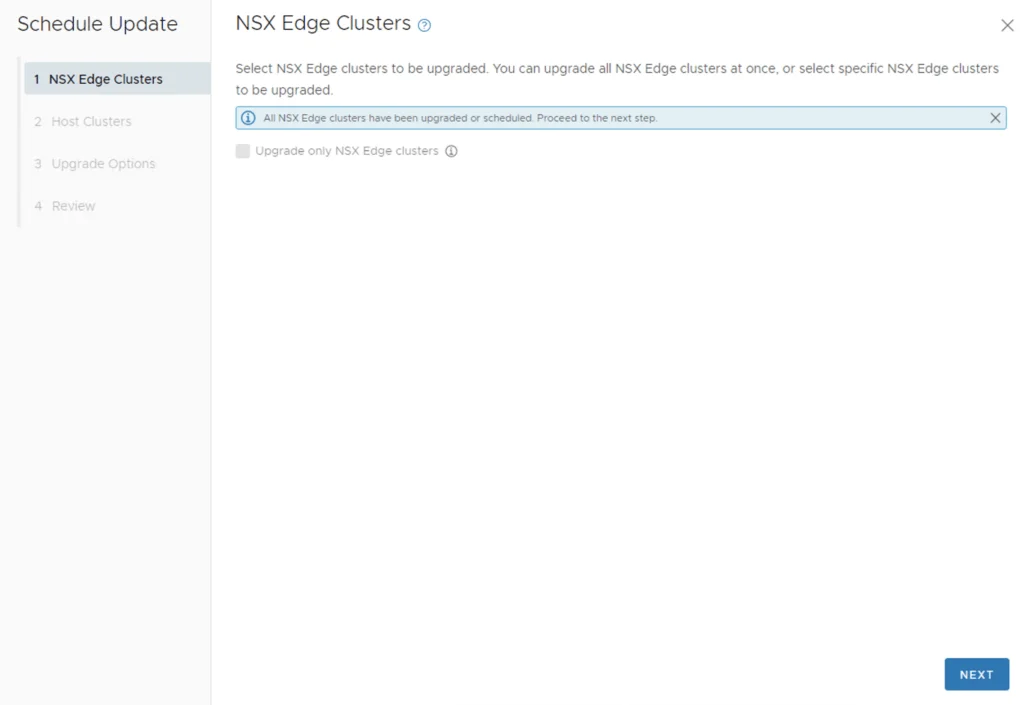
Review the host clusters and click next
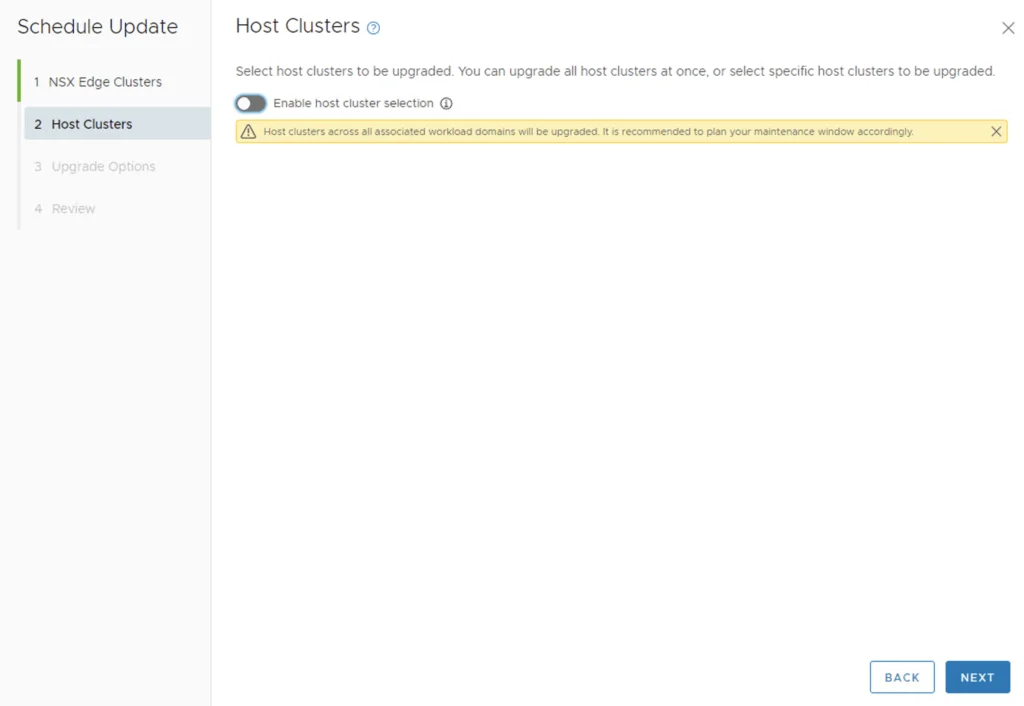
Review the upgrade options and click next
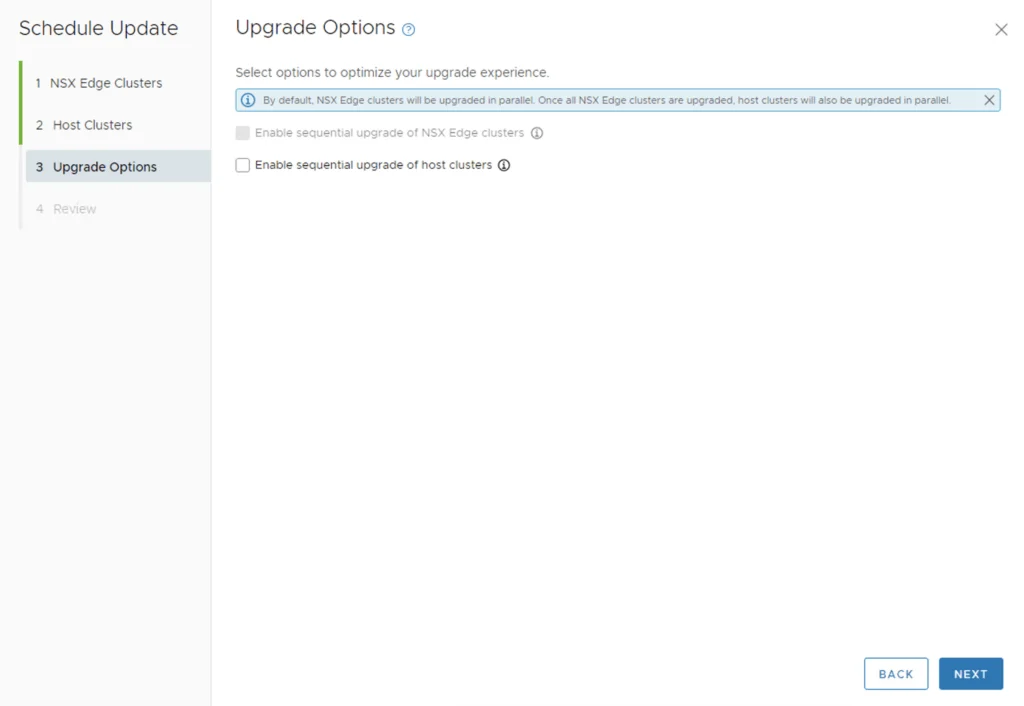
Review the selection and click finish
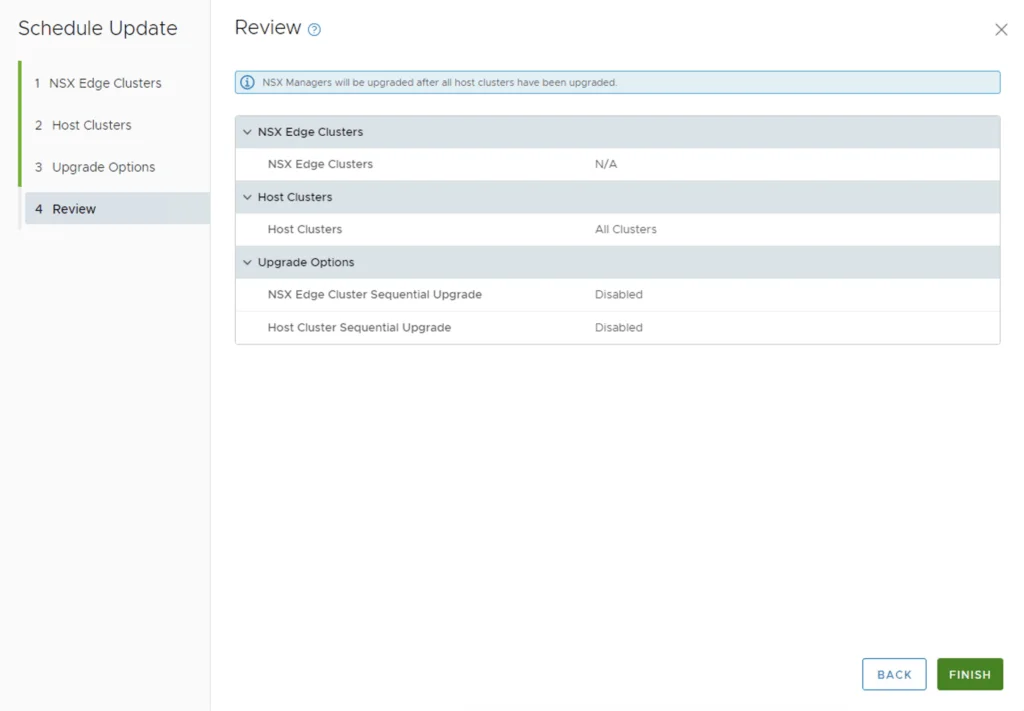
We can view the status of the upgrade by selection view status

Upgrading vCenter Server to 7.0 Update 3d
Once the upgrade is complete we can proceed with the vCenter Upgrade. VCF 4.4.1 comes with vCenter Server 7.0 Updated 3d. The release notes can be found here. We can go to inventory -> Workload Domains -> Select the workload domain -> Update/Patches -> Under Available updates click on the drop down and select Cloud Foundation 4.4.1 -> Download now.

Once the download is complete we can click on Update now

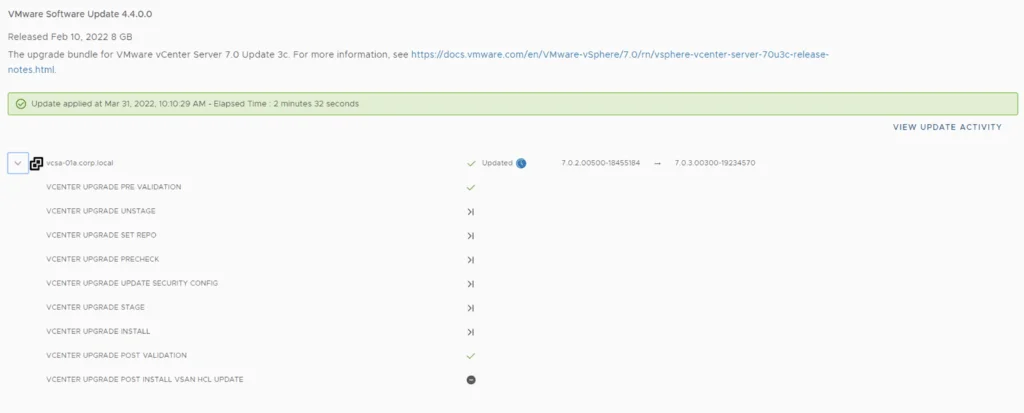
We can follow the status of the upgrade by clicking on the view status tab

Here we can see the different components that are getting upgraded
Upgrading the ESXi Hosts
Once the upgrade is complete we are taken back to the previous page where we can see that the ESXi servers are next. The release notes can be found here. Click on Download Now

Once the download is complete we can click on Update now
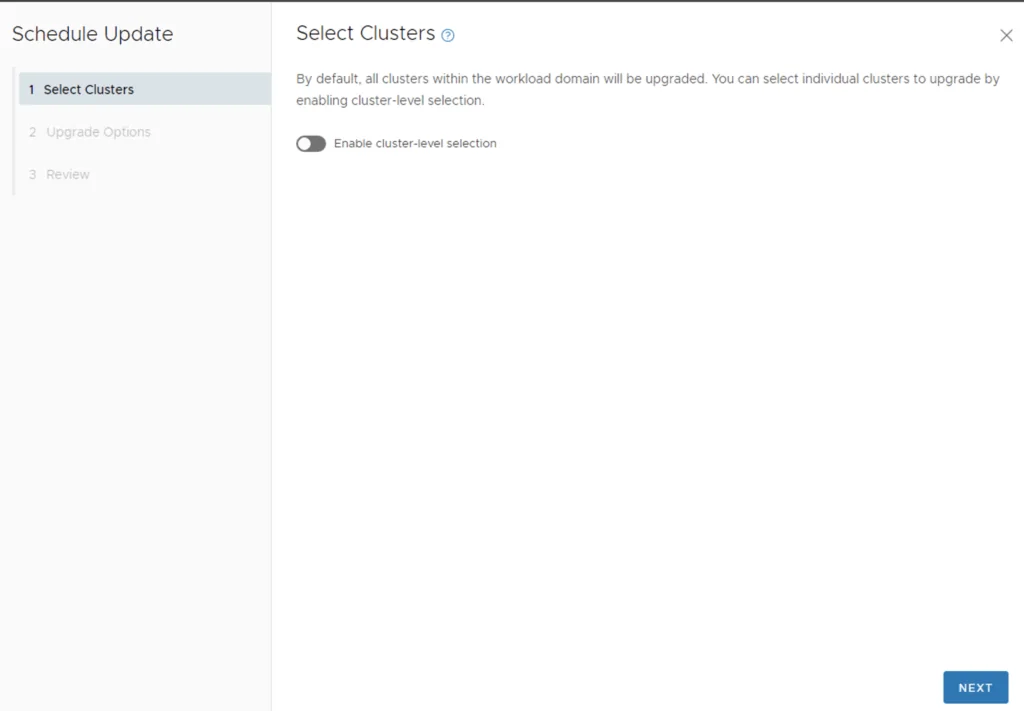
If we have multiple clusters we can enable Cluster-level selection and select the specific cluster(s) we want to upgrade.
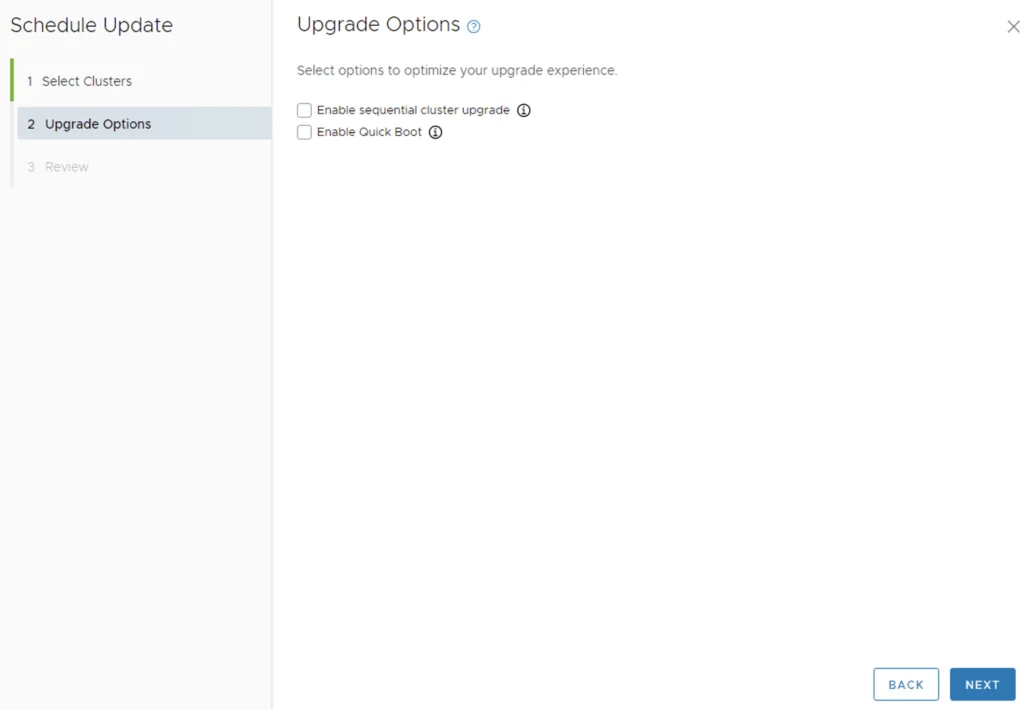
We can also enable sequential cluster upgrade as well as quick boot
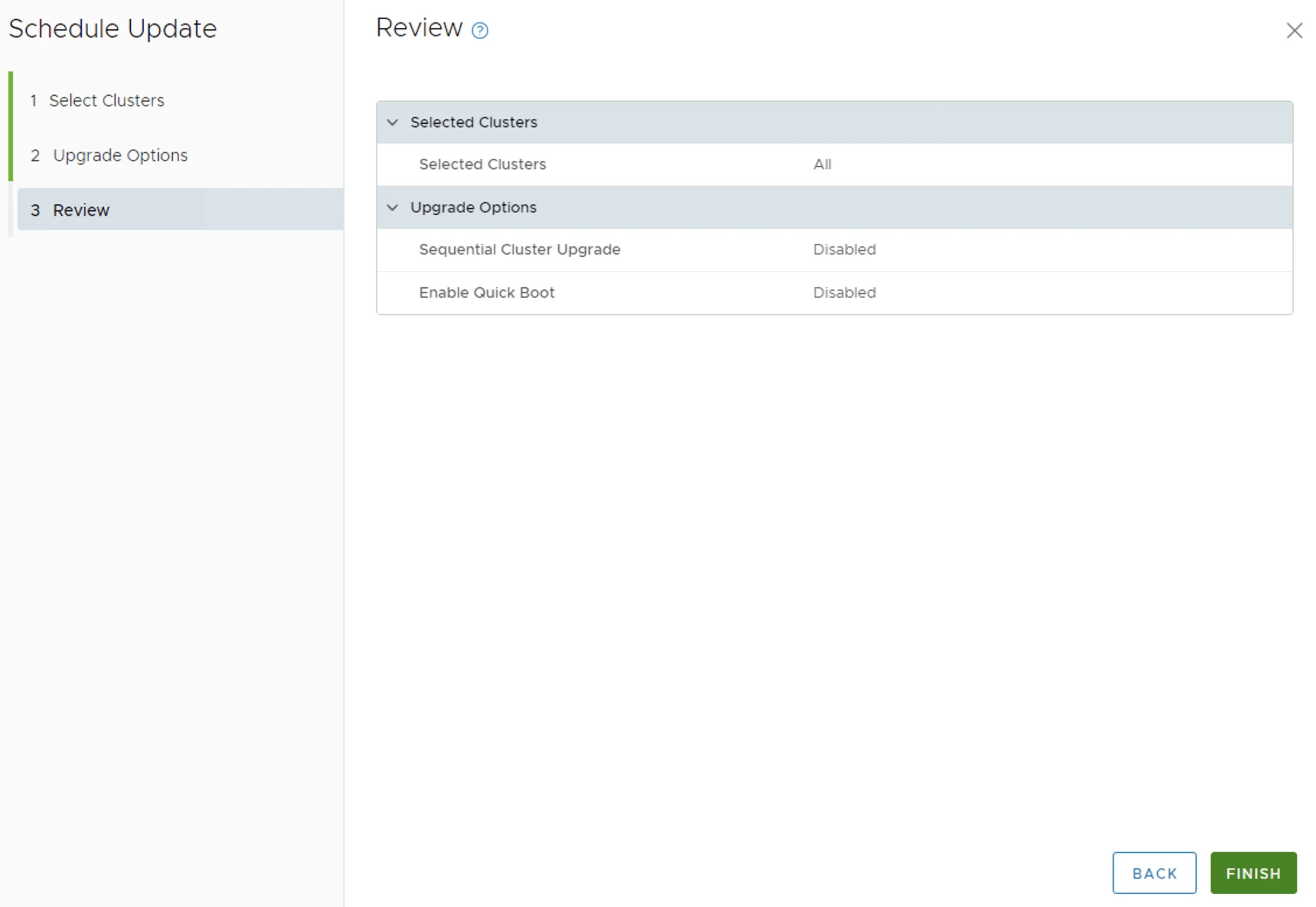
We get to review the options once again before we click finish to to submit the task
Once submitted we can view the status by clicking on View Status

Wrapping Up
And with that we are finished with the workload domain. We can follow the same steps for the other domains
Don’t forget to clean up the download bundles by following the steps from my other blog here