In this blog post I will go over the steps I took in order to to be able to query my vCenter components from SaltStack using the SDDC SaltStack Modules. The SDDC SaltStack Modules were introduced in 2011. You can find the technical release blog here. The modules can be found on GitHub here. There is also a getting quick start guide that can be found here.
Installing the SaltStack VMware Modules
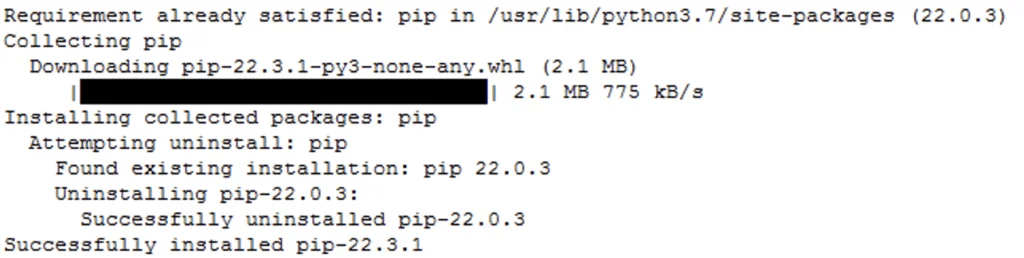
I am using the pre packaged ova for deployment which includes most of the components however it does have some outdated packages. The first step for was to upgrade pip:
python3 -m pip install --upgrade pip

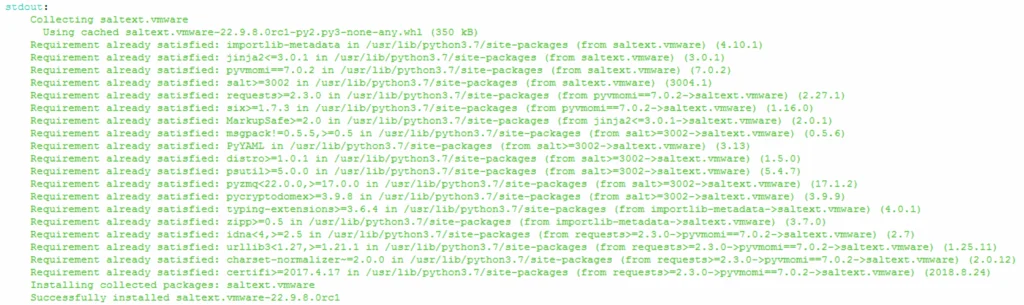
Install the saltext.vmware module by running
salt-call pip.install saltext.vmware
Creating the vCenter Connection Pillar
Next I had to create a pillar that includes the vCenter information for the connection details.
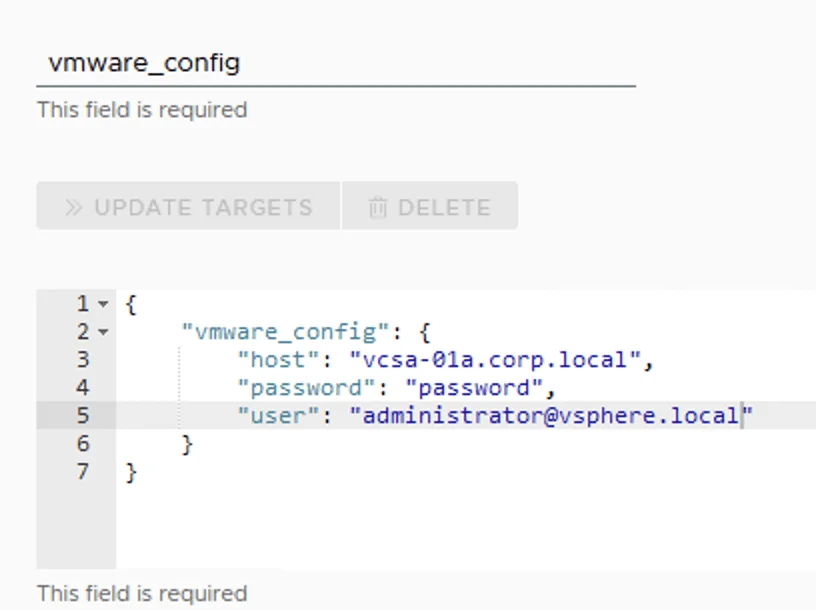
Actual code:
{
    "vmware_config": {
        "host": "vcsa-01a.corp.local",
        "password": "vcenter password",
        "user": "administrator@corp.local"
    }
}
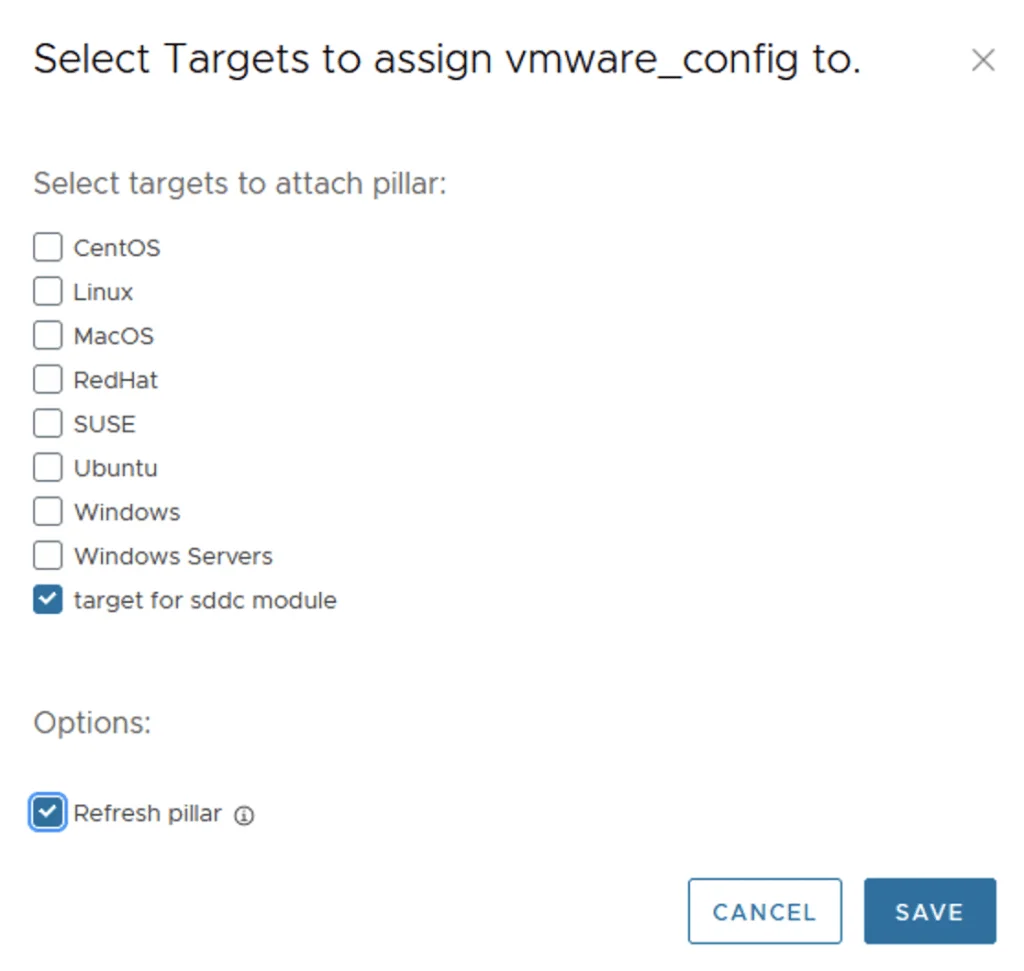
Next I had to attach the pillar to a target by clicking on update targets:
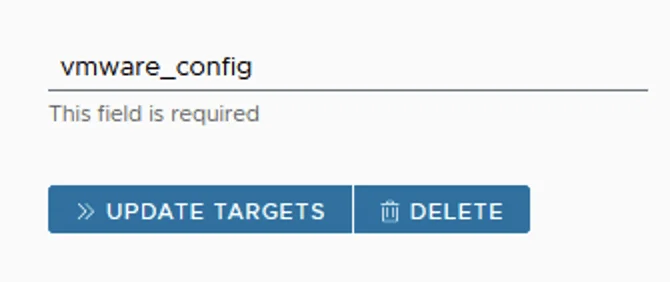
In my case I created a specific target that contained the minion where I want to run it from
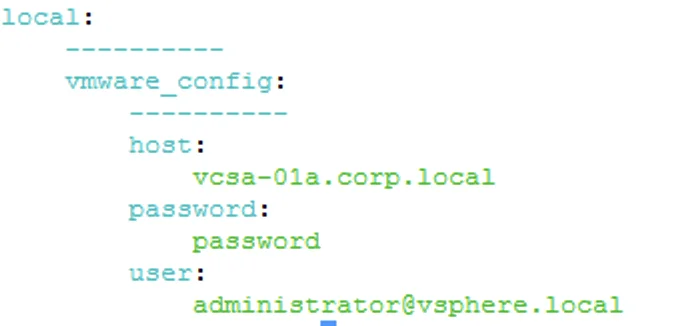
Going to the minion I was able to verify that the pillar has been attached by running
salt-call pillar.items
The output shows exactly the data that I had in my pillar
Querying the MOTD Advanced Configuration
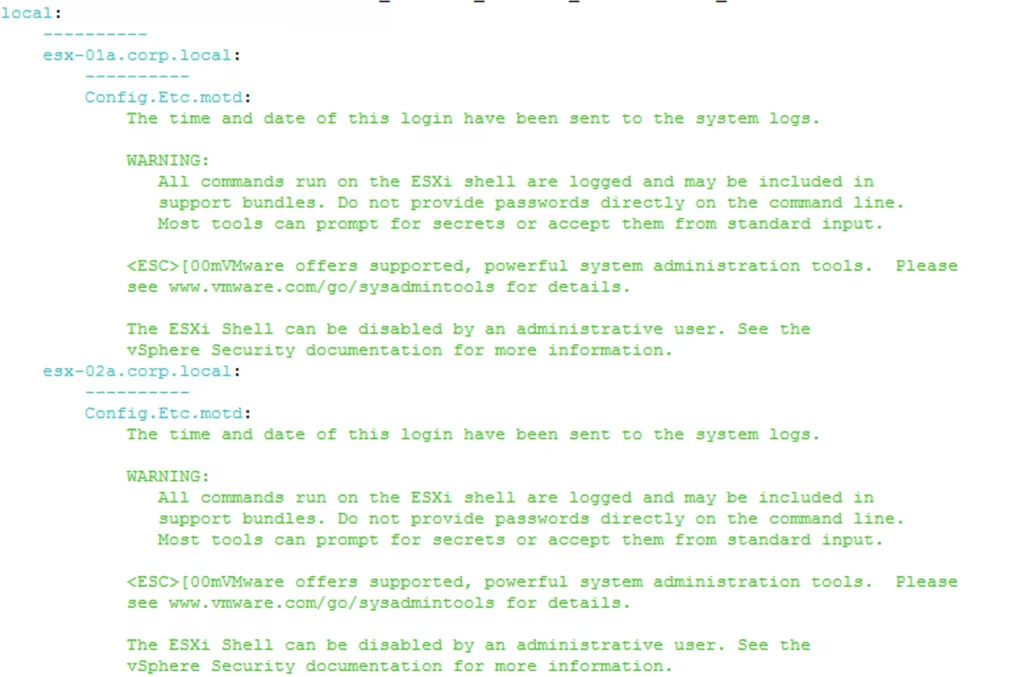
Next I wanted to get the configuration for the MOTD. I was able to simply run the bellow command to get an output
salt-call vmware_esxi.get_advanced_config config_name=Config.Etc.motd
As we can see in the screenshot below all hosts in my vCenter that had Config.Etc.motd as an configuration item reported their configuration
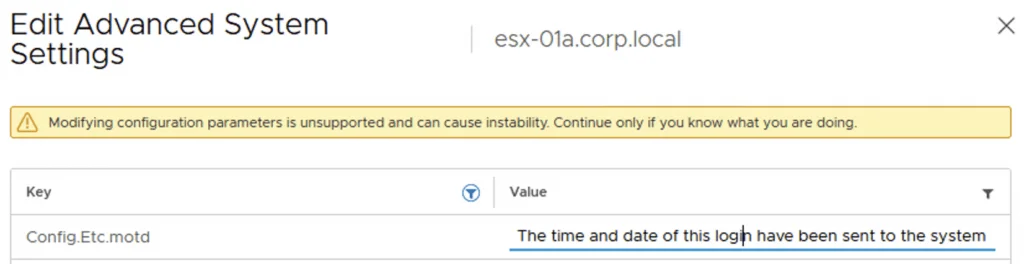
Additionally I was also able to check that the configuration exists in vCenter under the Advanced host configuration example:
Pushing a Configuration Change
Next I wanted to see if I can push a specific configuration change.
salt-call vmware_esxi.set_advanced_config config_name=Config.Etc.motd host_name=esx-01a.corp.local config_value=Hello
The return was
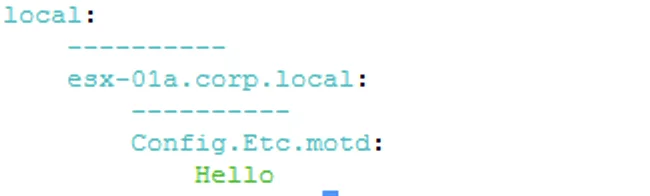
Checking the vSphere UI I was able to verify that the change was actually pushed through
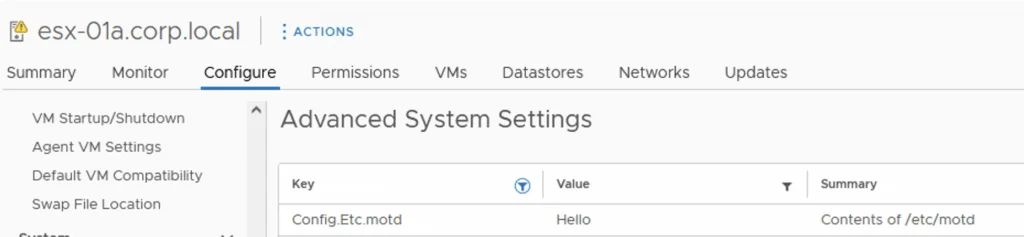
Creating a State File in SaltStack Config
Next I wanted to add it to the SaltStack UI in order for other team members to be able to use this functionality
First I navigated to SaltStack Config -> Config -> File Server. I also created another environment called vmware and inside it I created my motd.sls
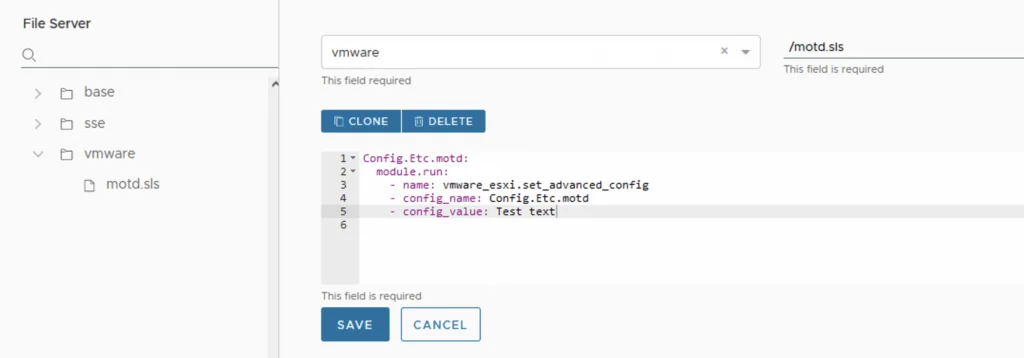
The sls file had the following:
Config.Etc.motd:
  module.run:
    - name: vmware_esxi.set_advanced_config
    - config_name: Config.Etc.motd
    - config_value: Test text
If you are not familiar with the sls construct here is an explanation on where the values came from:
Config.Etc.motd: - Just a title
  module.run: - this tells salt to run the module
    - name: vmware_esxi.set_advanced_config - the name of the module that needs to be ran
    - config_name: Config.Etc.motd - The config name from vCenter
    - config_value: Test text - The Actual value to write
Creating and Running a Job
Next I wanted to create a job so it can be around for future use. In the SaltStack Config UI I navigated to Config -> Jobs -> Create job
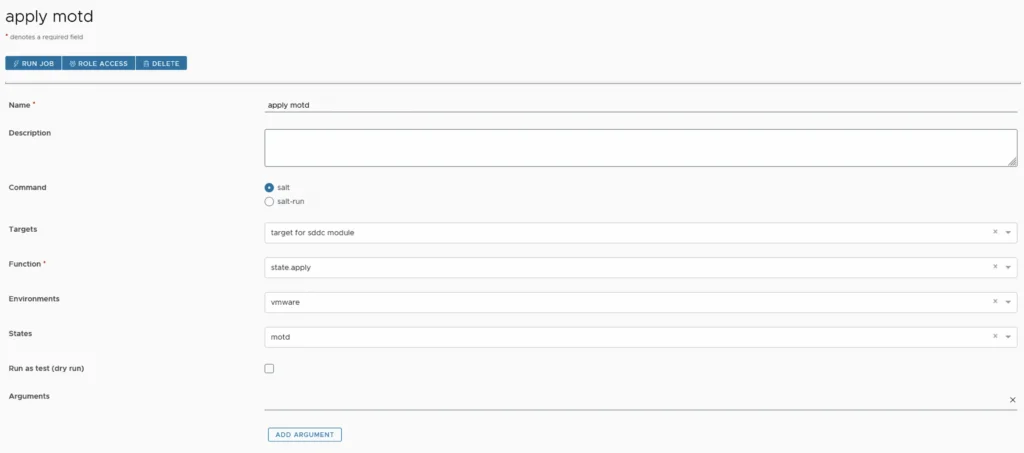
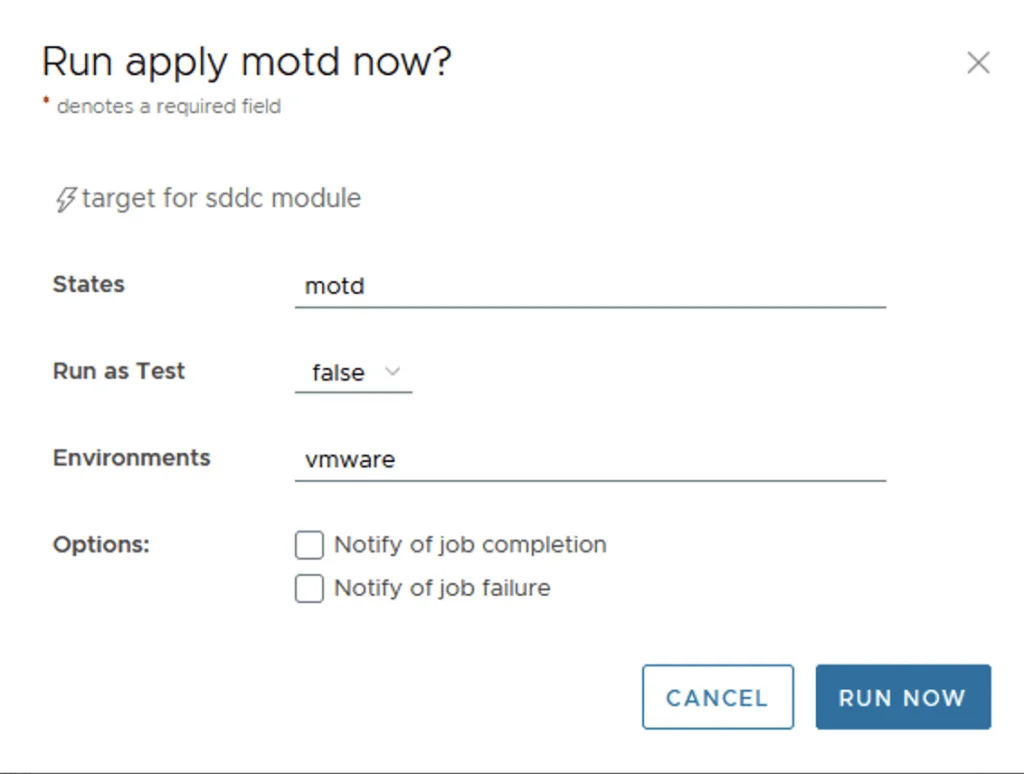
Once I saved the job I was able to go ahead and apply it by running it
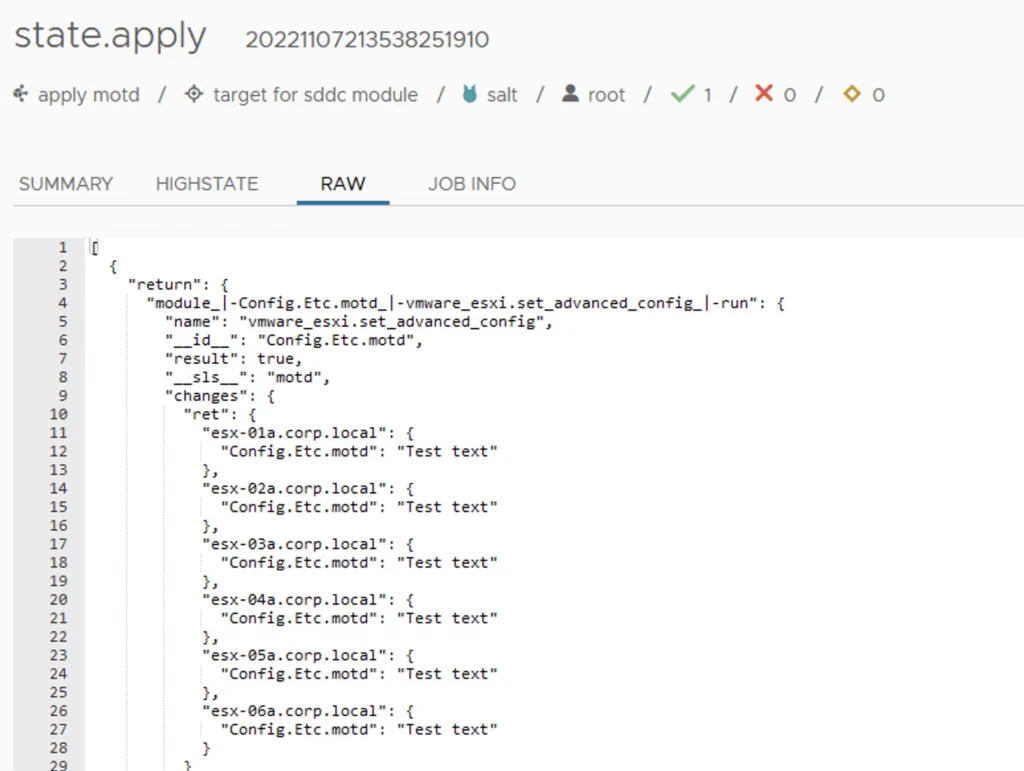
Post completion I was able to verify that my state apply applied the desired configuration across all of my hosts in vCenter
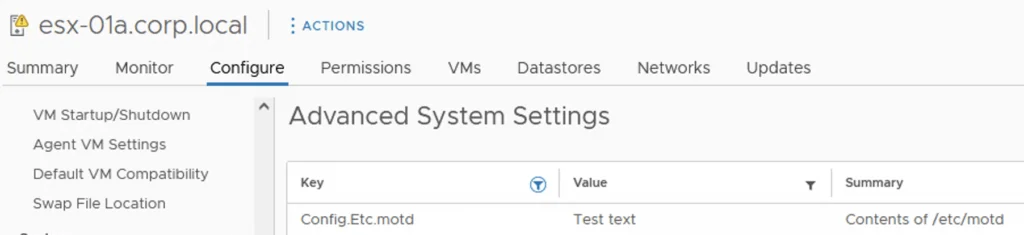
From a vCenter perspective I was also able to double check that the config has actually changed
Additional Resources
The additional modules can be found here
The other vSphere modules can be found here
If you want to do the same against Aria Automation, check out the vRA edition of the SDDC SaltStack modules.