This historical lab procedure updated an ESXi 7.0 host to ESXi 7.0 Update 3f, build 20036589, using esxcli. The target profile and release notes are for 7.0 U3f, not 7.0 U1. More details about that release are available in the ESXi 7.0 U3f release notes.
Broadcom’s build-number table records later ESXi 7 releases through Update 3w, build 24784741. Broadcom also states that vSphere 7 reached End of General Support on October 2, 2025. Use this page only as a record of the pinned lab change, not as a current release recommendation.
Prepare the Host and Enter Maintenance Mode
Do not apply an image profile while the host is carrying workloads. Broadcom’s current esxcli patching procedure requires the host to be in maintenance mode before running esxcli software profile update.
Before continuing:
- Confirm the target ESXi release, server firmware, hardware, vCenter Server and other integrated products are compatible. Use the hardware vendor’s custom image when one is required.
- Back up the ESXi host configuration and confirm that a recovery path is available.
- Migrate or shut down every user VM on the host. DRS can evacuate workloads when it is configured; do not manually power off or migrate vCLS VMs unless Broadcom Support directs you to do so.
- Confirm that the remaining cluster has enough capacity to satisfy the intended vSphere HA failover policy while this host is unavailable.
- For vSAN, verify cluster health and object compliance, confirm there are no active resynchronizations, select the data-migration option appropriate to the storage policies and available capacity, and wait for evacuation to finish. Do not choose No data migration without understanding the resulting availability risk.
- If the host is NSX-prepared, follow the matching NSX kernel-module and upgrade requirements in Broadcom KB 312013. VCF-managed environments should use the supported VCF lifecycle workflow.
Enter maintenance mode from the vSphere Client, then confirm the state from the ESXi shell:
vim-cmd hostsvc/hostsummary | grep inMaintenanceMode
Continue only when the result is true. Unless the validated design explicitly supports parallel remediation, patch one host at a time.
The original walkthrough queried a shared public online depot that Broadcom has retired. The executable legacy URL has been removed. For a current online procedure, use the authenticated Broadcom depot follow-up. To reproduce this specific historical target when the artifact is still available to an entitled account, download the matching offline depot bundle, upload it to a datastore and set its path:
OFFLINE_BUNDLE='/vmfs/volumes/DATASTORE/updates/ESXI_7U3F_DEPOT_BUNDLE.zip'
esxcli software sources profile list -d "$OFFLINE_BUNDLE"
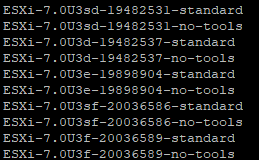
This returned a list of updates that were available:

At the time of this lab, I deliberately selected ESXi-7.0U3f-20036589-standard. That exact profile is the article’s historical target; it is not a moving “latest” profile and has since been superseded.
After verifying the bundle and exact profile name, I reviewed a dry run and then applied that pinned target:
esxcli software profile update --dry-run -p ESXi-7.0U3f-20036589-standard -d "$OFFLINE_BUNDLE"
Only after the dry-run output was clean did I run the live update separately:
esxcli software profile update -p ESXi-7.0U3f-20036589-standard -d "$OFFLINE_BUNDLE"
If you run in to the below error follow my other post here:

Once the upgrade was complete I was presented with this output:

The installation reported that a reboot was required, so I rebooted the server while it remained in maintenance mode.
After the server was back up, ESXi reported build 20036589.

Validate and Exit Maintenance Mode
Before returning the host to service, confirm the build and active image profile, then validate management networking, storage paths and cluster health:
vmware -vl
esxcli software profile get
For a vSAN host, wait for any post-reboot resynchronization to complete and confirm object health. For an NSX-prepared host, confirm its transport-node and datapath status. When validation succeeds, exit maintenance mode from the vSphere Client or run:
vim-cmd /hostsvc/maintenance_mode_exit