In this guide I will go over the steps of getting an existing 8.x vRSLCM appliance upgraded to the latest 8.4.1 Patch 1 release. The release notes can be found here. If you are not yet on 8.4.1.1, I covered upgrading vRSLCM to 8.4.1.1 in a previous post.
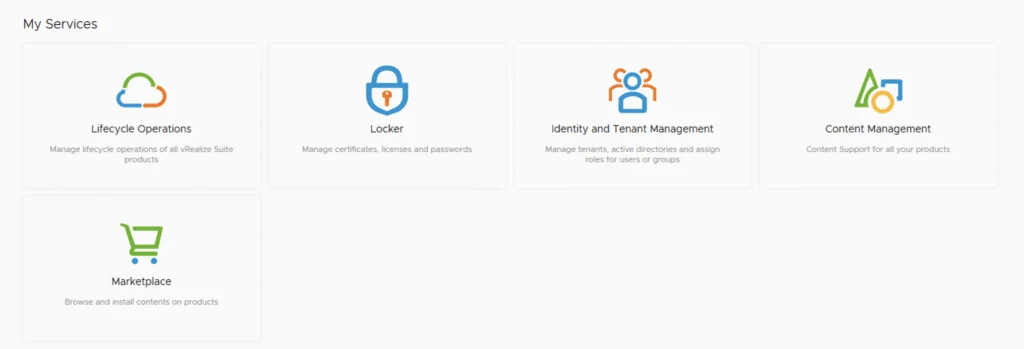
The first step is to lo in to vRealize Suite Lifecycle Manager under the Lifecycle Operations section

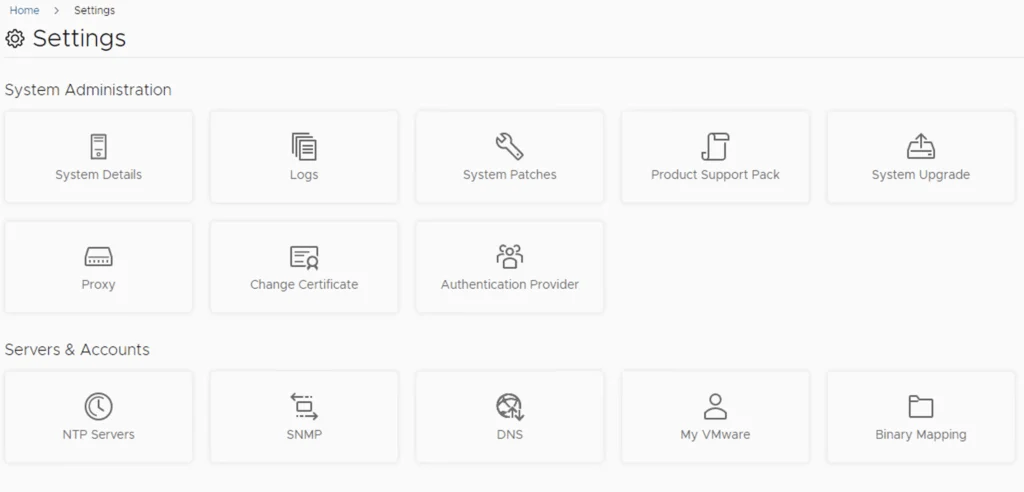
Go to settings -> Binary Mapping
Click on Patch Binaries up top and click on Check Patches Online
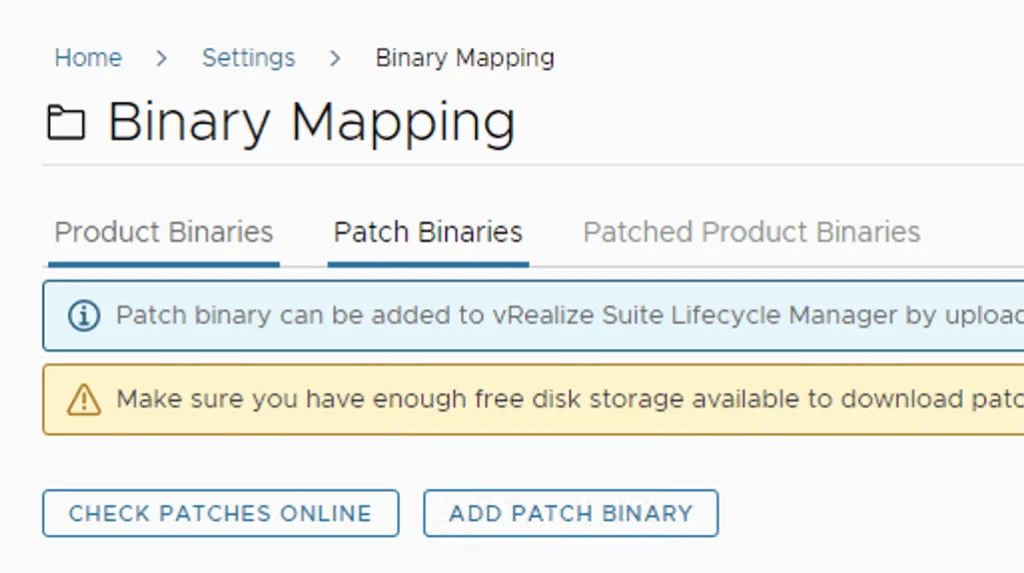
We can see that the check found a new patch
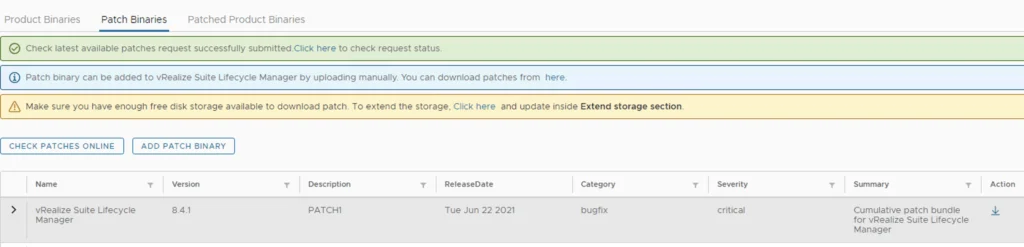
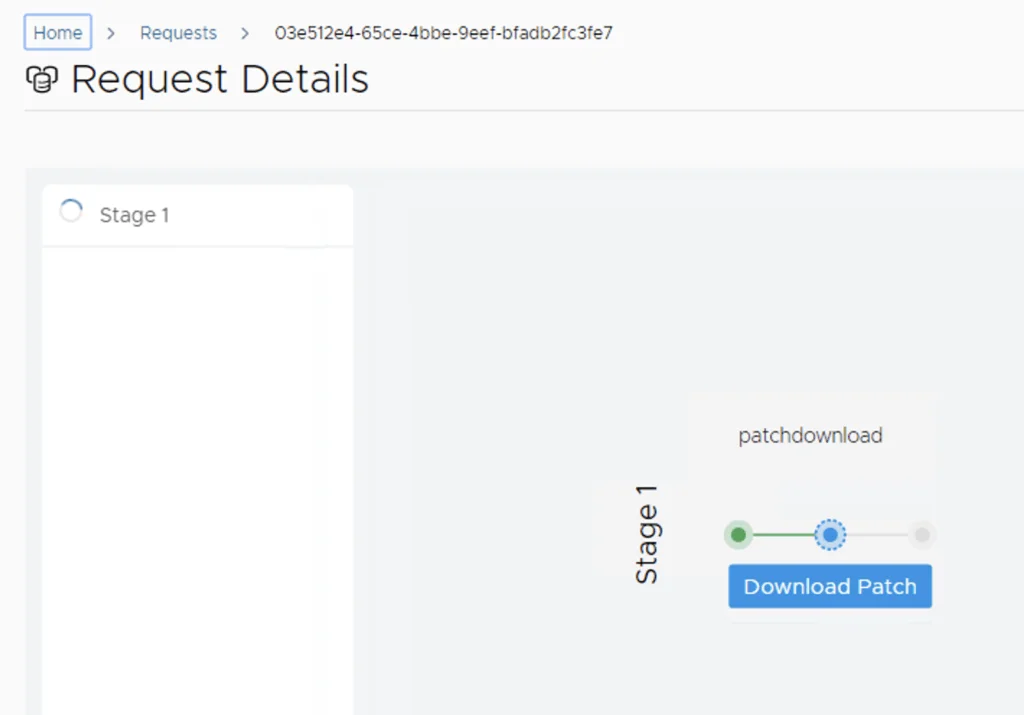
Click on download button under Action. We can follow the process by clicking on Click here to check request status

Wait till the download is complete and go back to settings
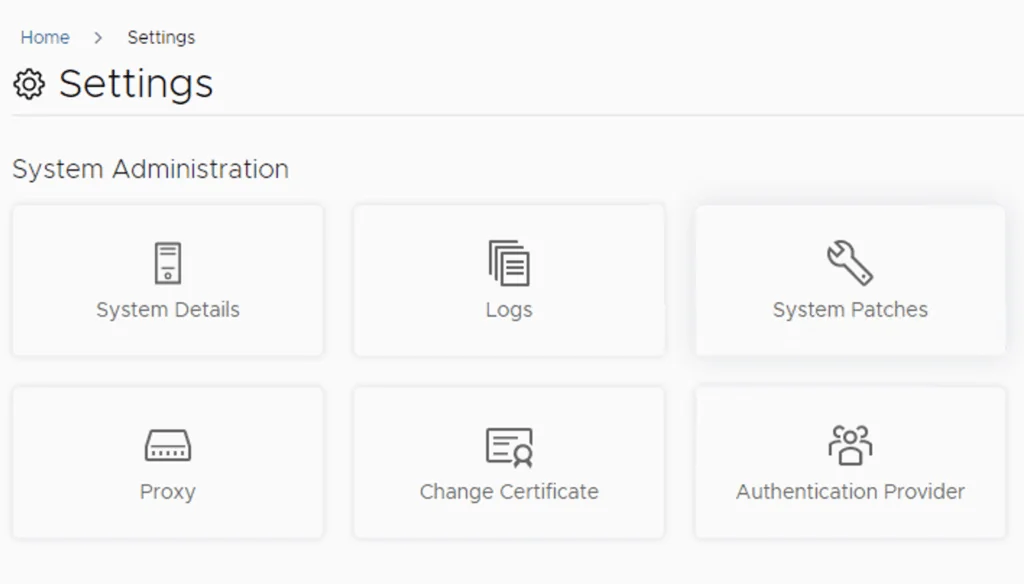
Go to Settings -> System Patches
Click on New patch on the right side of the screen

Select the newly downloaded patch and click Next
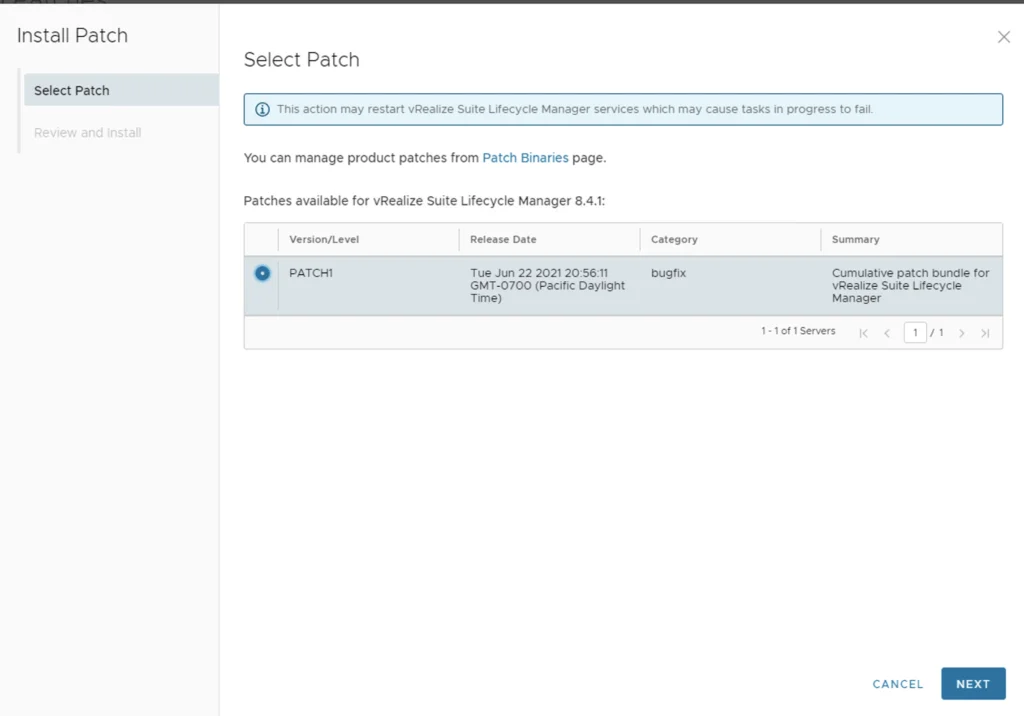
Review the details and click Install
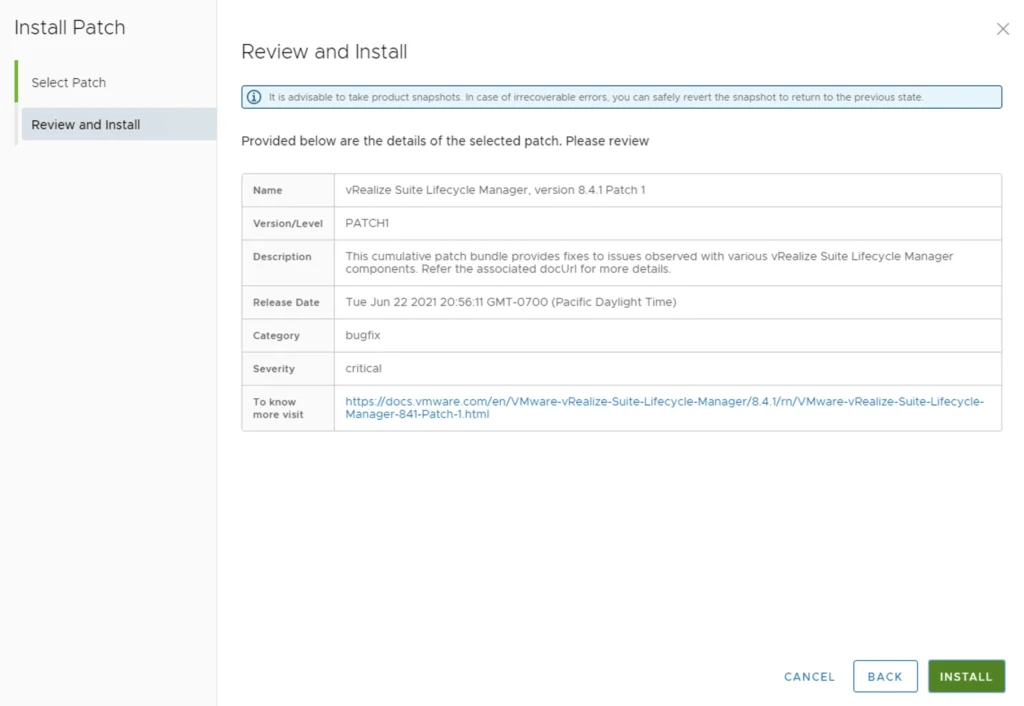
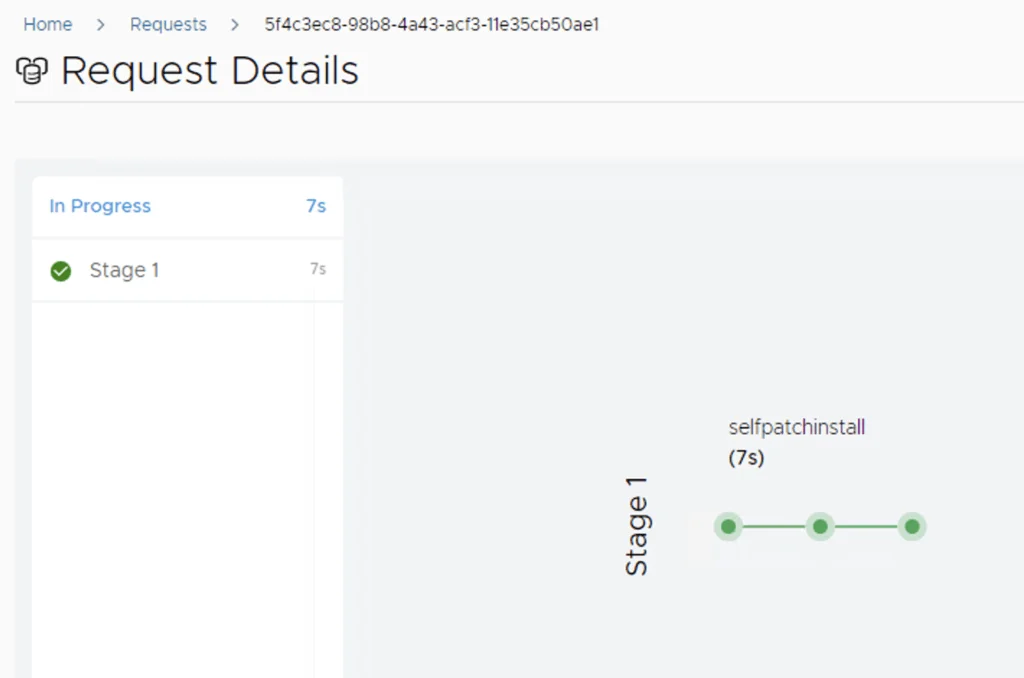
This will fire up the patch process and start the patching.
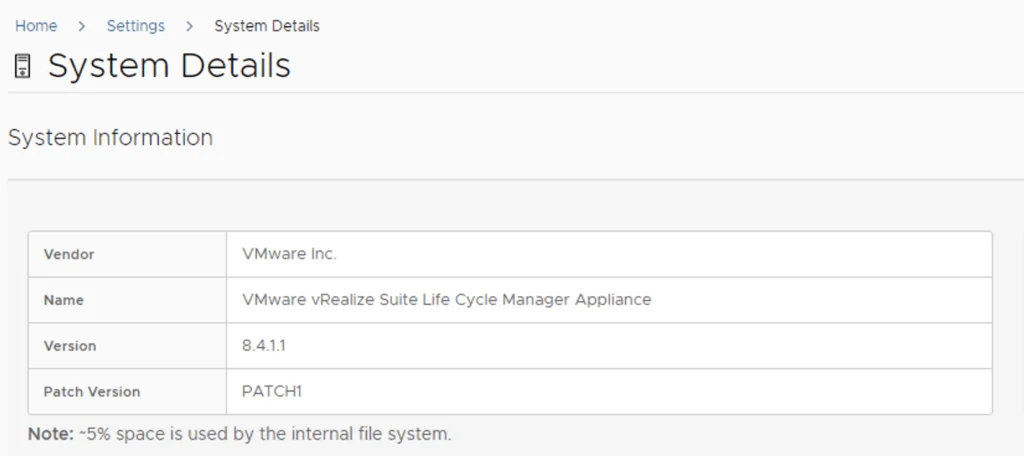
The system will automatically reboot on 8.4.1.1 Patch 1 once completed. We can check the version by going to Settings -> System Details
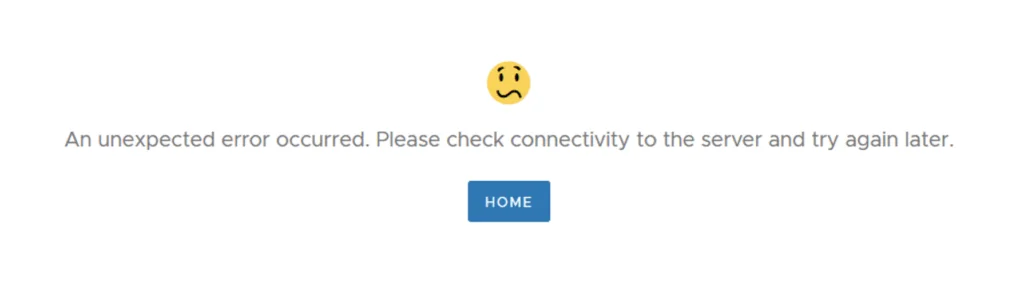
If you get the below error clear the browser cache and try again