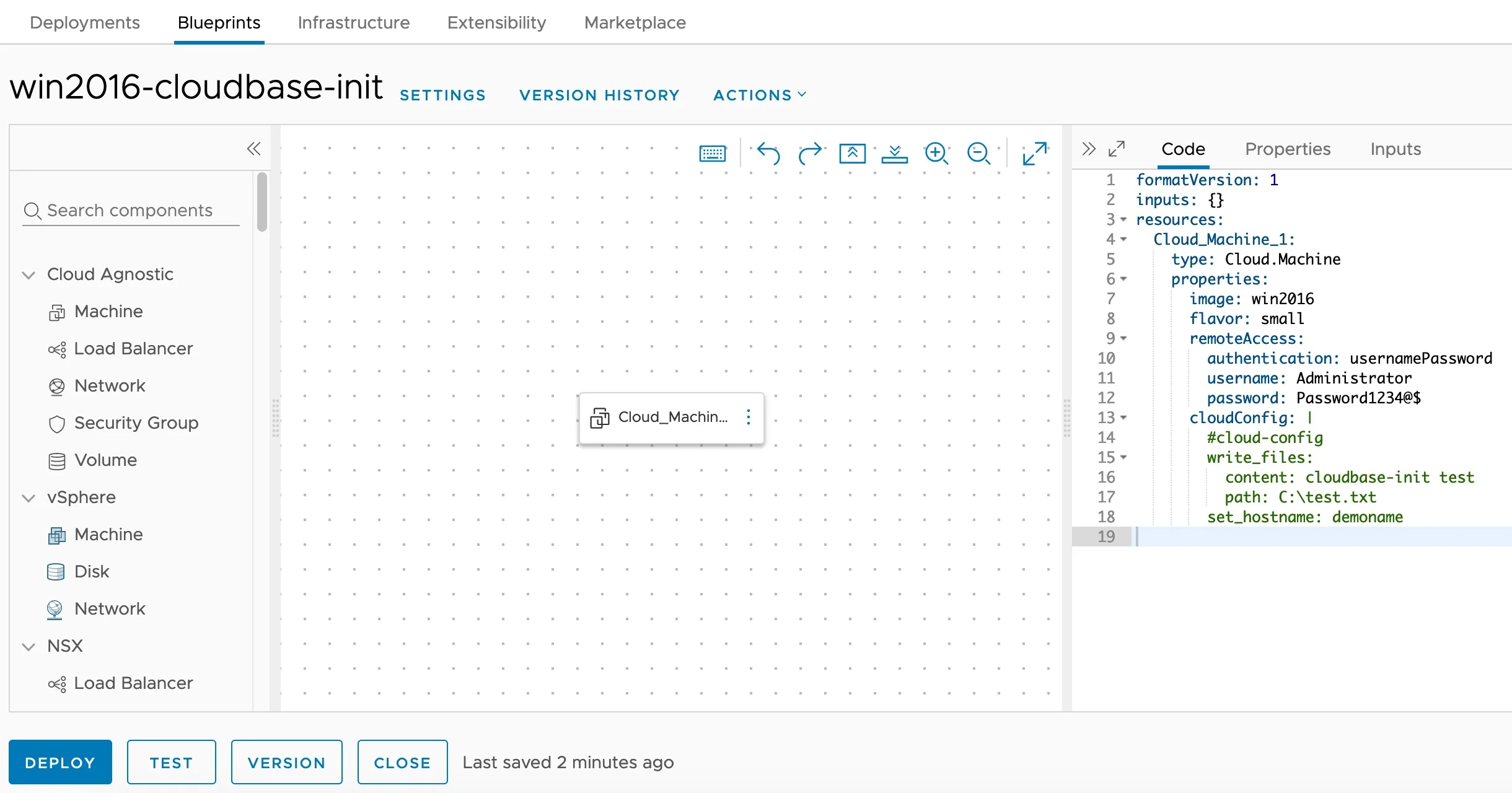
Customizing Windows guest instances in VMware environments has traditionally been handled by the VMware Guest Customization Specification (Sysprep-based). While this approach works, it has limitations, especially when you need cloud-agnostic blueprints that work across vCenter, Azure, AWS, and GCP cloud accounts.
Enter Cloudbase-Init: the Windows equivalent of Cloud-Init. It provides powerful guest customization capabilities including user creation, password injection, hostname configuration, SSH public keys, and user-data script execution. This guide walks through the full process of installing and configuring Cloudbase-Init on a Windows Server template for use with VCF Automation (formerly VMware Aria Automation / vRealize Automation).
What is Cloudbase-Init?
Cloudbase-Init is an open-source Windows guest initialization service, designed to be the Cloud-Init equivalent for Windows operating systems. Key features include:
- User creation and password management: Create local accounts, inject passwords, and enforce password change on first logon
- Hostname customization: Set the Windows computer name during provisioning
- SSH public key injection: Deploy SSH keys for remote access
- User-data scripts: Execute PowerShell, batch, or cloud-config YAML scripts at first boot
- Disk extension: Automatically extend volumes to use all available disk space
- MTU configuration: Set network MTU values via DHCP
When paired with VCF Automation’s cloudConfig and remoteAccess blueprint properties, Cloudbase-Init enables fully automated Windows provisioning with zero manual intervention.
Prerequisites
Before you begin, ensure you have:
- A Windows Server ISO (2016, 2019, 2022, or 2025) mounted in vCenter
- vCenter access with permissions to create VMs and templates
- VCF Automation (or Aria Automation / vRealize Automation 8.x+) deployed and configured
- An RDP client for accessing the Windows VM during setup
- A vCenter Cloud Account configured in VCF Automation (ideally using a custom vCenter role)
Part 1: Preparing the Windows Template
Step 1: Create a Base Windows VM
- Log in to vCenter and create a new Virtual Machine
- Mount your Windows Server ISO and complete the OS installation
- Install VMware Tools (required for OVF metadata transport)
- Apply all Windows Updates and install any additional software packages your organization requires (e.g., monitoring agents, antivirus)
- Power on the VM and log in via RDP
Tip: Install all prerequisite software before installing Cloudbase-Init. Once Cloudbase-Init runs Sysprep, the VM will shut down and should be converted to a template immediately.
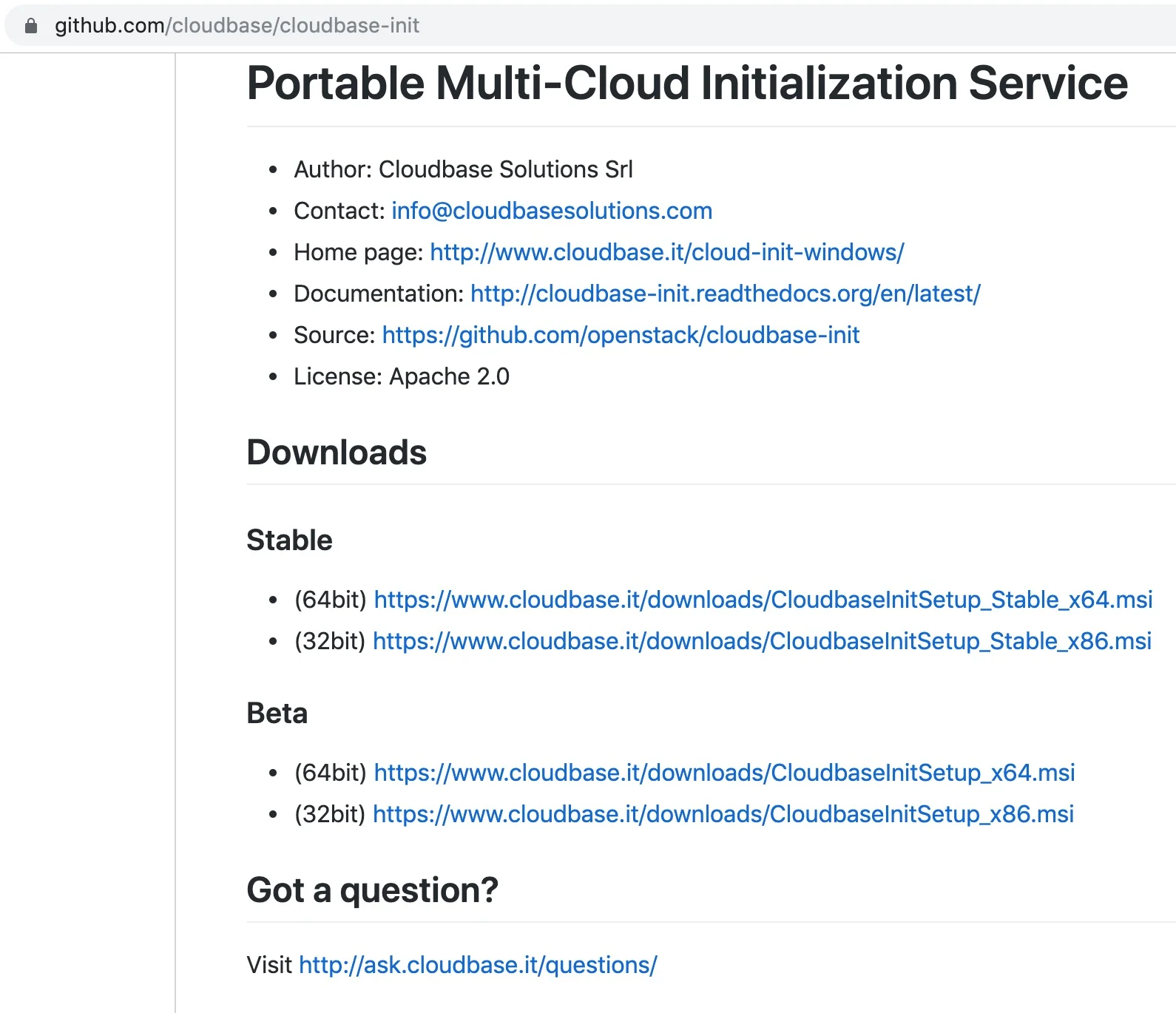
Step 2: Download Cloudbase-Init
Download the Cloudbase-Init installation binaries from one of these locations:
- GitHub: https://github.com/cloudbase/cloudbase-init
- Official Downloads: https://cloudbase.it/cloudbase-init/#download
Important: Ensure you are using version 0.9.12.dev72 or greater, which includes the OvfService metadata provider required for vCenter integration. The OvfService is what allows Cloudbase-Init to receive customization data from VCF Automation via VMware Tools.
Step 3: Run the Cloudbase-Init Installer
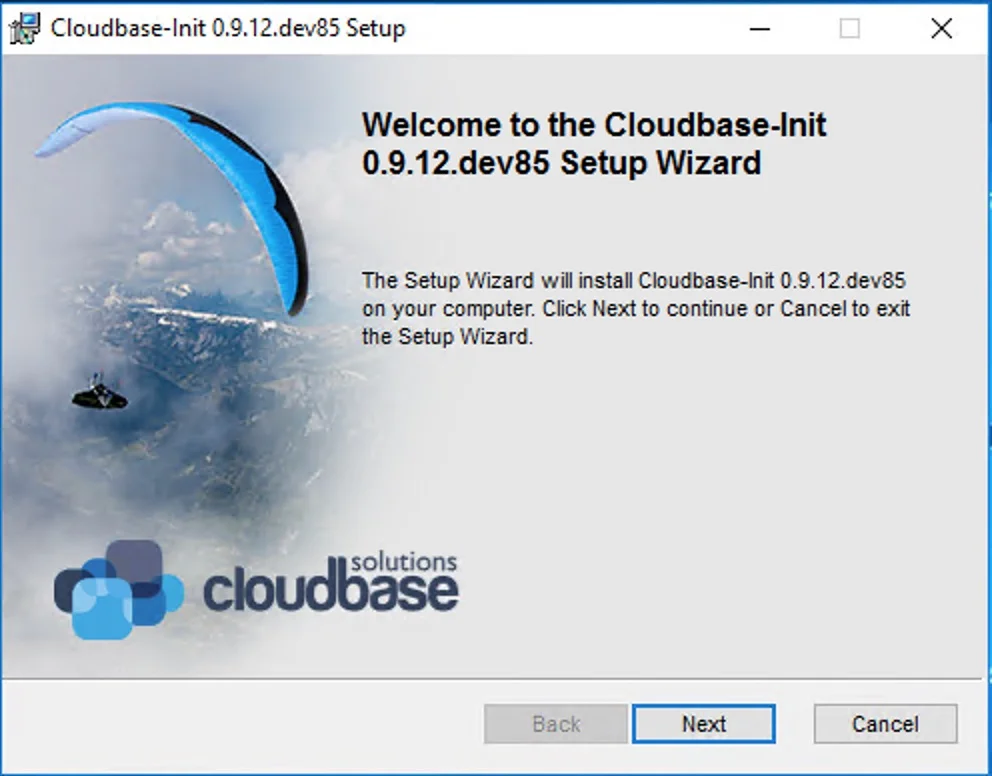
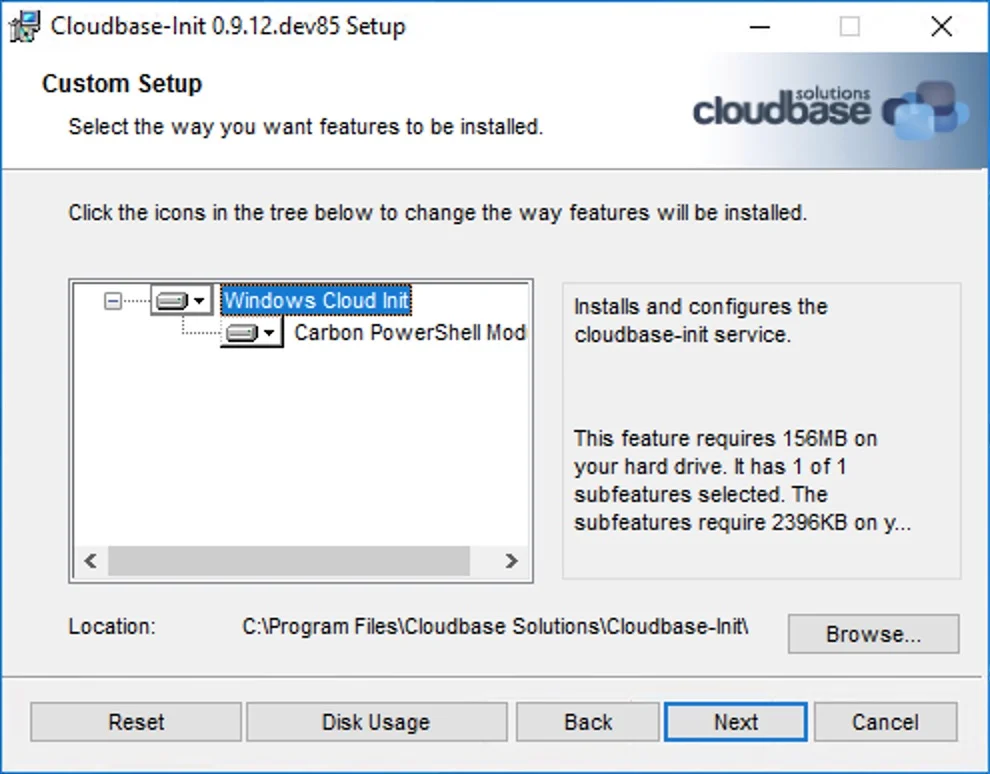
- Run the CloudbaseInitSetup_x64.msi installer on the Windows VM
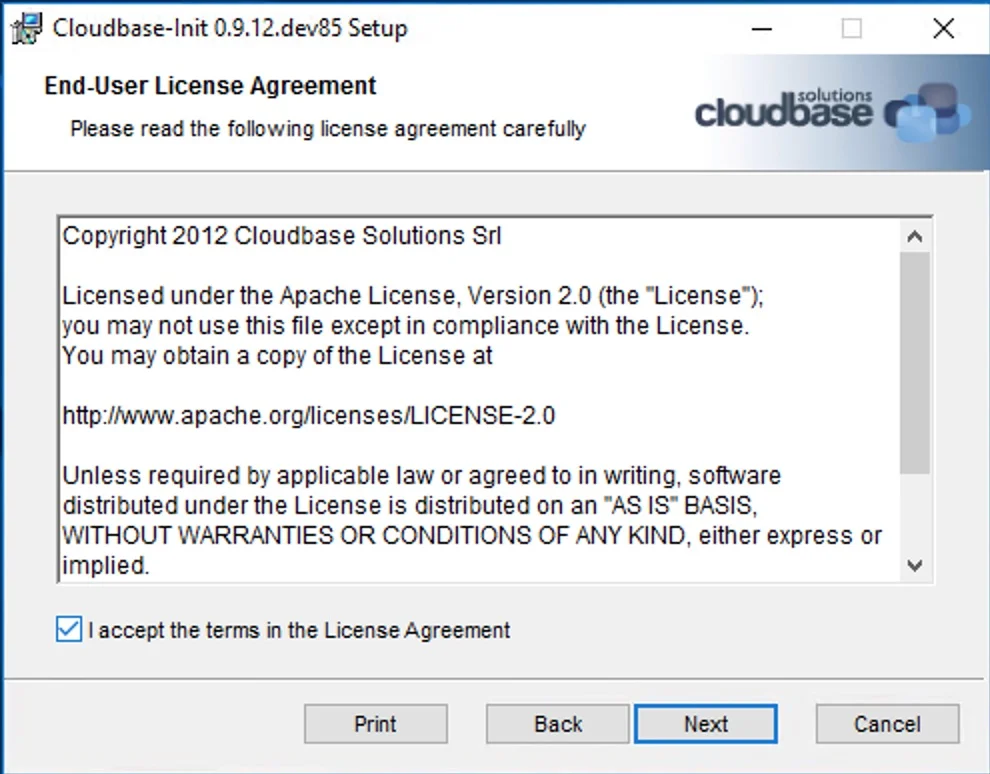
- Accept the license agreement and click Next
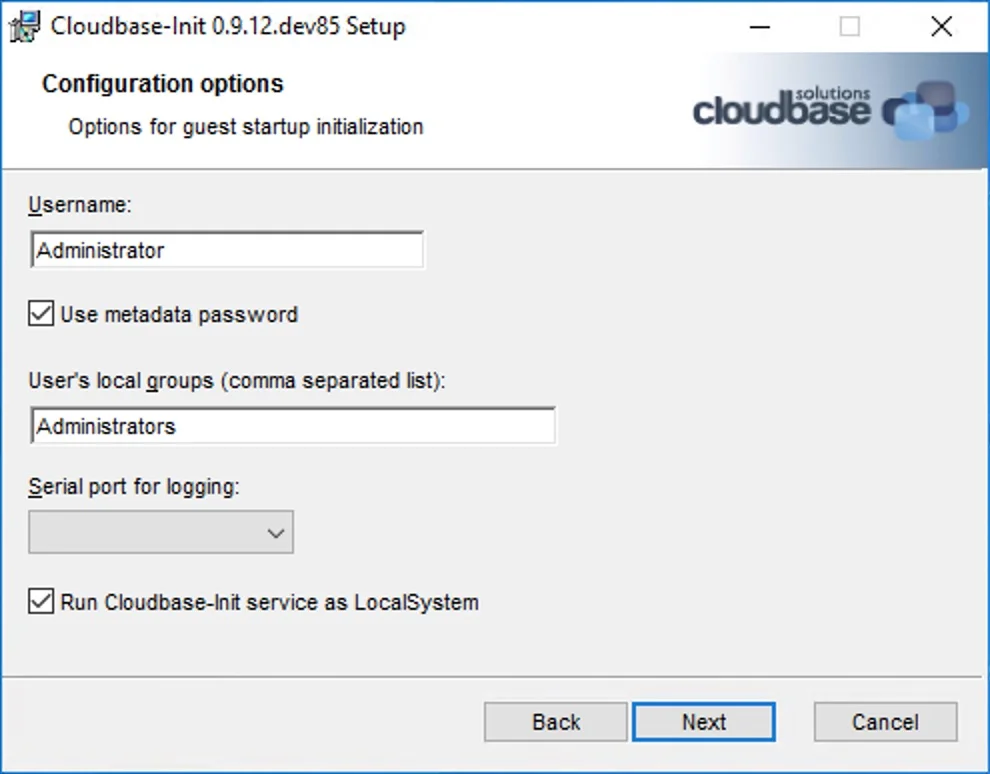
- On the configuration page, set the following options:
- Username:
Administrator - Check: ✅ Run Cloudbase-Init service as LocalSystem
- Leave all other defaults as-is
- Username:
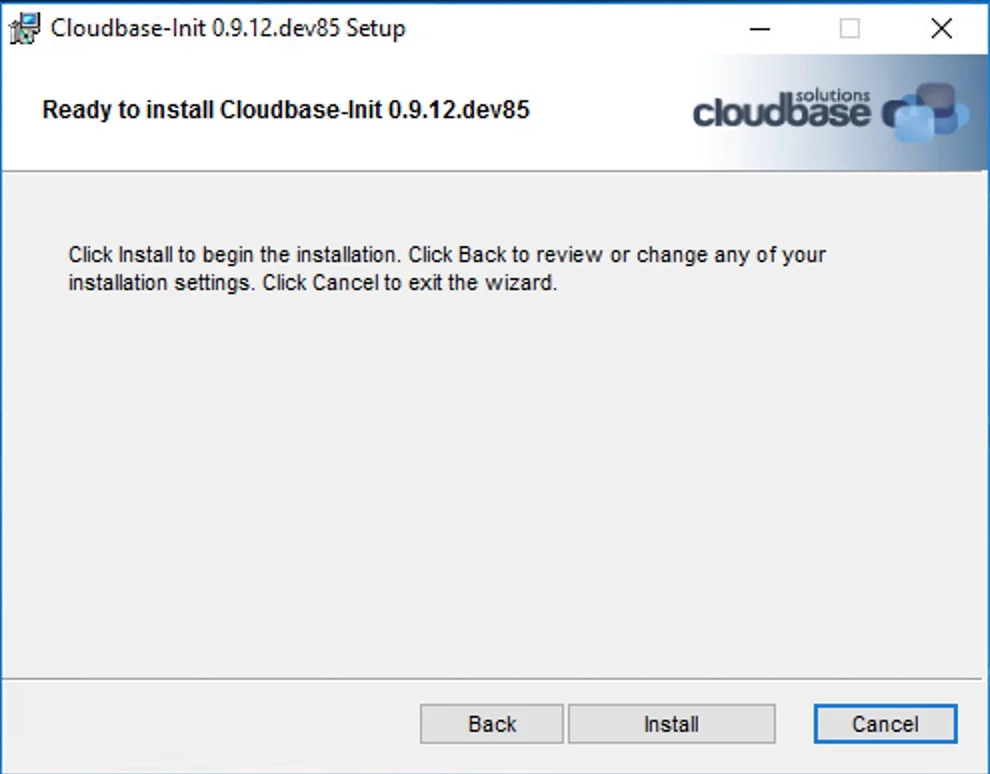
- Click Next, then click Install
Note: Some advanced user-data scripts may require Cloudbase-Init to run under a dedicated administrator account rather than LocalSystem. If this applies to your environment, create and select a dedicated service account at install time.
- Do NOT finalize the installer yet: when prompted with the “Completing the Cloudbase-Init Setup Wizard” dialog, leave the checkboxes unchecked for now. We need to edit the configuration files first.
Step 4: Configure cloudbase-init-unattend.conf
Navigate to the Cloudbase-Init installation directory (typically C:\Program Files\Cloudbase Solutions\Cloudbase-Init\conf\) and edit the file cloudbase-init-unattend.conf.
This configuration file controls the behavior during the specialize phase of Windows setup (before the first user logon). Replace its contents with:
[DEFAULT]
username=Administrator
groups=Administrators
inject_user_password=true
config_drive_raw_hhd=true
config_drive_cdrom=true
config_drive_vfat=true
bsdtar_path=C:\Program Files\Cloudbase Solutions\Cloudbase-Init\bin\bsdtar.exe
mtools_path=C:\Program Files\Cloudbase Solutions\Cloudbase-Init\bin\
verbose=true
debug=true
logdir=C:\Program Files\Cloudbase Solutions\Cloudbase-Init\log\
logfile=cloudbase-init-unattend.log
default_log_levels=comtypes=INFO,suds=INFO,iso8601=WARN,requests=WARN
logging_serial_port_settings=
mtu_use_dhcp_config=true
ntp_use_dhcp_config=true
local_scripts_path=C:\Program Files\Cloudbase Solutions\Cloudbase-Init\LocalScripts\
metadata_services=cloudbaseinit.metadata.services.ovfservice.OvfService
plugins=cloudbaseinit.plugins.common.mtu.MTUPlugin,cloudbaseinit.plugins.common.sethostname.SetHostNamePlugin,cloudbaseinit.plugins.windows.extendvolumes.ExtendVolumesPlugin
allow_reboot=false
stop_service_on_exit=false
check_latest_version=false
Key settings explained:
| Setting | Value | Purpose |
|---|---|---|
metadata_services | OvfService | Only use the OVF metadata provider (vCenter). Prevents Cloudbase-Init from iterating through unsupported providers and cluttering logs |
plugins | MTU, SetHostName, ExtendVolumes | Specialize-phase plugins: configure network MTU, set hostname, extend disk volumes |
allow_reboot | false | Prevent unexpected reboots during the specialize phase |
stop_service_on_exit | false | Keep the service running for the next phase |
Step 5: Configure cloudbase-init.conf
In the same conf directory, edit cloudbase-init.conf. This file controls the behavior during the first logon phase.
Replace its contents with:
[DEFAULT]
username=Administrator
groups=Administrators
inject_user_password=true
first_logon_behaviour=always
config_drive_raw_hhd=true
config_drive_cdrom=true
config_drive_vfat=true
bsdtar_path=C:\Program Files\Cloudbase Solutions\Cloudbase-Init\bin\bsdtar.exe
mtools_path=C:\Program Files\Cloudbase Solutions\Cloudbase-Init\bin\
verbose=true
debug=true
logdir=C:\Program Files\Cloudbase Solutions\Cloudbase-Init\log\
logfile=cloudbase-init.log
default_log_levels=comtypes=INFO,suds=INFO,iso8601=WARN,requests=WARN
logging_serial_port_settings=
mtu_use_dhcp_config=true
ntp_use_dhcp_config=true
local_scripts_path=C:\Program Files\Cloudbase Solutions\Cloudbase-Init\LocalScripts\
metadata_services=cloudbaseinit.metadata.services.ovfservice.OvfService
plugins=cloudbaseinit.plugins.windows.createuser.CreateUserPlugin,cloudbaseinit.plugins.windows.setuserpassword.SetUserPasswordPlugin,cloudbaseinit.plugins.common.sshpublickeys.SetUserSSHPublicKeysPlugin,cloudbaseinit.plugins.common.userdata.UserDataPlugin
Key settings explained:
| Setting | Value | Purpose |
|---|---|---|
first_logon_behaviour | always | Forces the user to change the password after first logon |
metadata_services | OvfService | Same as unattend, only use OVF metadata for vCenter |
plugins | CreateUser, SetUserPassword, SetUserSSHPublicKeys, UserData | First-logon plugins: create user account, set password, inject SSH keys, execute user-data scripts |
Important: The
username=Administratorsetting combined withSetUserPasswordPluginand theremoteAccesspassword in the blueprint allows Cloudbase-Init to change the initial blank password created after Sysprep.
Step 6: Understanding the Plugin Order
Cloudbase-Init executes plugins in the order they are listed in the configuration. Here is a breakdown of both phases:
Specialize Phase (cloudbase-init-unattend.conf):
- MTUPlugin: Configures network MTU based on DHCP
- SetHostNamePlugin: Sets the Windows computer name
- ExtendVolumesPlugin: Extends disk volumes to use all available space
First Logon Phase (cloudbase-init.conf):
- CreateUserPlugin: Creates the local user account
- SetUserPasswordPlugin: Sets the user password from metadata
- SetUserSSHPublicKeysPlugin: Injects SSH public keys
- UserDataPlugin: Executes user-data scripts (PowerShell, batch, cloud-config)
Tip: Only list plugins with capabilities supported by OvfService. This keeps logs clean and avoids error messages from plugins that cannot find their expected metadata.
Step 7: Complete the Installation with Sysprep
Now return to the Cloudbase-Init installer “Completing” dialog and check both boxes:
- ✅ Run Sysprep to create a generalized image
- ✅ Shutdown when Sysprep terminates
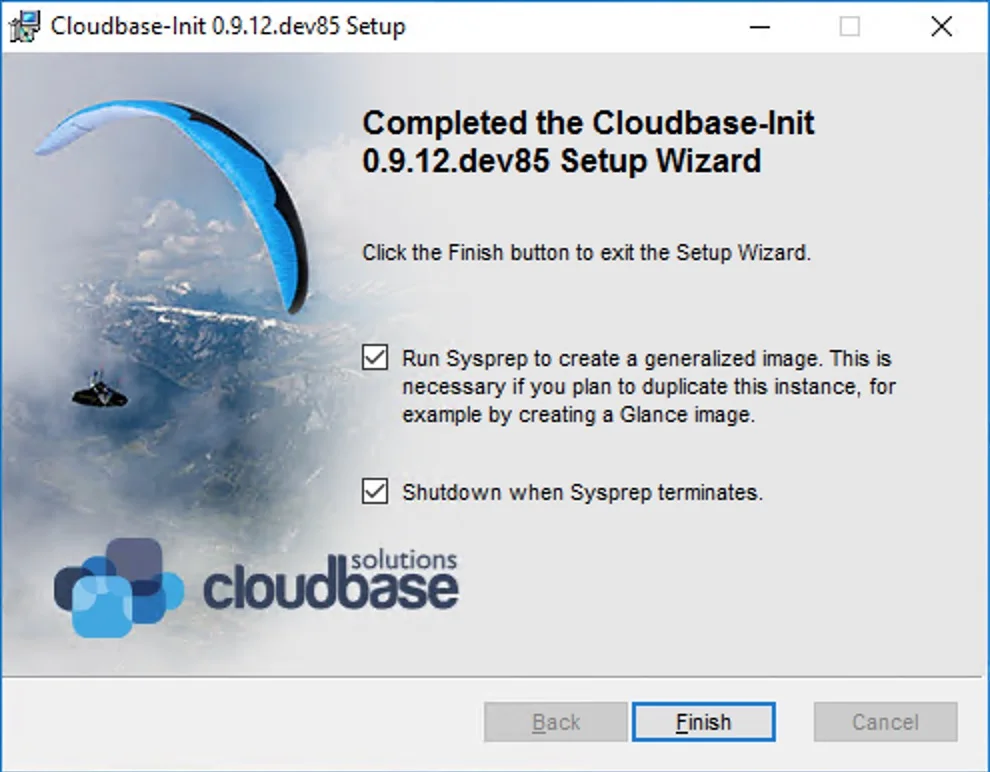
Click Finish. The system will run Windows Sysprep to generalize the image and then automatically shut down the VM.
Note: If Sysprep appears to hang or the VM does not shut down, try uninstalling Cloudbase-Init, re-downloading the installer, and repeating the process. This can occur with certain Windows Server 2016 builds.
Step 8: Convert to Template
Once the VM has shut down:
- In vCenter, right-click the VM
- Select Template → Convert to Template
Your Windows template is now ready for use with VCF Automation.
Silent Installation (Alternative)
For automated template builds (e.g., with Packer or other automation tools), Cloudbase-Init supports silent installation:
# Download Cloudbase-Init
Invoke-WebRequest -Uri "https://cloudbase.it/downloads/CloudbaseInitSetup_x64.msi" -OutFile "C:\CloudbaseInitSetup_x64.msi"

# Silent install
msiexec /i C:\CloudbaseInitSetup_x64.msi /qn /l*v C:\cloudbase-init-install.log ^
  LOGGINGSERIALPORTNAME=COM1 ^
  USERNAME=Administrator ^
  INJECTMETADATAPASSWORD=TRUE ^
  LOCALSYSTEMSERVICE=TRUE

# Copy custom configuration files
Copy-Item "cloudbase-init.conf" "C:\Program Files\Cloudbase Solutions\Cloudbase-Init\conf\cloudbase-init.conf" -Force
Copy-Item "cloudbase-init-unattend.conf" "C:\Program Files\Cloudbase Solutions\Cloudbase-Init\conf\cloudbase-init-unattend.conf" -Force

# Run Sysprep
& "C:\Windows\System32\Sysprep\sysprep.exe" /generalize /oobe /shutdown /unattend:"C:\Program Files\Cloudbase Solutions\Cloudbase-Init\conf\Unattend.xml"
Part 2: Deploying and Customizing Windows in VCF Automation
Now that the template is prepared, let’s create a cloud-agnostic blueprint in VCF Automation to deploy and customize Windows instances.
Step 1: Verify Infrastructure Setup
Ensure the following are configured in VCF Automation:
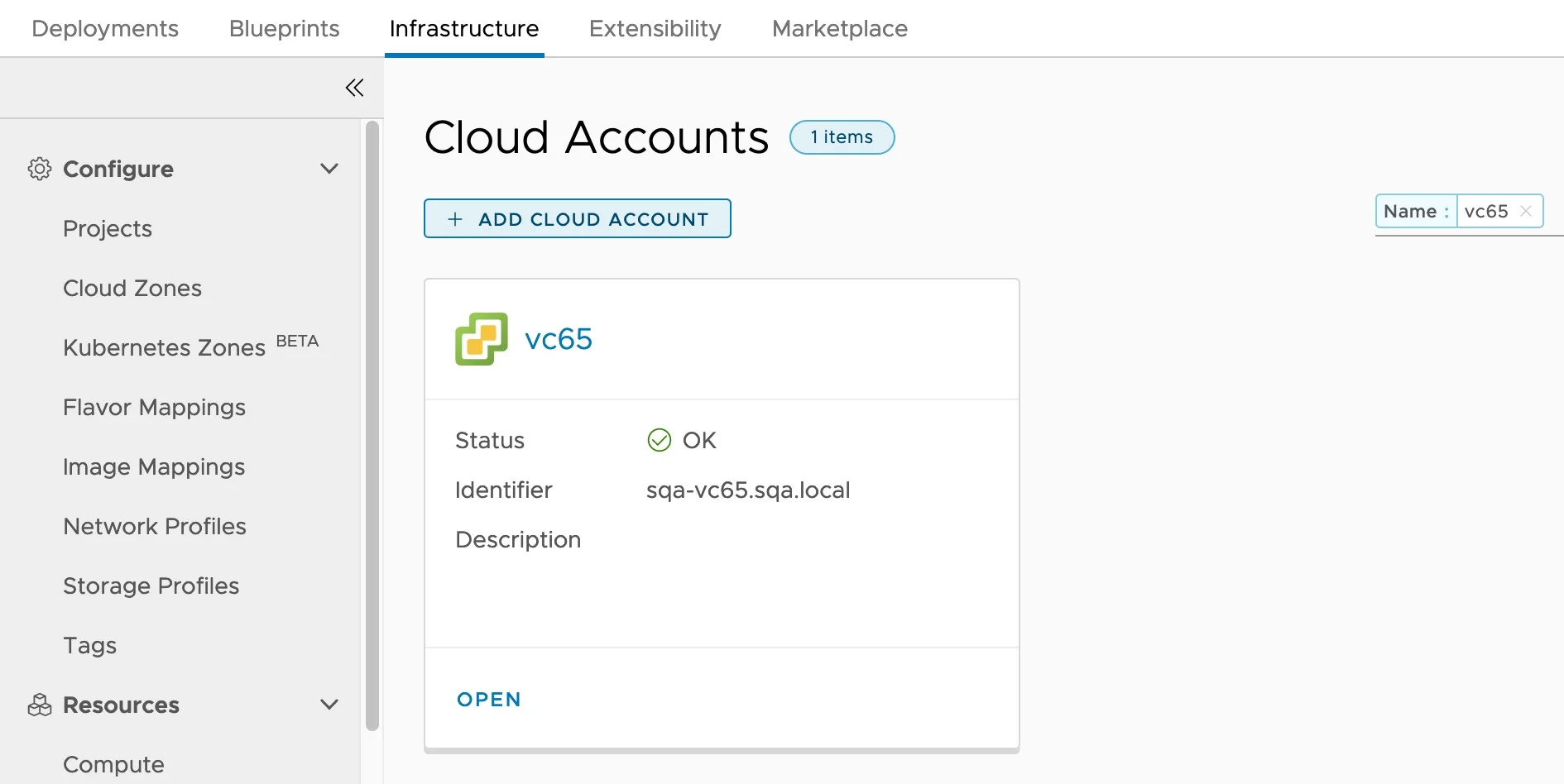
- Cloud Account: A vCenter Cloud Account is connected
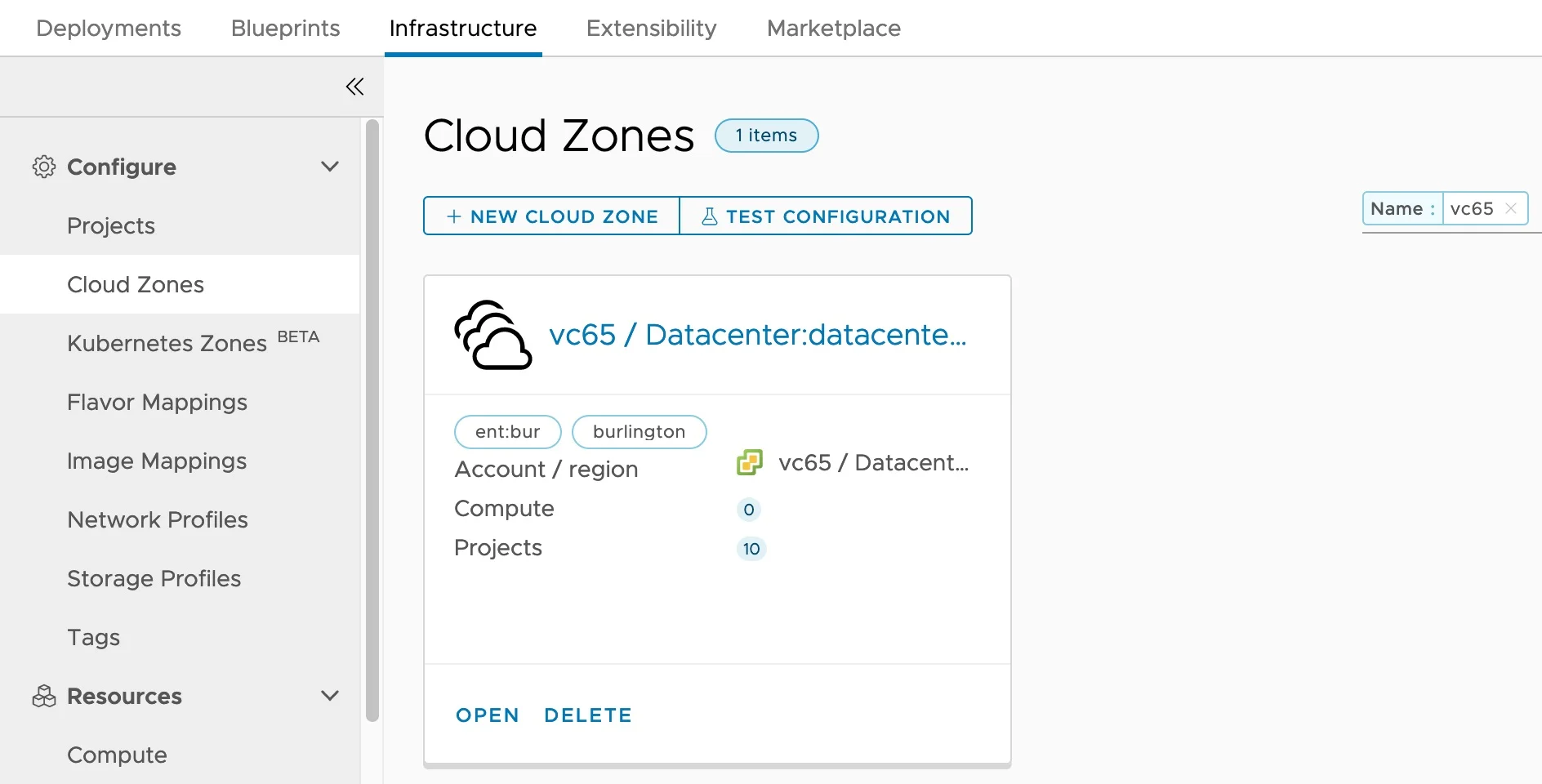
- Cloud Zone: A Cloud Zone is associated with the Cloud Account
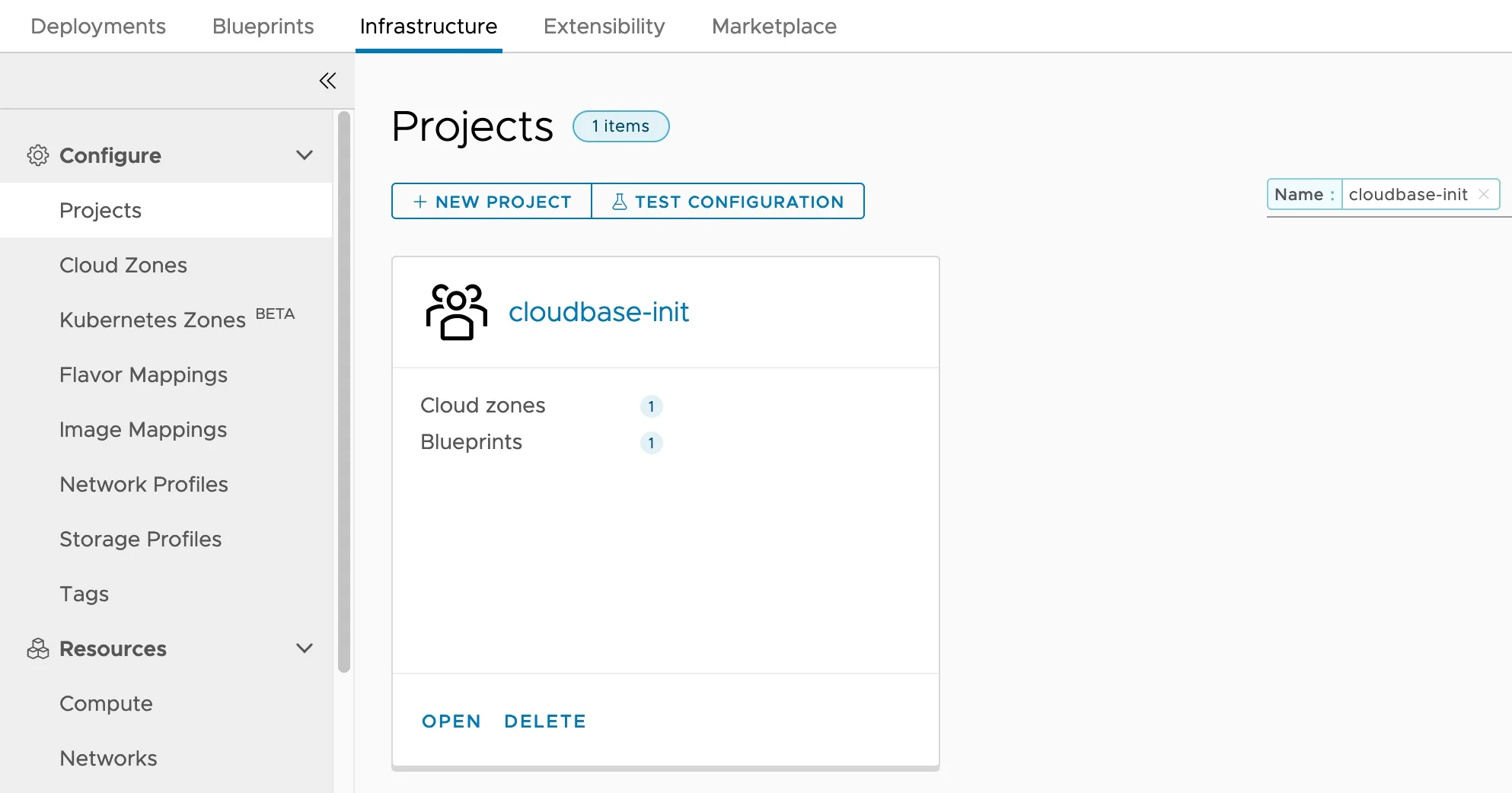
- Project: A Project is linked to the Cloud Zone with appropriate users/groups
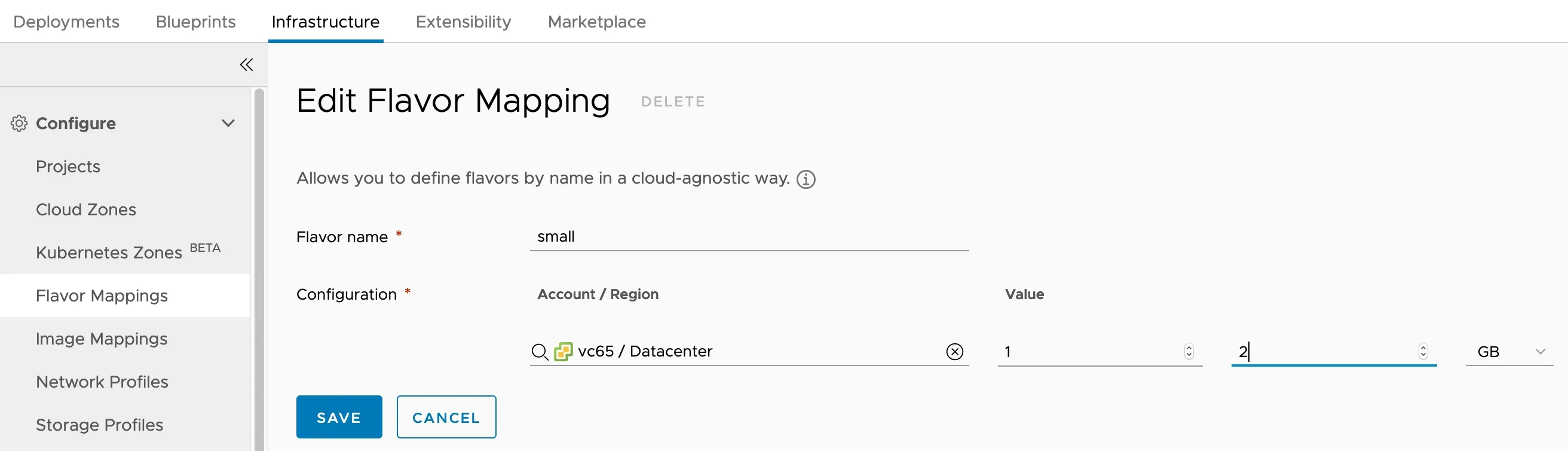
- Flavor Mapping: At least one flavor mapping (e.g.,
small= 1 vCPU, 2 GB RAM)
- Image Mapping: An image mapping pointing to your Cloudbase-Init Windows template
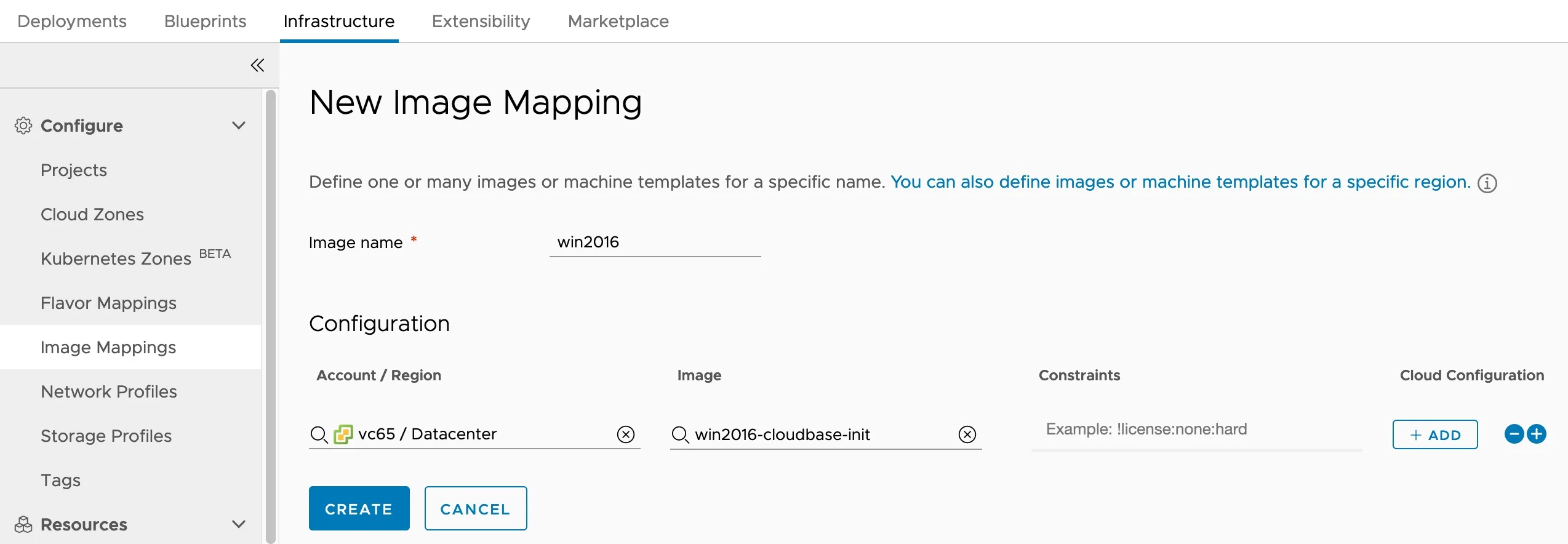
Tip: If you don’t see your template in the Image Mapping dropdown, navigate to Cloud Accounts and click Sync Images. By default, image collection runs automatically every 24 hours.
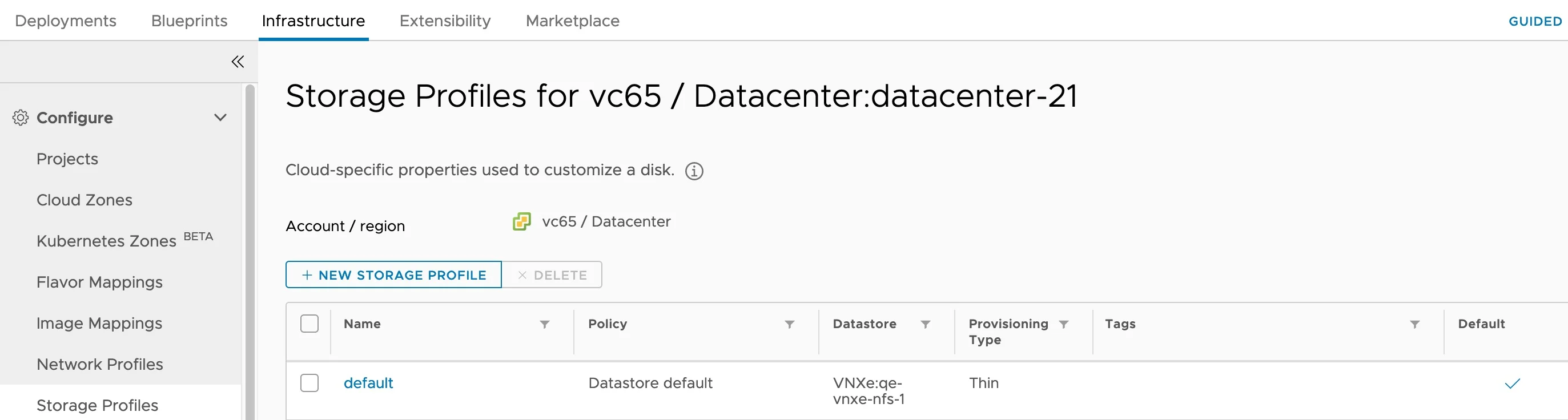
- Storage Profile: A storage profile for your vCenter datastore(s)
Step 2: Create the Blueprint
Navigate to Design → Cloud Templates and create a new template for your project.
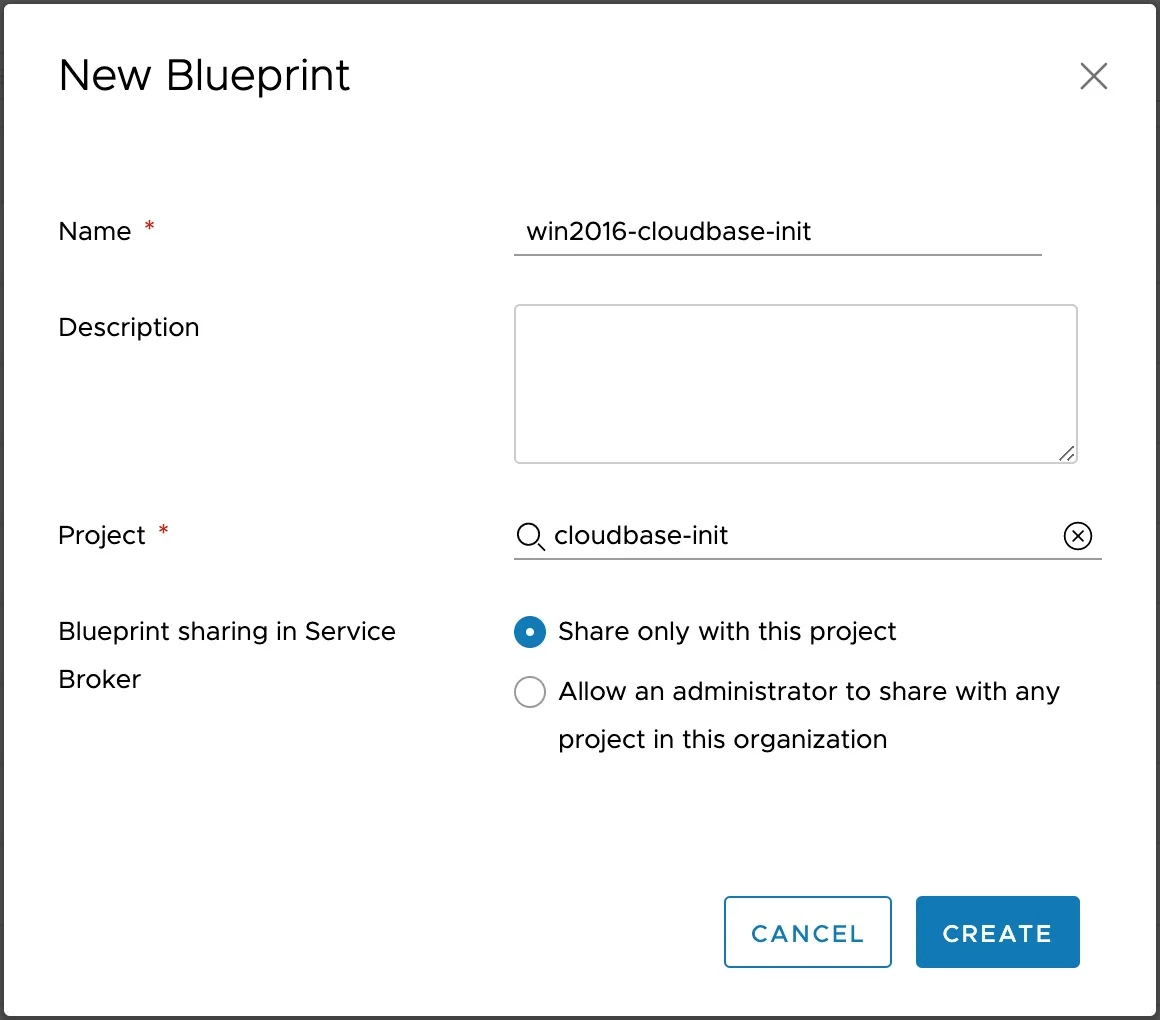
Here is an example cloud-agnostic blueprint that deploys the Windows image with guest customization:
formatVersion: 1
inputs:
  hostname:
    type: string
    title: Hostname
    default: win-demo
  password:
    type: string
    title: Administrator Password
    encrypted: true
    default: P@ssw0rd!2024
resources:
  Cloud_Machine_1:
    type: Cloud.Machine
    properties:
      image: win2022
      flavor: small
      remoteAccess:
        authentication: usernamePassword
        username: Administrator
        password: ${input.password}
      cloudConfig: |
        #cloud-config
        set_hostname: ${input.hostname}
        write_files:
          - content: |
              Cloudbase-Init deployment successful!
              Deployed by VCF Automation
              Hostname: ${input.hostname}
            path: C:\deployment-info.txt

If you also need extra data disks in your Windows blueprints, I covered adding custom disks with drive letters and labels in Aria Automation separately.
Understanding the Blueprint Properties
remoteAccess
The remoteAccess section provides credentials to the guest instance:
| Property | Description |
|---|---|
authentication | Authentication type: usernamePassword, generatedPublicPrivateKey, or publicPrivateKey |
username | The local account name (matches username in cloudbase-init.conf) |
password | The password to set (must meet Windows password policy requirements) |
The OVF metadata service picks up these values and exposes them to the CreateUserPlugin and SetUserPasswordPlugin.
cloudConfig
The cloudConfig property sets the user-data payload. The metadata service picks it up and passes it to the UserDataPlugin. The plugin interprets the data based on the first line:
| First Line | Script Type |
|---|---|
#cloud-config | Cloud-config YAML (hostname, write_files, etc.) |
#ps1 or #ps1_sysnative | PowerShell script |
#cmd | Windows batch/cmd script |
rem cmd | Windows batch/cmd script (alternative) |
Example: PowerShell user-data
cloudConfig: |
  #ps1_sysnative
  # Install Chocolatey
  Set-ExecutionPolicy Bypass -Scope Process -Force
  [System.Net.ServicePointManager]::SecurityProtocol = [System.Net.ServicePointManager]::SecurityProtocol -bor 3072
  iex ((New-Object System.Net.WebClient).DownloadString('https://community.chocolatey.org/install.ps1'))

  # Install common tools
  choco install notepadplusplus 7zip git -y

  # Create a marker file
  Set-Content -Path "C:\deployment-complete.txt" -Value "Deployment completed at $(Get-Date)"
Example: Cloud-config with multiple write_files
cloudConfig: |
  #cloud-config
  set_hostname: myserver
  write_files:
    - content: |
        Server provisioned by VCF Automation
        Date: 2026-04-16
      path: C:\info.txt
    - content: |
        # Custom PowerShell profile
        Set-Alias ll Get-ChildItem
      path: C:\Users\Administrator\Documents\WindowsPowerShell\profile.ps1
Step 3: Deploy the Blueprint
- Click Deploy (or Test)
- Provide a Deployment Name
- Fill in the input parameters (hostname, password)
- Select Current Draft as the version
- Click Deploy
VCF Automation will:
- Clone the Windows template
- Power on the VM
- VMware Tools will transport the OVF metadata to the guest
- Cloudbase-Init will pick up the metadata and execute the configured plugins
- The hostname will be set, user account configured, and user-data scripts executed
Step 4: Verify the Customization
Once the deployment completes successfully:
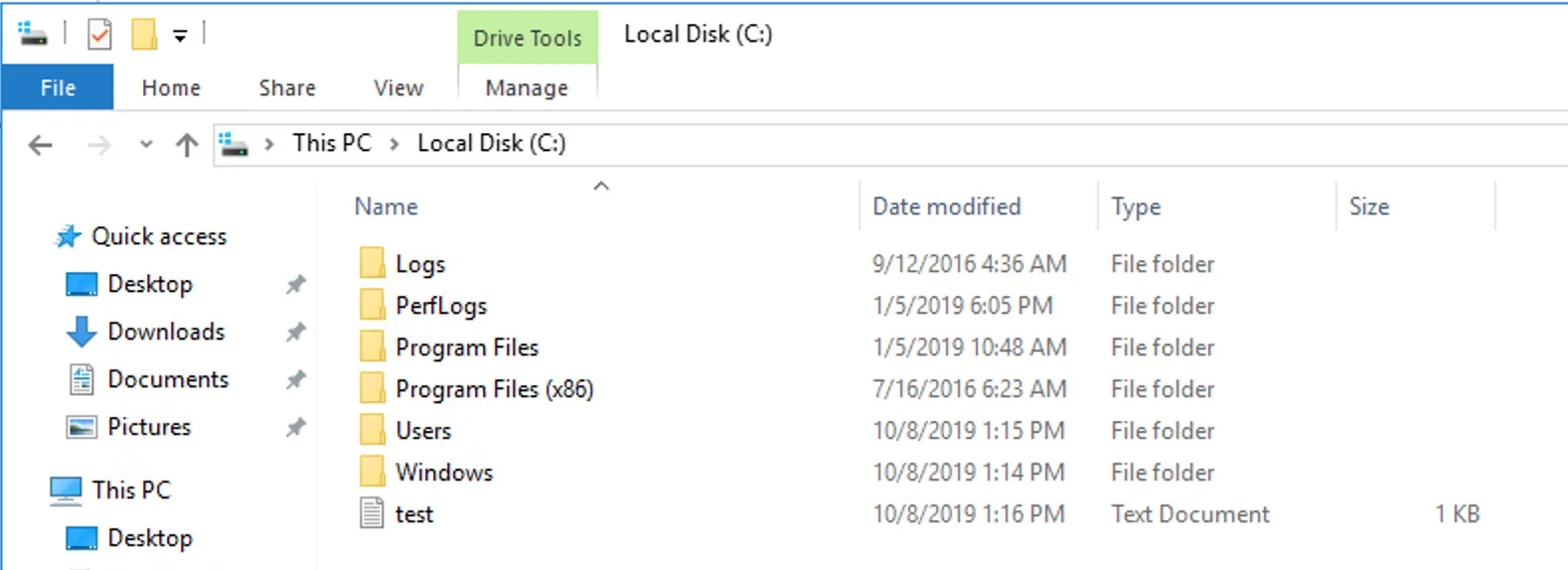
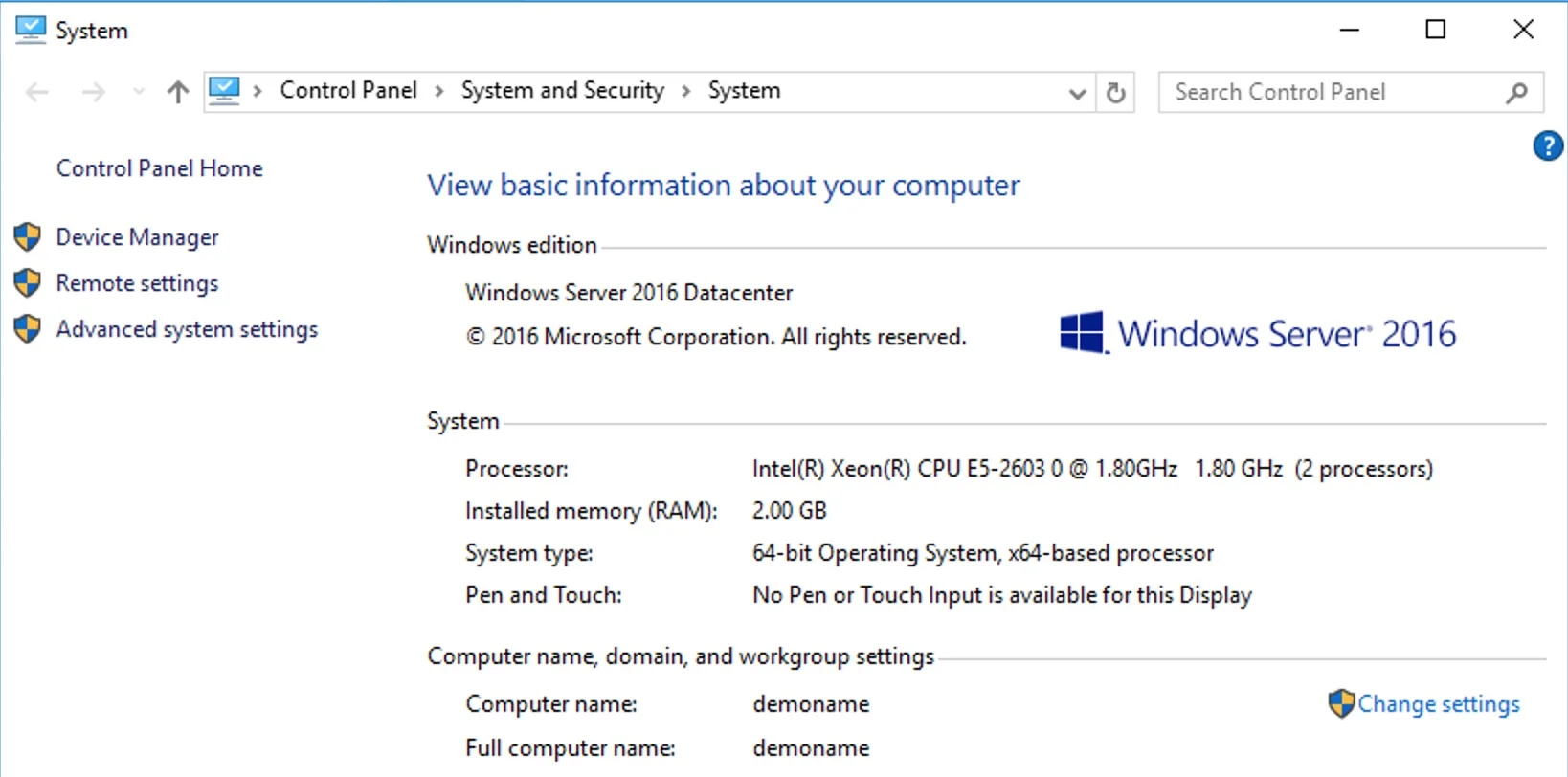
- Open an RDP client and connect to the new VM using the credentials from the blueprint
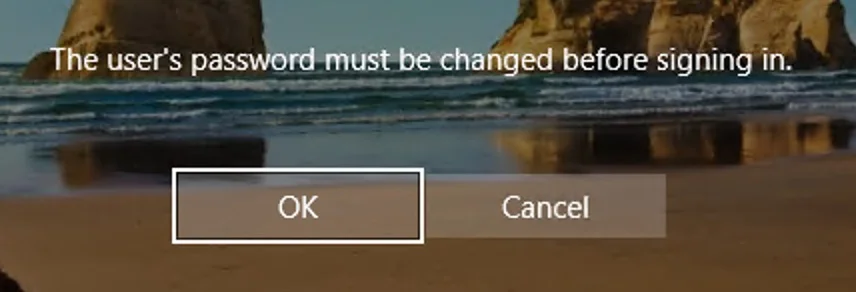
- On first login, you will be prompted to change the password (due to
first_logon_behaviour=always)
- After changing the password, verify:
- Hostname: Open a command prompt and run
hostnameto confirm the custom name was applied - Deployment file. Check
C:\deployment-info.txt(or your custom file path) for the content specified inwrite_files - User account: Confirm the Administrator account is active with the correct group membership
- Hostname: Open a command prompt and run
Troubleshooting
Cloudbase-Init Logs
If customization doesn’t work as expected, check the logs at:
C:\Program Files\Cloudbase Solutions\Cloudbase-Init\log\cloudbase-init.log
C:\Program Files\Cloudbase Solutions\Cloudbase-Init\log\cloudbase-init-unattend.log
Common Issues
| Issue | Cause | Solution |
|---|---|---|
| Hostname not set | SetHostNamePlugin not in unattend plugins list | Add SetHostNamePlugin to cloudbase-init-unattend.conf plugins |
| Password not working | Password doesn’t meet Windows policy | Use a password with uppercase, lowercase, number, and special character |
| User-data script not executing | Wrong first-line header | Ensure the first line is #ps1_sysnative, #cloud-config, etc. |
| Metadata not found | VMware Tools not installed | Install VMware Tools on the template before Cloudbase-Init |
| Sysprep hangs | Installer corruption | Re-download and reinstall Cloudbase-Init |
| Logs show “iterating metadata services” | Multiple metadata_services listed | Set only OvfService in the metadata_services line |
Checking the OVF Environment
To verify that VMware Tools is properly transporting OVF metadata, you can check the OVF environment XML on the guest:
# Check if OVF environment is available
Get-Content "C:\Program Files\VMware\VMware Tools\OvfEnvironment.xml" -ErrorAction SilentlyContinue
Advanced Configurations
Adding Custom Scripts to LocalScripts
You can place PowerShell or batch scripts in the LocalScripts directory that Cloudbase-Init will execute at boot:
C:\Program Files\Cloudbase Solutions\Cloudbase-Init\LocalScripts\
Scripts in this directory are executed in alphabetical order. This is useful for scripts that need to run on every boot rather than just the first boot.
Using Cloudbase-Init with Packer
For fully automated template creation with HashiCorp Packer, add a provisioner step:
provisioner "powershell" {
  inline = [
    "Invoke-WebRequest -Uri 'https://cloudbase.it/downloads/CloudbaseInitSetup_x64.msi' -OutFile 'C:\\CloudbaseInitSetup_x64.msi'",
    "Start-Process msiexec -ArgumentList '/i C:\\CloudbaseInitSetup_x64.msi /qn LOGGINGSERIALPORTNAME=COM1 USERNAME=Administrator INJECTMETADATAPASSWORD=TRUE LOCALSYSTEMSERVICE=TRUE' -Wait",
  ]
}

provisioner "file" {
  source      = "conf/cloudbase-init.conf"
  destination = "C:\\Program Files\\Cloudbase Solutions\\Cloudbase-Init\\conf\\cloudbase-init.conf"
}

provisioner "file" {
  source      = "conf/cloudbase-init-unattend.conf"
  destination = "C:\\Program Files\\Cloudbase Solutions\\Cloudbase-Init\\conf\\cloudbase-init-unattend.conf"
}
Multi-Cloud Blueprints
One of the biggest advantages of Cloudbase-Init is cloud-agnostic blueprints. The same blueprint and cloudConfig work across vCenter, Azure, AWS, and GCP cloud accounts, Cloudbase-Init automatically detects the appropriate metadata service for each cloud provider.
For vCenter-only deployments, specifying OvfService alone in the configuration is recommended for cleaner logs and faster initialization.
Summary
Cloudbase-Init is a powerful and flexible tool for Windows guest customization in VCF Automation environments. By following this guide, you have:
- ✅ Installed Cloudbase-Init on a Windows Server VM
- ✅ Configured both
cloudbase-init-unattend.conf(specialize phase) andcloudbase-init.conf(first logon phase) for OvfService - ✅ Prepared a generalized Windows template via Sysprep
- ✅ Created a cloud-agnostic blueprint with
remoteAccessandcloudConfigproperties - ✅ Deployed and verified the customized Windows instance
This approach gives you consistent, repeatable Windows provisioning with the flexibility to customize user accounts, hostnames, file creation, and script execution, all without manual intervention.
References
- Cloudbase-Init Documentation
- Cloudbase-Init GitHub Repository
- Cloudbase-Init OvfService Documentation
- Cloudbase-Init Plugins Reference
- Cloudbase-Init UserData Reference
- VMware Blog - Windows Guest Initialization with Cloudbase-Init (Archived)
- Michael Poore - Installing Cloudbase-Init on Windows for vRA Customisation