This post we will be going over installing an vROPS management pack via vRSLCM. (If you haven’t added your My VMware credentials you will need to do that first by going to vRealize Lifecycle Manager -> Lifecycle Operations -> Settings -> My VMware)
Accessing the Marketplace
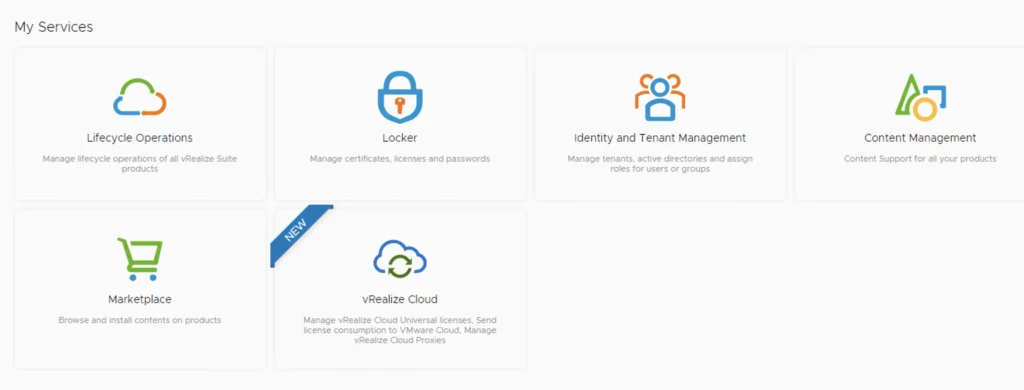
Once logged on to vRSLCM click on the marketplace.

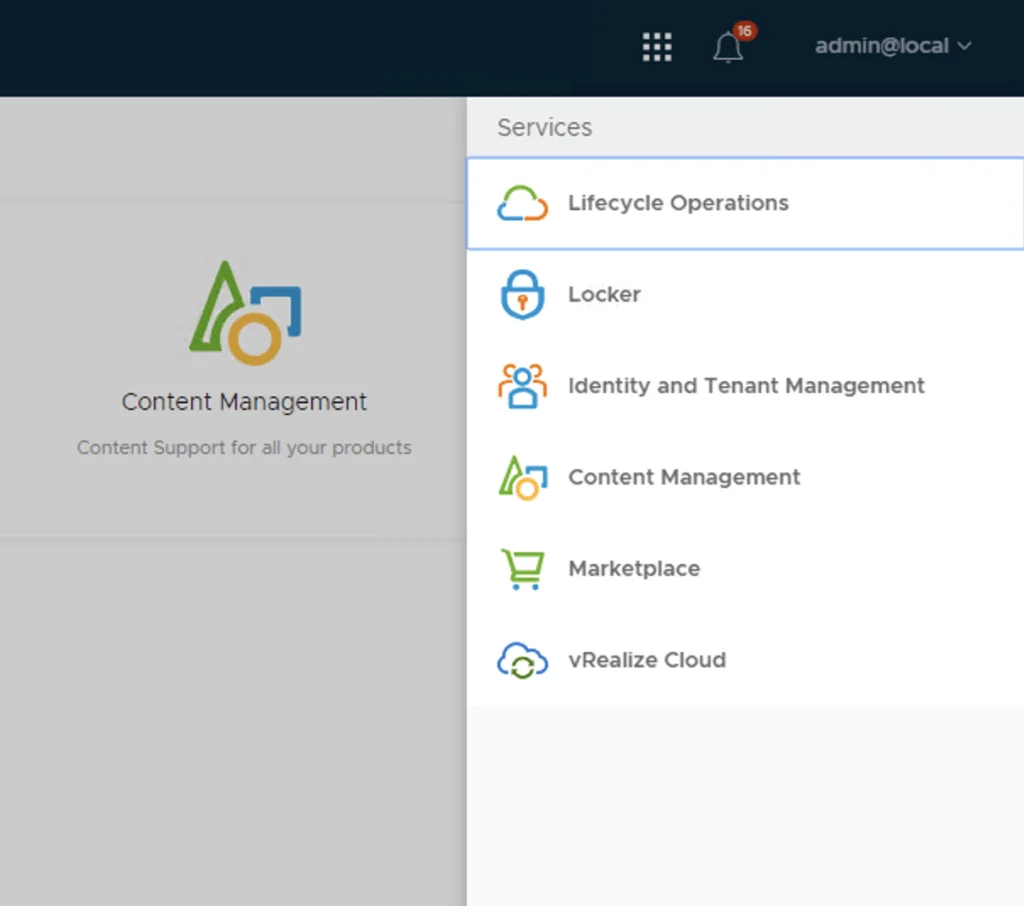
Alternatively we can also navigate to the marketplace by navigating to it via the side menu
Finding the Management Pack
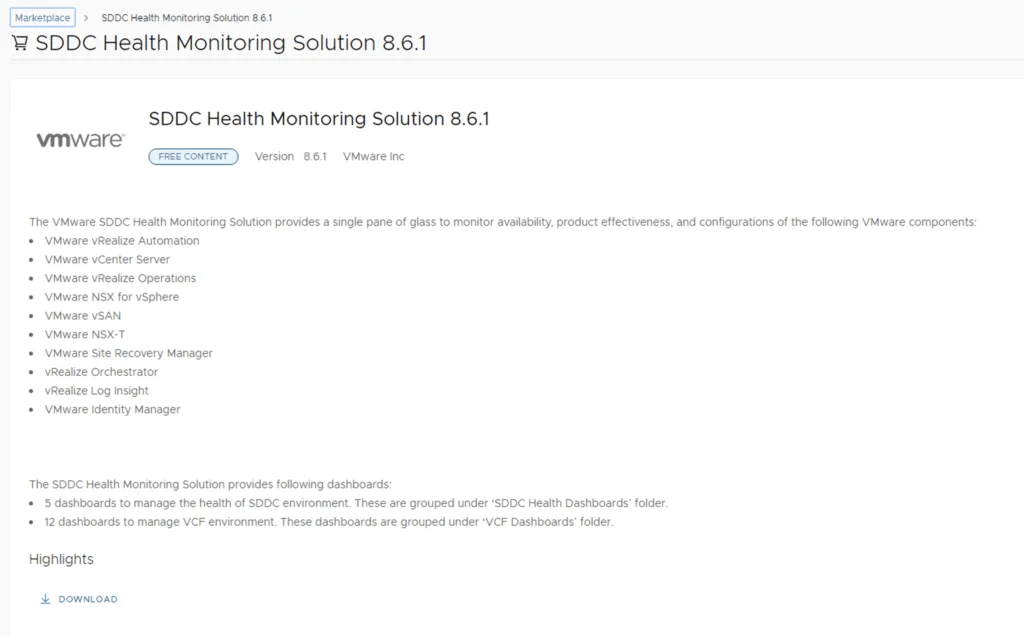
In my case I want to install SDDC Health Monitoring Solution. Searching for sddc in the search box gives a number of results. In my case the latest version is 8.6.1
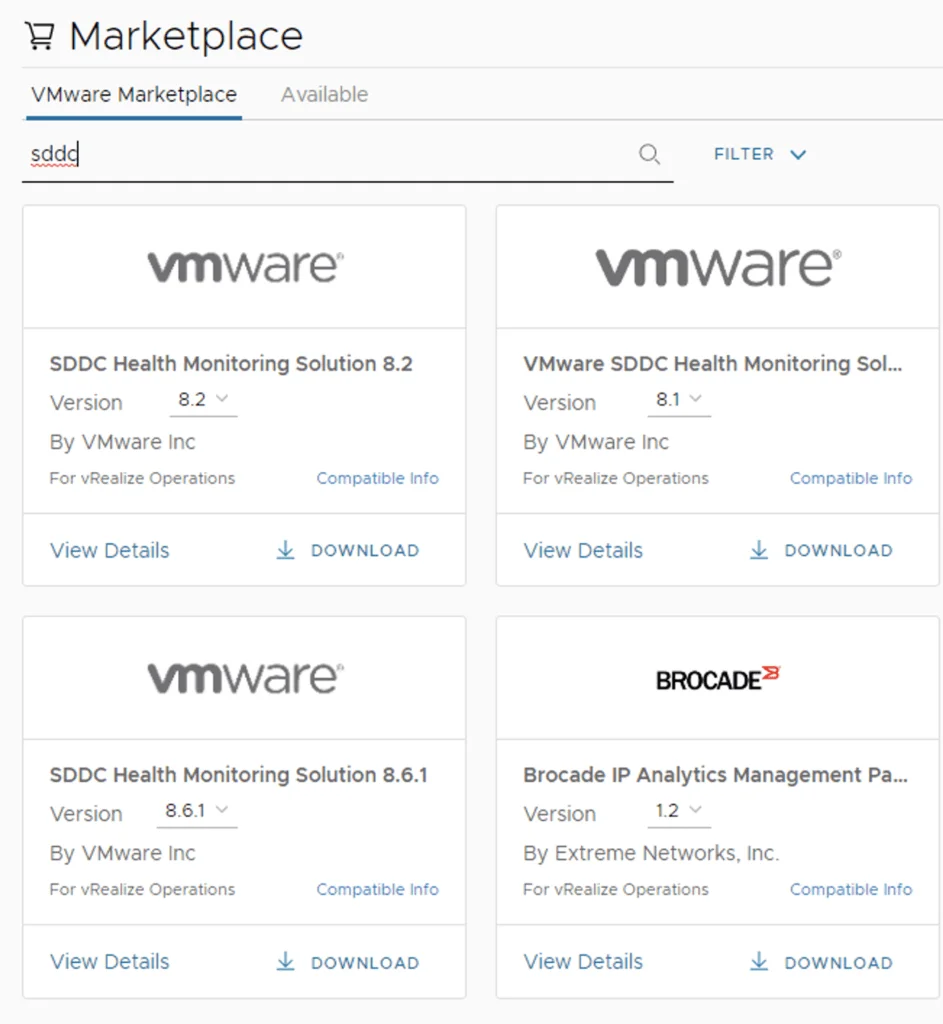
We can click directly on download or we can click on view details to show what the management pack provides
Downloading the Management Pack
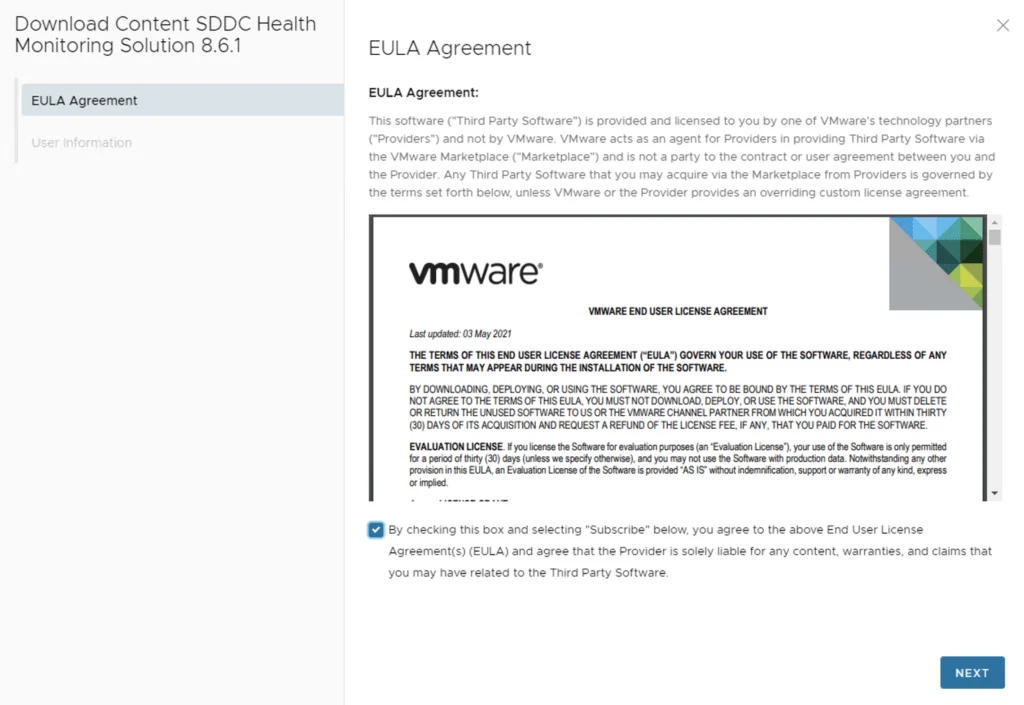
Once clicking on download we are presented with the EULA Agreement. Once reviewed we can click on next so we can enter some user information.
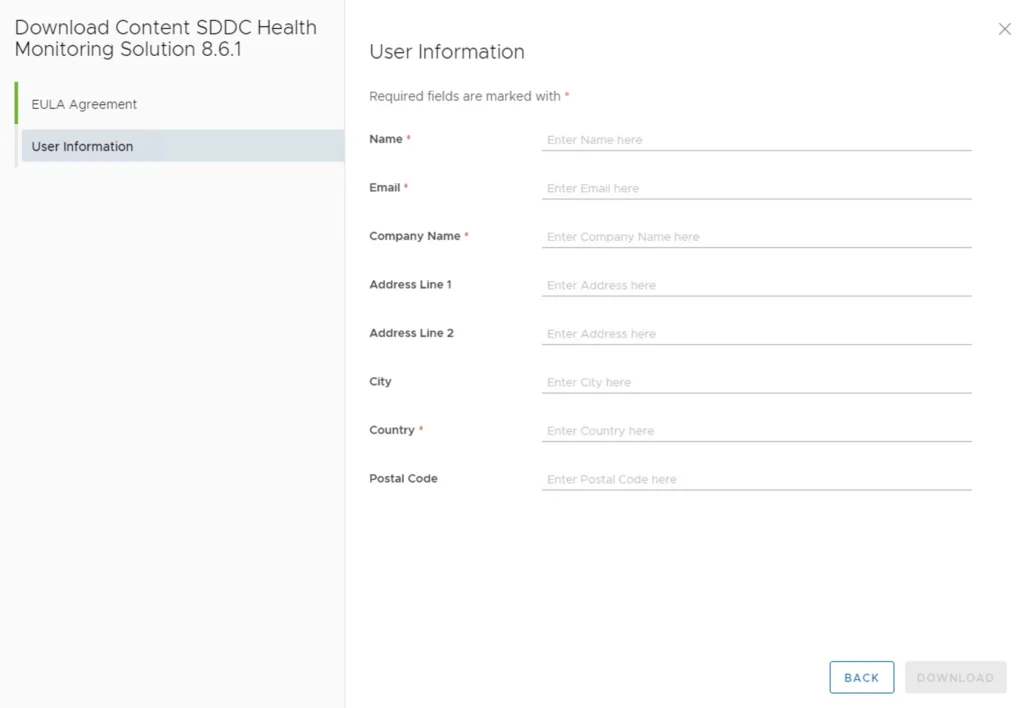
We can completed the required fields marked with an red asterisk and click on download to download the package.
Installing the Management Pack
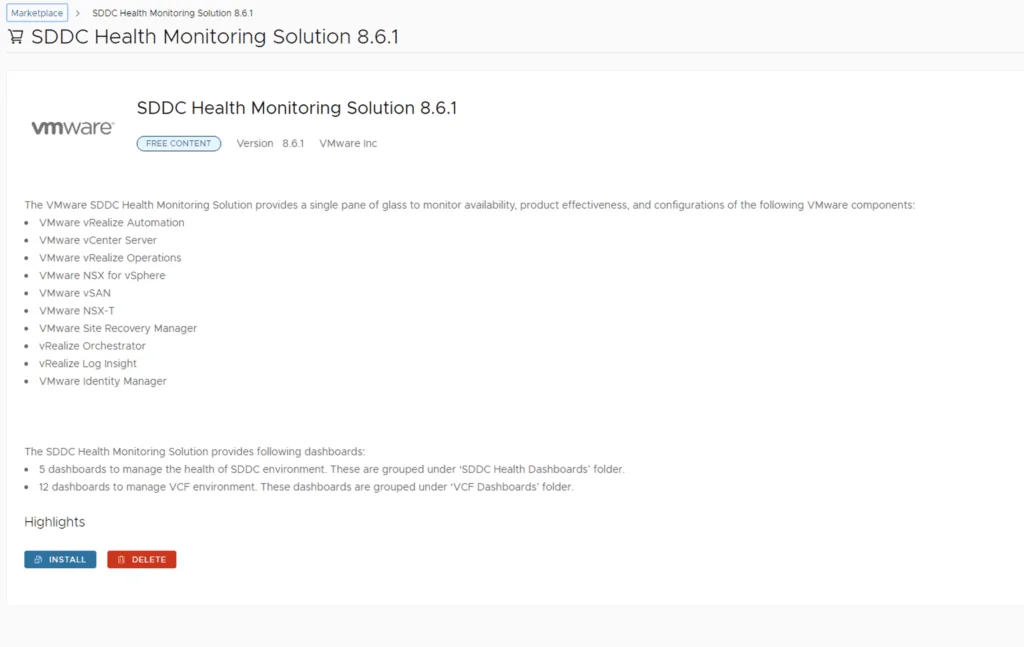
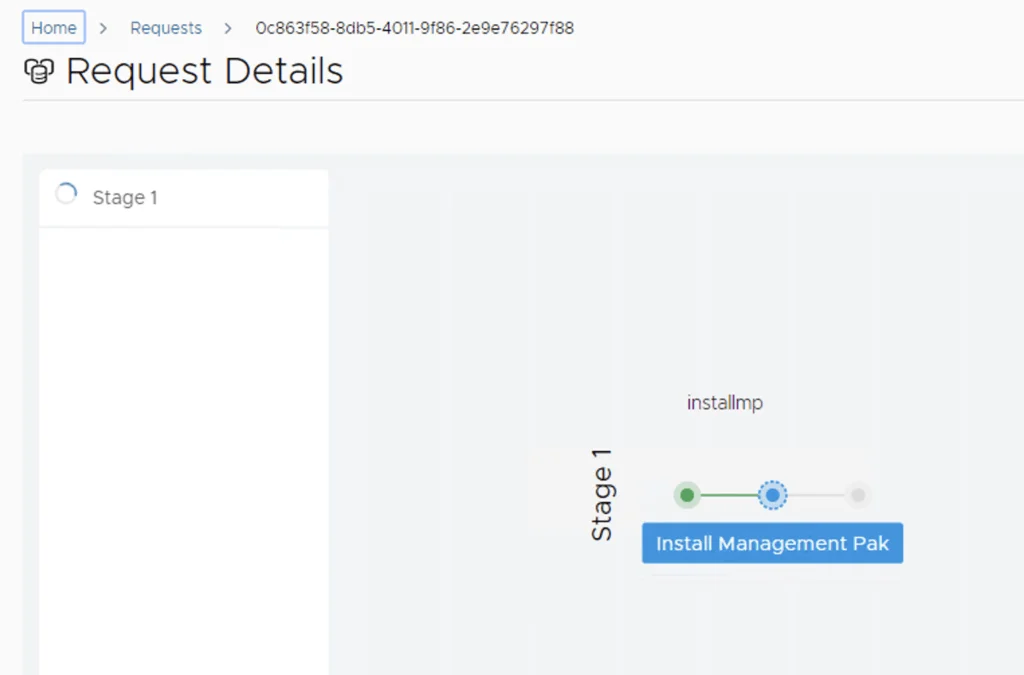
Since the download was very small it completed relatively quickly in my environment. If we want to see the progress of the download we can navigate to Lifecycle Operations -> Requests. Once completed we can come back to the marketplace and we are presented with an install button. Click on install
Select which environment and datacenter we want to install the management pack in and lick on install.
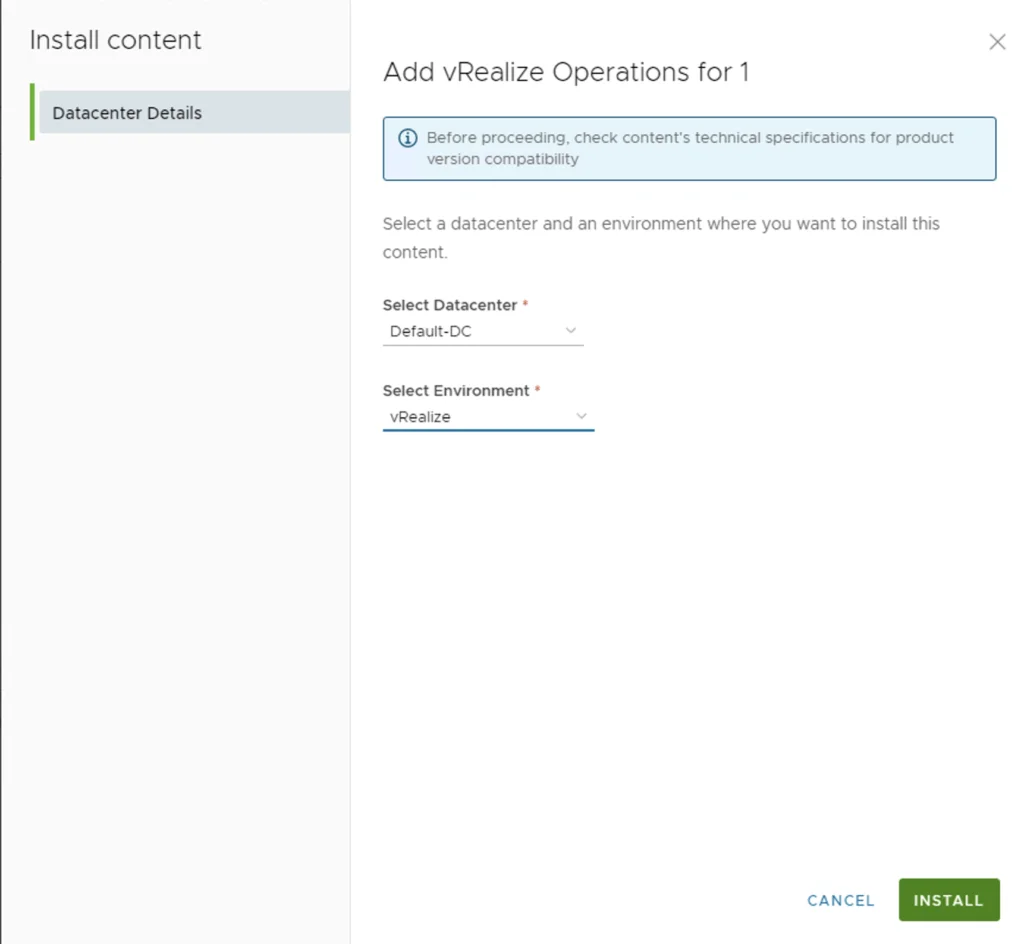
We can view the progress by clicking on check request status on the bottom of the page

Verifying the Installation in vROPS
Once the installation reports as completed we can go to vROPS and verify that it was successfully installed
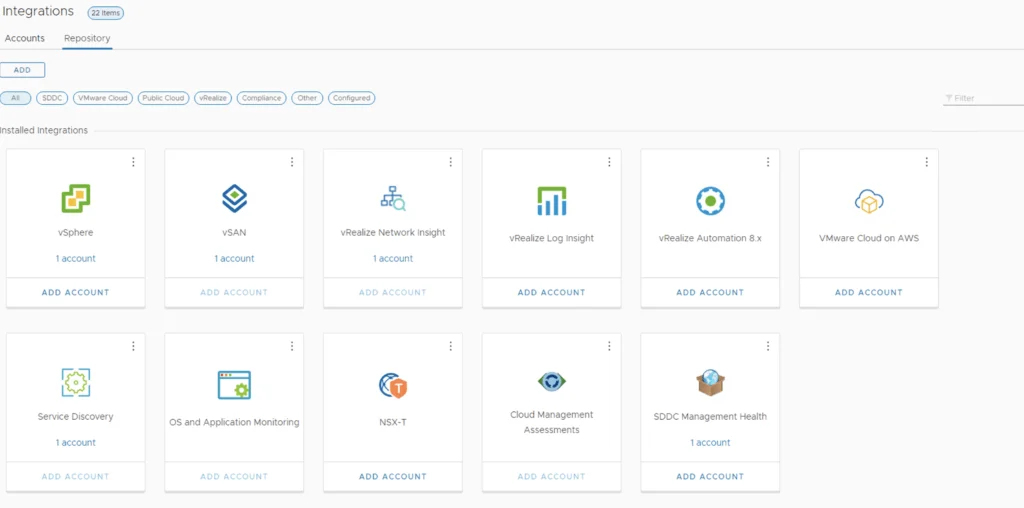
Navigating to the vROPS repository we can see that the management pack was successfully installed as well as configured