I would try the restore options first. You can find instructions for the restore menu here
If the recovery menu doesn’t work put the Mac mini in DFU mode by following the instructions I have here
One the device is in DFU open Apple Configurator 2 (Mac Only sorry Windows folks). Make sure you are at least at version Version 2.13.2
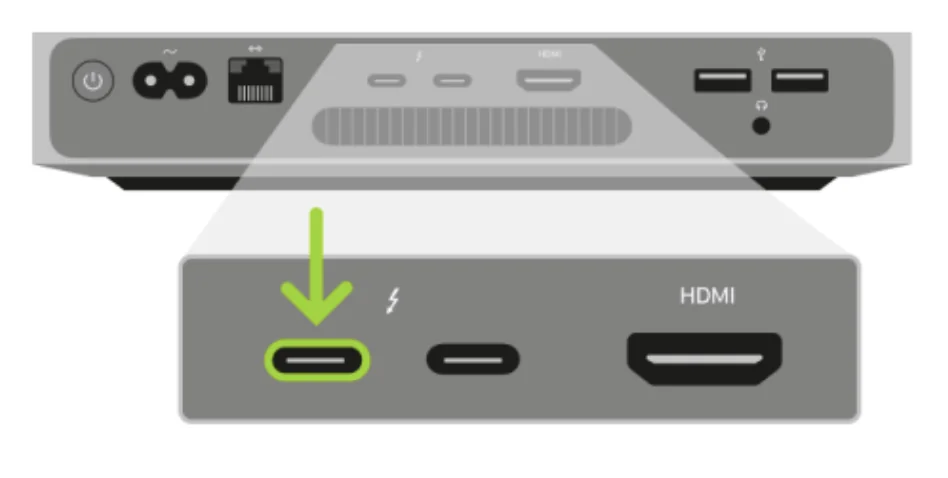
Connect the USB-C cable to the Mac and the Mac mini to the port closest to the ethernet port

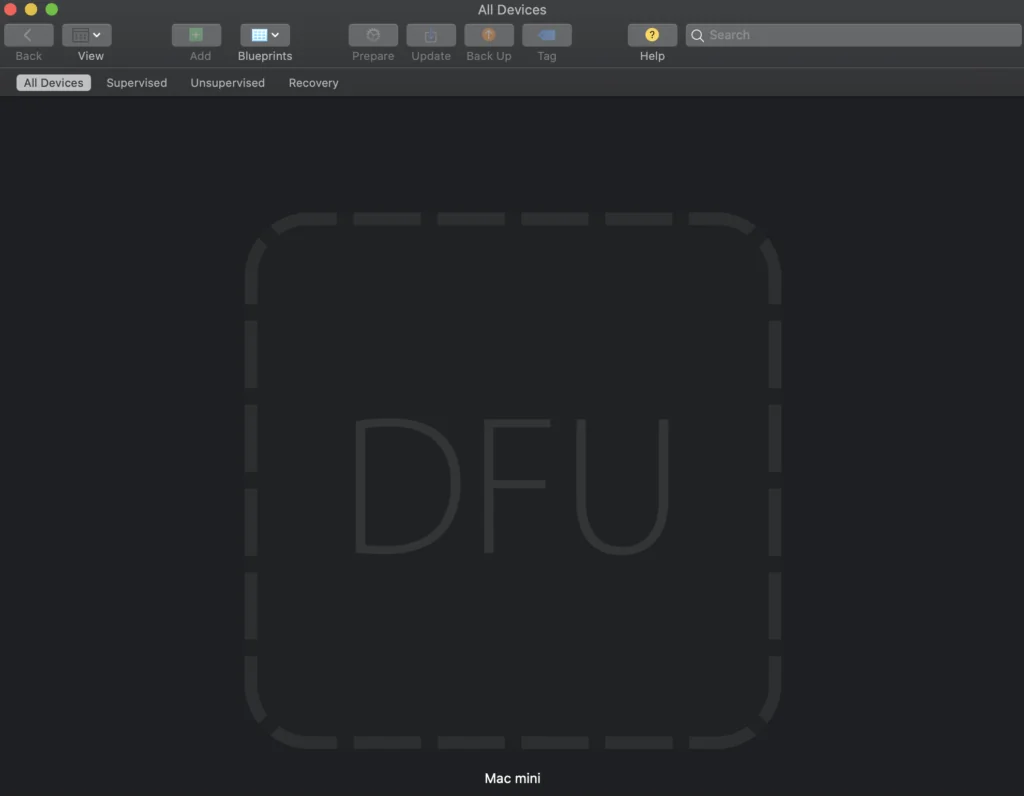
If you are presented with the DFU screen below in Apple Configurator 2 the procedure was done correctly
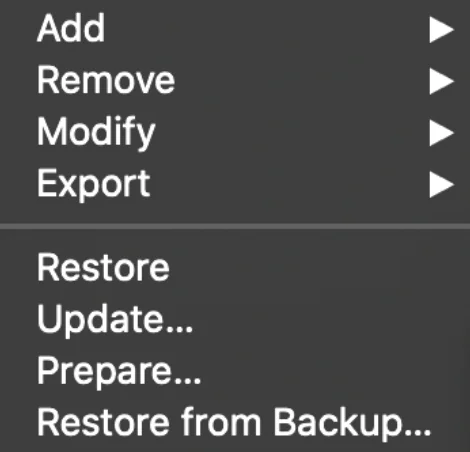
Right click -> Advanced -> Revive device
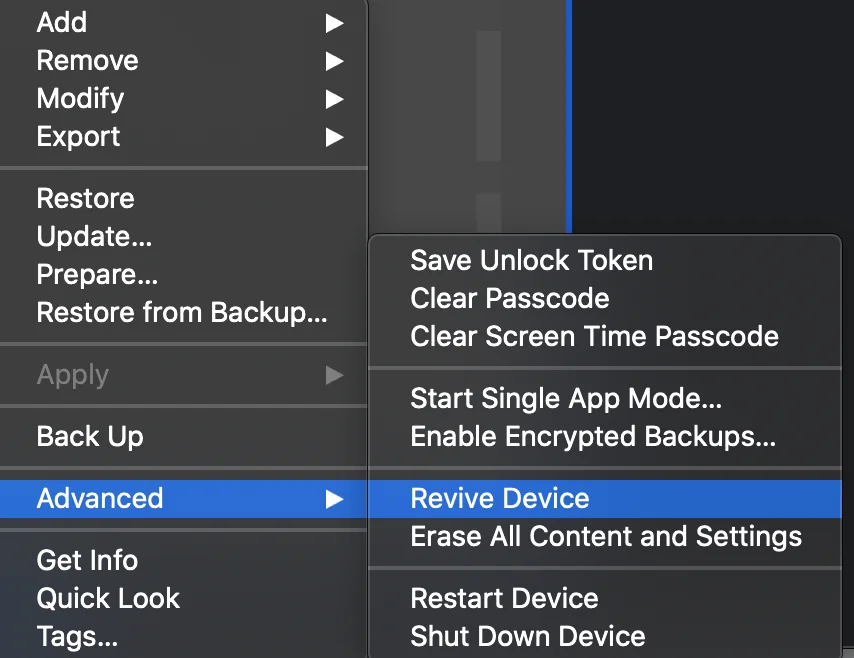
This will download the operating system and perform a reinstall of the OS preserving the user data
If you would like to erase everything pick the restore option
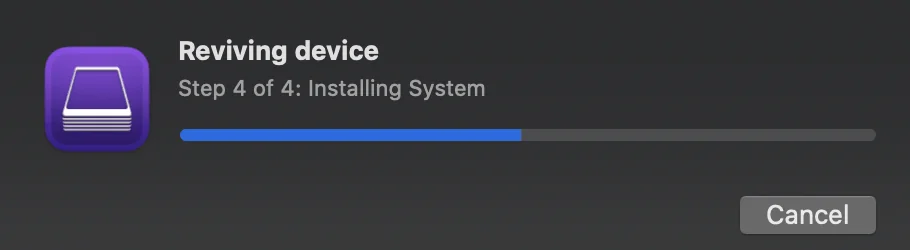
Apple Configurator 2 will go through downloading the firmware and perform a restore of the system