If you followed my previous posts Deploying the vRealize suite using VCF 4.0 and enabling product downloads in vRealize Lifecycle Manager, you should now have vRA and vIDM already downloaded.
In my previous post I went over the installation of vIDM which is a pre requisite for vRA. You can find the link here
Creating a New Environment
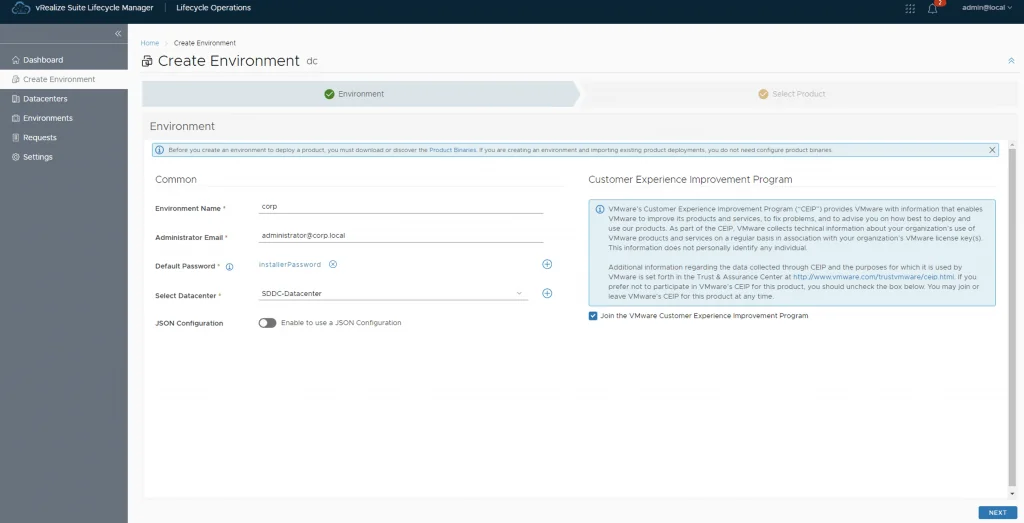
Next, we need to create a new environment that will be used to deploy vRA. For this we can go to Lifecycle Operations -> Create Environment. Fill in the necessary information and click next

Selecting the Product and Accepting the EULA
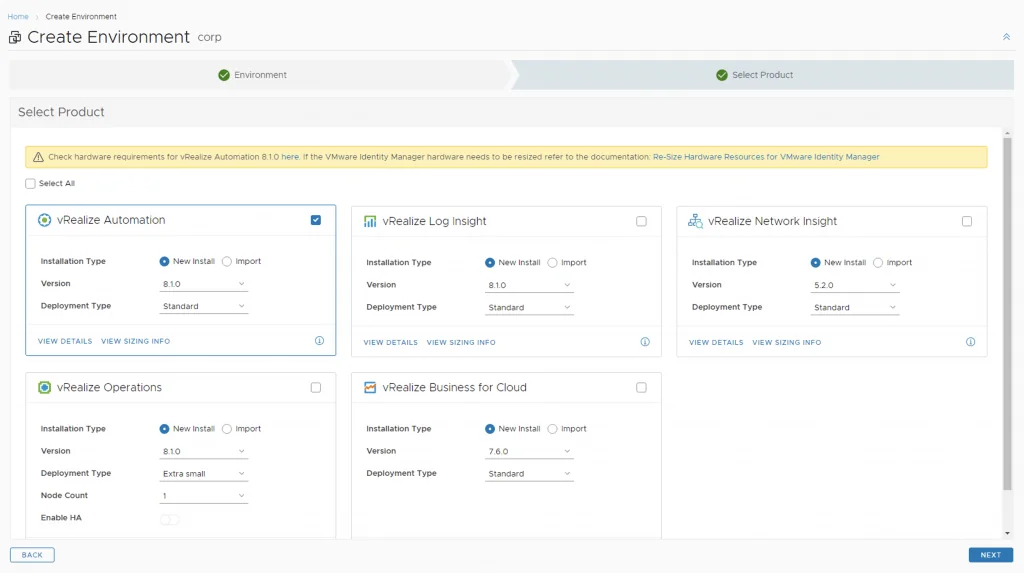
Select vRealize Automation, select the version and install type then click next
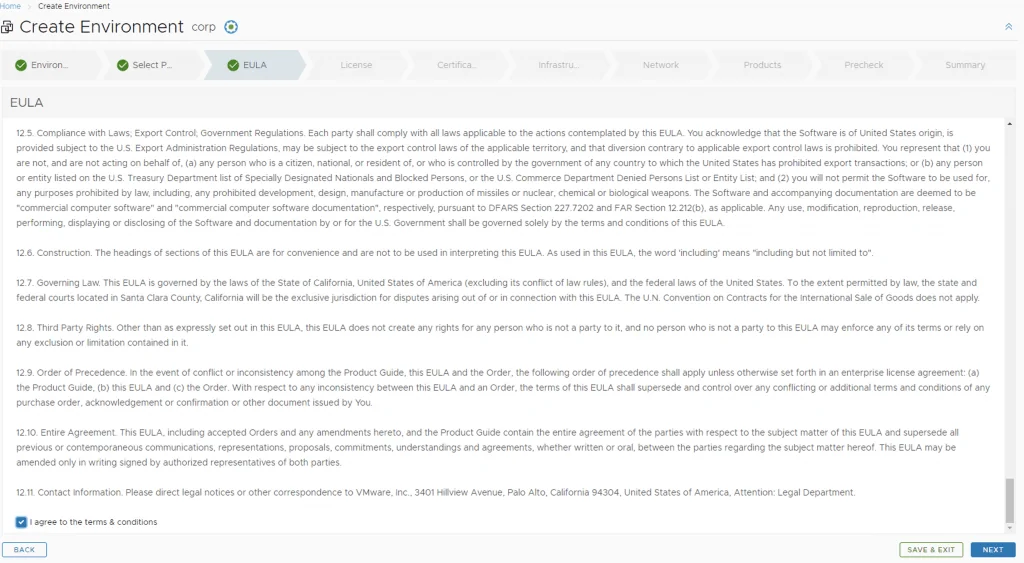
Review and accept the EULA then click Next
Adding the License Key and Certificate
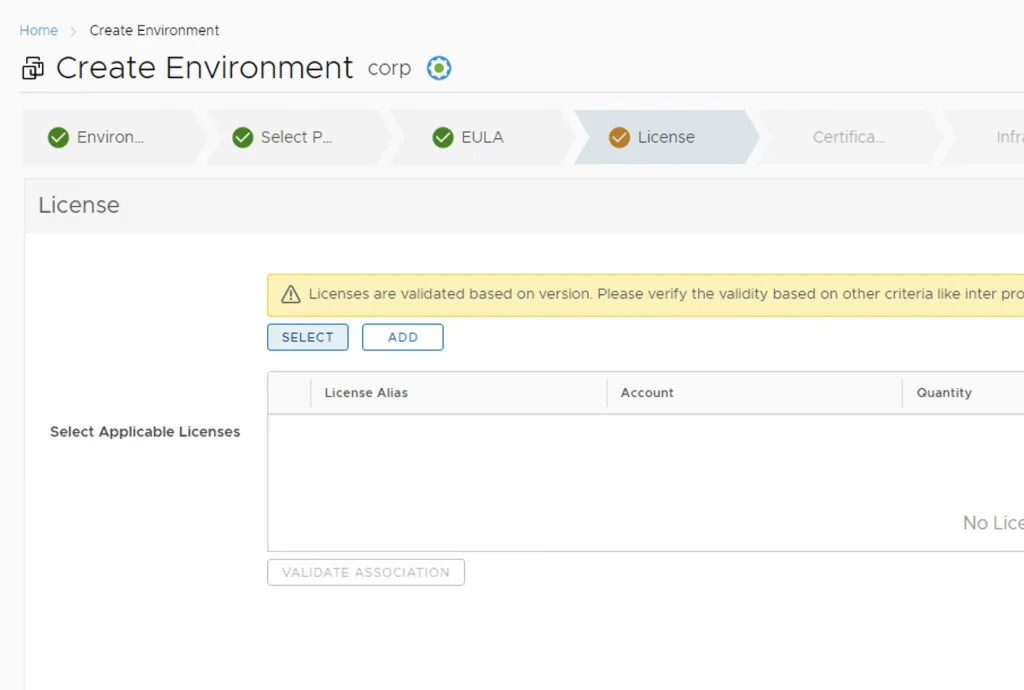
Next screen is the key. Click on Select and select the vRA key from the inventory. If we need to add the key manually we can follow the steps in my post here
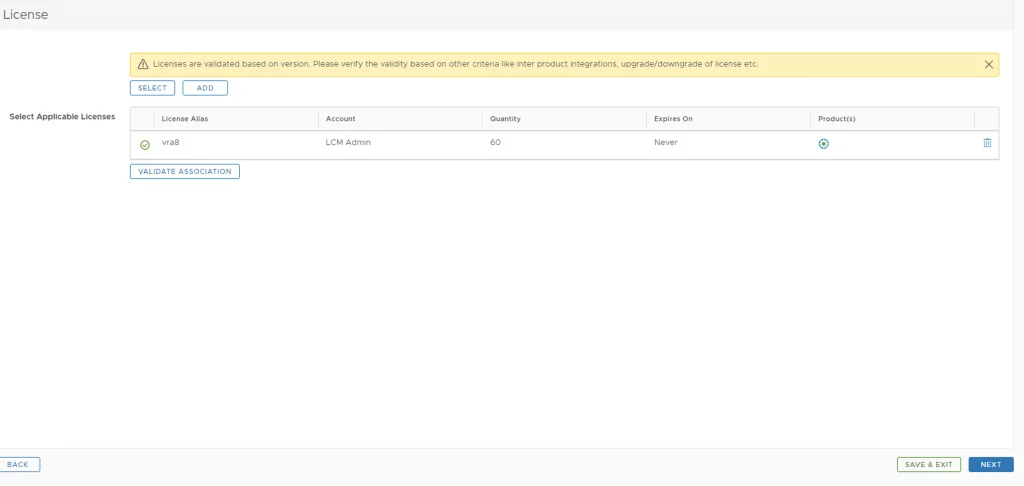
Verify the key selection click on Validate Association and click on next
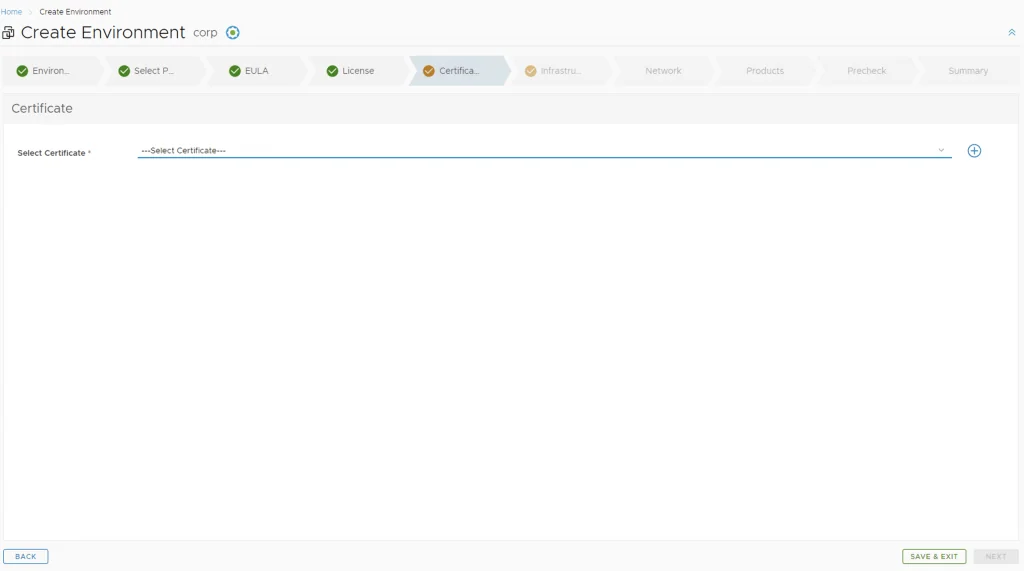
Select the certificate and click next. If a new certificate needs to be create follow the instructions in my certificate management guide
Configuring Infrastructure and Networking
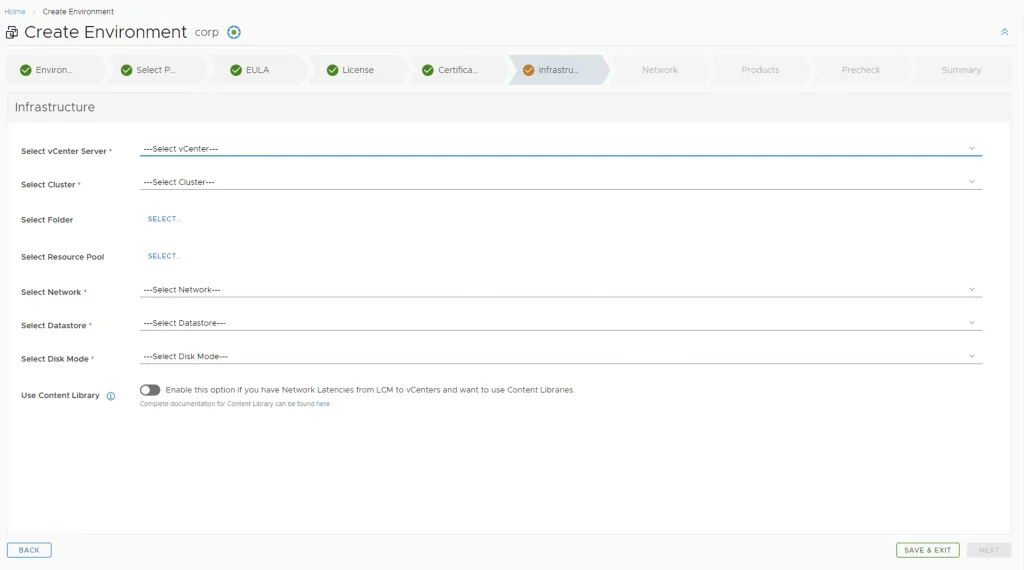
Make the proper selections for where the vRA server will get deployed and click Next
Fill in the proper network configuration and click next
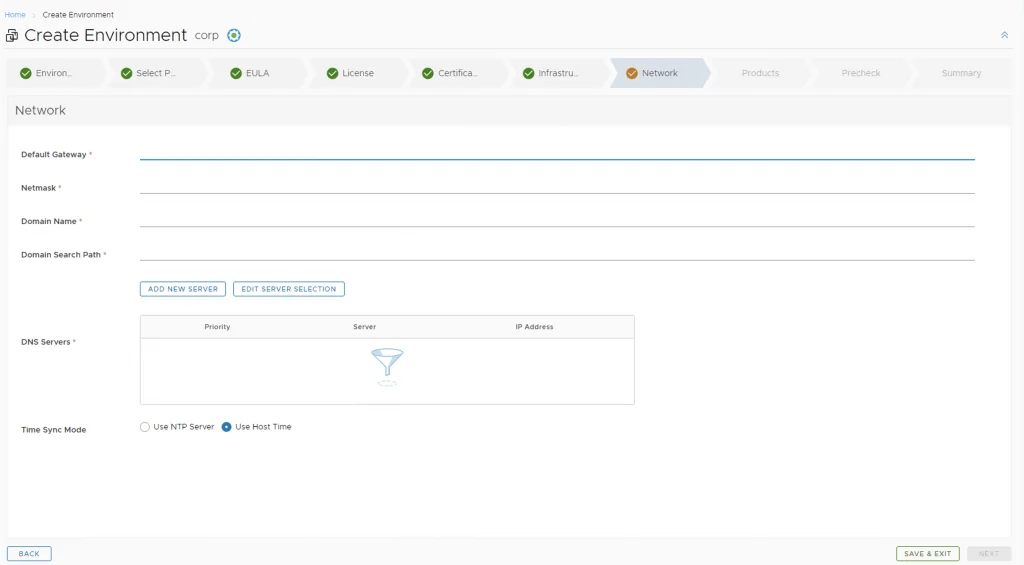
Specify the proper network configuration for the product and click next
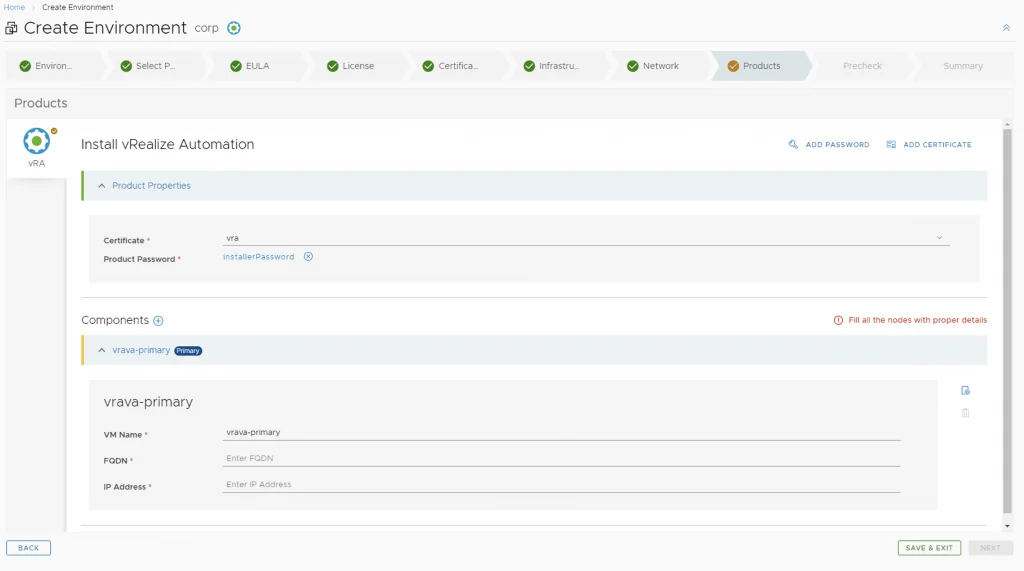
Running the Precheck and Submitting
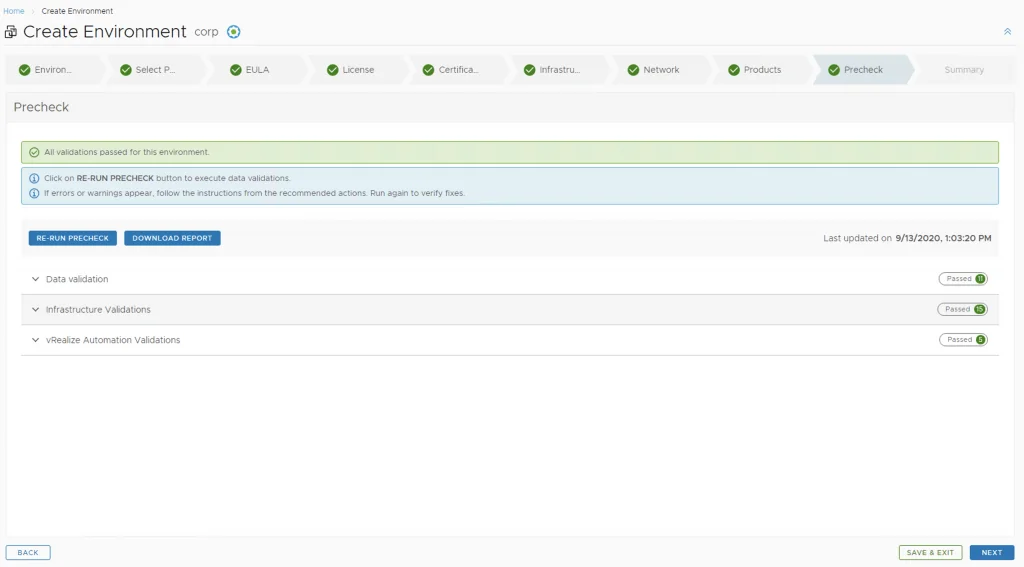
Run the precheck and verify that everything is green then click Next
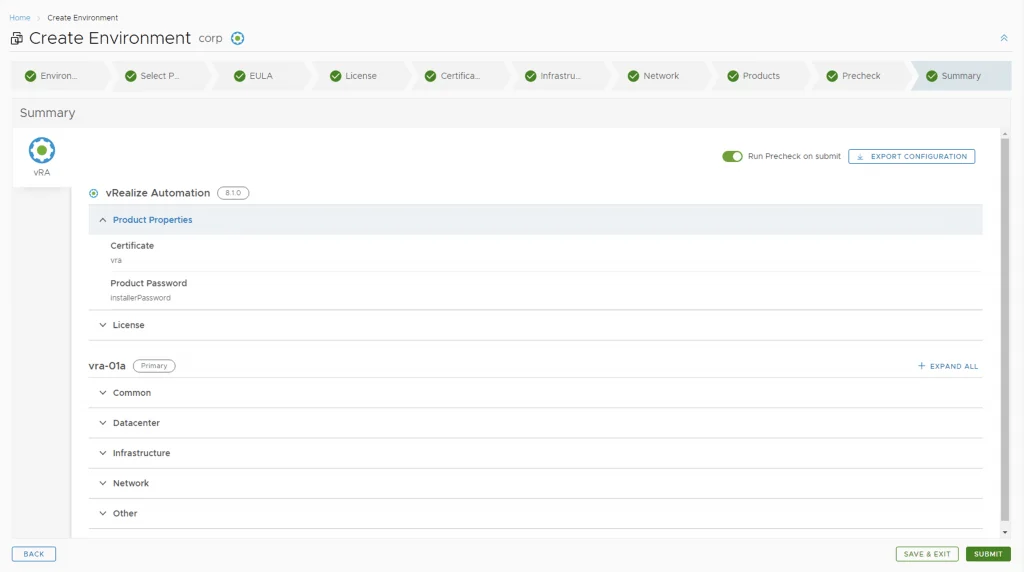
Verify the summary and click submit
Monitoring the Deployment
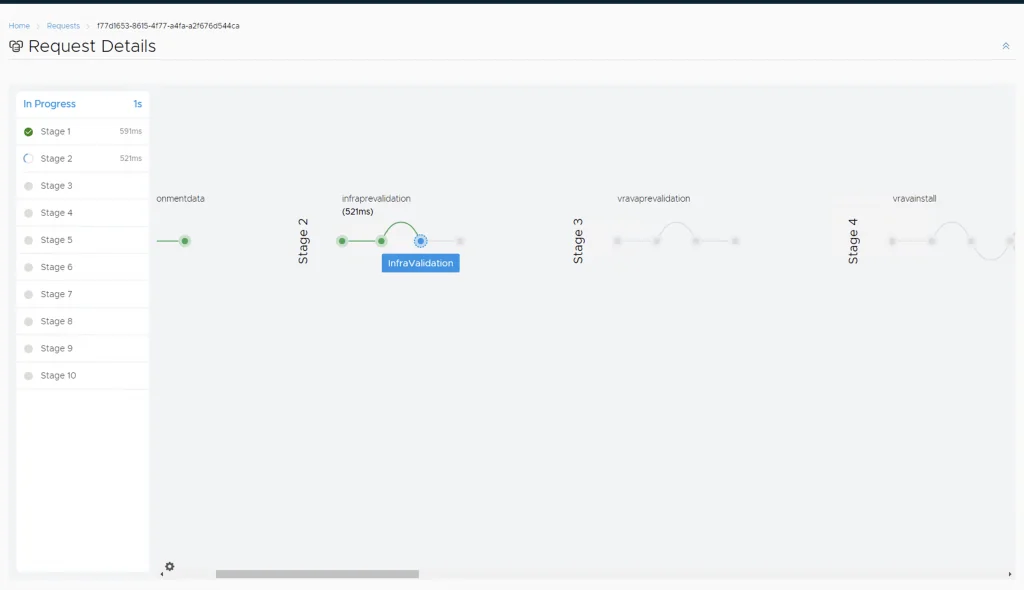
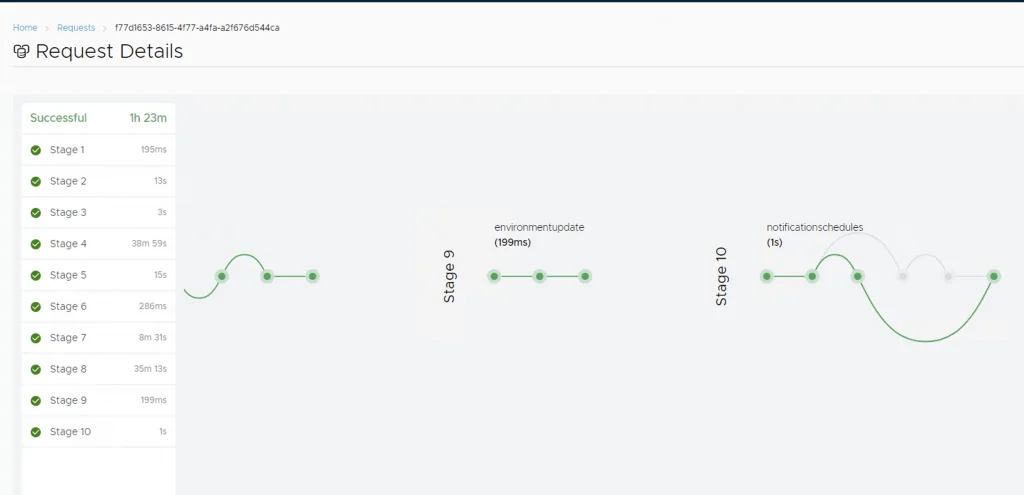
Next we are taken to the request details where we can follow the process that LCM is performing for us automatically.
We can see that the task completed
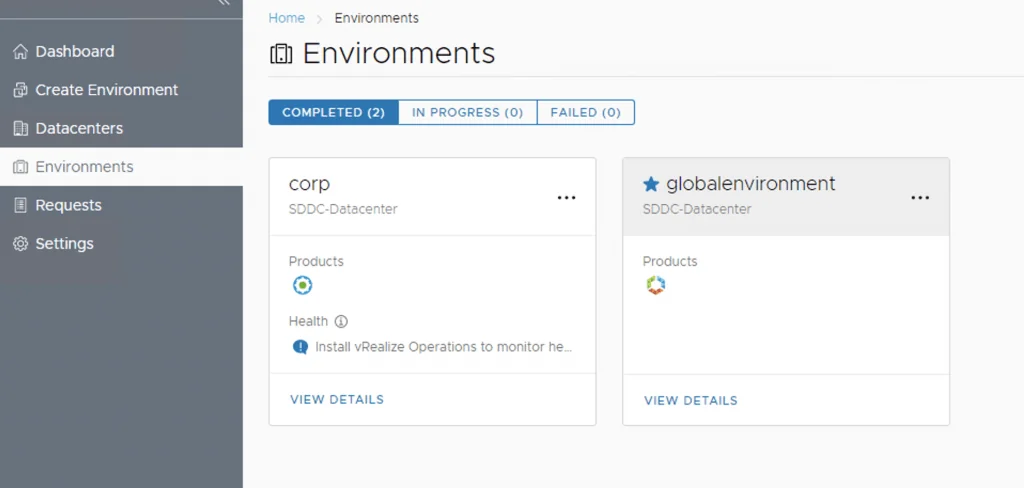
If we go to environments we can see that the vRA Environment