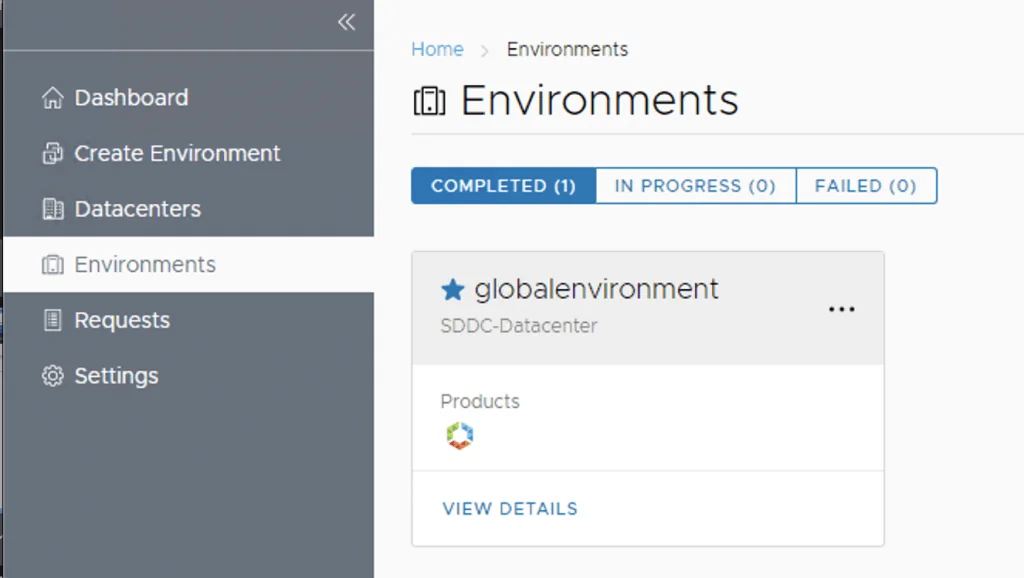
If you followed my previous posts Deploying the vRealize suite using VCF 4.0 and enabling product downloads in vRealize Lifecycle Manager, you should now have vRA and vIDM already downloaded.
Creating the Environment in Lifecycle Operations
Because im running on a deployment from VCF I can see that the datacenter was already provioned for me under under Home -> Lifecycle Operations -> Datacenters

However it seems like my Environment is not completely configured. In order to configure we can go to Home -> Lifecycle Operations -> Create Environment
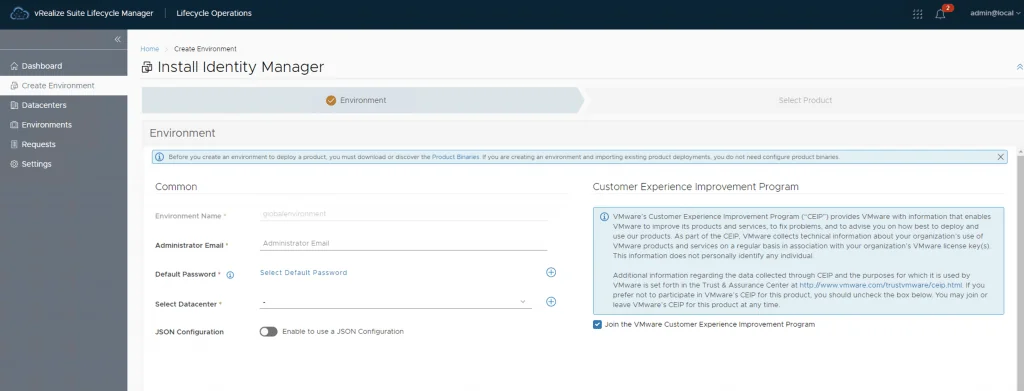
Adding a Default Password to the Vault
Add a new password to the vault that will be used by our installation wizards. We can add a password by clicking on the + sign next to the Default Password
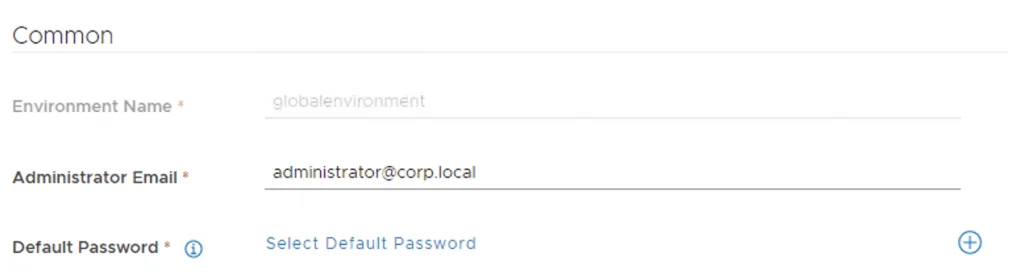
Enter the password details and click add
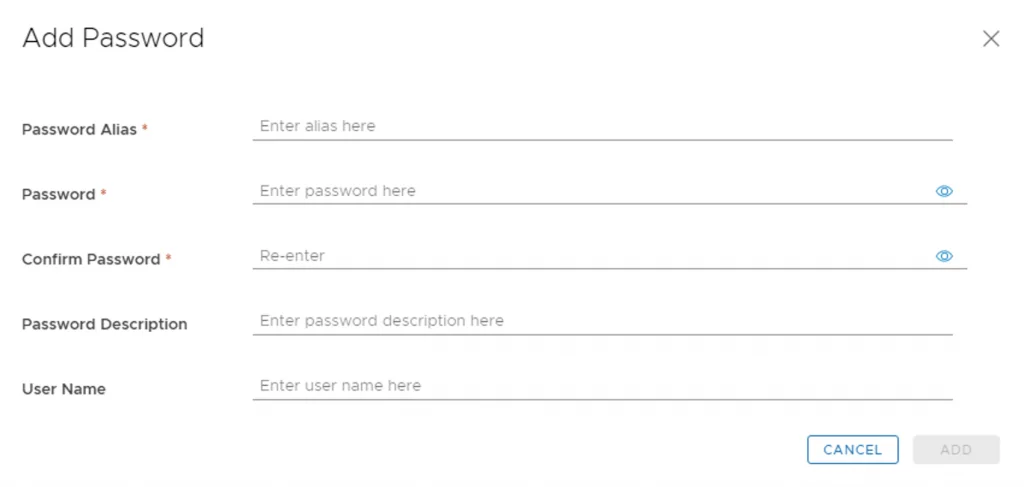
Now I can select the new password by clicking on Select Default Password. I can select the Datacenter from the drop down and click Next.
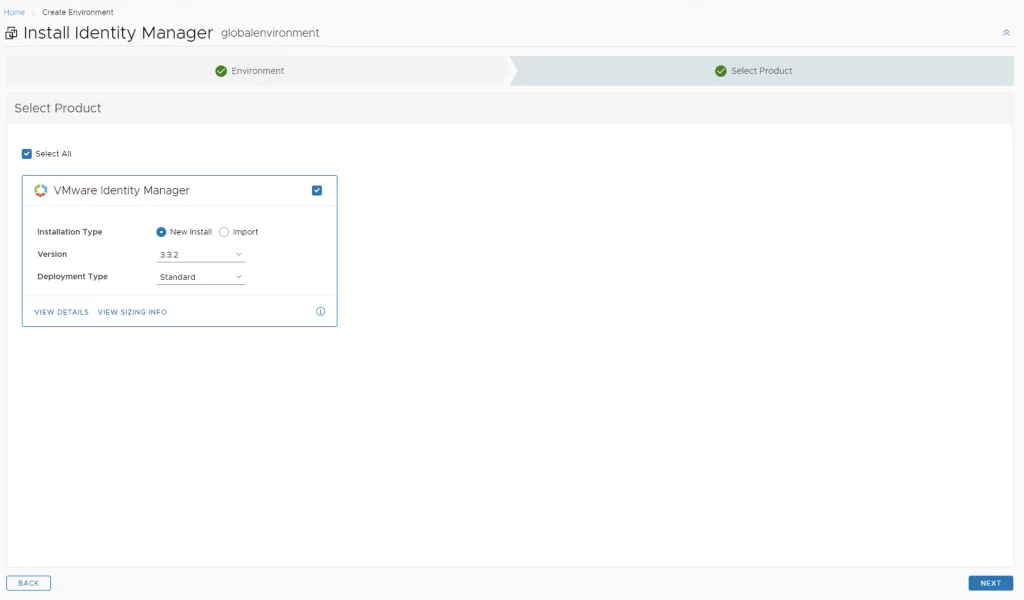
Selecting VMware Identity Manager
Select the VMware Identify Manager and click Next
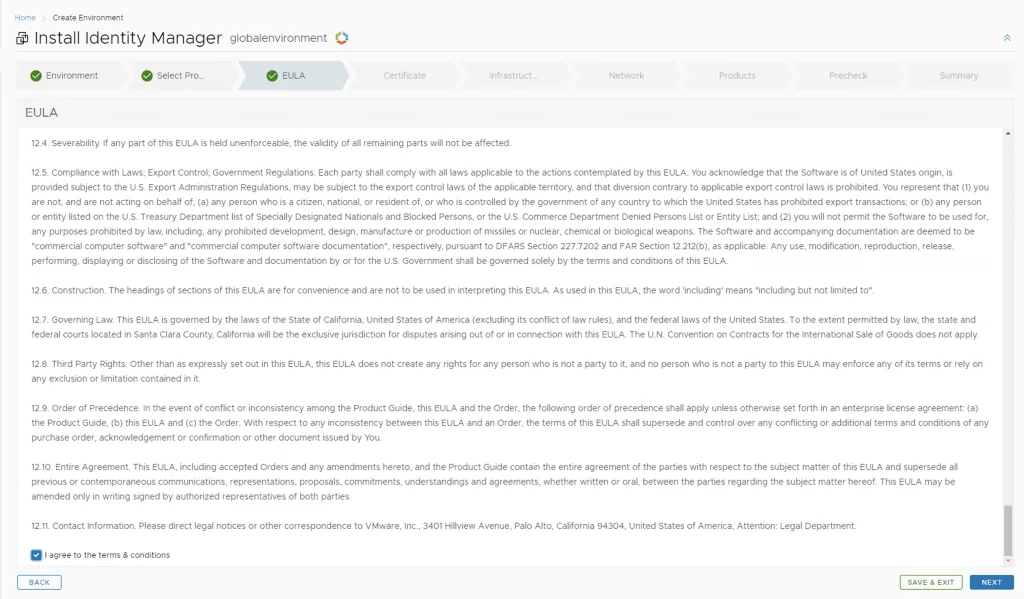
Accept the EULA and click Next
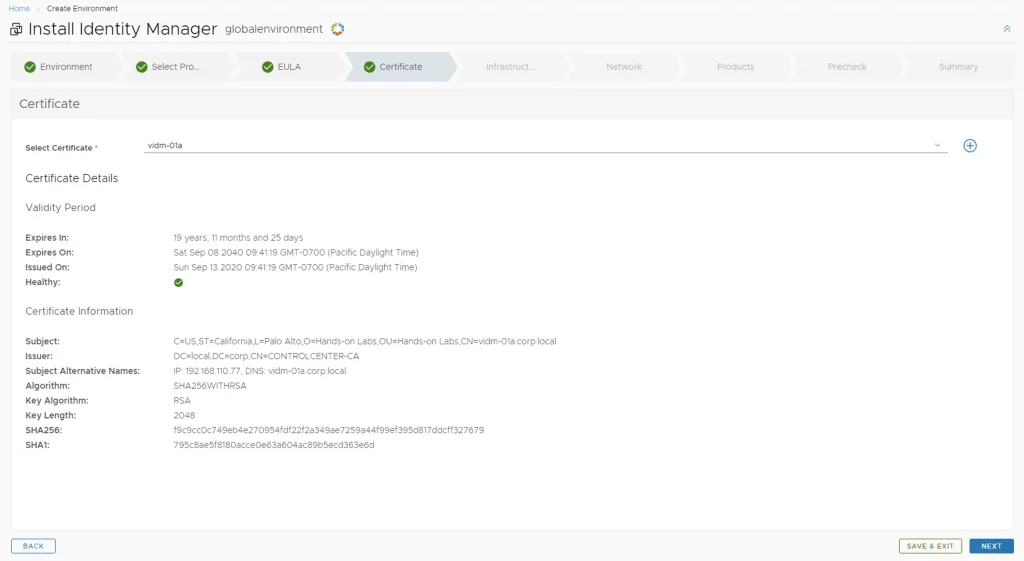
Select the certificate. If you do not have a certificate you can follow my certificate management instructions. Click next
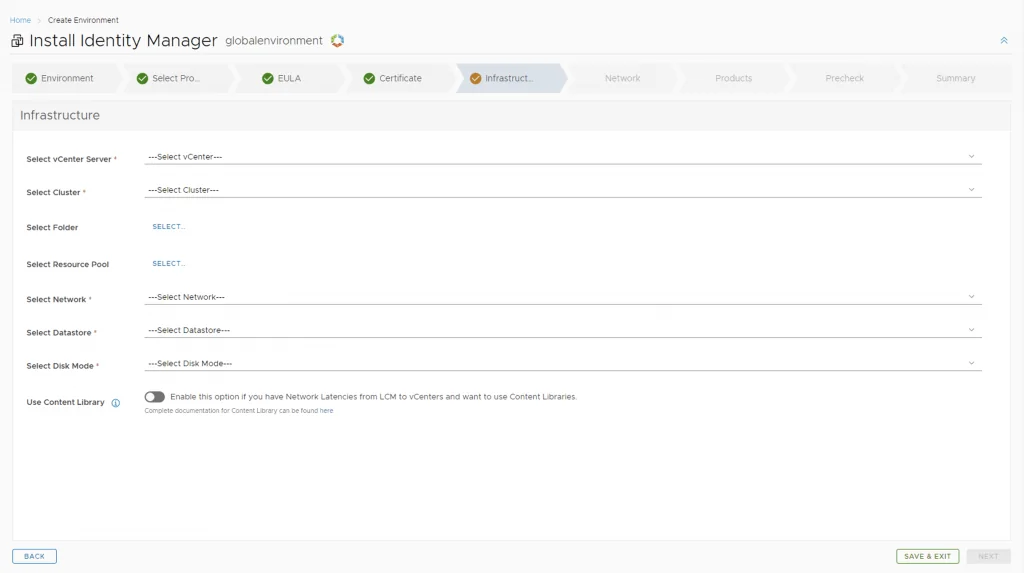
Infrastructure and Network Configuration
Select the proper details to where the server will be deployed
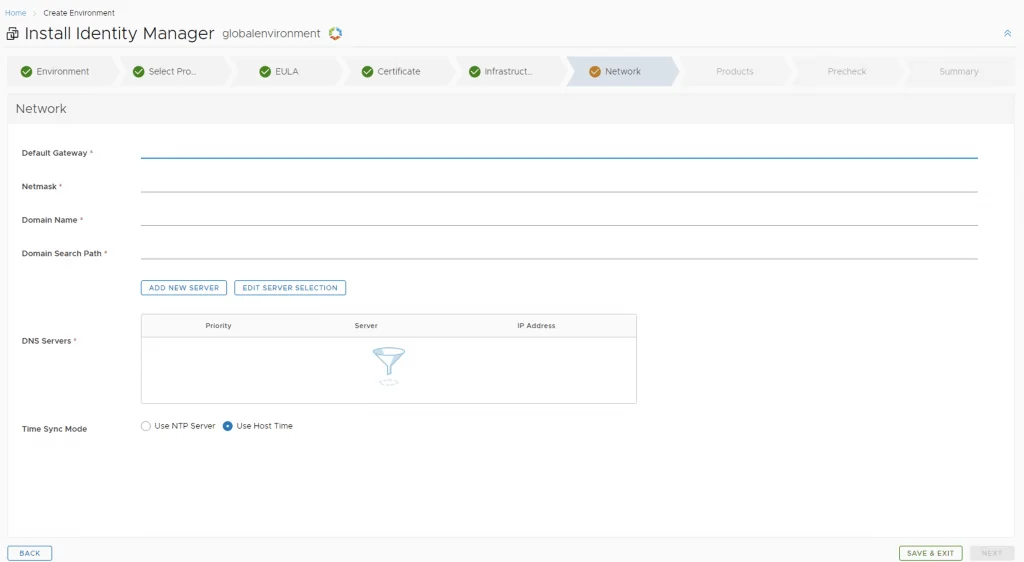
Fill in the network information and click next
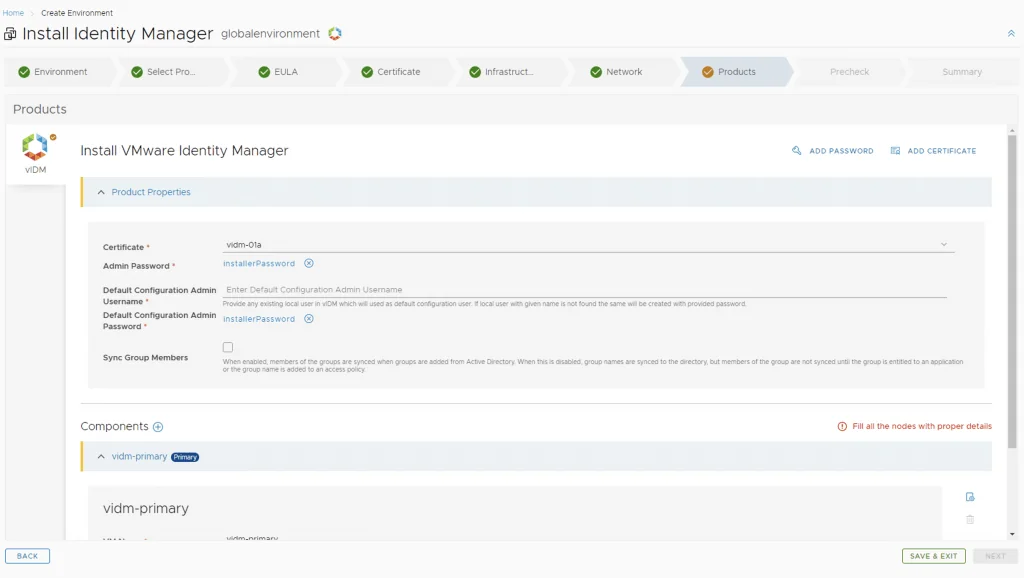
Fill in the product information
Running the Precheck and Submitting
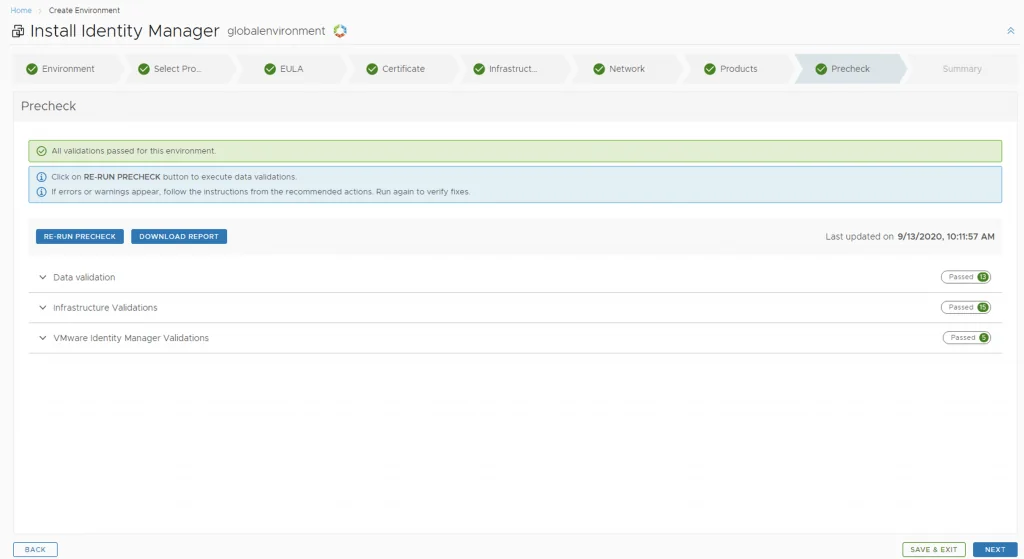
Run the precheck and verify that everything is valid and click next
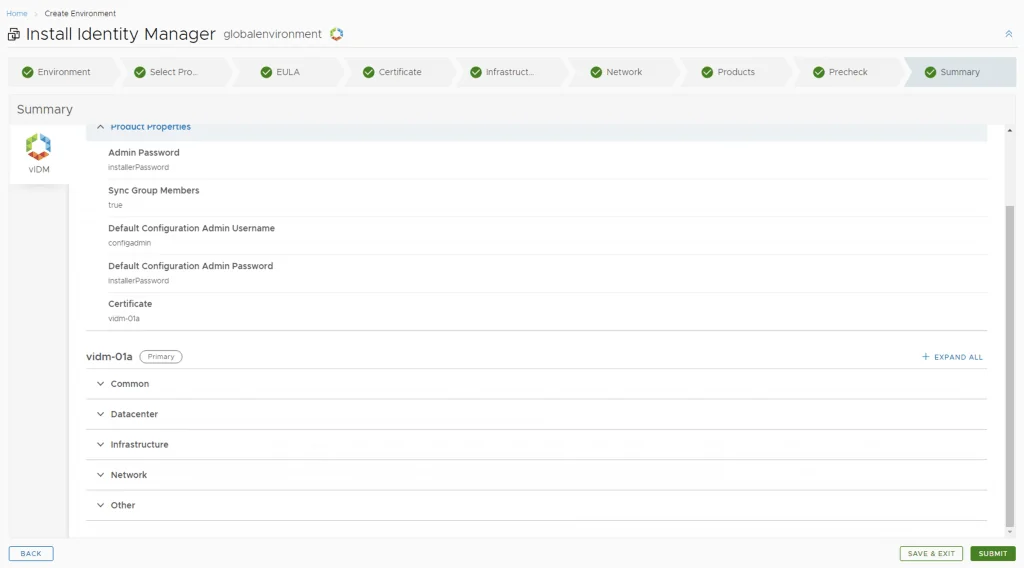
Verify the details in the Summary and click Submit
Monitoring the Deployment
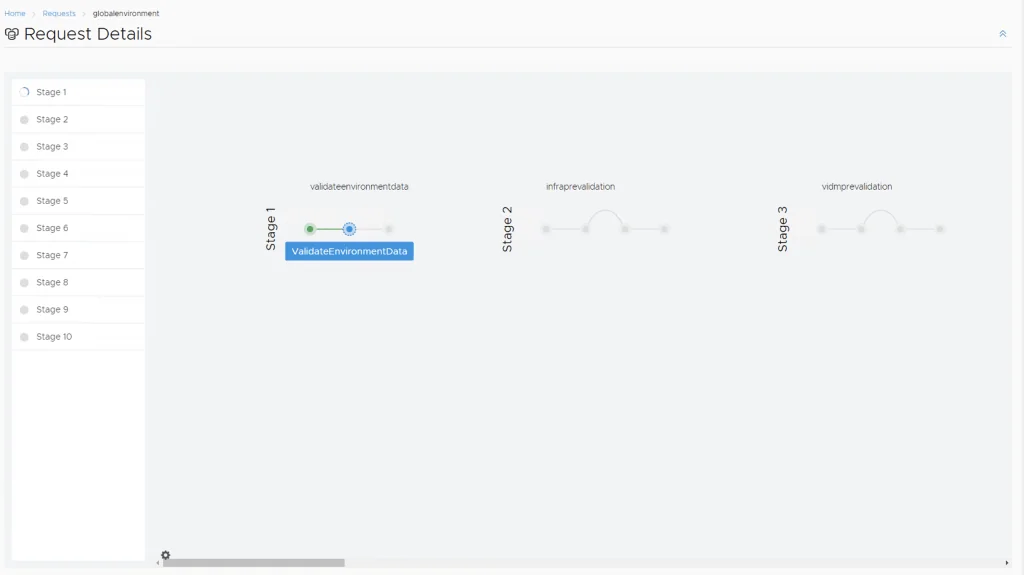
We are taken to the request details page
Once the deployment is complete we can see the vIDM server under Environments