In this guide we will go over Deploying the vROPS cloud proxy for cloud as well as on premise. The official VMware documentation can be found here
Getting the Cloud Proxy OVA and OTK Key
To get started log in to your vROPS instance. If its cloud it would be something similar to https://www.mgmt.cloud.vmware.com/vrops-cloud/ui/index.action For on premise it would be https://vrops_url/ui/login.action
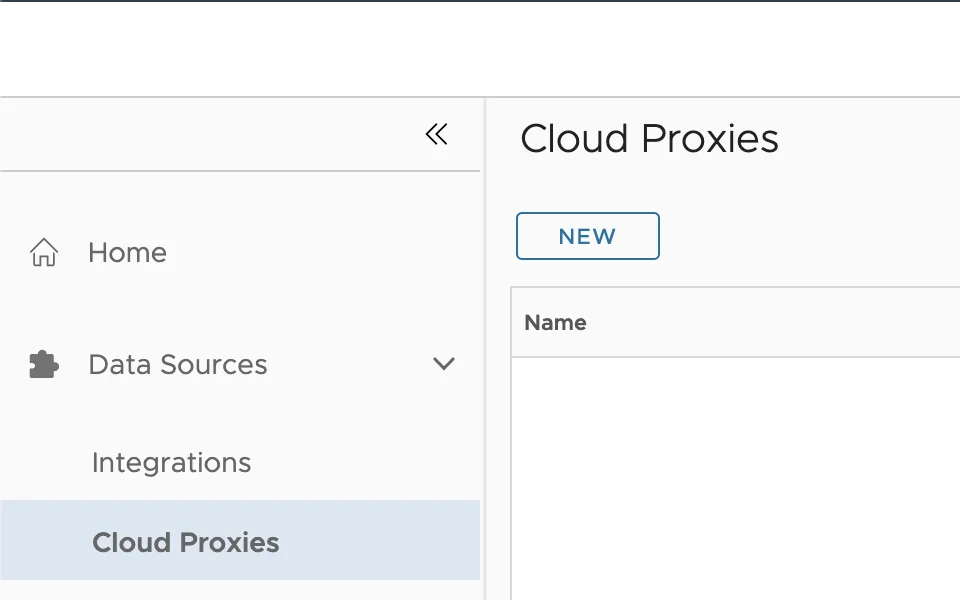
Once you are logged on We can go to Data Sources -> Cloud Proxies and press on New. example:

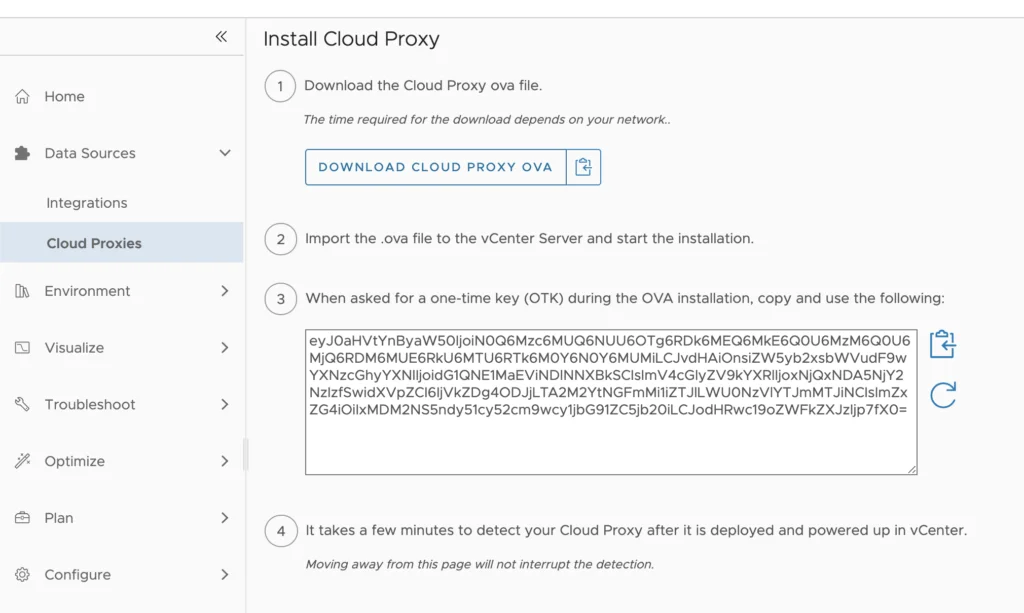
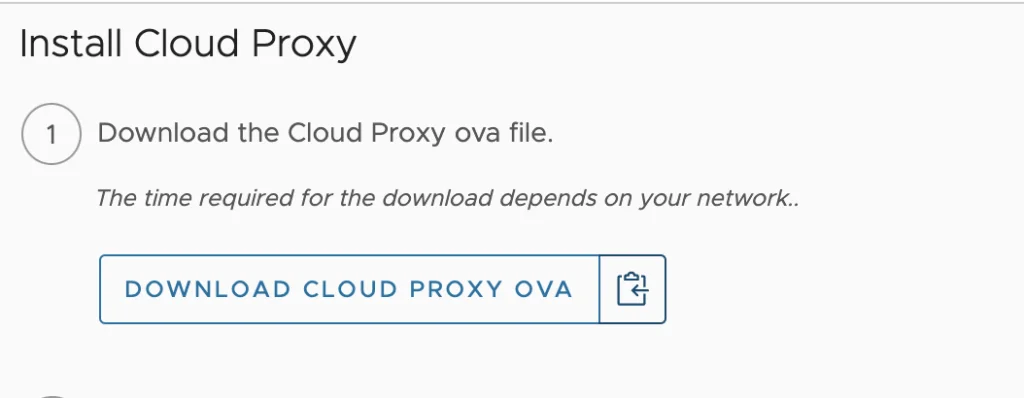
Here we can see the download cloud proxy OVA option as well as a copy button. We can also see the OTK key. Keep a note of this as we will need it during the deployment. The first step is do get the proxy deployed. by either downloading the OVA or by copying the url. In my case I will copy the URL.
For reference you should be at this screen:
Click on the clipboard icon to copy the path to the ova
Deploying the OVF Template in vCenter
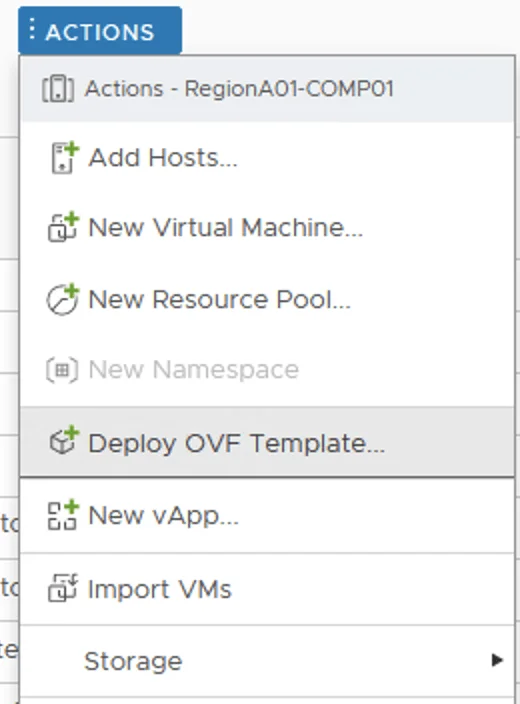
Next we will go to our vCenter to get it deployed. Go to one of the hosts or clusters, then go to actions -> Deploy OVF Template… example:
If you are deploying the cloud proxy for vROPS cloud the URL will look similar to this:
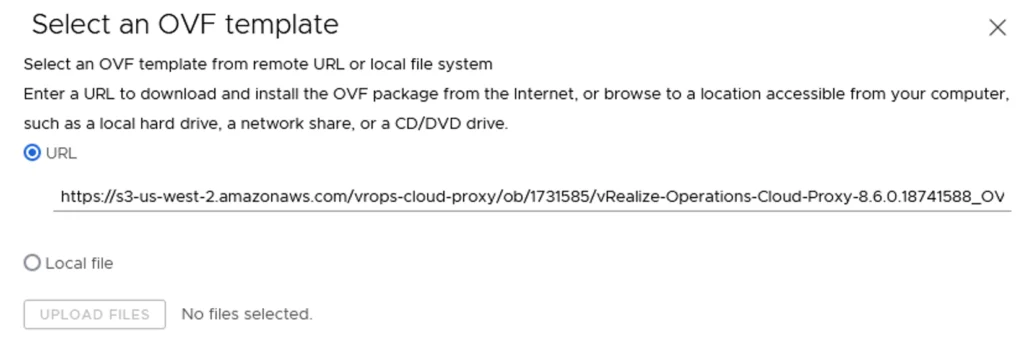
If its for on premise it would look similar to this:
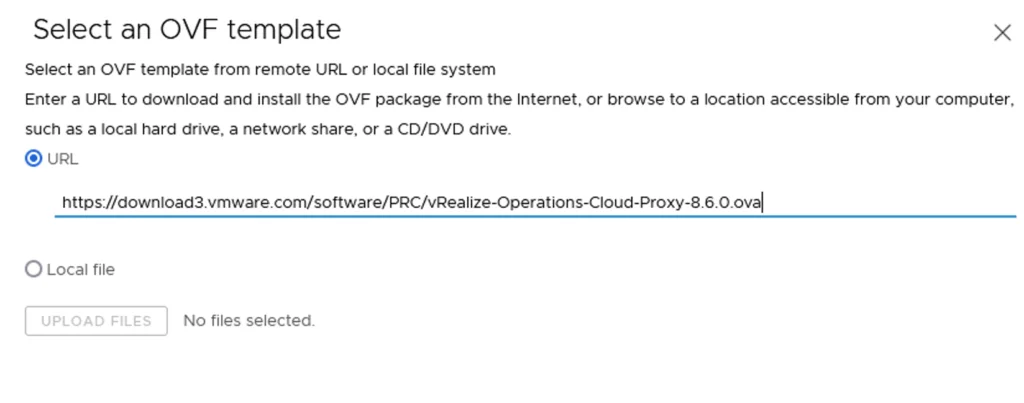
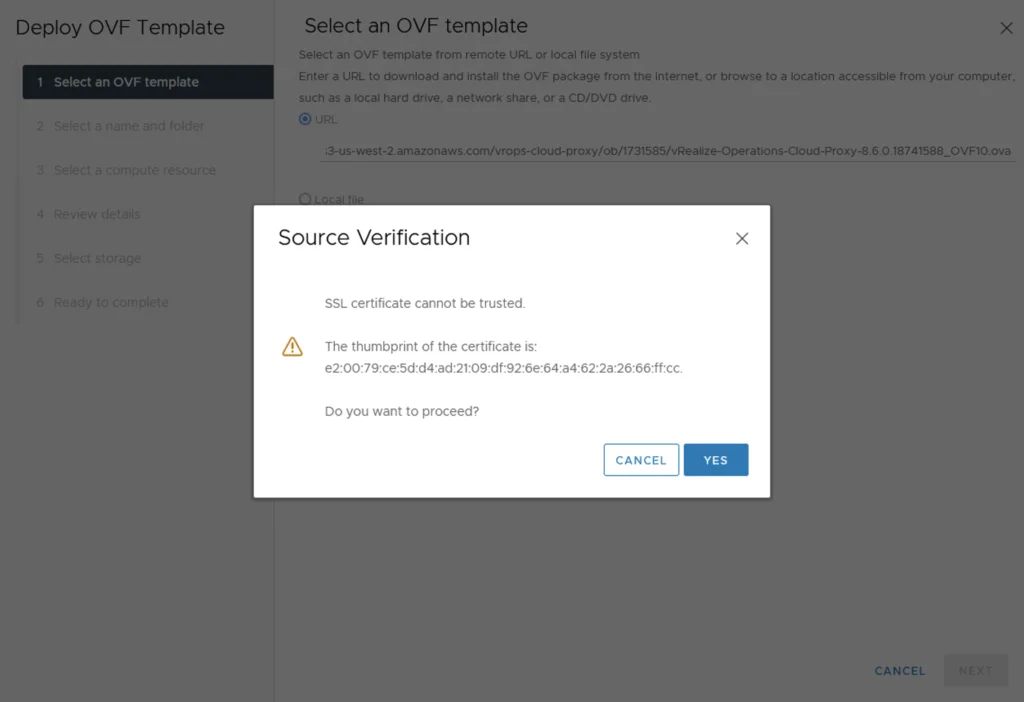
Click on next and accept the certificate thumbprint
Choosing Placement, Size, and Network
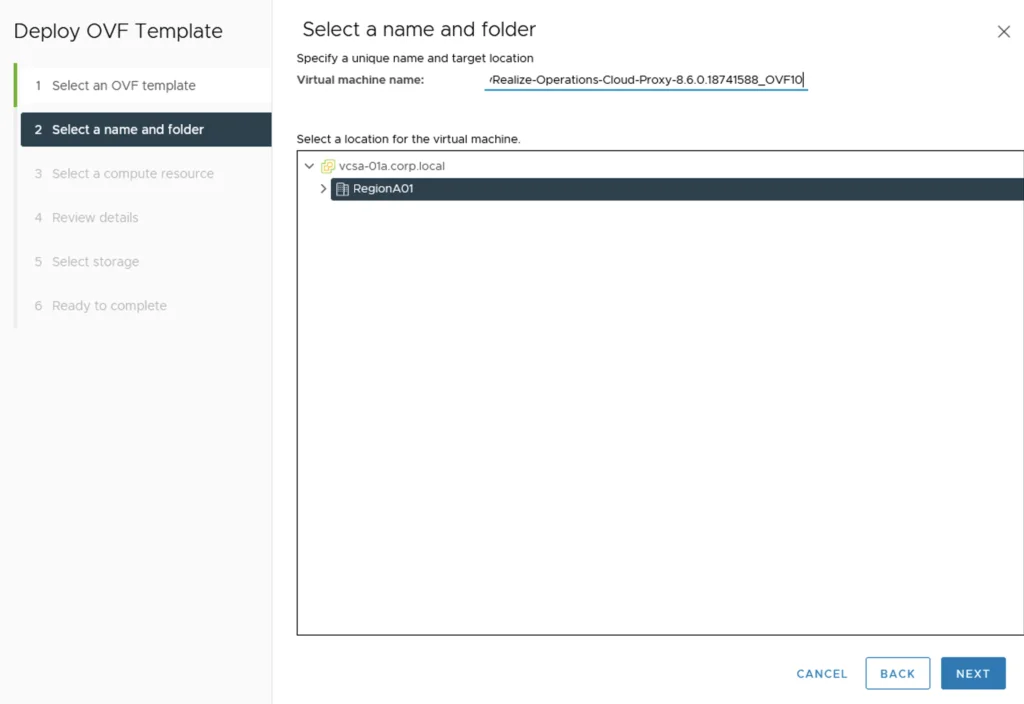
Select a name and location where the deployment should go and click on Next
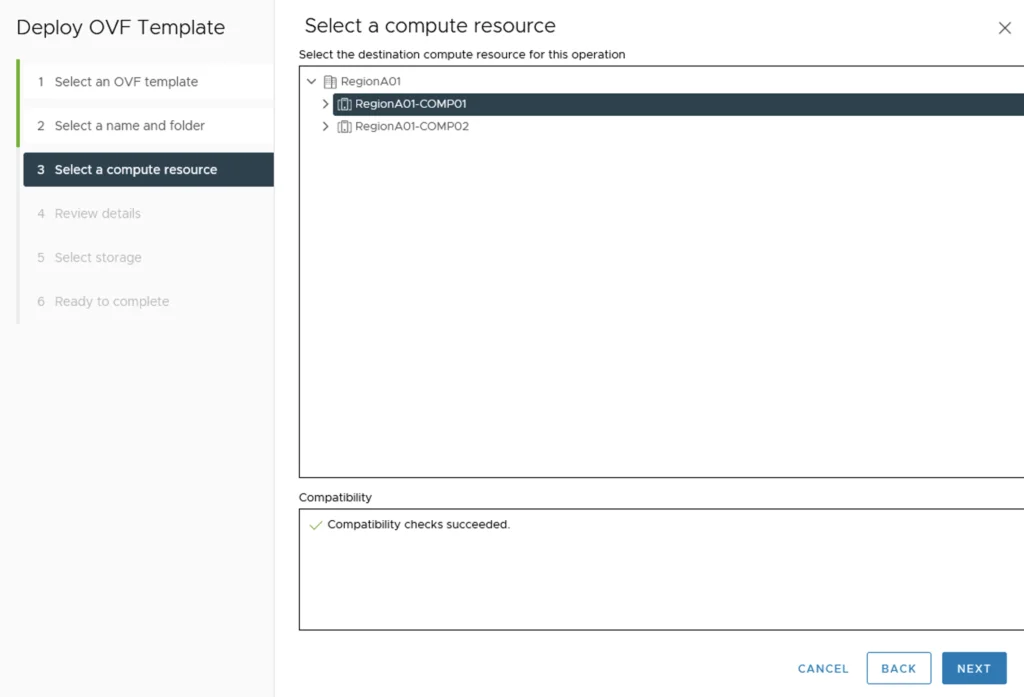
Select a compute resource and click on Next
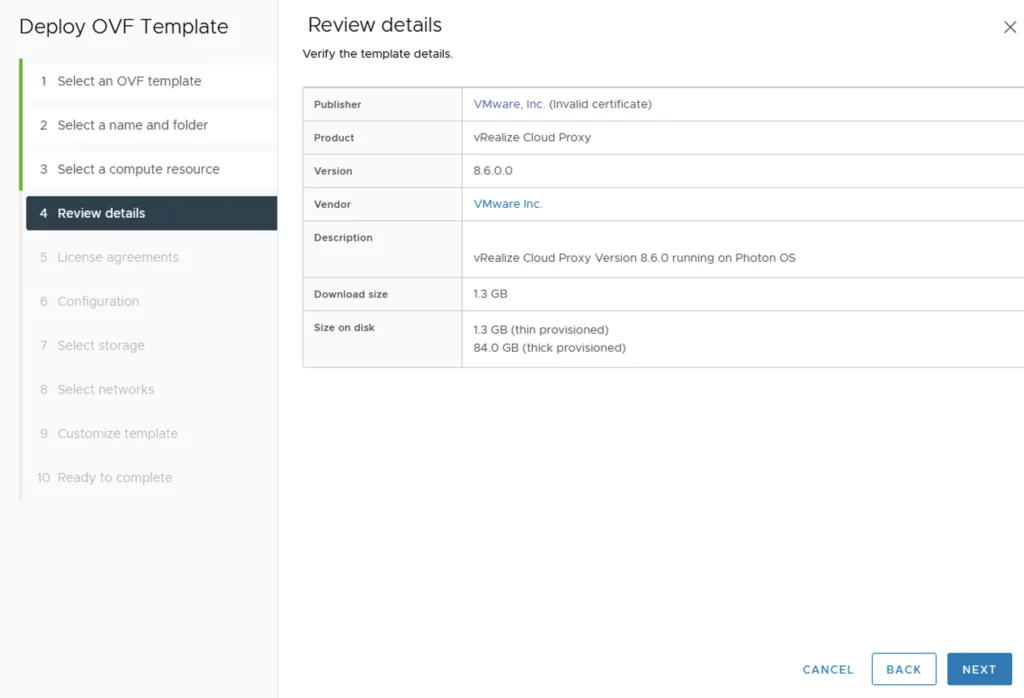
Review the details of the deployment and click on next
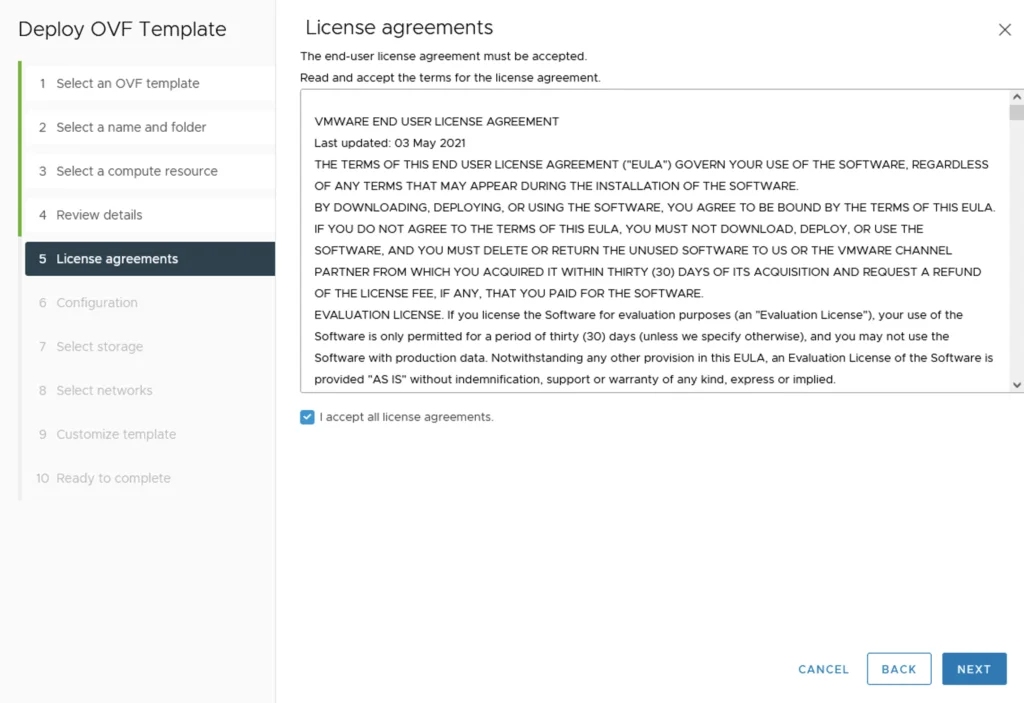
Accept the licensing agreement and click on next
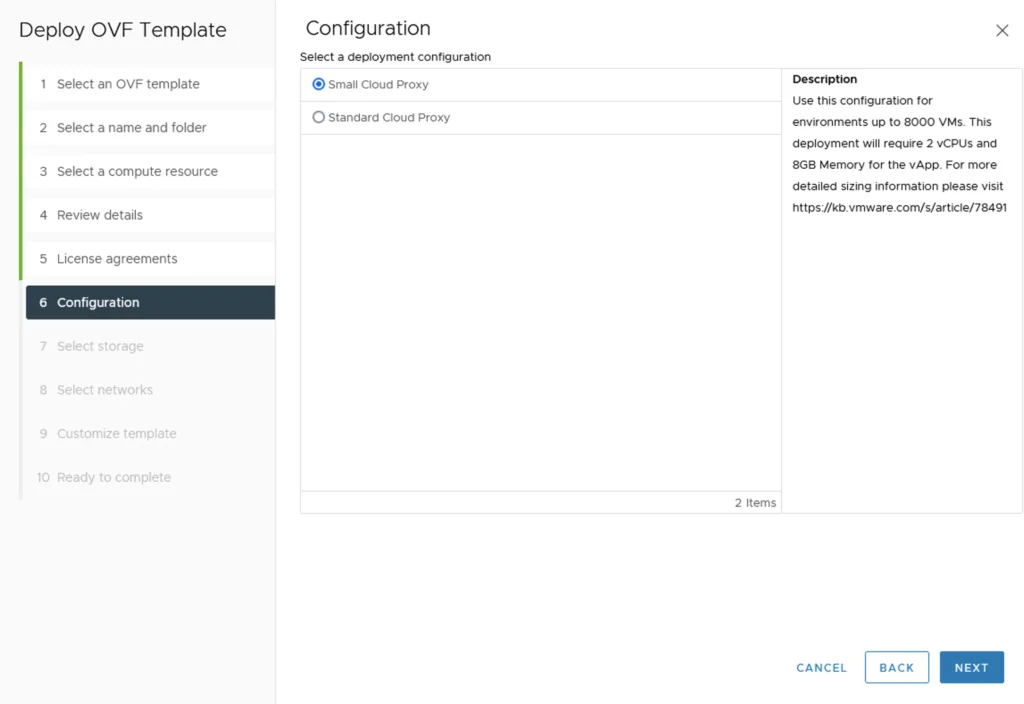
Select a size and click next. If the environment is larger than 8k VMs you would want to deploy the Standard size. The sizing guide can be found here
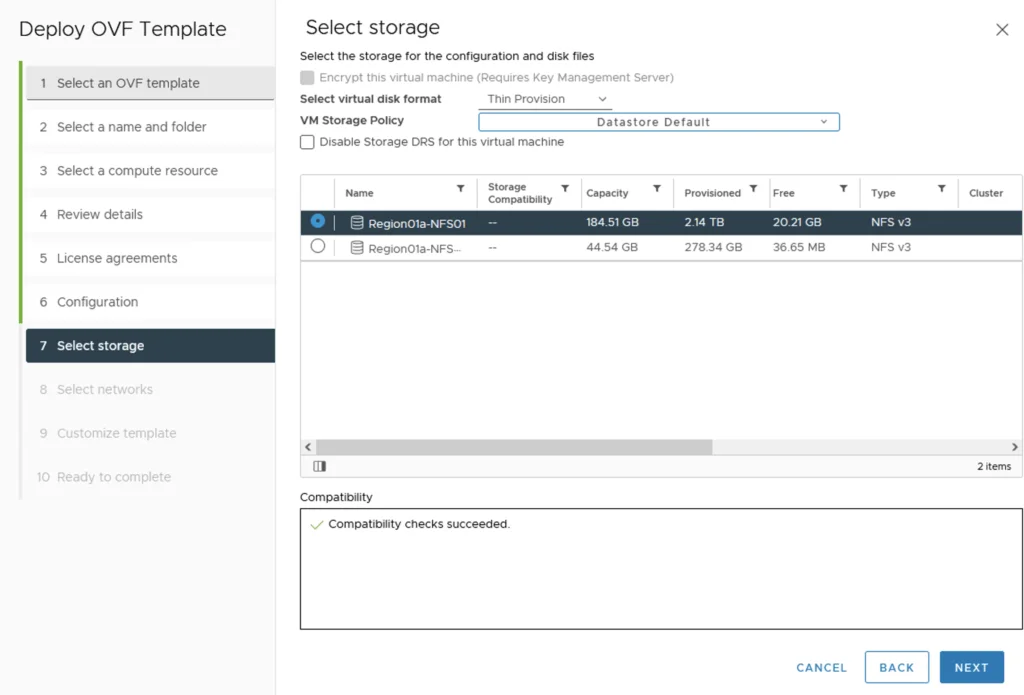
Select a storage device and click on Next
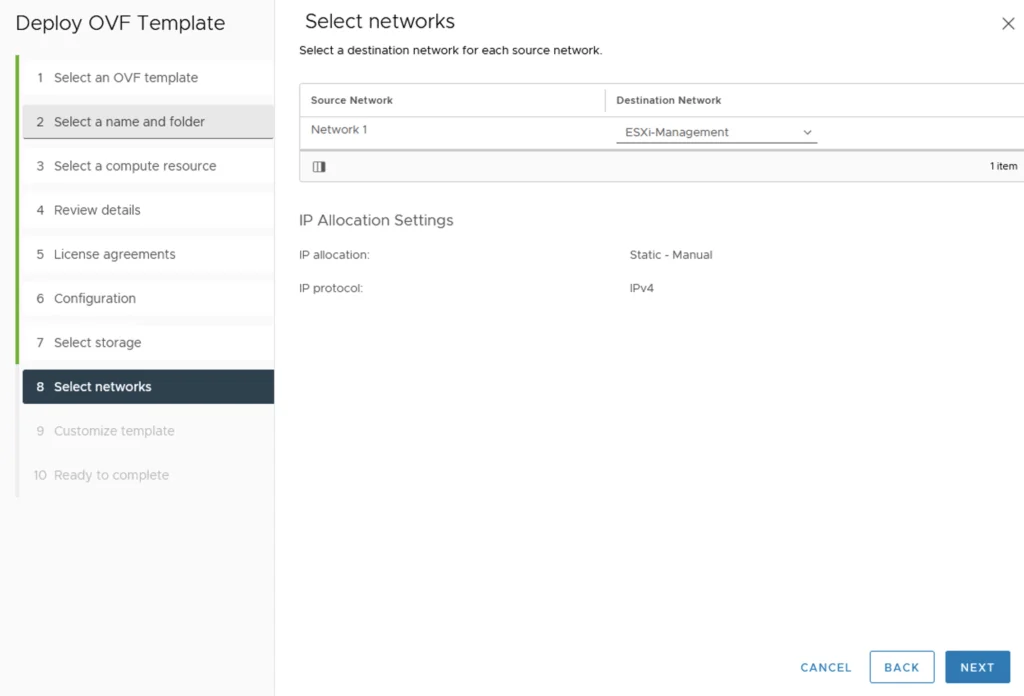
Select a network and click on Next
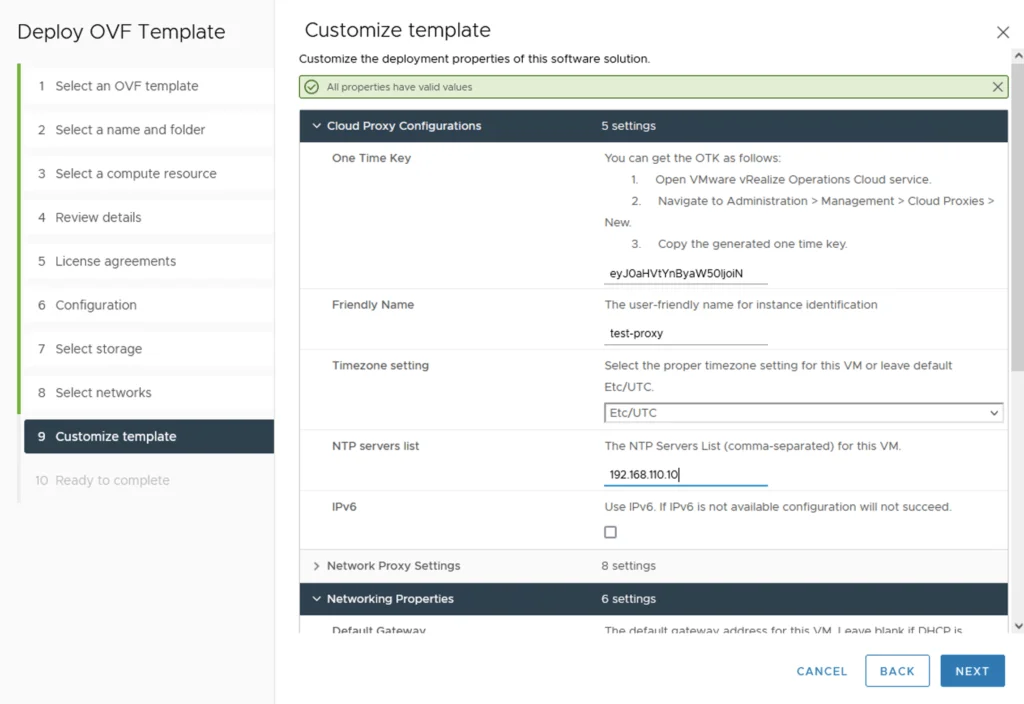
Customizing the Template with the OTK Key
Here is where we would add that OTK key from earlier. Paste in the OTK key. Give the VM a friendly name (this name will be what’s displayed in vROPS cloud proxies page. The network Proxy Settings are only applicable if you need to use a proxy to get out to the internet. The rest of the fields should be pretty self explanatory
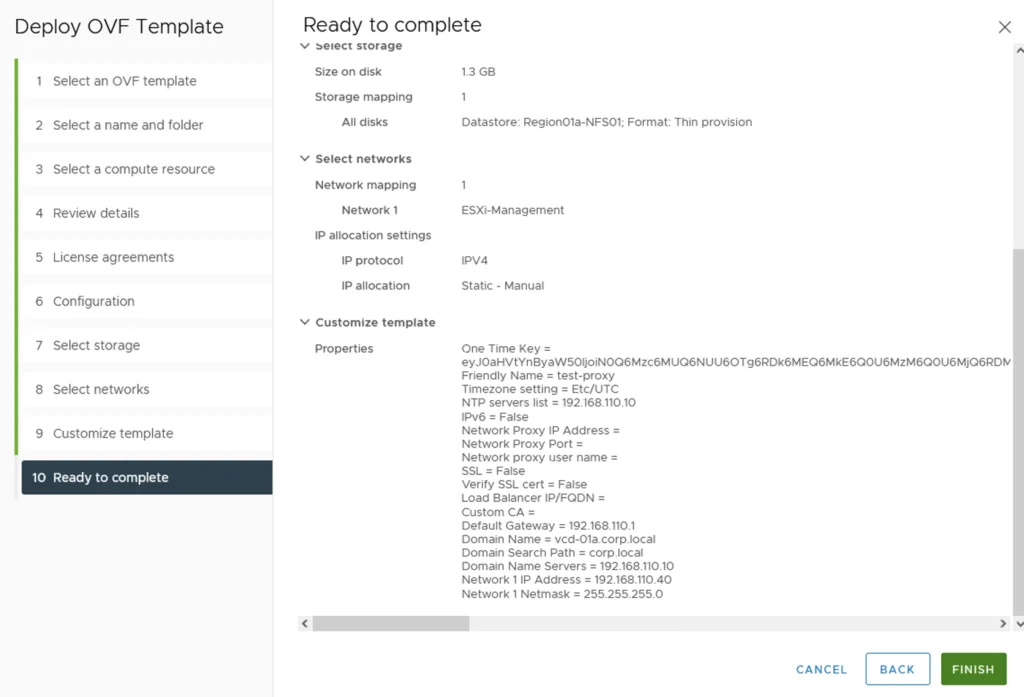
Verify everything is correct and click on finish
Powering On and Waiting for Provisioning
Once the deployment is complete power on the machine. At this time we need to wait for a couple of minutes before it appears under the cloud proxies. It took about 20 minutes in my environment before I was able to see it in the vROPS cloud console
We can check the console while we wait for everything to be provisioned
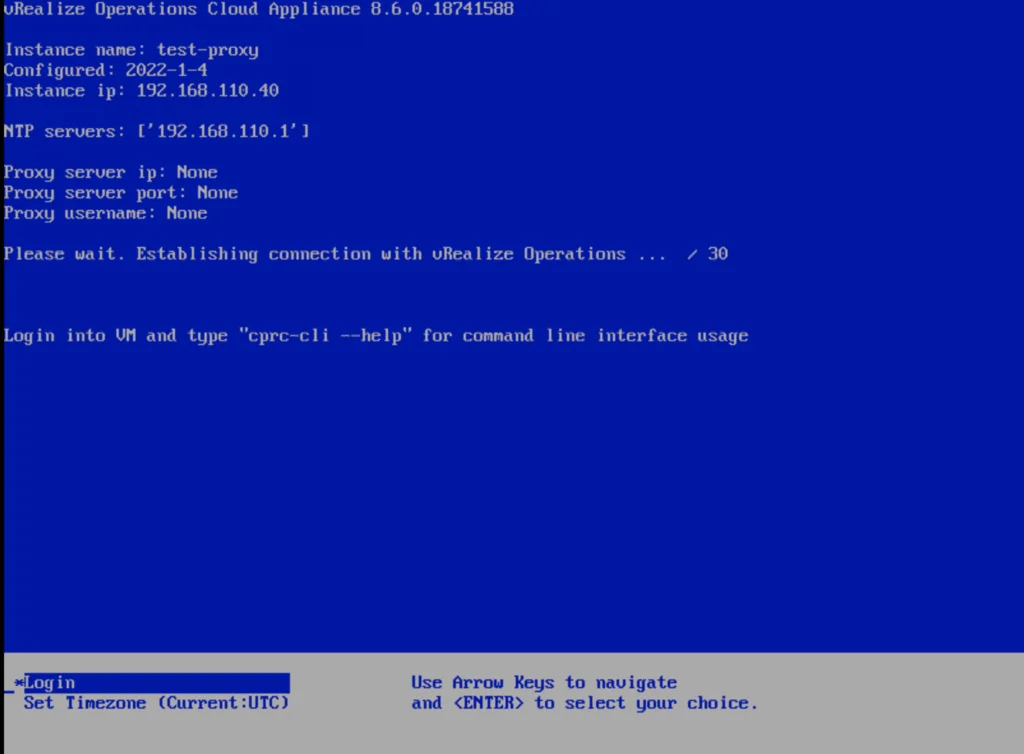
Once the deployment is complete the console would look similar to this:
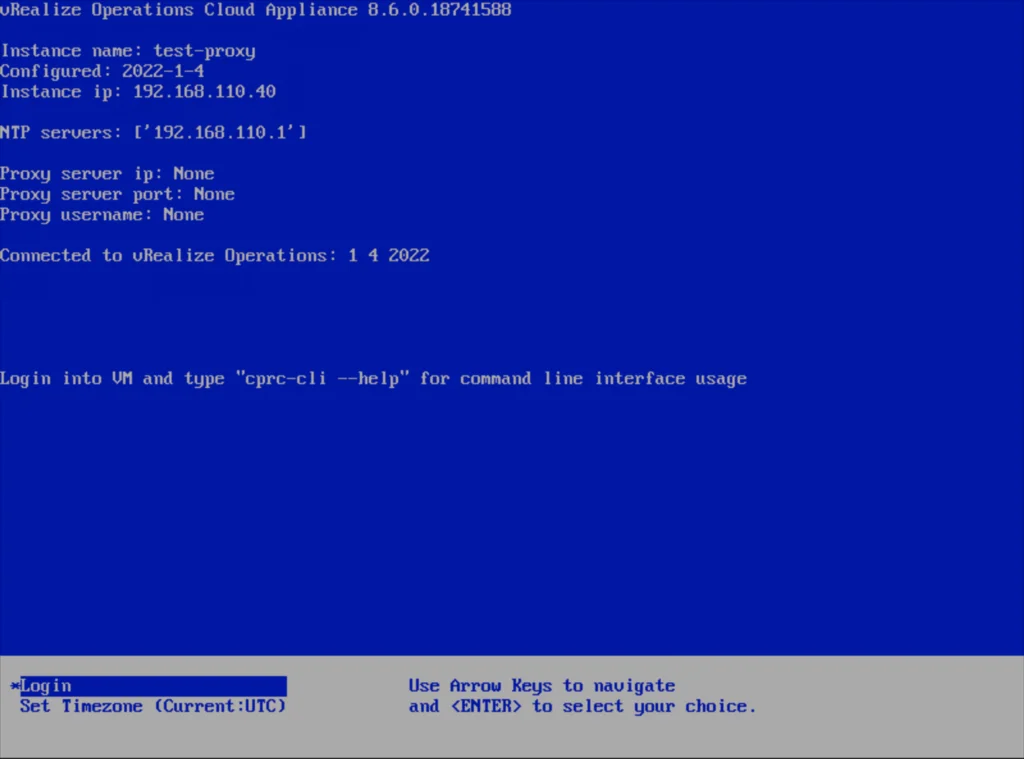
Verifying the Proxy Is Online
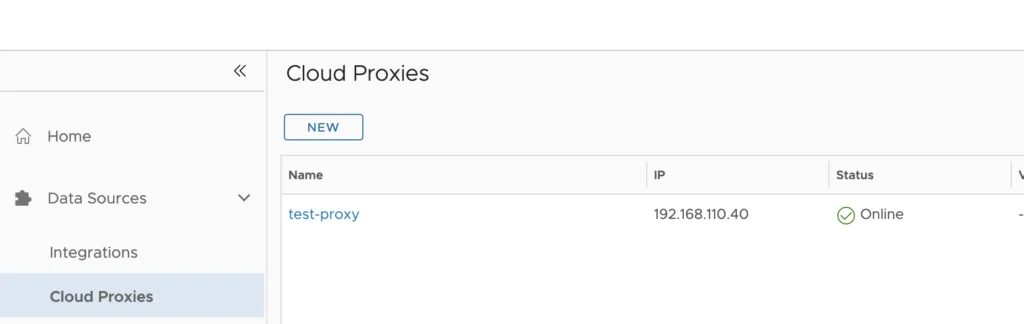
We can also see the proxy coming online in the vROPS cloud proxies menu
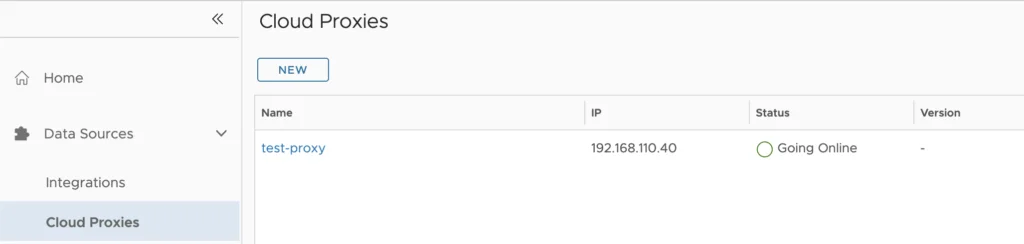
Once complete the proxy will show as online
Troubleshooting and Additional Resources
If the proxy has connectivity issues caused by overlapping networks, check out my post on vROPS Cloud Proxy docker routing.
The full vROPS cloud documentation can be found here
The full vROPS on premise documentation can be found here
You can request a trial from here