The official documentation for deploying the Aria Suite can be found here
Downloading the Installation Bundle
First step is to download the bundle by going to sddc-manager -> Repository -> Bundle management. Look for VMware Software Install Bundle - vRealize Suite Lifecycle Manager 8.18.0-24029603
Starting the Deployment Wizard
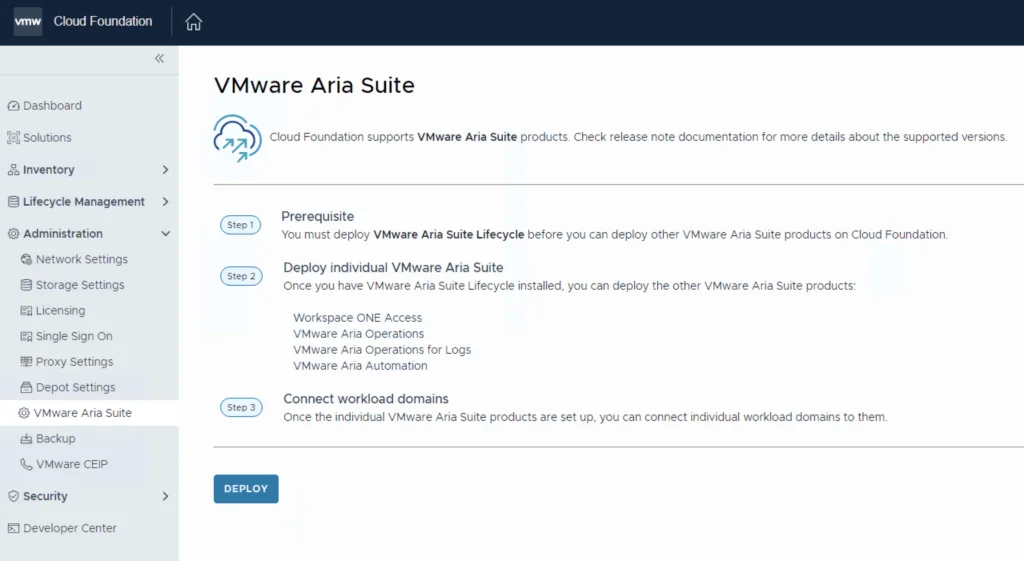
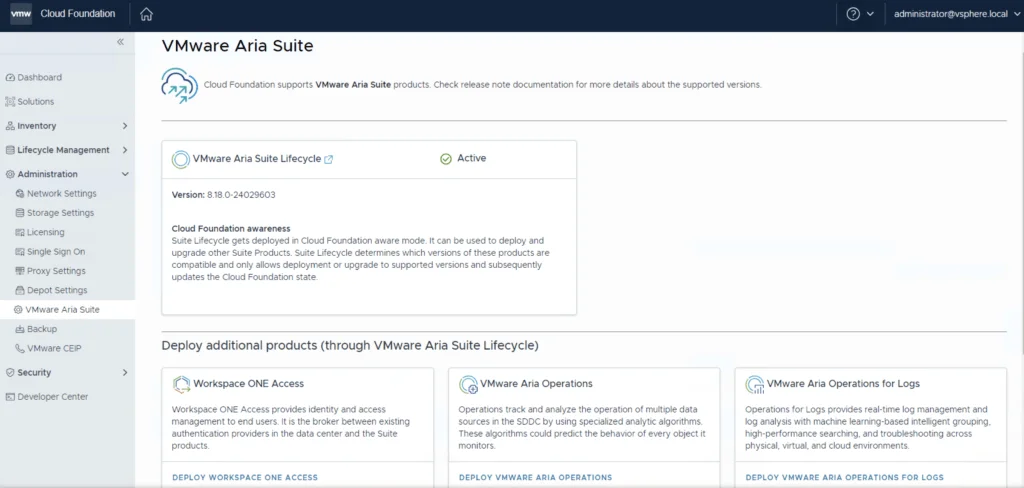
After the download is complete we can go to Administration -> VMware Aria Suite and a Deploy button should be available. If the deploy button is not available due to X-Region Application Virtual Network is not created errorplease follow the instructions found here:

On the overview page click on Deploy
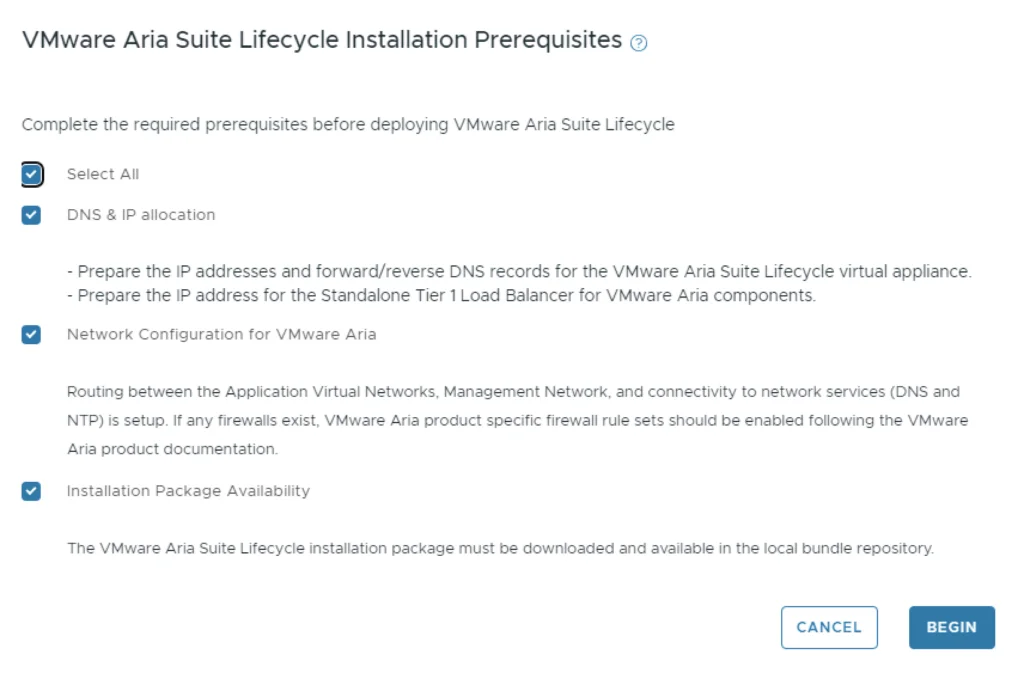
Verify the requirements and click Begin
Configuring Network and Appliance Settings
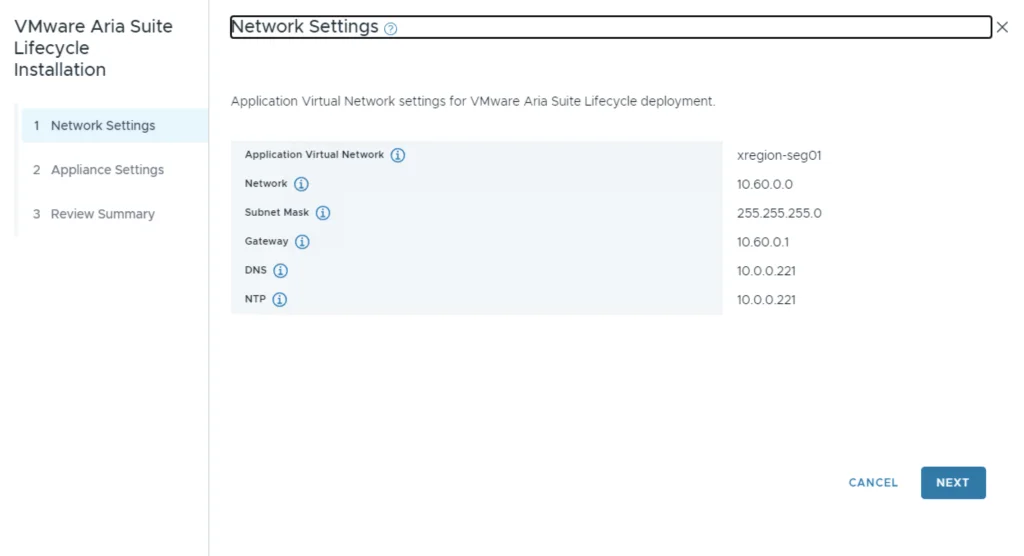
Verify the network settings and click Next
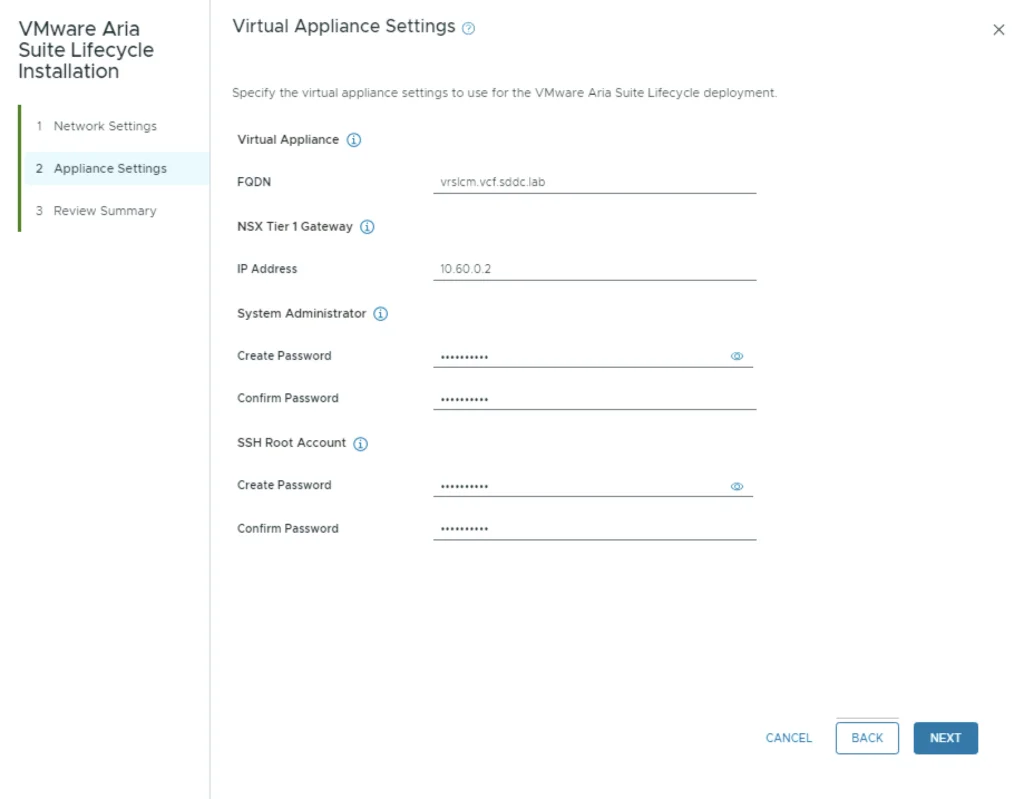
Fill in the appliance settings and click Next
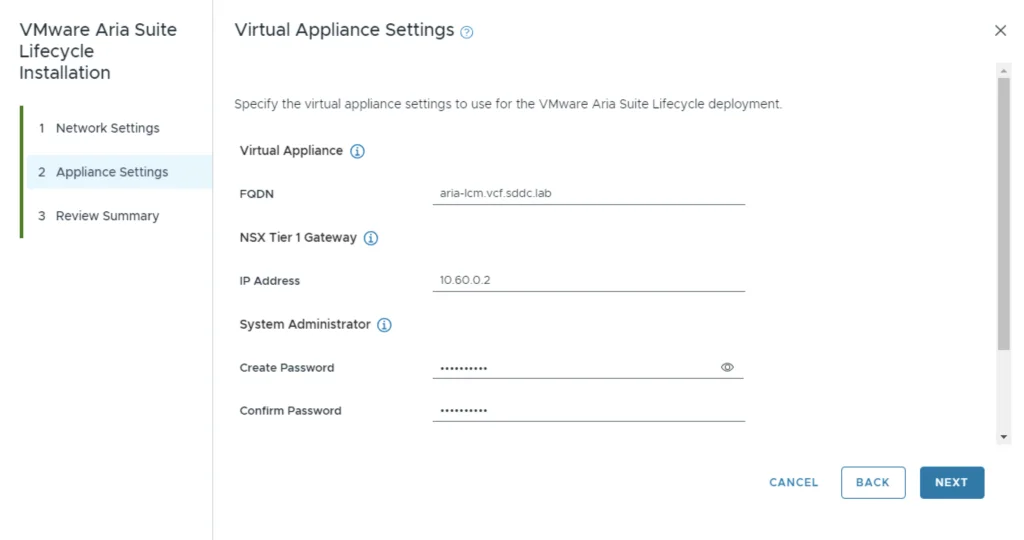
Fill up the network and click Next
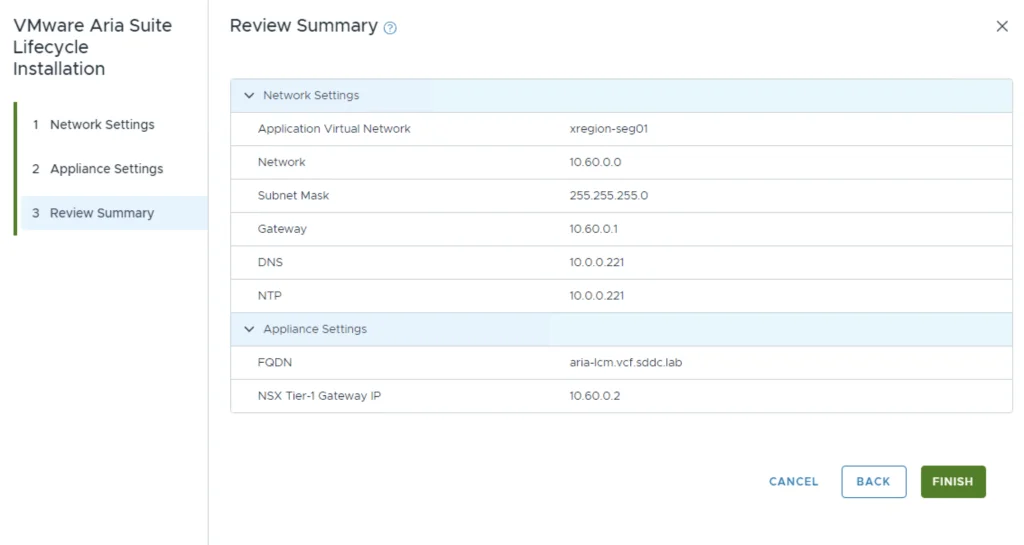
Review the summary and click Finish.
Monitoring the Deployment Progress
We can follow the progress by click on the Task on the bottom of the screen
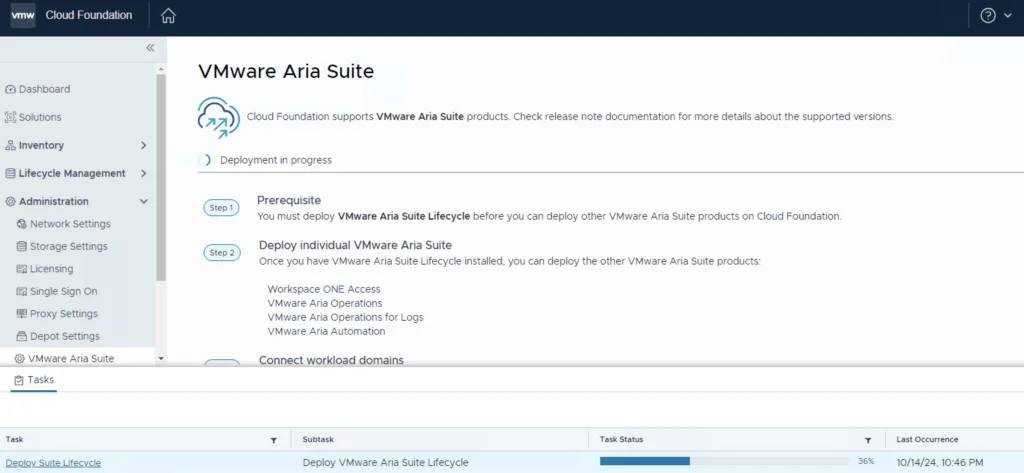
If we click on the task we can see the subtasks that are running

Accessing Aria Suite Lifecycle
Once the deployment is complete we can open the Aria Suite Lifecycle by clicking on the Window icon link
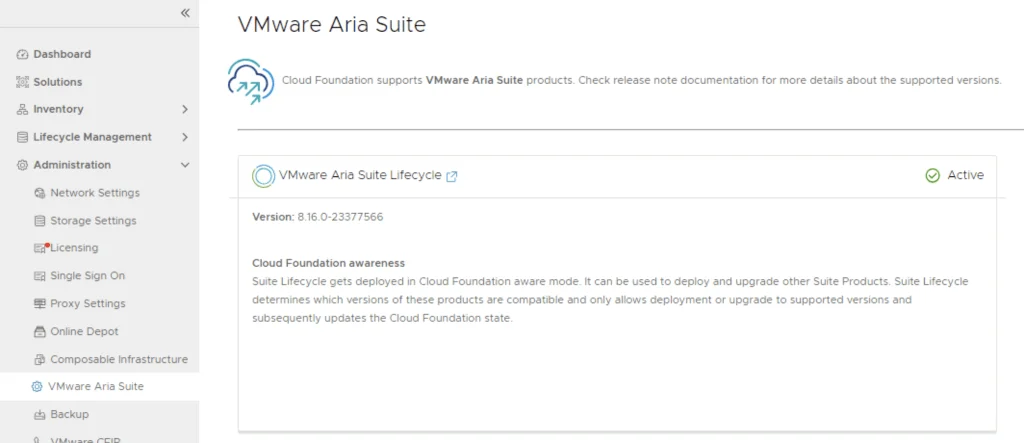
Additionally towards the bottom of the page we can see the rest of the Aria Suite components that can be deployed.
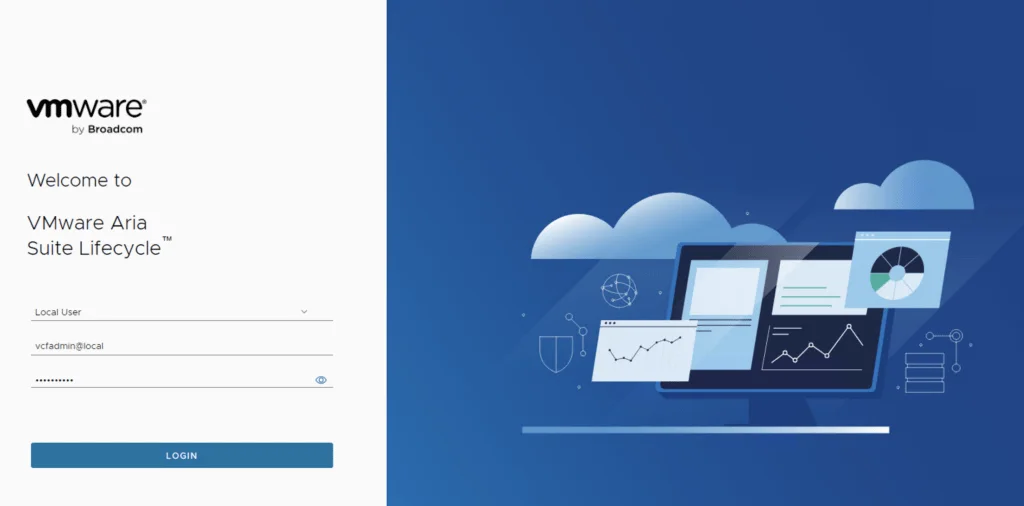
We can then log in to the Aria Suite Lifecycle using vcfadmin@local with the credentials used during the deployment.
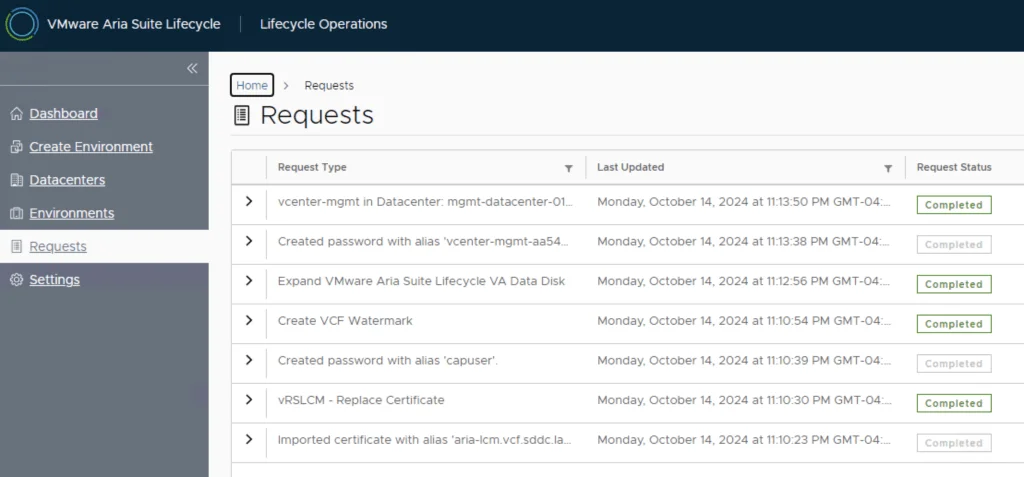
We can see that the deployment wizard also created a few configurations items.
We can now proceed with the deployment of the rest of the components. The deployments will be done from Aria Suite Lifecycle.