After a recent deployment of VRA 8 with a trial key in my lab I realized that my key was about to expire. It was time to get it changed with my production key. The key can be changed via Lifecycle Manager or via CLI.
Changing the vRealize Automation 8 License key via Lifecycle Manager
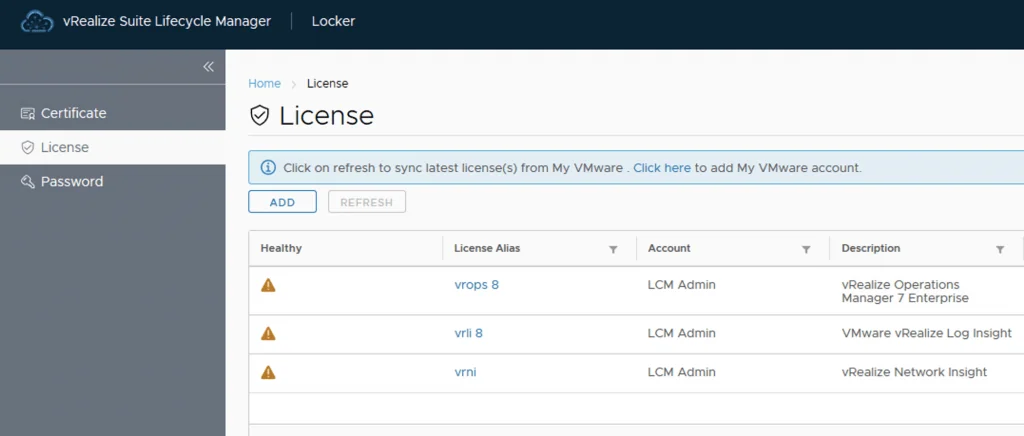
To change the license via lifecycle manager we need to go to Lifeycle Manager -> Locker -> License

In my case I already deleted the vra key. Next step is to click Add, give it a name and enter the new license key, click Validate and click Add
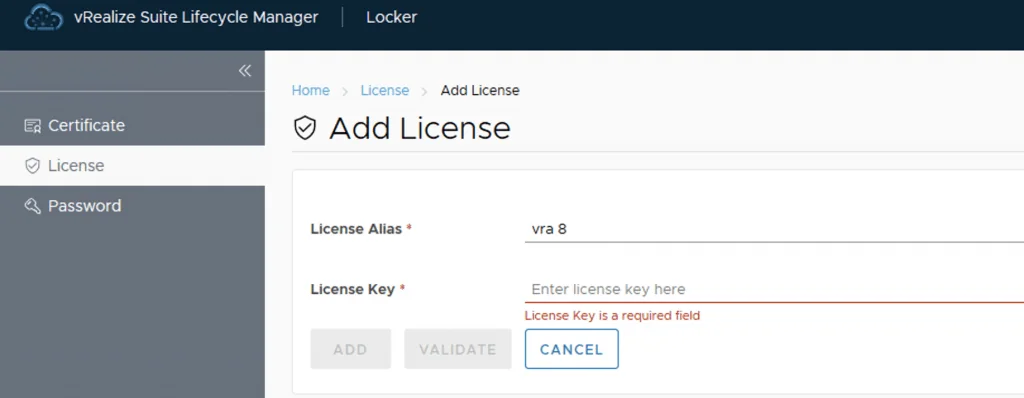
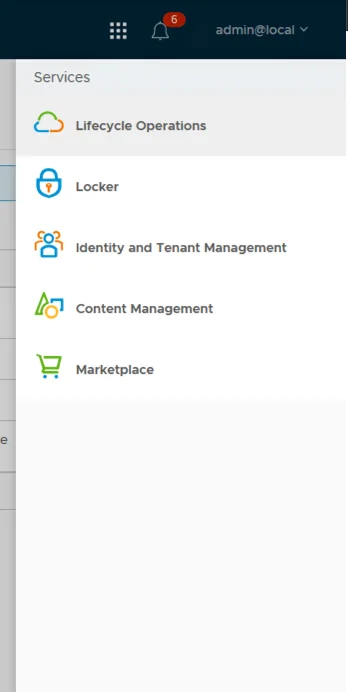
Alternatively Lifecycle Manager can download it from the my vmware account. Next we can go to Lifecycle Operations
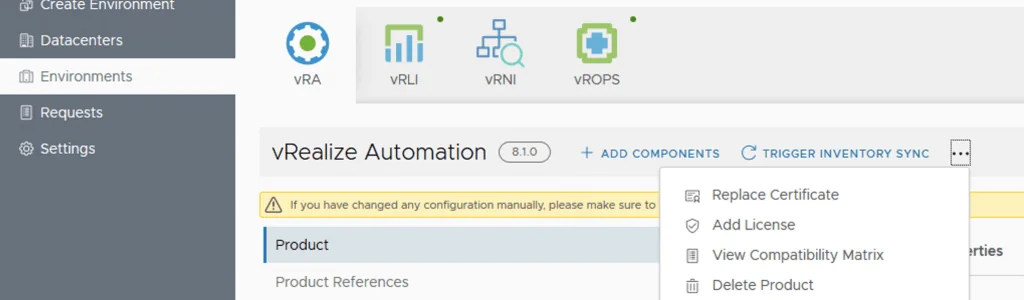
We can find our Product under Environments -> View Details under the environment where the product is -> Select the product in this case VRA -> select options -> Add license
At the Select License windows select the new license we added and click finish. We are taken to the Request Details window and we can follow the progress
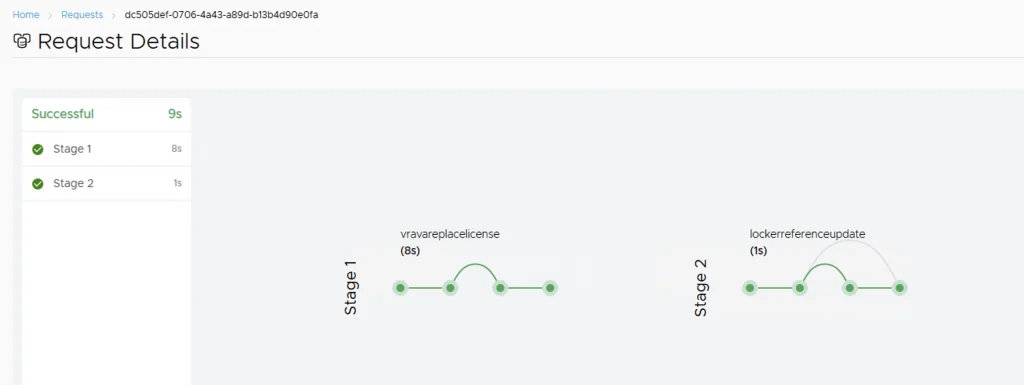
With that the license change is complete. We can follow the same process to change the license key for any of the other products that are managed by Lifecycle Manager. If you are running VCF, I also covered adding license keys in vRealize Lifecycle Manager in a VCF 4 environment.
Changing the vRealize Automation 8 License key via CLI
The first step is to log in to the VRA appliance via ssh and run the “vracli license current” command. This will display the current installed license and its expiration date .
In order to replace the license we need to add the new license using “vracli license add new-license-key” then in order to remove it we need to run “vracli license remove old-license-key” . If we are unsure which license is active running the command “vracli license” will display all license keys installed.