How to Add Custom Disks with Drive Letters and Labels in Aria Automation (VMware by Broadcom)

If you’re working withAria Automation (formerly vRealize Automation) and want to give users the ability to add extra disks to a Windows VM — and define their drive letter and volume label — you’re in the right place. This guide shows you how to build a flexible and reusable cloud template (blueprint) that handles additional disks dynamically. We’ll cover: YAML blueprint inputs for user-defined disks Cloud-init with PowerShell to configure drives Handling drive letter and label assignment dynamically Ensuring all disks are initialized and formatted properly Step 1: Define Inputs for Additional Disks In your Aria Automation blueprint YAML, start by defining an input array that allows users to specify up to 4 additional disks, including their desired SCSI unit number, disk size, drive letter, and volume label. ...

March 25, 2025 · 3 min · Cosmin
Article cover image

Upgrading Aria Automation to 8.18.1 Patch 1

In this post, I will cover upgrading my 8.x Aria Automation appliance to version 8.18.1 Patch 1. As a prerequisite, we need to have Aria Suite Lifecycle upgraded to 8.18. Instructions can be found here. Note that the upgrade does not include the latest PSPACK containing the 8.18.1 Patch 1 Aria Automation release. Instructions for obtaining the PSPACK are available in here. Note: Following the VMware by Broadcom Day 2 transition on May 6, 2024, Customer Connect has been migrated to the Broadcom Support. This migration impacts the VMware Aria Suite Lifecycle as follows: All Product Support Packs, along with product and patch binaries, will now need to be downloaded from the Broadcom Support Portal Users must then manually map these into the VMware Aria Suite Lifecycle VMware Aria Suite Lifecycle can be upgraded using “Check Online” method. Product Support Packs are cumulative, incorporating all updates from previous product support packs as well as patches into the latest version. The Aria Automation Patch 1 binaries can be downloaded from here. In my case, it was VMware Aria Automation 8.18.1 .patch file (vrlcm-vra-8.18.1-8.18.1.36859.patch). Once downloaded, LCM supports local mappings. In my case, I uploaded the patch in /data/temp ...

January 16, 2025 · 2 min · Cosmin
Article cover image

Aria Suite Lifecycle 8.18 Product Support Pack (PSPACK) upgrade - manual version

In this guide i will go over the manual steps of getting an existing 8.x Aria Suite Lifecycle appliance to support the latest product releases available. Here is a great blog that goes in to the details about what the Product Support Pack is https://blogs.vmware.com/management/2019/01/vrslcm-pspak.html. Typically the newer Product Support Pack is included part of the upgrade for Aria Suite Lifecycle, however sometimes there are product releases in between releases where product support packs come in handy. As of 8.16.0 Product Support Pack 4 we can no longer automatically download the Product Support Pack files. The release notes can be found here. ...

October 15, 2024 · 2 min · Cosmin
Article cover image

Upgrading VMware Aria Automation to 8.18

In this post, I will cover upgrading my 8.x Aria Automation appliance to version 8.18. As a prerequisite, we need to have VMware Aria Suite Lifecycle upgraded to 8.18. Instructions can be found here. Note: Following the VMware by Broadcom Day 2 transition on May 6, 2024, Customer Connect has been migrated to the Broadcom Support. This migration impacts the VMware Aria Suite Lifecycle as follows: All Product Support Packs, along with product and patch binaries, will now need to be downloaded from the Broadcom Support Portal Users must then manually map these into the VMware Aria Suite Lifecycle VMware Aria Suite Lifecycle can be upgraded using “Check Online” method. Product Support Packs are cumulative, incorporating all updates from previous product support packs as well as patches into the latest version. The Aria Automation binaries can be downloaded from here. In my case, it was VMware Aria Automation 8.18.0 Update Repository (Prelude_VA-8.18.0.35770-24024333-updaterepo.iso). Once downloaded, LCM supports local or NFS mappings. In my case, I uploaded the binary in /data ...

July 28, 2024 · 3 min · Cosmin

Upgrading Aria Automation to 8.18 via CLI: A Step-by-Step Guide

Upgrading Aria Automation (formerly known as vRealize Automation, vRA) is crucial for maintaining the efficiency, security, and compatibility of your automation tasks. For environments without VMware Aria Suite Lifecycle, you can still perform the upgrade using the vracli command-line utility. This blog post will guide you through the process of upgrading Aria Automation using two different methods: from a mounted ISO (CD-ROM) and from an online update repository URL. Prerequisites SSH access to your Aria Automation appliance. Sufficient backup of your Aria Automation environment. Downloaded ISO for the Aria Automation upgrade, if using the CD-ROM method. Link to the download Access to the Aria Automation appliance with root privileges. Check the health of the pods by running kubectl get pods -n prelude The upgrade will fail if any pods are in a non Running state. Method 1: Upgrading from a Mounted ISO (CD-ROM) Prepare the ISO Image: Before starting, ensure that the ISO image for the Aria Automation upgrade is downloaded and available. Mount the ISO to the Appliance: Mount the ISO image to your Aria Automation appliance. This step might require physical access to the server or through the management interface provided by your hypervisor (e.g., ESXi). To mount the CD-ROM we can use: mount /dev/sr0 /mnt/cdrom SSH into the Aria Automation Appliance: Access your appliance via SSH as the root user. Execute the Upgrade Command: Run the following command to start the upgrade process: vracli upgrade exec -y --profile lcm --repo cdrom:// This command will automatically start the upgrade process using the ISO mounted on the CD-ROM drive. The -y flag automates the acceptance of the upgrade process, and --profile lcm specifies the use of the lifecycle manager upgrade profile, even though the Lifecycle Manager itself is not being used. Monitor the Upgrade Process: The upgrade process will provide output to the console. Monitor this output for any errors or prompts that require manual intervention. Use 'vracli upgrade status --follow' to monitor the progress. Finalize the Upgrade: Once the upgrade completes, follow any on-screen instructions to finalize the upgrade. This may include rebooting the Aria Automation appliance. Post-Upgrade Steps Verify the Upgrade: Log in to the Aria Automation user interface to verify that the upgrade was successful and all services are running correctly. Review Logs: Check the upgrade logs for any warnings or errors that might need attention. Test Deployments: Execute a few test deployments to ensure that all functionalities are working as expected. Conclusion Upgrading Aria Automation without the Lifecycle Manager is straightforward with the vracli utility. Whether you’re upgrading from a mounted ISO or an online repository, the process is designed to be seamless. Always ensure that you have backups and a rollback plan in case of any issues. ...
July 28, 2024 · 3 min · Cosmin

Upgrading Aria Automation via CLI: A Step-by-Step Guide

Upgrading Aria Automation (formerly known as vRealize Automation, vRA) is crucial for maintaining the efficiency, security, and compatibility of your automation tasks. For environments without VMware Aria Suite Lifecycle, you can still perform the upgrade using the vracli command-line utility. This blog post will guide you through the process of upgrading Aria Automation using two different methods: from a mounted ISO (CD-ROM) and from an online update repository URL. Prerequisites SSH access to your Aria Automation appliance. Sufficient backup of your Aria Automation environment. Downloaded ISO for the Aria Automation upgrade, if using the CD-ROM method. Access to the Aria Automation appliance with root privileges. Method 1: Upgrading from a Mounted ISO (CD-ROM) Prepare the ISO Image: Before starting, ensure that the ISO image for the Aria Automation upgrade is downloaded and available. Mount the ISO to the Appliance: Mount the ISO image to your Aria Automation appliance. This step might require physical access to the server or through the management interface provided by your hypervisor (e.g., ESXi). To mount the CD-ROM we can use: mount /dev/sr0 /mnt/cdrom SSH into the Aria Automation Appliance: Access your appliance via SSH as the root user. Execute the Upgrade Command: Run the following command to start the upgrade process: vracli upgrade exec -y --profile lcm --repo cdrom:// This command will automatically start the upgrade process using the ISO mounted on the CD-ROM drive. The -y flag automates the acceptance of the upgrade process, and --profile lcm specifies the use of the lifecycle manager upgrade profile, even though the Lifecycle Manager itself is not being used. Monitor the Upgrade Process: The upgrade process will provide output to the console. Monitor this output for any errors or prompts that require manual intervention. Use 'vracli upgrade status --follow' to monitor the progress. Finalize the Upgrade: Once the upgrade completes, follow any on-screen instructions to finalize the upgrade. This may include rebooting the Aria Automation appliance. Method 2: Upgrading from an Online Update Repository URL SSH into the Aria Automation Appliance: Ensure you have SSH access to the appliance as the root user. Determine the Repository URL: Identify the URL of the update repository you intend to use for the upgrade. This URL should point to the VMware online repository or an internally hosted repository mirror. Execute the Upgrade Command: Use the following command to initiate the upgrade from the online repository: vracli upgrade exec --profile lcm -r <url> Replace <url> with the actual URL of your update repository. Similar to the CD-ROM method, --profile lcm indicates the lifecycle manager upgrade profile. Monitor the Upgrade Process: As with the ISO method, keep an eye on the console output for any actions required on your part. Use 'vracli upgrade status --follow' to monitor the progress. Complete the Upgrade: After the upgrade process finishes, perform any additional steps prompted by the system, which may include system reboots. Post-Upgrade Steps Verify the Upgrade: Log in to the Aria Automation user interface to verify that the upgrade was successful and all services are running correctly. Review Logs: Check the upgrade logs for any warnings or errors that might need attention. Test Deployments: Execute a few test deployments to ensure that all functionalities are working as expected. Conclusion Upgrading Aria Automation without the Lifecycle Manager is straightforward with the vracli utility. Whether you’re upgrading from a mounted ISO or an online repository, the process is designed to be seamless. Always ensure that you have backups and a rollback plan in case of any issues. ...
July 28, 2024 · 3 min · Cosmin
Article cover image

Upgrading Aria Operations to 8.17.2 via Aria Suite Lifecycle

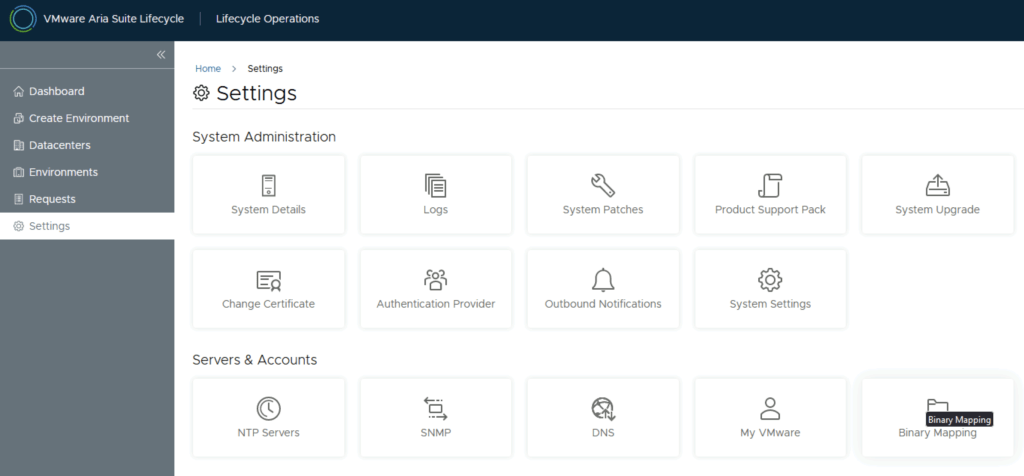
In this post i will go over upgrading my 8.x Aria Operations appliance to 8.17.2 using Aria Suite Lifecycle. As a pre requirement we do need to have Aria Suite Lifecycle upgraded to 8.16. Instructions can be found here. The upgrade does not include the latest Product Support Pack. We can apply the latest Product Support Pack following the instructions here. To get started we can go to Aria Suite Lifecycle -> Lifecycle Operations -> Settings -> Binary Mapping. (If you haven’t added your My VMware credentials you will need to do that first by going to Aria Suite Lifecycle -> Lifecycle Operations -> Settings -> My VMware) ...

June 20, 2024 · 3 min · Cosmin
Article cover image

Aria Suite Lifecycle Product Support Pack (PSPACK) upgrade - manual version

In this guide i will go over the manual steps of getting an existing 8.x Aria Suite Lifecycle appliance to support the latest product releases available. Here is a great blog that goes in to the details about what the Product Support Pack is https://blogs.vmware.com/management/2019/01/vrslcm-pspak.html. Typically the newer Product Support Pack is included part of the upgrade for Aria Suite Lifecycle, however sometimes there are product releases in between releases where product support packs come in handy. As of 8.16.0 Product Support Pack 4 we can no longer automatically download the Product Support Pack files. The release notes can be found here. ...

June 19, 2024 · 2 min · Cosmin
Article cover image

Upgrading Aria Operations to 8.17.1 via Aria Suite Lifecycle

In this post i will go over upgrading my 8.x Aria Operations appliance to 8.17.1 using Aria Suite Lifecycle. As a pre requirement we do need to have Aria Suite Lifecycle upgraded to 8.16. Instructions can be found here. The upgrade does not include the latest Product Support Pack. We can apply the latest Product Support Pack following the instructions here. To get started we can go to Aria Suite Lifecycle -> Lifecycle Operations -> Settings -> Binary Mapping. (If you haven’t added your My VMware credentials you will need to do that first by going to Aria Suite Lifecycle -> Lifecycle Operations -> Settings -> My VMware) ...

June 19, 2024 · 3 min · Cosmin
Article cover image

Aria Suite Lifecycle Product Support Pack (PSPACK) upgrade

In this guide i will go over the steps of getting an existing 8.x Aria Suite Lifecycle appliance to support the latest product releases available. Here is a great blog that goes in to the details about what the Product Support Pack is https://blogs.vmware.com/management/2019/01/vrslcm-pspak.html. Typically the newer Product Support Pack is included part of the upgrade for Aria Suite Lifecycle, however sometimes there are product releases in between releases where product support packs come in handy. ...

June 19, 2024 · 2 min · Cosmin
VCF Assistant
Hi! I'm the VCF Assistant. Ask me anything about VMware Cloud Foundation, ESXi, vCenter, NSX, Aria Suite, or infrastructure automation.