Article cover image

Configuring the VMware Cloud Foundation Installer appliance Step-by-step instructions

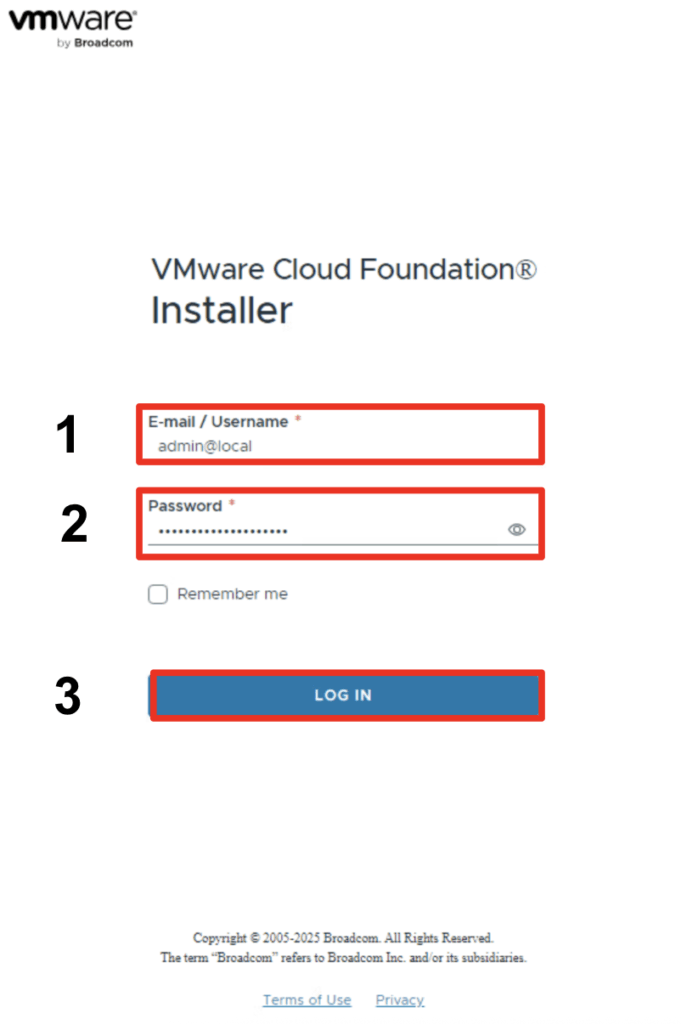
With the release of VCF 9 (Official What’s New blog can be found here) I wanted to get my lab environment upgraded so I can try out all of the new features. In my previous post we went over the deployment of the appliance. In this post we will be covering the configuration. Configure the VMware Cloud Foundation Installer appliance Once the appliance is deployed we can navigate to https://ip_address/ui or https://hostname/ui of the appliance. If everything is working properly we should be presented with a login screen. ...
June 18, 2025 · 2 min · Cosmin
Article cover image

Deploying the VMware Cloud Foundation Installer appliance Step-by-step instructions

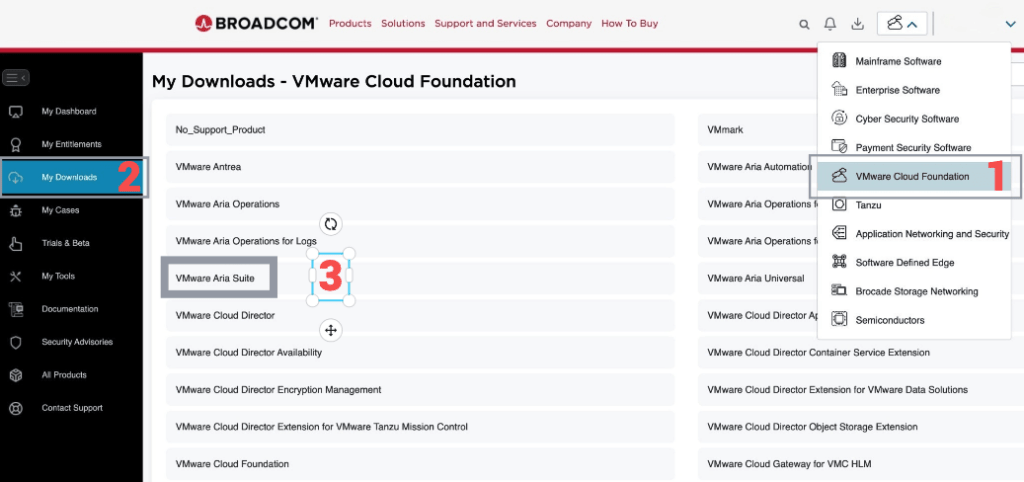
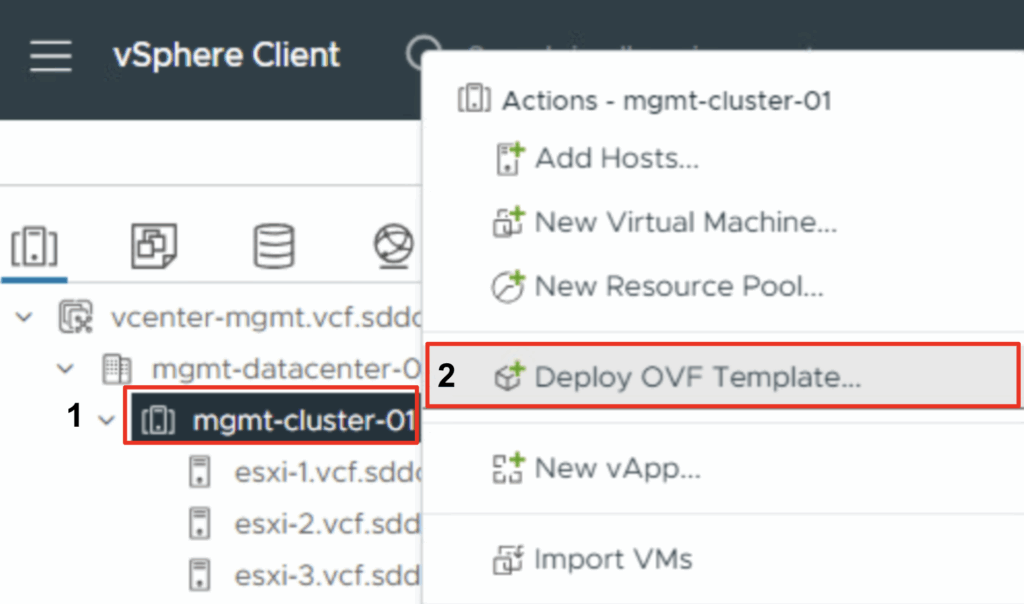
With the release of VCF 9 (Official What’s New blog can be found here) I wanted to get my lab environment upgraded so I can try out all of the new features. To get started we need to download the VMware Cloud Foundation Installer from the VMware Cloud Foundation 9.0.0.0 page found here. In this post we will cover only the deployment. The configuration is available in another post. Deploy the VMware Cloud Foundation Installer appliance Once the appliance is downloaded we need to get the ova deployed. ...

June 17, 2025 · 2 min · Cosmin

Fixing “Received Too Large SFTP Packet” When Connecting to vCenter Using WinSCP

The Problem When trying to connect to a vCenter Server Appliance (VCSA) using WinSCP, many admins encounter the following error: Received too large (1433299822 B) SFTP packet. Max supported packet size is 1024000 B This occurs because the default shell used by the vCenter appliance (/bin/appliancesh) is not compatible with SFTP, which WinSCP attempts to use by default. The Solution To successfully connect to VCSA and transfer files using WinSCP, you need to: ...

June 11, 2025 · 2 min · Cosmin
Article cover image

Replacing the VMware Identity Manager (vIDM) Certificate using VMware Aria Suite Lifecycle 8.18

Overview: Why and When to Replace the vIDM Certificate VMware Identity Manager (vIDM), also known as Workspace ONE Access, uses an SSL certificate to secure its web interface and establish trust with integrated VMware products (like vRealize/Aria Automation and Operations). Replacing this certificate is important in scenarios such as: Certificate Expiry: SSL certificates have expiration dates. You should replace the vIDM certificate before it expires to avoid service disruptions. An expired certificate can cause login failures and management tasks (like powering on vIDM or updating it) to fail. Self-Signed to CA-Signed: Out-of-the-box or lab deployments often use self-signed certificates, which trigger browser warnings and may not be trusted by other systems. Replacing a self-signed certificate with one signed by a trusted Certificate Authority (CA) eliminates these trust warnings and meets security compliance requirements. Security or Policy Requirements: Your organization might require using specific corporate CA certificates or updating certificates periodically for security. If the current certificate was compromised or if the domain name of the vIDM appliance changes, a replacement is needed. Integration Trust Issues: vIDM acts as the authentication provider for other VMware products. If those products do not trust vIDM’s certificate (e.g., after an update or if using a new CA), you should replace or re-trust the certificate to ensure seamless integration. In summary, proactively replace the vIDM certificate before it expires or whenever you need to switch to a certificate signed by a trusted CA. This ensures uninterrupted user access and integration with other services. Always schedule certificate updates during a maintenance window, as the process will restart services on vIDM and could temporarily disrupt logins. ...

May 8, 2025 · 22 min · Cosmin

Step-by-Step Guide to Deploying Salt Open Source

Salt (SaltStack) is a powerful open-source configuration management and automation tool. Below is a step-by-step guide to deploying Salt Open Source for centralized configuration and management. Step 1: Update Your System Before installing Salt, update your package repositories and upgrade your system packages: sudo apt update sudo apt upgrade -y Step 2: Install Salt Master On your master server, install the Salt master package: sudo apt install salt-master -y Step 3: Configure Salt Master ...

April 9, 2025 · 2 min · Cosmin

How to Add Custom Disks with Drive Letters and Labels in Aria Automation (VMware by Broadcom)

If you’re working withAria Automation (formerly vRealize Automation) and want to give users the ability to add extra disks to a Windows VM — and define their drive letter and volume label — you’re in the right place. This guide shows you how to build a flexible and reusable cloud template (blueprint) that handles additional disks dynamically. We’ll cover: YAML blueprint inputs for user-defined disks Cloud-init with PowerShell to configure drives Handling drive letter and label assignment dynamically Ensuring all disks are initialized and formatted properly Step 1: Define Inputs for Additional Disks In your Aria Automation blueprint YAML, start by defining an input array that allows users to specify up to 4 additional disks, including their desired SCSI unit number, disk size, drive letter, and volume label. ...

March 25, 2025 · 3 min · Cosmin
Article cover image

How to Fix Excessive ApiGwServicePrincipal Logging in vCenter

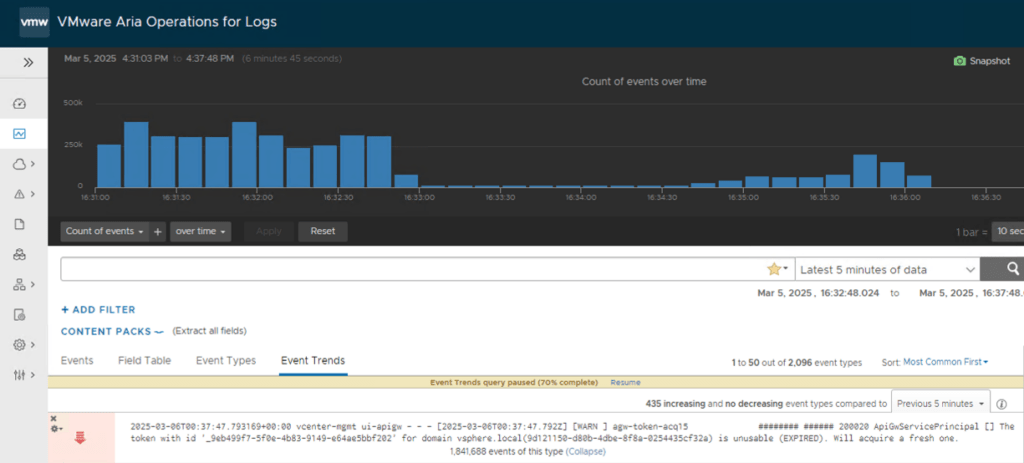
If your vCenter logs are flooded with ApiGwServicePrincipal messages about token expirations, you’re not alone. These frequent “info” level logs in the apigw.log file can clutter your system, making it tough to identify real issues. Fortunately, there’s a simple workaround: adjust the logging severity from “info” to “error.” Below, I’ll guide you through the exact steps to reduce this log noise effectively. The Issue: Too Many ApiGwServicePrincipal Logs In vCenter, you might see repeated log entries like: ...

March 6, 2025 · 3 min · Cosmin

Understanding VMSA-2025-0004 and Protecting Your VMware Environment

Today, I’m diving into a critical issue that demands immediate attention for anyone managing VMware environments: VMSA-2025-0004. Released by Broadcom on March 4, 2025, this security advisory highlights severe vulnerabilities in VMware ESXi, Workstation, and Fusion—products that form the backbone of many virtualized infrastructures. Here’s what you need to know and how to respond, especially since patches are not yet available as of this writing. What is VMSA-2025-0004? VMSA-2025-0004 addresses multiple vulnerabilities that could allow attackers to compromise VMware’s virtualization platforms. The most alarming of these is CVE-2025-22224, a Time-of-Check Time-of-Use (TOCTOU) vulnerability leading to an out-of-bounds write. Rated as critical with a CVSSv3 score of 9.3, this flaw enables a malicious actor with local administrative privileges on a virtual machine (VM) to execute code as the VMX process on the host. In plain terms, an attacker could break out of the VM and take over the hypervisor, potentially gaining control of the host and all VMs running on it. ...

March 4, 2025 · 5 min · Cosmin
Article cover image

Upgrading Aria Operations to 8.18.3 Using a .PAK File

Upgrading Aria Operations (formerly VMware vRealize Operations) is a crucial task to ensure you’re using the latest features, security patches, and performance improvements. In this guide, we’ll walk through the step-by-step process of upgrading Aria Operations using a .pak file. Prerequisites Before starting the upgrade, ensure the following prerequisites are met: Backup the Existing Deployment: • Take a snapshot of all nodes in the Aria Operations (Master, Cloud proxies, and any other nodes). ...

February 28, 2025 · 3 min · Cosmin

Error LCMVRNICONFIG90115 in VMware Aria Suite Lifecycle Manager

If you’re a system administrator or IT professional working with VMware Aria Suite Lifecycle Manager, you might have hit a roadblock when trying to import a VMware Aria Operations for Networks instance. The error in question? LCMVRNICONFIG90115. Here’s what it looks like: Error Code: LCMVRNICONFIG90115 Invalid credentials provided for Console user. Please retry with correct console password. Invalid credentials provided for Console user. Please retry with correct console password. On the surface, this error screams “wrong password!” But even if you’re certain the credentials are spot-on, the issue might persist. Spoiler alert: the fix lies in enabling FIPS mode on the Aria Suite Lifecycle appliance. In this blog post, I’ll break down why this error happens, how FIPS mode resolves it, and provide a step-by-step guide to get you back on track. ...

February 27, 2025 · 4 min · Cosmin
VCF Assistant
Hi! I'm the VCF Assistant. Ask me anything about VMware Cloud Foundation, ESXi, vCenter, NSX, Aria Suite, or infrastructure automation.