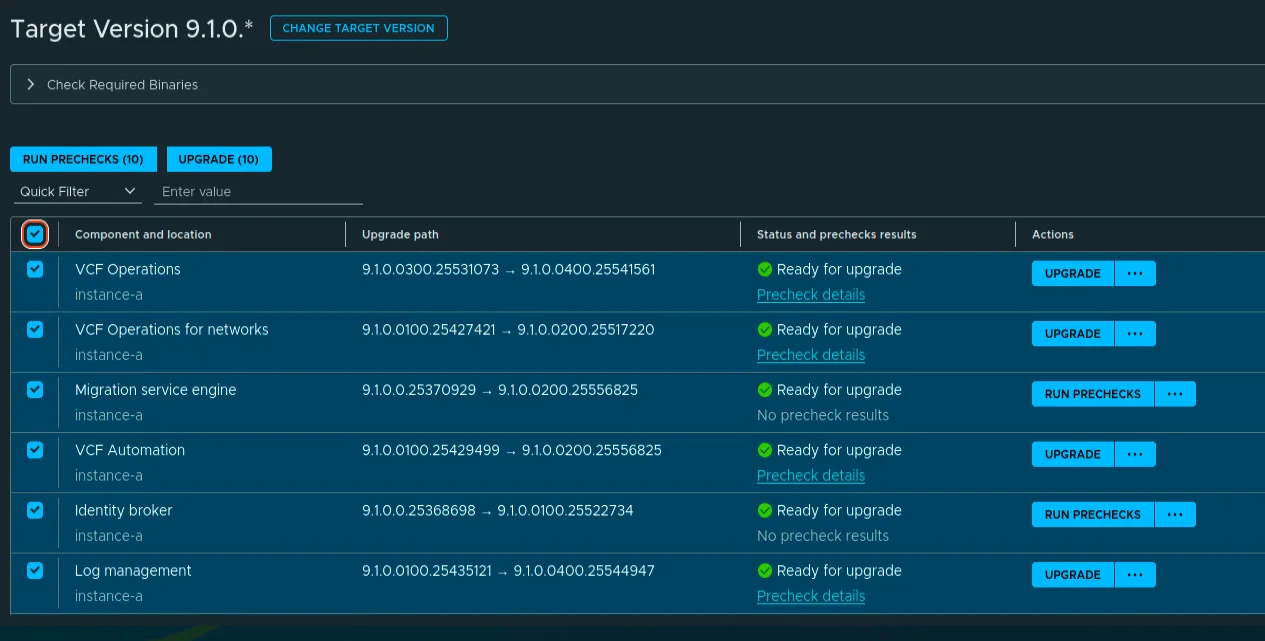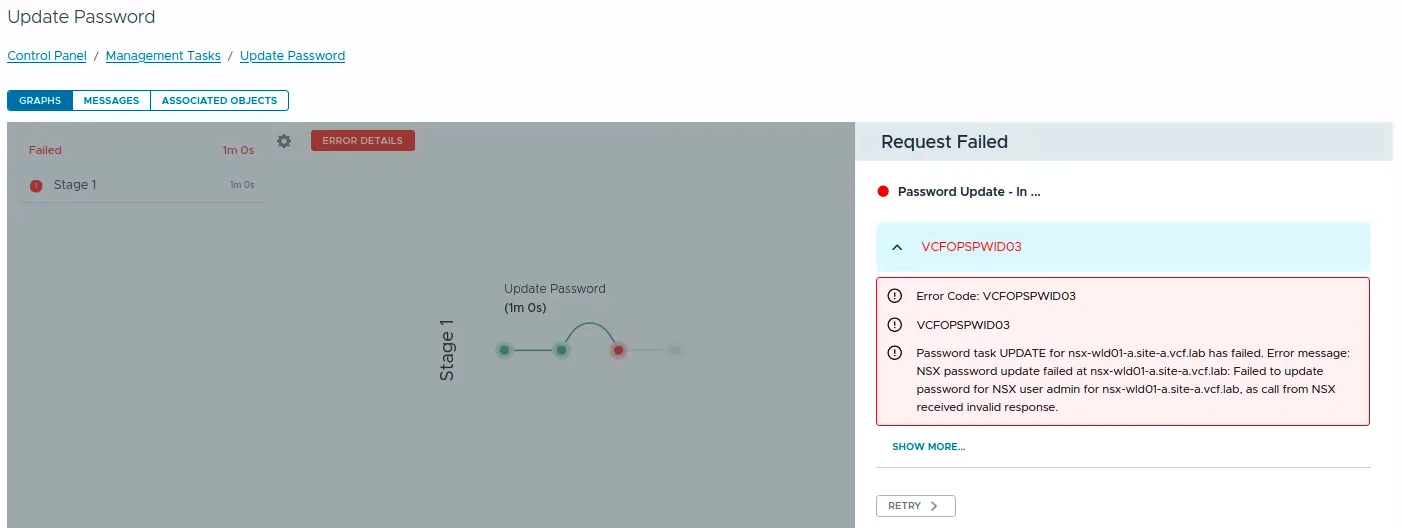
VCF Operations Update Password task failed with error code VCFOPSPWID03.

Fixing VCFOPSPWID03: NSX Password Update Failed as Call from NSX Received Invalid Response (VCF 9.1)

While rotating credentials in the same 9.1 environment I covered in the expired password sync post, an Update of the NSX Manager admin password (credential type API) from VCF Operations kept failing after about a minute with error code VCFOPSPWID03 and a spectacularly unhelpful message: “call from NSX received invalid response.” The actual cause turned out to be simple, NSX rejected the new password because it had already been used on that manager. This being a lab, I was deliberately recycling a previous password. That goes against best practices, and NSX enforces it. But the way the error surfaces (and the way the reuse policy behaves in this build) is worth writing down. ...

 · Updated  · 
Fixing VCFOPSPWID03: NSX Password Update Failed as Call from NSX Received Invalid Response (VCF 9.1)

Fixing Expired Password Sync in VCF 9.1 Fleet Management

In VCF 9.1, Fleet Password Management accounts can get stuck in EXPIRED status, and the password workflows changed compared to 9.0. In 9.0, you may have seen UI actions such as Disconnected or Remediate. In the 9.1 environment I was working on, those actions were not available. The UI exposed Update, and the Fleet Password Management API provides the same kind of workflow: query password accounts, then update or rotate the password. ...

 · Updated  · 
Fixing Expired Password Sync in VCF 9.1 Fleet Management
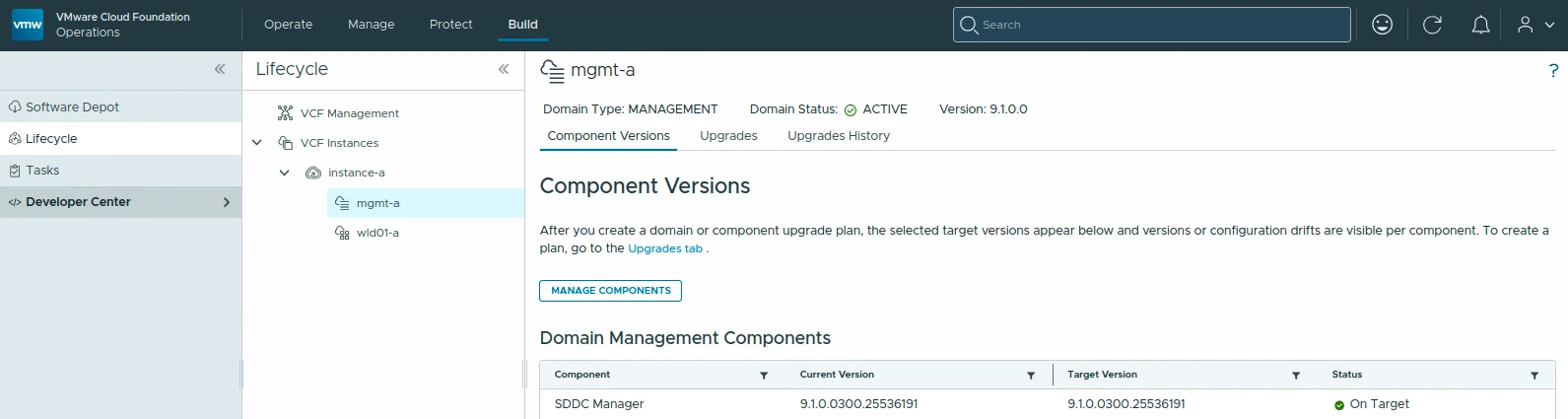
VCF Management component versions showing SDDC Manager 9.1.0.0300 on target.

Upgrading VCF 9.1 to 9.1.0.0300 Step by Step

The 9.1.0.0300 patch train for VMware Cloud Foundation 9.1 is applied through a few different lifecycle views. In my lab, the update covered the Fleet Lifecycle component, VCF Operations, SDDC Lifecycle, and SDDC Manager. Before starting, review the official Broadcom release notes: SDDC Manager 9.1.0.0300 Release Notes VCF Operations 9.1.0.0300 Release Notes Broadcom describes these patch releases as time-sensitive fixes that can be applied between major, minor, and maintenance releases. That also means every component may not move at the same time, so check what is actually offered in your environment instead of assuming the whole VCF bill of materials changes together. ...

 · Updated  · 
Upgrading VCF 9.1 to 9.1.0.0300 Step by Step

How I Migrated My WordPress Blog to Hugo on Cloudflare Workers (And Why You Should Too)

After years of running my tech blog on WordPress, I finally pulled the trigger and migrated everything to Hugo (a blazing-fast static site generator) hosted on Cloudflare Workers. The result? A site that loads in milliseconds, costs nothing to host, and requires zero server maintenance. Here’s exactly how I did it, what went wrong, and what I’d do differently. Why Leave WordPress? WordPress served me well for years. But as my post count grew to 278 articles (mostly VMware VCF guides with dozens of screenshots each), the cracks started showing: ...

 · Cosmin
How I Migrated My WordPress Blog to Hugo on Cloudflare Workers (And Why You Should Too)
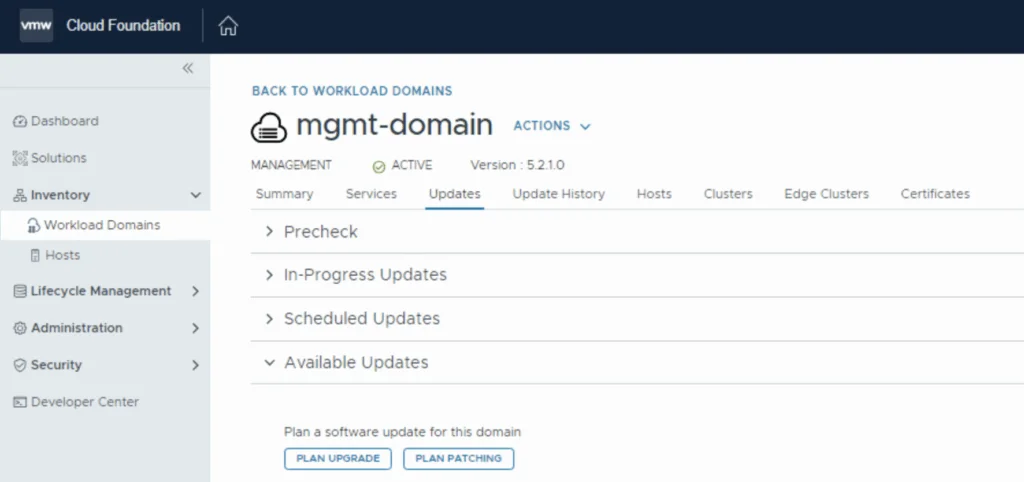
Cloud Foundation UI showing updates for mgmt-domain version 5.2.1.0.

Upgrading VCF 5.2.1 to VCF 9 Step by Step

With the release of VCF 9 I wanted to get my lab upgraded. The release blog can be found here and the release notes are here Please note that some of the components within the VCF will still need additional upgrading. Please read the release notes for additional details. Planning the Upgrade We can start by going to Inventory -> Workload Domains -> Select the domain -> Updates -> Plan Upgrade. ...

Upgrading VCF 5.2.1 to VCF 9 Step by Step
VMware Cloud Foundation dashboard showing Aria Operations for Logs details and connected workload domain.

Connecting a VI Workload Domain to VMware Aria Operations for Logs in VMware Cloud Foundation (VCF)

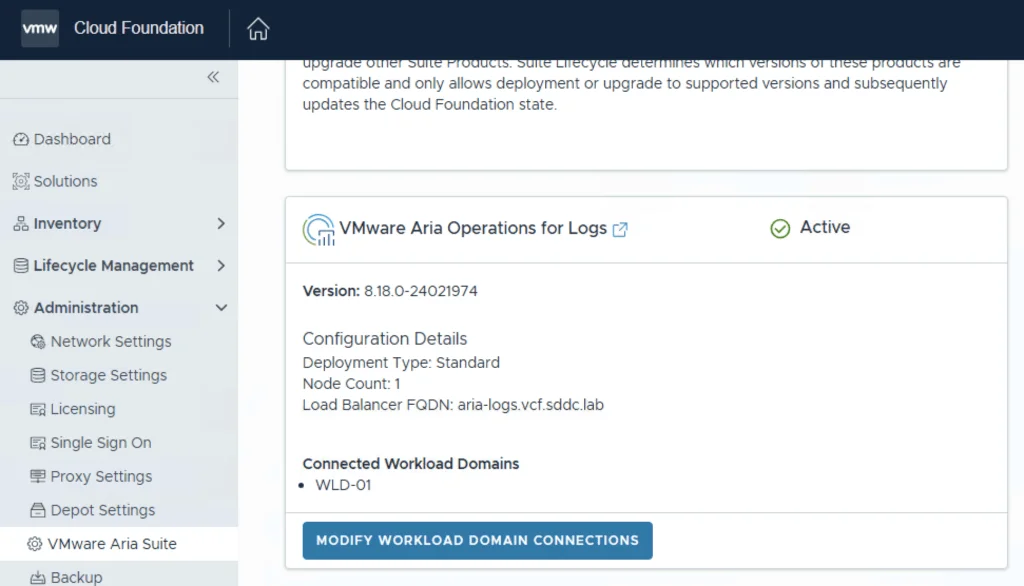
Integrating your VI Workload Domain with VMware Aria Operations for Logs enhances log management and analytics within VMware Cloud Foundation. This guide provides a step-by-step process to establish this connection using the SDDC Manager. Before You Begin Prerequisites: Administrative Access: Ensure you have admin credentials for SDDC Manager. Deployed Components: Both VMware Aria Operations for Logs and the VI Workload Domain should be deployed and operational. Connecting Through SDDC Manager Steps to Connect: ...

Connecting a VI Workload Domain to VMware Aria Operations for Logs in VMware Cloud Foundation (VCF)
VMware Aria Suite Lifecycle dashboard showing environments, datacenters, and options for managing products.

Deploying VMware Aria Operations for Logs in a VCF 5.2.1 Environment: Step-by-Step Guide

In a VMware Cloud Foundation (VCF) environment, managing logs effectively is crucial for monitoring, troubleshooting, and ensuring compliance. VMware Aria Operations for Logs (formerly vRealize Log Insight) provides centralized log collection, real-time analytics, and intelligent log correlation, making it an essential tool for proactive infrastructure management. This guide walks you through the step-by-step process of deploying VMware Aria Operations for Logs in a VCF 5.2.1 environment. Before You Begin Prerequisites VMware Cloud Foundation (VCF) 5.2.1: Confirm that your VCF environment is operational. Aria Lifecycle Manager (ALCM): Aria Lifecycle Manager 8.18 or compatible version installed and accessible. Network and DNS Configurations: Proper DNS and network settings to allow seamless communication among VMware components. VMware Identity Manager (vIDM): Configured and deployed for unified authentication across VMware products. If needed a guide can be found here. Adding the Product in Aria Lifecycle Manager Step 1: Access Aria Lifecycle Manager Log in to the Aria Lifecycle Manager (ALCM) console with admin credentials. Ensure compatibility between ALCM and VCF 5.2.1 for a smooth deployment. Step 2: Add product in existing environment. Navigate to Lifecycle Operations. Under the existing environment click on the ellipsis. Click Add Product. ...

Deploying VMware Aria Operations for Logs in a VCF 5.2.1 Environment: Step-by-Step Guide
VMware Aria Suite Lifecycle: Create Environment wizard step showing environment details and options.

Deploying VMware Aria Automation in a VCF 5.2.1 Environment: Step-by-Step Guide

Following the deployment of vIDM which can be found here, deploying VMware Aria Automation (formerly known as vRealize Automation) enhances your VCF environment with powerful self-service provisioning, automated operations, and streamlined infrastructure management. This step-by-step guide will walk you through deploying Aria Automation using VMware Aria Lifecycle Manager in a VCF 5.2.1 environment, integrating it seamlessly with vIDM for Single Sign-On (SSO) and access management. Prerequisites VMware Cloud Foundation (VCF) 5.2.1 Environment: Ensure VCF 5.2.1 is fully set up and operational. Aria Lifecycle Manager (ALCM) Appliance: Make sure Aria Lifecycle Manager is installed and accessible. Identity Management (vIDM): Deployed and configured to allow SSO across VMware products. DNS and Network Configurations: Validated for reachability and FQDN resolution. Step 1: Access Aria Lifecycle Manager Log in to the Aria Lifecycle Manager (ALCM) console with admin credentials. Ensure your ALCM version aligns with VCF 5.2.1, ensuring compatibility. Step 2: Add an Environment in ALCM In ALCM, navigate to Environments and Add New Environment. Input environment details, such as name and description, to organize deployments within the ALCM. Select a Datacenter for the deployment. Click Next. ...

Deploying VMware Aria Automation in a VCF 5.2.1 Environment: Step-by-Step Guide
VMware Aria Suite Lifecycle Create Environment wizard step, showing environment setup with fields for name, description, password, datacenter, and SDDC manager integration.

Deploying VMware Aria Operations 8.18 in a VCF 5.2.1 Environment: Step-by-Step Guide

Deploying VMware Aria Operations (formerly vRealize Operations) provides deep monitoring, analytics, and insights into your VMware Cloud Foundation (VCF) 5.2.1 environment. With Aria Lifecycle Manager (ALCM), the deployment and configuration of Aria Operations 8.18 are streamlined, allowing IT teams to maintain optimal performance, predict and prevent potential issues, and optimize resource utilization. This guide will take you through each step, ensuring Aria Operations is seamlessly deployed and integrated within your VCF environment. ...

 · Updated  · 
Deploying VMware Aria Operations 8.18 in a VCF 5.2.1 Environment: Step-by-Step Guide
Login screen for VMware Aria Suite Lifecycle, showing local user and password fields.

Deploying vIDM Using Aria Lifecycle Manager in a VCF 5.2.1 Environment: Step-by-Step Guide

Deploying VMware Identity Manager (vIDM) in a VMware Cloud Foundation (VCF) 5.2.1 environment has been simplified with VMware Aria Lifecycle Manager. This guide walks you through setting up vIDM using Aria Suite Lifecycle Manager, ensuring streamlined access control across the VMware suite in your VCF deployment. The official documentation can be found here. Let’s dive in. Prerequisites VCF 5.2.1 Environment: Ensure your VCF environment is running version 5.2.1. A upgrade Guide can be found here. Aria Suite Lifecycle Manager Appliance: Aria Lifecycle Manager must be configured within the VCF environment. A deployment guide can be found here. Network and DNS: Verify that DNS and network configurations are set up for Aria Lifecycle Manager and the vIDM instance. Download VMware Aria product binaries from the Broadcom Support Portal. After downloading, you can either map them locally or use NFS to make them available. Access Aria Lifecycle Manager Log in to the Aria Lifecycle Manager UI. Use the administrator credentials configured during the initial setup (typically vcfadmin@local). Ensure that the Aria Suite Lifecycle Manager version is compatible with VCF 5.2.1 to avoid compatibility issues. ...

Deploying vIDM Using Aria Lifecycle Manager in a VCF 5.2.1 Environment: Step-by-Step Guide