API correction (August 25, 2026): The UI workflow below remains useful, but the API request bodies originally published in this article were incorrect. Use the reviewed follow-up, Safely Canceling and Deleting Alerts with the VCF Operations API, for the supported query, cancel, and targeted-delete sequence.
If you manage a VMware Aria Operations (formerly vROps) environment, you know how quickly alert fatigue can set in. In this guide I will focus specifically on the “Guest OS Experiencing CPU queue” alert. While helpful in identifying CPU-constrained VMs, it can quickly generate thousands of entries if you have a heavily over provisioned environment.
Inspired by Brock Peterson’s excellent guide on Alert Hygiene, we are going to look at exactly how to cancel and delete these specific CPU queue alerts, both via the User Interface and programmatically via the API.
Why is this Alert So Noisy? (The False Positive Bug)
According to Broadcom KB 376641, Aria Operations 8.18.x can suffer from a low sensitivity threshold for this specific alert.
By default, the alert triggers if the Peak vCPU Queue exceeds a threshold of 10 and the overall CPU Usage goes beyond a mere 250 MHz. In modern environments, a VM can easily hit 250 MHz without actually experiencing any tangible performance degradation, resulting in massive alert spam. (Note: Broadcom notes this underlying issue is resolved in VCF Operations 9.0).
Before we go nuclear and delete the existing alerts, let’s look at how to tune it properly.
The Official Fix: Tuning the Alert Definition
Instead of disabling the alert entirely, Broadcom recommends tuning the alert symptoms so it only triggers when there is sizable CPU utilization.
Broadcom provides an XML file in KB 376641 that replaces the CPU Usage > 250 Mhz symptom with CPU Net Run > 75%. It also increases the Wait Cycle to 10 minutes (to avoid alerting on quick CPU spikes) and drops the Cancel Cycle to 1.
How to apply the fix:
- Download the
Guest OS CPU Queue Alert.xmlfile from the Broadcom KB article. - In Aria Operations, navigate to Configure > Alerts > Alert Definitions.
- Click the three dots (…) menu next to Add and select Import.
- Browse and select the XML file you downloaded.
- Check the box for “Overwrite existing Alert Definition” and click Import.
Now that the alert is fixed going forward, let’s clean up the thousands of old alerts sitting in your database.
Here is your step-by-step guide to cleaning up the noise.
Method 1: Clearing the Alerts via the UI
If you just want to do a quick manual clean-up, the UI is the easiest path.
- Step 1: Log into your VMware Aria Operations console.
- Step 2: Navigate to the Troubleshoot tab on the left-hand menu and select Alerts.
- Step 3: To isolate our noisy alerts, use the Group by dropdown menu and select Alert Definition.
- Step 4: Scroll down or use the quick filter to find the Guest OS Experiencing CPU queue grouping.
- Step 5: Select that specific grouping.
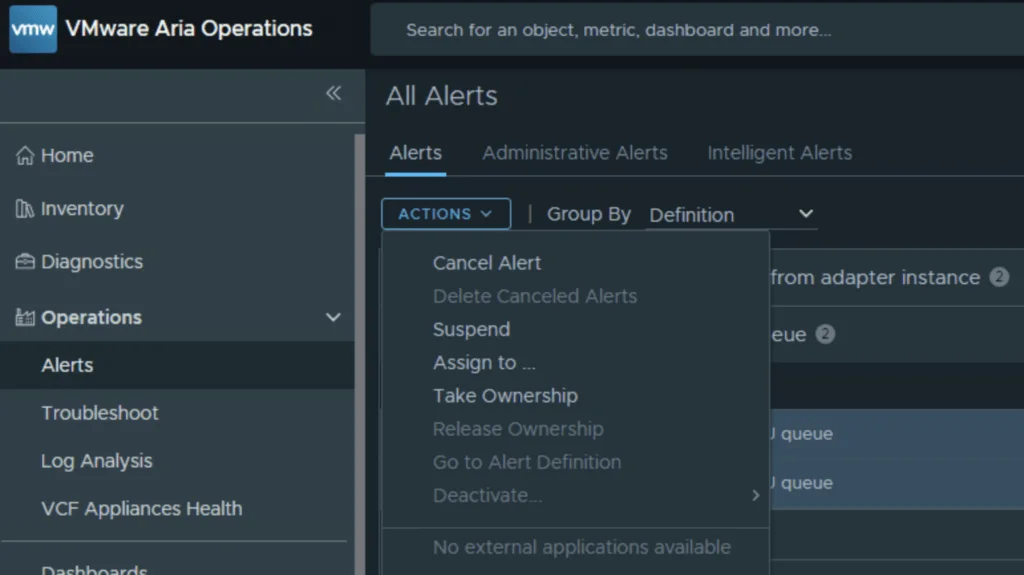
- Step 6: Click on the ACTIONS dropdown menu at the top of the list and select Cancel Alert. Note: Once canceled, you will notice the lightbulb icon in the Status column turns gray, indicating the alerts are now Inactive.

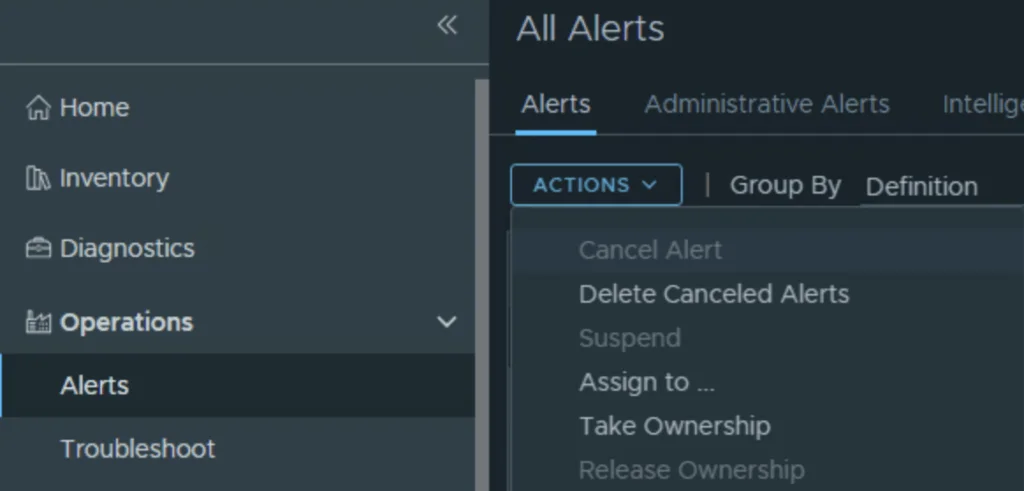
- Step 7: With the grouping still selected, click on the ACTIONS menu one more time and select Delete Canceled Alert.
Just like that, all your historical CPU queue alerts are gone!
Method 2: Clearing the Alerts via the API (Programmatic Approach)
The supported API workflow is not the same as the UI action payload. It uses three different request shapes: an AlertQuery to discover candidates, a uuid-values body to cancel exact alert IDs, and an AlertQuery to delete only canceled alerts. The corrected follow-up includes pagination, exact-ID scoping, verification gates, and current OpsToken authentication examples:
Safely Canceling and Deleting Alerts with the VCF Operations API
Do not send an empty query to the bulk-delete endpoint. An unscoped request can target canceled alerts outside the incident you intended to clean up.
Pro-Tip: Adjusting Global Retention:
If you don’t want to manually do this every week, you can instruct Aria Operations to clean up Inactive alerts faster.
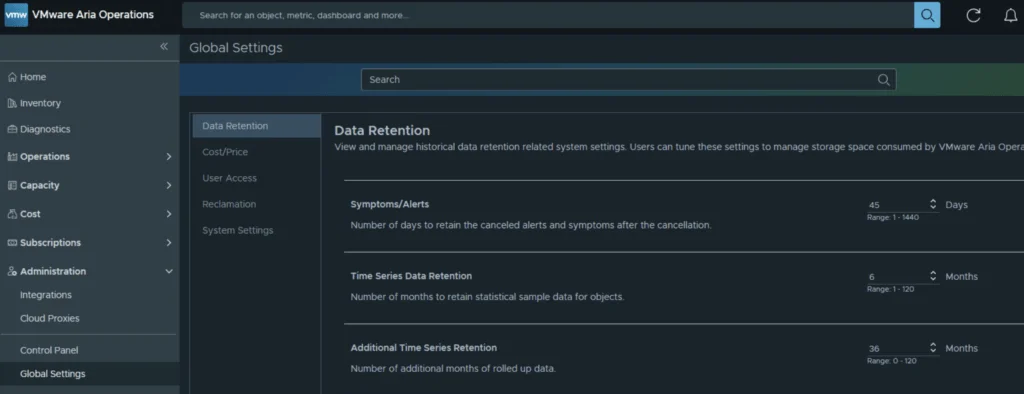
- Go to Administration > Global Settings > Data Retention.
- Look for the Symptoms/Alerts setting.
- By default, Aria Operations keeps canceled/inactive alerts for 30 days. You can safely lower this (Brock recommends 10 days) to keep your database lean and your troubleshoot tabs clean.
Bonus: How to Stop the Alert from Triggering Altogether
If you don’t care about “Guest OS Experiencing CPU queue” alerts at all and want to stop them from coming back permanently, you should disable them in your active policy:
- Navigate to Configure > Policies.
- Edit your active/default policy.
- Click on the Alerts and Symptoms tile.
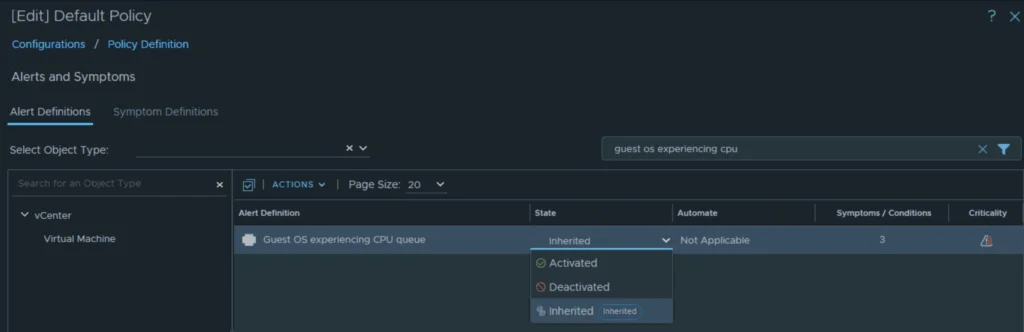
- Search for “Guest OS Experiencing CPU queue”.
- Change the state to Deactivated (represented by a crossed-out circle) and save the policy.
If host maintenance windows are a big source of your alert noise, also check out my guide on how to suppress ESXi host alerts in VCF Operations 9 when a host enters maintenance mode.