I documented this manual Product Support Pack workflow on an existing 8.x Aria Suite Lifecycle appliance. For background, see VMware’s Product Support Pack overview. Typically the newer Product Support Pack is included part of the upgrade for Aria Suite Lifecycle, however sometimes there are product releases in between releases where product support packs come in handy. As of 8.16.0 Product Support Pack 4 we can no longer automatically download the Product Support Pack upgrade files. I covered the previous PSPACK4 manual upgrade in this guide. The release notes for 8.16 can be found here. The release notes for 8.18 Product Support Pack 5 can be found here.
Accessing Product Support Pack Settings
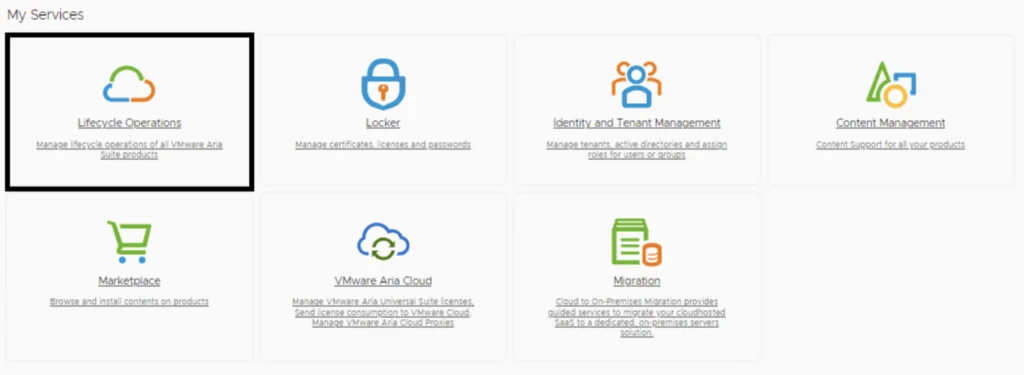
The first step is to log in to Aria Suite Lifecycle under the Lifecycle Operations section

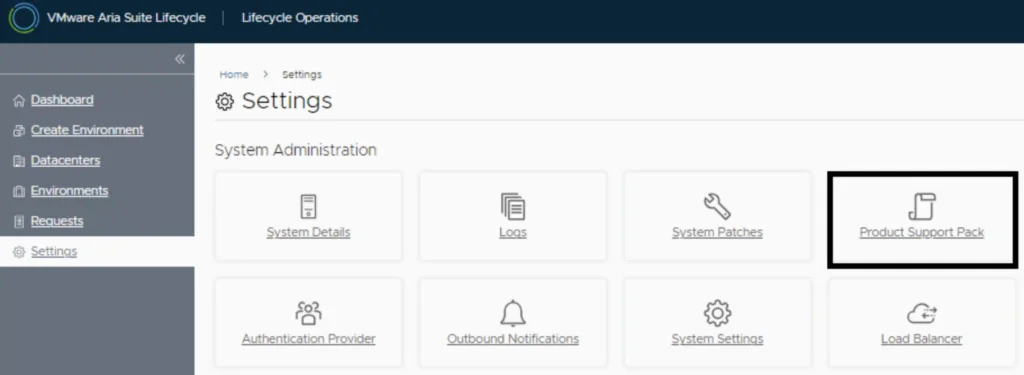
Go to settings -> Product Support Pack
Downloading PSPACK5 from the Broadcom Support Portal
Make sure you download the patch from the support portal first from https://support.broadcom.com
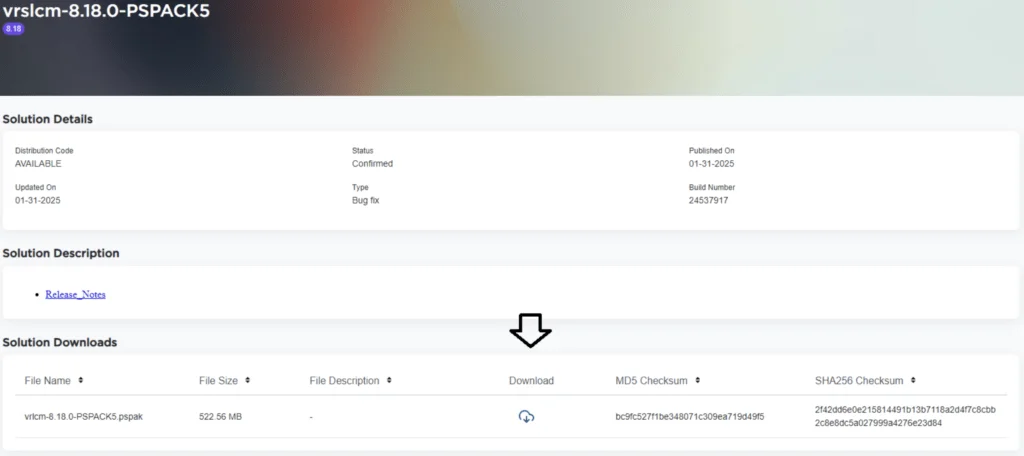
The direct link is here. In case the Download link is not available make sure you are first logged in on top the top right of the page.
Uploading and Importing the Support Pack
Jumping back to Aria Suite Lifecycle, we can see that the are no Product Support Packs available
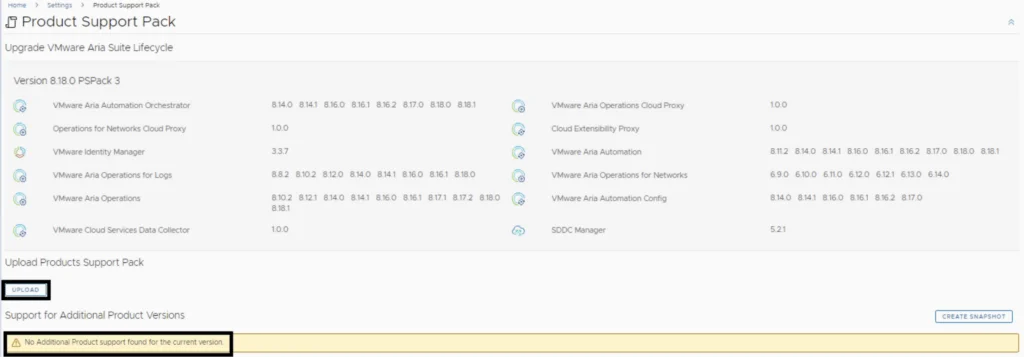
We can click on upload and import the new downloaded Product Support Pack

We can check on the status of the import by clicking on Click Here in the request window
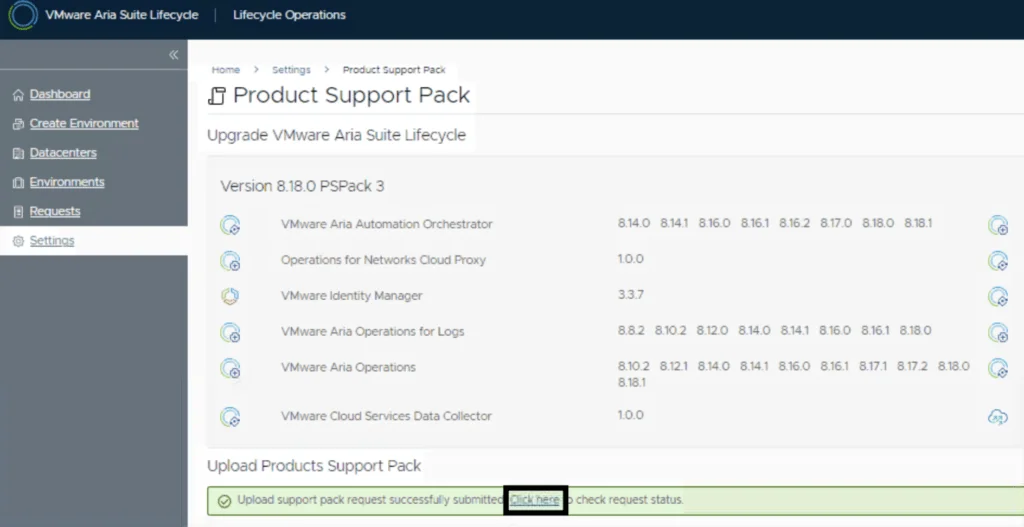
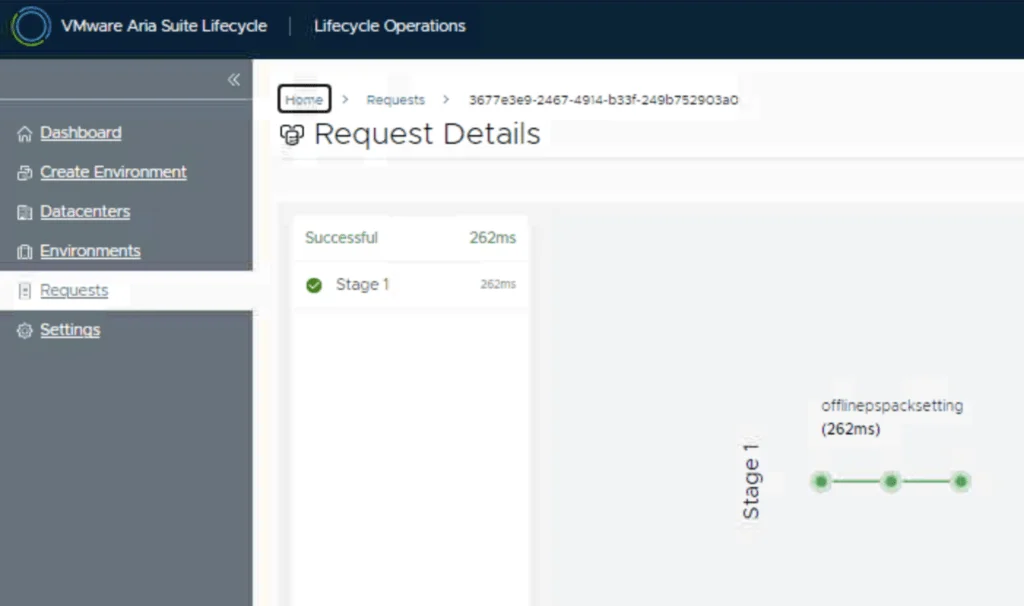
Applying PSPACK 8.18.0.5
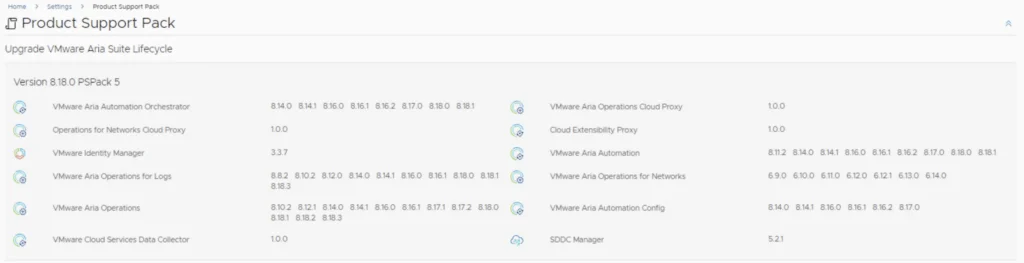
Once completed we can navigate back to Settings -> Product Support Pack to see that PSPACK 8.18.0.5 is available. Based on what we can see in the details the new support pack adds support for a few additional product versions.
Click on Apply Version
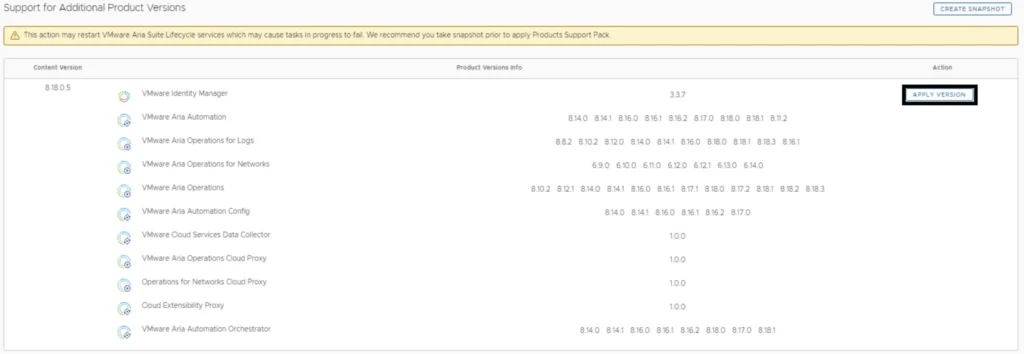
Verify that a snapshot or a backup exists and click Submit
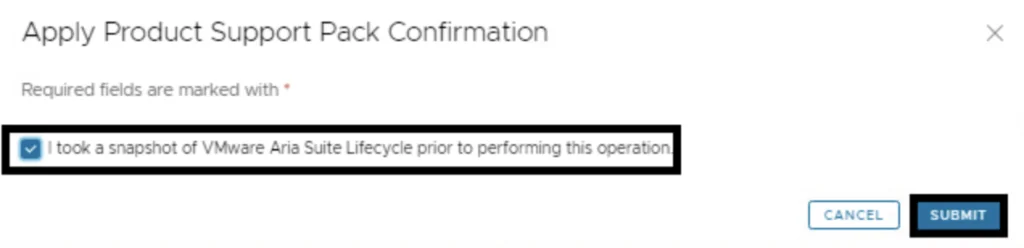
We can view the progress by clicking on the Click Here link after submitting the request

Verifying the Updated Patch Level
Once the process is complete the system will most likely reboot. To check the status we can go back to settings -> Product Support Pack. As we can see we are now at the updated patch level
Troubleshooting a Browser Cache Error
If you get the below error clear the browser cache and try again